You control the permissions for a Resource Access Management (RAM) role by attaching and detaching policies. A policy defines what actions the role is allowed or denied to perform. This topic describes how to attach, view, and detach policies for a RAM role.
Limitations
You cannot modify the permissions of a service-linked role. Its permissions are predefined by the linked Alibaba Cloud service and cannot be changed.
A RAM role can have a limited number of system and custom policies attached. For specific quotas, see Limitations.
Grant permissions to a RAM role
Console
To perform these steps, you must be logged on as an Alibaba Cloud owner or a RAM administrator (a RAM user with the AliyunRAMFullAccess policy attached).
You can grant permissions from either the Roles page or the Grants page.
Method | Use cases | Batch operation |
From the Roles page | Attaching one or more policies to one or more roles. | Yes |
From the Grants page | Attaching a policy to multiple identities of different types (RAM users, groups, and roles) at the same time. | Yes |
Method 1: Using the Roles page
Log on to the RAM console.
In the left-side navigation pane, choose .
On the Roles page, find the target RAM role and click Attach Policy in the Actions column.
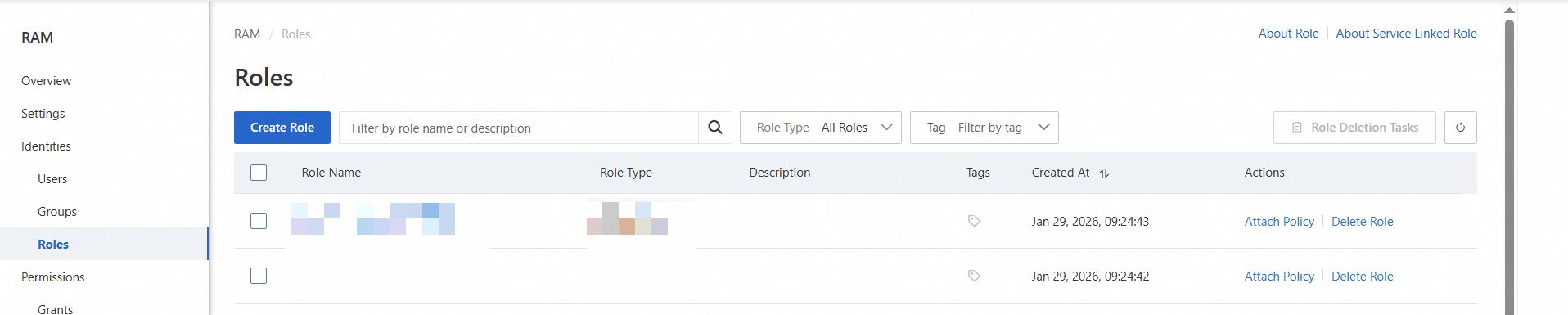
To grant permissions to multiple roles at once, select the checkboxes for the roles and click Attach Policy at the bottom of the list.
In the Grant Permission panel, configure the settings.
Resource Scope: Choose Account (all resources in the account) or Resource Group (only resources in a specific group).
- Note
Resource Group is effective only for services that support it. For the supported services, see Services that work with Resource Group.
Principal: The current RAM role is selected by default.
Policy: Search for and select one or more system or custom policies.
System policies: Created and maintained by Alibaba Cloud; you can attach them but cannot modify them. See Services that work with RAM.
NoteThe console highlights high-risk policies like
AdministratorAccessandAliyunRAMFullAccess. As a best practice, grant only the necessary permissions and avoid using overly permissive policies.Custom policies: Policies you create and maintain. See Create custom policies.
Click OK.
Click Close.
Method 2: Using the Grants page
Log on to the RAM console.
In the left-side navigation pane, choose .
On the Permission page, click Grant Permission.
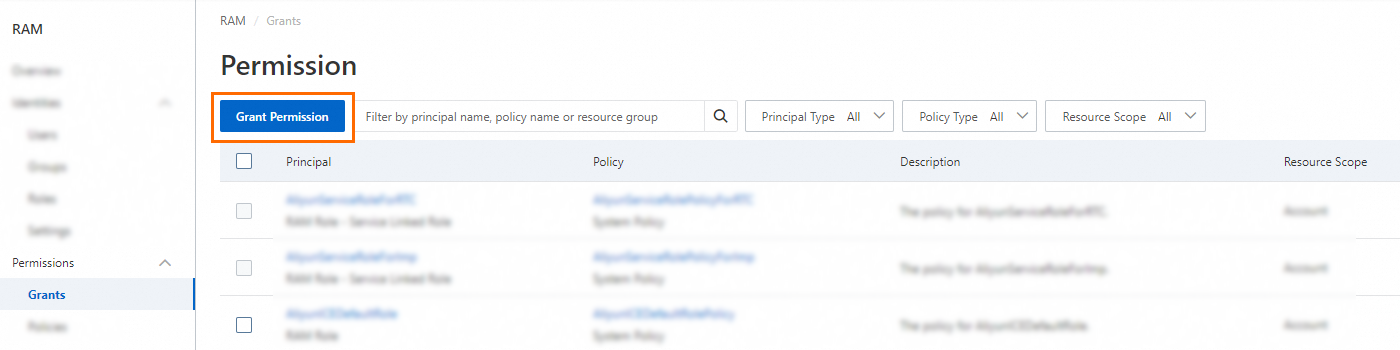
In the Grant Permission panel, configure the settings.
Resource Scope: Choose Account (all resources in the account) or Resource Group (only resources in a specific group).
- Note
Resource Group is effective only for services that support it. For the supported services, see Services that work with Resource Group.
Principal: The current RAM role is selected by default.
Policy: Search for and select one or more system or custom policies.
System policies: Created and maintained by Alibaba Cloud; you can attach them but cannot modify them. See Services that work with RAM.
NoteThe console highlights high-risk policies like
AdministratorAccessandAliyunRAMFullAccess. As a best practice, grant only the necessary permissions and avoid using overly permissive policies.Custom policies: Policies you create and maintain. See Create custom policies.
Click OK.
Click Close.
API
Call the AttachPolicyToRole operation to attach a policy to a role. You must specify the following parameters:
PolicyType: The type of the policy. Valid values areSystemandCustom. This value is case-sensitive.PolicyName: The name of the policy to attach.RoleName: The name of the RAM role.
The AttachPolicyToRole operation grants permissions at the account level. To grant permissions scoped to a resource group via an API, you must use the AttachPolicy operation from the Resource Management API.
View permissions for a RAM role
To perform these steps, you need permissions equivalent to the AliyunRAMReadOnlyAccess policy.
Console
Log on to the RAM console.
In the left-side navigation pane, choose .
On the Roles page, click the target RAM role.
Click the Permissions tab. The policies attached to the role are listed in the policy list.
API
Call the ListPoliciesForRole operation to query all the policies attached to a RAM role.
You must specify the RoleName parameter.
Remove permissions from a RAM role
To perform these steps, you must be logged on as an Alibaba Cloud owner or a RAM administrator (a RAM user with the AliyunRAMFullAccess policy attached).
Revoking permissions detaches the policy from the RAM role but does not delete the policy itself.
Console
You can remove permissions from a RAM role in one of the following ways.
Method 1: Using the Roles page
Log on to the RAM console.
In the left-side navigation pane, choose .
On the Roles page, click the target RAM role.
On the Permissions tab, find the target policy and click Revoke Permission in the Actions column.
To detach multiple policies at once, select the checkboxes for the policies and click Revoke Permission at the bottom of the list.
In the Revoke Permission dialog box, click Revoke Permission.
Method 2: Using the Grants page
Log on to the RAM console.
In the left-side navigation pane, choose .
On the Permission page, find the target RAM role and click Revoke Permission in the Actions column.
To detach multiple policies at once, select the checkboxes for the policies and click Revoke Permission at the bottom of the list.
In the Revoke Permission dialog box, click Revoke Permission.
API
Call the DetachPolicyFromRole operation to detach a policy from a RAM role.
PolicyType: The type of policy to detach. Valid values areSystemandCustom. This value is case-sensitive.PolicyName: The name of the policy to detach.RoleName: The name of the RAM role.