The rich text widget is primarily used to add and display formatted text content on a dashboard. You can use it to provide descriptions, annotations, titles, or key information. Unlike plain text, the rich text widget offers extensive editing features, allowing you to:
Edit text content freely: You can enter text descriptions as needed for your business scenario.
Set text styles: You can adjust the font, font size, color, background color, alignment (left, center, right), bold, italics, and underline.
Insert dynamic measures: You can embed existing measure or dimension fields from a dataset into the text. This allows the text to display the current data value in real time.
Add hyperlinks: You can add links in the text that point to internal dashboard pages, external websites, or other resources. This enhances the dashboard's navigation and information-linking capabilities.
This topic describes how to add and configure a rich text widget.
Scenarios
You can use this widget for scenarios such as chart annotations, real-time broadcasts of key metrics, weekly report email subscriptions, and automatic generation of data reports.
Limits
Prerequisites: You must create a dashboard. For more information, see Create a dashboard and Chart overview.
When you use the rich text widget, note the following:
Measure display limit: When you insert a dimension field into rich text to display multiple dimension values, such as sales figures for different regions, you can set the number of results to display. However, the widget can display a maximum of 50 dimension value results.
Global pinning limit: You can pin the rich text widget to the top globally. However, this feature is not supported on mobile devices in non-full-screen mode.
Procedure
Add a rich text widget: On the toolbar at the top of the dashboard editing page, click the
 icon. This adds a rich text widget.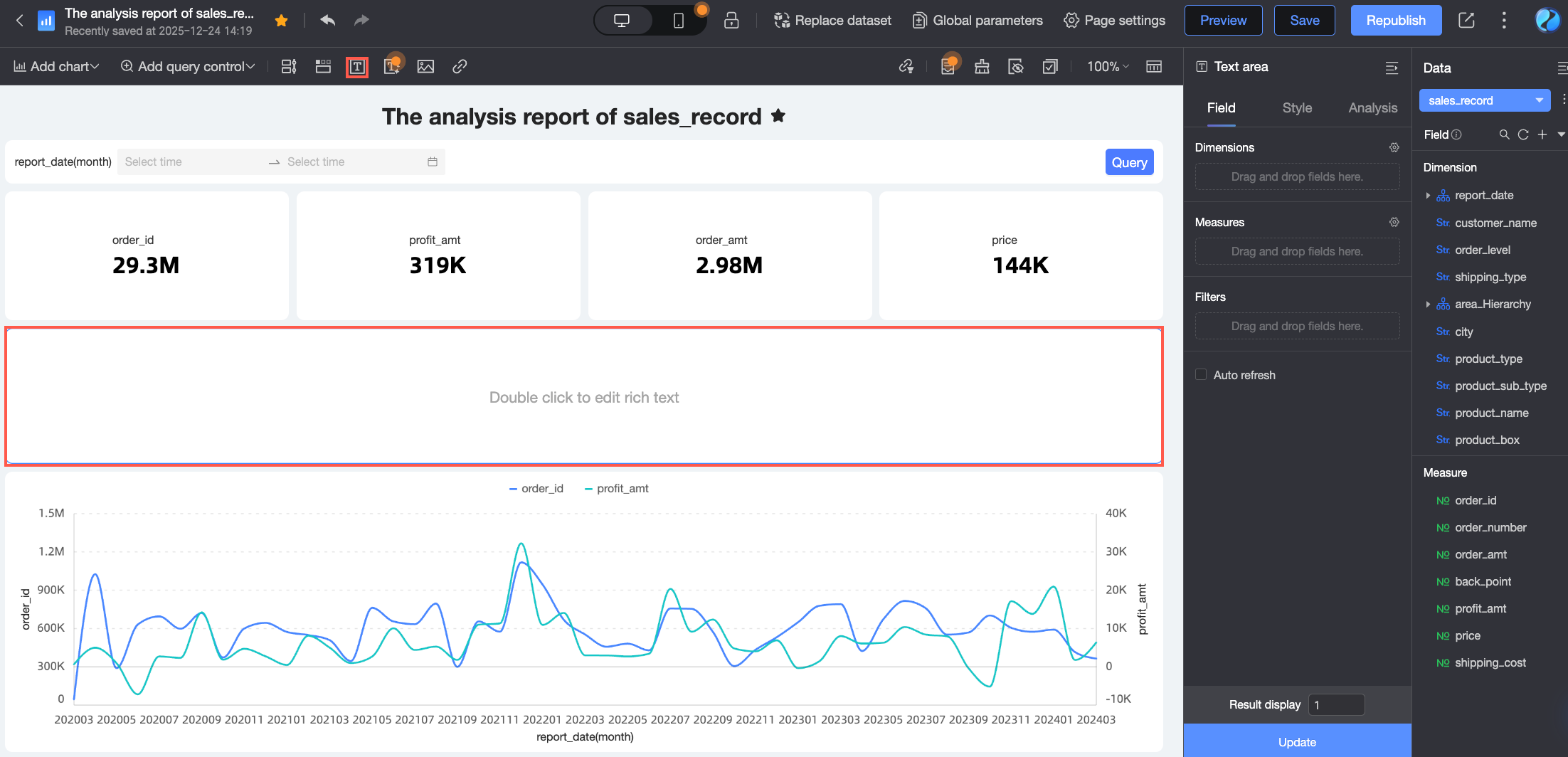
Edit the content of the rich text widget: You can double-click the added rich text widget to perform the following editing operations.
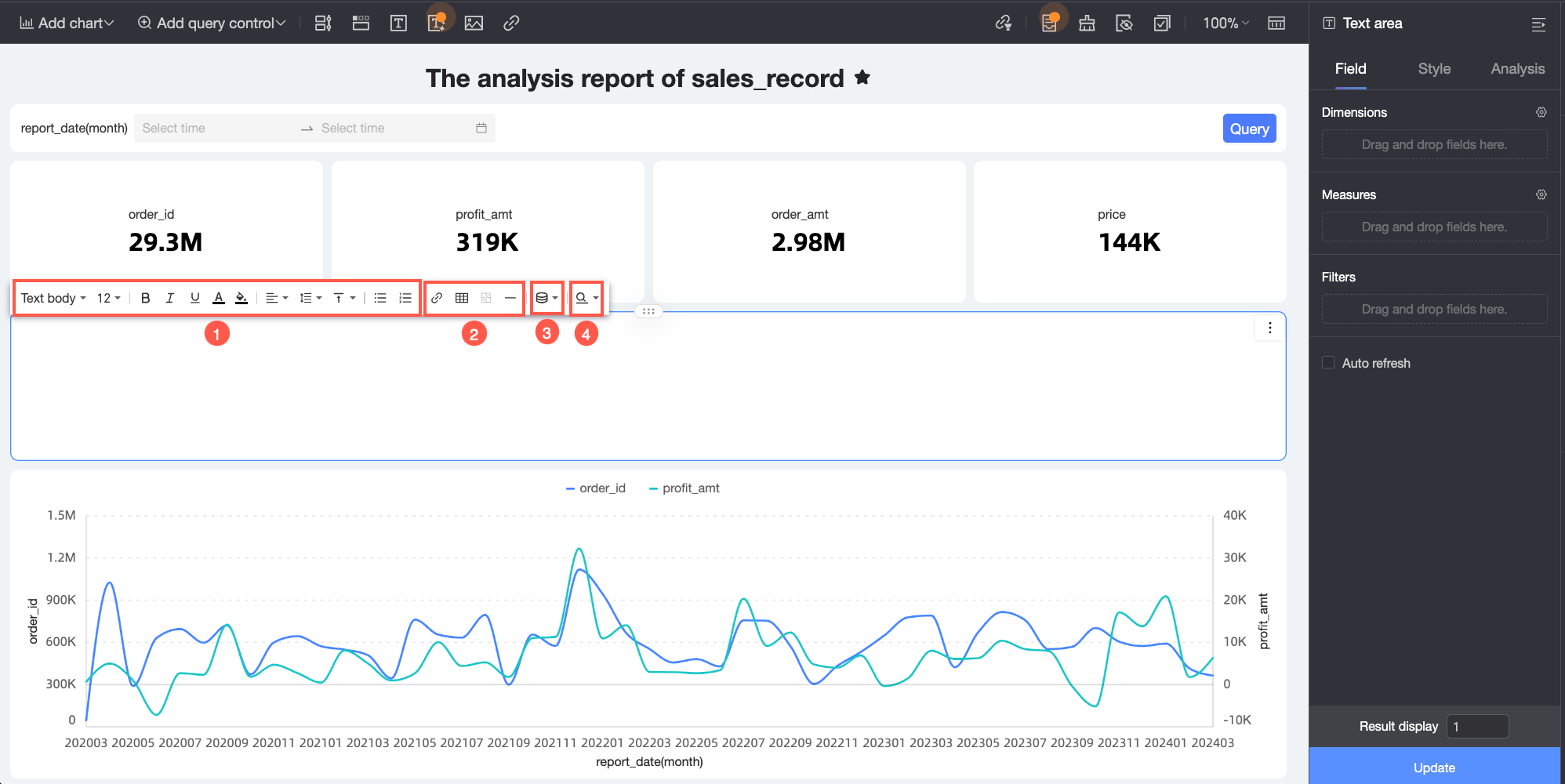
Content to edit
Description
① Text input and formatting
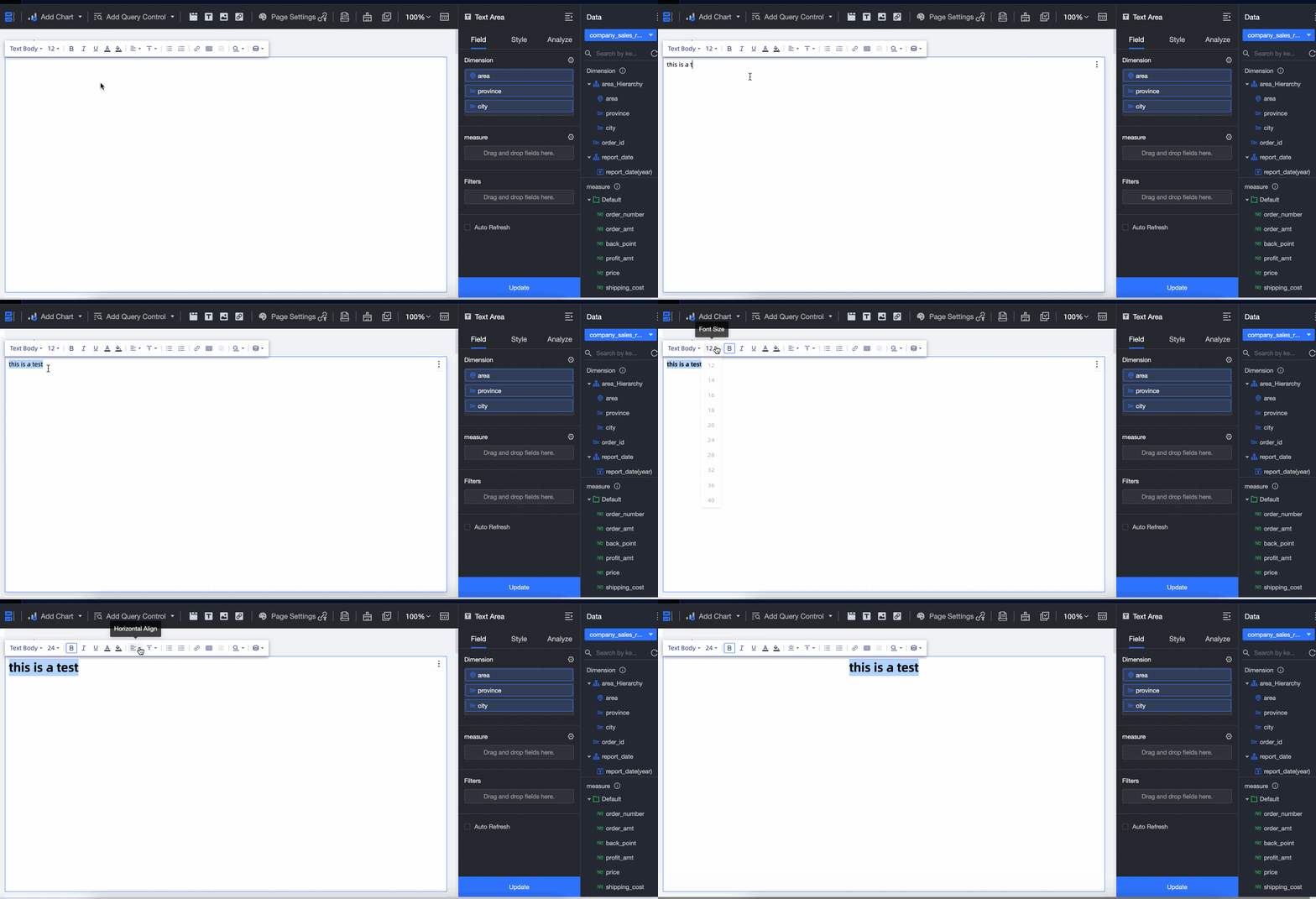
Enter text content as needed in the rich text widget. Use the formatting features on the toolbar to set the text style, such as font, font size, color, background color, and alignment.
② Content insertion
You can insert hyperlinks, tables, and line separators into the rich text widget.
Hyperlink: Click the
 icon on the rich text toolbar. Enter the destination URL and select how the link opens: Open in new window, Open in current window, or Pop-up window.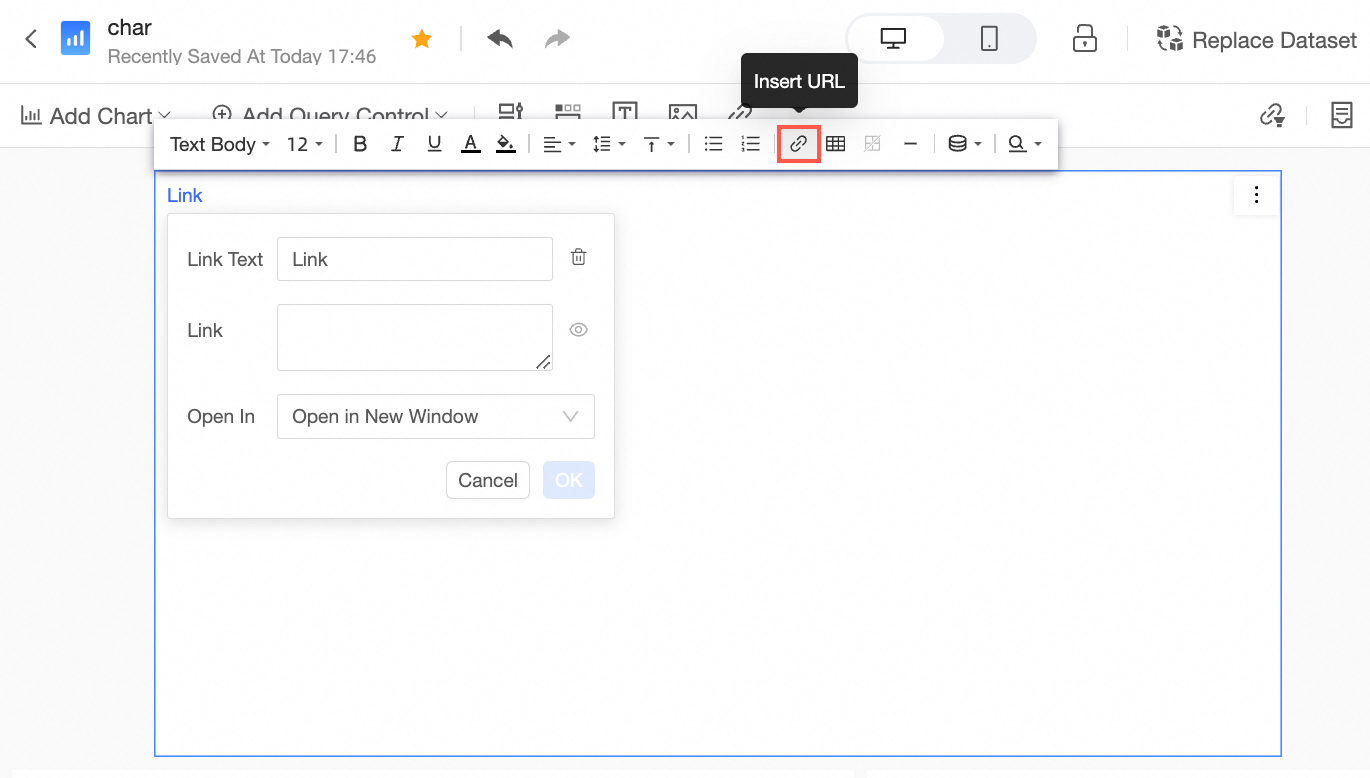
After the link is added, press Ctrl and click the link text to go to the target page.
Table: Click the
 icon on the rich text toolbar and select the number of rows and columns to insert a table. This displays information in a structured way, clarifies the content hierarchy, and helps report viewers quickly understand the data.
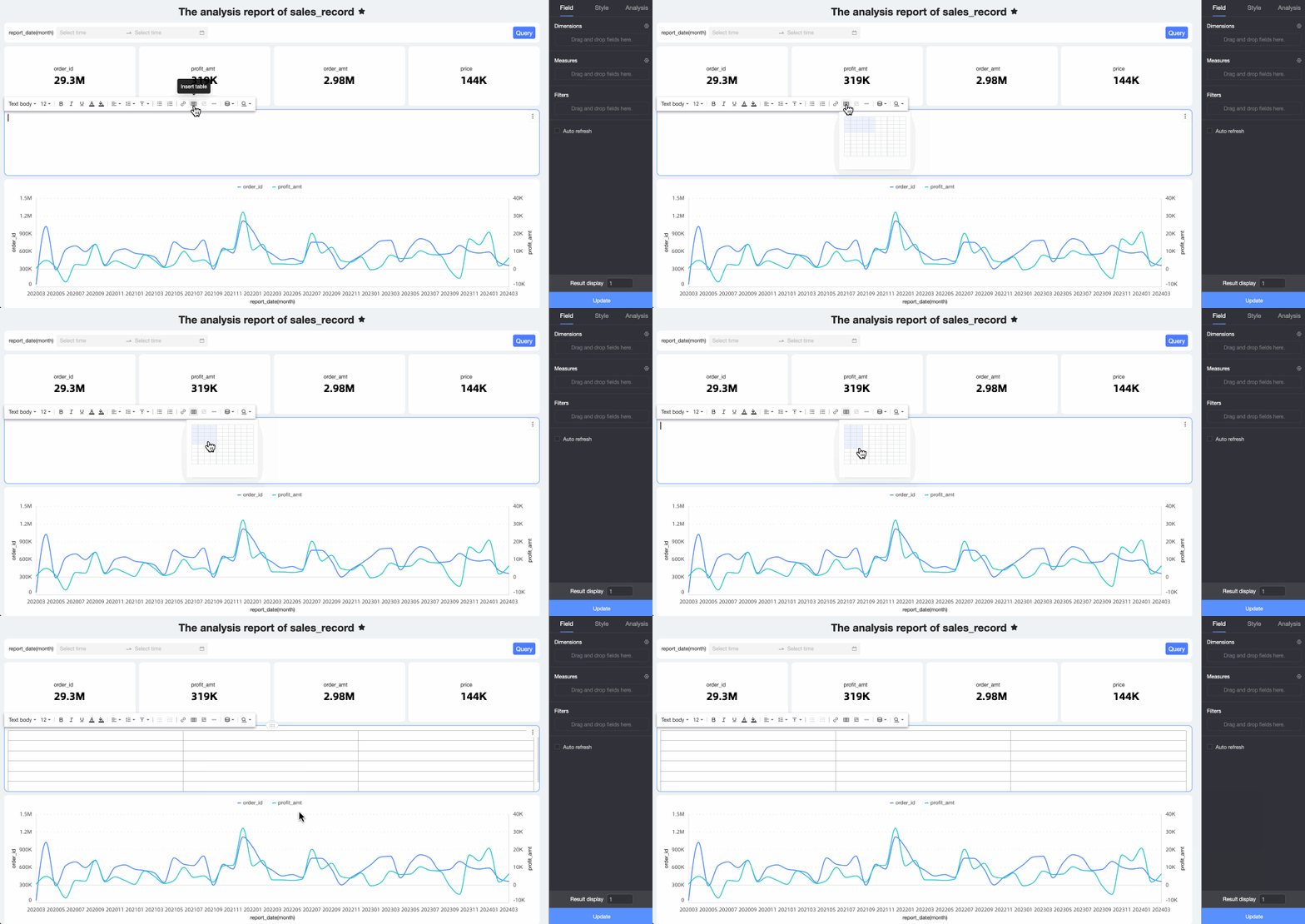 To change the number of rows and columns in an inserted table, click the icon again to reselect the dimensions.
Line separator: Click the
 icon on the rich text toolbar to add a horizontal line. This visually separates different content blocks and improves readability.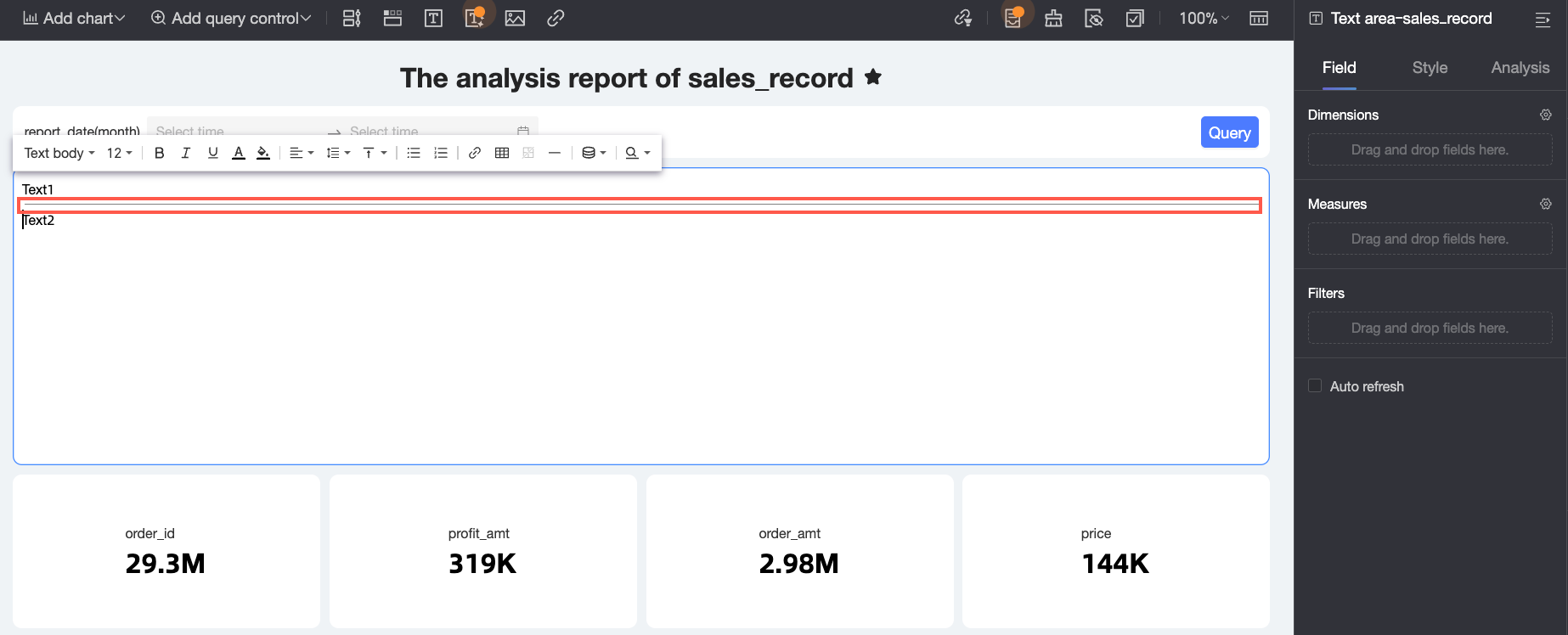
③ Add measures
You can add Fields selected for the chart and Query fields.
Fields selected for the chart: Drag the relevant measure fields into the Field configuration pane of the rich text widget. Then, click the
 icon on the toolbar and select the measure to insert from the Fields selected for the chart drop-down list.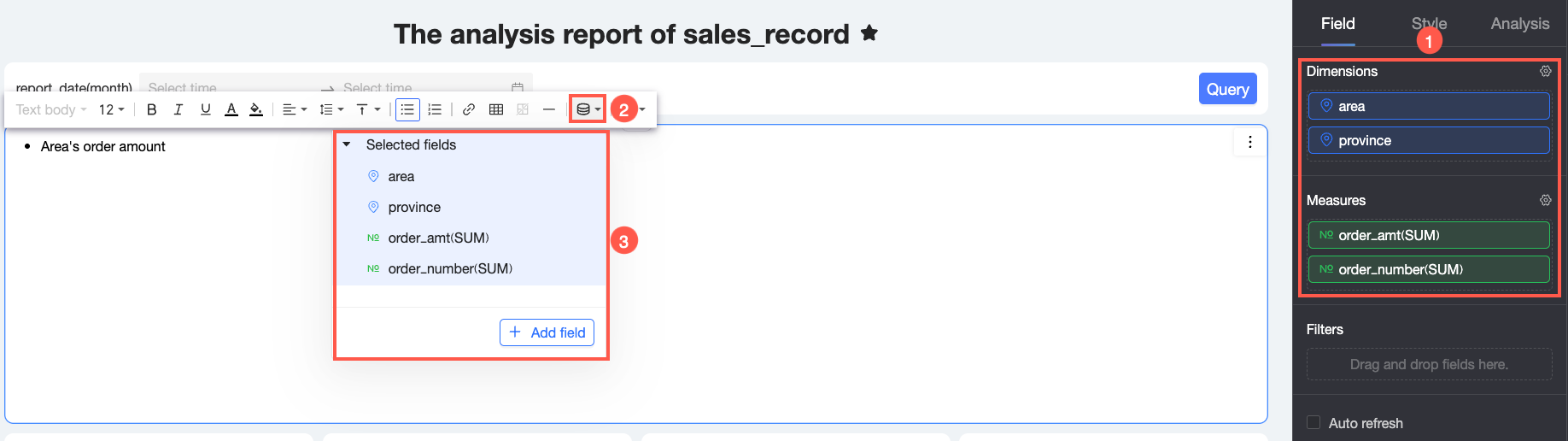
When you add only one dimension and need to view multiple parallel dimension values, you can set the number of results to display. For example, if you set the dimension field to region and the measure field to Order amount, one data entry is displayed by default after you add the measure. To view data for seven regions, set the number of results to display to 7 on the field tab of the data pane.
NoteThe maximum number of results to display is 50.
Query fields: To insert other dataset fields or use different configurations for the fields in the current dataset, such as a different sort order, click Add Field in the Add Measure section to add a subquery.
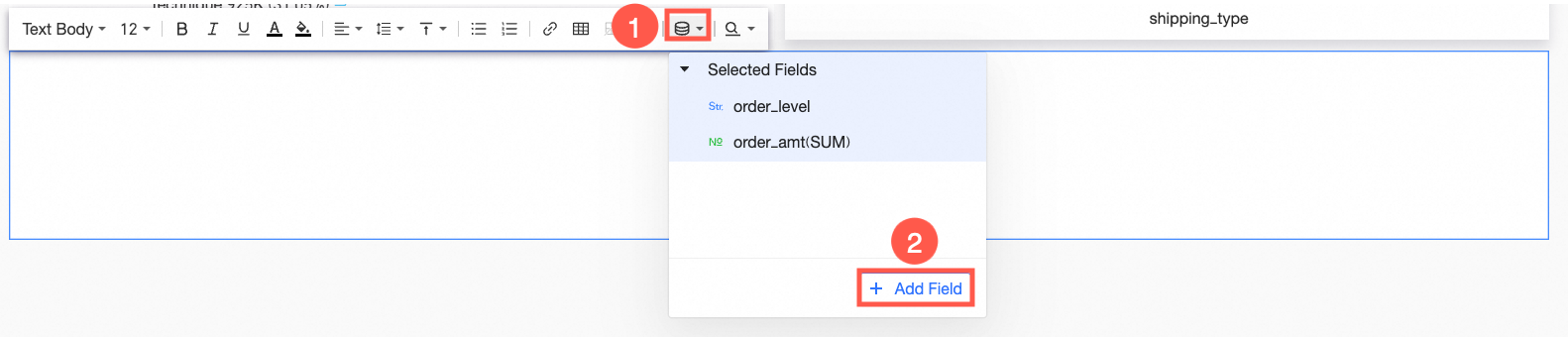
You can set conditional formatting for measures as needed to dynamically highlight key data based on specific business rules, such as met or unmet targets or abnormal values. In the Add Measure pane, select Fields selected for the chart or Query. Then, in the corresponding Style pane on the right, configure conditional formatting for the relevant fields. For more information, see Conditional formatting in this topic.
④ Add queries
You can add existing query controls from the current dashboard to the rich text. This creates a dynamic link between the rich text content and the query control.
For example, in the Business Summary widget shown in the following figure, the text Total sales in the period needs to dynamically display the sales statistics interval based on the filter conditions of the Time Range query control. To do this, click the
 icon on the toolbar and select the Time Range query control from the drop-down list to add it to the rich text.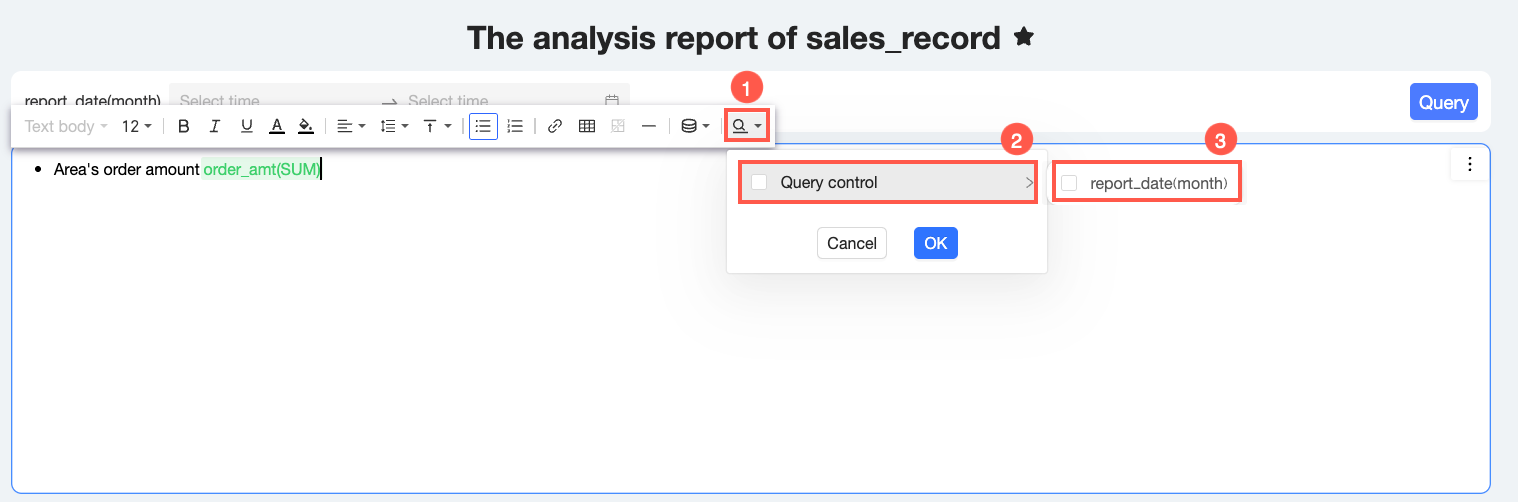
Configure the style of the rich text widget: You can configure the following style settings for the rich text widget.
In the Title and Card section, you can configure the title, note, endnote, and widget container.
Configuration item
Configuration Item Description
Configuration graph
Title
Set whether to show the main title and configure the title style.
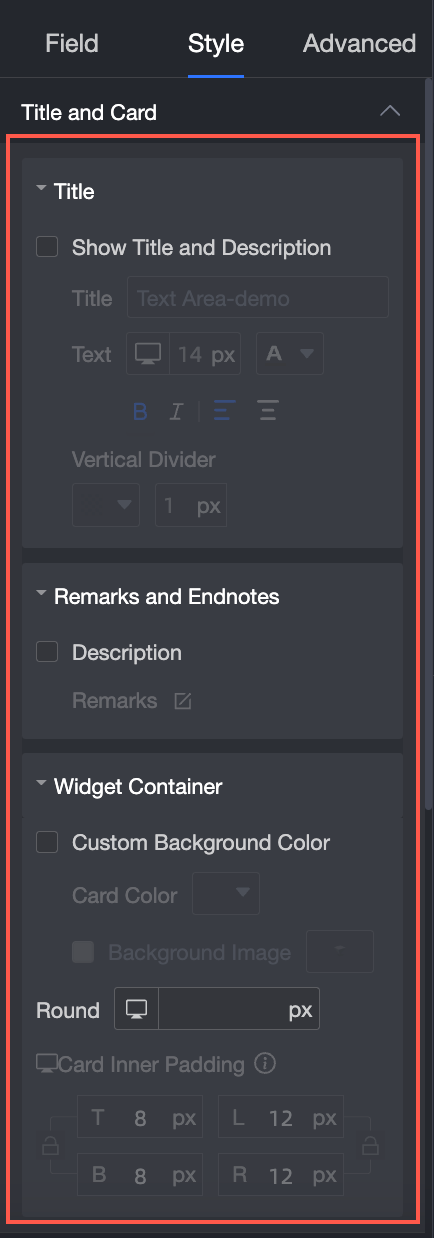
Note and endnote
Set the note content.
In the widget container
Set a custom background fill, border radius, and card padding.
In the Style configuration section, you can set the widget height, global pinning, and line height.
Configuration item
Description
Configuration Graph
Widget height
Supports Automatic height and Manual setting.
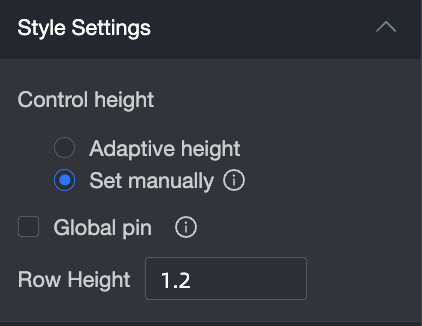
Global pinning
When selected, the currently pinned rich text widget is replaced by this widget. Pinning is not supported for rich text widgets on mobile devices that are not in full-screen mode.
Line height
Supports manual input.
In the Conditional formatting section, you can set the conditional format for measure data.
Configuration item
Description
Configuration graph
Select series
The data added to the Data tab.
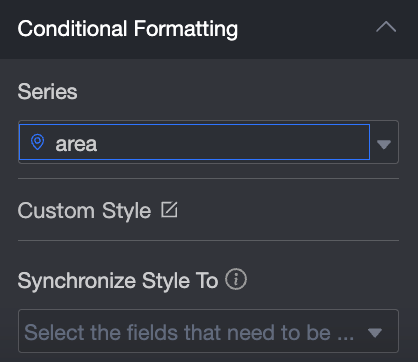
Custom style
Customize text and icon styles, and set marker icons, range values, and font colors.
Sync style to
Sync the current conditional format to other measures.
Delete the rich text widget: In the upper-right corner of the rich text widget, click the
 icon and select Delete. This deletes the rich text widget.