Configuring a CNAME record is the final step to activate Alibaba Cloud CDN. This change routes user requests for your domain to the nearest CDN point of presence (POP), enabling global content acceleration.
How it works
A CNAME record, or Canonical Name record, uses the DNS alias mechanism to map one domain name to another. The workflow is as follows:
A user accesses
www.example.com. The user's local DNS resolver queries the public DNS system for the IP address ofwww.example.com.DNS queries the DNS records of
www.example.comand finds that it has a CNAME record that points towww.example.com.w.kunlunsl.com.DNS continues to query for the A record (IP address) of
www.example.com.w.kunlunsl.com.The CDN mapping system receives the resolution request and returns the IP address of an optimal POP based on the user's geographical location, network conditions, and POP load.
The user connects to the POP using the returned IP address and retrieves the requested content. The content is served from the POP's cache or fetched from the origin server if it is not cached.
Prerequisites
You have activated the CDN service. If you have not, see Activate CDN.
You have added a domain name.
Before you begin
If the domain name is already in use before you configure CDN, test the CNAME record mapping first to prevent service interruptions. Back up the original record and replace it with the CNAME record during off-peak hours. For more information, see (Optional) Test domain name accessibility.
CNAMEs that are assigned by Alibaba Cloud CDN, DCDN, ApsaraVideo Live, and ApsaraVideo VOD can be used only for Alibaba Cloud CDN scheduling and resolution. If Alibaba Cloud detects that these CNAMEs are used for malicious activities, Alibaba Cloud may disable the domain name and the account.
Step 1: Obtain the CNAME
In the Alibaba Cloud CDN console, go to the Domain Names page and copy the CNAME of the domain name to be accelerated.

If the CNAME is not displayed after you add the domain name, wait 1 to 5 minutes and refresh the page. CDN needs some time to generate the CNAME.
Step 2: Add a CNAME record
A CNAME record cannot coexist with other record types, such as A, AAAA, MX, or TXT records, for the same host record. Before you add a CNAME record, delete any conflicting records for the host record. Otherwise, the CNAME record cannot be added, or DNS resolution will fail. For more information about conflicts and solutions, see Rules for DNS record conflicts.
Log on to the Alibaba Cloud DNS console using the Alibaba Cloud account that is associated with the domain name.
On the Public Zone page, find your domain name and click Settings on the right.
Click Add Record. Configure the record for one of the following use cases:
Use case 1: Subdomain (Recommended)
This is the most common use case. For example, configure a domain name such as www.example.com and use it to access resources on the origin server through CDN.
Configuration | Value | Description |
Record Type |
| Set the value to |
Hostname |
| Enter the prefix of the domain name. |
TTL | 10 minutes (Recommended) | The cache duration of the DNS record. |
Record Value | Paste the CNAME that you obtained in the CDN console. | Make sure that the address is complete and not modified. |
Use case 2: Root domain (for example, example.com)
Configuring a CNAME record for a root domain can conflict with its MX record (mail server address) and cause email delivery to fail. If your root domain hosts critical services such as email, authentication, and security policies, we recommend that you use a subdomain.
Configuration | Value | Description |
Record Type |
| Set the value to |
Hostname |
| If you want to accelerate a root domain, set the hostname to |
TTL | 10 minutes (Recommended) | The cache duration of the DNS record. |
Record Value | Paste the CNAME that you obtained in the CDN console. | Make sure that the address is complete and not modified. |
Use case 3: Wildcard domain name (*.example.com)
Wildcard domain name resolution lets you direct requests for all subdomains to CDN. For example, if the domain name is *.example.com, subdomains such as cdn.example.com and test.example.com are accelerated. You can then use these subdomains to access resources on the origin server. For more information, see Wildcard domain names.
Configuration | Value | Description |
Record Type |
| Set the value to |
Hostname |
| If you want to accelerate all subdomains, set the hostname to |
TTL | 10 minutes (Recommended) | The cache duration of the DNS record. |
Record Value | Paste the CNAME that you obtained in the CDN console. | Make sure that the address is complete and not modified. |
Click OK to add the record.
Step 3: Verify the configuration
The servers that Alibaba Cloud CDN uses to verify DNS records for domain names are deployed in the Chinese mainland. If you configure region-specific DNS resolution for your domain name to use the CNAME address of your Alibaba Cloud CDN service only in regions outside the Chinese mainland, such as China (Hong Kong), China (Macao), and Taiwan (China), the verification servers cannot resolve the CNAME address. In this case, the CNAME status of the domain name is displayed as To Be Configured in the CDN console. This does not affect the CDN acceleration.
Method 1: Check the status in the CDN console
In the Alibaba Cloud CDN console, go to the Domain Names page.
Select the target domain name. A status of Configured in the CNAME column indicates that the configuration has taken effect.
 Note
NoteNew CNAME records in Alibaba Cloud DNS take effect in real time. Modified CNAME records take effect after their TTL period expires. The default TTL is 10 minutes. During this period, the record status may be displayed as To Be Configured in the console.
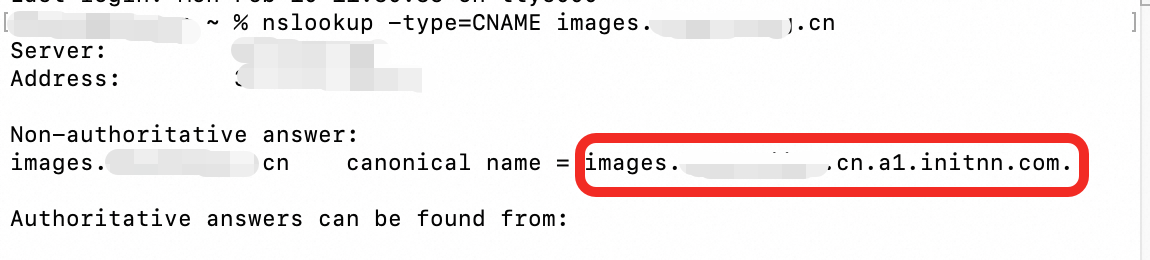
Method 2: Verify using the nslookup command
Open a terminal or command prompt.
Enter nslookup -type=CNAME domain name. If the resolution result is consistent with the CNAME of the domain name in the CDN console, the CDN service has taken effect. Example:
nslookup -type=CNAME www.example.com