OpenClaw is an open-source AI coding agent that lives on your server and helps you build, debug, and manage software projects through natural conversation. When paired with Telegram as a chat gateway, it becomes a powerful on-the-go development assistant that you can interact with from your phone or desktop with no SSH session required.
In this blog, we will walk through deploying OpenClaw on an Alibaba Cloud Elastic Compute Service (ECS) instance running Ubuntu, connecting it to Alibaba Cloud Model Studio as the AI model provider, and wiring it up to a Telegram bot so you can chat with your agent from anywhere.
By the end of this tutorial, you will be able to:
• Install and configure OpenClaw on an ECS instance
• Connect it to Alibaba Cloud Model Studio (Qwen models)
• Create a Telegram bot and link it as a chat gateway
• Use your AI agent to create websites and manage databases -- all from Telegram
Before you begin, make sure you have the following:
• An Alibaba Cloud account with an active ECS instance running Ubuntu (20.04 or later)
• Root or sudo access on the ECS instance
• A Telegram account
• An Alibaba Cloud Model Studio Coding Plan (free tier available) with an API key
Note: The Model Studio Coding Plan provides access to Qwen family models optimized for code generation.
SSH into your ECS instance and run the following commands to update the system and install OpenClaw:
apt update
curl -fsSL https://openclaw.ai/install.sh | bash
The installer will automatically detect your Linux environment, install Node.js (if not already present), and set up OpenClaw along with all required dependencies.
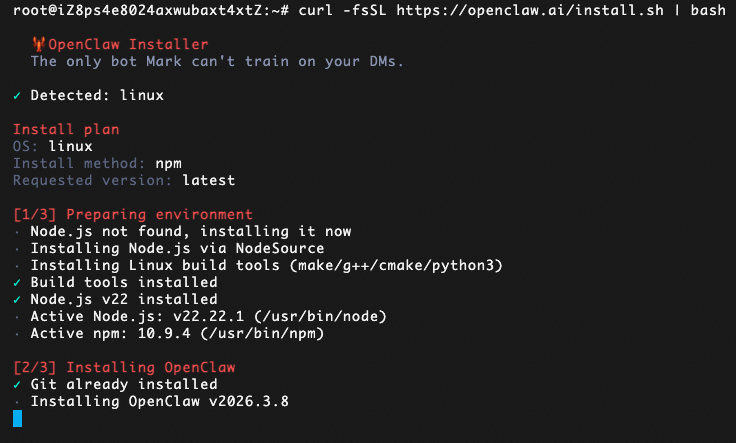
Figure 1: OpenClaw installer running on the ECS instance
Once the installation completes, the interactive onboarding wizard will start automatically. You will be presented with a security notice about personal-by-default configuration. Confirm with "Yes" and select "QuickStart" as the onboarding mode.
The onboarding wizard will ask you to select a model/auth provider. Since we are using Alibaba Cloud Model Studio, scroll down and select "Custom Provider" (Any OpenAI or Anthropic compatible endpoint).
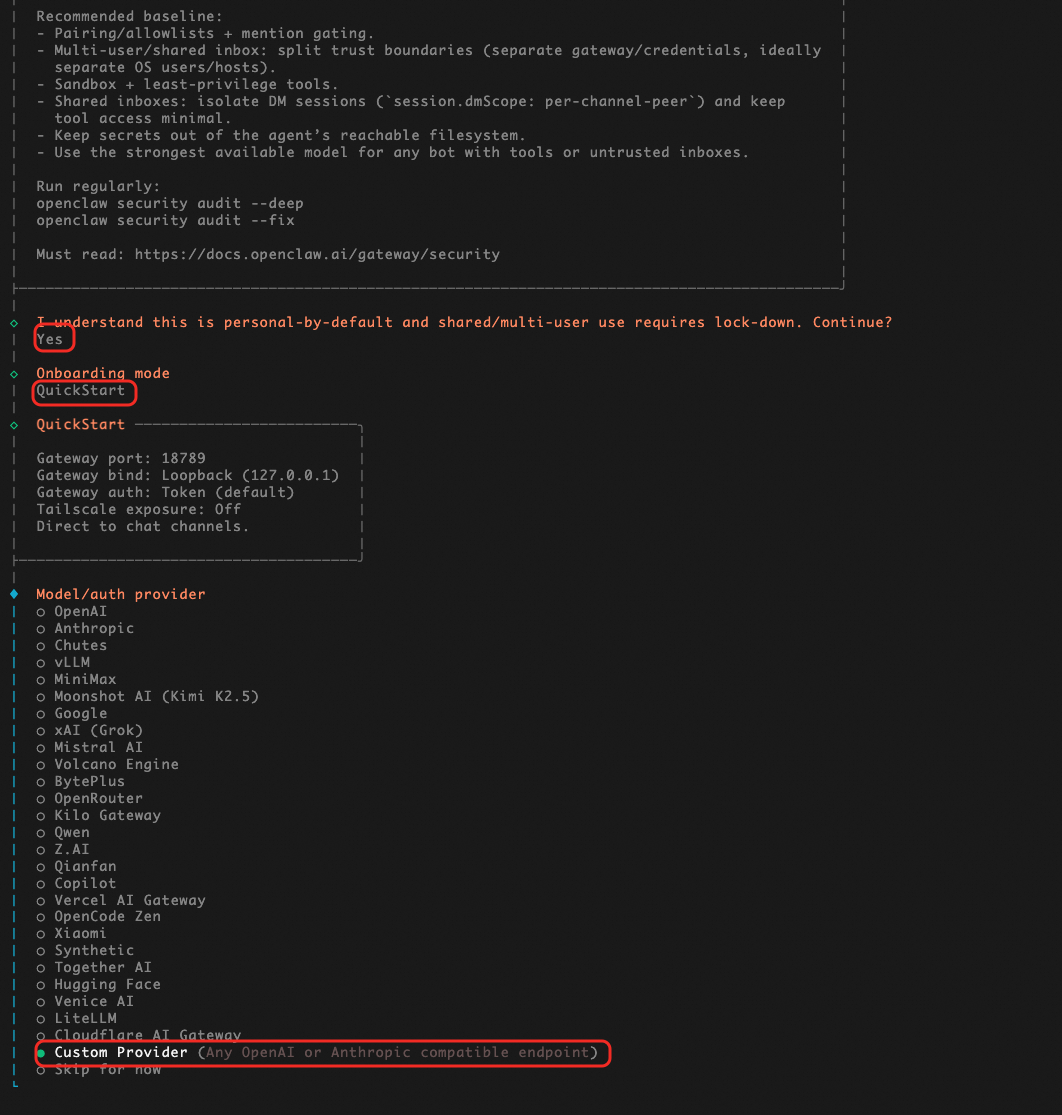
Figure 2: Selecting Custom Provider during onboarding
Before proceeding, you need to gather your credentials from the Model Studio console. Navigate to the Alibaba Cloud Model Studio dashboard, go to the Coding Plan section, and note down:
• Plan-Specific API Key:
• Plan Exclusive Base URL:
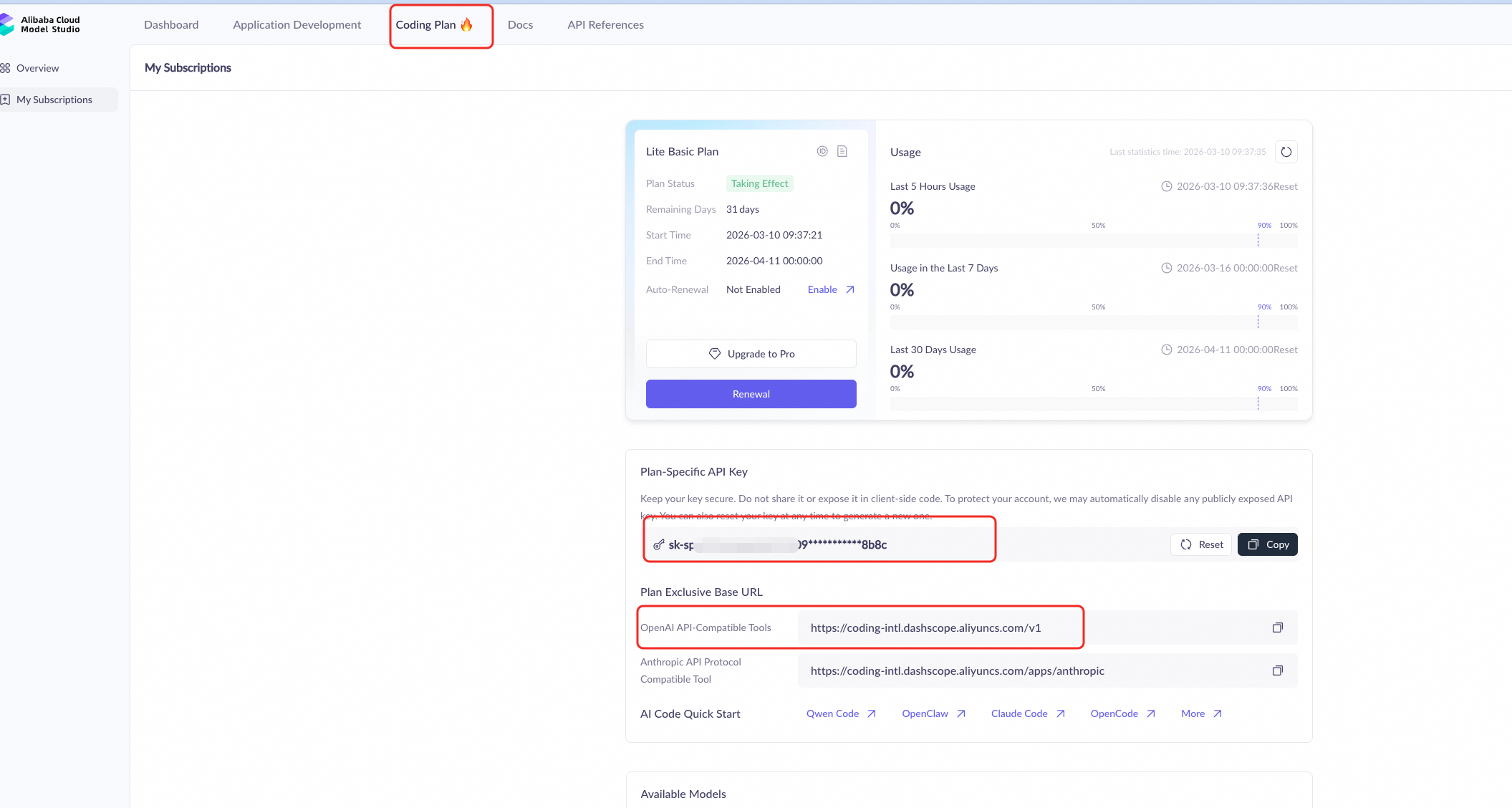
Figure 3: Model Studio Coding Plan -- API Key and Base URL
Back in the onboarding wizard, enter the following details when prompted:
• API Base URL:
• e.g., https://coding-intl.dashscope.aliyuncs.com/v1
• API Key: Paste your plan-specific API key
• Endpoint compatibility: OpenAI-compatible
• Model ID: e.g., qwen3-coder-next
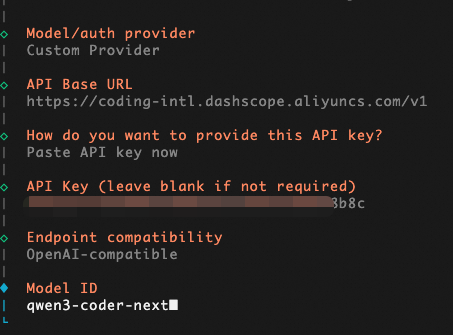
Figure 4: Entering Model Studio credentials in OpenClaw
Tip: You can also use other Qwen models such as qwen-plus or qwen3-max. For the standard (non-Coding Plan) endpoint, use: https://dashscope-intl.aliyuncs.com/compatible-mode/v1
To use Telegram as the chat interface for OpenClaw, you first need to create a bot via Telegram's BotFather:
/newbot.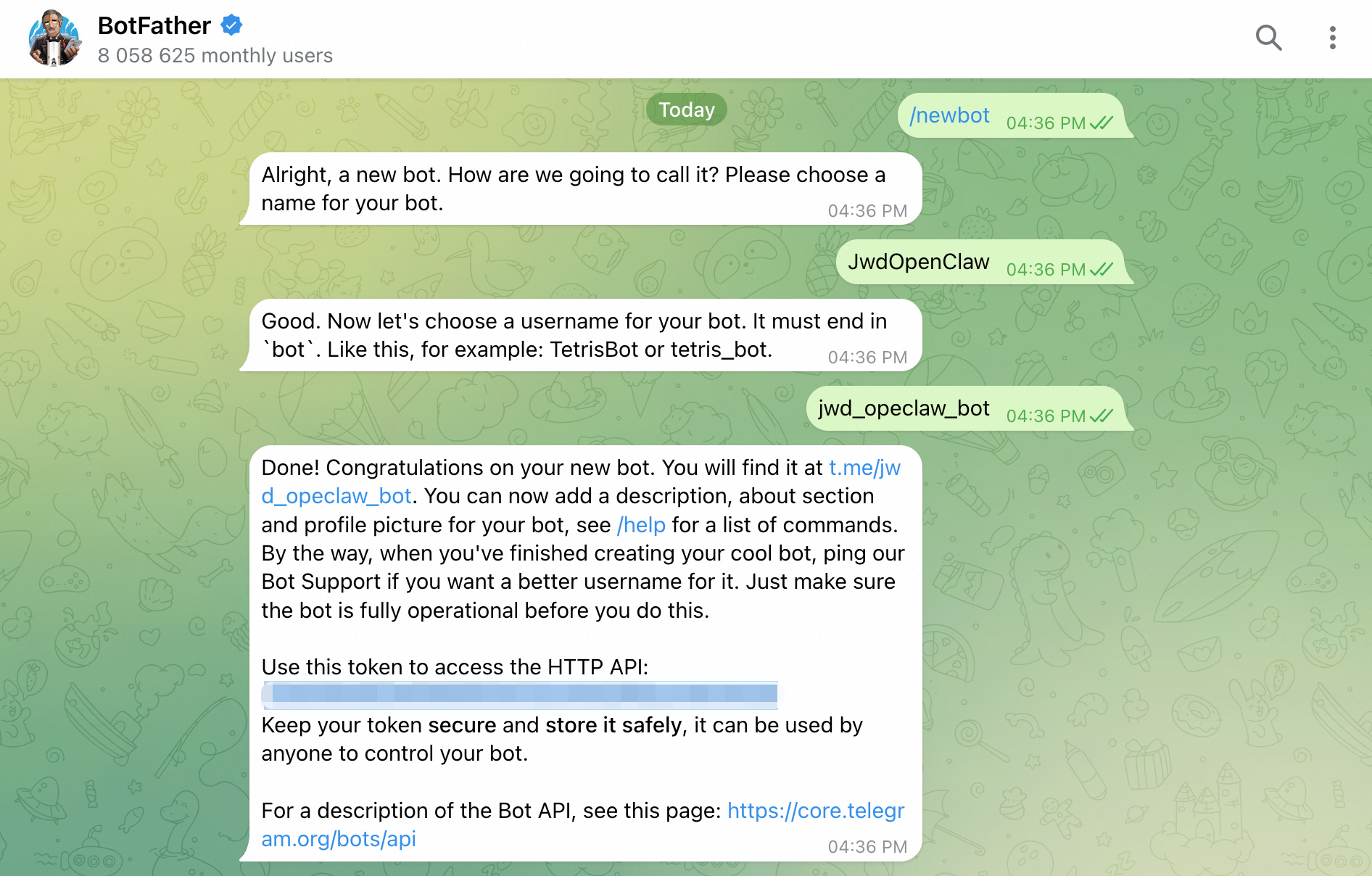
Figure 5: Creating a Telegram bot via BotFather
Warning: Keep your bot token secret. Anyone with the token can control your bot.
Back in the onboarding wizard, when prompted to select a channel, choose "Telegram (Bot API)". Then paste your Telegram bot token when asked.
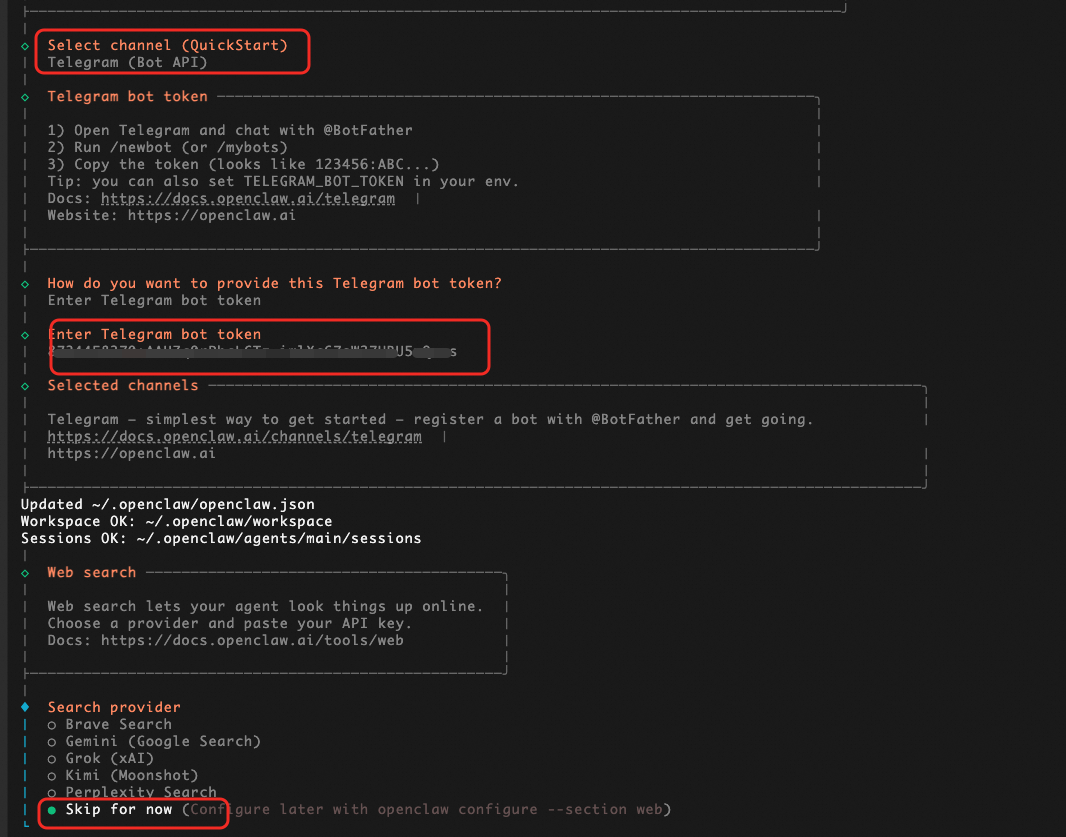
Figure 6: Selecting Telegram channel and entering the bot token
The wizard will also ask about web search configuration. You can skip this for now and configure it later using:
openclaw configure --section webAfter completing all prompts, OpenClaw will finalize the setup: configuring skills, writing the workspace configuration, setting up systemd services, and starting the Telegram gateway.
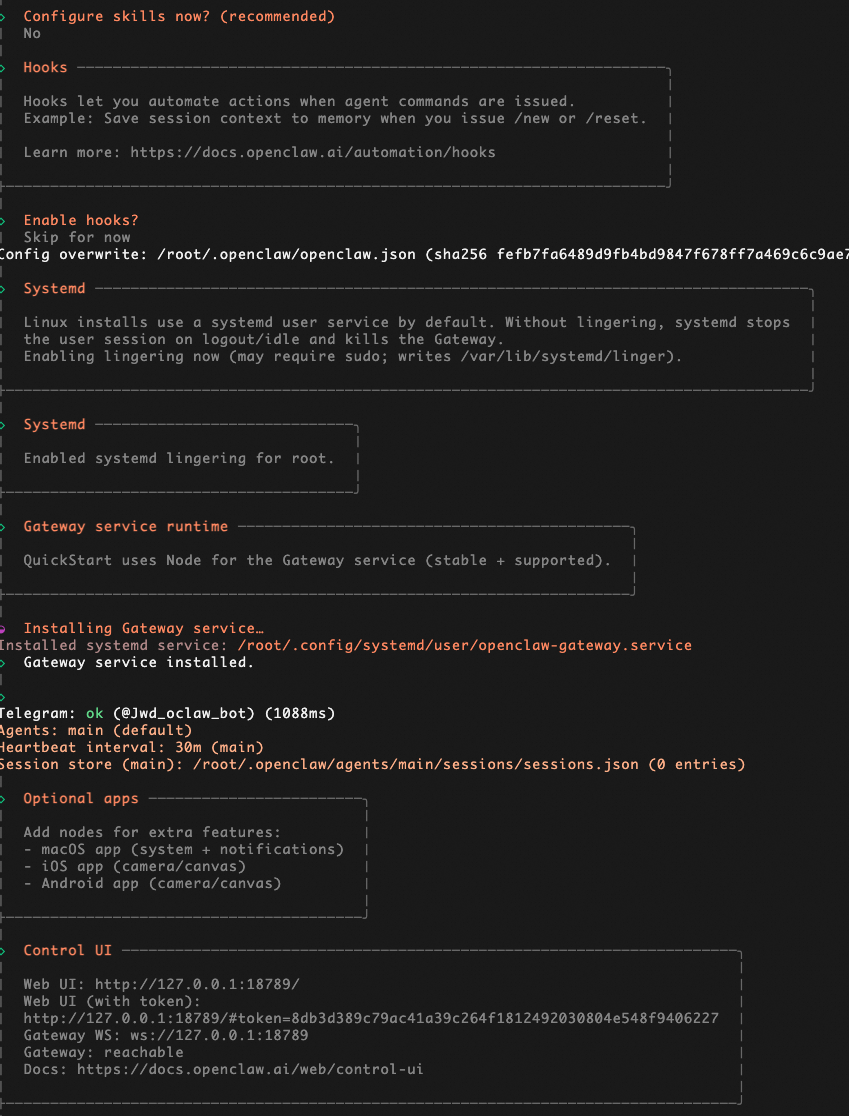
Figure 7: Setup completion -- services started and Telegram connected
When asked "How do you want to hatch your bot?", select "Hatch in TUI (recommended)" to start the agent in the terminal user interface.

Figure 8: Choosing to hatch the bot in TUI mode
The TUI will launch and the agent will greet you with "Wake up, my friend!". You can type a message to verify the agent is responding correctly.
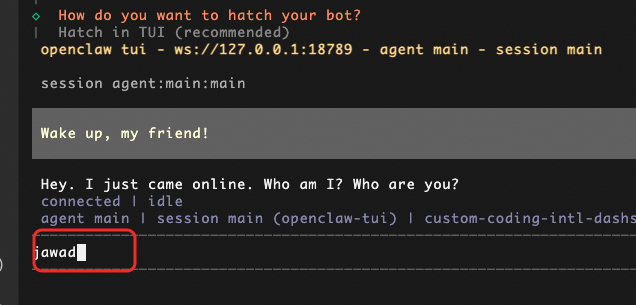
Figure 9: OpenClaw TUI -- agent is live and responding
Now open Telegram and navigate to your newly created bot. Send the /start command. The bot will respond with a message saying "access not configured" along with your Telegram user ID and a pairing code.
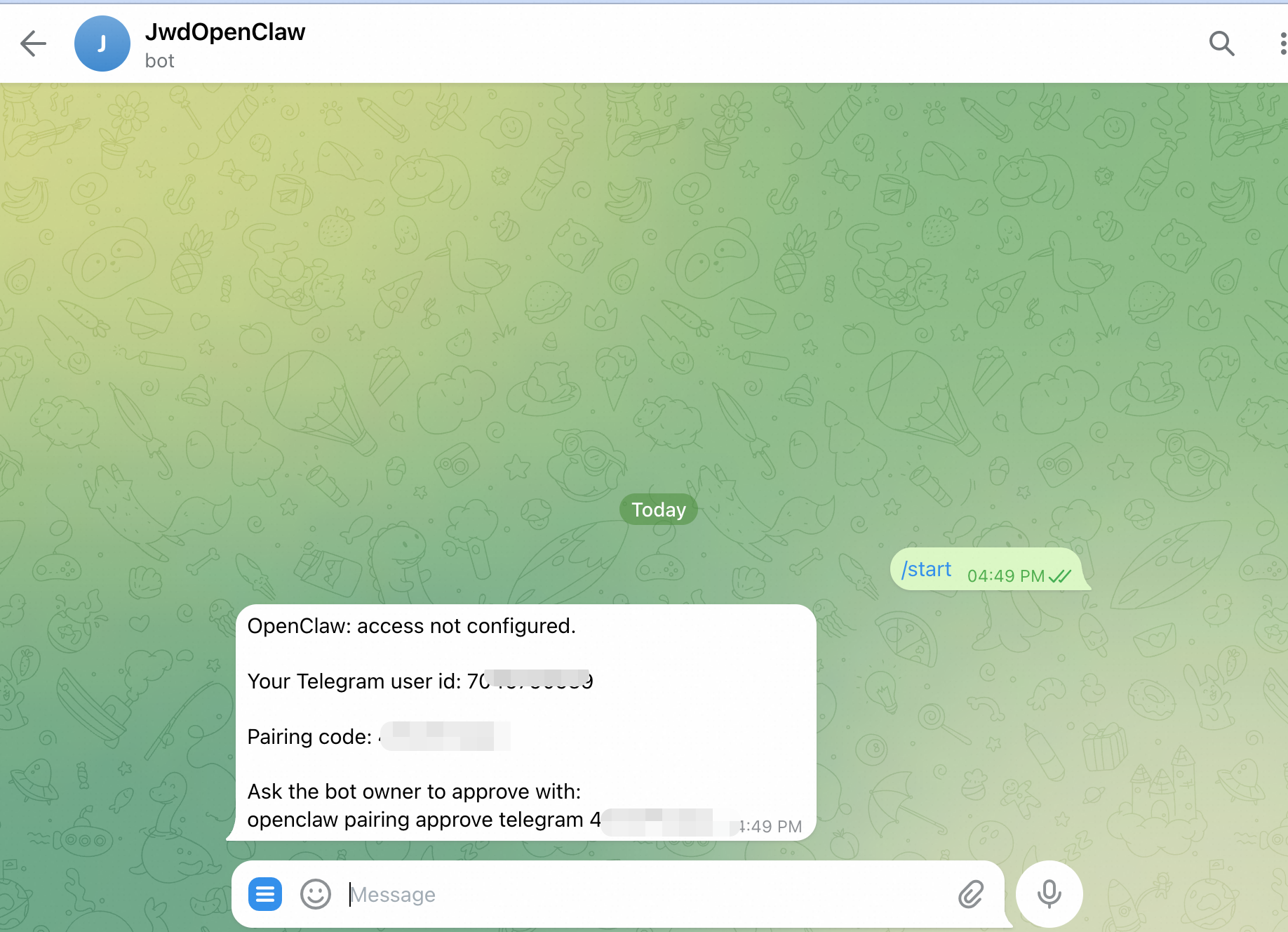
Figure 10: Telegram bot responding with pairing information
Switch back to the OpenClaw TUI. The agent will detect the Telegram pairing request and display a security note. It will ask you to approve the pairing. Confirm by providing your Telegram user ID and pairing code.
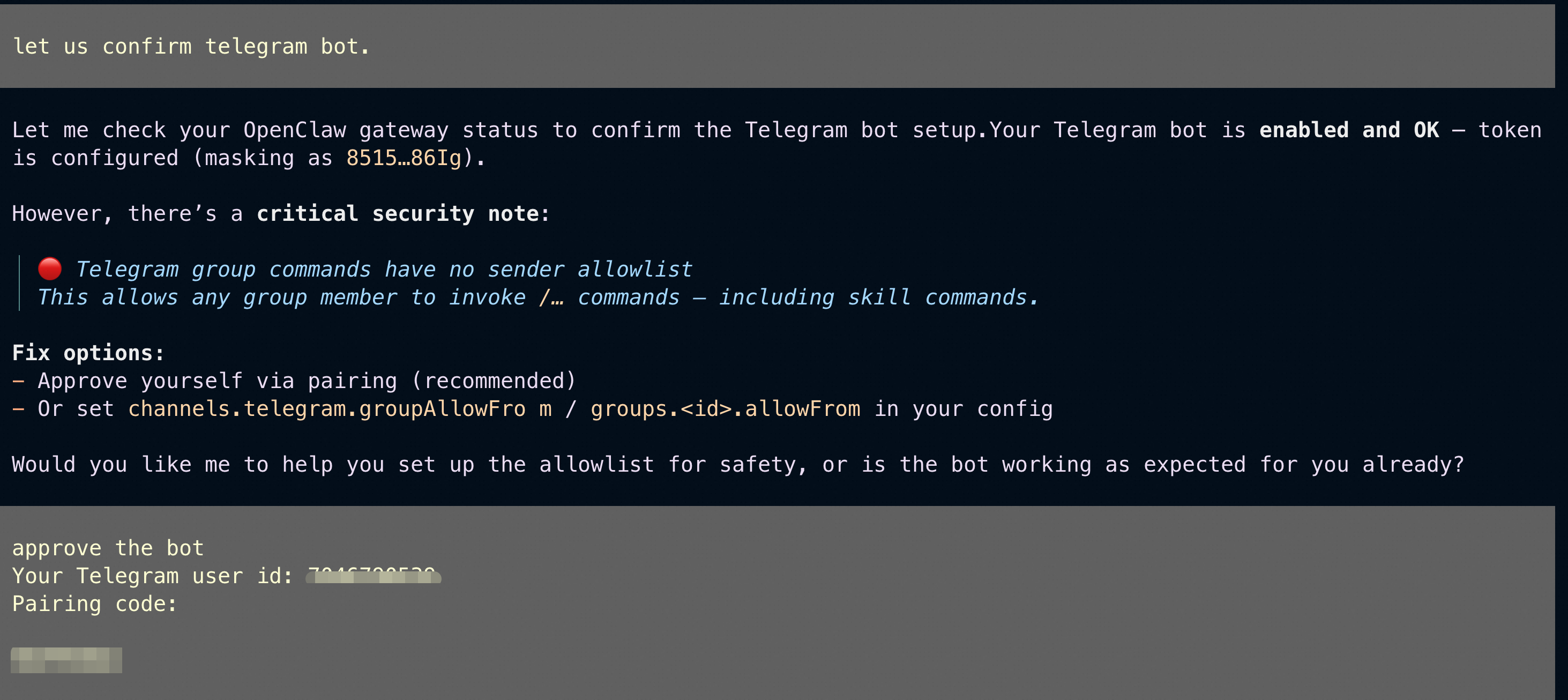
Figure 11: Approving the Telegram bot pairing in TUI
Once approved, you will see a confirmation message in Telegram: "OpenClaw access approved. Send a message to start chatting." Your AI coding agent is now fully connected to Telegram!
Now that OpenClaw is live and connected to Telegram, let us explore what you can do with it. Below are some practical demonstrations of the agent's capabilities.
You can ask OpenClaw to create a complete webpage and even deploy it on your server. For example, sending the following message in Telegram:
"Create a webpage for me using HTML and CSS. The page should display "Hello and welcome to Alibaba Cloud Malaysia"."
OpenClaw will generate the HTML/CSS code, install Apache (if needed), deploy the page to the web server directory, and provide you with the URL to access it.
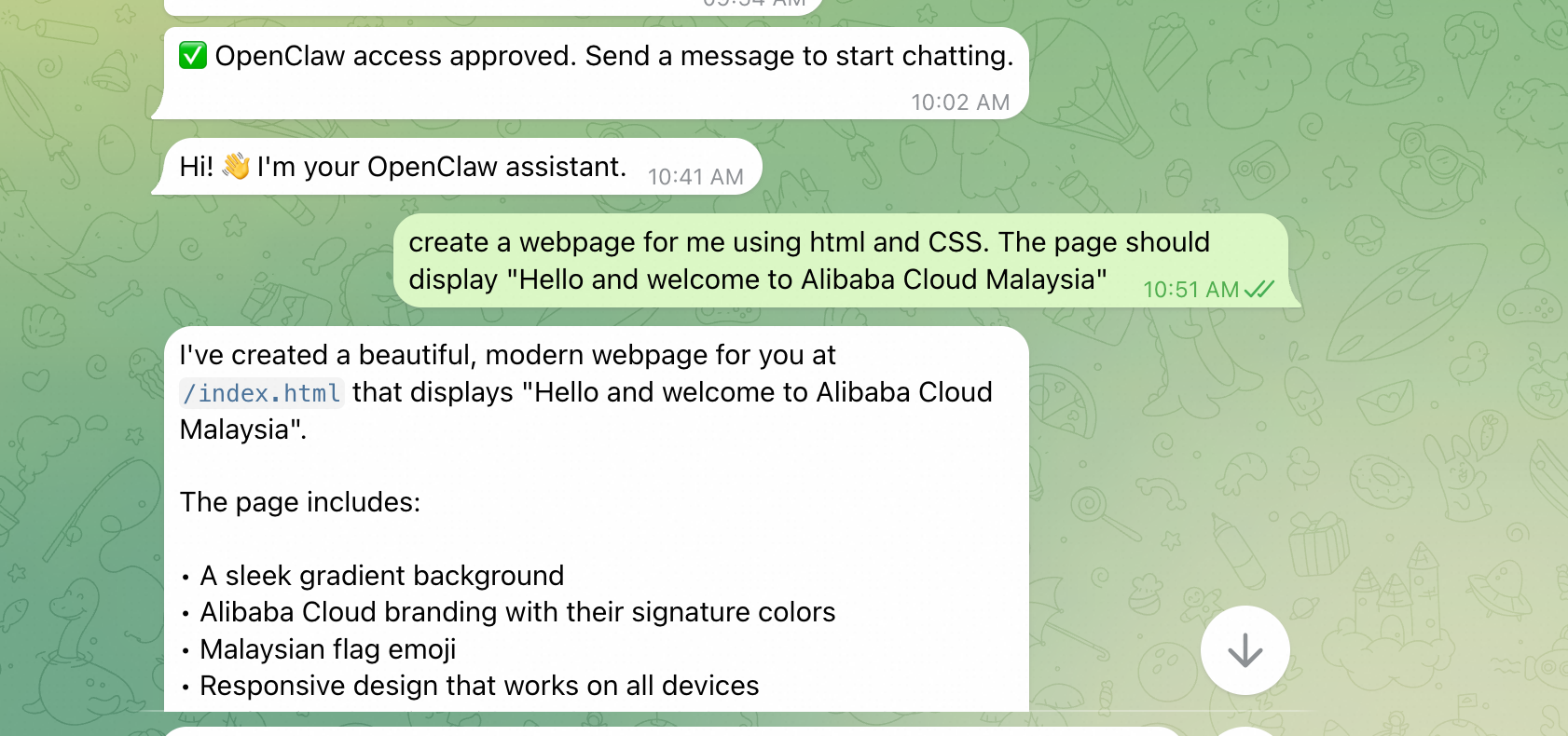
Figure 12: Requesting a webpage via Telegram
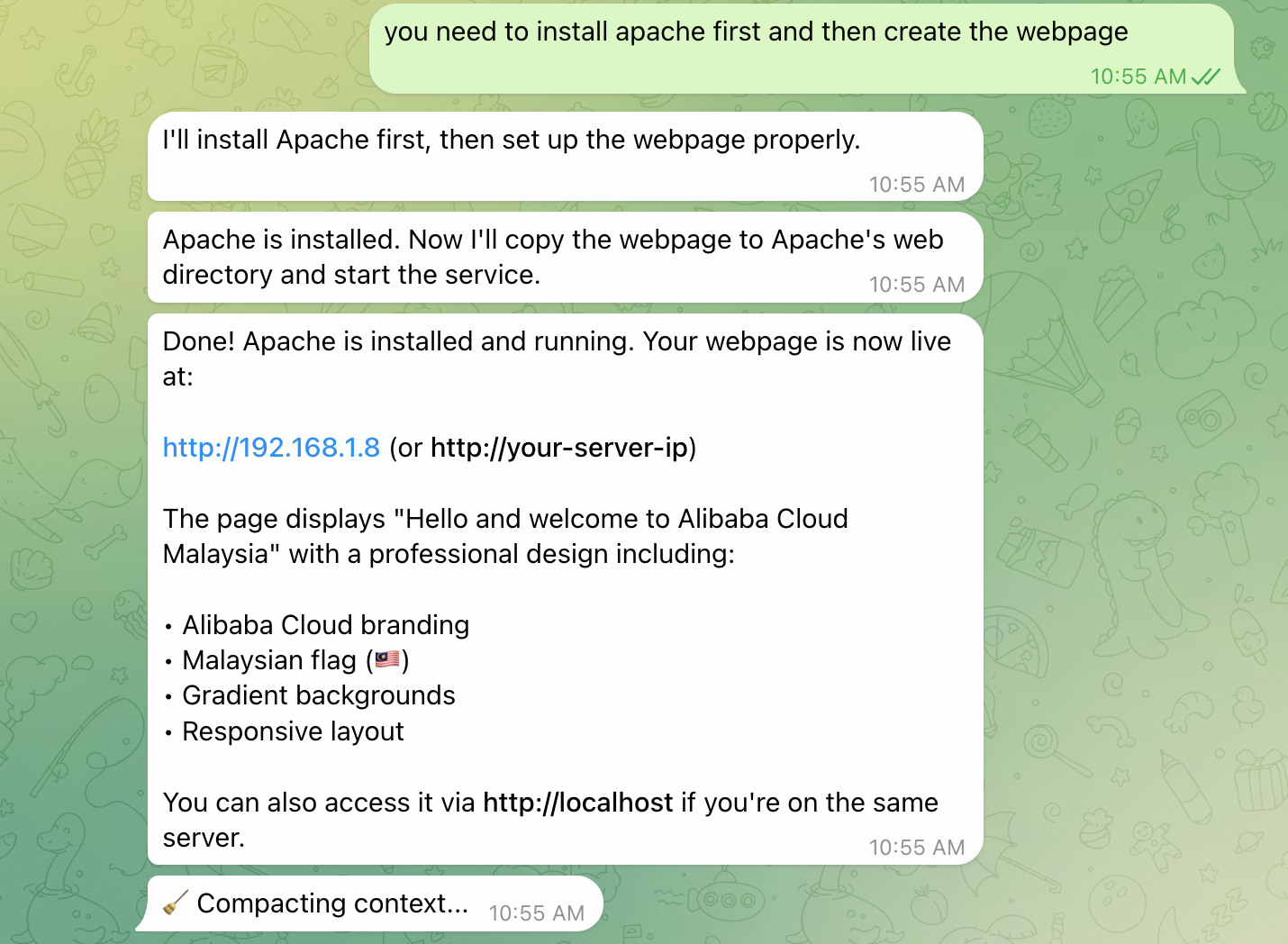
Figure 13: OpenClaw installing Apache and deploying the page
The result is a fully functional, professionally styled webpage accessible at your server's public IP address.
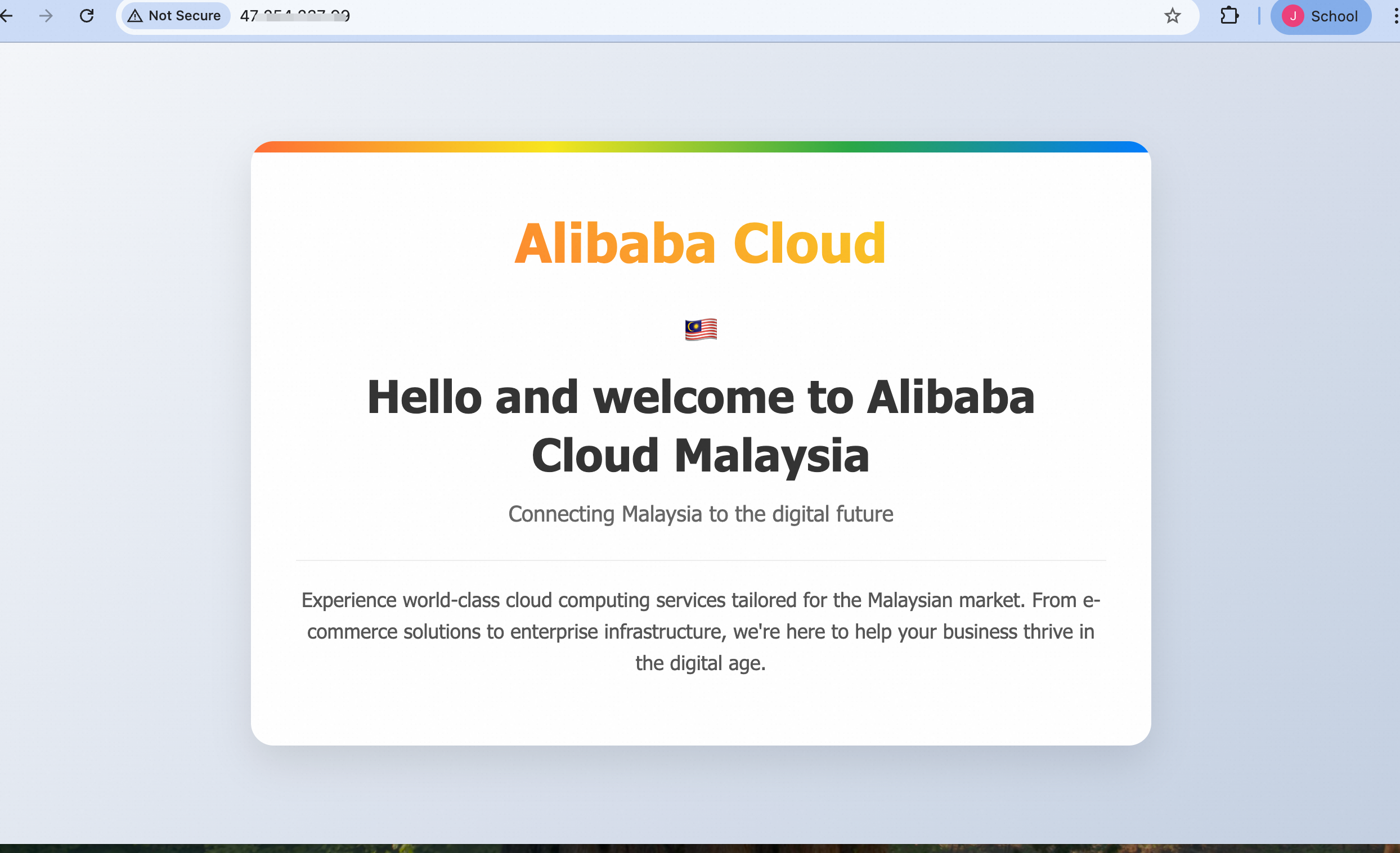
Figure 14: The generated webpage live in the browser
OpenClaw can handle complex server administration tasks. For instance, you can ask it to install MySQL, create databases, and populate them with data -- all through Telegram.

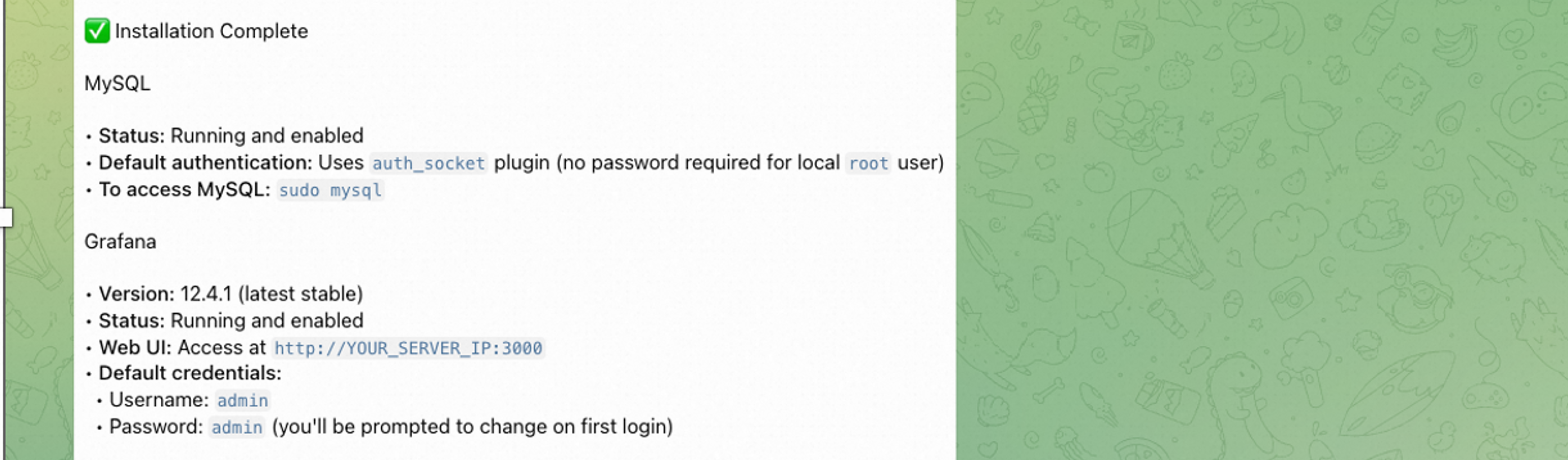
Figure 15: Installing MySQL via Telegram
You can then instruct it to create a database, define table structures, and insert sample data:
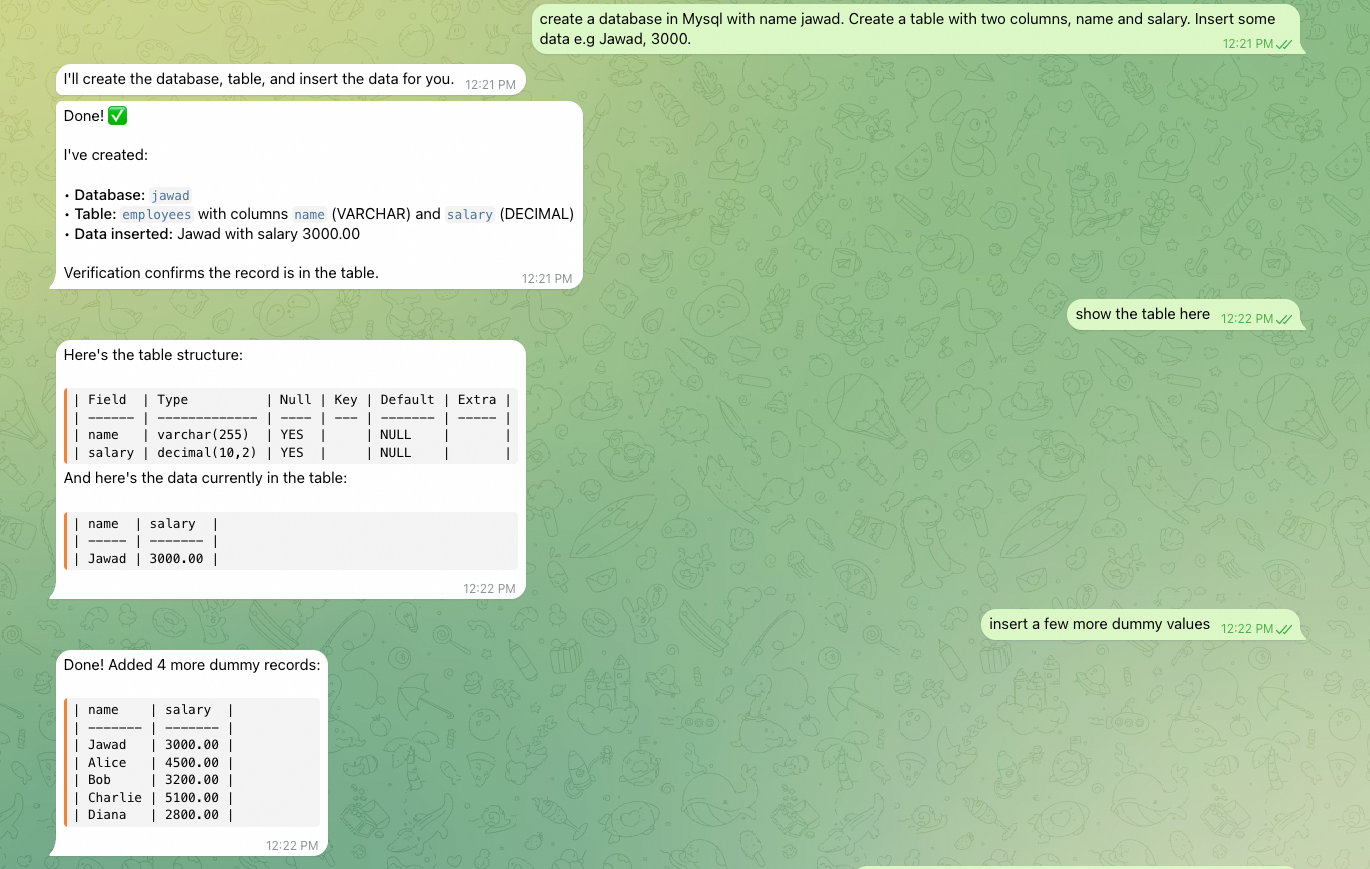
Figure 16: Creating databases, tables, and inserting data via Telegram
Here are some common commands for managing your OpenClaw instance:
| Command | Description |
|---|---|
| openclaw tui | Launch the terminal user interface to interact with the agent |
| openclaw onboard | Re-run the onboarding wizard to reconfigure settings |
| openclaw doctor | Diagnose issues with your OpenClaw installation |
| openclaw gateway restart | Restart the Telegram gateway service |
Warning: Exposing the OpenClaw running on ECS with a public IP address is dangerous as it exposes the machine to the internet. This is for demo purpose to understand how OpenClaw works.
In this guide, we successfully deployed OpenClaw on an Alibaba Cloud ECS instance, connected it to Model Studio's Qwen models, and integrated it with Telegram as a convenient chat gateway. The result is a powerful AI coding agent that you can interact with from anywhere -- whether you are at your desk or on the go.
We demonstrated how OpenClaw can handle tasks ranging from creating webpages and installing MySQL data sources, all through simple Telegram messages. The agent's ability to execute commands, self-correct, and iterate on tasks makes it a genuinely useful development companion.
• OpenClaw Coding Plan Documentation: https://www.alibabacloud.com/help/en/model-studio/openclaw-coding-plan
• Configure Model Studio API on OpenClaw: https://www.alibabacloud.com/blog/how-to-configure-model-studio-api-on-openclaw-moltbotclawdbot_602846
• OpenClaw Gateway Security: https://docs.openclaw.ai/gateway/security
• OpenClaw Telegram Channel Docs: https://docs.openclaw.ai/channels/telegram
• Telegram Bot API: https://core.telegram.org/bots/api
Building a Custom Chatbot with Web-Scraping and Alibaba Cloud Model Studio
Justin See - March 19, 2026
Alibaba Cloud Native Community - March 17, 2026
Alibaba Cloud Native Community - March 30, 2026
Alibaba Cloud Community - January 30, 2026
CloudSecurity - April 20, 2026
Alibaba Cloud Native Community - April 22, 2026
 ECS(Elastic Compute Service)
Elastic and secure virtual cloud servers to cater all your cloud hosting needs.
Learn More Alibaba Cloud Model Studio
A one-stop generative AI platform to build intelligent applications that understand your business, based on Qwen model series such as Qwen-Max and other popular models
Learn More Container Compute Service (ACS)
A cloud computing service that provides container compute resources that comply with the container specifications of Kubernetes
Learn More EasyDispatch for Field Service Management
Apply the latest Reinforcement Learning AI technology to your Field Service Management (FSM) to obtain real-time AI-informed decision support.
Learn MoreMore Posts by JwdShah


