ApsaraVideo VOD provides a range of media processing capabilities, such as transcoding, snapshot capture, and automated review. To simplify media processing, ApsaraVideo VOD offers a workflow feature that lets you customize media processing flows in the console. This topic describes how to use workflows.
What is a workflow
Workflows streamline and modularize most media processing features. You can build custom processing flows in advance and apply them to specific videos. This reduces repetitive and complex API calls and provides a one-stop media processing service.
What's new
The new version of ApsaraVideo VOD workflows includes not only ApsaraVideo VOD capability nodes but also Intelligent Media Services (IMS) nodes for video translation, caption extraction, caption removal, and logo removal. It also supports task queries and workflow task callbacks. More capability nodes will be added over time to meet diverse business needs.
Capability comparison
✔️ and ❌ indicate supported and unsupported features, respectively. — means the feature is not applicable or not required.
Capability | Secondary Capabilities | Original workflow | New workflow |
ApsaraVideo VOD capability nodes | Media transcoding | ✔️ | ✔️ |
Video snapshot | ✔️ | ✔️ | |
Animated GIF from video | ✔️ | ✔️ | |
Automated media review / Automated media deduplication | ✔️ | ❌ | |
Intelligent Media Services capability nodes | Video translation | ❌ | ✔️ |
Caption extraction | ❌ | ✔️ | |
Caption removal | ❌ | ✔️ | |
Logo removal | ❌ | ✔️ | |
Workflow task query | — | ❌ | ✔️ |
Workflow callback | Workflow task callback event | ❌ | ✔️ |
Independent workflow callback settings | ❌ | ✔️ | |
Independent node task callback | ✔️ | ❌ | |
Media ID-level callback (userdata) | ✔️ | ❌ |
Limits
Video translation, caption extraction, and caption removal nodes are available only in the China (Shanghai), China (Beijing), China (Shenzhen), and Singapore regions. Logo removal nodes are available only in the China (Shanghai), China (Beijing), and Singapore regions. ApsaraVideo VOD capability nodes are supported in all regions.
You must activate ApsaraVideo VOD and Intelligent Media Services separately to use their respective capability nodes.
Common workflow scenarios
Serial processing: Translation + Transcoding
In this flow, after a video is uploaded to ApsaraVideo VOD, it is first translated. Then, the translated output is transcoded, which enables serial processing. For details on how to configure transcoding after translation, see the Workflow configuration example.

Parallel processing: Caption removal + Transcoding
In this operation, after a video is uploaded to ApsaraVideo VOD, caption removal and transcoding run simultaneously.

Parallel processing: Source file distribution + Transcoding
In this flow, the source file is used as one playback stream, and other streams are generated based on the configured transcoding nodes.

Workflow processing flow
Before you start, make sure that you have configured a workflow in the console.
Obtain an upload credential and specify a workflow. The ApsaraVideo VOD service returns the upload credential.
Initiate a video upload.
The workflow is automatically triggered after the upload is complete.
The ApsaraVideo VOD workflow engine automatically performs media processing, video AI, and other operations based on the workflow configuration.
After the workflow engine finishes processing, the workflow ends and sends a callback to you.
How to use
Create a workflow.
You can create workflows only in the ApsaraVideo VOD console.
Log on to the ApsaraVideo VOD console.
In the left-side navigation pane, choose Configuration Management > Media Processing > Workflows.
Click Add Workflow Template and enter a workflow name.
Click the + button next to the Start node, edit the workflow topology, and then click Confirm.

After the workflow is created, you can find its ID on the Workflows page. You will use this ID later to initiate workflow processing tasks.
Initiate a workflow processing task.
You can use the workflow that you created in the previous step to process videos. You can initiate a workflow task during or after a video upload.
Initiate workflow processing in the console
Initiate during video upload
Log on to the ApsaraVideo VOD console.
In the navigation pane on the left of the ApsaraVideo VOD console, choose Media Files > Audio/Video, and then click Upload Audio/Video.
Click Add Audio/Video, select parameters such as the upload method and storage address, select Use Workflow, and then specify the workflow that you created in the previous step.
For more information about supported upload formats and parameter descriptions, see Upload in the console.

After you add the audio or video files to upload, click Upload.
Initiate for an uploaded video
Log on to the ApsaraVideo VOD console.
In the navigation pane on the left of the ApsaraVideo VOD console, choose Media Files > Audio/Video.
On the Audio/Video page, find the media file that you want to process and click Processing in the Actions column.
Select Use Workflow and specify the workflow that you created in the previous step.
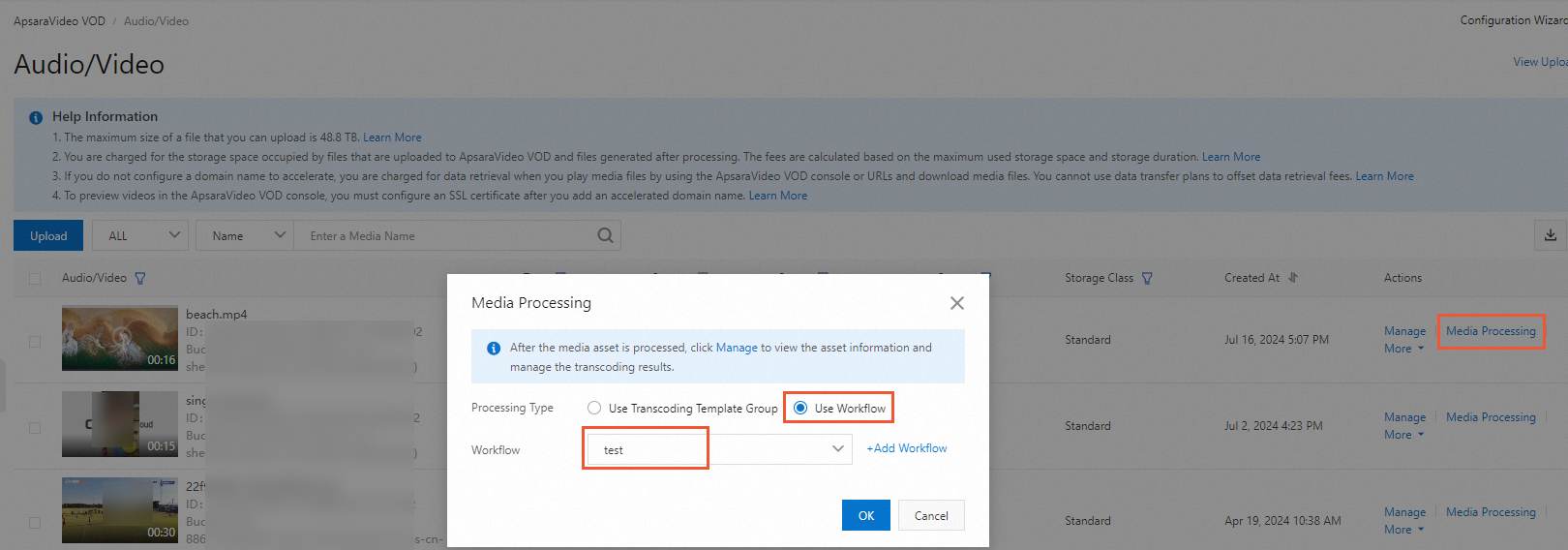
Click OK.
Initiate workflow processing using OpenAPI
Initiate during video upload
NoteThe Get upload URL and credential API operation only returns an upload URL, a credential, and basic media asset information. It does not upload the file. You must implement the upload logic. For a complete example of how to upload files using APIs, see Upload media files using ApsaraVideo VOD APIs.
When you call the Get upload URL and credential or Batch pull upload by URL API operation to upload an audio or video file, set the
WorkflowIdparameter to the ID of the workflow that you created in the previous step. After the upload is complete, the ApsaraVideo VOD system automatically processes the file based on the specified workflow.
Start a workflow after you upload a video
Call the Submit ApsaraVideo VOD workflow job API operation and set the
WorkflowIdparameter to the ID of the workflow that you created in the previous step. This immediately starts workflow processing on the audio or video file.
Workflow configuration example
Serial processing: Translation + Transcoding
The following example describes the procedure for the translation + transcoding mode, where content is first translated and then transcoded:
On the workflow editing page, click the + button to the right of the Start node to add a video translation node. Then, configure its parameters in the right-side panel.

Click the + button to the right of the translation node to add a transcoding node. Then, select a transcoding template group in the right-side panel.
NoteFor more information about how to configure transcoding template groups, see Transcoding templates.

After you complete the workflow topology, click Confirm. The system generates a workflow ID. Record this ID so that you can specify the workflow in future uploads.

Parallel processing: Caption extraction + Transcoding
To run caption extraction and transcoding in parallel, add two child nodes to the right of the Start node: one for caption extraction and another for video transcoding. The resulting workflow appears as follows.