ECS örneklerinin paket iletim hızını (PPS), ağ bant genişliğini ve ağ gecikme süresini test etmek için Netperf ve sockperf kullanın.
Veri kaybını önlemek için ağ performansını veri içermeyen yeni ECS örneklerinde test edin.
Örnek türü ölçümleri bir test ortamında doğrulanır. Gerçek performans, örnek yükü ve ağ modeli gibi faktörlere bağlı olarak değişebilir.
Önkoşullar
Hazırlıklar
-
Test için ECS örnekleri oluşturun. Bkz. ECS örneklerini özel olarak başlatma.
ÖnemliDoğru ve karşılaştırılabilir test sonuçları elde etmek için aynı örnek türündeki örnekleri kullanın.
Tüm test örneklerinin aynı Virtual Private Cloud (VPC) içinde olduğundan, aynı vSwitch'e bağlı olduğundan ve aynı güvenlik grubunda bulunduğundan emin olun.
Örnek ortamlar
Aşağıdaki tablolar, test makineleri ve yardımcı test makineleri için önerilen örnek türlerini ve sayılarını listeler. Test senaryonıza göre makineleri sunucu veya istemci olarak seçin.
-
Paket iletim hızını test etme (yalnızca Linux örnekleri)
NotWindows örneklerinin paket iletim hızını test etmek için kullanılabilir bir araç bulunmamaktadır.
6.000.000 pps'den düşük paket iletim hızı
Test öğesi
Test makinesi
Yardımcı test makinesi
Örnek türü
ecs.g7.large
ecs.g7.large
Görüntü
Alibaba Cloud Linux 3
Alibaba Cloud Linux 3
Örnek sayısı
1
1
Ağ
Genel IP adresleri atanmıştır.
6.000.000 pps'den yüksek ve 20.000.000 pps'den düşük paket iletim hızı
Test öğesi
Test makinesi
Yardımcı test makinesi
Örnek türü
ecs.g7.16xlarge
ecs.g7.16xlarge
Görüntü
Alibaba Cloud Linux 3
Alibaba Cloud Linux 3
Örnek sayısı
1
3
Ağ
Genel IP adresleri atanmıştır.
20.000.000 pps'den yüksek paket iletim hızı
Test öğesi
Test makinesi
Yardımcı test makinesi
Örnek türü
ecs.g7.32xlarge
ecs.g7.32xlarge
Görüntü
Alibaba Cloud Linux 3
Alibaba Cloud Linux 3
Örnek sayısı
1
3
Ağ
Genel IP adresleri atanmıştır.
-
Ağ bant genişliğini ve gecikme süresini test etme
Linux örneği
Test öğesi
Test makinesi
Yardımcı test makinesi
Örnek türü
ecs.g7.large
ecs.g7.large
Görüntü
Alibaba Cloud Linux 3
Alibaba Cloud Linux 3
Örnek sayısı
1
1
Ağ
Genel IP adresleri atanmıştır.
Windows örneği
Test öğesi
Test makinesi
Yardımcı test makinesi
Örnek türü
ecs.g7.large
ecs.g7.large
Görüntü
Windows Server 2022
Windows Server 2022
Örnek sayısı
1
1
Ağ
Genel IP adresleri atanmıştır.
Yordam
Paket iletim hızını test etme (yalnızca Linux)
Windows örneklerinin paket iletim hızını test etmek için kullanılabilir bir araç bulunmamaktadır.
6.000.000 pps'den düşük paket iletim hızı
-
Test makinesine ve yardımcı test makinelerine bağlanın. Bkz. Workbench kullanarak bir Linux örneğinde oturum açma.
-
Her iki makinede de Netperf kurulum paketini indirin:
wget https://benchmark-packages.oss-cn-qingdao.aliyuncs.com/netperf-2.7.0.tar.gz -
Her iki makinede de Netperf ve sar yükleyin.
-
Netperf kurulum paketini ayıklayın:
sudo yum install -y gcc autoconf automake libtool sysstat tar -zxvf netperf-2.7.0.tar.gz -
GNU Compiler Collection (
GCC) sürüm numarasını sorgulayın.gcc -v 2>&1 -
Makinelerin herhangi birinde
GCCV10'dan sonraki bir sürüm iseGCCderlemesinin doğru çalışmasını sağlamak için aşağıdaki işlemleri uygulayın. Aksi takdirde bu adımı atlayın.-
nettest_omni.cdosyasını açın.cd netperf vim src/nettest_omni.c -
Ekleme moduna girmek için i tuşuna basın ve
nettest_omni.cdosyasından aşağıdaki bildirilen değişkenleri silin:/* different options for the sockets */ int loc_nodelay, /* don't/do use NODELAY locally */ rem_nodelay, /* don't/do use NODELAY remotely */ loc_sndavoid, /* avoid send copies locally */ loc_rcvavoid, /* avoid recv copies locally */ rem_sndavoid, /* avoid send copies remotely */ rem_rcvavoid; /* avoid recv_copies remotely */ Esc tuşuna basın,
:wqgirin ve dosyayı kaydedip kapatmak için Enter tuşuna basın.
-
-
Netperf ve sar yükleyin.
cd netperf
sudo ./configure
sudo make && sudo make install
-
-
Test makinesinde 64 netserver hizmeti başlatın:
#!/bin/bash for j in `seq 64`; do netserver -p $[16000+j] > server_$[16000+j].netperf > /dev/null 2>&1 & done -
Test makinesinin özel IP adresini sorgulayın:
ifconfig || ip addr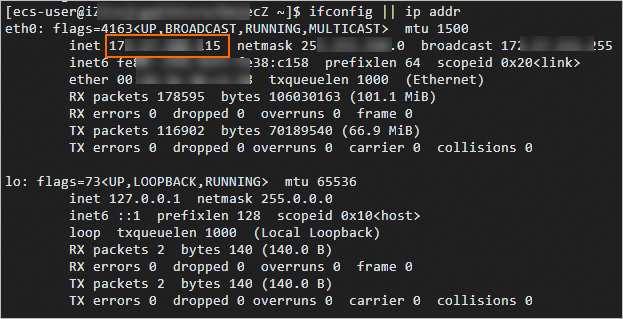
-
Yardımcı test makinesinde test makinesine trafik gönderin:
#!/bin/bash
server_ip=<Private IP address of the test machine>
for j in `seq 64`; do
    port=$[16000+j]
    netperf -H ${server_ip} -l ${run_time:-300} -t UDP_STREAM  -p $port  -- -m 1 -D > /dev/null 2>&1 &
done
<Private IP address of the test machine>ifadesini önceki adımda elde edilen gerçek özel IP adresiyle değiştirin.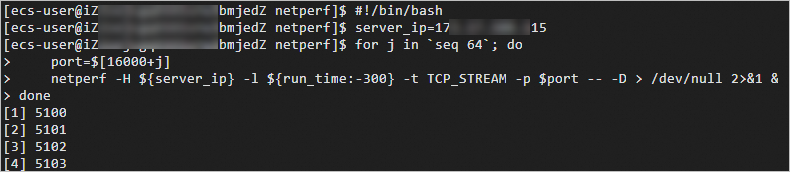
-
Test makinesinde paket iletim hızını test edin:
sar -n DEV 1rxpck/ssütununu kontrol edin.rxpck/sdeğeri saniye başına alınan paketleri gösterir. Bu örnekte değer yaklaşık 940.000'dir.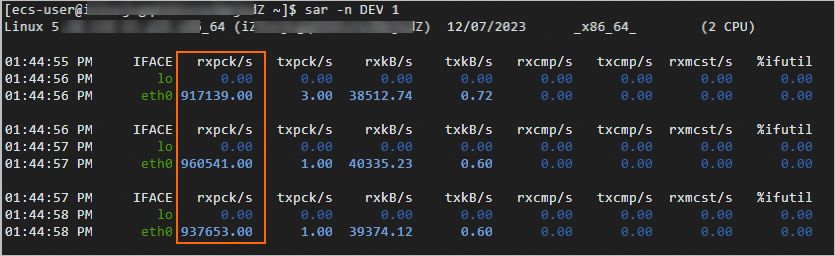
6.000.000 pps'den yüksek ve 20.000.000 pps'den düşük paket iletim hızı
-
Test makinesine ve yardımcı test makinelerine bağlanın. Bkz. Workbench kullanarak bir Linux örneğinde oturum açma.
-
Dört makinenin tamamında (üç yardımcı + bir test) sockperf yükleyin:
sudo yum install -y autoconf automake libtool gcc-c++ cd /opt sudo wget https://github.com/Mellanox/sockperf/archive/refs/tags/3.8.tar.gz sudo tar -zxf 3.8.tar.gz cd sockperf-3.8/ sudo ./autogen.sh sudo ./configure sudo make -j `cat /proc/cpuinfo| grep process | wc -l` sudo make install -
Test makinesinin özel IP adresini sorgulayın:
ifconfig || ip addr -
Her bir yardımcı test makinesinde test makinesine trafik gönderin:
server_ip="<Private IP address of the test machine>"
threads=64
msg_size=14
run_time=60

basePort=6666
for((i=0;i<$threads;++i));do
    nohup sockperf tp -i $server_ip --pps max -m ${msg_size} -t ${run_time} --port $[${basePort}+${i}] 2>&1 &
done
<Private IP address of the test machine>ifadesini gerçek değerle değiştirin.run_timeparametresi trafik süresini belirtir. -
Dört makinenin tamamında paket iletim hızını test edin:
sar -n DEV 1Test makinesindeki
rxpck/ssütununu kontrol edin.rxpck/sdeğeri saniye başına alınan paketleri gösterir. Bu örnekte değer yaklaşık 12.000.000 pps'dir.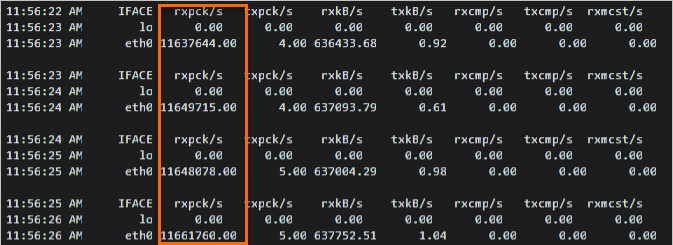
20.000.000 pps'den yüksek paket iletim hızı
-
Test makinesine ve yardımcı test makinelerine bağlanın. Bkz. Workbench kullanarak bir Linux örneğinde oturum açma.
-
Dört makinenin tamamında (üç yardımcı + bir test) sockperf yükleyin:
sudo yum install -y autoconf automake libtool gcc-c++ cd /opt sudo wget https://github.com/Mellanox/sockperf/archive/refs/tags/3.8.tar.gz sudo tar -zxf 3.8.tar.gz cd sockperf-3.8/ sudo ./autogen.sh sudo ./configure sudo make -j `cat /proc/cpuinfo| grep process | wc -l` sudo make install -
Test makinesinde kesme isteklerini (IRQ'ler) CPU çekirdeklerine bağlayın.
IRQ'lerin belirli CPU çekirdeklerine bağlanması bağlam anahtarlamasını azaltır ve yüksek PPS değerlerinde paket işleme verimliliğini artırır.
a=$(cat /proc/interrupts | grep virtio2-input | awk -F ':' '{print $1}') cpu=0 for irq in $a; do echo $cpu >/proc/irq/$irq/smp_affinity_list let cpu+=2 done -
Test makinesinin özel IP adresini sorgulayın:
ifconfig || ip addr -
Her bir yardımcı test makinesinde test makinesine trafik gönderin:
server_ip="<Private IP address of the test machine>"
threads=64
msg_size=14
run_time=60

basePort=6666
for((i=0;i<$threads;++i));do
    nohup sockperf tp -i $server_ip --pps max -m ${msg_size} -t ${run_time} --port $[${basePort}+${i}] 2>&1 &
done
<Private IP address of the test machine>ifadesini gerçek değerle değiştirin.run_timeparametresi trafik süresini belirtir. -
Dört makinenin tamamında paket iletim hızını test edin:
sar -n DEV 1Test makinesindeki
rxpck/ssütununu kontrol edin.rxpck/sdeğeri saniye başına alınan paketleri gösterir. Bu örnekte değer yaklaşık 20.000.000 pps'dir.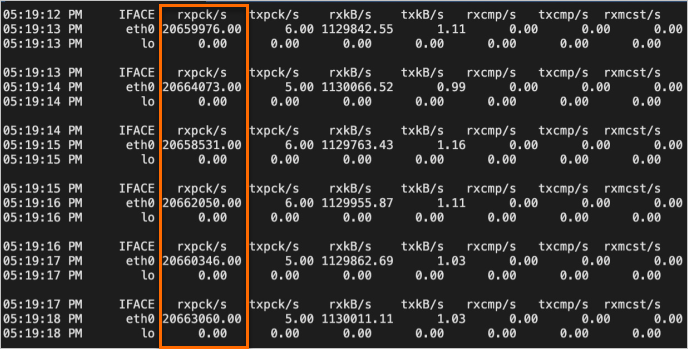
Ağ bant genişliğini test etme
Linux örneği
-
Test makinesine ve yardımcı test makinesine bağlanın. Bkz. Workbench kullanarak bir Linux örneğinde oturum açma.
-
Her iki makinede de Netperf kurulum paketini indirin:
wget https://benchmark-packages.oss-cn-qingdao.aliyuncs.com/netperf-2.7.0.tar.gz -
Her iki makinede de Netperf ve sar yükleyin.
-
Netperf kurulum paketini ayıklayın.
sudo yum install -y gcc autoconf automake libtool sysstat tar -zxvf netperf-2.7.0.tar.gz -
GCCsürüm numarasını sorgulayın.gcc -v 2>&1 -
Makinelerin herhangi birinde
GCCV10'dan sonraki bir sürüm iseGCCderlemesinin doğru çalışmasını sağlamak için aşağıdaki işlemleri uygulayın. Aksi takdirde bu adımı atlayın.-
nettest_omni.cdosyasını açın.cd netperf vim src/nettest_omni.c -
Ekleme moduna girmek için i tuşuna basın ve
nettest_omni.cdosyasından aşağıdaki bildirilen değişkenleri silin:/* different options for the sockets */ int loc_nodelay, /* don't/do use NODELAY locally */ rem_nodelay, /* don't/do use NODELAY remotely */ loc_sndavoid, /* avoid send copies locally */ loc_rcvavoid, /* avoid recv copies locally */ rem_sndavoid, /* avoid send copies remotely */ rem_rcvavoid; /* avoid recv_copies remotely */ Esc tuşuna basın,
:wqgirin ve dosyayı kaydedip kapatmak için Enter tuşuna basın.
-
-
Netperf ve sar yükleyin.
cd netperf
sudo ./configure
sudo make && sudo make install
-
-
Test makinesinde 64 netserver hizmeti başlatın:
#!/bin/bash for j in `seq 64`; do netserver -p $[16000+j] > server_$[16000+j].netperf 2>&1 & done -
Test makinesinin özel IP adresini sorgulayın:
ifconfig || ip addr[ecs-user@izxxx ecZ ~]$ ifconfig || ip addr eth0: flags=4163<UP,BROADCAST,RUNNING,MULTICAST> mtu 1500 inet 17.xxx.xxx.15 netmask 25xxx.0 broadcast 17.xxx.55 inet6 fexxx38:c158 prefixlen 64 scopeid 0x20<link> ether 00:xxx:xxx txqueuelen 1000 (Ethernet) RX packets 178595 bytes 106030163 (101.1 MiB) RX errors 0 dropped 0 overruns 0 frame 0 TX packets 116902 bytes 70189540 (66.9 MiB) TX errors 0 dropped 0 overruns 0 carrier 0 collisions 0 lo: flags=73<UP,LOOPBACK,RUNNING> mtu 65536 inet 127.0.0.1 netmask 255.0.0.0 inet6 ::1 prefixlen 128 scopeid 0x10<host> loop txqueuelen 1000 (Local Loopback) RX packets 2 bytes 140 (140.0 B) RX errors 0 dropped 0 overruns 0 frame 0 TX packets 2 bytes 140 (140.0 B) TX errors 0 dropped 0 overruns 0 carrier 0 collisions 0 -
Yardımcı test makinesinde test makinesine trafik gönderin:
#!/bin/bash server_ip=<Private IP address of the test machine> for j in `seq 64`; do port=$[16000+j] netperf -H ${server_ip} -l ${run_time:-300} -t TCP_STREAM -p $port -- -D > /dev/null 2>&1 & done<Private IP address of the test machine>ifadesini önceki adımda elde edilen gerçek özel IP adresiyle değiştirin.#!/bin/bash server_ip=<Private IP address of the test machine> for j in `seq 64`; do port=$[16000+j] netperf -H ${server_ip} -l ${run_time:-300} -t TCP_STREAM -p $port -- -D > /dev/null 2>&1 & done [1] 5100 [2] 5101 [3] 5102 [4] 5103 -
Test makinesinde ağ bant genişliğini test edin:
sar -n DEV 1rxkB/ssütununu kontrol edin.rxkB/sdeğeri KB/sn cinsinden alınan paket boyutunu gösterir. Ağ bant genişliği değerini elde etmek için bu değeri 8 ile çarpıp Kbit/sn birimine dönüştürün.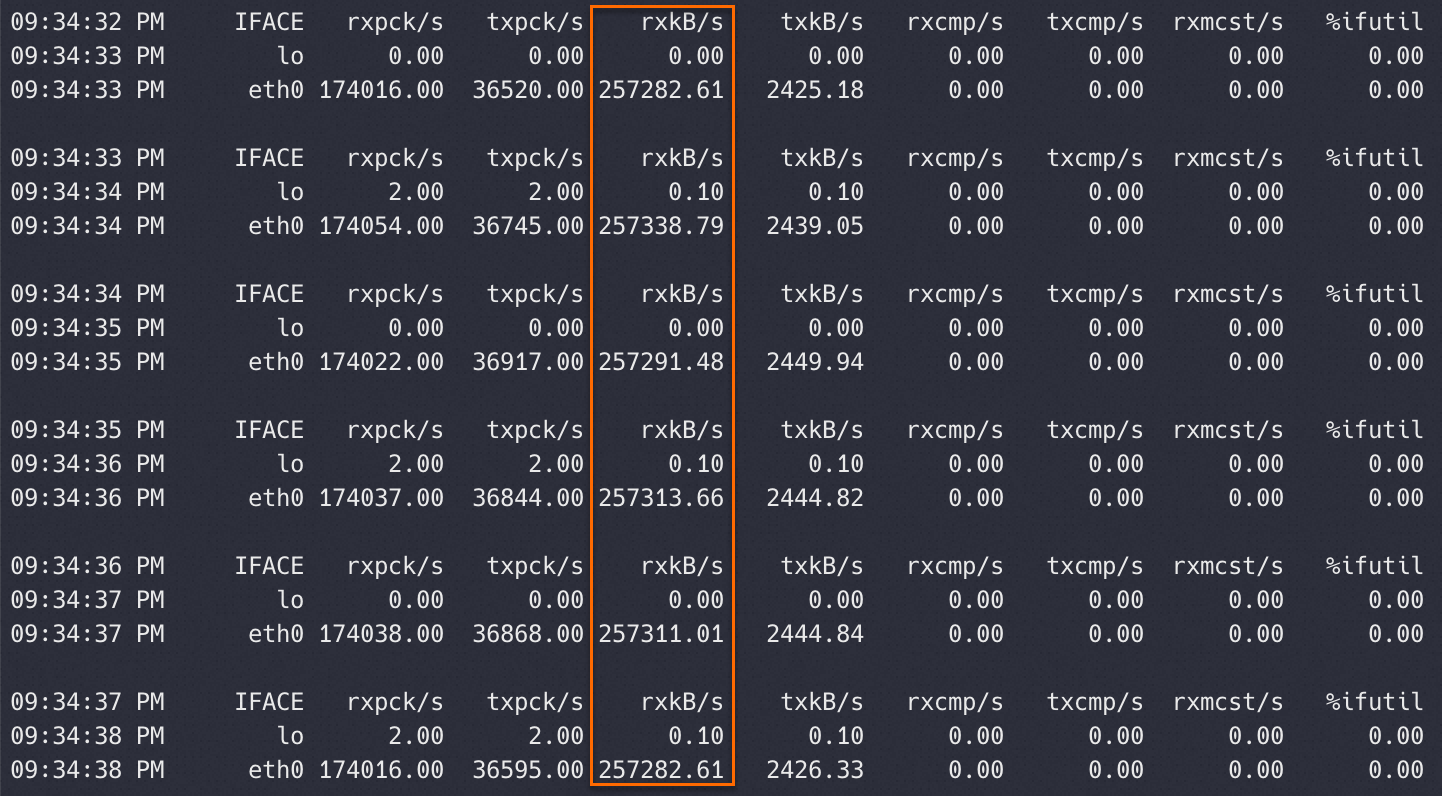
Windows örneği
Test makinesine ve yardımcı test makinesine bağlanın. Bkz. Parola veya anahtar kullanarak bir Windows örneğine bağlanma.
-
Her iki makinede de test araçlarını yükleyin ve güvenlik duvarını devre dışı bırakın.
ntttcp.exe aracını indirin ve aracın depolandığı yolu edinin.
Çalıştır iletişim kutusunu açın. powershell girin ve PowerShell'i başlatmak için Tamam'a tıklayın.
-
Bağlantıların engellenmesini önlemek için her iki makinede de güvenlik duvarını devre dışı bırakın:
Set-NetFirewallProfile -Profile * -Enabled:falseAlternatif olarak, her iki makinede de NTTTCP'ye (ntttcp.exe) izin veren gelen bir güvenlik duvarı kuralı oluşturun:
$ntttcpPath = "<Path of ntttcp.exe>" New-NetFirewallRule -DisplayName ntttcp -Protocol Any -Direction Inbound -Action Allow -Enabled True -Profile Any -Program $ntttcpPathNot<Path of ntttcp.exe>ifadesini gerçek değerle değiştirin.
-
Test makinesinde ağ adaptörü için Alıcı Tarafı Ölçeklendirmesini (RSS) yapılandırın.
RSS, alınan paketleri birden çok CPU çekirdeğine dağıtarak ağ performansını artırır. RSS kuyruklarını CPU sayısına göre ayarlayın:
Makinede 16'ya kadar CPU çekirdeği varsa RSS alma kuyruğu sayısını CPU çekirdeği sayısına eşit olacak şekilde ayarlayın.
Makinede 16'dan fazla CPU çekirdeği varsa RSS'yi devre dışı bırakın. Çoğu ağ adaptörü en fazla 16 RSS kuyruğunu desteklediğinden bu sınırın aşılması kaynakların eşit olmayan şekilde tahsis edilmesine neden olabilir.
$cpuNum = (Get-CimInstance -ClassName Win32_Processor).NumberOfLogicalProcessors if ($cpuNum -le 16) { Set-NetAdapterRss -Name <Name of the network adapter on the test machine> -NumberOfReceiveQueues $cpuNum } else { Disable-NetAdapterRss -Name <Name of the network adapter on the test machine> }Not<Name of the network adapter on the test machine>ifadesini gerçek değerle değiştirin. Adaptör adlarını almak içinGet-NetAdapter | Select-Object Namekomutunu çalıştırın.RSS yapılandırmasının değiştirilmesi ağ adaptörü hizmetini yeniden başlatır ve bu da bağlantıları kesintiye uğratabilir. Devam etmeden önce yeniden bağlantı kurulmasını bekleyin.
-
Test makinesinde veri almaya hazırlanın:
$serverIp = (Get-NetIPConfiguration -InterfaceAlias <Name of the network adapter on the test machine>).IPv4Address.IPAddress $cpuNum = (Get-CimInstance -ClassName Win32_Processor).NumberOfLogicalProcessors $threadNum = $cpuNum & <Path of ntttcp.exe on the test machine> -r -m $threadNum,0,$serverIp -t 300Not<Name of the network adapter on the test machine>ve<Path of ntttcp.exe on the test machine>ifadelerini gerçek değerlerle değiştirin. -
Yardımcı test makinesinde veri gönderin:
$serverIp = "<Private IP address of the test machine>" $threadNum = "<Thread number of the test machine>" <Path of ntttcp.exe on the auxiliary test machine> -s -m $threadNum,*,$serverIp -t 100Not<Private IP address of the test machine>,<Thread number of the test machine>ve<Path of ntttcp.exe on the auxiliary test machine>ifadelerini gerçek değerlerle değiştirin. Özel IP adresini almak içinipconfigkomutunu, iş parçacığı sayısını almak için ise$cpuNumdeğerini kullanın. -
Test makinesinde ağ bant genişliğini görüntüleyin.
Throughput(MB/s)değeri ağ bant genişliğini gösterir.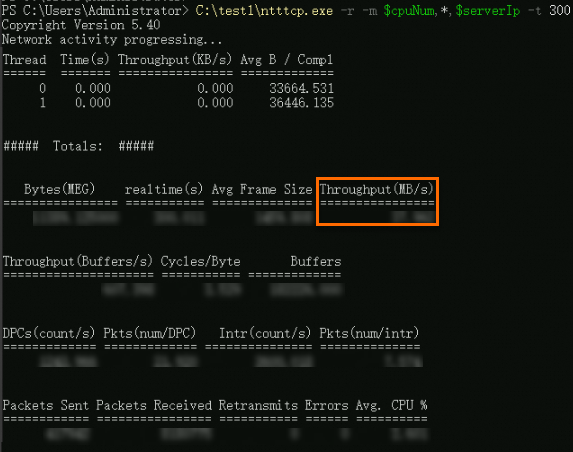
Ağ gecikme süresini test etme
Linux örneği
-
Test makinesine ve yardımcı test makinesine bağlanın. Bkz. Workbench kullanarak bir Linux örneğinde oturum açma.
-
Her iki makinede de
sockperfyükleyin:sudo yum install -y autoconf automake libtool gcc-c++ cd /opt sudo wget https://github.com/Mellanox/sockperf/archive/refs/tags/3.8.tar.gz sudo tar -zxf 3.8.tar.gz cd sockperf-3.8/ sudo ./autogen.sh sudo ./configure sudo make -j `cat /proc/cpuinfo| grep process | wc -l` sudo make install -
Test makinesinin özel IP adresini sorgulayın:
ifconfig || ip addrKomut çıktısında eth0 arayüzünün inet adresi örneğin özel IP adresidir.
[ecs-user@izxxx ecZ ~]$ ifconfig || ip addr eth0: flags=4163<UP,BROADCAST,RUNNING,MULTICAST> mtu 1500 inet 17.xxx.xxx.15 netmask 25xxx.0 broadcast 17.xxx.55 inet6 fexxx38:c158 prefixlen 64 scopeid 0x20<link> ether 00:xxx:xxx txqueuelen 1000 (Ethernet) RX packets 178595 bytes 106030163 (101.1 MiB) RX errors 0 dropped 0 overruns 0 frame 0 TX packets 116902 bytes 70189540 (66.9 MiB) TX errors 0 dropped 0 overruns 0 carrier 0 collisions 0 lo: flags=73<UP,LOOPBACK,RUNNING> mtu 65536 inet 127.0.0.1 netmask 255.0.0.0 inet6 ::1 prefixlen 128 scopeid 0x10<host> loop txqueuelen 1000 (Local Loopback) RX packets 2 bytes 140 (140.0 B) RX errors 0 dropped 0 overruns 0 frame 0 TX packets 2 bytes 140 (140.0 B) TX errors 0 dropped 0 overruns 0 carrier 0 collisions 0 -
Test makinesinde sockperf başlatın:
sockperf sr --tcp --daemonize -
Yardımcı test makinesinde test makinesine trafik gönderin:
sockperf pp -i <Private IP address of the test machine> --tcp -t 30 -m 14 --full-log=result.json<Private IP address of the test machine>ifadesini önceki adımdaki gerçek değerle değiştirin. -
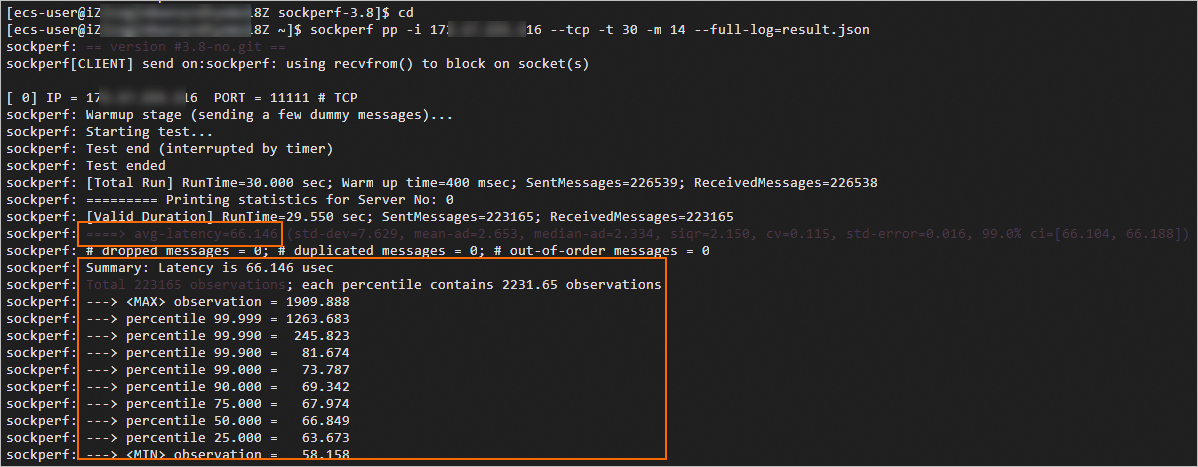
Ağ gecikme süresi sonuçlarını görüntüleyin.
Dönen verilerde:
avg-latency: mikrosaniye cinsinden ortalama gecikme süresi.percentile 99.000: mikrosaniye cinsinden 99. yüzdelik dilim gecikme süresi.
Windows örneği
Test makinesine ve yardımcı test makinesine bağlanın. Bkz. Parola veya anahtar kullanarak bir Windows örneğine bağlanma.
-
Her iki makinede de test araçlarını yükleyin ve güvenlik duvarını devre dışı bırakın.
latte.exe aracını indirin ve aracın depolandığı yolu edinin.
Çalıştır iletişim kutusunu açın. powershell girin ve PowerShell'i başlatmak için Tamam'a tıklayın.
-
Bağlantıların engellenmesini önlemek için her iki makinede de güvenlik duvarını devre dışı bırakın:
Set-NetFirewallProfile -Profile * -Enabled:falseAlternatif olarak, her iki makinede de Latte'ye (latte.exe) izin veren gelen bir güvenlik duvarı kuralı oluşturun:
$lattePath = "<Path of latte.exe>" New-NetFirewallRule -DisplayName Latte -Protocol Any -Direction Inbound -Action Allow -Enabled True -Profile Any -Program $lattePathNot<Path of latte.exe>ifadesini gerçek değerle değiştirin.
-
Test makinesinde veri almaya hazırlanın:
$serverIp = (Get-NetIPConfiguration | Where-Object {$_.InterfaceAlias -eq '<Name of the network adapter on the test machine>'} | Select-Object -ExpandProperty IPv4Address).IPAddress $port = <Communication port> & "<Path of latte.exe on the test machine>" -a "$serverIp`:$port" -i 65535Not<Name of the network adapter on the test machine>ve<Path of latte.exe on the test machine>ifadelerini gerçek değerlerle değiştirin. Adaptör adlarını almak içinGet-NetAdapter | Select-Object Namekomutunu çalıştırın.<Communication port>için bir bağlantı noktası numarası belirtin. Her iki makinede de aynı bağlantı noktasını kullanın.
-
Yardımcı test makinesinde veri gönderin:
$serverIp = "<Private IP address of the test machine>" $port = <Communication port> & "<Path of latte.exe on the auxiliary test machine>" -c -a "${serverIp}:$port" -i 65535Not<Private IP address of the test machine>ve<Path of latte.exe on the auxiliary test machine>ifadelerini gerçek değerlerle değiştirin. Özel IP adresini almak içinipconfigkomutunu çalıştırın.<Communication port>için bir bağlantı noktası numarası belirtin. Her iki makinede de aynı bağlantı noktasını kullanın.
-
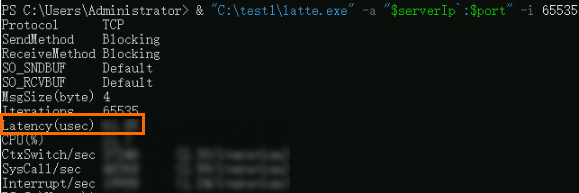
Ağ gecikme süresi sonuçlarını görüntüleyin.
Latency(usec)değeri mikrosaniye cinsinden ortalama ağ gecikme süresini gösterir.