Bir olağanüstü durum kurtarma çözümü yapılandırmak için Global Traffic Manager 3.0 kullanın. Birincil hizmet adresi başarısız olduğunda, GTM otomatik olarak yedek bir adrese yük devreder. Birincil adres kurtarıldığında, GTM önceden tanımlanmış bir ilkeye göre geri geçiş yaparak hizmetlerinizin yüksek kullanılabilirliğini sağlar.
Çözüm mimarisi
Bu konu, iki veri merkezine dağıtılmış bir hizmet içeren bir olağanüstü durum kurtarma senaryosunu açıklar: Günlük trafik için bir birincil veri merkezi ve olağanüstü durum kurtarma için bir yedek veri merkezi. Ağ sorunları veya hizmet kesintileri nedeniyle birincil veri merkezi kullanılamaz hale gelirse, hizmet kesintisini en aza indirmek için trafik otomatik olarak yedek veri merkezine yönlendirilir.

İş akışı şu şekildedir:
Sağlık denetimi: GTM,
Primary-DCveBackup-DCadres havuzlarında bulunan hizmet adreslerinin kullanılabilirliğini belirlemek amacıyla sürekli olarak sağlık denetimleri gerçekleştirir.DNS sorgusu: Bir kullanıcı ağ isteğinde bulunduğunda, yerel DNS'i GTM'den hizmetin alan adı için sorgulama yapar.
-
Trafik zamanlaması:
Birincil adres havuzu sağlıklı olduğunda, GTM yapılandırılmış sıralı ilkeyi uygular ve birincil adres havuzundaki IP adreslerine öncelik verir.
Birincil adres havuzu başarısız olursa, GTM otomatik olarak yedek adres havuzundan IP adresleriyle yanıt verir.
Arıza kurtarma: Birincil adres havuzu kurtarıldığında, GTM trafiği birincil adres havuzuna geri döndürüp döndürmemeye veya yedek adres havuzunda tutmaya karar vermek için yapılandırılmış Preemptive Mode veya Non-Preemptive Mode modunu kullanır.
Önkoşullar
Bir alan adı hazırlayın: Bir Access Domain öğesi, Public Zone tarafından barındırılan bir alan adına dayanır. Public Zone içindeki en az bir alan adının durumu Available olan bir DNS Server IP Address değerine sahip olduğundan emin olun. Durumu Available olan bir DNS sunucusuna sahip olduğunuzdan emin olun.
Hizmetleri dağıtın: Birincil ve yedek hizmetlerinizi dağıtın ve hizmet adreslerini edinin. Örneğin, Şanghay veri merkezi için
121.21.*.*ve Hangzhou veri merkezi için139.3.*.*.
Yordam
1. Create Access Domain
Go to the Global Traffic Manager konsoluna gidin.
On the Access Domain tab, click Create Access Domain.
In the dialog box that appears, select Custom Scenario.
On the Access Domain configuration page, click the access domain icon and select Basic Configuration. Click the edit icon to the right of Basic Configuration to open the configuration form.
-
Complete the form.
Access Domain: Enter the access domain, such as
gtm.your-domain.com. If the drop-down list is empty, purchase a domain or go to Public Zone to add a third-party domain.Billing Method: For this solution, select Pay-as-you-go.
Record Type: Select A. The service addresses in this solution are IPv4 addresses.
TTL (Seconds): The default value is 30. A shorter TTL helps speed up DNS failover but increases the number of DNS queries.
Enabed State: Leave this disabled for now. You will enable it after completing all configurations.
Remarks: Enter a descriptive note.
2. Birincil ve yedek adres havuzlarını ekleyin
An address pool is a collection of service addresses. This solution requires you to create a primary and a secondary address pool, which correspond to two data centers.
Click the Access Domain icon, and then click Add Address Pool.
-
Complete the form. For more information about the parameters, see Adres Havuzu Yapılandırması.
Address Pool Name:
Primary-DCType: IPv4
Health Status Conditions: Select At least one address in the address pool is available..
Enabed State: Enable
Follow the same steps to create the backup address pool
Backup-DC.
3. Add Address
Click the icon for the address pool you just added, and then click Add Address.
-
Complete the form. For details, see Adres Yapılandırması.
Address Name:
Primary-Server-01Type: IPv4
Type: Enter the public IP address of the server in the primary data center.
Health Check: Enable this option and configure the probe protocol (e.g., HTTP/HTTPS), path (e.g.,
/health), and expected response code. This allows GTM to determine if the service is healthy.
For Address Health Status Determination, select At least 1 probe template is normal. Set Enabled State to Enable, and then click Submit Configuration to add the address.
-
Follow the same steps to add a service address to the backup address pool
Backup-DC. Once complete, the configuration will look similar to the following figure.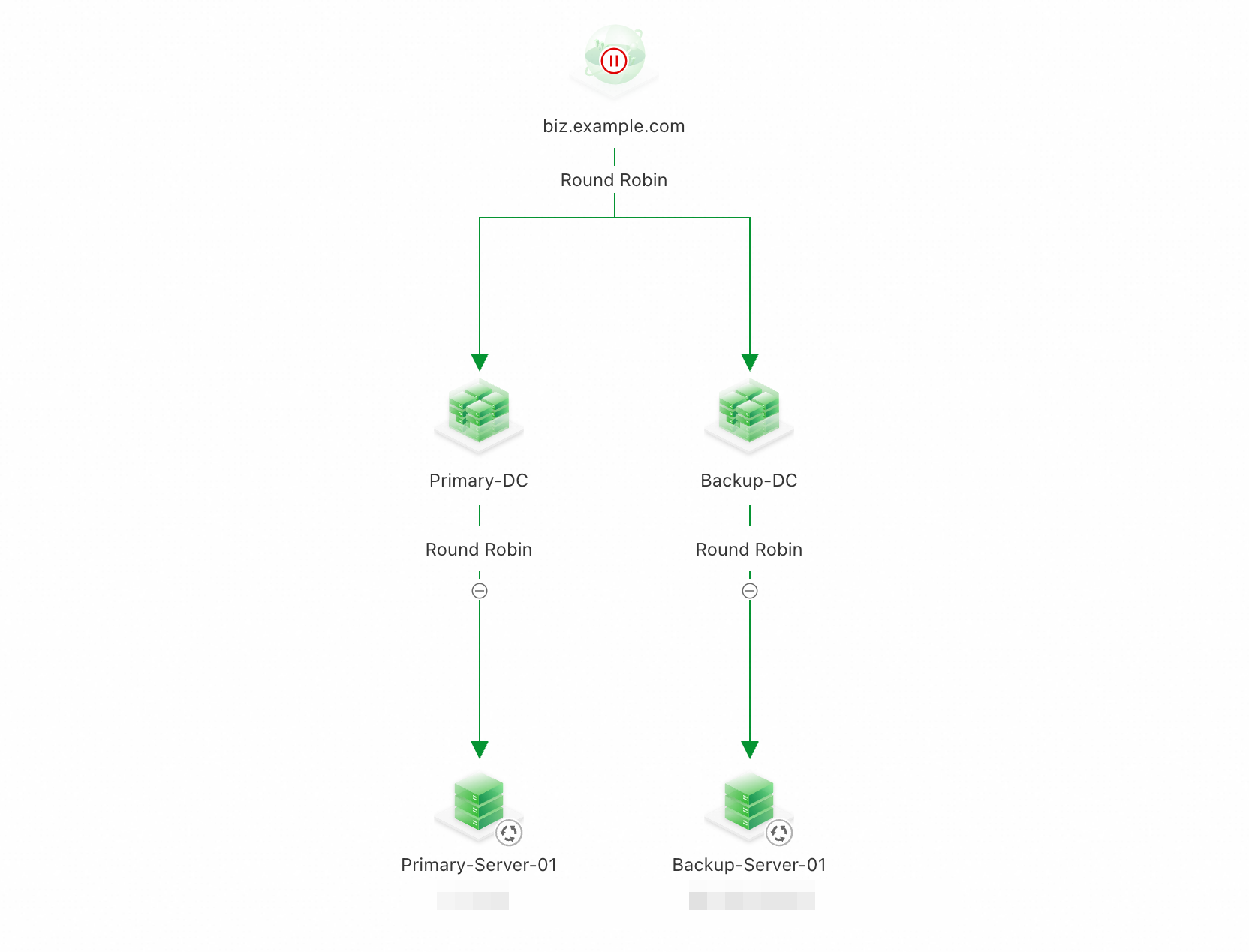
4. Load Balancing Policy
The access policy uses two-level scheduling: first between address pools, and then within each pool. The final DNS response is determined by applying the inter-pool policy first, followed by the intra-pool policy.
-
Configure the load balancing policy between address pools
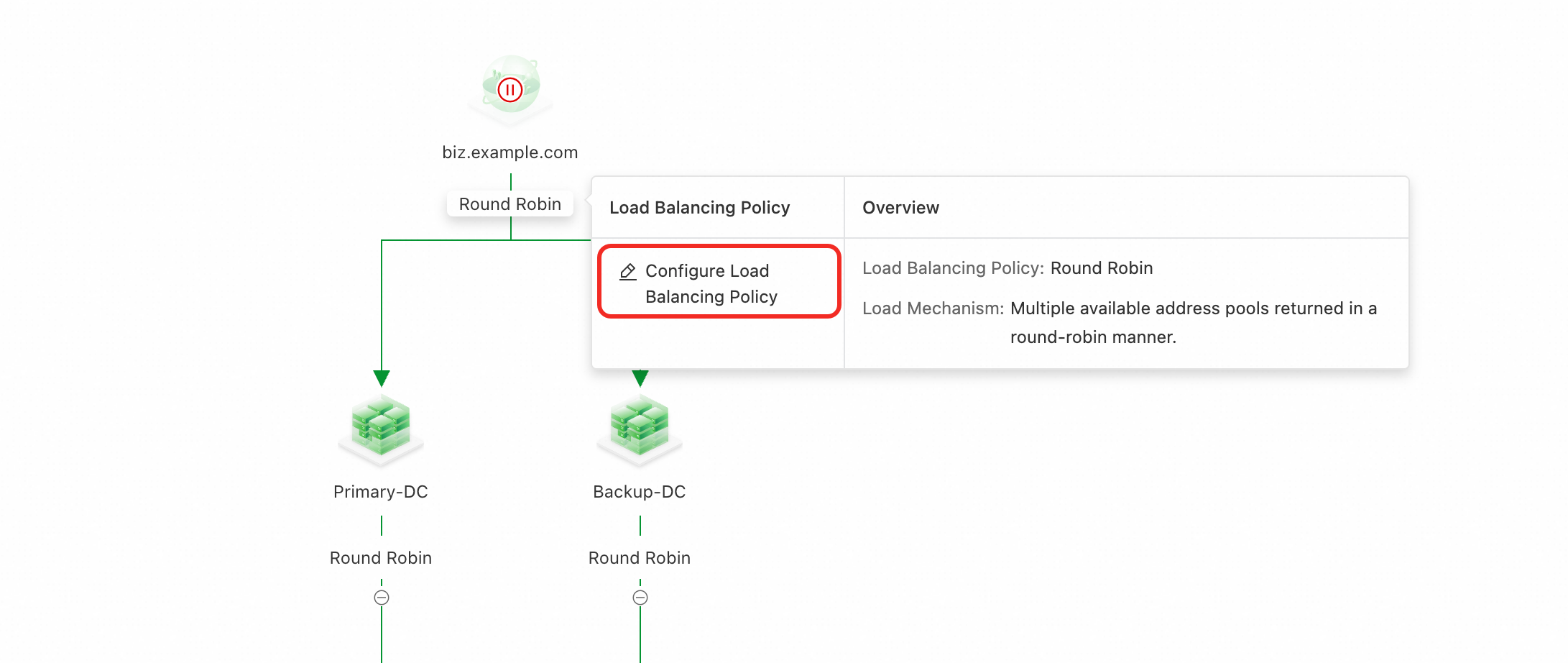
Click the policy icon above the address pools, and then select Load Balancing Policy.
-
Complete the form.
Load Balancing Policy: Sequential (Primary/Secondary)
Preemptive Mode: Preemptive Mode
Click Sequence No. > Adjust Sequence Number.
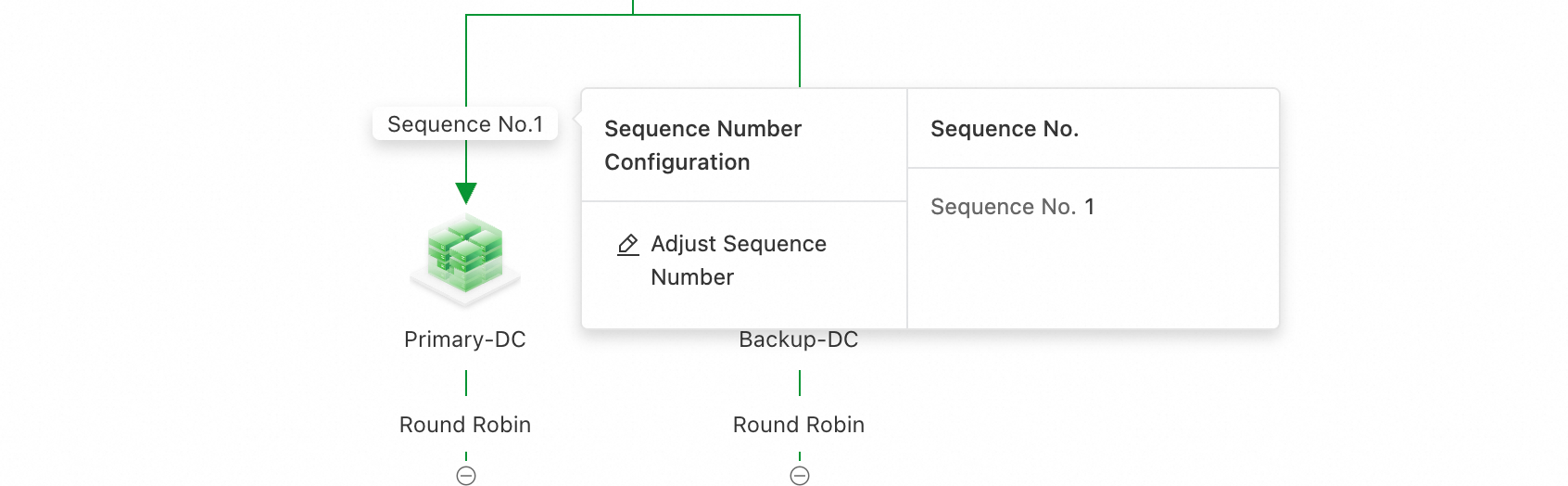
Drag the address pools to set their priority. Place the primary address pool first.
-
Configure the load balancing policy within address pools
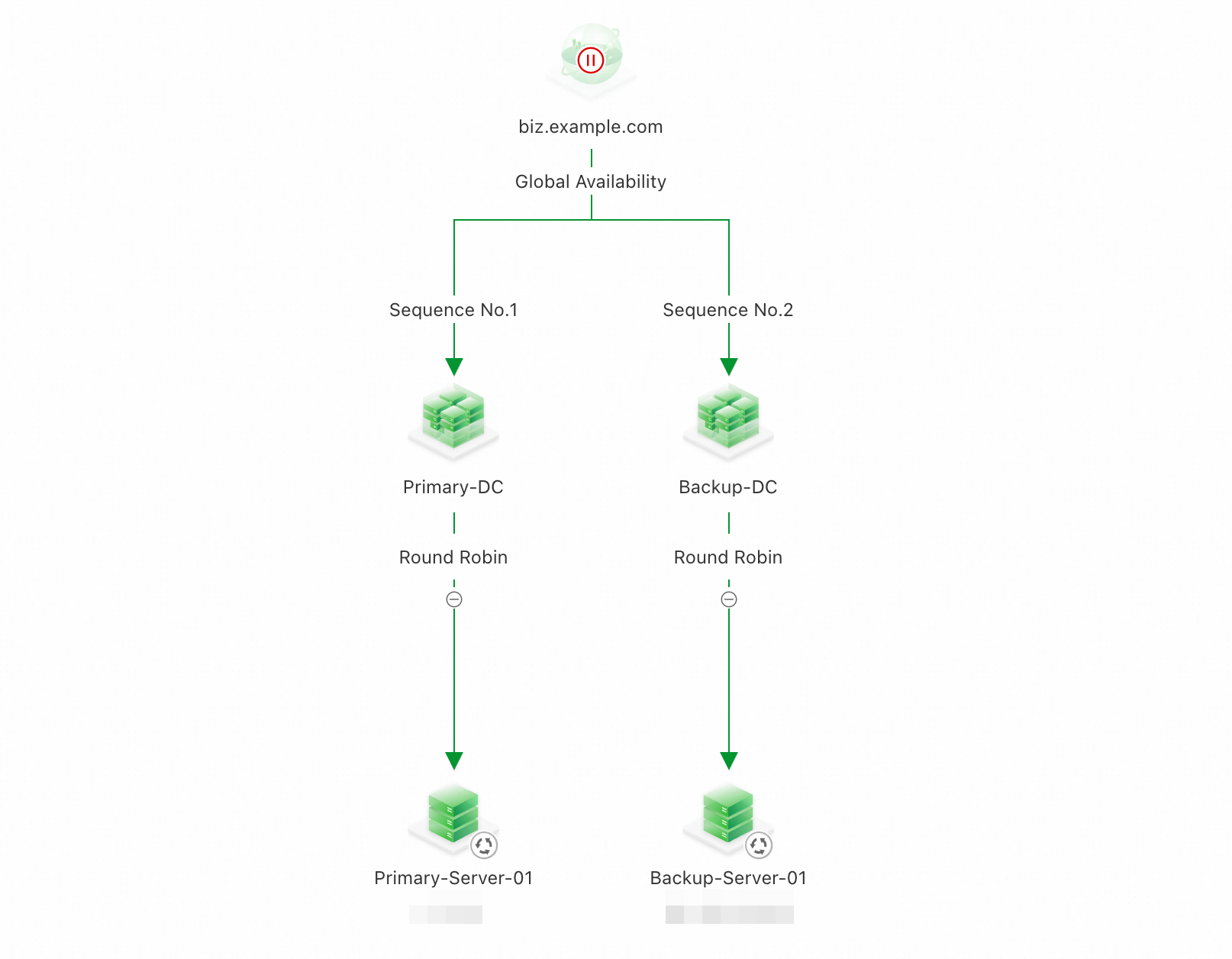
In this solution, each address pool contains only one service address. You can keep the default Round Robin policy for load balancing within the address pool.
5. Access Domain'i etkinleştirin
By default, an Access Domain instance is disabled and cannot serve traffic. You must enable it manually after completing the configuration.
-
Ensure that the service health status is normal. If you see any red or orange alert icons, troubleshoot the health check issues before you enable the service.


Click the access domain icon, and then select Enable.
In the confirmation dialog box, submit the configuration.
-
The configuration takes about 10 minutes to take effect. To verify that the DNS response returns the correct IP address, run one of the following commands:
nslookup gtm.your-domain.comdig gtm.your-domain.com
6. Trafik yönlendirme için bir CNAME yapılandırın
Create a CNAME record for your service domain that points to the Access Domain, for example, home.example.com CNAME gtm.your-domain.com.
This topic assumes your service domain is hosted in a Public Zone. If another provider manages your domain's DNS service, create the CNAME record with that provider.
Go to the Alibaba Cloud DNS console. Find the target domain and click Settings.
-
Click Add Record.
Record Type: CNAME
Host Record: Enter the host record for which you want to steer traffic.
Record Value: Enter the Access Domain you configured.
ÖnemliIf other record types (such as A or AAAA) already exist for the host record, adding a
CNAMErecord will cause a conflict. For more information, see DNS kayıt çakışma kuralları. To resolve the conflict:-
When adding the
CNAMErecord, create it in a disabled state.In the list of records, use the switch in the Status column to disable the new CNAME record.
During a low-traffic period, disable the existing A or AAAA records for the same host record.
Enable the
CNAMErecord.
-
Faturalama
For details, see Ürün Faturalandırması.
İlgili konular
For answers to common questions, see SSS.
To learn about more use cases, see En İyi Uygulamalar.