To prevent business exceptions caused by accidental deletion or malicious tampering of important data, we recommend that you use the data backup feature of Tablestore to back up important data in your Tablestore instances. This topic describes how to regularly back up full or incremental Tablestore data during the free trial period.
Usage notes
The first time you use the data backup feature, Cloud Backup automatically creates a service-linked role named
AliyunServiceRoleForHbrOtsBackupto obtain Tablestore instances within your Alibaba Cloud account. Follow the on-screen instructions to authorize Cloud Backup to access your Tablestore resources. For more information, see Service-linked roles for Cloud Backup.Cloud Backup automatically reads and loads the Tablestore instances in the region in which Cloud Backup is activated. You do not need to install a client.
You can back up data in Tablestore instances only to the backup vaults of Cloud Backup that reside in the same region as the Tablestore instances. Cross-region backup is not supported.
You can back up and restore only data tables and search indexes in Tablestore instances. You cannot back up secondary indexes or time series tables.
Cloud Backup
Cloud Backup cannot back up the encryption settings of encrypted tables in Tablestore. If you back up encrypted tables in Tablestore to a backup vault, the tables are not encrypted in the backup vault.
We recommend that you back up Tablestore data during off-peak hours. If you want to back up data during peak hours, we recommend that you use the throttling feature to limit the maximum traffic that can be consumed by the data backup feature and prevent business interruptions.
Data is compressed during backup. The compression ratio varies based on the data features.
Procedure
Go to the Create Backup Plan panel.
Log on to the Tablestore console.
In the left-side navigation pane, click Data Backup.
On the Data Backup page, select the region in which the resources that you want to back up reside.
The system automatically obtains the instance list in the selected region.
Find the instance that you want to back up and click Back Up in the Actions column.
Select the tables that you want to back up.
In the Backup Content step of the Create Backup Plan panel, enter the name of the backup plan and select the tables that you want to back up.
You can select multiple tables to back up the tables at the same time.
Click Next.
Configure the backup plan.
In the Backup Plan step, configure the parameters for full backup. The following table describes the parameters.
Parameter
Description
Full Backup
By default, Full Backup is turned on, which specifies that Cloud Backup backs up full data. You cannot turn off Full Backup.
Backup Frequency
The frequency of full backup. Full backup can be performed on a daily, weekly, or monthly basis.
Run At
The time at which full backup starts on a day. The time is accurate to seconds.
Time Interval
The interval at which full backup is performed. This parameter is required only if you set the Backup Frequency parameter to Daily.
Backup Week
The day of the week on which a full backup is performed. You can select multiple days. This parameter is required only if you set the Backup Frequency parameter to Weekly.
Backup Month
The month in which a full backup is performed. You can select multiple months. This parameter is required only if you set the Backup Frequency parameter to Monthly.
Backup Day
The day of the month on which full backup is performed. You can select multiple days. This parameter is required only if you set the Backup Frequency parameter to Monthly.
ImportantIf the selected day does not exist in the specified month, Cloud Backup automatically skips the backup for the day.
Configure the parameters for incremental backup based on your business requirements.
By default, Incremental Backup is turned on, which specifies that Cloud Backup backs up incremental data. Incremental backup backs up only the data updated after the previous full backup. Incremental backup requires less time than full backup because the volume of incremental data is smaller than historical data.
If you want to perform only full backup on a regular basis, turn off Incremental Backup.
If you want to continuously back up incremental data, turn on Incremental Backup and configure the parameters for incremental backup. The following table describes the parameters.
Parameter
Description
Backup Frequency
The frequency of incremental backup. Incremental backup can be performed on a per minute, hourly, or daily basis.
Run At
The time at which incremental backup starts on a day. The time is accurate to seconds. This parameter is required only if you set the Backup Frequency parameter to Daily.
Time Interval
The interval at which incremental backup is performed. The value of this parameter varies based on the value of the Backup Frequency parameter. Take note of the following items:
If you set the Backup Frequency parameter to Minutely, the value of the Time Interval parameter is fixed to 30 minutes.
If you set the Backup Frequency parameter to Hourly, the value of the Time Interval parameter ranges from 1 to 24 hours. Configure this parameter based on your business requirements.
If you set the Backup Frequency parameter to Daily, the value of the Time Interval parameter ranges from one to five days. Configure this parameter based on your business requirements.
Click Next.
Configure the backup settings.
Create a backup vault or select an existing backup vault based on your business requirements.
Create a backup vault
If no backup vault is created or the existing backup vaults do not meet your business requirements, create a backup vault.
Set the Backup Vault parameter to Create Vault.
To maximize the redundancy of your backup data, Cloud Backup uses zone-redundant storage (ZRS)-enabled backup vaults by default in regions that support ZRS-enabled backup vaults. For regions that support only locally redundant storage (LRS)-enabled backup vaults, Cloud Backup uses LRS-enabled backup vaults. You do not need to manually select a backup vault type.
By default, the system generates a name for the new backup vault. You can modify the name based on your business requirements.
By default, a new backup vault belongs to the default resource group. Select an existing resource group or create a resource group based on your business requirements.
NoteResource Group allows you to sort resources owned by your Alibaba Cloud account into groups to simplify resource and permission management. For more information, see Create a resource group.
Specify an encryption method to encrypt the data in the backup vault.
Cloud Backup supports the following encryption methods: Cloud Backup-managed and KMS.
ImportantAfter the backup vault is created, you cannot change the encryption method. Proceed with caution.
If you specify a customer master key (CMK) to encrypt your backup data, you cannot change the CMK after the backup vault is created.
If you specify a CMK to encrypt your backup data, you cannot delete or disable the CMK after the backup vault is created. If you delete or disable the CMK, you cannot use the backup vault to back up or restore data.
Before you use a CMK to encrypt data in a backup vault, you must create a CMK in the Key Management Service (KMS) console and obtain the CMK ID. For more information, see Create a CMK.
Encryption method
Operation
Description
Cloud Backup-managed encryption
Set the Backup Vault Encryption Method parameter to Cloud Backup-managed.
By default, Cloud Backup uses the built-in encryption method to encrypt the data in the backup vault and automatically decrypts the data when you restore the data.
The first time you use this encryption method, Cloud Backup automatically creates a CMK in the KMS console. You need to only activate KMS. You do not need to purchase a KMS instance.
KMS-based encryption
Set the Backup Vault Encryption Method parameter to KMS.
Configure the KMS KeyId parameter.
Use the CMK that corresponds to the specified ID to encrypt the data in the backup vault. Cloud Backup encrypts data by using the CMK that you specify. You can manage the CMK.
If you want to use the KMS-based encryption method, you must create a service-linked role named
AliyunServiceRoleForHbrVaultEncryptionto authorize Cloud Backup to access your KMS resources.
Select an existing backup vault
If an existing backup vault meets your business requirements, select the existing backup vault.
Set the Backup Vault parameter to Select Vault.
Select a backup vault from the Vault Name drop-down list.
Modify the retention period of backup data based on your business requirements. The default retention period is two years.
The backup data must be retained for at least one day.
If you want to back up data during peak hours, turn on Enable Traffic Throttling and configure the throttling parameters.
By default, Enable Traffic Throttling is turned off, which specifies that the maximum traffic of data backup is not limited. If you back up data during peak hours without enabling the throttling feature, your business may be affected.
Drag the sliders to the right of the Time Range (Hour) parameter to specify the start time and end time when traffic is limited.
In the Max Bandwidth(MB) field, enter the maximum traffic that can be consumed for data backup during the specified throttling period. Then, click Add.
If you want to configure throttling rules for multiple throttling periods, repeat the preceding steps. You can view the throttling rules configured for different throttling periods in the Bandwidth Throttling Rules section.
Click OK.
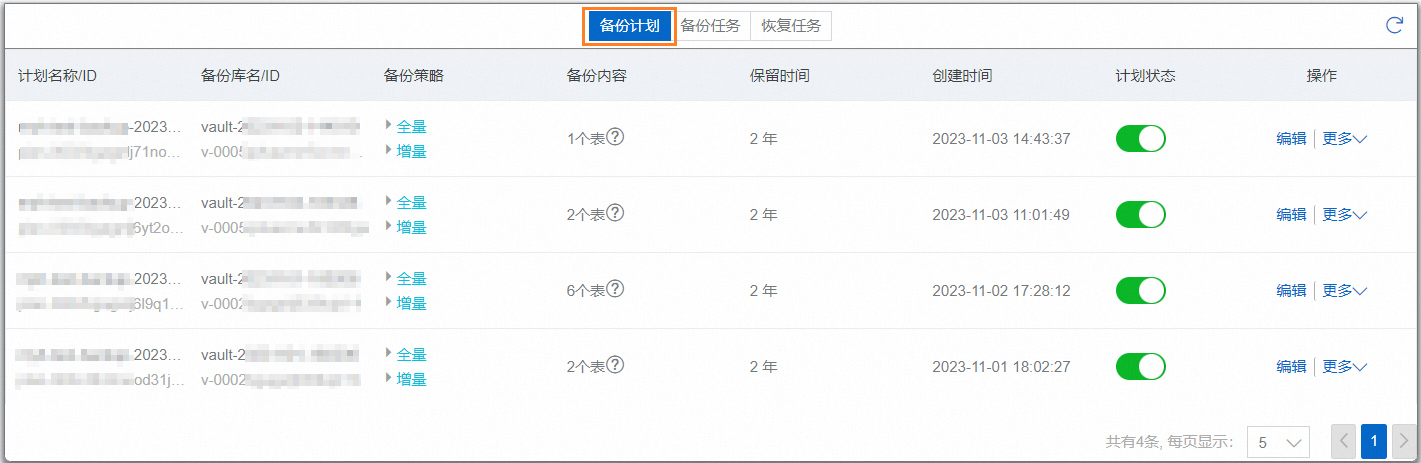
By default, the created backup plan is enabled. Cloud Backup backs up the data in the specified Tablestore instance based on the specified backup start time and interval. You can view the created backup plan on the Backup Plans tab.

If the specified backup start time does not arrive, you can manually perform a backup.
To immediately perform a full backup, choose More > Perform Full Backup Now in the Actions column of the backup plan.
To immediately perform an incremental backup, choose More > Perform Incremental Backup Now in the Actions column of the backup plan.
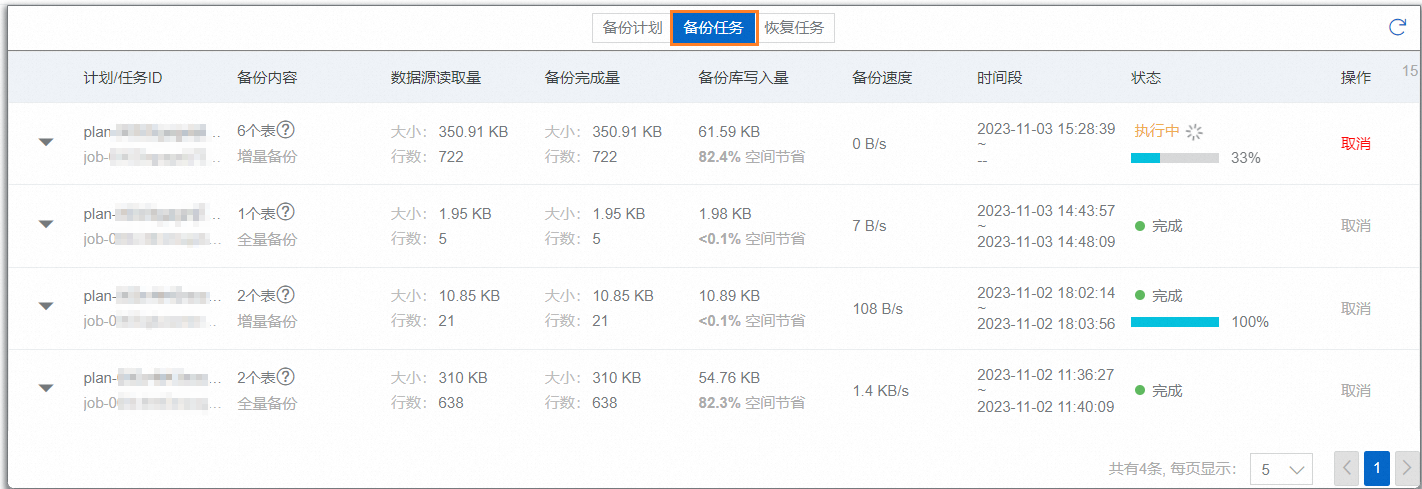
Cloud Backup generates a backup job for each backup operation. You can view the status of a backup job on the Backup Jobs tab. If the value in the Status column of a backup job changes to Completed, the backup job is complete. After an incremental backup job is complete, the progress of the backup job is displayed as 100% in the Status column.