本文介紹如何使用Alibaba Cloud Toolkit部署應用至SAE,以及對應用進行監控。
前提條件
下載Maven並設定環境變數。
下載並安裝JDK 1.8或更高版本。
下載並安裝IntelliJ IDEA (2018.3或更高版本)。
說明由於JetBrains外掛程式官方伺服器設立在海外,如果因訪問緩慢導致無法下載安裝,請聯絡SAE工程師擷取離線安裝包。更多資訊,請參見聯絡我們。
IntelliJ IDEA中已安裝Alibaba Cloud Toolkit外掛程式。
步驟一:在SAE建立Demo應用
SAE支援程式碼封裝和鏡像方式部署應用。具體操作,請參見將Java應用部署到SAE 1.0。
本文以JAR包方式為例,在SAE分別建立Provider和Consumer應用。具體操作,請參見在SAE控制台使用JAR檔案部署微服務應用。
步驟二:建立服務提供者
在本地建立服務提供者應用工程,添加依賴,開啟服務註冊與發現功能,並將註冊中心指定為Nacos Server。
建立命名為
nacos-service-provider的Maven工程。在
pom.xml檔案中添加依賴。以Spring Boot 2.1.4.RELEASE和Spring Cloud Greenwich.SR1為例,依賴如下:
<parent>
    <groupId>org.springframework.boot</groupId>
    <artifactId>spring-boot-starter-parent</artifactId>
    <version>2.1.4.RELEASE</version>
    <relativePath/>
</parent>

<dependencies>
    <dependency>
        <groupId>com.alibaba.cloud</groupId>
        <artifactId>spring-cloud-starter-alibaba-nacos-discovery</artifactId>
        <version>2.1.1.RELEASE</version>
    </dependency>
    <dependency>
        <groupId>org.springframework.boot</groupId>
        <artifactId>spring-boot-starter-web</artifactId>
    </dependency>
</dependencies>

<dependencyManagement>
    <dependencies>
        <dependency>
            <groupId>org.springframework.cloud</groupId>
            <artifactId>spring-cloud-dependencies</artifactId>
            <version>Greenwich.SR1</version>
            <type>pom</type>
            <scope>import</scope>
        </dependency>
    </dependencies>
</dependencyManagement>

<build>
    <plugins>
        <plugin>
            <groupId>org.springframework.boot</groupId>
            <artifactId>spring-boot-maven-plugin</artifactId>
        </plugin>
    </plugins>
</build>
樣本中使用的版本為Spring Cloud Greenwich ,對應Spring Cloud Alibaba版本為2.1.1.RELEASE。
如果使用Spring Cloud Finchley版本,對應Spring Cloud Alibaba版本為2.0.1.RELEASE。
如果使用Spring Cloud Edgware版本,對應Spring Cloud Alibaba版本為1.5.1.RELEASE。
說明Spring Cloud Edgware版本的生命週期已結束,不推薦使用這個版本開發應用。
在
src\main\java下建立名為com.aliware.edas的Package 。在com.aliware.edas中建立服務提供者的啟動類
ProviderApplication,並添加如下代碼。其中
@EnableDiscoveryClient註解表明此應用需開啟服務註冊與發現功能。package com.aliware.edas; import org.springframework.boot.SpringApplication; import org.springframework.boot.autoconfigure.SpringBootApplication; import org.springframework.cloud.client.discovery.EnableDiscoveryClient; @SpringBootApplication @EnableDiscoveryClient public class ProviderApplication { public static void main(String[] args) { SpringApplication.run(ProviderApplication.class, args); } }在Package
com.aliware.edas中建立EchoController,指定URL mapping為{/echo/{String}},指定HTTP方法為GET,方法參數從URL路徑中獲得,回顯收到的參數。package com.aliware.edas; import org.springframework.web.bind.annotation.PathVariable; import org.springframework.web.bind.annotation.RequestMapping; import org.springframework.web.bind.annotation.RequestMethod; import org.springframework.web.bind.annotation.RestController; @RestController public class EchoController { @RequestMapping(value = "/echo/{string}", method = RequestMethod.GET) public String echo(@PathVariable String string) { return string; } }在
src\main\resources路徑下建立檔案application.properties,在application.properties中添加如下配置,並指定Nacos Server的訪問地址。spring.application.name=service-provider server.port=18081 spring.cloud.nacos.discovery.server-addr=127.0.0.1:8848其中
127.0.0.1為Nacos Server的IP地址。如果您的Nacos Server部署在其他裝置,則需要修改成對應的IP地址。說明如果您的服務註冊中心為自建服務註冊中心,請將
127.0.0.1替換為您的自建服務註冊中心地址。驗證結果。
執行
nacos-service-provider中ProviderApplication的main函數,啟動應用。登入本地啟動的Nacos Server控制台
http://127.0.0.1:8848/nacos(本地Nacos控制台的預設使用者名和密碼同為nacos)。在左側導覽列中選擇 。
可以看到服務列表中已經包含了service-provider,且在詳情中可以查詢該服務的詳情。
步驟三:建立服務消費者
本步驟介紹服務註冊的功能,以及Nacos服務發現與RestTemplate和FeignClient兩個用戶端如何配合使用。
建立命名為
nacos-service-consumer的Maven工程。在
pom.xml中添加依賴。<parent> <groupId>org.springframework.boot</groupId> <artifactId>spring-boot-starter-parent</artifactId> <version>2.1.4.RELEASE</version> <relativePath/> </parent> <dependencies> <dependency> <groupId>com.alibaba.cloud</groupId> <artifactId>spring-cloud-starter-alibaba-nacos-discovery</artifactId> <version>2.1.1.RELEASE</version> </dependency> <dependency> <groupId>org.springframework.boot</groupId> <artifactId>spring-boot-starter-web</artifactId> </dependency> <dependency> <groupId>org.springframework.cloud</groupId> <artifactId>spring-cloud-starter-openfeign</artifactId> </dependency> </dependencies> <dependencyManagement> <dependencies> <dependency> <groupId>org.springframework.cloud</groupId> <artifactId>spring-cloud-dependencies</artifactId> <version>Greenwich.SR1</version> <type>pom</type> <scope>import</scope> </dependency> </dependencies> </dependencyManagement> <build> <plugins> <plugin> <groupId>org.springframework.boot</groupId> <artifactId>spring-boot-maven-plugin</artifactId> </plugin> </plugins> </build>在
src\main\java下建立名為com.aliware.edas的Package。在
com.aliware.edas中配置RestTemplate和FeignClient。在Package
com.aliware.edas中建立一個介面類EchoService,添加@FeignClient註解,並配置對應的HTTP URL地址及HTTP方法。package com.aliware.edas; import org.springframework.cloud.openfeign.FeignClient; import org.springframework.web.bind.annotation.PathVariable; import org.springframework.web.bind.annotation.RequestMapping; import org.springframework.web.bind.annotation.RequestMethod; @FeignClient(name = "service-provider") public interface EchoService { @RequestMapping(value = "/echo/{str}", method = RequestMethod.GET) String echo(@PathVariable("str") String str); }在
com.aliware.edas中建立啟動類ConsumerApplication並添加相關配置。使用
@EnableDiscoveryClient註解啟用服務註冊與發現。使用
@EnableFeignClients註解啟用FeignClient。添加
@LoadBalanced註解將RestTemplate與服務發現整合。
package com.aliware.edas;

import org.springframework.boot.SpringApplication;
import org.springframework.boot.autoconfigure.SpringBootApplication;
import org.springframework.cloud.client.discovery.EnableDiscoveryClient;
import org.springframework.cloud.client.loadbalancer.LoadBalanced;
import org.springframework.cloud.openfeign.EnableFeignClients;
import org.springframework.context.annotation.Bean;
import org.springframework.web.client.RestTemplate;

@SpringBootApplication
@EnableDiscoveryClient
@EnableFeignClients
public class ConsumerApplication {

    @LoadBalanced
    @Bean
    public RestTemplate restTemplate() {
        return new RestTemplate();
    }

    public static void main(String[] args) {
        SpringApplication.run(ConsumerApplication.class, args);
    }
}
在
com.aliware.edas中建立類TestController以示範和驗證服務發現功能。package com.aliware.edas; import org.springframework.beans.factory.annotation.Autowired; import org.springframework.web.bind.annotation.PathVariable; import org.springframework.web.bind.annotation.RequestMapping; import org.springframework.web.bind.annotation.RequestMethod; import org.springframework.web.bind.annotation.RestController; import org.springframework.web.client.RestTemplate; @RestController public class TestController { @Autowired private RestTemplate restTemplate; @Autowired private EchoService echoService; @RequestMapping(value = "/echo-rest/{str}", method = RequestMethod.GET) public String rest(@PathVariable String str) { return restTemplate.getForObject("http://service-provider/echo/" + str, String.class); } @RequestMapping(value = "/echo-feign/{str}", method = RequestMethod.GET) public String feign(@PathVariable String str) { return echoService.echo(str); } }在
src\main\resources路徑下建立檔案application.properties,在application.properties中添加如下配置,指定Nacos Server的地址。spring.application.name=service-consumer server.port=18082 spring.cloud.nacos.discovery.server-addr=127.0.0.1:8848其中
127.0.0.1為Nacos Server的IP地址。如果您的Nacos Server部署在其他裝置,則需要修改成對應的IP地址。說明如果您的服務註冊中心為自建服務註冊中心,請將
127.0.0.1:8848替換為您的自建服務註冊中心地址。驗證結果。
執行
nacos-service-consumer中ConsumerApplication的main函數,啟動應用。登入本地啟動的Nacos Server控制台
http://127.0.0.1:8848/nacos(本地Nacos控制台的預設使用者名和密碼同為nacos)。在左側導覽列中選擇 。
可以看到服務列表中已經包含了service-consumer,且在詳情中可以查詢該服務的詳情。
步驟四:本地測試
在本地測試消費者對提供者的服務調用結果。
Linux/Unix/macOS系統:運行以下命令。
curl http://127.0.0.1:18082/echo-rest/rest-rest curl http://127.0.0.1:18082/echo-feign/feign-restWindows系統:在瀏覽器中輸入http://127.0.0.1:18082/echo-rest/rest-rest和http://127.0.0.1:18082/echo-feign/feign-rest。
本樣本以Windows系統為例。

表示本地開發的微服務Provider和Consumer調用正常。
步驟五:部署應用至SAE
應用程式完成開發後,您需要在Cloud Toolkit中配置部署任務資訊,將您的業務代碼發布至步驟一:在SAE建立Demo應用所建立的應用。
配置Cloud Toolkit賬戶。
單擊Cloud Toolkit表徵圖
 ,在下拉式清單中單擊 Preferensce…,在設定頁面左側導覽列選擇 。
在Accounts介面中設定Access Key ID和Access Key Secret,並單擊OK。
說明Access Key ID和Access Key Secret擷取方法:
在Accounts介面中單擊Get existing AK/SK,進入並登入阿里雲登入頁面,系統自動跳轉至安全資訊管理頁面,擷取Access Key ID和Access Key Secret。
配置部署任務。
在IntelliJ IDEA上單擊Cloud Toolkit 表徵圖
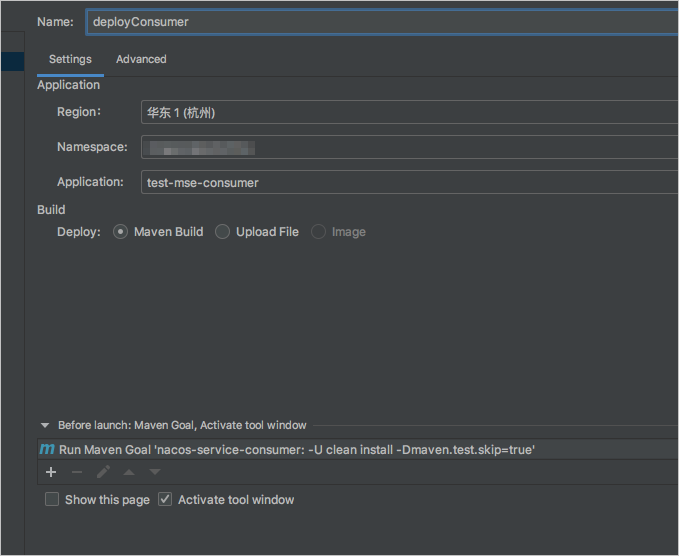
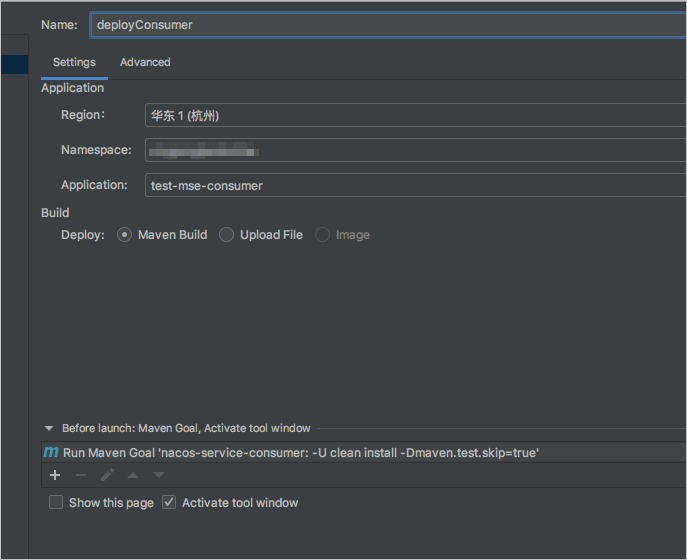
,並在下拉式清單中選擇Deploy to SAE。在Deploy to SAE回合組態頁面,配置應用部署參數。配置完成後單擊Apply儲存設定。
說明如果您使用自建服務註冊中心,您還需要在Advanced頁簽中配置啟動命令
-Dnacos.use.endpoint.parsing.rule=false和-Dnacos.use.cloud.namespace.parsing=false。Provider 應用配置
配置應用部署的地區、命名空間和步驟一:在SAE建立Demo應用中建立的應用。
Consumer應用配置
配置應用部署的地區、命名空間和建立的應用。
部署應用。
單擊Run,運行Provider應用後,然後運行Consumer應用。

結果驗證。
為Consumer應用綁定SLB。
具體操作,請參見為應用綁定CLB。

訪問Consumer。
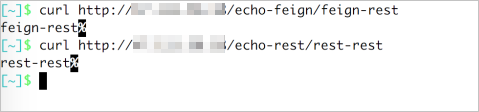
對Consumer發起HTTP請求。
curl http://47.111.XX.XX/echo-feign/feign-rest對Consumer發起HTTP請求,Consumer調用Provider。
curl http://47.111.XX.XX/echo-rest/rest-rest
在應用監控大盤查看調用資料。