When an ApsaraDB for MongoDB instance runs out of disk space, its status changes to Locked. A locked instance blocks write and delete operations. This topic explains how to troubleshoot and resolve write failures caused by exhausted disk space.
Symptoms
-
Your application can no longer write data to the database but can still read data.
-
When an administrator connects to the database using the mongo shell for troubleshooting and attempts to write a document, an error message is returned:
not authorized on xxxx to execute command. An example is shown below:db.customer.insert({"name":"zhangsan"}) WriteCommandError({ "operationTime" : Timestamp(1563437183, 1), "ok" : 0, "errmsg" : "not authorized on db1 to execute command { insert: \"customer\", ordered: true, lsid: { id: UUID(\"8d43461c-5c51-49ef-b9b3-9xxxxxxxxf\") }, $clusterTime: { clusterTime: Timestamp(1563437183, 1), signature: { hash: BinData(0, 0C3FAAE747xxxxxx), keyId: 668293399xxxxxx } }, $db: \"db1\" }", "code" : 13, "codeName" : "Unauthorized", "$clusterTime" : { "clusterTime" : Timestamp(1563437183, 1), "signature" : { "hash" : BinData(0,"DD+q50dPTuIQKTzytT5SiTPYX4Q="), "keyId" : NumberLong("66xxxxxxxx") } } }) -
In the ApsaraDB for MongoDB console, the instance status is Locked.
NoteDue to their architecture, sharded cluster instances do not enter the Locked state when their disk space is exhausted.
Check disk space usage
Log on to the ApsaraDB for MongoDB console.
In the upper-left corner of the page, select the resource group and region to which the instance belongs.
In the left-side navigation pane, click Replica Set Instances or Sharded Cluster Instance based on the instance type.
On the page that appears, find the instance that you want to manage and click its ID.
-
The next steps depend on your instance architecture.
NoteDisk space usage data is collected at 5-minute intervals.
-
Standalone or replica set instance
On the Basic Information page, check the instance status and disk space usage. In this example, the status is Locked and the disk usage exceeds 100%, which indicates that the disk space is exhausted.
-
Sharded cluster instance
-
In the navigation pane on the left, click Monitoring Data.
-
On the Monitoring Data page, select the shard node from the instance drop-down list in the upper-right corner.
NoteNode IDs that start with
dare shard nodes, and node IDs that start withsare mongos nodes. -
Check the disk space usage. In this example, the disk usage of the shard node exceeds 100%, which indicates that the disk space is exhausted.
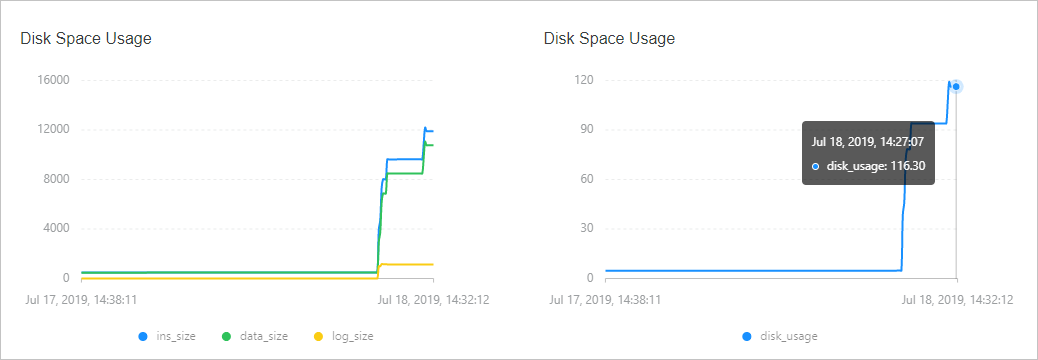
-
-
Solutions
-
Change the instance configuration to increase the instance's storage space.
NoteThe maximum available disk space varies by instance type. For more information, see Instance types.
-
The maximum storage capacity for a replica set instance is 3,000 GB. If you expect your storage needs to exceed this limit, we recommend using a sharded cluster instance. You can horizontally scale the storage of a sharded cluster instance up to 96,000 GB by adding shard nodes.
NoteYou can use Data Transmission Service (DTS) to migrate data from the source replica set instance to the new sharded cluster instance. For more information, see Migrate data from a MongoDB replica set instance to a sharded cluster instance.
Recommendations
If you have deleted a large amount of data from your instance using the db.collection.remove command, or if you have not defragmented the instance, you can reclaim disk fragments to improve storage utilization.