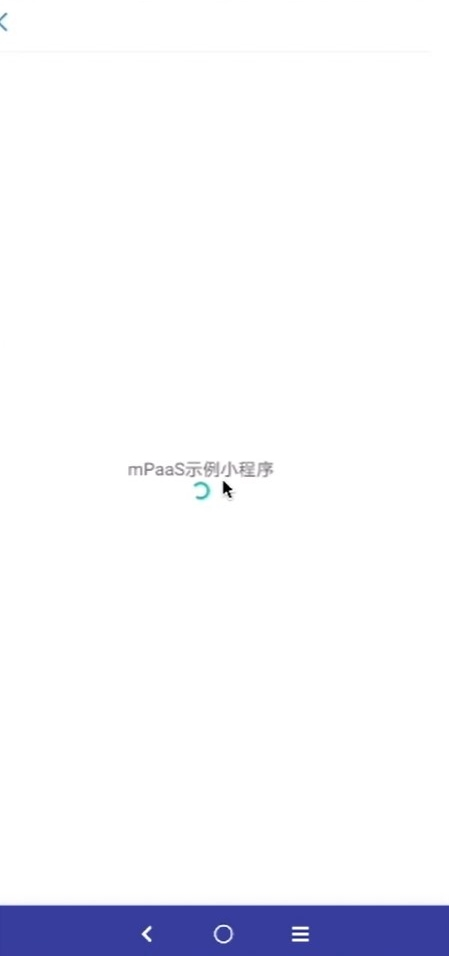
當啟動小程式時,如果小程式未下載到裝置,小程式容器會啟動載入頁提示使用者等待,待小程式安裝到裝置上,載入頁關閉並跳轉至小程式。本文將引導您使用小程式自訂啟動載入頁的功能。
操作步驟
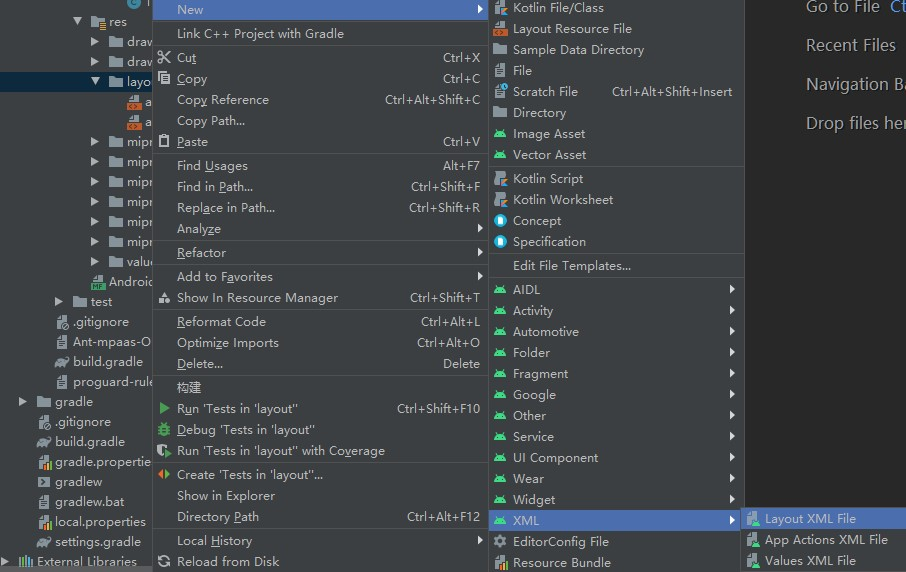
按右鍵 res 下的 layout > New > XML > Layout XML File。
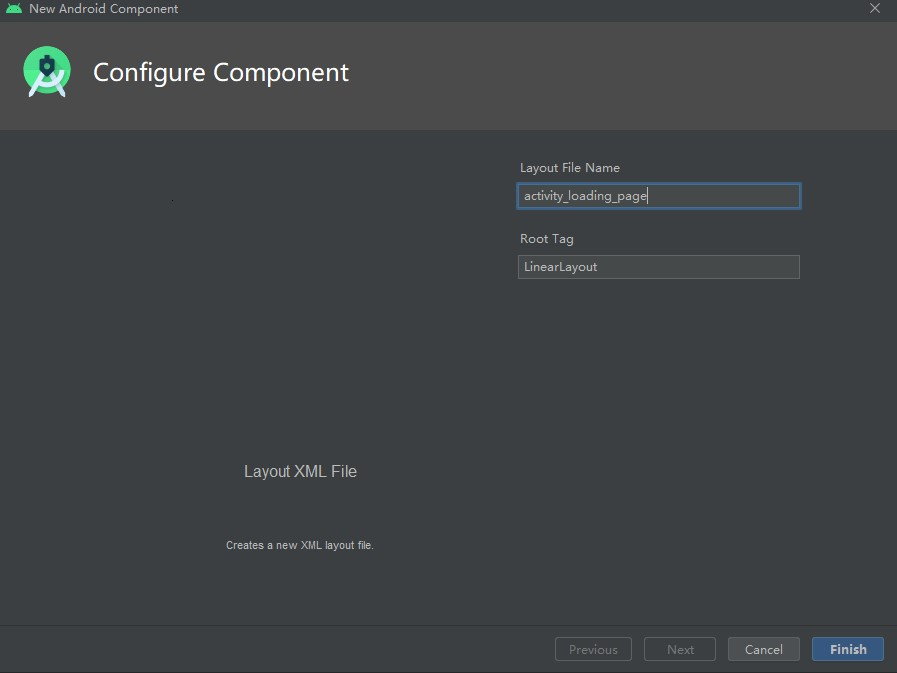
在 Layout File Name 輸入框中輸入布局名稱,單擊 Finish。
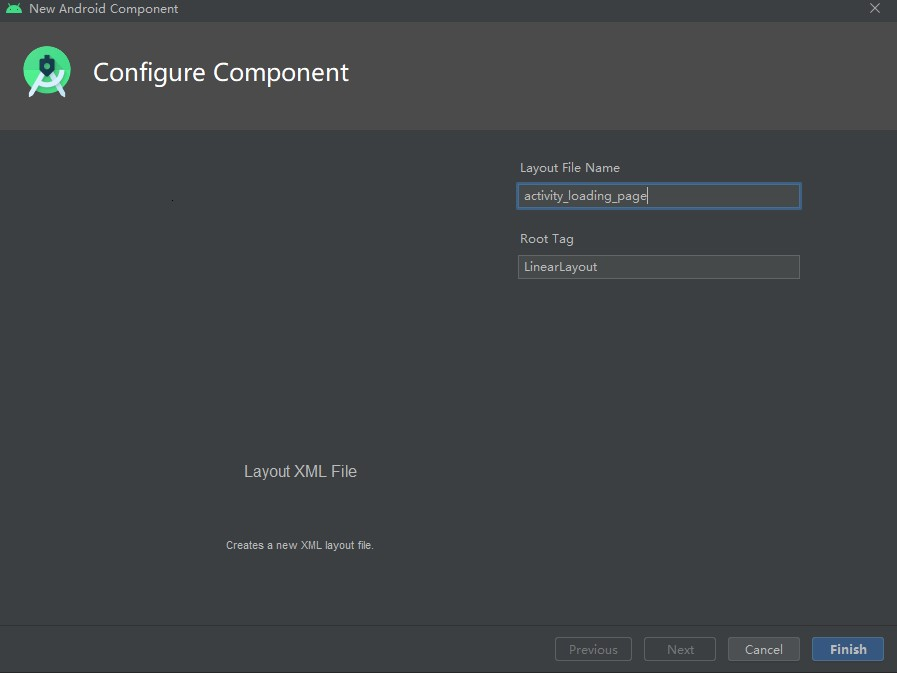
在
activity_loading_page.xml中設定載入頁布局,代碼如下。<?xml version="1.0" encoding="utf-8"?> <LinearLayout xmlns:android="http://schemas.android.com/apk/res/android" android:orientation="vertical" android:layout_width="match_parent" android:layout_height="match_parent"> <com.alipay.mobile.antui.basic.AUTitleBar android:id="@+id/title" android:layout_width="match_parent" android:layout_height="wrap_content" /> <RelativeLayout android:background="@android:color/white" android:layout_width="match_parent" android:layout_height="match_parent"> <LinearLayout android:layout_width="wrap_content" android:layout_height="wrap_content" android:orientation="vertical" android:layout_centerInParent="true"> <TextView android:id="@+id/tv_app" android:layout_width="wrap_content" android:layout_height="wrap_content"/> <com.alipay.mobile.antui.basic.AUProgressBar android:id="@+id/progress" style="?android:attr/progressBarStyleSmall" android:layout_gravity="center" android:layout_width="wrap_content" android:layout_height="wrap_content" /> <TextView android:id="@+id/tv_tips" android:visibility="gone" android:layout_width="wrap_content" android:layout_height="wrap_content" /> </LinearLayout> </RelativeLayout> </LinearLayout>建立
TinyStartupLoadingView類,讓其繼承MPTinyBaseIntermediateLoadingView。實現介面的初始化並設定返回按鈕的監聽事件。public class TinyStartupLoadingView extends MPTinyBaseIntermediateLoadingView { private TextView tvAppName; private View progressBar; private TextView tvTips; public TinyStartupLoadingView(Context context) { super(context); init(); } public TinyStartupLoadingView(Context context, AttributeSet attrs) { super(context, attrs); init(); } public TinyStartupLoadingView(Context context, AttributeSet attrs, int defStyleAttr) { super(context, attrs, defStyleAttr); init(); } private void init() { LayoutInflater.from(getContext()).inflate(R.layout.activity_loading_page, this, true); tvAppName = (TextView) findViewById(R.id.tv_app); progressBar = findViewById(R.id.progress); tvTips = (TextView) findViewById(R.id.tv_tips); ((AUTitleBar)findViewById(R.id.title)).getBackButton().setOnClickListener(new OnClickListener() { @Override public void onClick(View v) { Activity host = getLoadingActivity(); if (host != null) { host.finish(); } } }); } /** * 初始化時調用,會傳入小程式的應用ID,其他資訊如名稱、應用表徵圖、版本,可能為空白 */ @Override public void initView(AppInfo info) { tvAppName.setText(info.appName); } /** * 擷取小程式失敗時調用 */ @Override public void onError() { tvTips.setText("fail"); tvTips.setVisibility(VISIBLE); progressBar.setVisibility(GONE); } /** * 拉取到小程式應用資訊時調用,可擷取應用ID,名稱、表徵圖和版本資訊 */ @Override public void update(AppInfo info) { tvAppName.setText(info.appName); } }在小程式啟動前,開啟自訂配置。在
MainActivity的點擊事件監聽中添加如下代碼:MPTinyHelper.getInstance().setLoadingViewClass(TinyStartupLoadingView.class);單擊
 運行程式到真機上。
單擊 Hello World! 啟動小程式。開啟應用後在小程式載入時介面如下: