全部產品
Search
文件中心

Intelligent Media Services:字幕及字幕模板

更新時間:Jul 31, 2025

本文為您介紹如何修改SubmitMediaProducingJobTimeline參數完成字幕及字幕模板處理。

使用說明

  • 智能生產製作支援直播流、點播和OSS素材檔案的剪輯合成、特效渲染、模板生產等功能,更多詳情請參見智能生產製作概述

  • 將一個或多個視頻、音頻、圖片、字幕素材合成為成品,可以通過不同的Timeline參數配置提交剪輯,然後調用SubmitMediaProducingJob - 提交剪輯合成作業來完成合成。

  • 時間軸是將素材按照視頻創意進行編排和特效設計的產物,時間軸主要包含軌道、素材、效果3種對象,詳情請參見Timeline配置說明

  • 如果您想通過調用SDK進行音視訊剪輯,請參見安裝IMS服務端SDK的準備工作

視頻添加字幕

說明
  1. 字幕可以放在單獨的字幕軌道SubtitleTracks中,也可以在視頻Effects下設定字幕。

  2. 字幕的出場和入場時間可以通過TimelineIn和TimelineOut進行設定。如果不設定這兩個參數,字幕軌道中的字幕將預設按照整個成片視頻的時間長度產生。而在Effects下的字幕,則會預設按照當前Effects歸屬的視頻素材的時間來產生。

  3. 字幕中可以使用\N或\n來實現字幕換行效果。

成片效果

Timeline樣本

{
	"VideoTracks": [{
		"VideoTrackClips": [{
			"MediaURL": "https://ice-document-materials.oss-cn-shanghai.aliyuncs.com/test_media/h3.mp4",
			"Effects": [{
				"Type": "Background",
				"SubType": "Blur",
				"Radius": 0.1
			}]
		}]
	}],
	"SubtitleTracks": [{
		"SubtitleTrackClips": [{
			"Type": "Text",
			"X": 0,
			"Y": 200,
			"Content": "這裡是標題",
			"Alignment": "TopCenter",
			"FontSize": 80,
			"FontColorOpacity": 1,
			"EffectColorStyle": "CS0003-000011",
			"FontFace": {
				"Bold": true
			}
		}, {
			"Type": "Text",
			"X": 0,
			"Y": 320,
			"Font": "KaiTi",
			"Content": "這裡是副標題",
			"Alignment": "TopCenter",
			"FontSize": 45,
			"FontColor": "#ffffff",
			"FontFace": {
				"Italic": true,
				"Underline": true
			}
		}, {
			"Type": "Text",
			"X": 50,
			"Y": 740,
			"Font": "AlibabaPuHuiTi",
			"Content": "角度旋轉",
			"FontColor": "#FFD700",
			"Outline": 4,
			"Angle": 350,
			"OutlineColour": "#000000",
			"FontSize": 60,
			"FontFace": {
				"Bold": true
			}
		}, {
			"Type": "Text",
			"X": 0,
			"Y": 900,
			"Font": "AlibabaPuHuiTi",
			"Content": "這裡是橫幅字幕\n可以加分行符號進行多行展示",
			"Outline": 1,
			"OutlineColour": "000000",
			"Alignment": "TopCenter",
			"FontSize": 40,
			"FontColor": "#ffffff",
			"FontFace": {
				"Bold": true,
				"Italic": false,
				"Underline": false
			}
		}, {
			"Type": "Text",
			"X": 0,
			"Y": 1000,
			"Font": "KaiTi",
			"Content": "設定字幕出入場時間",
			"Alignment": "TopCenter",
			"FontSize": 40,
			"FontColor": "#ffffff",
			"TimelineIn": 5,
			"TimelineOut": 25,
			"FontFace": {
				"Bold": false,
				"Italic": true,
				"Underline": false
			}
		}]
	}]
}

設定字型大小、字型、自訂字型、描邊、陰影、字幕旋轉角度

說明
  1. FontSize表示字幕的字型大小。如果使用Effects下的字幕,建議使用FixedFontSize來設定字型大小,這樣字幕不會隨著視頻尺寸的變化而發生變化。

  2. 使用Font來指定系統字型,使用FontURL來指定自訂字型OSS檔案路徑。當兩者同時設定時,系統將優先按照FontURL來渲染字幕。

  3. 可以利用Outline、OutlineColour、Shadow、BackColour等參數來產生簡單的單層描邊陰影製作效果。如果需要實現複雜的多層描邊效果,可以參考樣本3中有關自訂花字的樣本。

  4. 設定Angle來調整字幕逆時針旋轉角度。

成片效果

Timeline樣本

{
  "VideoTracks": [
    {
      "VideoTrackClips": [
        {
          "MediaURL": "https://ice-document-materials.oss-cn-shanghai.aliyuncs.com/test_media/h2.mp4",
          "Effects": [
            {
              "Type": "Background",
              "SubType": "Blur",
              "Radius": 0.1
            }
          ]
        }
      ]
    }
  ],
  "SubtitleTracks": [
    {
      "SubtitleTrackClips": [
        {
          "Type": "Text",
          "X": 0,
          "Y": 200,
          "Content": "主標題80號字",
          "Alignment": "TopCenter",
          "FontSize": 80,
          "FontColorOpacity": 1,
          "EffectColorStyle": "CS0003-000023",
          "FontFace": {
            "Bold": true
          }
        },
        {
          "Type": "Text",
          "X": 0,
          "Y": 320,
          "Font": "KaiTi",
          "Content": "副標題楷體",
          "Alignment": "TopCenter",
          "FontSize": 45,
          "FontColor": "#ffffff",
          "FontFace": {
            "Italic": true,
            "Underline": true
          }
        },
        {
          "Type": "Text",
          "X": 50,
          "Y": 740,
          "Font": "AlibabaPuHuiTi",
          "Content": "角度旋轉",
          "FontColor": "#FFD700",
          "Outline": 4,
          "Angle": 350,
          "OutlineColour": "#000000",
          "FontSize": 60,
          "FontFace": {
            "Bold": true
          }
        },
        {
          "Type": "Text",
          "X": 0,
          "Y": 900,
          "Content": "這裡是橫幅字幕,使用自訂字型\n設定寬度為1的黑色描邊",
          "FontUrl": "https://ice-document-materials.oss-cn-shanghai.aliyuncs.com/test_media/font/fangzhengfangsong.ttf",
          "Outline": 1,
          "OutlineColour": "000000",
          "Alignment": "TopCenter",
          "FontSize": 40,
          "FontColor": "#ffffff",
          "FontFace": {
            "Bold": true,
            "Italic": false,
            "Underline": false
          }
        },
        {
          "Type": "Text",
          "X": 20,
          "Y": 20,
          "Font": "KaiTi",
          "Content": "設\n置\n字\n幕\n陰\n影",
          "Alignment": "BottomRight",
          "FontSize": 40,
          "FontColor": "#ffffff",
          "Shadow": 3,
          "BackColour": "#000000",
          "FontFace": {
            "Bold": false,
            "Italic": true,
            "Underline": false
          }
        }
      ]
    }
  ]
}

設定花字、自訂花字

說明
  1. 使用EffectColorStyleId欄位來一鍵式設定花字,關於花字效果,請參考:花字效果樣本

  2. 如果需要自訂字型效果,可以使用SubtitleEffects設定多層描邊和陰影製作效果。有關詳細欄位說明,請參考SubtitleEffect部分。

成片效果

Timeline樣本

{
  "VideoTracks": [
    {
      "VideoTrackClips": [
        {
          "MediaUrl": "https://ice-document-materials.oss-cn-shanghai.aliyuncs.com/test_media/h3.mp4",
          "In": 0,
          "Out": 8
        }
      ]
    }
  ],
  "SubtitleTracks": [
    {
      "SubtitleTrackClips": [
        {
          "TimelineIn": 0,
          "TimelineOut": 2,
          "Type": "Text",
          "Y": 0.2,
          "Font": "WenQuanYi Zen Hei Mono",
          "Content": "雲端智能剪輯",
          "Alignment": "TopCenter",
          "FontSize": 200,
          "FontColor": "#FFFFFF",
          "SubtitleEffects": [
            {
              "Color": "#0420B6",
              "Type": "Shadow",
              "XBord": 0.07,
              "YBord": 0.07,
              "YShift": 0.06
            },
            {
              "Color": "#F2213F",
              "Type": "Shadow",
              "XBord": 0.07,
              "YBord": 0.07,
              "YShift": 0.03
            },
            {
              "Color": "#000000",
              "Type": "Shadow",
              "XShift": 0.01,
              "YShift": 0.01
            },
            {
              "Color": "#000000",
              "Type": "Outline",
              "XBord": 0.01,
              "YBord": 0.01
            }
          ]
        },
        {
          "TimelineIn": 0,
          "TimelineOut": 2,
          "Type": "Text",
          "Y": 0.6,
          "Content": "進階花字",
          "Alignment": "TopCenter",
          "FontSize": 150,
          "EffectColorStyle": "CS0001-000011"
        },
        {
          "TimelineIn": 2,
          "TimelineOut": 5,
          "Type": "Text",
          "X": 0.1,
          "Y": 0.1,
          "Content": "系統花字",
          "FontSize": 150,
          "EffectColorStyle": "CS0001-000004"
        },
        {
          "TimelineIn": 2,
          "TimelineOut": 5,
          "Type": "Text",
          "X": 0.1,
          "Y": 0.3,
          "Content": "系統花字",
          "FontSize": 150,
          "EffectColorStyle": "CS0001-000005"
        },
        {
          "TimelineIn": 2,
          "TimelineOut": 5,
          "Type": "Text",
          "X": 0.1,
          "Y": 0.5,
          "Content": "系統花字",
          "FontSize": 150,
          "EffectColorStyle": "CS0001-000014"
        },
        {
          "TimelineIn": 2,
          "TimelineOut": 5,
          "Type": "Text",
          "X": 0.1,
          "Y": 0.7,
          "Content": "系統花字",
          "FontSize": 150,
          "EffectColorStyle": "CS0001-000007"
        },
        {
          "TimelineIn": 2,
          "TimelineOut": 5,
          "Type": "Text",
          "X": 0.6,
          "Y": 0.1,
          "Content": "系統花字",
          "FontSize": 150,
          "EffectColorStyle": "CS0002-000002"
        },
        {
          "TimelineIn": 2,
          "TimelineOut": 5,
          "Type": "Text",
          "X": 0.6,
          "Y": 0.3,
          "Content": "系統花字",
          "FontSize": 150,
          "EffectColorStyle": "CS0002-000004"
        },
        {
          "TimelineIn": 2,
          "TimelineOut": 5,
          "Type": "Text",
          "X": 0.6,
          "Y": 0.5,
          "Content": "系統花字",
          "FontSize": 150,
          "EffectColorStyle": "CS0002-000009"
        },
        {
          "TimelineIn": 2,
          "TimelineOut": 5,
          "Type": "Text",
          "X": 0.6,
          "Y": 0.7,
          "Content": "系統花字",
          "FontSize": 150,
          "EffectColorStyle": "CS0002-000016"
        },
        {
          "Comment": "增加左位移陰影",
          "TimelineIn": 5,
          "TimelineOut": 8,
          "Type": "Text",
          "FontSize": 150,
          "Content": "自訂花字",
          "Y": 0.1,
          "Alignment": "TopCenter",
          "Font": "HappyZcool-2016",
          "FontColor": "#F688AA",
          "SubtitleEffects": [
            {
              "Color": "#F5D2CC",
              "Type": "Shadow",
              "XBord": 0,
              "YBord": 0,
              "XShift": -0.04,
              "Opacity": 1
            }
          ]
        },
        {
          "Comment": "增加右位移陰影",
          "TimelineIn": 5,
          "TimelineOut": 8,
          "Type": "Text",
          "FontSize": 150,
          "Content": "自訂花字",
          "Y": 0.3,
          "Alignment": "TopCenter",
          "Font": "HappyZcool-2016",
          "FontColor": "#F688AA",
          "SubtitleEffects": [
            {
              "Color": "#A33952",
              "Type": "Shadow",
              "XBord": 0,
              "YBord": 0,
              "XShift": 0.04,
              "Opacity": 1
            },
            {
              "Color": "#F5D2CC",
              "Type": "Shadow",
              "XBord": 0,
              "YBord": 0,
              "XShift": -0.04,
              "Opacity": 1
            }
          ]
        },
        {
          "Comment": "增加第一層發光",
          "TimelineIn": 5,
          "TimelineOut": 8,
          "Type": "Text",
          "FontSize": 150,
          "Content": "自訂花字",
          "Y": 0.5,
          "Alignment": "TopCenter",
          "Font": "HappyZcool-2016",
          "FontColor": "#F688AA",
          "SubtitleEffects": [
            {
              "Color": "#FFFFA0",
              "Type": "Shadow",
              "Blur": 0.08,
              "XBord": 0.08,
              "YBord": 0.08
            },
            {
              "Color": "#A33952",
              "Type": "Shadow",
              "XBord": 0,
              "YBord": 0,
              "XShift": 0.04,
              "Opacity": 1
            },
            {
              "Color": "#F5D2CC",
              "Type": "Shadow",
              "XBord": 0,
              "YBord": 0,
              "XShift": -0.04,
              "Opacity": 1
            }
          ]
        },
        {
          "Comment": "增加第二層發光",
          "TimelineIn": 5,
          "TimelineOut": 8,
          "Type": "Text",
          "FontSize": 150,
          "Content": "自訂花字",
          "Y": 0.7,
          "Alignment": "TopCenter",
          "Font": "HappyZcool-2016",
          "FontColor": "#F688AA",
          "SubtitleEffects": [
            {
              "Color": "#F688AA",
              "Type": "Shadow",
              "Blur": 0.3,
              "XBord": 0.15,
              "YBord": 0.15
            },
            {
              "Color": "#FFFFA0",
              "Type": "Shadow",
              "Blur": 0.08,
              "XBord": 0.08,
              "YBord": 0.08
            },
            {
              "Color": "#A33952",
              "Type": "Shadow",
              "XBord": 0,
              "YBord": 0,
              "XShift": 0.04,
              "Opacity": 1
            },
            {
              "Color": "#F5D2CC",
              "Type": "Shadow",
              "XBord": 0,
              "YBord": 0,
              "XShift": -0.04,
              "Opacity": 1
            }
          ]
        }
      ]
    }
  ]
}

字幕局部效果

說明

通過在Content欄位中添加覆寫代碼,可以實現字幕的局部效果。下面是覆寫代碼的說明:

  • 所有覆寫代碼均以兩個反斜線(\\)開頭。

  • 所有局部參數覆寫代碼必須在{}中,且一個{}可以包含多個覆寫代碼。

  • 覆寫代碼會作用於其後的字幕上,如果想要結束該覆寫代碼,需要加一個與之對應的結束覆寫代碼來取消該效果。

覆寫參數詳細說明:

覆寫參數

描述

Content參數樣本

  • \\1c&[BBGGRR]&

  • \\3c&[BBGGRR]&

  • \\4c&[BBGGRR]&

  • 1c、3c、4c分別為字型、邊框、陰影對應的顏色。

  • [BBGGRR]表示的是十六進位顏色的BGR值,其顏色順序與一般的RGB相反。

"這裡設定{\\1c&00FF7F&}綠{\\1c}色"

  • \\bord[寬度]

  • \\xbord[寬度]

  • \\ybord[寬度]

bord、xbord、ybord分別表示邊框、沿X軸邊框和沿Y軸邊框的寬度,單位為像素。

"這裡設定{\\bord3\\3c&EBCE87&}描邊寬度{\\bord\\3c}顏色和大小"

\\b1 \\b0

b1為加粗,b0為取消加粗。

"這裡設定{\\b1}加粗{\\b0}效果",

\\i1 \\i0

i1為斜體,i0為取消斜體。

"這裡設定{\\i1}斜體{\\i0}效果"

\\u1 \\u0

u1為加底線,u0為取消底線。

"這裡設定{\\u1}底線{\\u0}效果"

\\s1 \\s0

s1為添加文本刪除線,s0為取消刪除線。

"這裡設定{\\s1}刪除線{\\s0}效果"

\\fs[字型尺寸]

字幕大小,單位為像素。

"這裡設定{\\fs100}100號{\\fs}文字"

\\fn[字型名稱]

字幕名稱,暫不支援設定自訂字型。

"這裡設定{\\fnKaiTi}黑體{\\fn}字型"

成片效果

Timeline樣本

{
  "VideoTracks": [
    {
      "VideoTrackClips": [
        {
          "MediaURL": "https://ice-document-materials.oss-cn-shanghai.aliyuncs.com/test_media/v1.mp4"
        }
      ]
    }
  ],
  "SubtitleTracks": [
    {
      "SubtitleTrackClips": [
        {
          "Type": "Text",
          "X": 0,
          "Y": 150,
          "Font": "FZKai-Z03S",
          "Content": "這裡設定{\\1c&0801ea&\\3c&f7fcff&}深紅色{\\1c\\3c}",
          "Alignment": "TopCenter",
          "FontSize": 65,
          "FontColor": "#F5FFFA",
          "TimelineIn": 0,
          "TimelineOut": 10,
          "Outline": 2,
          "OutlineColour": "#0e0100"
        },
        {
          "Type": "Text",
          "X": 0,
          "Y": 300,
          "Font": "FZKai-Z03S",
          "Content": "這裡設定{\\fs100}100號{\\fs}字型",
          "Alignment": "TopCenter",
          "FontColor": "#F5FFFA",
          "FontSize": 65,
          "TimelineIn": 0,
          "TimelineOut": 10,
          "Outline": 2,
          "OutlineColour": "#0e0100"
        },
        {
          "Type": "Text",
          "Y": 450,
          "Font": "FZKai-Z03S",
          "Content": "這裡設定{\\bord3\\3c&CD0000&}描邊{\\bord\\3c}顏色和大小",
          "Alignment": "TopCenter",
          "FontSize": 65,
          "FontColor": "#F5FFFA",
          "TimelineIn": 0,
          "TimelineOut": 10,
          "Outline": 2,
          "OutlineColour": "#0e0100"
        },
        {
          "Type": "Text",
          "Y": 600,
          "Content": "這裡設定{\\bord3\\3c&701919&}不透明背景{\\bord\\3c}顏色和大小",
          "Comment": "不透明背景必須設定 BoderStyle = 3 ",
          "Font": "FZKai-Z03S",
          "FontSize": 65,
          "TimelineIn": 0,
          "TimelineOut": 10,
          "Alignment": "TopCenter",
          "FontColor": "#F5FFFA",
          "BorderStyle": 3,
          "Outline": 0,
          "OutlineColour": "#0000CD"
        },
        {
          "Type": "Text",
          "Y": 750,
          "Font": "FZKai-Z03S",
          "Content": "這裡設定{\\fnKaiTi}楷體{\\fn}字型",
          "FontSize": 65,
          "TimelineIn": 0,
          "TimelineOut": 10,
          "FontColor": "#F5FFFA",
          "Alignment": "TopCenter",
          "Outline": 2,
          "OutlineColour": "#0e0100"
        },
        {
          "Type": "Text",
          "Y": 900,
          "Font": "FZKai-Z03S",
          "Content": "這裡設定{\\b1}加粗{\\b0}效果",
          "FontSize": 65,
          "TimelineIn": 0,
          "TimelineOut": 10,
          "FontColor": "#F5FFFA",
          "Alignment": "TopCenter",
          "Outline": 2,
          "OutlineColour": "#0e0100"
        },
        {
          "Type": "Text",
          "Y": 1050,
          "Font": "FZKai-Z03S",
          "Content": "這裡設定{\\i1}斜體{\\i0}效果",
          "FontSize": 65,
          "TimelineIn": 0,
          "TimelineOut": 10,
          "FontColor": "#F5FFFA",
          "Alignment": "TopCenter",
          "Outline": 2,
          "OutlineColour": "#0e0100"
        },
        {
          "Type": "Text",
          "Y": 1200,
          "Font": "FZKai-Z03S",
          "Content": "這裡設定{\\u1}底線{\\u0}效果",
          "FontColor": "#F5FFFA",
          "FontSize": 65,
          "TimelineIn": 0,
          "TimelineOut": 10,
          "Alignment": "TopCenter",
          "Outline": 2,
          "OutlineColour": "#0e0100"
        },
        {
          "Type": "Text",
          "Y": 1350,
          "Font": "FZKai-Z03S",
          "Content": "這裡設定{\\s1}刪除線{\\s0}效果",
          "FontColor": "#F5FFFA",
          "FontSize": 65,
          "TimelineIn": 0,
          "TimelineOut": 10,
          "Alignment": "TopCenter",
          "Outline": 2,
          "OutlineColour": "#0e0100"
        },
        {
          "Type": "Text",
          "Y": 1500,
          "Font": "FZKai-Z03S",
          "Content": "這裡設定{\\1c&00FF00&\\b1\\fs100\\i1}組合{\\1c\\b0\\fs\\i0}效果",
          "FontColor": "#F5FFFA",
          "FontSize": 65,
          "TimelineIn": 0,
          "TimelineOut": 10,
          "Alignment": "TopCenter",
          "Outline": 2,
          "OutlineColour": "#0e0100"
        }
      ]
    }
  ]
}

字幕自動換行

說明
  1. 設定字幕的"AdaptMode"為"AutoWrap",可以實現在字幕超出畫布範圍時自動換行,以保證字幕內容完全顯示出來。同時可以通過設定TextWidth,支援絕對像素和按照畫布百分比來換行,以確保文字在指定寬度範圍內進行換行。

  2. 在英文等情境下,只允許在空格位置換行時,可以設定"AdaptMode": "AutoWrapAtSpaces",以確保字幕換行不會出現在英文單詞的中間位置。

成片效果

Timeline樣本

{
  "VideoTracks": [
    {
      "VideoTrackClips": [
        {
          "MediaURL": "https://ice-document-materials.oss-cn-shanghai.aliyuncs.com/test_media/v1.mp4"
        }
      ]
    }
  ],
  "SubtitleTracks": [
    {
      "SubtitleTrackClips": [
        {
          "Type": "Text",
          "X": 0,
          "Y": 200,
          "Font": "FZKai-Z03S",
          "Content": "當不設定字幕自動換行時,字幕過長會超出視頻畫布",
          "Alignment": "TopCenter",
          "FontSize": 70,
          "FontColor": "#F5FFFA",
          "Outline": 2,
          "OutlineColour": "#0e0100"
        },
        {
          "Type": "Text",
          "X": 0,
          "Y": 600,
          "Font": "FZKai-Z03S",
          "Content": "當字幕超出視頻畫布寬度時觸發自動換行",
          "AdaptMode": "AutoWrap",
          "Alignment": "TopCenter",
          "FontSize": 70,
          "FontColor": "#F5FFFA",
          "Outline": 2,
          "OutlineColour": "#0e0100"
        },
        {
          "Type": "Text",
          "X": 0,
          "Y": 1000,
          "Font": "FZKai-Z03S",
          "Content": "設定TextWidth在指定區間內自動換行",
          "TextWidth": 0.7,
          "AdaptMode": "AutoWrap",
          "Alignment": "TopCenter",
          "FontSize": 70,
          "FontColor": "#F5FFFA",
          "Outline": 2,
          "OutlineColour": "#0e0100"
        },
        {
          "Type": "Text",
          "X": 0,
          "Y": 1400,
          "Content": "Subtitles only automatically wrap at spaces.",
          "AdaptMode": "AutoWrapAtSpaces",
          "Alignment": "TopCenter",
          "FontSize": 70,
          "FontColor": "#F5FFFA",
          "Outline": 2,
          "OutlineColour": "#0e0100"
        }
      ]
    }
  ]
}

字幕對齊

  • 在不同的字幕對齊下,定位方式也會有所不同。在設定Alignment時,對齊和預設的定點位置如下:

    Alignment

    對齊

    預設位置

    TopLeft

    靠左對齊

    視頻左上方

    TopCenter

    置中對齊

    視頻豎直中軸線上側

    TopRight

    靠右對齊

    視頻右上方

    CenterLeft

    靠左對齊

    視頻水平中軸線左側

    CenterCenter

    置中對齊

    視頻中心位置視頻水平中軸線右側

    CenterRight

    靠右對齊

    視頻水平中軸線右側

    BottomLeft

    靠左對齊

    視頻左下角

    BottomCenter

    置中對齊

    視頻豎直中軸線下側

    BottomRight

    靠右對齊

    視頻右下角

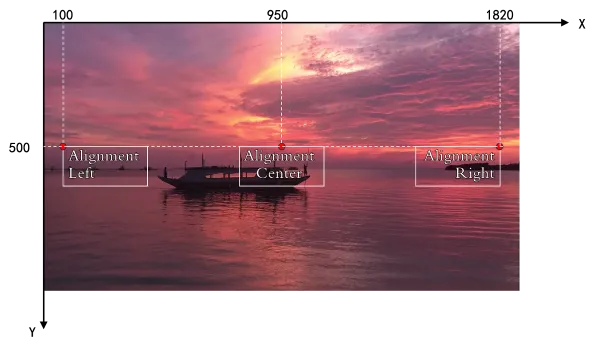
  • 如果需要進行簡單的對齊和定位,可以按照以上方式進行設定。若需要在三種不同對齊下依然能夠精確定位字幕位置,可以設定Alignment為Left、Center、Right。字幕的定位基準點分別為:

    Alignment

    對齊

    定位基準點

    Left

    靠左對齊

    字幕文字框左上方頂點

    Center

    置中對齊

    字幕文字框上邊界中點

    Right

    靠右對齊

    字幕文字框右上方頂點

  • 不同Alignment時的不同定位基準點如下圖所示:

    image

成片效果

Timeline樣本

{
    "VideoTracks": [
        {
            "VideoTrackClips": [
                {
                    "MediaURL": "https://ice-document-materials.oss-cn-shanghai.aliyuncs.com/test_media/h3.mp4"
                }
            ]
        }
    ],
    "SubtitleTracks": [
        {
            "SubtitleTrackClips": [
                {
                    "Type": "Text",
                    "Font": "FZKai-Z03S",
                    "Content": "Alignment\nTopLeft",
                    "Alignment": "TopLeft",
                    "FontSize": 70,
                    "FontColor": "#F5FFFA",
                    "Outline": 2,
                    "OutlineColour": "#0e0100",
                    "TimelineIn": 0,
                    "TimelineOut": 4
                },
                {
                    "Type": "Text",
                    "Font": "FZKai-Z03S",
                    "Content": "Alignment\nTopCenter",
                    "Alignment": "TopCenter",
                    "FontSize": 70,
                    "FontColor": "#F5FFFA",
                    "Outline": 2,
                    "OutlineColour": "#0e0100",
                    "TimelineIn": 0,
                    "TimelineOut": 4
                },
                {
                    "Type": "Text",
                    "Font": "FZKai-Z03S",
                    "Content": "Alignment\nTopRight",
                    "Alignment": "TopRight",
                    "FontSize": 70,
                    "FontColor": "#F5FFFA",
                    "Outline": 2,
                    "OutlineColour": "#0e0100",
                    "TimelineIn": 0,
                    "TimelineOut": 4
                },
                {
                    "Type": "Text",
                    "Font": "FZKai-Z03S",
                    "Content": "Alignment\nCenterLeft",
                    "Alignment": "CenterLeft",
                    "FontSize": 70,
                    "FontColor": "#F5FFFA",
                    "Outline": 2,
                    "OutlineColour": "#0e0100",
                    "TimelineIn": 0,
                    "TimelineOut": 4
                },
                {
                    "Type": "Text",
                    "Font": "FZKai-Z03S",
                    "Content": "Alignment\nCenterCenter",
                    "Alignment": "CenterCenter",
                    "FontSize": 70,
                    "FontColor": "#F5FFFA",
                    "Outline": 2,
                    "OutlineColour": "#0e0100",
                    "TimelineIn": 0,
                    "TimelineOut": 4
                },
                {
                    "Type": "Text",
                    "Font": "FZKai-Z03S",
                    "Content": "Alignment\nCenterRight",
                    "Alignment": "CenterRight",
                    "FontSize": 70,
                    "FontColor": "#F5FFFA",
                    "Outline": 2,
                    "OutlineColour": "#0e0100",
                    "TimelineIn": 0,
                    "TimelineOut": 4
                },
                {
                    "Type": "Text",
                    "Font": "FZKai-Z03S",
                    "Content": "Alignment\nBottomLeft",
                    "Alignment": "BottomLeft",
                    "FontSize": 70,
                    "FontColor": "#F5FFFA",
                    "Outline": 2,
                    "OutlineColour": "#0e0100",
                    "TimelineIn": 0,
                    "TimelineOut": 4
                },
                {
                    "Type": "Text",
                    "Font": "FZKai-Z03S",
                    "Content": "Alignment\nBottomCenter",
                    "Alignment": "BottomCenter",
                    "FontSize": 70,
                    "FontColor": "#F5FFFA",
                    "Outline": 2,
                    "OutlineColour": "#0e0100",
                    "TimelineIn": 0,
                    "TimelineOut": 4
                },
                {
                    "Type": "Text",
                    "Font": "FZKai-Z03S",
                    "Content": "Alignment\nBottomRight",
                    "Alignment": "BottomRight",
                    "FontSize": 70,
                    "FontColor": "#F5FFFA",
                    "Outline": 2,
                    "OutlineColour": "#0e0100",
                    "TimelineIn": 0,
                    "TimelineOut": 4
                }
            ]
        },
        {
            "SubtitleTrackClips": [
                {
                    "Type": "Text",
                    "Font": "FZKai-Z03S",
                    "Content": "Alignment\nLeft",
                    "X": 100,
                    "Y": 500,
                    "Alignment": "TopLeft",
                    "FontSize": 70,
                    "FontColor": "#F5FFFA",
                    "Outline": 2,
                    "OutlineColour": "#0e0100",
                    "TimelineIn": 4,
                    "TimelineOut": 8
                },
                {
                    "Type": "Text",
                    "Font": "FZKai-Z03S",
                    "Content": "Alignment\nCenter",
                    "X": 950,
                    "Y": 500,
                    "Alignment": "Center",
                    "FontSize": 70,
                    "FontColor": "#F5FFFA",
                    "Outline": 2,
                    "OutlineColour": "#0e0100",
                    "TimelineIn": 4,
                    "TimelineOut": 8
                },
                {
                    "Type": "Text",
                    "Font": "FZKai-Z03S",
                    "X": 1820,
                    "Y": 500,
                    "Content": "Alignment\nRight",
                    "Alignment": "Right",
                    "FontSize": 70,
                    "FontColor": "#F5FFFA",
                    "Outline": 2,
                    "OutlineColour": "#0e0100",
                    "TimelineIn": 4,
                    "TimelineOut": 8
                }
            ]
        }
    ]
}

字幕特效

說明
  1. 出場入場特效可以指定出場和入場時間,而迴圈特效則可以設定迴圈速度。

  2. 出場入場特效和迴圈特效不可同時使用。

成片效果

Timeline樣本

{
  "VideoTracks": [
    {
      "VideoTrackClips": [
        {
          "MediaURL": "https://ice-document-materials.oss-cn-shanghai.aliyuncs.com/test_media/v1.mp4"
        }
      ]
    }
  ],
  "SubtitleTracks": [
    {
      "SubtitleTrackClips": [
        {
          "Type": "Text",
          "X": 0,
          "Y": 200,
          "Font": "HappyZcool-2016",
          "Content": "入場特效,入場時間2s",
          "Alignment": "TopCenter",
          "FontSize": 70,
          "FontColor": "#F5FFFA",
          "Outline": 2,
          "OutlineColour": "#0e0100",
          "AaiMotionInEffect": "rotateflip_in",
          "AaiMotionIn": 2
        },
        {
          "Type": "Text",
          "X": 0,
          "Y": 600,
          "Font": "HappyZcool-2016",
          "Content": "出場特效,出場時間2s",
          "AdaptMode": "AutoWrap",
          "Alignment": "TopCenter",
          "FontSize": 70,
          "FontColor": "#F5FFFA",
          "Outline": 2,
          "OutlineColour": "#0e0100",
          "AaiMotionOutEffect": "slide_down_out",
          "AaiMotionOut": 2
        },
        {
          "Type": "Text",
          "X": 0,
          "Y": 1000,
          "Font": "HappyZcool-2016",
          "Content": "迴圈特效,迴圈速度2倍速",
          "TextWidth": 0.7,
          "AdaptMode": "AutoWrap",
          "Alignment": "TopCenter",
          "FontSize": 70,
          "FontColor": "#F5FFFA",
          "Outline": 2,
          "OutlineColour": "#0e0100",
          "AaiMotionLoopEffect": "rainbrush_display",
          "Ratio": 2
        },
        {
          "Type": "Text",
          "X": 0,
          "Y": 1400,
          "Font": "HappyZcool-2016",
          "Content": "同時疊加出場、入場特效",
          "AdaptMode": "AutoWrapAtSpaces",
          "Alignment": "TopCenter",
          "FontSize": 70,
          "FontColor": "#F5FFFA",
          "Outline": 2,
          "OutlineColour": "#0e0100",
          "AaiMotionInEffect": "zoomin_i",
          "AaiMotionIn": 2,
          "AaiMotionOutEffect": "dissolve_out",
          "AaiMotionOut": 2
        }
      ]
    }
  ]
}

字幕背景

說明

可以利用SubtitleEffects中的Box欄位來實現字幕純色背景效果,同時支援設定花字、換行等樣式。

成片效果

Timeline樣本

{
    "VideoTracks": [
      {
        "VideoTrackClips": [
          {
            "MediaURL": "https://ice-document-materials.oss-cn-shanghai.aliyuncs.com/test_media/v1.mp4"
          }
        ]
      }
    ],
    "SubtitleTracks": [
      {
        "SubtitleTrackClips": [
          {
            "Type": "Text",
            "X": 0,
            "Y": 150,
            "Font": "HappyZcool-2016",
            "Content": "設定字幕純色背景位移量寬高\n以及圓角",
            "AdaptMode": "AutoWrap",
            "Alignment": "TopCenter",
            "FontSize": 70,
            "FontColor": "#F5FFFA",
            "SubtitleEffects": [
              {
                "Type": "Box",
                "Color": "1E90FF",
                "XShift": 20,
                "YShift": -20,
                "Bord": 20,
                "Radius": 20
              }
            ]
          }
        ]
      },
      {
        "SubtitleTrackClips": [
          {
            "Type": "Text",
            "X": 0,
            "Y": 500,
            "Font": "HappyZcool-2016",
            "Content": "設定字幕背景不透明度",
            "AdaptMode": "AutoWrap",
            "Alignment": "TopCenter",
            "FontSize": 70,
            "FontColor": "#F5FFFA",
            "SubtitleEffects": [
              {
                "Type": "Box",
                "Color": "1E90FF",
                "Opacity": "0.5",
                "Bord": 20
              }
            ]
          }
        ]
      },
      {
        "SubtitleTrackClips": [
          {
            "Type": "Text",
            "X": 0,
            "Y": 850,
            "Font": "HappyZcool-2016",
            "Content": "設定字幕換行情境下的字幕純色背景效果",
            "AdaptMode": "AutoWrap",
            "TextWidth": 0.6,
            "Alignment": "TopCenter",
            "FontSize": 70,
            "FontColor": "#F5FFFA",
            "SubtitleEffects": [
              {
                "Type": "Box",
                "Color": "1E90FF",
                "Bord": 20
              }
            ]
          }
        ]
      },
      {
        "SubtitleTrackClips": [
          {
            "Type": "Text",
            "X": 0,
            "Y": 1200,
            "Font": "HappyZcool-2016",
            "Content": "字幕純色背景同時設定花字、特效",
            "AdaptMode": "AutoWrapAtSpaces",
            "Alignment": "TopCenter",
            "FontSize": 70,
            "EffectColorStyle": "CS0003-000006",
            "AaiMotionInEffect": "zoomin_i",
            "AaiMotionIn": 2,
            "AaiMotionOutEffect": "dissolve_out",
            "AaiMotionOut": 2,
            "SubtitleEffects": [
              {
                "Type": "Box",
                "Color": "1E90FF",
                "Bord": 20
              }
            ]
          }
        ]
      },
      {
        "SubtitleTrackClips": [
          {
            "Type": "Text",
            "X": 0,
            "Y": 1550,
            "Font": "HappyZcool-2016",
            "Content": "字幕背景指定貼圖紋理\n以及圓角效果",
            "AdaptMode": "AutoWrapAtSpaces",
            "Alignment": "TopCenter",
            "FontSize": 70,
            "EffectColorStyle": "CS0003-000006",
            "AaiMotionInEffect": "zoomin_i",
            "AaiMotionIn": 2,
            "AaiMotionOutEffect": "dissolve_out",
            "AaiMotionOut": 2,
            "SubtitleEffects": [
              {
                "Type": "Box",
                "Color": "1E90FF",
                "Bord": 20,
                "Radius": 20,
                "ImageURL": "https://ice-document-materials.oss-cn-shanghai.aliyuncs.com/test_media/image/subtitle_background.png"
              }
            ]
          }
        ]
      }
    ]
  }

官方氣泡字、自訂氣泡字

說明
  1. 可以使用BubbleStyleId一鍵設定氣泡的樣式Id,氣泡樣式請參見:氣泡字樣本

  2. 在氣泡字模式下,支援設定BubbleWidth和BubbleHeight來調整氣泡的寬度和高度。此外,X和Y分別表示泡泡圖片左上方相對於視頻左上方的座標。

  3. 在SubtitleEffects中的Box樣式下,支援設定圖片來實現自訂氣泡字效果。需要傳入Width和Height,分別表示氣泡原始圖片的寬和高,以及TextArea文字框相對於氣泡的位置和大小。其中四個欄位分別表示字幕文字框左上方座標相對於氣泡的位置,以及字幕文字框相對於氣泡的寬高。

  4. 在使用氣泡字功能時,文字會在氣泡內部自動換行,並自動進行縮放處理。

成片效果

Timeline樣本

{
  "VideoTracks": [
    {
      "VideoTrackClips": [
        {
          "MediaUrl": "https://ice-document-materials.oss-cn-shanghai.aliyuncs.com/test_media/h3.mp4"
        }
      ]
    }
  ],
  "SubtitleTracks": [
    {
      "SubtitleTrackClips": [
        {
          "TimelineIn": 0,
          "TimelineOut": 4,
          "Type": "Text",
          "X": 0.1,
          "Y": 0,
          "FontSize": 150,
          "BubbleHeight": 0.18,
          "Alignment": "TopCenter",
          "BubbleStyleId": "BS0001-000001"
        },
        {
          "TimelineIn": 0,
          "TimelineOut": 4,
          "Type": "Text",
          "X": 0.1,
          "Y": 0.2,
          "FontSize": 150,
          "BubbleHeight": 0.18,
          "Alignment": "TopCenter",
          "BubbleStyleId": "BS0001-000002"
        },
        {
          "TimelineIn": 0,
          "TimelineOut": 4,
          "Type": "Text",
          "X": 0.1,
          "Y": 0.4,
          "FontSize": 150,
          "BubbleHeight": 0.18,
          "Alignment": "TopCenter",
          "BubbleStyleId": "BS0001-000003"
        },
        {
          "TimelineIn": 0,
          "TimelineOut": 4,
          "Type": "Text",
          "X": 0.1,
          "Y": 0.6,
          "FontSize": 150,
          "BubbleHeight": 0.18,
          "Alignment": "TopCenter",
          "BubbleStyleId": "BS0001-000004"
        },
        {
          "TimelineIn": 0,
          "TimelineOut": 4,
          "Type": "Text",
          "X": 0.1,
          "Y": 0.8,
          "FontSize": 150,
          "BubbleHeight": 0.18,
          "Alignment": "TopCenter",
          "BubbleStyleId": "BS0001-000005"
        },
        {
          "TimelineIn": 0,
          "TimelineOut": 4,
          "Type": "Text",
          "X": 0.6,
          "Y": 0,
          "FontSize": 150,
          "BubbleHeight": 0.18,
          "Alignment": "TopCenter",
          "BubbleStyleId": "BS0002-000001"
        },
        {
          "TimelineIn": 0,
          "TimelineOut": 4,
          "Type": "Text",
          "X": 0.6,
          "Y": 0.2,
          "FontSize": 150,
          "BubbleHeight": 0.18,
          "Alignment": "TopCenter",
          "BubbleStyleId": "BS0002-000002"
        },
        {
          "TimelineIn": 0,
          "TimelineOut": 4,
          "Type": "Text",
          "X": 0.6,
          "Y": 0.4,
          "FontSize": 150,
          "BubbleHeight": 0.18,
          "Alignment": "TopCenter",
          "BubbleStyleId": "BS0002-000003"
        },
        {
          "TimelineIn": 0,
          "TimelineOut": 4,
          "Type": "Text",
          "X": 0.6,
          "Y": 0.6,
          "FontSize": 150,
          "BubbleHeight": 0.18,
          "Alignment": "TopCenter",
          "BubbleStyleId": "BS0002-000004"
        },
        {
          "TimelineIn": 0,
          "TimelineOut": 4,
          "Type": "Text",
          "X": 0.6,
          "Y": 0.8,
          "FontSize": 150,
          "BubbleHeight": 0.18,
          "Alignment": "TopCenter",
          "BubbleStyleId": "BS0002-000005"
        },
        {
          "TimelineIn": 4,
          "TimelineOut": 8,
          "Type": "Text",
          "Content": "自訂氣泡字",
          "FontColor": "#000000",
          "X": 0.1,
          "Y": 0.3,
          "BubbleWidth": 0.8,
          "Alignment": "TopCenter",
          "SubtitleEffects": [
            {
              "Type": "Box",
              "Width": 1050,
              "Height": 250,
              "TextArea": "0.1,0.2,0.8,0.6",
              "ImageURL": "https://ice-document-materials.oss-cn-shanghai.aliyuncs.com/test_media/image/round_rectangle.png"
            }
          ]
        }
      ]
    }
  ]
}

字幕滾動樣本

說明
  • 您可以通過設定ScrollStartY和ScrollEndY來指定字幕滾動的起始和結束位置,同時使用ScrollSpeed參數來控制字幕滾動的速度,單位均為像素。

  • 縱向滾動字幕功能支援在未設定TimelineOut的情況下,自動依據滾動周期時間估算字幕的期間,並能夠設定字幕的滾動起止位置(ScrollStartY、ScrollEndY)、起止靜幀時間(ScrollStartFreeze、ScrollEndFreeze)、起止位移量(ScrollStartShift、ScrollEndShift)以及縱向捲動速度(ScrollSpeed)。

  • 橫向滾動字幕支援配置字幕滾動的起始和結束位置(ScrollStartX、ScrollEndX)、縱向捲動速度(ScrollSpeed)以及是否啟用迴圈滾動(ScrollLoop)。

  • 字幕支援素材之間的對齊,可以設定縱向滾動字幕,參數為"ClipId": "ScrollSubtitle"。背景圖、背景音以及橫幅文字的滾動均需與縱向滾動字幕對齊,相關設定為"ReferenceClipId": "ScrollSubtitle"。此外,縱向滾動字幕的開始時間必須與視頻軌道標題的期間相同,若不一致,則無法實現對齊。

成片效果

Timeline樣本

{
	"VideoTracks": [{
			"VideoTrackClips": [{
					"Type": "Image",
					"MediaURL": "https://ice-document-materials.oss-cn-shanghai.aliyuncs.com/test_media/image/a1.png",
					"AdaptMode": "Cover",
					"Comment": "標題",
					"Width": 1,
					"Height": 1,
					"Duration": 3
				},
				{
					"Type": "Image",
					"MediaURL": "https://ice-document-materials.oss-cn-shanghai.aliyuncs.com/test_media/image/back.png",
					"AdaptMode": "Cover",
					"Comment": "背景圖",
					"Width": 1,
					"Height": 1,
					"ReferenceClipId": "ScrollSubtitle"
				},
				{
					"Type": "Image",
					"MediaURL": "https://ice-document-materials.oss-cn-shanghai.aliyuncs.com/test_media/image/01.jpg",
					"AdaptMode": "Cover",
					"Comment": "片尾",
					"Width": 1,
					"Height": 1,
					"Duration": 3
				}
			]
		},
		{
			"VideoTrackClips": [{
				"Type": "GlobalImage",
				"MediaURL": "https://ice-document-materials.oss-cn-shanghai.aliyuncs.com/test_media/aliyun_logo_white.png",
				"Comment": "logo",
				"X": 10,
				"Y": 10,
				"Width": 247,
				"Height": 74
			}]
		}
	],
	"SubtitleTracks": [{
			"SubtitleTrackClips": [{
				"TimelineIn": 3,
				"ClipId": "ScrollSubtitle",
				"Type": "Text",
				"Content": " 阿里雲智能媒體服務是一套全面的多媒體處理解決方案,它結合了雲端運算、巨量資料以及人工智慧技術,為使用者提供高效、便捷的ApsaraVideo for VOD、直播、內容審核、智能編輯等功能。該服務旨在協助企業和開發人員輕鬆構建和管理多媒體應用,提高使用者體驗,同時降低營運成本。\n\n 主要功能包括:\n\n ApsaraVideo for VOD:提供從視頻上傳、轉碼、儲存到分發的一站式服務,支援多種格式轉換,並且能夠根據使用者所在位置自動選擇最佳節點進行播放,保證流暢體驗。\n\n 即時音視頻通訊:基於WebRTC技術實現低延遲、高清品質的音頻和視訊通話或會議服務,適用於線上教育、遠程醫學等多種情境。\n\n 直播服務:覆蓋從推流、轉碼、錄製到播放全流程,支援超大規模並發觀看,滿足體育賽事、演唱會等大型活動的需求。\n\n 內容審核:利用AI演算法對圖片、文字、視頻等內容進行自動檢測,識別違規資訊如色情、暴力等,協助企業快速響應監管要求。\n\n 智能剪輯與特效:通過AI技術自動分析視頻內容產生精彩片段集錦,或者添加字幕、背景音樂等元素以增強觀賞性。\n\n 資料分析:提供詳細的訪問統計報告,協助使用者瞭解觀眾行為偏好,最佳化內容策略。\n\n 適用情境:\n\n 線上教育平台\n\n 社交娛樂平台\n\n 企業培訓系統\n\n 電子商務網站的商品展示\n\n 新聞媒體的內容發布\n\n 優勢特點:\n\n 高度可擴充:可根據業務需求靈活調整資源規模。\n\n 安全可靠:採用多重加密措施保護資料安全。\n\n 成本效益高:按需付費模式有效控制開支。\n\n 易於整合:提供豐富的API介面方便與其他系統對接。\n\n 總之,阿里雲智能媒體服務以其強大的技術實力和服務能力,在多個領域得到了廣泛應用,助力企業加速數字化轉型。",
				"Comment": "豎屏滾動",
				"FontSize": 50,
				"FontColorOpacity": 1,
				"Spacing": 0,
				"LineSpacing": 10,
				"AdaptMode": "AutoWrap",
				"FontColor": "#ffffff",
				"Font": "Alibaba PuHuiTi",
				"X": 0.1,
				"TextWidth": 0.8,
				"ScrollStartY": 1120,
				"ScrollEndY": 200,
				"ScrollSpeed": 75,
				"ScrollLoopTime": 1,
				"ScrollStartShift": 800,
				"ScrollEndShift": 400,
				"ScrollStartFreeze": 2,
				"ScrollEndFreeze": 2
			}]
		},
		{
			"SubtitleTrackClips": [{
				"ReferenceClipId": "ScrollSubtitle",
				"Type": "Text",
				"Content": "阿里雲智能媒體服務",
				"Comment": "橫屏滾動",
				"Font": "Alibaba PuHuiTi",
				"AdaptMode": "AutoWrap",
				"FontSize": 50,
				"TextWidth": 0.8,
				"ScrollDirection": "Left",
				"ScrollStartX": 620,
				"ScrollEndX": 50,
				"ScrollSpeed": 100,
				"ScrollLoop": true,
				"Y": 1200
			}]
		}
	],
	"AudioTracks": [{
		"AudioTrackClips": [{
			"ReferenceClipId": "ScrollSubtitle",
      "Comment": "背景樂",
			"MediaURL": "https://ice-document-materials.oss-cn-shanghai.aliyuncs.com/test_media/music/m2.wav",
			"LoopMode": true,
			"In": 4,
			"Out": 24
		}]
	}]
}

通過設定FECanvas實現相同FontSize在不同解析度成片下字幕顯示大小一致

說明

FontSize代表的是字幕文字高度在成片視頻中所佔的像素數。在預設情況下,相同FontSize在輸出到不同解析度的視頻中時,佔比往往是不一致的,比如FontSize:100時,輸出到480P的視頻字幕佔比比較大,輸出到720P的視頻字幕佔比比較小。如果期望使用合成到720P下的字幕FontSize,在合成到480P視頻時,字幕佔比不變,可以在Timeline中設定FECanvas來實現該效果。

成片效果

Timeline樣本

{
    "FECanvas": {
        "Height": 1280,
        "Width": 720
      },
    "VideoTracks": [
      {
        "VideoTrackClips": [
          {
            "MediaURL": "https://ice-document-materials.oss-cn-shanghai.aliyuncs.com/test_media/h2.mp4",
            "Effects": [
              {
                "Type": "Background",
                "SubType": "Blur",
                "Radius": 0.1
              }
            ]
          }
        ]
      }
    ],
    "SubtitleTracks": [
      {
        "SubtitleTrackClips": [
          {
            "Type": "Text",
            "X": 0,
            "Y": 200,
            "Content": "主標題80號字",
            "Alignment": "TopCenter",
            "FontSize": 80,
            "FontColorOpacity": 1,
            "EffectColorStyle": "CS0003-000023",
            "FontFace": {
              "Bold": true
            }
          },
          {
            "Type": "Text",
            "X": 0,
            "Y": 320,
            "Font": "KaiTi",
            "Content": "副標題楷體",
            "Alignment": "TopCenter",
            "FontSize": 45,
            "FontColor": "#ffffff",
            "FontFace": {
              "Italic": true,
              "Underline": true
            }
          },
          {
            "Type": "Text",
            "X": 50,
            "Y": 740,
            "Font": "AlibabaPuHuiTi",
            "Content": "角度旋轉",
            "FontColor": "#FFD700",
            "Outline": 4,
            "Angle": 350,
            "OutlineColour": "#000000",
            "FontSize": 60,
            "FontFace": {
              "Bold": true
            }
          },
          {
            "Type": "Text",
            "X": 0,
            "Y": 900,
            "Content": "這裡是橫幅字幕,使用自訂字型\n設定寬度為1的黑色描邊",
            "FontUrl": "https://ice-document-materials.oss-cn-shanghai.aliyuncs.com/test_media/font/fangzhengfangsong.ttf",
            "Outline": 1,
            "OutlineColour": "000000",
            "Alignment": "TopCenter",
            "FontSize": 40,
            "FontColor": "#ffffff",
            "FontFace": {
              "Bold": true,
              "Italic": false,
              "Underline": false
            }
          },
          {
            "Type": "Text",
            "X": 20,
            "Y": 20,
            "Font": "KaiTi",
            "Content": "設\n置\n字\n幕\n陰\n影",
            "Alignment": "BottomRight",
            "FontSize": 40,
            "FontColor": "#ffffff",
            "Shadow": 3,
            "BackColour": "#000000",
            "FontFace": {
              "Bold": false,
              "Italic": true,
              "Underline": false
            }
          }
        ]
      }
    ]
  }