全部產品
Search
文件中心

Alibaba Cloud Model Studio:OpenClaw

更新時間:May 01, 2026

在OpenClaw接入阿里雲 Token Plan 團隊版。OpenClaw(原名Moltbot/Clawdbot)是一個開源的個人 AI 助手平台,支援通過多種訊息渠道與 AI 互動。

安裝 OpenClaw

Qwen Code 引導安裝

OpenClaw 安裝依賴於 Node.js 環境,手動安裝可能會遇到環境配置問題。可以使用 Qwen Code 來完成安裝和驗證。

  1. 安裝並配置Qwen Code

  2. 在終端輸入以下命令啟動 Qwen Code。

    qwen
  3. 在 Qwen Code 對話方塊中輸入以下指令。

    macOS/Linux 安裝指令

      請幫我安裝 OpenClaw,依次執行以下命令完成安裝和初始配置:                                                          
      1. 前置條件:需要先安裝 Node.js(v22.0 或更高版本),可通過 node --version 檢查是否已安裝。版本較低時需升級或安裝更高版本,注意不能卸載已有的Node.js。                      
      2. curl -fsSL https://openclaw.ai/install.sh | bash -s -- --no-onboard                                             
      3. openclaw gateway install
      4. openclaw onboard --non-interactive --accept-risk --flow quickstart --auth-choice skip --skip-channels --skip-skills
      5. 通過執行openclaw status,確保OpenClaw狀態正常

    Windows 安裝指令

    請幫我在 Windows 上安裝 OpenClaw,按以下步驟依次執行:
    
    ## 執行說明
    
    全部 PowerShell 命令請使用以下格式執行:
    ```
    powershell -ExecutionPolicy Bypass -Command "<命令>"
    ```
    
    ### 注意事項:
    1. 多行內容請使用 `write_file` 工具建立檔案,避免 here-string 文法
    2. 環境變數修改後,需要顯式重新整理 `$env:Path` 才能在同一會話中使用
    3. 涉及網路下載的命令請設定較長 timeout(≥120000ms)
    
    ---
    
    ## 步驟 1:檢測前置環境
    
    檢查以下工具是否已安裝,並輸出版本號碼:
    - `node --version`(需要 v22 或更高)
    - `npm --version`
    - `git --version`
    
    如果全部已安裝且 Node.js 版本 ≥ 22,直接跳到步驟 4。
    
    ---
    
    ## 步驟 2:安裝 Node.js(如未安裝或版本低於 22)
    
    1. 檢測系統架構(x64 / x86 / ARM64)
    2. 從官方源下載 Node.js zip 包並解壓:
    ```
    powershell -ExecutionPolicy Bypass -Command "$ProgressPreference = 'SilentlyContinue'; Invoke-WebRequest -Uri 'https://nodejs.org/dist/v24.0.0/node-v24.0.0-win-x64.zip' -OutFile \"$env:TEMP\node24.zip\"; Expand-Archive \"$env:TEMP\node24.zip\" -DestinationPath \"$env:LOCALAPPDATA\nodejs-v24\" -Force; Remove-Item \"$env:TEMP\node24.zip\""
    ```
    3. 添加到系統 PATH(永久生效,新終端可直接使用):
    ```
    powershell -ExecutionPolicy Bypass -Command "$nodePath = \"$env:LOCALAPPDATA\nodejs-v24\node-v24.0.0-win-x64\"; $machinePath = [Environment]::GetEnvironmentVariable('PATH', 'Machine'); [Environment]::SetEnvironmentVariable('PATH', \"$nodePath;$machinePath\", 'Machine'); $env:Path = \"$nodePath;$env:Path\"; node --version; npm --version"
    ```
    
    ---
    
    ## 步驟 3:安裝 Git(如未安裝)
    
    1. 從官方源下載 Git 安裝包並靜默安裝:
    ```
    powershell -ExecutionPolicy Bypass -Command "$ProgressPreference = 'SilentlyContinue'; Invoke-WebRequest -Uri 'https://github.com/git-for-windows/git/releases/download/v2.53.0.windows.2/Git-2.53.0.2-64-bit.exe' -OutFile \"$env:TEMP\Git-Installer.exe\"; Start-Process -FilePath \"$env:TEMP\Git-Installer.exe\" -ArgumentList '/VERYSILENT','/NORESTART','/NOCANCEL','/SP-','/CLOSEAPPLICATIONS','/RESTARTAPPLICATIONS','/COMPONENTS=icons,ext\reg\shellhere,assoc,assoc_sh' -Wait; Remove-Item \"$env:TEMP\Git-Installer.exe\""
    ```
    2. 重新整理 PATH 並驗證安裝:
    ```
    powershell -ExecutionPolicy Bypass -Command "$machinePath = [Environment]::GetEnvironmentVariable('PATH', 'Machine'); $env:Path = \"$machinePath;$env:Path\"; git --version"
    ```
    
    ---
    
    ## 步驟 4:安裝 OpenClaw
    
    重新整理 PATH 並全域安裝:
    ```
    powershell -ExecutionPolicy Bypass -Command "$machinePath = [Environment]::GetEnvironmentVariable('PATH', 'Machine'); $userPath = [Environment]::GetEnvironmentVariable('PATH', 'User'); $env:Path = \"$machinePath;$userPath;$env:Path\"; npm install -g openclaw@latest"
    ```
    
    ---
    
    ## 步驟 5:驗證安裝
    
    ```
    powershell -ExecutionPolicy Bypass -Command "$machinePath = [Environment]::GetEnvironmentVariable('PATH', 'Machine'); $userPath = [Environment]::GetEnvironmentVariable('PATH', 'User'); $env:Path = \"$machinePath;$userPath;$env:Path\"; openclaw --version"
    ```
    
    ---
    
    ## 步驟 6:安裝 Gateway
    
    ```
    openclaw gateway install
    ```
    
    ---
    
    ## 步驟 7:自動完成初始配置
    
    使用 `write_file` 工具建立設定檔,自動完成全部配置項(QuickStart 模式):
    
    設定檔路徑:`%USERPROFILE%\.openclaw\config.yaml`
    
    設定檔內容:
    ```yaml
    # OpenClaw Configuration - QuickStart mode
    
    workspace:
      name: default
      directory: .
    
    gateway:
      mode: local
      auth:
        token: openclaw-quickstart-token
    
    session:
      scope: personal
      dmScope: per-channel
    
    channels:
      - type: tui
        enabled: true
    
    skills:
      enabled: false
    
    hooks:
      enabled: false
    
    security:
      acknowledged: true
      mode: personal
    
    ui:
      hatch: tui
    ```
    
    建立設定檔後執行:
    ```
    powershell -ExecutionPolicy Bypass -Command "[Environment]::SetEnvironmentVariable('OPENCLAW_GATEWAY_TOKEN', 'openclaw-quickstart-token', 'User')"
    ```
    
    ---
    
    ## 步驟 8:啟動並使用
    
    ```
    # 啟動 TUI 介面
    openclaw tui
    
    # 或查看狀態
    openclaw status
    
    # 查看 Dashboard(瀏覽器訪問)
    # http://127.0.0.1:18789/
    ```
  4. 授權允許 Qwen Code 執行命令,直至完成安裝。

  5. 輸入/exit退出Qwen Code。

    /exit

手動安裝

  1. 安裝或更新 Node.js

    1. 檢查目前的版本:在終端運行以下命令查看:Node.js的版本(需 v22.0 或更高版本)。如果提示“找不到命令”,說明未安裝;如果顯示版本號碼低於 v22.0,說明需要更新。

      進入終端的方法:Mac 系統開啟"終端"應用,Windows 系統開啟"終端"、"PowerShell"或"cmd"。
      node -v
    2. 下載並安裝:訪問Node.js,在頁面中選擇“LTS” 且版本號碼 >= 22.x.x,並根據系統下載安裝包。下載完安裝即可。

      例如:Windows 系統找到並下載 Windows Installer(.msi),Mac 系統找到並下載 macOS Installer(.pkg)。
  2. 執行以下命令開始安裝OpenClaw。

    1. macOS/Linux:

      按鍵盤上的 Command + Space(空格)按鍵組合, 輸入終端並斷行符號,開啟終端後運行以下命令:

      curl -fsSL https://openclaw.ai/install.sh | bash
    2. Windows:

      在工作列搜尋方塊裡輸入PowerShell,選擇以管理員身份運行,PowerShell中運行以下命令:

      iwr -useb https://openclaw.ai/install.ps1 | iex
  3. 安裝結束後會自動出現提示資訊,請根據提示資訊完成 OpenClaw 配置,參考配置如下:

    配置項

    配置內容

    I understand this is powerful and inherently risky. Continue?

    選擇 ”Yes”

    Onboarding mode

    選擇 “QuickStart”

    Model/auth provider

    選擇 “Skip for now”,後續可以配置

    Filter models by provider

    選擇 “All providers”

    Default model

    使用預設配置

    Select channel (QuickStart)

    選擇 “Skip for now”,後續可以配置

    Configure skills now? (recommended)

    選擇 “No”,後續可以配置。

    Enable hooks?

    按空格鍵選中 “Skip for now”,按斷行符號鍵進入下一步。

    How do you want to hatch your bot?

    選擇 “Hatch in TUI”。

在 OpenClaw 中配置 Token Plan 團隊版

  • 建議參考方式一通過AI Agent(如Qwen Code)引導完成配置。如果熟悉OpenClaw配置,也可以採用方式二直接修改設定檔。

方式一:通過 Qwen Code 引導配置

  1. 安裝並配置Qwen Code

  2. 在終端輸入以下命令啟動 Qwen Code。

    qwen
  3. 在 Qwen Code 對話方塊中輸入以下指令。

    Qwen Code 引導配置指令

    請幫我配置 OpenClaw 接入 Token Plan 團隊版,按以下步驟操作:
    
    ## 第一步:擷取 API Key
    請先詢問:"請提供 Token Plan 團隊版 API Key"
    等待使用者回複 API Key 後再繼續下一步。
    
    ## 第二步:修改設定檔
    1. 開啟設定檔:~/.openclaw/openclaw.json
       - 如果檔案不存在,請先建立該檔案
       - 重要:必須使用 .json 格式,不要使用其他格式
    
    2. 找到或建立以下欄位,合并配置(保留原有配置不變,若欄位不存在則新增):
       - 使用 "mode": "merge" 確保不會覆蓋已有配置
       - 將 YOUR_API_KEY 替換為使用者提供的實際 API Key
    {
      "models": {
        "mode": "merge",
        "providers": {
          "bailian": {
            "baseUrl": "https://token-plan.ap-southeast-1.maas.aliyuncs.com/compatible-mode/v1",
            "apiKey": "YOUR_API_KEY",
            "api": "openai-completions",
            "models": [
              {
                "id": "qwen3.6-plus",
                "name": "qwen3.6-plus",
                "reasoning": false,
                "input": ["text", "image"],
                "cost": { "input": 0, "output": 0, "cacheRead": 0, "cacheWrite": 0 },
                "contextWindow": 1000000,
                "maxTokens": 65536,
                "compat": {
                  "thinkingFormat": "qwen"
                }
              },
              {
                "id": "MiniMax-M2.5",
                "name": "MiniMax-M2.5",
                "reasoning": false,
                "input": ["text"],
                "cost": { "input": 0, "output": 0, "cacheRead": 0, "cacheWrite": 0 },
                "contextWindow": 196608,
                "maxTokens": 32768
              },
              {
                "id": "glm-5",
                "name": "glm-5",
                "reasoning": false,
                "input": ["text"],
                "cost": { "input": 0, "output": 0, "cacheRead": 0, "cacheWrite": 0 },
                "contextWindow": 202752,
                "maxTokens": 16384,
                "compat": {
                  "thinkingFormat": "qwen"
                }
              },
              {
                "id": "deepseek-v3.2",
                "name": "deepseek-v3.2",
                "reasoning": false,
                "input": ["text"],
                "cost": { "input": 0, "output": 0, "cacheRead": 0, "cacheWrite": 0 },
                "contextWindow": 163840,
                "maxTokens": 16384,
                "compat": {
                  "thinkingFormat": "qwen"
                }
              }
            ]
          }
        }
      },
      "agents": {
        "defaults": {
          "model": {
            "primary": "bailian/qwen3.6-plus"
          },
          "models": {
            "bailian/qwen3.6-plus": {},
            "bailian/MiniMax-M2.5": {},
            "bailian/glm-5": {},
            "bailian/deepseek-v3.2": {}
          }
        }
      },
      "gateway": {
        "mode": "local"
      }
    } 
    3. 儲存檔案
    
    ## 第三步:重啟並驗證
    1. 運行 `openclaw gateway restart` 重啟網關使配置生效
    2. 運行 `openclaw models list` 驗證配置是否成功
       - 檢查輸出中是否包含 `bailian/` 開頭的模型
       - 檢查每個模型是否有 `configured` 標籤
       - 如果有錯誤,請根據錯誤資訊修複
  4. 授權允許 Qwen Code 執行命令,直至完成配置。

  5. 配置完成後,Qwen Code 會輸出openclaw models list的結果。若bailian/qwen3.6-plus等模型都標記為 configured 表示配置成功。

方式二:直接修改設定檔

通過終端修改設定檔

  1. 在終端執行以下命令開啟設定檔。

    nano ~/.openclaw/openclaw.json
  2. 首次配置:複製以下內容到設定檔。將YOUR_API_KEY替換為Token Plan 團隊版專屬 API Key

    已有配置:若需保留已有配置,請勿直接全量替換,詳見已有配置如何安全修改

    {
      "models": {
        "mode": "merge",
        "providers": {
          "bailian": {
            "baseUrl": "https://token-plan.ap-southeast-1.maas.aliyuncs.com/compatible-mode/v1",
            "apiKey": "YOUR_API_KEY",
            "api": "openai-completions",
            "models": [
              {
                "id": "qwen3.6-plus",
                "name": "qwen3.6-plus",
                "reasoning": false,
                "input": ["text", "image"],
                "cost": { "input": 0, "output": 0, "cacheRead": 0, "cacheWrite": 0 },
                "contextWindow": 1000000,
                "maxTokens": 65536,
                "compat": {
                  "thinkingFormat": "qwen"
                }
              },
              {
                "id": "MiniMax-M2.5",
                "name": "MiniMax-M2.5",
                "reasoning": false,
                "input": ["text"],
                "cost": { "input": 0, "output": 0, "cacheRead": 0, "cacheWrite": 0 },
                "contextWindow": 196608,
                "maxTokens": 32768
              },
              {
                "id": "glm-5",
                "name": "glm-5",
                "reasoning": false,
                "input": ["text"],
                "cost": { "input": 0, "output": 0, "cacheRead": 0, "cacheWrite": 0 },
                "contextWindow": 202752,
                "maxTokens": 16384,
                "compat": {
                  "thinkingFormat": "qwen"
                }
              },
              {
                "id": "deepseek-v3.2",
                "name": "deepseek-v3.2",
                "reasoning": false,
                "input": ["text"],
                "cost": { "input": 0, "output": 0, "cacheRead": 0, "cacheWrite": 0 },
                "contextWindow": 163840,
                "maxTokens": 16384,
                "compat": {
                  "thinkingFormat": "qwen"
                }
              }
            ]
          }
        }
      },
      "agents": {
        "defaults": {
          "model": {
            "primary": "bailian/qwen3.6-plus"
          },
          "models": {
            "bailian/qwen3.6-plus": {},
            "bailian/MiniMax-M2.5": {},
            "bailian/glm-5": {},
            "bailian/deepseek-v3.2": {}
          }
        }
      },
      "gateway": {
        "mode": "local"
      }
    }
  3. 儲存檔案並退出,運行以下命令來使配置生效。

    openclaw gateway restart

通過網頁瀏覽器修改設定檔

  1. 在終端執行以下命令,瀏覽器將自動開啟 OpenClaw 的操作介面(地址通常為 http://127.0.0.1:xxxx),可以在該頁面進行對話和配置。

    openclaw dashboard
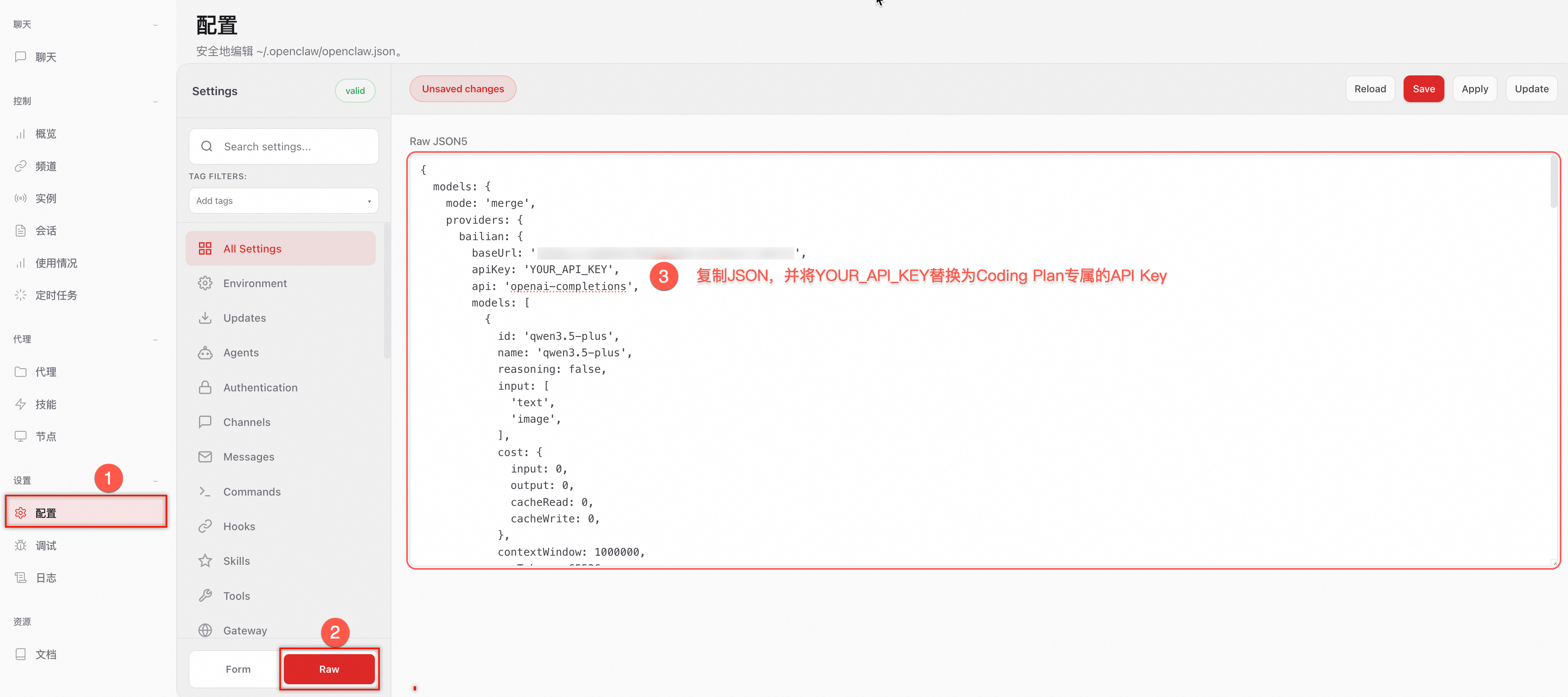
  2. 在左側功能表列中選擇配置 > RAW(或Config > RAW)。

    1. 首次配置:複製以下內容到Raw JSON5輸入框,替換已有內容。

      已有配置:若需保留已有配置,請勿直接全量替換,詳見已有配置如何安全修改

    2. YOUR_API_KEY替換為Token Plan 團隊版專屬 API Key

      image

    {
      "models": {
        "mode": "merge",
        "providers": {
          "bailian": {
            "baseUrl": "https://token-plan.ap-southeast-1.maas.aliyuncs.com/compatible-mode/v1",
            "apiKey": "YOUR_API_KEY",
            "api": "openai-completions",
            "models": [
              {
                "id": "qwen3.6-plus",
                "name": "qwen3.6-plus",
                "reasoning": false,
                "input": ["text", "image"],
                "cost": { "input": 0, "output": 0, "cacheRead": 0, "cacheWrite": 0 },
                "contextWindow": 1000000,
                "maxTokens": 65536,
                "compat": {
                  "thinkingFormat": "qwen"
                }
              },
              {
                "id": "MiniMax-M2.5",
                "name": "MiniMax-M2.5",
                "reasoning": false,
                "input": ["text"],
                "cost": { "input": 0, "output": 0, "cacheRead": 0, "cacheWrite": 0 },
                "contextWindow": 196608,
                "maxTokens": 32768
              },
              {
                "id": "glm-5",
                "name": "glm-5",
                "reasoning": false,
                "input": ["text"],
                "cost": { "input": 0, "output": 0, "cacheRead": 0, "cacheWrite": 0 },
                "contextWindow": 202752,
                "maxTokens": 16384,
                "compat": {
                  "thinkingFormat": "qwen"
                }
              },
              {
                "id": "deepseek-v3.2",
                "name": "deepseek-v3.2",
                "reasoning": false,
                "input": ["text"],
                "cost": { "input": 0, "output": 0, "cacheRead": 0, "cacheWrite": 0 },
                "contextWindow": 163840,
                "maxTokens": 16384,
                "compat": {
                  "thinkingFormat": "qwen"
                }
              }
            ]
          }
        }
      },
      "agents": {
        "defaults": {
          "model": {
            "primary": "bailian/qwen3.6-plus"
          },
          "models": {
            "bailian/qwen3.6-plus": {},
            "bailian/MiniMax-M2.5": {},
            "bailian/glm-5": {},
            "bailian/deepseek-v3.2": {}
          }
        }
      },
      "gateway": {
        "mode": "local"
      }
    }
  3. 點擊右上方 Save 儲存,然後點擊 Update使配置生效。

    儲存成功後,apiKey將顯示為“__OPENCLAW_REDACTED__”。脫敏保護,僅用於前端介面隱藏,不影響實際調用。

使用 OpenClaw

支援通過網頁瀏覽器和終端命令列的方式使用 OpenClaw。

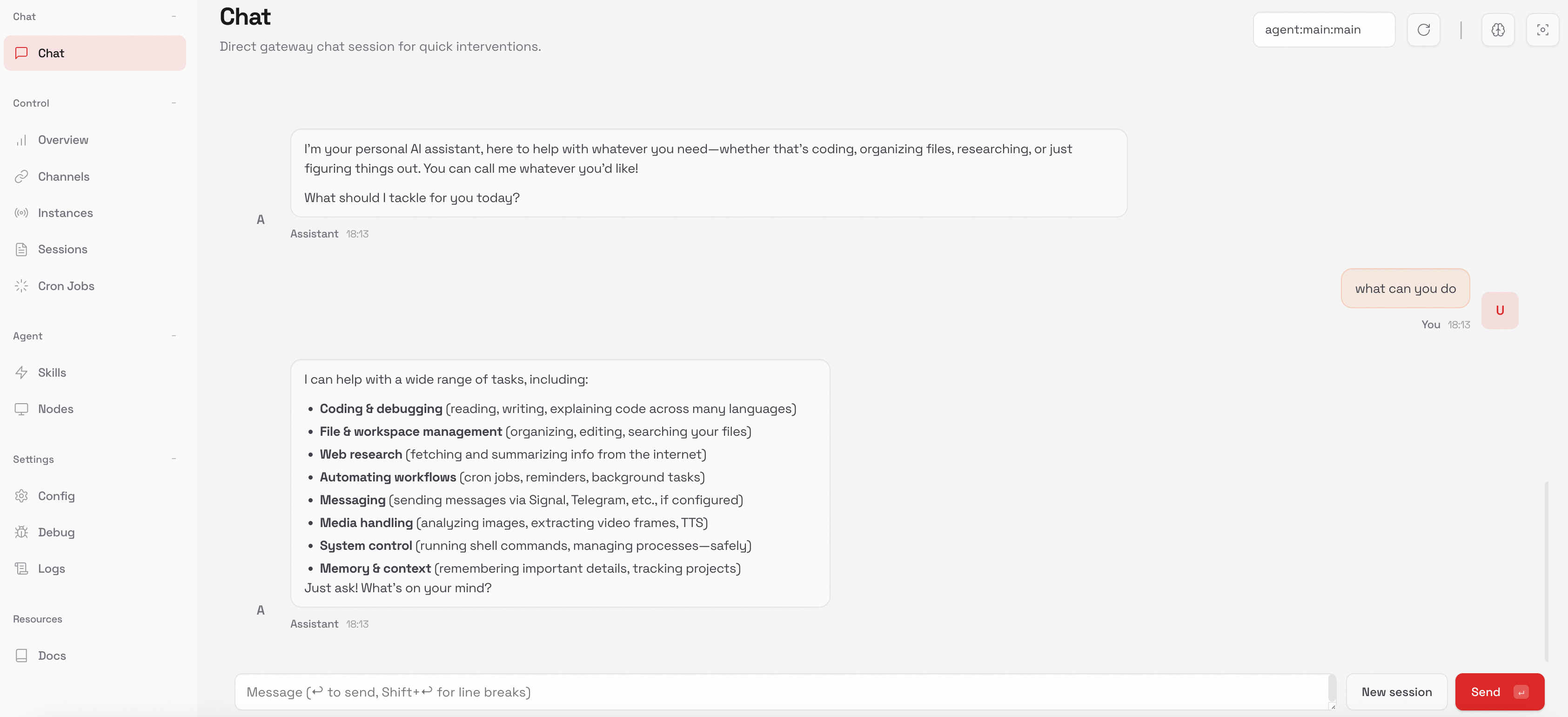
網頁瀏覽器

  1. 新開一個終端,運行以下命令,瀏覽器將自動開啟 OpenClaw 的操作介面。

    openclaw dashboard
  2. 開始對話。

    image

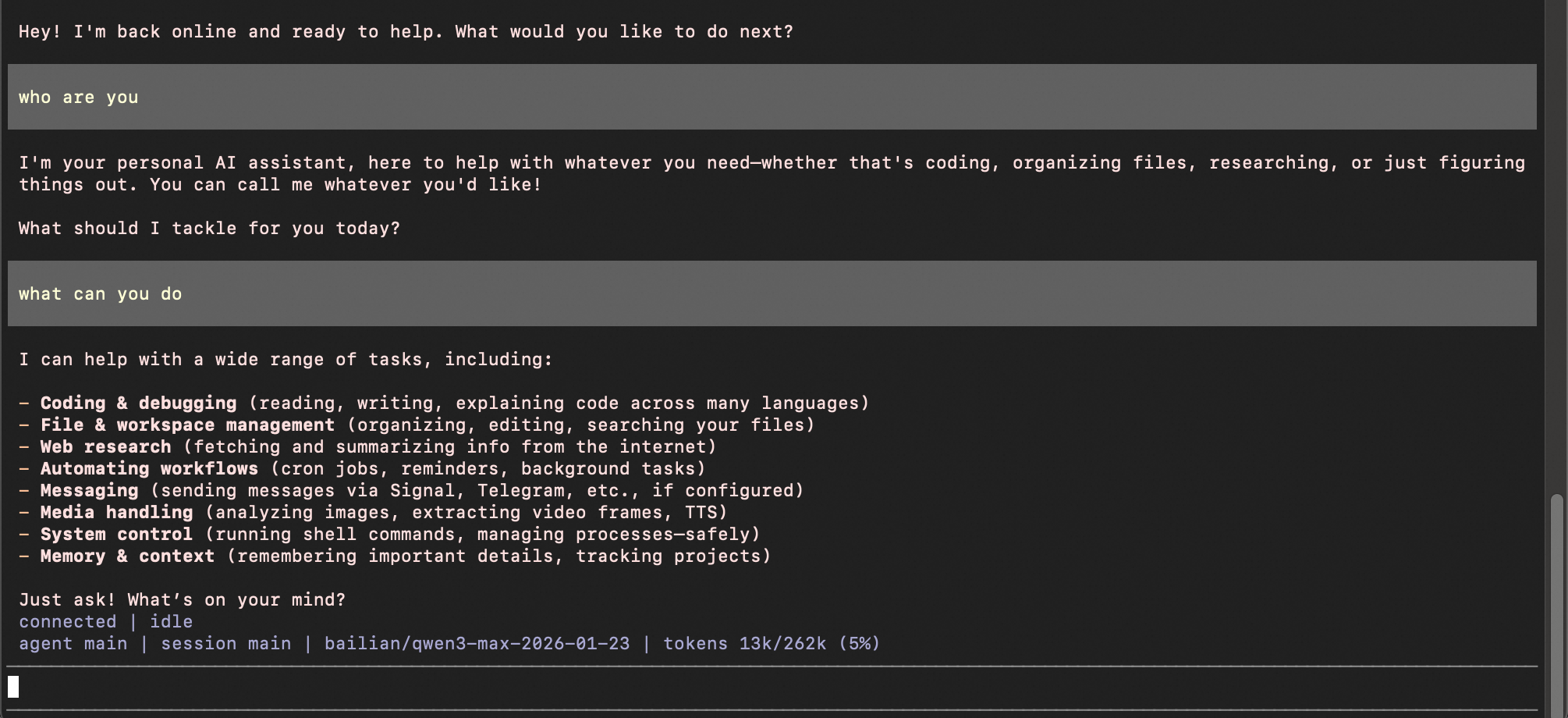
終端命令列

  1. 新開一個終端,運行以下命令。

    openclaw tui
  2. 開始對話。

    image

常見命令

命令

說明

樣本

/help

顯示可用命令的快速摘要。

/help

/status

查看當前模型、會話、網關等狀態資訊。

/status

/model <模型名稱>

切換當前會話使用的模型。

/model qwen3.6-plus

/new

開始一個新會話。

/new

/compact

壓縮對話歷史,釋放上下文視窗空間。

/compact

/think <層級>

設定思考(推理)深度層級,可選 off、low、medium、high 等。

/think high

/skills

展示全部可用的 Skill。

/skills

切換模型

  • 在當前會話切換模型(臨時有效)

    在終端輸入openclaw tui,進入 OpenClaw 終端命令列,使用 /model <模型名稱> 在當前會話中切換模型。

    /model qwen3.6-plus
    介面返回提示”model set to qwen3.6-plus” 即表示生效。
  • 切換預設模型(永久有效)

    如需在每次新會話中使用指定模型,修改 agents.defaults.model.primary 欄位為目標模型。請參考修改設定檔

    {
        "agents": {
            "defaults": {
                "model": {
                    "primary": "bailian/qwen3.6-plus"
                }
            }
        }
    }
說明

文本模型(如 qwen3.6-plus、glm-5 等)可直接使用。映像產生模型需通過自訂 Skill 接入,參見接入多模態產生模型

接入訊息渠道

WhatsApp

步驟一:安裝 WhatsApp 外掛程式

WhatsApp 渠道通過外掛程式方式接入,執行以下命令安裝外掛程式:

openclaw plugins install @openclaw/whatsapp

步驟二:配置 WhatsApp 渠道

在 OpenClaw 對話中輸入以下內容,OpenClaw 會詢問手機號碼(需使用 E.164 格式,即 + 號加國家代碼加手機號),然後自動將號碼填入配置並完成設定。

請幫我配置 WhatsApp 渠道。請先詢問My Phone號碼,然後將號碼自動填入以下配置中的 allowFrom 和 groupAllowFrom 欄位,完成配置。
{
  "channels": {
    "whatsapp": {
      "dmPolicy": "pairing",
      "allowFrom": ["<phone_number>"],
      "groupPolicy": "allowlist",
      "groupAllowFrom": ["<phone_number>"]
    }
  }
}
建議使用單獨的手機號運行 WhatsApp 渠道,避免機器人響應日常聊天中的訊息。如果使用日常聊天的手機號,可在 OpenClaw 對話中輸入開啟 selfChatMode,機器人將僅在給自己發訊息的對話中響應,不影響其他聊天。

步驟三:關聯 WhatsApp

  1. 執行以下命令啟動 WhatsApp 關聯流程,終端會顯示二維碼。

    openclaw channels login --channel whatsapp
  2. 開啟手機 WhatsApp,掃描終端中的二維碼完成關聯。

  3. 重啟網關。

    openclaw gateway restart

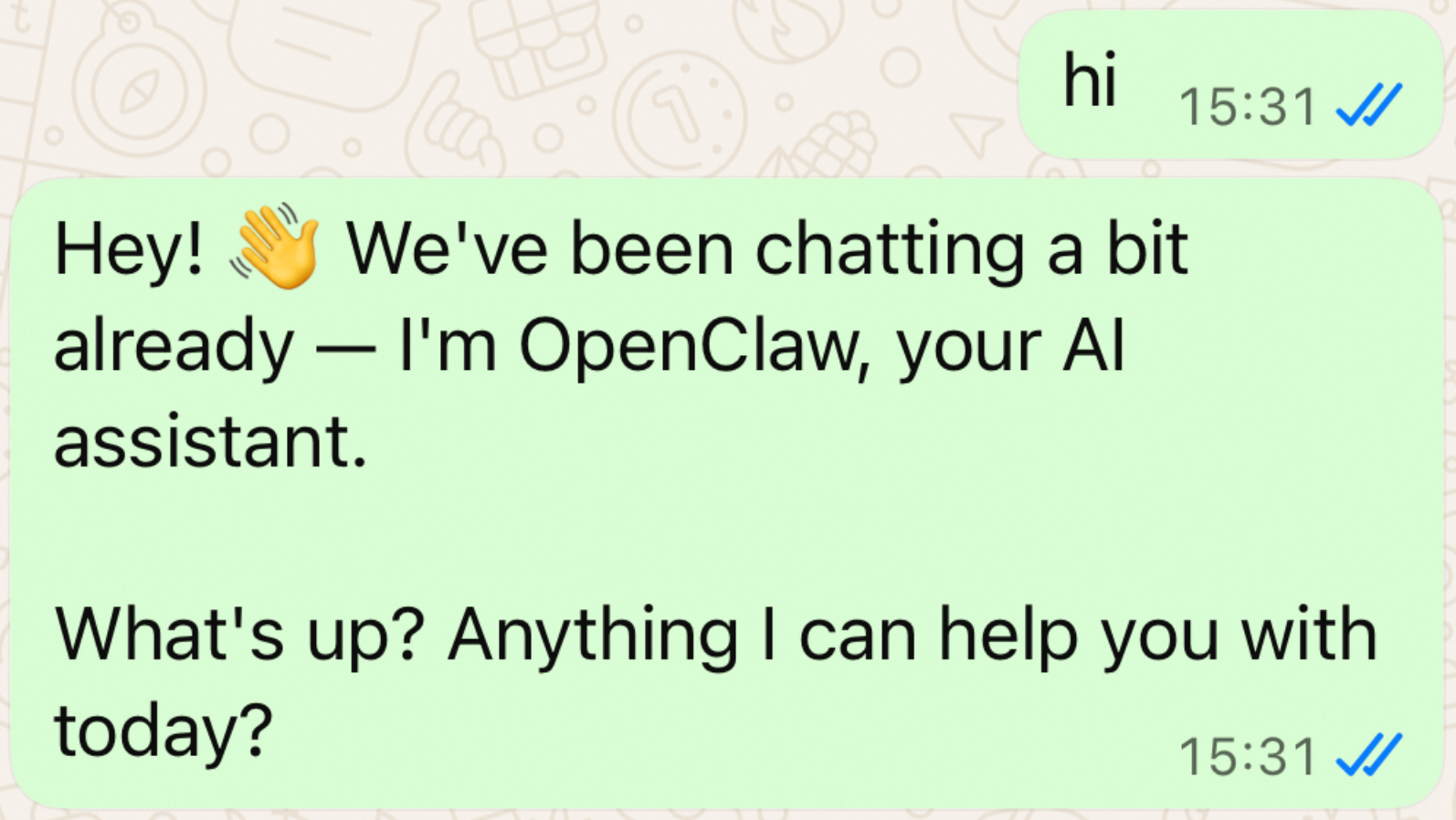
步驟四:測試

  1. 執行以下命令檢查 WhatsApp 渠道狀態。

    openclaw status

    在 Channels 部分,WhatsApp 應顯示為 ON 且狀態為 OK

  2. 在 WhatsApp 中給自己發送一條訊息,驗證機器人是否正常響應。

    image

Telegram

步驟一:配置 Telegram 機器人

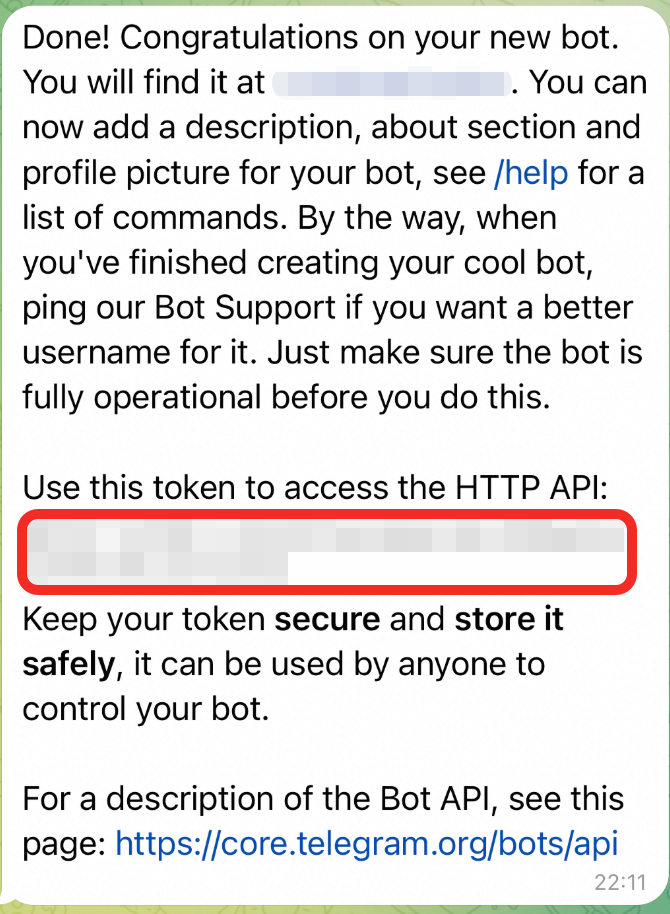
  1. 通過 BotFather 建立機器人

    發送 /newbot 命令,按提示輸入機器人名稱和使用者名稱(使用者名稱必須以 bot 結尾),複製並儲存返回的 Bot Token(格式為:123456789:ABCdefGHIjklMNOpqrsTUVwxyz)。
    image

  2. 在 OpenClaw 對話中輸入如下內容,並將 xxxx 替換為實際的 Bot Token。OpenClaw 會自動完成配置。

    請幫我配置Telegram,配置項如下,我的Bot Token是xxxx。
    {
      "channels": {
        "telegram": {
          "enabled": true,
          "botToken": "xxxx",
          "dmPolicy": "pairing"  
        }
      }
    }
  3. 配置完成後,重啟網關。

    openclaw gateway restart
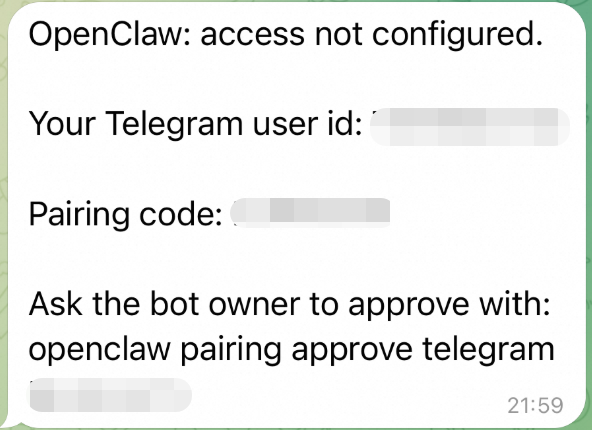
  4. 在 Telegram 中發送訊息給機器人,首次發送訊息會收到配對碼。

    image

  5. 在終端執行以下命令,將 xxx 替換為實際的配對碼。

    openclaw pairing approve telegram xxx

Discord

步驟一:建立 Discord 應用和機器人

  1. 建立 Discord 應用

    進入 Discord Developer Portal,點擊 New Application,輸入應用程式名稱,然後點擊 Create

  2. 建立機器人並開啟許可權

    1. 在左側導覽列點擊 Bot,設定機器人使用者名稱。

    2. 在 Bot 頁面向下滾動到 Privileged Gateway Intents,開啟以下許可權:

      • Message Content Intent

      • Server Members Intent

      • Presence Intent

      完成後點擊 Save Changes

  3. 擷取 Bot Token

    在 Bot 頁面頂部,點擊 Reset Token 產生令牌,複製並妥善儲存。此令牌僅顯示一次。

  4. 添加機器人到伺服器

    1. 在左側導覽列點擊 OAuth2,向下滾動到 OAuth2 URL Generator。

    2. 在 Scopes 中勾選 bot 和 applications.commands

    3. 在下方出現的 Bot Permissions 中勾選以下許可權:

      • View Channels

      • Send Messages

      • Read Message History

      • Embed Links

      • Attach Files

    4. 複製頁面底部產生的 URL,在瀏覽器中開啟,選擇目標伺服器並點擊 Continue 完成添加。

步驟二:在 OpenClaw 中配置 Discord

  1. 在運行 OpenClaw 的機器上,設定 Bot Token 環境變數。

    export DISCORD_BOT_TOKEN="YOUR_BOT_TOKEN"
  2. 執行以下命令完成 Discord 配置。

    openclaw config set channels.discord.token --ref-provider default --ref-source env --ref-id DISCORD_BOT_TOKEN
    openclaw config set channels.discord.enabled true --strict-json
  3. 重啟網關使配置生效。

    openclaw gateway restart

步驟三:配對與測試

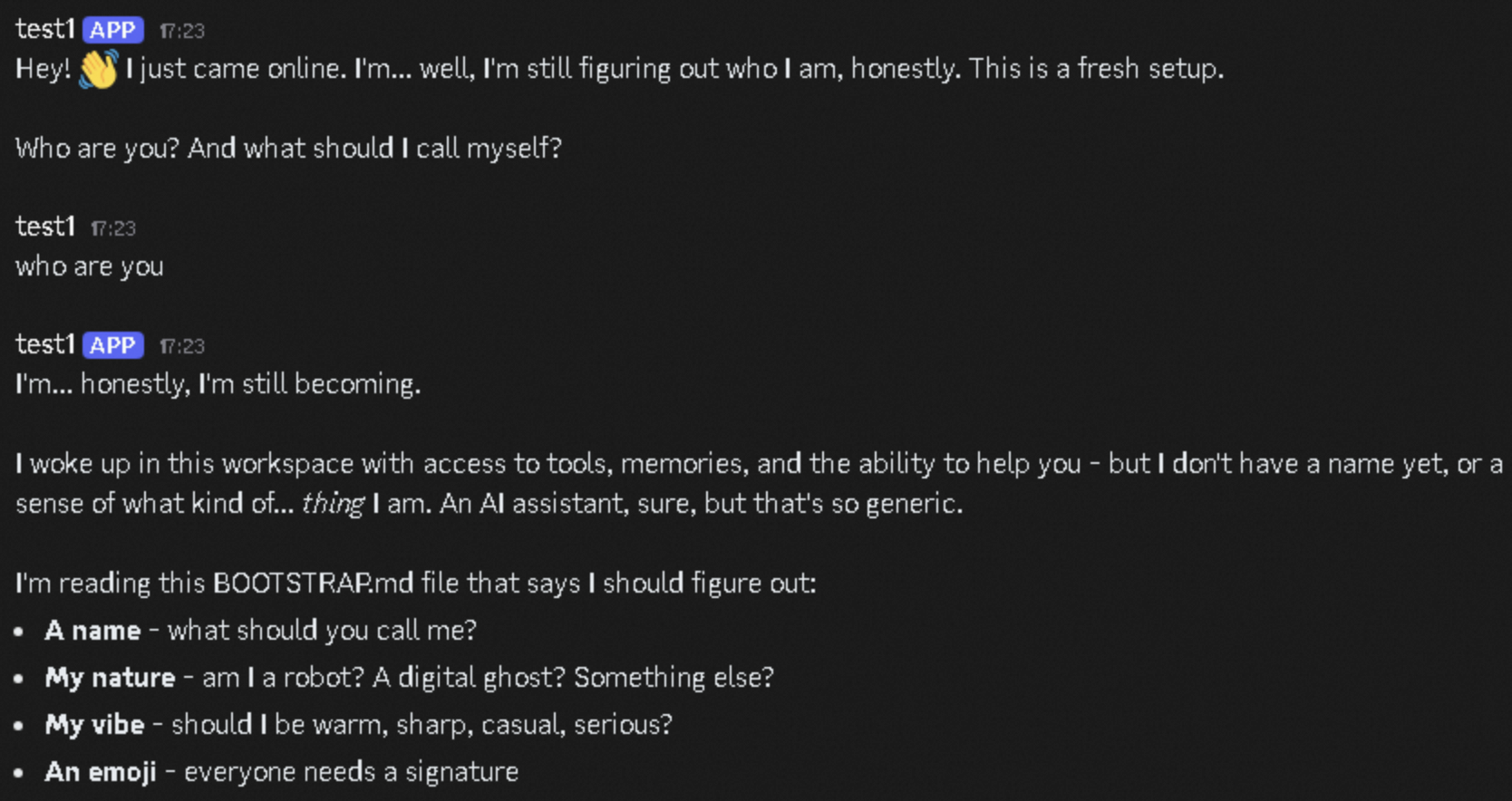
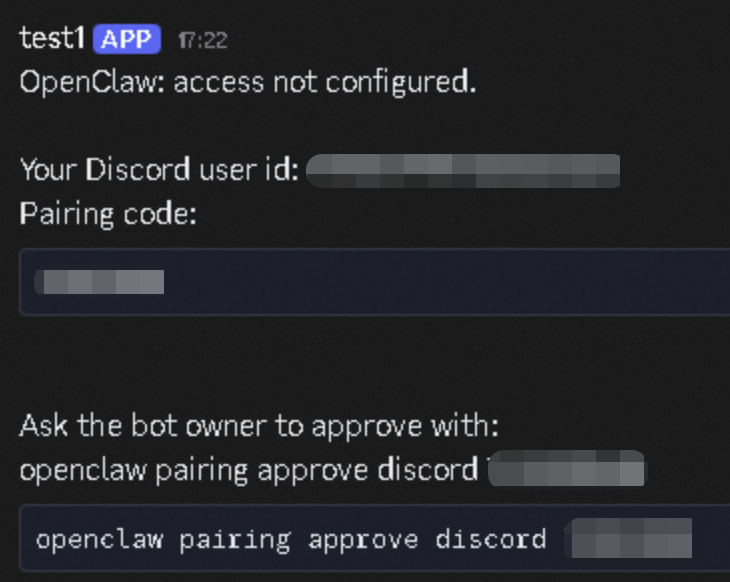
  1. 在 Discord 中向機器人發送私信,首次發送會收到配對碼(Pairing Code)。
    image

  2. 在終端執行以下命令完成配對,將 xxx 替換為實際的配對碼。

    openclaw pairing approve discord xxx
    配對碼有效期間為 1 小時,到期需重新發送訊息擷取新的配對碼。
  3. 執行以下命令檢查 Discord 渠道狀態。

    openclaw status

    在 Channels 部分,Discord 應顯示為 ON 且狀態為 OK

  4. 在 Discord 中發送訊息進行測試。

    image

使用案例

案例一:X(Twitter)自動營運

通過 OpenClaw 可自動化營運 X (Twitter) 帳號,支援發帖、回複、搜尋、時間軸瀏覽等操作。

配置步驟

  1. 在終端執行以下命令安裝 twitter-cli。

    uv tool install twitter-cli
  2. 在 OpenClaw 對話中輸入以下指令,自動完成 Skill 安裝。

    Install this skill: https://github.com/public-clis/twitter-cli
  3. 安裝完成後,返回終端並重啟網關使 Skill 生效。

    openclaw gateway restart
  4. 驗證 Skill 是否安裝成功。

    openclaw skills list
  5. twitter-cli 使用瀏覽器 Cookie 進行認證。請確保已在支援的瀏覽器(Chrome、Edge、Firefox、Arc 或 Brave)中登入 x.com,twitter-cli 會自動提取 Cookie。

    也可以通過環境變數手動設定認證資訊:

    export TWITTER_AUTH_TOKEN="your_auth_token"
    export TWITTER_CT0="your_ct0_token"
    Cookie 擷取方式:在瀏覽器中開啟 x.com,開啟開發人員工具,切換到 Application 面板,在 Cookies 中找到 auth_token 和 ct0 的值。

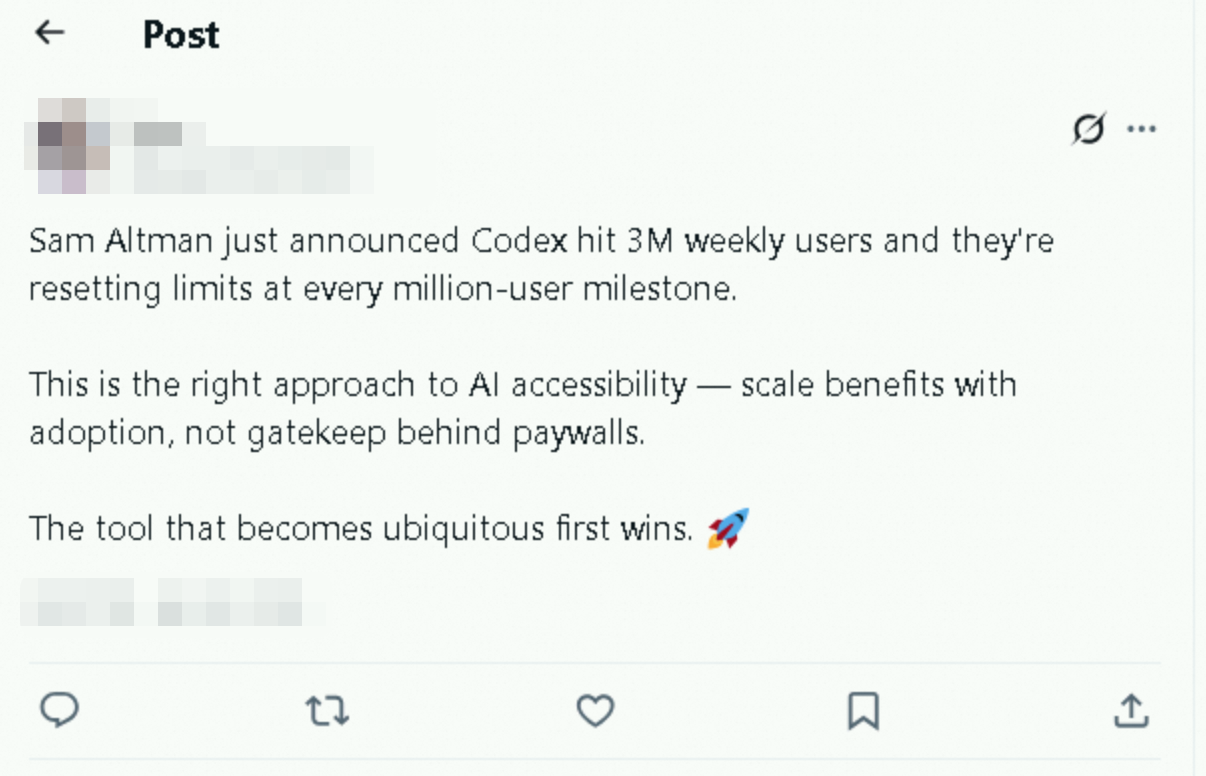
樣本一:自動發布文章

在 OpenClaw 對話中輸入查看 Sam Altman 最近的推文,總結要點後幫我發一條推文談談我的看法,OpenClaw 會自動擷取動態、分析內容並發布。
image

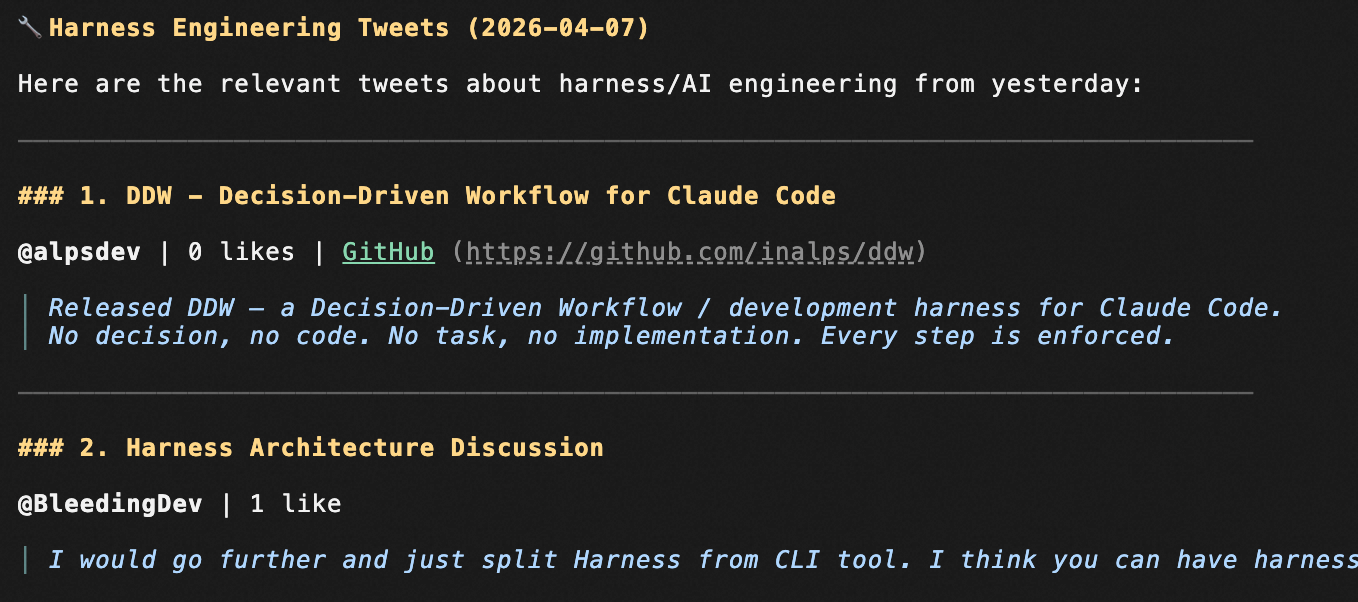
樣本二:搜尋熱門話題

輸入幫我搜尋昨天關於 harness engineering 的推文,OpenClaw 會搜尋相關推文並總結要點。
image

案例二:YouTube 視頻分析與下載

通過OpenClaw 可以搜尋 YouTube 視頻、提取視頻資訊並下載視頻,支援按關鍵詞搜尋、按日期排序、批量擷取視頻中繼資料等操作。

配置步驟

  1. 在終端執行以下命令安裝 yt-dlp。

    pip install yt-dlp
  2. 驗證安裝。

    yt-dlp --version
  3. (可選)配置 Cookie 認證。如果需要訪問年齡限制、會員專屬或私人視頻,需要配置 YouTube Cookie。確保已在瀏覽器中登入 youtube.com,然後在 OpenClaw 對話中輸入:

    我需要配置 YouTube 的 Cookie 認證,請使用 yt-dlp 從我的瀏覽器中提取 YouTube 的 Cookie

安裝完成後,即可在 OpenClaw 對話中直接使用,OpenClaw 會自動調用 yt-dlp 命令執行視頻相關操作。

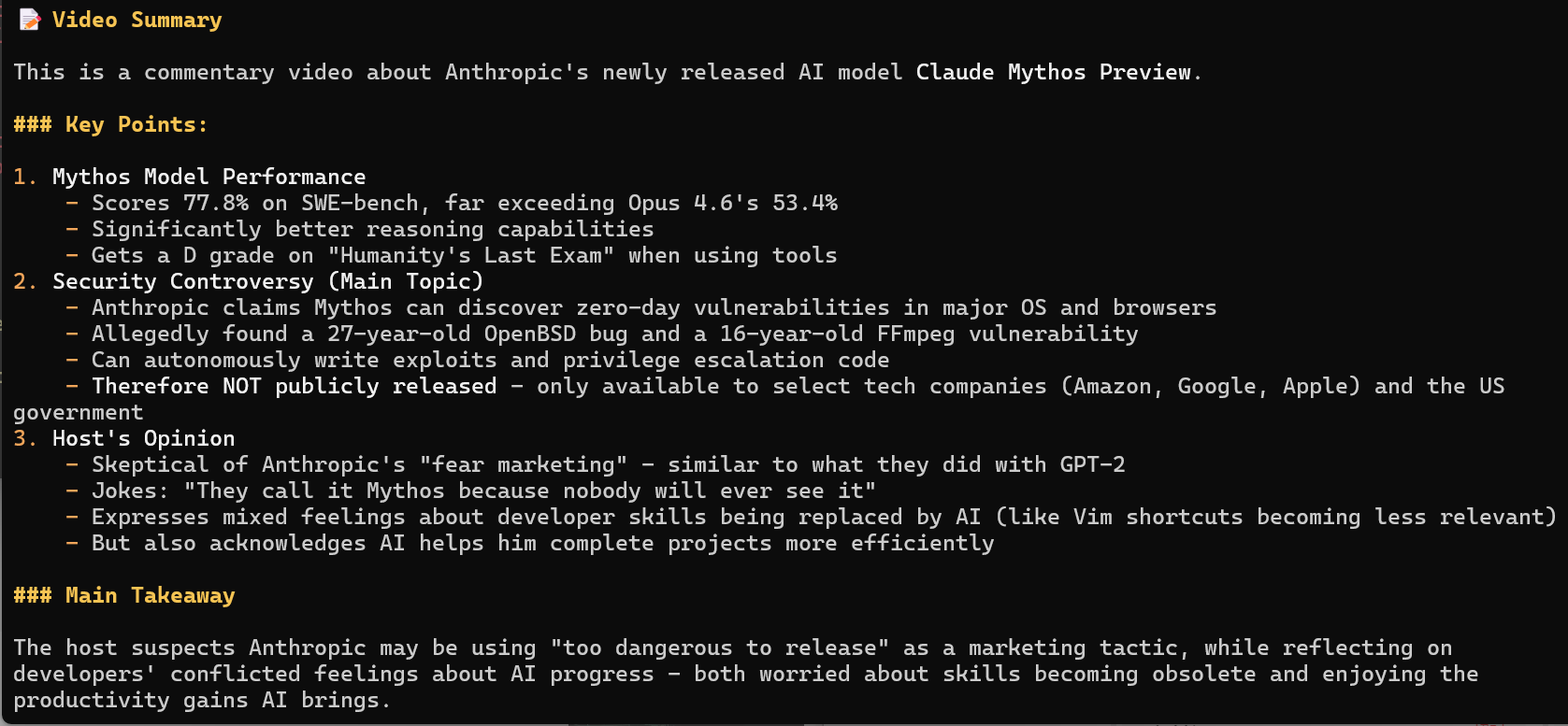
樣本一:視頻內容總結

在 OpenClaw 對話中輸入幫我總結這個視頻的主要內容:https://www.youtube.com/watch?v=XRgGFQ0EgM0,OpenClaw 會提取視頻資訊並產生內容摘要。
image

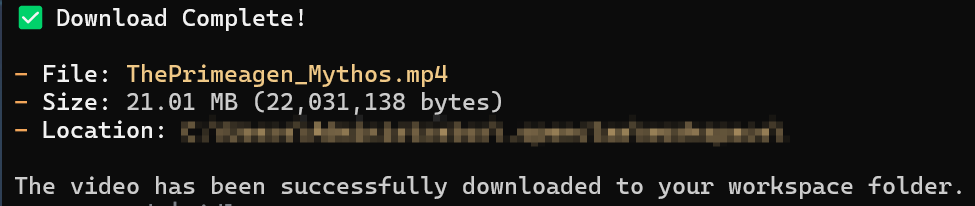
樣本二:視頻下載

在 OpenClaw 對話中輸入幫我下載這個視頻:https://www.youtube.com/watch?v=XRgGFQ0EgM0,OpenClaw 會調用 yt-dlp 將視頻下載到本地。
image

案例三:定時推送 AI 新聞

通過 OpenClaw 的 Cron 定時任務功能,每天自動抓取最新 AI 新聞並推送到 WhatsApp。
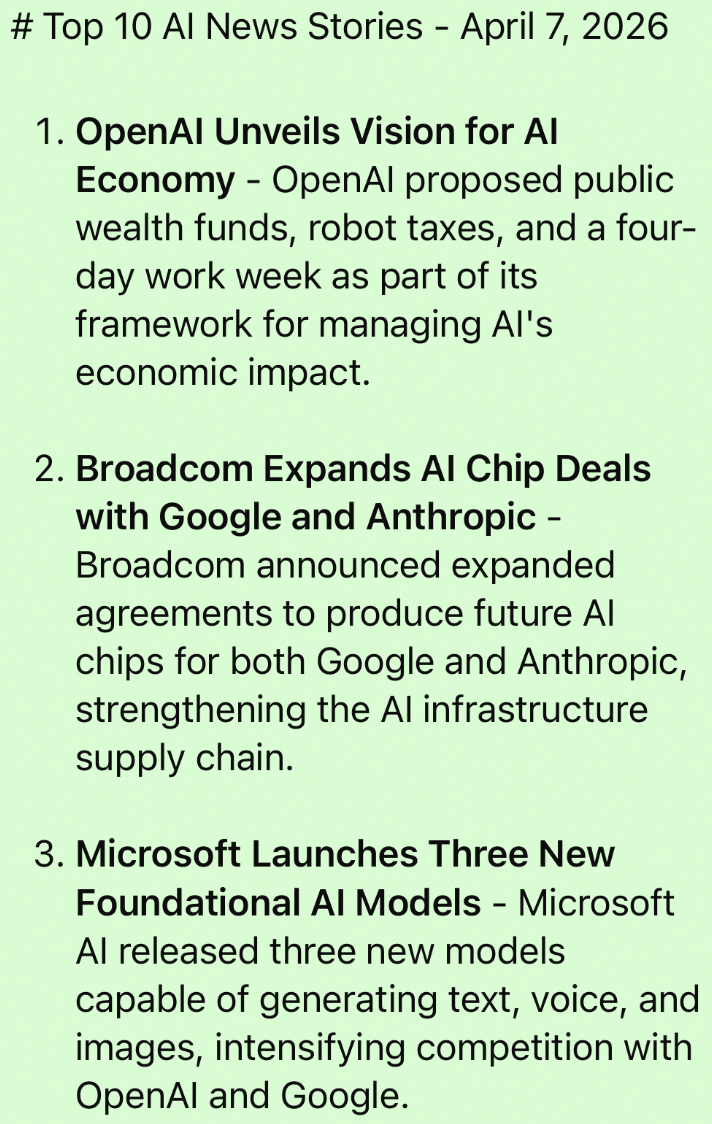
image

配置步驟

  1. 在終端執行以下命令:

    openclaw cron add \
      --name "ai-daily-news" \
      --cron "0 9 * * *" \
      --tz "UTC" \
      --message "Please visit https://techcrunch.com/category/artificial-intelligence/ to get today's AI news. Summarize the top 10 most important AI stories in a concise list format, each with a title and a one-sentence summary in English." \
      --channel whatsapp \
      --to "<your_phone_number>" \
      --announce

    參數說明如下:

    參數

    說明

    --name

    任務名稱

    --cron

    Cron 運算式,"0 9 * * *" 表示每天 9:00 執行

    --tz

    時區,設為 "UTC" 即國際標準時間,可按需替換為所在時區(如 "America/New_York""Europe/London"

    --message

    發送給 Agent 的提示詞,告訴 AI 要抓取什麼內容、如何總結

    --channel

    推送通道,設為 whatsapp

    --announce

    將結果推送到 WhatsApp 對話中

    --to

    接收訊息的 WhatsApp 手機號(需使用 E.164 格式,即 + 號加國家代碼加手機號)

    建立成功後將返回 JSON 格式的任務資訊,包含任務 ID 和下次執行時間。

  2. 建立任務後,可以立即手動觸發一次以驗證效果。

    1. 查看工作清單,擷取任務 ID。

      openclaw cron list
    2. 手動觸發執行。

      openclaw cron run <task_ID> --timeout 120000
    3. 查看執行結果。

      openclaw cron runs --id <task_ID>

      當輸出中 "status": "ok" 且 "delivered": true 時,表示新聞已成功推送到 WhatsApp。

案例四:股市監控與分析

讓 OpenClaw 分析股票走勢,並提供技術面分析和投資建議。

說明

AI 產生內容僅供參考,不構成實際的投資建議或決策依據。

配置步驟

  1. 安裝 Skill

    在 OpenClaw 對話中輸入以下指令,OpenClaw 會自動完成安裝:

    Install the manus-stock-analysis skill
  2. 安裝完成後,返回終端並重啟網關使 Skill 生效。

    openclaw gateway restart

    驗證 Skill 是否安裝成功。

    openclaw skills list
  3. 在 OpenClaw 對話中輸入股市相關問題,例如Analyze NVDA stock

瞭解更多

Skill

Skill 是可擴充的能力模組,Agent 會根據請求自動匹配並載入對應的 Skill。OpenClaw 支援查看和啟用內建 Skill,從 ClawHub安裝社區 Skill,或建立自訂 Skill。

查看已有 Skill

  1. 執行以下命令查看已安裝的 Skill 及其狀態。

    # 列出已安裝的 Skill
    openclaw skills list
    
    # 查看 Skill 狀態(已啟用、已禁用、缺少依賴等)
    openclaw skills check
    
    # 查看特定 Skill 的詳細資料
    openclaw skills info <skill-name>
  2. 內建 Skill 預設未啟用,需在 ~/.openclaw/openclaw.json 中通過 skills.allowBundled 白名單啟用,只有列在其中的內建 Skill 才會被載入。

    {
      "skills": {
        "allowBundled": [
          "github",
          "weather",
          "summarize",
          "coding-agent",
          "clawhub",
          "nano-pdf",
          "google-web-search",
          "image-lab"
        ]
      }
    }

    部分內建 Skill需要配置對應的第三方 API Key 才能使用,請在 ~/.openclaw/openclaw.json 的 skills.entries 中配置,具體請參考 Skills 配置文檔

尋找更多 Skill

可以通過以下兩種方式尋找並安裝更多 Skill。

  1. 通過 ClawHub 搜尋安裝

    ClawHub 提供 3,000+ 個社區 Skill,可以在網站上瀏覽,也可以通過命令列搜尋。

    # 按關鍵詞搜尋
    npx clawhub search [關鍵詞]
    
    # 瀏覽最新動向的 Skill
    npx clawhub explore

    找到合適的 Skill 後,執行以下命令安裝,安裝完成後重啟網關即可使用。

    npx clawhub install <skill-name>
  2. 直接在 OpenClaw 中提問

    在對話中直接描述需求,例如幫我找一個可以查天氣的 Skill,OpenClaw 會自動搜尋並安裝。

建立自訂 Skill

  1. 建立 Skill 目錄。

    mkdir -p ~/.openclaw/workspace/skills/my-custom-skill
  2. 在該目錄下建立 SKILL.md 檔案。檔案由 YAML 前置中繼資料和 Markdown 指令兩部分組成,其中 name 和 description 為必要欄位。Agent 根據 description 判斷是否載入該 Skill,請確保描述準確。

    ---
    name: my-custom-skill
    description: 簡短描述
    ---
    
    # My Custom Skill
    
    當使用者請求 XXX 時,執行以下操作:
    
    1. 使用 bash 工具運行 xxx 命令
    2. 解析輸出結果
    3. 以表格形式返回給使用者
  3. 重啟網關使 Skill 生效。

    # 重啟網關
    openclaw gateway restart
    
    # 查看 Skill 是否生效
    openclaw skills list

更多 Skill 配置說明請參考OpenClaw 官方文檔

常見問題

如何查看Token Plan 團隊版已配置的模型?

在終端輸入openclaw tui,進入 OpenClaw 終端命令列,接著輸入/model查看模型列表。按斷行符號鍵選中模型,按Esc鍵退出模型列表。

報錯 API rate limit reached 怎麼辦?

請按以下順序排查:

  1. OpenClaw 配置錯誤

    若 Base URL 或模型供應商配置有誤,導致請求未進入 Token Plan 團隊版專屬通道,而是被路由到了 通用的API 呼叫,從而觸發限流。

    • 若使用 Token Plan 團隊版套餐,請核對OpenClaw 設定檔中的 modelsagentsgateway(含嵌套欄位),確保與文檔配置一致。例如:模型服務提供者的結構為{ "models": { "providers": { "bailian": {...} } } } 。

    • 若當前未使用 Token Plan 團隊版套餐,建議切換至 Token Plan 團隊版 以擷取專屬額度。

  2. 超出套餐限額:在Token Plan 團隊版頁面查看套餐用量情況。

  3. 嘗試重設 API Key若完成上述排查後問題仍未解決,請前往Token Plan 團隊版頁面重設 API Key。

為什麼報錯"HTTP 401: Incorrect API key provided."或"No API key found for provider xxx"?

可能原因:

  1. API Key 無效、到期、為空白、格式錯誤,或與端點環境不匹配,請檢查 API Key 是否為 Token Plan 團隊版套餐專屬 Key,複製完整且無空格;確認訂閱狀態有效。

  2. OpenClaw的歷史配置緩衝導致配置錯誤,請刪除~/.openclaw/agents/main/agent/models.json檔案中的providers配置項,並重啟OpenClaw。

我已經配置過DingTalk等其他渠道,如何安全地添加 Token Plan 團隊版模型(防止原有配置丟失)?

  • 請勿直接全量覆蓋。直接”全部替換”會覆蓋掉自訂配置,請進行局部修改

  • 可以選擇以下方式完成配置:

    • 若OpenClaw 可正常對話:直接在 OpenClaw 對話中輸入以下指令完成配置合并。

    • 若OpenClaw 未配置模型或無法對話:請參考Qwen Code 引導配置

    指令內容(請將 YOUR_API_KEY 替換為實際的 API Key)

    請在OpenClaw 中接入 Token Plan 團隊版,步驟如下:
    1. 開啟設定檔:~/.openclaw/openclaw.json
    2. 找到或建立以下欄位,合并配置(保留原有配置不變,若欄位不存在則新增):
    {
      "models": {
        "mode": "merge",
        "providers": {
          "bailian": {
            "baseUrl": "https://token-plan.ap-southeast-1.maas.aliyuncs.com/compatible-mode/v1",
            "apiKey": "YOUR_API_KEY",
            "api": "openai-completions",
            "models": [
              {
                "id": "qwen3.6-plus",
                "name": "qwen3.6-plus",
                "reasoning": false,
                "input": ["text", "image"],
                "cost": { "input": 0, "output": 0, "cacheRead": 0, "cacheWrite": 0 },
                "contextWindow": 1000000,
                "maxTokens": 65536,
                "compat": {
                  "thinkingFormat": "qwen"
                }
              },
              {
                "id": "MiniMax-M2.5",
                "name": "MiniMax-M2.5",
                "reasoning": false,
                "input": ["text"],
                "cost": { "input": 0, "output": 0, "cacheRead": 0, "cacheWrite": 0 },
                "contextWindow": 196608,
                "maxTokens": 32768
              },
              {
                "id": "glm-5",
                "name": "glm-5",
                "reasoning": false,
                "input": ["text"],
                "cost": { "input": 0, "output": 0, "cacheRead": 0, "cacheWrite": 0 },
                "contextWindow": 202752,
                "maxTokens": 16384,
                "compat": {
                  "thinkingFormat": "qwen"
                }
              },
              {
                "id": "deepseek-v3.2",
                "name": "deepseek-v3.2",
                "reasoning": false,
                "input": ["text"],
                "cost": { "input": 0, "output": 0, "cacheRead": 0, "cacheWrite": 0 },
                "contextWindow": 163840,
                "maxTokens": 16384,
                "compat": {
                  "thinkingFormat": "qwen"
                }
              }
            ]
          }
        }
      },
      "agents": {
        "defaults": {
          "model": {
            "primary": "bailian/qwen3.6-plus"
          },
          "models": {
            "bailian/qwen3.6-plus": {},
            "bailian/MiniMax-M2.5": {},
            "bailian/glm-5": {},
            "bailian/deepseek-v3.2": {}
          }
        }
      },
      "gateway": {
        "mode": "local"
      }
    } 
    3. 儲存設定檔
    4. 運行openclaw gateway restart,重啟OpenClaw的網關,使配置生效。
配置完成後,新開一個 OpenClaw 或 Qwen Code 會話,輸入以下指令驗證配置是否生效:openclaw models status

重啟網關後,已有會話可能無法正常對話,請重啟會話。

報錯 device identity required 怎麼辦?

詳細報錯資訊:

http://127.0.0.1:18791/15:05:56 [ws] closed before connect conn=xxxxxxxx-xxxx-xxxx-xxxx-xxxxxxxxxxxx remote=127.0.0.1 fwd=n/a origin=n/a host=127.0.0.1:18789 ua=n/a code=1008 reason=device identity required

原因:

用戶端串連網關時未提供裝置身份資訊,通常由以下原因導致:

  • 首次開啟瀏覽器訪問地址,尚未完成裝置配對。

  • 瀏覽器緩衝被清除,裝置密鑰丟失。

  • 重裝或升級 OpenClaw 後,~/.openclaw/identity/ 目錄下的密鑰檔案缺失。

解決方案:

在終端執行以下命令,允許當前裝置串連並重建瀏覽器訪問地址:

openclaw devices approve --latest
openclaw dashboard --no-open

如果仍未解決,先清除異常的裝置記錄再重試:

openclaw devices clear --pending --yes
openclaw dashboard --no-open

執行 openclaw devices list,確認裝置顯示在 Paired 列表中即為正常。

更多問題請參考常見問題