在控制台添加驗證情境後,您需要在使用驗證功能的微信小程式頁面中,整合驗證碼初始化代碼,實現微信小程式接入。本文介紹如何整合驗證碼初始化代碼。
前提條件
已開開通阿里雲驗證碼2.0。
已建立用戶端為微信小程式的驗證情境。
微信小程式外掛程式接入
微信小程式原生語言接入
在使用外掛程式前,首先要在小程式管理後台中添加外掛程式。開發人員可登入小程式管理後台,通過 appid (wxbe275ff84246f1a4)尋找外掛程式並添加。
步驟一:整合外掛程式
引入驗證碼小程式外掛程式。
頁面中使用外掛程式前,需要先在專案
app.json中聲明阿里雲驗證碼小程式外掛程式。程式碼範例如下:說明外掛程式版本建議使用最新版本,查看最新版本方法:
V3架構
{
  "plugins": {
    "AliyunCaptcha": {
      "version": "3.0.0", //請選擇小程式外掛程式最新版本
      "provider": "wxbe275ff84246f1a4"
    }
  }
}
V2架構
{
  "plugins": {
    "AliyunCaptcha": {
      "version": "2.3.0", //請選擇小程式外掛程式最新版本
      "provider": "wxbe275ff84246f1a4"
    }
  }
}
引入驗證碼小程式組件。
使用外掛程式提供的自訂群組件,需要在頁面或組件的
json檔案中使用plugin://協議指明外掛程式的引用名和自訂群組件名。程式碼範例如下:{ "usingComponents": { "aliyun-captcha": "plugin://AliyunCaptcha/captcha" } }
步驟二:模板插入
wxml中插入aliyun-captcha模板,樣本中的參數為必傳參數。
以登入情境為例:
<view class="captchapage-container">
  <view class="input-group">
    <view class="label">使用者名稱:</view>
    <input class="input" type="text" placeholder="請輸入使用者名稱" bindinput="inputUsername" />
  </view>
  <view class="input-group">
    <view class="label">密碼:</view>
    <input class="input" type="password" placeholder="請輸入密碼" bindinput="inputPassword" />
  </view>
  <aliyun-captcha id="captcha-element" wx:if="{{loadCaptcha}}" props="{{pluginProps}}" />
  <!-- 在登入按鈕上綁定login方法,點擊時在login方法內調用外掛程式執行個體方法展示驗證碼 -->
  <button class="login-btn" bindtap="login">登入</button>
</view>
步驟三:外掛程式初始化
在需要使用外掛程式的時候,使用setData傳入必傳參數進行初始化。
以登入情境為例:
V3架構
// 擷取驗證碼外掛程式執行個體
var AliyunCaptchaPluginInterface = requirePlugin('AliyunCaptcha');

// 驗證通過回呼函數
/**
 * @name success
 * @function
 * 請求參數:由驗證碼指令碼回調的驗證參數,不需要做任何處理,直接傳給服務端進行二次校正即可
 * @params {string} captchaVerifyParam
 */
var success = async function (captchaVerifyParam) {
  // 驗證通過後,卸載驗證碼
  this.setData({
    loadCaptcha: false,
  });
  console.log(this.data);
  // 業務請求代碼...
  const result = await customFetch('https://xxxx/demo/bizquery', {
      method: 'POST',
      data: {
        captchaVerifyParam, // 攜帶上驗證參數
        userName: this.data.username, // 通過this.data擷取業務資料
        password: this.data.password,
      },
    });
  console.log(captchaVerifyParam);
};

// 驗證不通過回呼函數
var fail = function (error) {
  console.error(error);
};

async function customFetch(url, option) {
  option.url = url;
  return new Promise((resolve, reject) => {
    wx.request({
      ...option,
      success(res) {
        resolve(res.data);
      },
      fail(res) {
        reject(new Error(res.toString()));
      },
    });
  });
}

// 頁面邏輯
Page({
  data: {
    username: '',
    password: '',
    loadCaptcha: false, // 是否載入驗證碼
  },
  onLoad: function(options) {
    // 構造外掛程式參數
    var pluginProps = {
      SceneId: 'xxxxx',
      mode: 'popup',
      // 固定寫法,需要綁定this,保證回呼函數中的this是當前頁面指向的this,以此在回呼函數中通過this.data擷取業務參數。
      success: success.bind(this),
      // 固定寫法,需要綁定this,保證回呼函數中的this是當前頁面指向的this,以此在回呼函數中通過this.data擷取業務參數。
      fail: fail.bind(this),
      slideStyle: {
        width: 540, // 寬度預設為540rpx
        height: 60, // 高度預設為60rpx
      },
      language: 'cn',
      region: 'cn',
    };
    this.setData({
      loadCaptcha: true, // 可以用來控制載入/重載驗證碼
      pluginProps,
    });
  },
  inputUsername: function(e) {
    this.setData({
      username: e.detail.value
    });
  },
  inputPassword: function(e) {
    this.setData({
      password: e.detail.value
    });
  },
  login: function() {
    const { username, password } = this.data;
    // 可以做自訂業務校正
    if (username && password) {
      // 彈出式下調用執行個體方法展示驗證碼,無痕形態同樣調用該方法觸發驗證。
      AliyunCaptchaPluginInterface.show();
    } else {
      wx.showToast({
        title: '請填寫使用者名稱和密碼',
        icon: 'none'
      });
    }
  },
  // 需要再次驗證時,調用該方法重新載入驗證碼
  reloadCaptcha: function () {
    this.setData({
      loadCaptcha: true,
    });
  },
})
驗證通過後,如果需要重新進行驗證碼驗證,需要調用reloadCaptcha重新載入驗證碼。
V2架構
// 擷取驗證碼外掛程式執行個體var AliyunCaptchaPluginInterface = requirePlugin('AliyunCaptcha');

// 業務請求(帶驗證碼校正)回呼函數/**
 * @name captchaVerifyCallback
 * @function
 * 請求參數:由驗證碼指令碼回調的驗證參數,不需要做任何處理,直接傳給服務端即可
 * @params {string} captchaVerifyParam
 * 返回參數:欄位名固定,captchaResult為必選;如無業務驗證情境時,bizResult為可選
 * @returns {{captchaResult: boolean, bizResult?: boolean|undefined}}
 */var captchaVerifyCallback = async function (captchaVerifyParam) {
  console.log(this.data);
  // 業務請求代碼...const result = await customFetch('https://xxxx/demo/bizquery', {
      method: 'POST',
      data: {
        captchaVerifyParam, // 攜帶上驗證參數userName: this.data.username, // 通過this.data擷取業務資料password: this.data.password,
      },
    });
  console.log(captchaVerifyParam);
  return {
    captchaResult: result.captchaVerifyResult, // 驗證碼驗證是否通過,boolean類型,必選bizResult: 從result擷取您的業務驗證結果, // 業務驗證是否通過,boolean類型,可選;若為無業務驗證結果的情境,bizResult可以為空白
  };
};

// 業務請求驗證結果回呼函數var onBizResultCallback = function (bizResult) {
  if (bizResult === true) {
    // 業務驗證通過後的邏輯,如提示通過
    wx.showToast({
      title: '業務驗證通過!',
      duration: 2000,
      icon: 'success',
    });
  } else {
  // 業務驗證不通過後的邏輯,如提示不通過
    wx.showToast({
      title: '業務驗證不通過!',
      duration: 2000,
      icon: 'error',
    });
  }
};

async function customFetch(url, option) {
  option.url = url;
  return new Promise((resolve, reject) => {
    wx.request({
      ...option,
      success(res) {
        resolve(res.data);
      },
      fail(res) {
        reject(new Error(res.toString()));
      },
    });
  });
}

// 頁面邏輯Page({
  data: {
    username: '',
    password: '',
    loadCaptcha: false, // 是否載入驗證碼
  },
  onLoad: function(options) {
    // 構造外掛程式參數var pluginProps = {
      SceneId: 'xxxxx',
      mode: 'popup',
      // 固定寫法,需要綁定this,保證回呼函數中的this是當前頁面指向的this,以此在回呼函數中通過this.data擷取業務參數。captchaVerifyCallback: captchaVerifyCallback.bind(this),
      // 固定寫法,需要綁定this,保證回呼函數中的this是當前頁面指向的this,以此在回呼函數中通過this.data擷取業務參數。onBizResultCallback: onBizResultCallback.bind(this),
      slideStyle: {
        width: 540, // 寬度預設為540rpxheight: 60, // 高度預設為60rpx
      },
      language: 'cn',
      region: 'cn',
    };
    this.setData({
      loadCaptcha: true, // 可以用來控制載入/重載驗證碼
      pluginProps,
    });
  },
  inputUsername: function(e) {
    this.setData({
      username: e.detail.value
    });
  },
  inputPassword: function(e) {
    this.setData({
      password: e.detail.value
    });
  },
  login: function() {
    const { username, password } = this.data;
    // 可以做自訂業務校正if (username && password) {
      // 彈出式下調用執行個體方法展示驗證碼,無痕形態同樣調用該方法觸發驗證。AliyunCaptchaPluginInterface.show();
    } else {
      wx.showToast({
        title: '請填寫使用者名稱和密碼',
        icon: 'none'
      });
    }
  },
})
Taro架構小程式外掛程式接入
Taro接入時,暫時只支援React接入。
步驟一:整合外掛程式
引入驗證碼小程式外掛程式。
頁面中使用外掛程式前,需要先在專案
app.config.js中聲明阿里雲驗證碼小程式外掛程式。程式碼範例如下:說明外掛程式版本建議使用最新版本,查看最新版本方法:
V3架構
{
  "plugins": {
    "AliyunCaptcha": {
      "version": "3.0.0", //請選擇小程式外掛程式最新版本
      "provider": "wxbe275ff84246f1a4"
    }
  }
}
V2架構
{
  "plugins": {
    "AliyunCaptcha": {
      "version": "2.3.0", //請選擇小程式外掛程式最新版本
      "provider": "wxbe275ff84246f1a4"
    }
  }
}
引入驗證碼小程式組件。
使用外掛程式提供的自訂群組件,需要在頁面或組件的
index.config.js檔案中使用plugin://協議指明外掛程式的引用名和自訂群組件名。程式碼範例如下:export default { usingComponents: { 'aliyun-captcha': 'plugin://AliyunCaptcha/captcha', }, };
步驟二:代碼整合
以登入情境為例:
V3架構
import Taro from '@tarojs/taro';
import { useEffect, useState, useRef } from 'react';
import { View, Text, Input, Button, Form } from '@tarojs/components';
import './index.scss';

// 擷取驗證碼外掛程式執行個體
const AliyunCaptchaPluginInterface = Taro.requirePlugin('AliyunCaptcha');

// 業務參數需要維護全域變數來在success中使用,使用state無法生效
// let userName = '';
// let passWord = '';

function Index() {
  const [username, setUsername] = useState('');
  const [password, setPassword] = useState('');
  const [loadCaptcha, setLoadCaptcha] = useState(false);
  // 業務參數也可以使用ref來維護,推薦
  const bizParams = useRef({
    username: '',
    password: '',
  });

  useEffect(() => {
    setLoadCaptcha(true); // 可以用來控制載入/重載驗證碼
  }, []);

  const handleUsernameChange = (e) => {
    setUsername(e.target.value); // 更新state
    bizParams.current.username = e.target.value; // 同時更新ref
    // userName = e.target.value; // 或者更新全域變數
  };

  const handlePasswordChange = (e) => {
    setPassword(e.target.value); // 更新state
    bizParams.current.password = e.target.value; // 同時更新ref
    // passWord = e.target.value; // 或者更新全域變數
  };

  const login = () => {
    // 可以做自訂業務校正
    if (username && password) {
      // 彈出式下調用執行個體方法展示驗證碼,無痕形態同樣調用該方法觸發驗證。
      AliyunCaptchaPluginInterface.show();
    } else {
      Taro.showToast({
        title: '請填寫使用者名稱和密碼',
        icon: 'none'
      });
    }
  }

  // 驗證通過回呼函數
  /**
   * @name success
   * @function
   * 請求參數:由驗證碼指令碼回調的驗證參數,不需要做任何處理,直接傳給服務端進行二次校正即可
   * @params {string} captchaVerifyParam
  */
  async function success(captchaVerifyParam) {
    // 驗證通過後,卸載驗證碼
    setLoadCaptcha(false);
    console.log(bizParams.current); // 業務參數ref
    // console.log(userName, passWord); // 或者使用全域業務參數
    // 業務請求代碼...
    const result = await customFetch('https://xxxx/demo/bizquery', {
      method: 'POST',
      mode: 'cors',
      enableHttp2: true,
      enableQuic: true,
      data: {
        captchaVerifyParam, // 攜帶上驗證參數
        userName: bizParams.current.username, // 通過ref擷取業務資料
        password: bizParams.current.password, // 通過ref擷取業務資料
        // 或者通過全域變數擷取業務資料
        // username: userName, // 通過全域變數擷取業務資料
        // password: passWord, // 通過全域變數擷取業務資料
      },
    });
  }

  // 業務請求驗證結果回呼函數
  function fail(error) {
    console.error(error)
  }

  // 需要再次驗證時,調用該方法重新載入驗證碼
  function reloadCaptcha() {
    setLoadCaptcha(true);
  }

  async function customFetch(url, option) {
    option.url = url;
    return new Promise((resolve, reject) => {
      Taro.request({
        ...option,
        success(res) {
          resolve(res.data);
        },
        fail(res) {
          reject(new Error(res.toString()));
        },
      });
    });
  }

  // 構造外掛程式參數
  const pluginProps = {
    SceneId: 'xxxxx',
    mode: 'popup',
    success,
    fail,
    slideStyle: {
      width: 540, // 寬度預設為540rpx
      height: 60, // 高度預設為60rpx
    },
    language: 'cn',
    region: 'cn',
  };

  return (
    <View className="captcha-page">
    <Form>
    <View className="input-group">
    <Text>帳號:</Text>
    <Input
  type="text"
  placeholder="請輸入帳號"
  value={username}
  onInput={handleUsernameChange}
    />
    </View>
    <View className="input-group">
    <Text>密碼:</Text>
    <Input
  type="password"
  placeholder="請輸入密碼"
  value={password}
  onInput={handlePasswordChange}
    />
    </View>
  {/* 在登入按鈕上綁定login方法,點擊時在login方法內調用外掛程式執行個體方法展示驗證碼 */}
  <Button style={{ margin: '20px' }} id="captcha-button" onClick={login}>登入</Button>
  </Form>
{loadCaptcha && <aliyun-captcha id="captcha-element" props={pluginProps} />}
  </View>
 );
}

export default Index;
驗證通過後,如果需要重新進行驗證碼驗證,需要調用reloadCaptcha重新載入驗證碼。
V2架構
import Taro from '@tarojs/taro';
import { useEffect, useState, useRef } from 'react';
import { View, Text, Input, Button, Form } from '@tarojs/components';
import './index.scss';

// 擷取驗證碼外掛程式執行個體const AliyunCaptchaPluginInterface = Taro.requirePlugin('AliyunCaptcha');

// 業務參數需要維護全域變數來在captchaVerifyCallback中使用,使用state無法生效// let userName = '';// let passWord = '';function Index() {
  const [username, setUsername] = useState('');
  const [password, setPassword] = useState('');
  const [loadCaptcha, setLoadCaptcha] = useState(false);
  // 業務參數也可以使用ref來維護,推薦const bizParams = useRef({
    username: '',
    password: '',
  });

  useEffect(() => {
    setLoadCaptcha(true); // 可以用來控制載入/重載驗證碼
  }, []);

  const handleUsernameChange = (e) => {
    setUsername(e.target.value); // 更新state
    bizParams.current.username = e.target.value; // 同時更新ref// userName = e.target.value; // 或者更新全域變數
  };

  const handlePasswordChange = (e) => {
    setPassword(e.target.value); // 更新state
    bizParams.current.password = e.target.value; // 同時更新ref// passWord = e.target.value; // 或者更新全域變數
  };

  const login = () => {
    // 可以做自訂業務校正if (username && password) {
      // 彈出式下調用執行個體方法展示驗證碼,無痕形態同樣調用該方法觸發驗證。AliyunCaptchaPluginInterface.show();
    } else {
      Taro.showToast({
        title: '請填寫使用者名稱和密碼',
        icon: 'none'
      });
    }
  }


  // 業務請求(帶驗證碼校正)回呼函數/**
   * @name captchaVerifyCallback
   * @function
   * 請求參數:由驗證碼指令碼回調的驗證參數,不需要做任何處理,直接傳給服務端即可
   * @params {string} captchaVerifyParam
   * 返回參數:欄位名固定,captchaResult為必選;如無業務驗證情境時,bizResult為可選
   * @returns {{captchaResult: boolean, bizResult?: boolean|undefined}}
   */async function captchaVerifyCallback(captchaVerifyParam) {
    console.log(bizParams.current); // 業務參數ref// console.log(userName, passWord); // 或者使用全域業務參數// 業務請求代碼...const result = await customFetch('https://xxxx/demo/bizquery', {
      method: 'POST',
      mode: 'cors',
      enableHttp2: true,
      enableQuic: true,
      data: {
        captchaVerifyParam, // 攜帶上驗證參數userName: bizParams.current.username, // 通過ref擷取業務資料password: bizParams.current.password, // 通過ref擷取業務資料// 或者通過全域變數擷取業務資料// username: userName, // 通過全域變數擷取業務資料// password: passWord, // 通過全域變數擷取業務資料
      },
    });
    return {
      captchaResult: result.captchaVerifyResult, // 驗證碼驗證是否通過,boolean類型,必選bizResult: 從result擷取您的業務驗證結果, // 業務驗證是否通過,boolean類型,可選;若為無業務驗證結果的情境,bizResult可以為空白
    };
  }

  // 業務請求驗證結果回呼函數function onBizResultCallback(bizResult) {
    if (bizResult === true) {
      // 業務驗證通過後對邏輯,如提示通過Taro.showToast({
        title: '業務驗證通過!',
        duration: 2000,
        icon: 'success',
      });
    } else {
    // 業務驗證不通過後的邏輯,如提示不通過Taro.showToast({
        title: '業務驗證不通過!',
        duration: 2000,
        icon: 'error',
      });
    }
  }

  async function customFetch(url, option) {
    option.url = url;
    return new Promise((resolve, reject) => {
      Taro.request({
        ...option,
        success(res) {
          resolve(res.data);
        },
        fail(res) {
          reject(new Error(res.toString()));
        },
      });
    });
  }

  // 構造外掛程式參數const pluginProps = {
    SceneId: 'xxxxx',
    mode: 'popup',
    captchaVerifyCallback,
    onBizResultCallback,
    slideStyle: {
      width: 540, // 寬度預設為540rpxheight: 60, // 高度預設為60rpx
    },
    language: 'cn',
    region: 'cn',
  };

  return (
    <View className="captcha-page"><Form><View className="input-group"><Text>帳號:</Text><Inputtype="text"placeholder="請輸入帳號"value={username}onInput={handleUsernameChange}
          /></View><View className="input-group"><Text>密碼:</Text><Inputtype="password"placeholder="請輸入密碼"value={password}onInput={handlePasswordChange}
          /></View>
        {/* 在登入按鈕上綁定login方法,點擊時在login方法內調用外掛程式執行個體方法展示驗證碼 */}
        <Button style={{ margin: '20px' }} id="captcha-button" onClick={login}>登入</Button></Form>
      {loadCaptcha && <aliyun-captcha id="captcha-element" props={pluginProps} />}
    </View>
  );
}

export default Index;
Taro構建工具選擇建議
Taro只支援Webpack打包,對於新專案若使用Vite打包,建議改為Webpack 以確保最佳相容性。舊專案如果改用Webpack影響較大,可參考相容方案,手動將captcha的wxml元素加到dist中。
使用vite接入阿里驗證碼2.0微信開發人員工具未相容前的報錯內容大致如下:
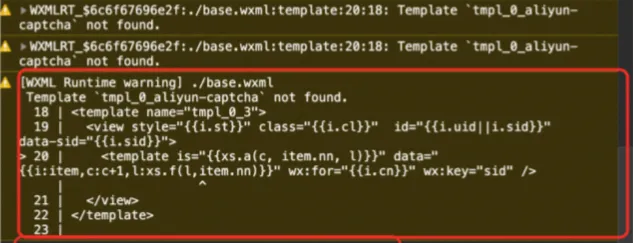
在打包的dist/base.wxml檔案內加入以下代碼
<template name="tmpl_0_aliyun-captcha">
  <aliyun-captcha
    props="{{i.props}}"
    id="{{i.uid||i.sid}}"
    data-sid="{{i.sid}}"
  >
    <block wx:for="{{i.cn}}" wx:key="sid">
      <template
        is="{{xs.a(c, item.nn, l)}}"
        data="{{i:item,c:c+1,l:xs.f(l,item.nn)}}"
      />
    </block>
  </aliyun-captcha>
</template>
uni-app接入小程式
uni-app接入小程式支援Vue2和Vue3方式接入,此處以Vue3為例介紹。
步驟一:整合外掛程式
引入驗證碼小程式外掛程式。
頁面中使用外掛程式前,需要先在專案
manifest.json中聲明阿里雲驗證碼小程式外掛程式。程式碼範例如下:說明外掛程式版本建議使用最新版本,查看最新版本方法:
V3架構
"mp-weixin": {
  "plugins": {
    "AliyunCaptcha": {
      "version": "3.0.0",
      "provider": "wxbe275ff84246f1a4",
    }
  }
}
V2架構
{
  "plugins": {
    "AliyunCaptcha": {
      "version": "2.3.0", //請選擇小程式外掛程式最新版本
      "provider": "wxbe275ff84246f1a4"
    }
  }
}
引入驗證碼小程式組件。
使用外掛程式提供的自訂群組件,和使用普通自訂群組件的方式相仿。在
page.json檔案內對應頁面的style 節點下配置需要引入的自訂群組件時,使用plugin://協議指明外掛程式的引用名和自訂群組件名,程式碼範例如下:{ "path": "pages/CaptchaPage", "style": { "mp-weixin": { "usingComponents": { "aliyun-captcha": "plugin://AliyunCaptcha/captcha" } } } }
步驟二:代碼整合
在.vue 檔案中的<template>中插入aliyun-captcha組件。在需要使用外掛程式的時候,在<script>代碼中進行初始化。
以登入情境為例:
V3架構
<template>
  <view class="captchapage-container">
    <view class="input-group">
      <view class="label">使用者名稱:</view>
      <input
        class="input"
        type="text"
        placeholder="請輸入使用者名稱"
        @input="inputUsername"
      />
    </view>
    <view class="input-group">
      <view class="label">密碼:</view>
      <input
        class="input"
        type="password"
        placeholder="請輸入密碼"
        @input="inputPassword"
      />
    </view>
    <aliyun-captcha
      id="captcha-element"
      v-if="data.loadCaptcha"
      :props="data.pluginProps"
    />
    <button class="login-btn" @click="login">登入</button>
  </view>
</template>

<script>
  // 擷取驗證碼外掛程式執行個體
  const AliyunCaptchaPluginInterface = requirePlugin("AliyunCaptcha");

  // 驗證通過回呼函數
  /**
   * @name success
   * @function
   * 請求參數:由驗證碼指令碼回調的驗證參數,不需要做任何處理,直接傳給服務端進行二次校正即可
   * @params {string} captchaVerifyParam
   * 返回參數:欄位名固定,captchaResult為必選;如無業務驗證情境時,error為可選
   * @returns {{captchaResult: boolean, error?: boolean|undefined}}
   */
  var success = async function (captchaVerifyParam) {
    // 驗證通過後,卸載驗證碼
    this.data.loadCaptcha = false;
    console.log(this.data);
    // 業務請求代碼...
    const result = await customFetch("https://xxxx/demo/bizquery", {
      method: "POST",
      data: {
        captchaVerifyParam, // 攜帶上驗證參數
        userName: this.data.username, // 通過this.data擷取業務資料
        password: this.data.password,
      },
    });
  };

  // 驗證不通過回呼函數
  var fail = function (error) {
    console.error(error);
  };

  async function customFetch(url, option) {
    option.url = url;
    return new Promise((resolve, reject) => {
      uni.request({
        ...option,
        success(res) {
          resolve(res.data);
        },
        fail(res) {
          reject(new Error(res.toString()));
        },
      });
    });
  }

  export default {
    data() {
      return {
        data: {
          username: "",
          password: "",
          loadCaptcha: false,
        },
      };
    },
    onLoad(options) {
      console.log(AliyunCaptchaPluginInterface);
      var pluginProps = {
        SceneId: "xxxxx",
        mode: "popup",
        success: success.bind(this), // 固定寫法,需要綁定this
        fail: fail.bind(this), // 固定寫法,需要綁定this
        slideStyle: {
          width: 540, // 寬度預設為540rpx
          height: 60, // 高度預設為60rpx
        },
        language: "cn",
        region: "cn",
      };
      // 初始化驗證碼外掛程式
      this.data.loadCaptcha = true; // 可以用來控制載入/重載驗證碼
      this.data.pluginProps = pluginProps;
    },
    methods: {
      // 使用者名稱輸入處理函數
      inputUsername(e) {
        this.data.username = e.detail.value;
      },
      // 密碼輸入處理函數
      inputPassword(e) {
        this.data.password = e.detail.value;
      },
      // 登入按鈕點擊處理函數
      login() {
        const { username, password } = this.data;
        // 這裡僅作為樣本,實際開發中需要將登入資訊發送到伺服器驗證
        // 彈出式下調用執行個體方法展示驗證碼,無痕形態同樣調用該方法觸發驗證。
        if (username && password) {
          AliyunCaptchaPluginInterface.show();
        } else {
          uni.showToast({
            title: "請填寫使用者名稱和密碼",
            icon: "none",
          });
        }
      },
      // 需要再次驗證時,調用該方法重新載入驗證碼
      reloadCaptcha() {
        this.data.loadCaptcha = true;
      }
    },
  };
</script>
驗證通過後,如果需要重新進行驗證碼驗證,需要調用reloadCaptcha重新載入驗證碼。
V2架構
<template>
  <view class="captchapage-container">
    <view class="input-group">
      <view class="label">使用者名稱:</view>
      <input
        class="input"
        type="text"
        placeholder="請輸入使用者名稱"
        @input="inputUsername"
      />
    </view>
    <view class="input-group">
      <view class="label">密碼:</view>
      <input
        class="input"
        type="password"
        placeholder="請輸入密碼"
        @input="inputPassword"
      />
    </view>
    <aliyun-captcha
      id="captcha-element"
      v-if="data.loadCaptcha"
      :props="data.pluginProps"
    />
    <button class="login-btn" @click="login">登入</button>
  </view>
</template>

<script>
  // 擷取驗證碼外掛程式執行個體
  const AliyunCaptchaPluginInterface = requirePlugin("AliyunCaptcha");

  // 業務請求(帶驗證碼校正)回呼函數
  /**
   * @name captchaVerifyCallback
   * @function
   * 請求參數:由驗證碼指令碼回調的驗證參數,不需要做任何處理,直接傳給服務端即可
   * @params {string} captchaVerifyParam
   * 返回參數:欄位名固定,captchaResult為必選;如無業務驗證情境時,bizResult為可選
   * @returns {{captchaResult: boolean, bizResult?: boolean|undefined}}
   */
  var captchaVerifyCallback = async function (captchaVerifyParam) {
    console.log(this.data);
    // 業務請求代碼...
    const result = await customFetch("https://xxxx/demo/bizquery", {
      method: "POST",
      data: {
        captchaVerifyParam, // 攜帶上驗證參數
        userName: this.data.username, // 通過this.data擷取業務資料
        password: this.data.password,
      },
    });
    console.log(captchaVerifyParam);
    return {
      captchaResult: result.captchaVerifyResult, // 驗證碼驗證是否通過,boolean類型,必選
      bizResult: 從result擷取您的業務驗證結果, // 業務驗證是否通過,boolean類型,可選;若為無業務驗證結果的情境,bizResult可以為空白
    };
  };

  // 業務請求驗證結果回呼函數
  var onBizResultCallback = function (bizResult) {
    if (bizResult === true) {
      // 業務驗證通過後的邏輯,如提示通過
      uni.showToast({
        title: "業務驗證通過!",
        duration: 2000,
        icon: "success",
      });
    } else {
      // 業務驗證不通過後的邏輯,如提示不通過
      uni.showToast({
        title: "業務驗證不通過!",
        duration: 2000,
        icon: "error",
      });
    }
  };

  async function customFetch(url, option) {
    option.url = url;
    return new Promise((resolve, reject) => {
      uni.request({
        ...option,
        success(res) {
          resolve(res.data);
        },
        fail(res) {
          reject(new Error(res.toString()));
        },
      });
    });
  }

  export default {
    data() {
      return {
        data: {
          username: "",
          password: "",
          loadCaptcha: false,
        },
      };
    },
    onLoad(options) {
      console.log(AliyunCaptchaPluginInterface);
      var pluginProps = {
        SceneId: "xxxxx",
        mode: "popup",
        captchaVerifyCallback: captchaVerifyCallback.bind(this), // 固定寫法,需要綁定this
        onBizResultCallback: onBizResultCallback.bind(this), // 固定寫法,需要綁定this
        slideStyle: {
          width: 540, // 寬度預設為540rpx
          height: 60, // 高度預設為60rpx
        },
        language: "cn",
        region: "cn",
      };
      // 初始化驗證碼外掛程式
      this.data.loadCaptcha = true; // 可以用來控制載入/重載驗證碼
      this.data.pluginProps = pluginProps;
    },
    methods: {
      // 使用者名稱輸入處理函數
      inputUsername(e) {
        this.data.username = e.detail.value;
      },
      // 密碼輸入處理函數
      inputPassword(e) {
        this.data.password = e.detail.value;
      },
      // 登入按鈕點擊處理函數
      login() {
        const { username, password } = this.data;
        // 這裡僅作為樣本,實際開發中需要將登入資訊發送到伺服器驗證
        // 彈出式下調用執行個體方法展示驗證碼,無痕形態同樣調用該方法觸發驗證。
        if (username && password) {
          AliyunCaptchaPluginInterface.show();
        } else {
          uni.showToast({
            title: "請填寫使用者名稱和密碼",
            icon: "none",
          });
        }
      },
    },
  };
</script>對於Vue2接入,請參考Vue3的步驟一和步驟二。除此之外,還需要額外引入一個patch檔案,並在使用驗證碼的頁面上替換原生的Vue對象上的__patch__方法。
引入 patch.js檔案。
在beforeCreate鉤子最開始替換
__patch__函數。在beforeDestroy鉤子中還原
__patch__函數
import { myPatch } from "@/xxx/patch.js"
import Vue from 'vue';

data() {
  return {
    data: {
      originalPatch: Vue.prototype.__patch__,
    },
  },
},
beforeCreate() {
  this.originalPatch = Vue.prototype.__patch__; // 儲存原有patch函數
  Vue.prototype.__patch__ = myPatch; // 替換patch函數
  // 參考Vue3代碼進行驗證碼初始化
},
beforeDestroy() {
  Vue.prototype.__patch__ = this.originalPatch; // 還原patch函數
}
參數說明
V3架構
參數 | 類型 | 是否必填 | 預設值 | 描述 |
SceneId | String | 是 | 無 | 驗證碼情境ID,建立驗證情境後可擷取該值。 |
mode | String | 是 | 無 | 驗證碼模式,考慮到防護效果和接入體驗,目前只支援popup(彈出式)。 |
success | Function | 是 | 無 | 驗證碼驗證通過回呼函數,透出驗證參數,客戶可在該回呼函數中擷取 |
fail | Function | 是 | 無 | 驗證碼驗證失敗回呼函數,透出驗證失敗錯誤碼。 |
slideStyle | Object | 否 | { width: 540, height: 60 } | 滑塊驗證碼樣式,支援自訂寬度和高度,單位為rpx。 說明
|
language | String | 否 | cn | 驗證碼2.0支援的語言類型。 |
region | String | 否 | cn | 驗證碼執行個體所屬地區。取值:
說明
|
V2架構
參數 | 類型 | 是否必填 | 預設值 | 描述 |
SceneId | String | 是 | 無 | 驗證碼情境ID,建立驗證情境後可擷取該值。 |
mode | String | 是 | 無 | 驗證碼模式,考慮到防護效果和接入體驗,目前只支援popup(彈出式)。 |
captchaVerifyCallback | Function | 是 | captchaVerifyCallback | 業務請求(帶驗證碼校正)回呼函數。更多資訊,請參考上文範例程式碼注釋部分。 |
onBizResultCallback | Function | 是 | onBizResultCallback | 業務請求結果回呼函數,用於設定驗證結果處理邏輯。 |
slideStyle | Object | 否 | { width: 540, height: 60 } | 滑塊驗證碼樣式,支援自訂寬度和高度,單位為rpx。 說明
|
language | String | 否 | cn | 驗證碼2.0支援的語言類型。 |
region | String | 否 | cn | 驗證碼執行個體所屬地區。取值:
說明
|