Version management
Version | Revision date | Change type | Effective date |
|---|---|---|---|
1.0 | 2018/7/18 |
Overview
SAP® MaxDB™ is a database management system developed and supported by SAP SE. SAP MaxDB is available on Microsoft Windows, Linux, and UNIX, and can be used on most excellent hardware platforms and public clouds. For more detailed information about SAP MaxDB, see the SAP official website: http://maxdb.sap.com
This deployment guide describes how to plan and deploy the SAP MaxDB database system on Alibaba Cloud ECS, including how to configure ECS instances, block storage, networks, and the SUSE Linux Enterprise Server (SLES) operating system. This guide includes best practices from Alibaba Cloud and SAP.
ECS instance specifications
This deployment guide describes the ECS general-purpose instance family (sn2ne) certified for SAP MaxDB, which runs on the Intel Broadwell architecture and is one of the ECS enterprise instance families. Standard SSD and ultra disks can be used to host data volumes and logs in the SAP MaxDB database.
For information about Alibaba Cloud SAP-certified instance specifications, see SAP Note 2552731 - SAP Applications on Alibaba Cloud: Supported Products and IaaS VM Types
Alibaba Cloud services
The following table lists the services included in the core components used in this deployment guide.
Service | Description |
|---|---|
Elastic Compute Service (ECS) | ECS is a type of computing service with elastic processing capabilities. ECS has a simpler and more efficient management model than physical servers. You can create instances, change operating systems, and add or release any number of ECS instances at any time to meet your business needs. |
Standard SSD | It is suitable for I/O-intensive applications and provides stable high random input/output operations per second (IOPS) performance. |
Ultra disk | It is suitable for medium I/O load scenarios and can provide storage performance of up to 3,000 random read/write IOPS for ECS instances. |
Virtual Private Cloud (VPC) | Alibaba Cloud VPC is a private network built on Alibaba Cloud. It is logically isolated from other virtual networks in Alibaba Cloud. VPC allows you to launch and use Alibaba Cloud resources in a self-defined network. |
Object Storage Service (OSS) | Alibaba Cloud OSS is a network-based data access service. OSS allows you to store and retrieve structured and unstructured data, including text files, images, audio, and video. |
Deploy SAP MaxDB on Alibaba Cloud
This section describes how to deploy SAP MaxDB on Alibaba Cloud.
Preparations
Alibaba Cloud account
If you do not currently have an Alibaba Cloud account, you can apply for one by following these procedures:
Complete the registration process. Go to the Alibaba Cloud homepage and then click "Free Registration" at the top right corner of the page.
Complete the registration by following the registration guide.
Zones and regions
For information about selecting regions and zones, see Region and Zone Planning
SAP MaxDB installation media
Download the SAP MaxDB installation media from the SAP official website;
Upload the SAP MaxDB installation media to the ECS instance;
Deployment procedure
Configure the network
Create a VPC and a switch
Log on to the VPC console.
In the left-side navigation pane, click "VPC".
On the VPC list page, select the region where the VPC is located, and then click "Create VPC".
In the "Create VPC" dialog box, enter the VPC name, and then select a CIDR block for the VPC. You can choose one of the following standard CIDR blocks for the VPC: After the VPC is created, its CIDR block cannot be modified. It is recommended that you use a large CIDR block to prevent future scale-out:
10.0.0.0/8 (10.0.0.0 - 10.255.255.255)
172.16.0.0/12 (172.16.0.0 - 172.31.255.255)
192.168.0.0/16 (192.168.0.0 - 192.168.255.255)
Click "Create VPC". After the VPC is created, a VPC ID is generated. A vRouter is also created for the VPC.
Click "Next" to create a switch.
On the "Create Switch" tab page, provide the following information, and then click "Create Switch".
Name: Specify the switch name.
Zone: Select the zone for the switch.
CIDR block: Specify the CIDR block for the switch. The CIDR block of the switch can be the same as the CIDR block of the VPC to which the switch belongs or a subnet of the VPC CIDR block. The size of the switch CIDR block must be between a 16-bit network mask and a 29-bit network mask. Note: If the CIDR block of the switch is the same as the CIDR block of the VPC to which the switch belongs, only one switch can be created under the VPC.
Click "Complete". Return to the instance list page, and then click the ID link of the created VPC to enter the VPC product page. Check the VPC and switch on the page.
Configure the security group
About security groups
A security group is a logical grouping that consists of instances within the same region that have the same security protection requirements and mutual trust. Each instance belongs to at least one security group, and a security group must be specified when an instance is created. Instances in the same security group can communicate over the network, but by default, instances in different security groups cannot communicate over the intranet. You can authorize mutual access between two security groups. A security group is a virtual firewall that provides stateful packet inspection (SPI) functionality. Security groups are used to set network access control for one or more ECS instances. As an important method of isolation, security groups are used to divide security domains in the cloud.
Security group limits
The number of instances in a single security group cannot exceed 1,000. If you have more than 1,000 instances that need intranet communication, you can assign them to different security groups and allow mutual access through authorization.
Each instance can join up to 5 security groups.
Each user can have up to 100 security groups.
Adjustments to security groups do not affect service continuity for users.
Security groups are stateful. If outbound packets are allowed, inbound packets corresponding to this connection are also allowed.
Security groups have two network types: classic network and VPC.
Instances of the classic network type can join security groups on the classic network in the same region.
Instances of the VPC type can join security groups on the same VPC.
Security group rules
Security group rules can be set to allow or deny ECS instances associated with the security group to access the public network or intranet from inbound and outbound directions.
You can authorize or delete security group rules at any time. The security group rules you have changed will automatically apply to the ECS instances associated with the security group. When setting security group rules, ensure that the rules are simple. If you assign multiple security groups to an instance, hundreds of rules may apply to that instance. The network may be disconnected when you access the instance.
Security group rule limits Each security group can have up to 100 security group rules.
Security group configuration method
Log on to the ECS console.
In the left-side navigation pane, click "Security Groups".
Select the region for which you want to create a security group.
Click "Create Security Group".
In the displayed dialog box, enter the following information:
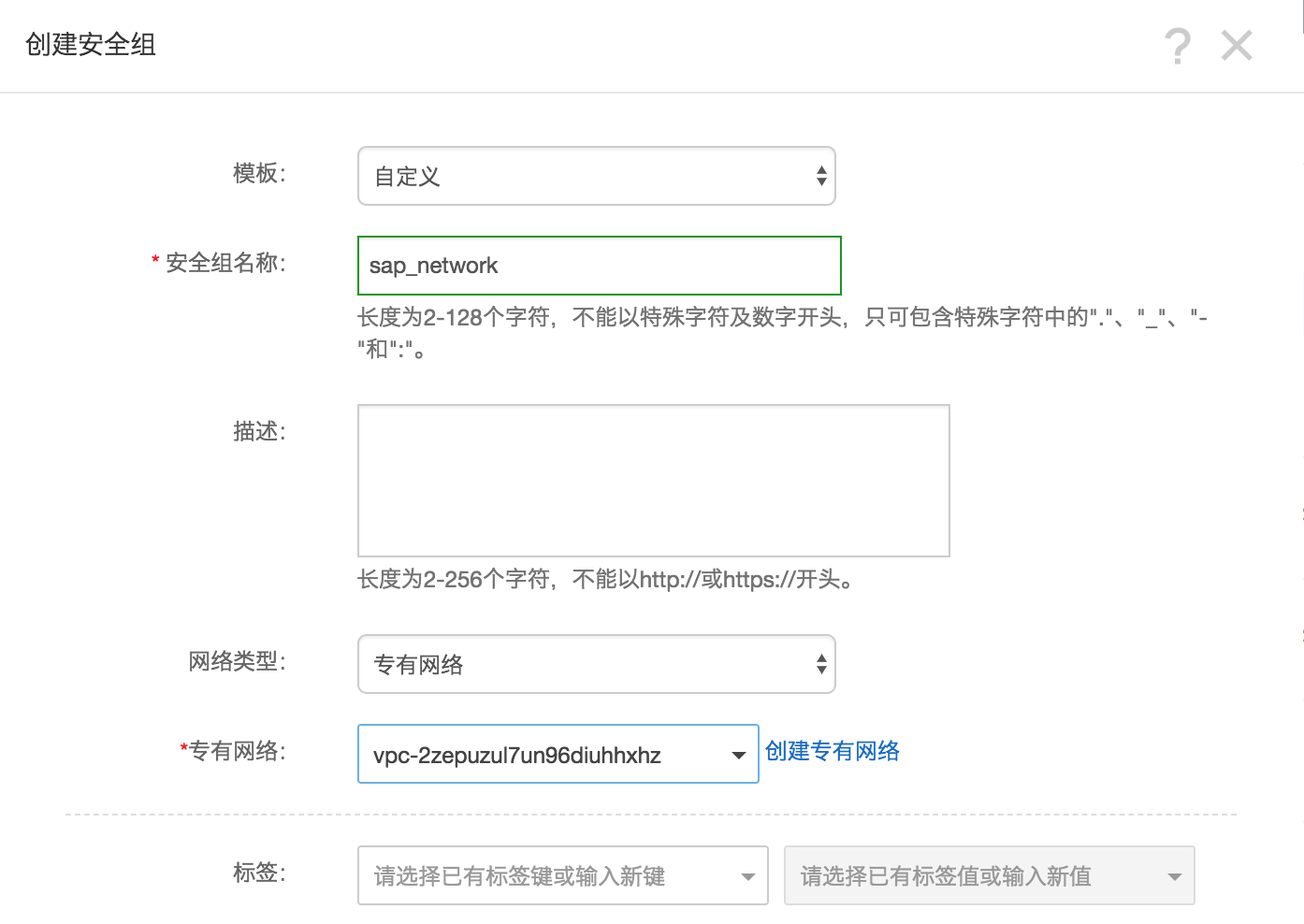
Click "OK", and then click "Configure Rules".
Complete the rule settings according to the corresponding instructions. It is recommended that you only retain the remote access port.
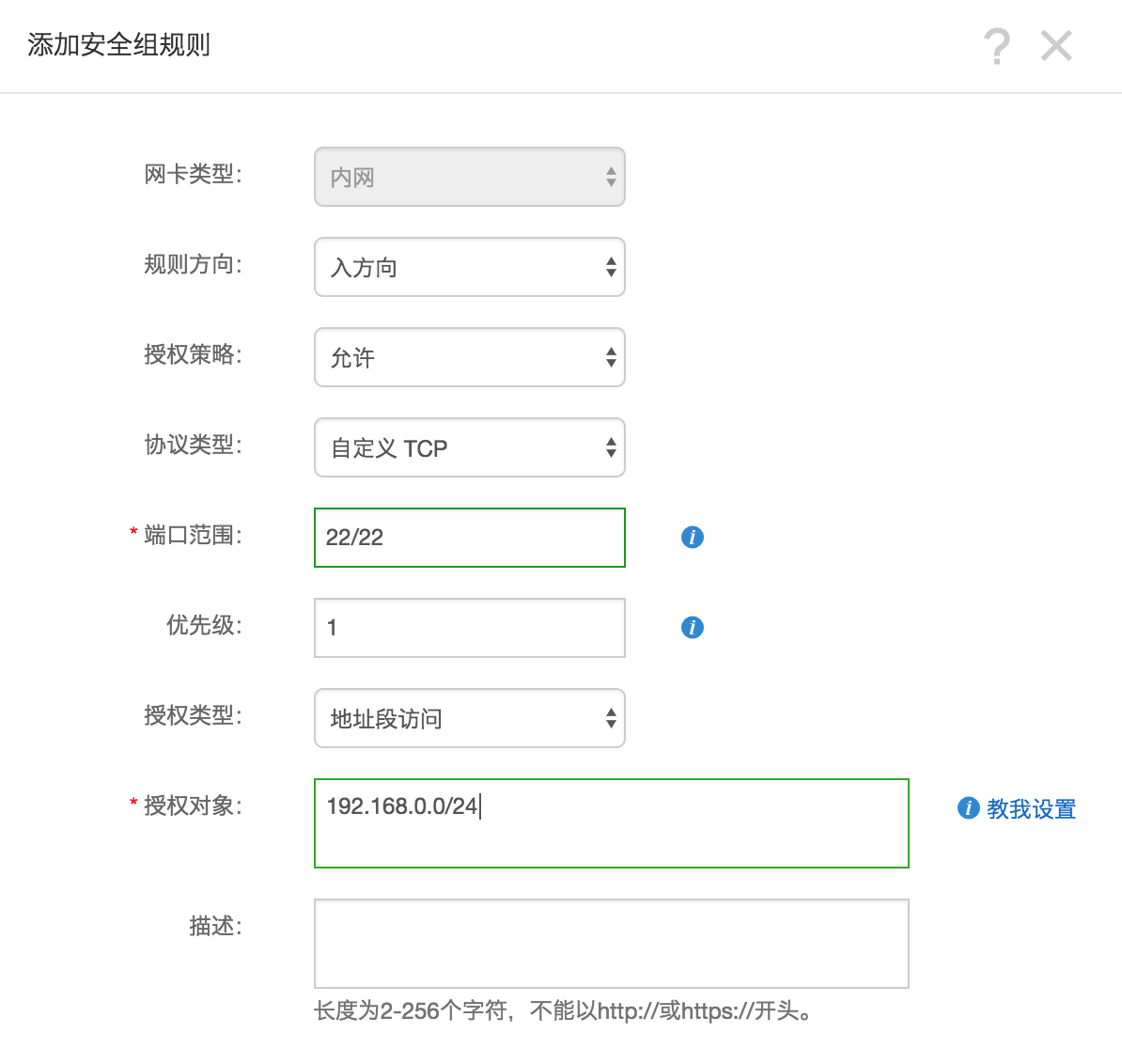 Port configuration reference
During the SAP MaxDB deployment process, use VPC. You only need to set rules for outbound and inbound directions without specifying the public network or VPC. By default, security group rules are empty. When creating an ECS instance, ensure that the selected security group includes port 22 (Linux) or 3389 (Windows). Otherwise, you cannot remotely log on to the ECS instance. For detailed information about specific ports and related security group rules required by SAP, see the SAP official documentation.
Create SAP MaxDB ECS instance
Log on to the Alibaba Cloud ECS product purchase page.
Select "Subscription" as the payment method.
Select the region and zone.
Select "VPC" as the network type.
After selecting the network type, fill in the information about the created or existing VPC and switch. In a multi-node architecture, SAP MaxDB does not directly provide external services. Therefore, set "Public IP address" to "Unassigned".
Select the instance type. Choose an instance type from the sn2ne ECS instance family.
Select the operating system image. The operating system can be SUSE Linux Enterprise Server.
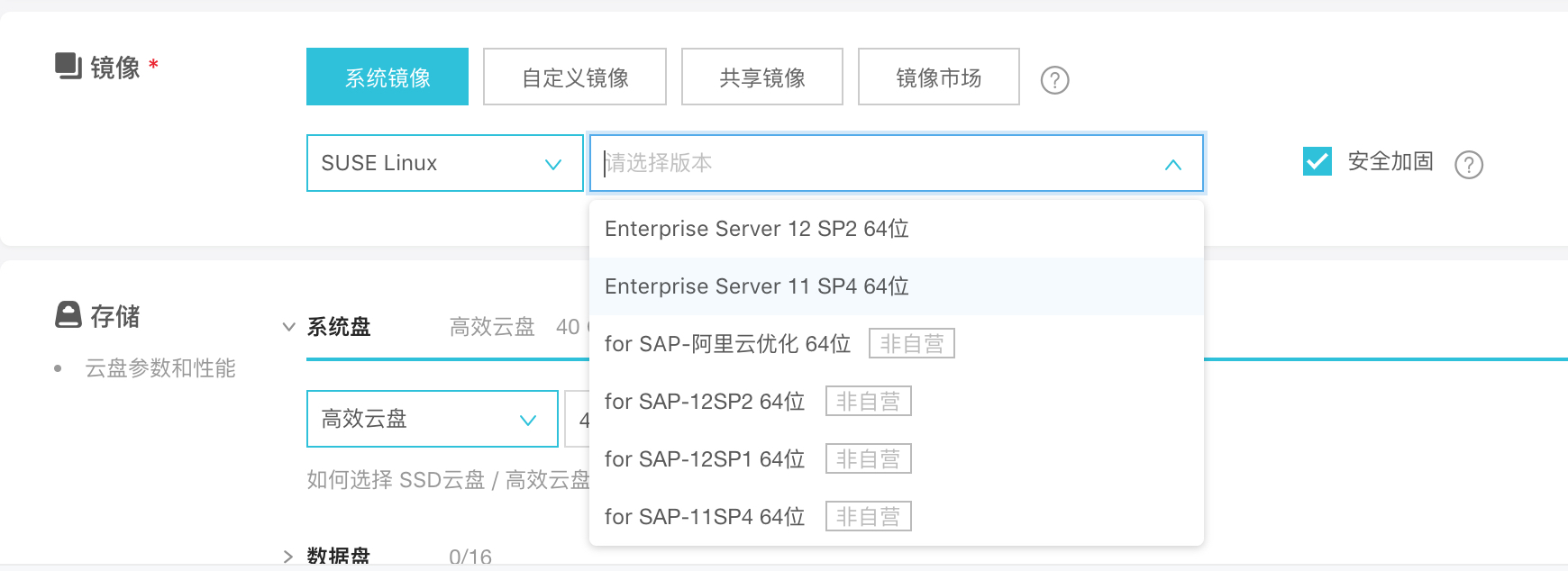
Configure storage disks. It is recommended to use separate standard SSDs for the log and data file systems and a separate ultra disk for the backup file system.
Configure initialization information. After setting the initial password, click "Create" and then wait a few minutes to complete the instance initialization.
Create a Bastionhost. Follow the above steps to create a Bastionhost with one vCPU and 2 GB memory in the same zone without other storage in the same VPC.
Configure the Bastionhost's network. Currently, various methods can be used to configure the public IP address. Use Elastic IP address (EIP) configuration as an example. EIP is a public IP address resource that can be purchased and held independently. It can be dynamically bound to different ECS instances or unbound from them without stopping the ECS instance.
Log on to the EIP console.
Click "Apply for EIP".
On the purchase page, select the region, bandwidth peak, and payment method for the EIP, click "Buy Now", and then make the payment.
Note: The region of the EIP must be the same as the region of the ECS instance to which the EIP is bound.
Return to the EIP list page, select the region of the EIP, and then click "Refresh" to check the created EIP instance.
Click "Bind".
In the "Bind Public EIP" dialog box, select the created ECS instance, and then click "OK".
After the binding is complete, click "Refresh" on the EIP list page to check the EIP instance status.
When the EIP instance status is "Active", the ECS instance to which the EIP is bound can be accessed through the public network.
Log on to the ECS instance and run the following command to test access through the public network.
ping www.aliyun.com
Log on to the instance Currently, no public network is configured for the SAP MaxDB ECS instance. Therefore, logging on to the SAP MaxDB ECS instance requires a Bastionhost.
Connect to SAP MaxDB
Because no public IP address is configured for the SAP MaxDB instance in the above deployment, you can only connect to the SAP MaxDB instance using SSH through the Bastionhost;
To connect to SAP MaxDB through the Bastionhost, connect your chosen SSH client to the Bastionhost and then connect to the SAP MaxDB instance.
References
1173395 - FAQ: SAP MaxDB and liveCache configuration
1142243 - SAP MaxDB release for virtual systems
1492000 - General Support Statement for Virtual Environments