This topic shows you how to quickly enable Prometheus monitoring for the ACK cluster that hosts your RDS Custom instance. You can then monitor cluster and container health in real time and view data on a Grafana dashboard.
Billing
You will be charged for Prometheus monitoring. For more information, see CloudMonitor billing details.
Step 1: Enable ACK Pro cluster monitoring
1. Integrate your container cluster with ARMS
Log on to the ARMS console. In the left navigation pane, click integration center.
On the integration center page, click the Infrastructure tab. In the Infrastructure section, select container cluster monitoring.
On the container cluster monitoring panel, follow the on-screen instructions to integrate the target container cluster.
2. Enable ACK Pro cluster monitoring
Log on to the RDS console. In the left navigation pane, click RDS Custom > Custom Container Clusters.
On the Custom Container Clusters page, click the ACK Pro Clusters tab.
Click the ID of the target cluster to go to its details page.
Click the cluster monitoring tab and follow the on-screen instructions to enable Prometheus monitoring.

Step 2: Integrate RDS Custom with CloudMonitor
Log on to the CloudMonitor console.
NoteIf the service is in phased release, submit a ticket to request access. You can use the feature after your request is approved.
On the workspace page, click Create Workspace.
In the Create Workspace dialog box, configure the following parameters and click Save.
Region: Select the region where your monitored resource is located. Cross-region integration is not supported.
Workspace Name: Enter a custom name for the workspace. The name must be 3 to 63 characters in length.
Workspace Description: Enter a description for the workspace.
In the workspace list, select the target workspace to open its console.
In the left navigation pane, select integration center.
On the integration center page, choose Container Service > ApsaraDB RDS Custom.
Select the cluster you want to integrate and click OK.
After the message Integrated successfully appears, click integration management. You can then view the integrated ApsaraDB RDS Custom component.

Step 3: View the Prometheus Grafana dashboard
ACK cluster
Log on to the Container Service console. In the left navigation pane, select cluster list.
On the cluster list page, click the name of the target cluster. In the left navigation pane, select .
On the Prometheus monitoring page, click the dashboard that you want to view.
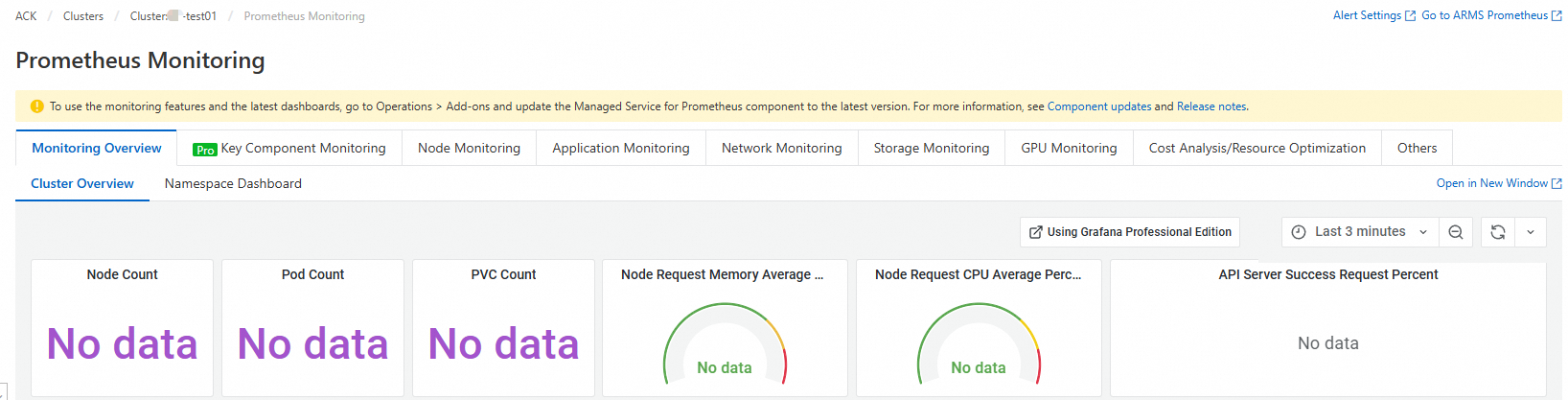
ARMS Grafana
-
Log on to the ARMS console. In the left-side navigation pane, choose .
On the workspace management page, click the access URL for Container Monitoring to open Grafana. This example uses an access URL from a China region.

In the Grafana left navigation pane, click the
 icon, and then click Browse.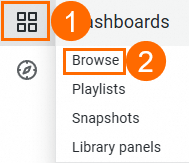
On the Browse tab, click a dashboard in the target folder to view all of its charts.