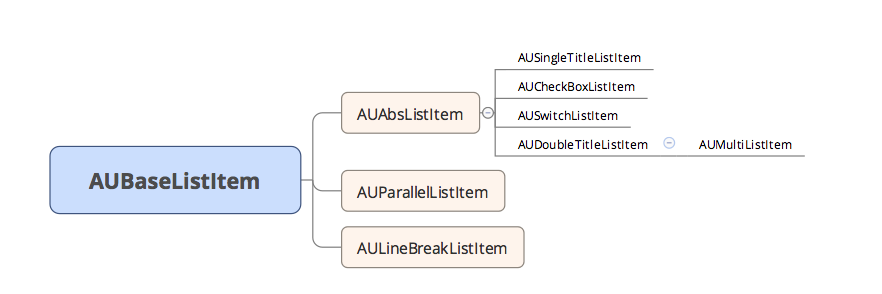
AUListItem は、以下のコントロールを含むリスト項目コンポーネントです。
AUSingleTitleListItem
AUDoubleTitleListItem
AUCheckBoxListItem
AUSwitchListItem
AUMultiListItem
AUParallelTitleListItem
AULineBreakListItem
サンプル画像
AUSingleTitleListItem
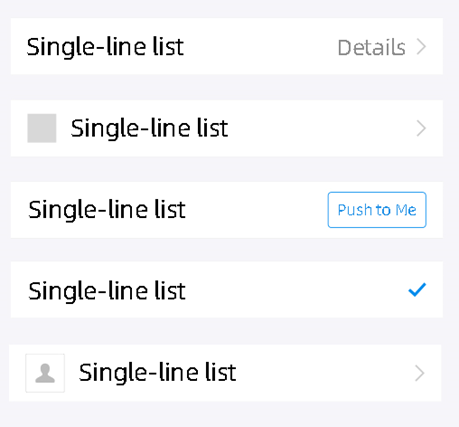
AUDoubleTitleListItem
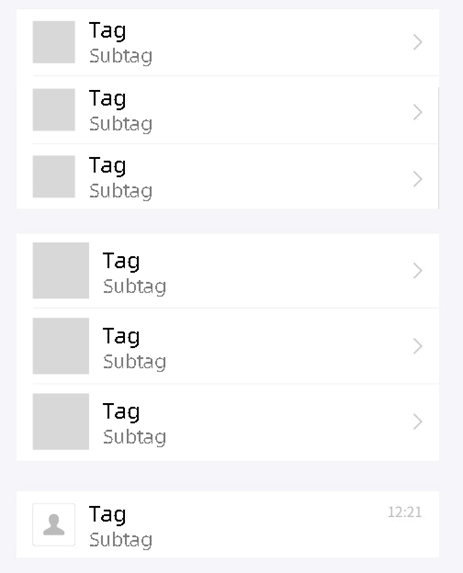
AUCheckBoxListItem
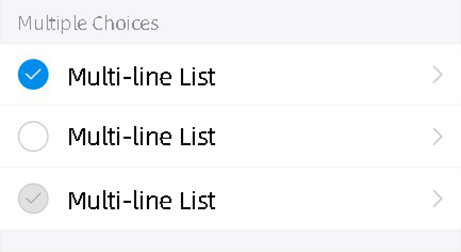
AUSwitchListItem
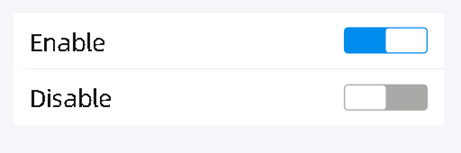
依存関係
詳細については、「クイックスタート」をご参照ください。
API の説明
基本 API
/**
* 項目タイプ (上、中間、下) を設定します。
*
* @param positionStyle AULineGroupItemInterface.NORMAL TOP BOTTOM CENTER LINE NONE
*/
public void setItemPositionStyle(int positionStyle)

/**
* 右側の矢印を表示するかどうかを指定します。
* @param isVisible
*/
public void setArrowVisibility(boolean isVisible)
AUParallelListItem
/**
 * 4 つの位置のテキストを同時に設定します。
 * @param leftText
 * @param leftSubText
 * @param rightText
 * @param rightSubText
 */
public void setParallelText(String leftText, String leftSubText, String rightText, String rightSubText)

/**
 * 左側のメインテキストを設定します。
 * @param leftText
 */
public void setLeftText(String leftText)

/**
 * 右側のメインテキストを設定します。
 * @param rightText
 */
public void setRightText(String rightText)

/**
 * 左側の補助テキストを設定します。
 * @param leftSubText
 */
public void setLeftSubText(String leftSubText)

/**
 * 右側の補助テキストを設定します。
 * @param rightSubText
 */
public void setRightSubText(String rightSubText)
AULineBreakListItem
/**
 * 左右のテキストを設定します。
 * @param left
 * @param right
 */
public void setText(String left, String right)

/**
 * 左側の TextView を取得します。
 * @return
 */
public AUTextView getLeftText()

/**
 * 右側の TextView を取得します。
 * @return
 */
public AUTextView getRightText()
パブリック API
/**
 * アイコン画像のサイズを設定します。
 */
public void setIconSize(float width, float height)

/**
 * 左側のメインテキストを取得します。
 * @return
 */
public CharSequence getLeftText()

/**
 * 左側のメインテキストを設定します。
 * @param text
 */
public void setLeftText(CharSequence text)

/**
 * 左側のメインテキストの色を設定します。
 * @param color
 */
public void setLeftTextColor(int color)

/**
 * 左側の画像のビューを取得します。
 * @return
 */
public AURoundImageView getLeftRoundImageView()
public AUImageView getLeftImageView()

/**
 * 左側の画像を設定します。
 * @param resId
 */
public void setLeftImage(int resId)

/**
 * 左側の画像を設定します。
 * @param drawable
 */
public void setLeftImage(Drawable drawable)

/**
 * API で setLeftImage が設定されている場合に可視性を設定します。
 * この API の呼び出し後に setLeftImage が呼び出されると、システムは可視性をリセットします。
 *
 * @param vis View.GONE
 */
public void setLeftImageVisibility(int vis)

/**
 * 左側のテキスト情報を取得します。
 * @return
 */
public AUTextView getLeftTextView()
}
AUSingleTitleListItem
/**
 * 右側の選択ボタンを設定します。
 * @param checked
 */
public void setItemChecked (boolean checked)


/**
 * 右側のテキスト情報を設定します。
 * @param text
 */
public void setRightText(CharSequence text)

/**
 * 右側のテキストの色を設定します。
 * @param color
 */
public void setRightTextColor(int color)

/**
 * 右側の画像を設定します。
 */
public void setRightImage(int resId)
public void setRightImage(Bitmap bitmap)
public void setRightImage(Drawable drawable)

/**
 * 右側のテキストのビューを取得します。
 * @return
 */
public AUTextView getRightTextView()

/**
 * 右側の画像のビューを取得します。
 * @return
 */
public AUImageView getRightImageView()

/**
 * 右側のテキスト情報を設定します。
 * @param text
 */
public void setRightButtonText(CharSequence text)

/**
 * ボタンを取得します。
 * @return
 */
public AUProcessButton getProcessButton()

/**
 * ボタンクリックリスナーを設定します。
 * @param listener
 */
public void setButtonClickListener(OnClickListener listener)

/**
 * 右側のスタイルを設定します。
 * @param type AUAbsListItem.TEXT_IMAGE AUAbsListItem.BUTTON
 */
public void setRightType(int type)
AUCheckBoxListItem
/**
 * 左側のチェックアイコンを取得します。
 * @return
 */
public AUCheckIcon getLeftCheckIcon()

/**
 * アイコンの状態を設定します。
 * @param status AUCheckIcon.STATE_CHECKED|STATE_UNCHECKED|STATE_DISABLED
 */
public void setCheckstatus(int status)

/**
 * チェック状態を取得します。
 * @return
 */
public int getIconState()
AUSwitchListItem
/**
 * スイッチの状態変化を監視するリスナーを設定します。
 * @param onCheckedChangeListener
 */
public void setOnSwitchListener (CompoundButton.OnCheckedChangeListener onCheckedChangeListener)

/**
 * スイッチを取得します。
 * @return
 */
public AUSwitch getSwitch()

/**
 * スイッチのステータスを返します。
 * @return スイッチが有効かどうかを示します。
 */
public boolean isSwitchOn()

/**
 * スイッチのステータスを設定します。
 * @param status
 */
public void setSwitchStatus(boolean status)

/**
 * 有効または無効の状態を設定します。
 * @param enabled
 */
public void setSwitchEnabled(boolean enabled)
AUDoubleTitleListItem
/**
 * 左側の補助テキストを設定します。
 * @param text
 */
public void setLeftSubText(CharSequence text)

/**
 * 右側のテキストを設定します。
 * @param text
 */
public void setRightText(CharSequence text)

/**
 * 右側のテキストのフォントと色を設定します。
 * @param color
 */
public void setRightTextColor(int color)

/**
 * 右側のテキストのビューを取得します。
 * @return
 */
public AUTextView getRightTextView()

/**
 * 左側の補助テキストのビューを取得します。
 * @return
 */
public AUTextView getLeftSubTextView()

/**
 * 右側のテキスト情報を設定します。
 * @param text
 */
public void setRightButtonText(CharSequence text)

/**
 * ボタンを取得します。
 * @return
 */
public AUProcessButton getProcessButton()

/**
 * ボタンクリックリスナーを設定します。
 * @param listener
 */
public void setButtonClickListener(OnClickListener listener)

/**
 * 右側のスタイルを設定します。
 * @param type AUAbsListItem.TEXT_IMAGE AUAbsListItem.BUTTON
 */
public void setRightType(int type)
AUMultiListItem
/**
 * 左側に拡張ビューを追加します。
 * @param view
 */
public void addLeftAssistantView(View view)

/**
 * 左側の補助テキストを設定します。
 * @param text
 */
public void setLeftSubText(CharSequence text)

/**
 * サブタイトルテキストを取得します。
 * @return
 */
public AUEmptyGoneTextView getLeftSubTextView()
カスタム属性
プロパティ | 説明 | タイプ |
listItemType | 位置スタイルを設定します。 | normal/top/bottom/center/line/none |
listLeftText | 左側のテキスト。 | string, reference |
listLeftSubText | 左側の補助テキスト。 | string, reference |
listLeftTextSize | 左側のテキストのフォントサイズ。 | dimension |
listLeftSubTextSize | 左側の補助テキストのフォントサイズ。 | dimension |
listLeftTextColor | 左側のテキストの色。 | color, reference |
listLeftSubTextColor | 左側の補助テキストの色。 | color, reference |
listLeftImage | 左側のアイコン。 | reference |
listLeftImageWidth | 左側の画像の幅。 | dimension, reference |
listLeftImageHeight | 左側の画像の高さ。 | dimension, reference |
listShowArrow | 右側の矢印を表示するかどうか。 | boolean |
listArrowType | 矢印の方向。 | arrow_right/arrow_down/arrow_up |
listRightText | 右側のテキスト。 | string, reference |
listRightSubText | 右側の補助テキスト。 | string, reference |
listRightType | 右側のスタイル。 | text_image/button |
listRightImage | 右側の画像。 | string, reference |
listShowCheck | 右側のチェック画像。 | boolean |
次のコードサンプル (XML) は、各コントロールでサポートされている属性を示しています。
クリックしてバックグラウンドの色を変更する場合は、属性
android:clickable="true"を追加してください。コントロールの高さ、および左側イメージの幅と高さは、ビジネス要件に応じてカスタマイズします。
サンプルコード
XML 名前空間を導入します。ネイティブ AAR モードで SDK にアクセスする場合、xmlns:app="http://schemas.android.com/apk/res-auto" を定義して、同じ app プレフィックスを持つすべての要素が同じ名前空間に関連付けられるようにします。以下では、app を例として使用します。
XML 名前空間を導入します。コンポーネントモードで SDK にアクセスする場合、xmlns:aui="http://schemas.android.com/apk/res/com.alipay.mobile.antui" を定義して、同じ aui プレフィックスを持つすべての要素が同じ名前空間に関連付けられるようにします。
AUParallelListItem
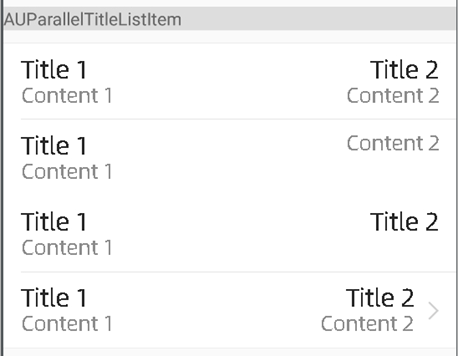
<com.alipay.mobile.antui.tablelist.AUParallelTitleListItem
    android:layout_width="match_parent"
    android:layout_height="wrap_content"
    android:clickable="true"
    app:listItemType="top"
    app:listLeftText="タイトル 1"
    app:listLeftSubText="コンテンツ 1"
    app:listRightText="タイトル 2"
    app:listRightSubText="コンテンツ 2"
    app:listShowArrow="false" />

<com.alipay.mobile.antui.tablelist.AUParallelTitleListItem
    android:layout_width="match_parent"
    android:layout_height="wrap_content"
    android:clickable="true"
    app:listItemType="center"
    app:listLeftText="タイトル 1"
    app:listLeftSubText="コンテンツ 1"
    app:listRightSubText="コンテンツ 2"
    app:listShowArrow="false" />

<com.alipay.mobile.antui.tablelist.AUParallelTitleListItem
    android:layout_width="match_parent"
    android:layout_height="wrap_content"
    android:clickable="true"
    app:listItemType="center"
    app:listLeftText="タイトル 1"
    app:listLeftSubText="コンテンツ 1"
    app:listRightText="タイトル 2"
    app:listShowArrow="false" />
AULineBreakListItem
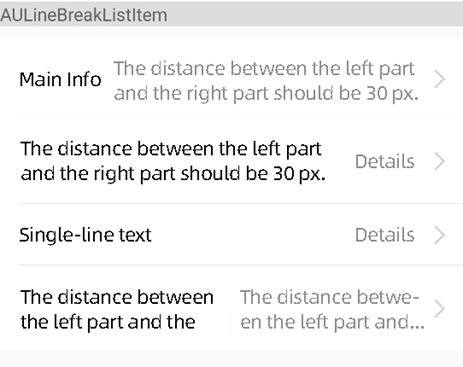
<com.alipay.mobile.antui.tablelist.AULineBreakListItem
    android:layout_width="match_parent"
    android:layout_height="wrap_content"
    app:listItemType="top"
    app:listLeftText="メイン情報"
    app:listRightText="左側と右側の間隔は 30 px です。"/>

<com.alipay.mobile.antui.tablelist.AULineBreakListItem
    android:layout_width="match_parent"
    android:layout_height="wrap_content"
    app:listItemType="center"
    app:listLeftText="左側と右側の間隔は 30 px です。"
    app:listRightText="詳細"/>

<com.alipay.mobile.antui.tablelist.AULineBreakListItem
    android:layout_width="match_parent"
    android:layout_height="wrap_content"
    app:listItemType="center"
    app:listLeftText="単一行テキスト"
    app:listRightText="詳細"/>

<com.alipay.mobile.antui.tablelist.AULineBreakListItem
    android:layout_width="match_parent"
    android:layout_height="wrap_content"
    app:listItemType="bottom"
    app:listLeftText="左側と右側の間隔は 30 px です。"
    app:listRightText="左側と右側の間隔は 30 px です。"/>
AUSingleTitleListItem
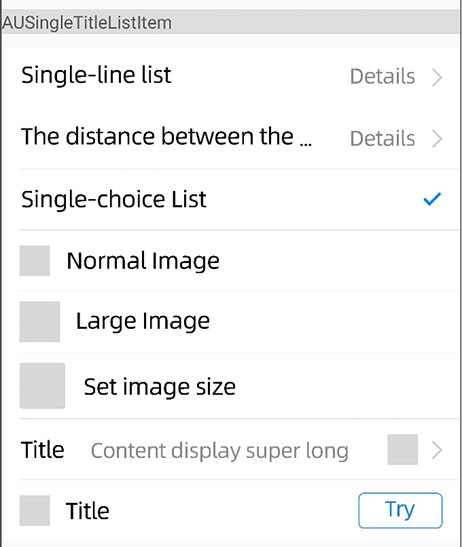
<com.alipay.mobile.antui.tablelist.AUSingleTitleListItem
    android:layout_width="match_parent"
    android:layout_height="wrap_content"
    android:clickable="true"
    app:listItemType="top"
    app:listLeftText="単一行リスト"
    app:listRightText="詳細" />

<com.alipay.mobile.antui.tablelist.AUSingleTitleListItem
    android:layout_width="match_parent"
    android:layout_height="wrap_content"
    android:clickable="true"
    app:listItemType="center"
    app:listLeftText="左側と右側の間隔は 30 px です。"
    app:listRightText="詳細" />

<com.alipay.mobile.antui.tablelist.AUSingleTitleListItem
    android:layout_width="match_parent"
    android:layout_height="wrap_content"
    app:listItemType="center"
    app:listLeftText="単一選択リスト"
    app:listShowCheck="true" />

<com.alipay.mobile.antui.tablelist.AUSingleTitleListItem
    android:layout_width="match_parent"
    android:layout_height="wrap_content"
    app:listItemType="center"
    app:listLeftImage="@drawable/image"
    app:listLeftText="通常の画像"
    app:listShowArrow="false" />

<com.alipay.mobile.antui.tablelist.AUSingleTitleListItem
    android:layout_width="match_parent"
    android:layout_height="wrap_content"
    app:listItemType="center"
    app:listLeftImage="@drawable/image"
    app:listLeftImageSizeType="size_large"
    app:listLeftText="大きい画像"
    app:listShowArrow="false" />

<com.alipay.mobile.antui.tablelist.AUSingleTitleListItem
    android:layout_width="match_parent"
    android:layout_height="wrap_content"
    android:clickable="true"
    app:hasRound="true"
    app:listItemType="center"
    app:listLeftImage="@drawable/image"
    app:listLeftImageHeight="36dp"
    app:listLeftImageWidth="36dp"
    app:listLeftText="画像サイズの設定"
    app:listShowArrow="false" />

<com.alipay.mobile.antui.tablelist.AUSingleTitleListItem
    android:layout_width="match_parent"
    android:layout_height="wrap_content"
    android:clickable="true"
    app:listItemType="center"
    app:listLeftText="タイトル"
    app:listRightImage="@drawable/image"
    app:listRightText="コンテンツが非常に長い場合の表示" />


<com.alipay.mobile.antui.tablelist.AUSingleTitleListItem
    android:id="@+id/button_item"
    android:layout_width="match_parent"
    android:layout_height="wrap_content"
    app:listItemType="bottom"
    app:listLeftImage="@drawable/image"
    app:listLeftText="タイトル"
    app:listRightText="試す"
    app:listRightType="button"/>
AUDoubleTitleListItem
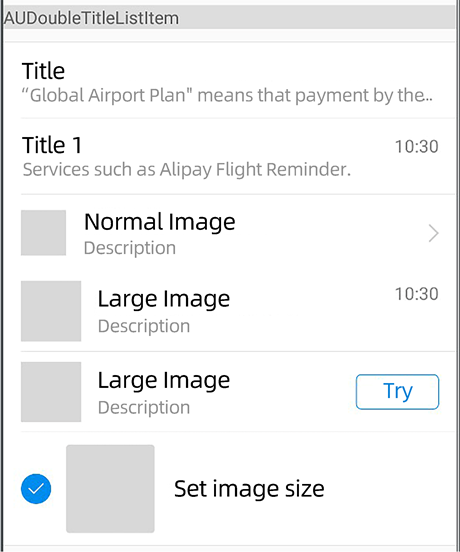
<com.alipay.mobile.antui.tablelist.AUDoubleTitleListItem
    android:layout_width="match_parent"
    android:layout_height="wrap_content"
    android:clickable="true"
    app:listItemType="center"
    app:listLeftSubText="Alipay フライトリマインダーなどのサービス。"
    app:listLeftText="タイトル"
    app:listRightText="10:30"
    app:listShowArrow="false" />

<com.alipay.mobile.antui.tablelist.AUDoubleTitleListItem
    android:layout_width="match_parent"
    android:layout_height="wrap_content"
    android:clickable="true"
    app:listItemType="center"
    app:listLeftImage="@drawable/testapp_icon"
    app:listLeftSubText="説明テキスト"
    app:listLeftText="通常の画像" />

<com.alipay.mobile.antui.tablelist.AUDoubleTitleListItem
    android:layout_width="match_parent"
    android:layout_height="wrap_content"
    android:clickable="true"
    app:listItemType="center"
    app:listLeftImage="@drawable/testapp_icon"
    app:listLeftImageSizeType="size_large"
    app:listLeftSubText="説明テキスト"
    app:listLeftText="大きい画像"
    app:listRightText="10:30"
    app:listShowArrow="false" />

<com.alipay.mobile.antui.tablelist.AUDoubleTitleListItem
    android:layout_width="match_parent"
    android:layout_height="wrap_content"
    android:clickable="true"
    app:listItemType="bottom"
    app:listLeftImage="@drawable/testapp_icon"
    app:listLeftImageSizeType="size_multi"
    app:listLeftSubText="「グローバル空港プラン」とは、Alipay が海外の空港で観光客にフライトリマインダーなどのサービスへのアクセスを提供することを意味します。"
    app:listLeftText="画像とテキストのリスト"
    app:listShowArrow="false" />

<com.alipay.mobile.antui.tablelist.AUDoubleTitleListItem
    android:layout_width="match_parent"
    android:layout_height="wrap_content"
    android:clickable="true"
    app:listItemType="center"
    app:listLeftImage="@drawable/image"
    app:listLeftImageSizeType="size_large"
    app:listLeftSubText="説明"
    app:listLeftText="大きい画像"
    app:listRightText="試す"
    app:listRightType="button" />


<com.alipay.mobile.antui.tablelist.AUDoubleTitleListItem
    android:id="@+id/testLitItem"
    android:layout_width="match_parent"
    android:layout_height="wrap_content"
    android:layout_marginBottom="20dp"
    android:layout_marginTop="10dp"
    android:clickable="true"
    app:listItemType="normal"
    app:listLeftImage="@drawable/testapp_icon"
    app:listLeftImageHeight="70dp"
    app:listLeftImageWidth="70dp"
    app:listLeftSubText="ボタンをクリックしてタイプを設定"
    app:listLeftText="画像サイズの設定" />
AUCheckBoxListItem
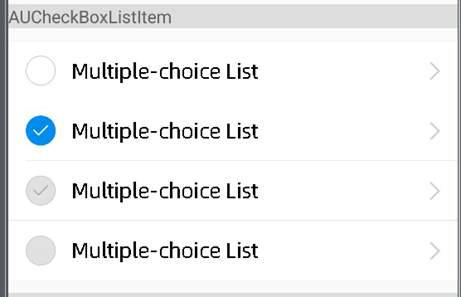
<com.alipay.mobile.antui.tablelist.AUCheckBoxListItem
    android:layout_width="match_parent"
    android:layout_height="wrap_content"
    android:clickable="true"
    app:listItemType="top"
    app:listLeftText="複数選択リスト" />

<com.alipay.mobile.antui.tablelist.AUCheckBoxListItem
    android:layout_width="match_parent"
    android:layout_height="wrap_content"
    android:clickable="true"
    app:checkIconState="checked"
    app:listItemType="center"
    app:listLeftText="複数選択リスト" />

<com.alipay.mobile.antui.tablelist.AUCheckBoxListItem
    android:layout_width="match_parent"
    android:layout_height="wrap_content"
    android:clickable="true"
    app:checkIconState="cannot_uncheck"
    app:listItemType="bottom"
    app:listLeftText="複数選択リスト" />

<com.alipay.mobile.antui.tablelist.AUCheckBoxListItem
    android:layout_width="match_parent"
    android:layout_height="wrap_content"
    android:clickable="true"
    app:checkIconState="cannot_check"
    app:listItemType="bottom"
    app:listLeftText="複数選択リスト" />
AUSwitchListItem
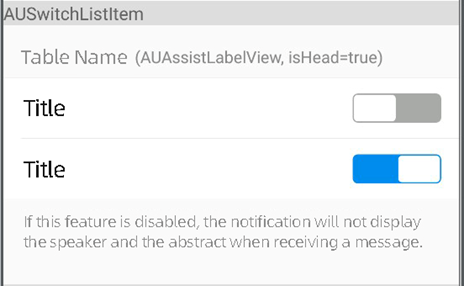
<com.alipay.mobile.antui.tablelist.AUSwitchListItem
    android:layout_width="match_parent"
    android:layout_height="48dp"
    app:listItemType="top"
    app:listLeftText="タイトル" />

<com.alipay.mobile.antui.tablelist.AUSwitchListItem
    android:id="@+id/disable_switch_list_item"
    android:layout_width="match_parent"
    android:layout_height="48dp"
    app:listItemType="bottom"
    app:listLeftText="タイトル" />