Edite imágenes con instrucciones de texto utilizando modelos Wan. Admite entrada y salida de múltiples imágenes, fusión de imágenes, preservación del sujeto y detección de objetos.
Introducción
Genere una imagen editada a partir de dos imágenes de entrada y un prompt de texto con wan2.7-image-pro.
Prompt: Rocía el grafiti de la imagen 2 sobre el coche en la imagen 1
Imagen de entrada 1 | Imagen de entrada 2 | Imagen de salida (wan2.7-image-pro) |
|---|---|---|
|
|
|
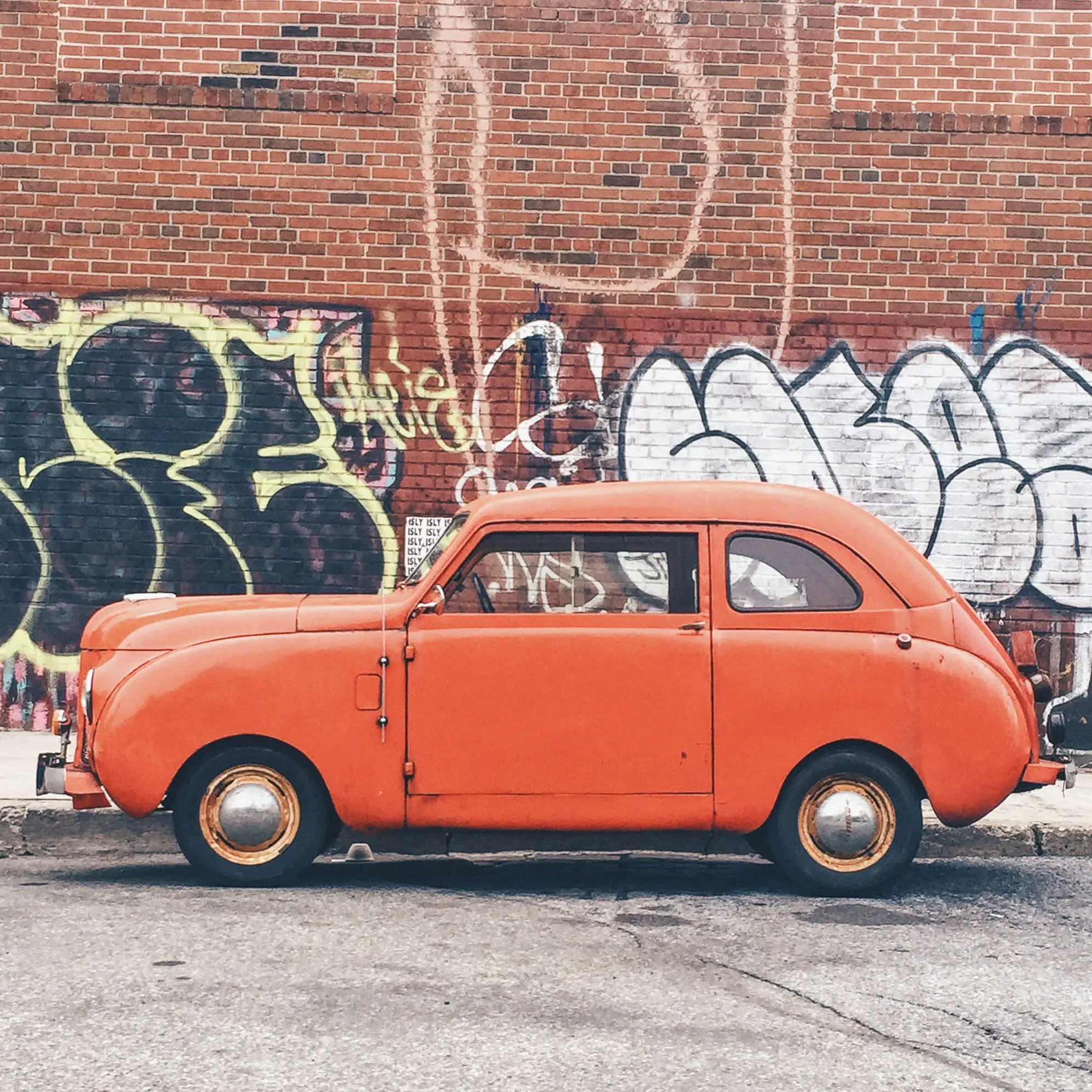
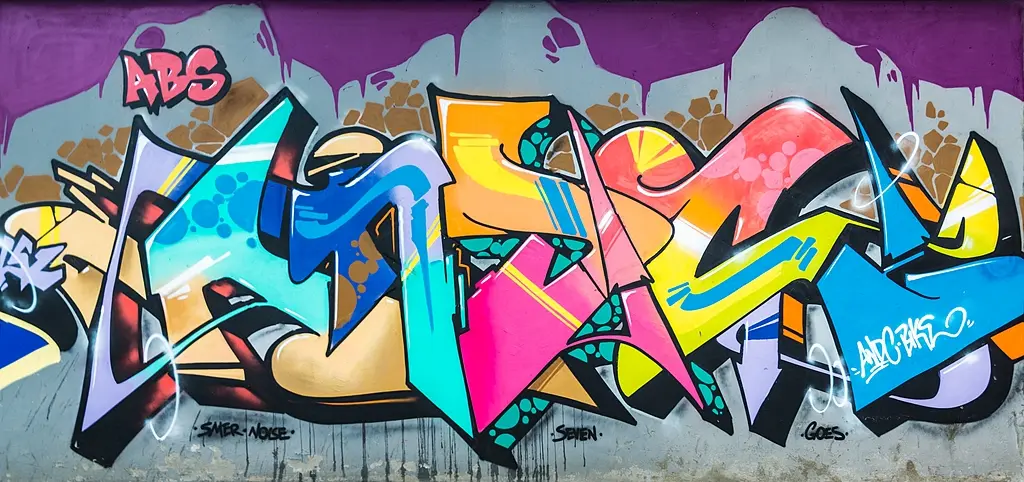
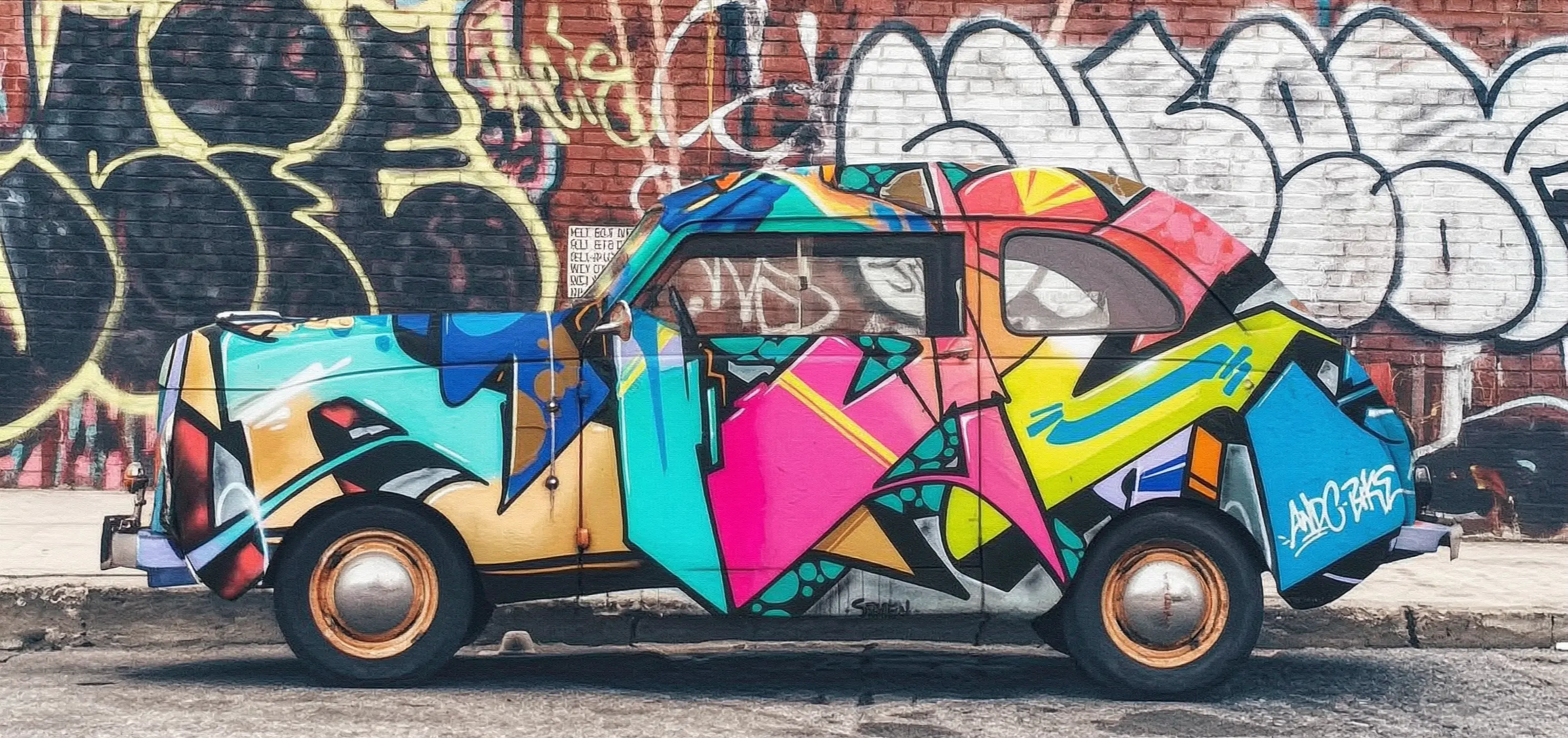
Antes de realizar una llamada, obtenga una clave de API y exporte la clave de API como variable de entorno. Para realizar llamadas mediante el SDK, instale el SDK de DashScope.
Llamada síncrona
ImportanteAsegúrese de que la versión del DashScope Python SDK sea1.25.15o posterior, y la versión del DashScope Java SDK sea2.22.13o posterior.
Python
Ejemplo de solicitud
import os
import base64
import mimetypes
import urllib.request
import dashscope
from dashscope.aigc.image_generation import ImageGeneration
from dashscope.api_entities.dashscope_response import Message

# The following base_url is for the Singapore region. Replace {WorkspaceId} with your Bailian workspace ID. The base_url varies by region.
dashscope.base_http_api_url = "https://{WorkspaceId}.ap-southeast-1.maas.aliyuncs.com/api/v1"

# If you have not configured environment variables, replace the following line with your Model Studio API key: api_key="sk-xxx"
# The API key varies by region. To obtain an API key, visit: https://www.alibabacloud.com/help/model-studio/get-api-key
api_key = os.getenv("DASHSCOPE_API_KEY")

# --- Base64 encoding function ---
# The Base64 encoding format is data:{MIME_type};base64,{base64_data}
def encode_file(file_path):
    mime_type, _ = mimetypes.guess_type(file_path)
    if not mime_type or not mime_type.startswith("image/"):
        raise ValueError("Unsupported or unrecognized image format")
    with open(file_path, "rb") as image_file:
        encoded_string = base64.b64encode(image_file.read()).decode("utf-8")
    return f"data:{mime_type};base64,{encoded_string}"

"""
Image input methods:
The following are three methods for image input. You need to choose only one.
1. Use a public URL: This method is suitable for publicly accessible images.
2. Use a local file: This method is suitable for local development and testing.
3. Use Base64 encoding: This method is suitable for private images or scenarios that require encrypted transmission.
"""
# [Method 1] Use a public image URL
image_1 = "https://help-static-aliyun-doc.aliyuncs.com/file-manage-files/zh-CN/20251229/pjeqdf/car.webp"
image_2 = "https://help-static-aliyun-doc.aliyuncs.com/file-manage-files/zh-CN/20251229/xsunlm/paint.webp"

# [Method 2] Use a local file (supports absolute and relative paths)
# image_1 = "file:///path/to/your/car.png"
# image_2 = "file:///path/to/your/paint.png"

# [Method 3] Use a Base64-encoded image
# image_1 = encode_file("/path/to/your/car.png")
# image_2 = encode_file("/path/to/your/paint.png")

message = Message(
    role="user",
    content=[
        {"text": "Spray the graffiti from image 2 onto the car in image 1"},
        {"image": image_1},
        {"image": image_2},
    ],
)
print("----sync call, please wait a moment----")
rsp = ImageGeneration.call(
    model="wan2.7-image-pro",
    api_key=api_key,
    messages=[message],
    watermark=False,
    n=1,
    size="2K",  # wan2.7-image-pro supports 4K resolution only for text-to-image generation. Image editing and multi-image generation support up to 2K resolution.
)

# Extract the result image URL and save the image to a local file.
if rsp.status_code == 200:
    for i, choice in enumerate(rsp.output.choices):
        for j, content in enumerate(choice["message"]["content"]):
            if content.get("type") == "image":
                image_url = content["image"]
                file_name = f"output_{i}_{j}.png"
                # The result URL is valid for 24 hours. Please download it promptly.
                urllib.request.urlretrieve(image_url, file_name)
                print(f"Image saved to {file_name}")
else:
    print(f"Failed: status_code={rsp.status_code}, message={rsp.message}")
Ejemplo de respuesta
La URL es válida durante 24 horas. Descargue la imagen oportunamente.
{
    "status_code": 200,
    "request_id": "81d868c6-6ce1-92d8-a90d-d2ee71xxxxxx",
    "code": "",
    "message": "",
    "output": {
        "text": null,
        "finish_reason": null,
        "choices": [
            {
                "finish_reason": "stop",
                "message": {
                    "role": "assistant",
                    "content": [
                        {
                            "image": "https://dashscope-result-bj.oss-cn-beijing.aliyuncs.com/xxxxxx.png?Expires=xxxxxx",
                            "type": "image"
                        }
                    ]
                }
            }
        ],
        "audio": null,
        "finished": true
    },
    "usage": {
        "input_tokens": 18790,
        "output_tokens": 2,
        "characters": 0,
        "image_count": 1,
        "size": "2985*1405",
        "total_tokens": 18792
    }
}
Java
Ejemplo de solicitud
import com.alibaba.dashscope.aigc.imagegeneration.*;
import com.alibaba.dashscope.exception.ApiException;
import com.alibaba.dashscope.exception.NoApiKeyException;
import com.alibaba.dashscope.exception.UploadFileException;
import com.alibaba.dashscope.utils.Constants;
import com.alibaba.dashscope.utils.JsonUtils;

import java.io.IOException;
import java.io.InputStream;
import java.net.URL;
import java.nio.file.Files;
import java.nio.file.Paths;
import java.nio.file.StandardCopyOption;
import java.util.Arrays;
import java.util.Base64;
import java.util.Collections;
import java.util.List;
import java.util.Map;

/**
 * wan2.7-image-pro Image Editing - Synchronous Call Example
 */
public class Main {

    static {
        // The following URL is for the Singapore region. Replace {WorkspaceId} with your Bailian workspace ID. The base_url varies by region.
        Constants.baseHttpApiUrl = "https://{WorkspaceId}.ap-southeast-1.maas.aliyuncs.com/api/v1";
    }

    // If you have not configured an environment variable, replace the following line with your Model Studio API key: apiKey="sk-xxx"
    // The API key varies by region. To obtain an API key, visit https://www.alibabacloud.com/help/model-studio/get-api-key
    static String apiKey = System.getenv("DASHSCOPE_API_KEY");

    // --- Base64 encoding function ---
    // Base64 encoding format: data:{MIME_type};base64,{base64_data}
    public static String encodeFile(String filePath) throws IOException {
        byte[] fileContent = Files.readAllBytes(Paths.get(filePath));
        String base64String = Base64.getEncoder().encodeToString(fileContent);
        String mimeType = Files.probeContentType(Paths.get(filePath));
        return "data:" + mimeType + ";base64," + base64String;
    }

    public static void basicCall() throws ApiException, NoApiKeyException, UploadFileException, IOException {
        /*
         * Description of image input methods:
         * Three image input methods are provided below. Select one.
         * 1. Use a public URL: Suitable for publicly accessible images.
         * 2. Use a local file: Suitable for local development and testing.
         * 3. Use Base64 encoding: Suitable for private images or scenarios that require encrypted transmission.
         */
        // Method 1: Use a public image URL.
        String image1 = "https://help-static-aliyun-doc.aliyuncs.com/file-manage-files/zh-CN/20251229/pjeqdf/car.webp";
        String image2 = "https://help-static-aliyun-doc.aliyuncs.com/file-manage-files/zh-CN/20251229/xsunlm/paint.webp";

        // Method 2: Use a local file. Both absolute and relative paths are supported.
        // Format: file:// + file path
        // String image1 = "file:///path/to/your/car.png";
        // String image2 = "file:///path/to/your/paint.png";

        // Method 3: Use a Base64-encoded image.
        // String image1 = encodeFile("/path/to/your/car.png");
        // String image2 = encodeFile("/path/to/your/paint.png");

        // Build a multi-image input message.
        ImageGenerationMessage message = ImageGenerationMessage.builder()
                .role("user")
                .content(Arrays.asList(
                        // Multi-image input is supported. You can provide multiple reference images.
                        Collections.singletonMap("text", "Spray the graffiti from image 2 onto the car in image 1"),
                        Collections.singletonMap("image", image1),
                        Collections.singletonMap("image", image2)
                )).build();

        ImageGenerationParam param = ImageGenerationParam.builder()
                .apiKey(apiKey)
                .model("wan2.7-image-pro")
                .messages(Collections.singletonList(message))
                .n(1)
                .size("2K") // For wan2.7-image-pro, only the text-to-image generation scenario supports 4K resolution. Image editing and collage generation support a maximum resolution of 2K.
                .build();

        ImageGeneration imageGeneration = new ImageGeneration();
        ImageGenerationResult result = null;
        try {
            System.out.println("---sync call for image editing, please wait a moment----");
            result = imageGeneration.call(param);
        } catch (ApiException | NoApiKeyException | UploadFileException e) {
            throw new RuntimeException(e.getMessage());
        }
        // Extract the result image URL and save it to a local file.
        for (int i = 0; i < result.getOutput().getChoices().size(); i++) {
            List<Map<String, Object>> contents = result.getOutput().getChoices().get(i)
                    .getMessage().getContent();
            for (int j = 0; j < contents.size(); j++) {
                if ("image".equals(contents.get(j).get("type"))) {
                    String imageUrl = (String) contents.get(j).get("image");
                    String fileName = "output_" + i + "_" + j + ".png";
                    // The result URL is valid for 24 hours. Download the image in a timely manner.
                    try (InputStream in = new URL(imageUrl).openStream()) {
                        Files.copy(in, Paths.get(fileName), StandardCopyOption.REPLACE_EXISTING);
                    }
                    System.out.println("Image saved to " + fileName);
                }
            }
        }
    }

    public static void main(String[] args) throws ApiException, NoApiKeyException, UploadFileException, IOException {
        basicCall();
    }
}
Ejemplo de respuesta
La URL es válida durante 24 horas. Guárdela oportunamente.
{
    "requestId": "1bf6173a-e8de-9f75-94d3-5e618f875xxx",
    "usage": {
        "input_tokens": 18790,
        "output_tokens": 2,
        "total_tokens": 18792,
        "image_count": 1,
        "size": "2985*1405"
    },
    "output": {
        "choices": [
            {
                "finish_reason": "stop",
                "message": {
                    "role": "assistant",
                    "content": [
                        {
                            "image": "https://dashscope-result-bj.oss-cn-beijing.aliyuncs.com/xxxxxx.png?Expires=xxxxxx",
                            "type": "image"
                        }
                    ]
                }
            }
        ],
        "finished": true
    },
    "status_code": 200,
    "code": "",
    "message": ""
}
curl
Ejemplo de solicitud
curl --location 'https://{WorkspaceId}.ap-southeast-1.maas.aliyuncs.com/api/v1/services/aigc/multimodal-generation/generation' \
    --header 'Content-Type: application/json' \
    --header "Authorization: Bearer $DASHSCOPE_API_KEY" \
    --data '{
        "model": "wan2.7-image-pro",
        "input": {
            "messages": [
                {
                    "role": "user",
                    "content": [
                        {"image": "https://help-static-aliyun-doc.aliyuncs.com/file-manage-files/zh-CN/20251229/pjeqdf/car.webp"},
                        {"image": "https://help-static-aliyun-doc.aliyuncs.com/file-manage-files/zh-CN/20251229/xsunlm/paint.webp"},
                        {"text": "Spray-paint the graffiti from image 2 onto the car in image 1"}
                    ]
                }
            ]
        },
        "parameters": {
            "size": "2K",
            "n": 1,
            "watermark": false
        }
    }'
Ejemplo de respuesta
{
    "output": {
        "choices": [
            {
                "finish_reason": "stop",
                "message": {
                    "content": [
                        {
                            "image": "https://dashscope-xxx.oss-xxx.aliyuncs.com/xxx.png?Expires=xxx",
                            "type": "image"
                        }
                    ],
                    "role": "assistant"
                }
            }
        ],
        "finished": true
    },
    "usage": {
        "image_count": 1,
        "input_tokens": 10867,
        "output_tokens": 2,
        "size": "1488*704",
        "total_tokens": 10869
    },
    "request_id": "71dfc3c6-f796-9972-97e4-bc4efc4faxxx"
}
Llamada asíncrona
ImportanteAsegúrese de que la versión del DashScope Python SDK sea1.25.15o posterior, y la versión del DashScope Java SDK sea2.22.13o posterior.
Python
Ejemplo de solicitud
import os
import base64
import mimetypes
import urllib.request
import dashscope
from dashscope.aigc.image_generation import ImageGeneration
from dashscope.api_entities.dashscope_response import Message
from http import HTTPStatus

# The following base_url is for the Singapore region. Replace {WorkspaceId} with your Bailian workspace ID. The base_url varies by region.
dashscope.base_http_api_url = "https://{WorkspaceId}.ap-southeast-1.maas.aliyuncs.com/api/v1"

# If you have not configured environment variables, replace the following line with your Model Studio API key: api_key="sk-xxx"
# The API key varies by region. To obtain an API key, visit https://www.alibabacloud.com/help/model-studio/get-api-key
api_key = os.getenv("DASHSCOPE_API_KEY")

# --- Base64 encoding function ---
# The Base64 encoding format is data:{MIME_type};base64,{base64_data}
def encode_file(file_path):
    mime_type, _ = mimetypes.guess_type(file_path)
    if not mime_type or not mime_type.startswith("image/"):
        raise ValueError("Unsupported or unrecognized image format.")
    with open(file_path, "rb") as image_file:
        encoded_string = base64.b64encode(image_file.read()).decode("utf-8")
    return f"data:{mime_type};base64,{encoded_string}"

"""
Image input methods:
Three image input methods are provided below. Choose one.
1. Use a public URL - suitable for publicly accessible images.
2. Use a local file - suitable for local development and testing.
3. Use Base64 encoding - suitable for private images or scenarios that require encrypted transmission.
"""
# [Method 1] Use a public image URL
image_1 = "https://help-static-aliyun-doc.aliyuncs.com/file-manage-files/zh-CN/20251229/pjeqdf/car.webp"
image_2 = "https://help-static-aliyun-doc.aliyuncs.com/file-manage-files/zh-CN/20251229/xsunlm/paint.webp"

# [Method 2] Use a local file (supports absolute and relative paths)
# image_1 = "file:///path/to/your/car.png"
# image_2 = "file:///path/to/your/paint.png"

# [Method 3] Use a Base64-encoded image
# image_1 = encode_file("/path/to/your/car.png")
# image_2 = encode_file("/path/to/your/paint.png")

# Create an asynchronous task.
def create_async_task():
    print("Creating async task...")
    message = Message(
        role="user",
        content=[
            {"text": "Spray the graffiti from image 2 onto the car in image 1."},
            {"image": image_1},
            {"image": image_2},
        ],
    )
    response = ImageGeneration.async_call(
        model="wan2.7-image-pro",
        api_key=api_key,
        messages=[message],
        watermark=False,
        n=1,
        size="2K",  # wan2.7-image-pro supports 4K resolution only for text-to-image generation scenarios. Image editing and collage generation support a maximum resolution of 2K.
    )

    if response.status_code == 200:
        print("Task created successfully:", response)
        return response
    else:
        raise Exception(f"Failed to create task: {response.code} - {response.message}")

# Wait for the task to complete.
def wait_for_completion(task_response):
    print("Waiting for task completion...")
    status = ImageGeneration.wait(task=task_response, api_key=api_key)

    if status.output.task_status == "SUCCEEDED":
        print("Task succeeded!")
        # Extract the result image URL and save the image to a local file.
        for i, choice in enumerate(status.output.choices):
            for j, content in enumerate(choice["message"]["content"]):
                if content.get("type") == "image":
                    image_url = content["image"]
                    file_name = f"output_{i}_{j}.png"
                    # The result URL is valid for 24 hours. Download the image in a timely manner.
                    urllib.request.urlretrieve(image_url, file_name)
                    print(f"Image saved to {file_name}")
    else:
        raise Exception(f"Task failed with status: {status.output.task_status}")

# Obtain information about the asynchronous task.
def fetch_task_status(task):
    print("Fetching task status...")
    status = ImageGeneration.fetch(task=task, api_key=api_key)

    if status.status_code == HTTPStatus.OK:
        print("Task status:", status.output.task_status)
        print("Response details:", status)
    else:
        print(f"Failed to fetch status: {status.code} - {status.message}")

# Cancel the asynchronous task.
def cancel_task(task):
    print("Canceling task...")
    response = ImageGeneration.cancel(task=task, api_key=api_key)

    if response.status_code == HTTPStatus.OK:
        print("Task canceled successfully:", response.output.task_status)
    else:
        print(f"Failed to cancel task: {response.code} - {response.message}")

# Main execution flow.
if __name__ == "__main__":
    task = create_async_task()
    wait_for_completion(task)
Ejemplo de respuesta
- Ejemplo de respuesta para crear una tarea
{
    "status_code": 200,
    "request_id": "4fb3050f-de57-4a24-84ff-e37ee5xxxxxx",
    "code": "",
    "message": "",
    "output": {
        "text": null,
        "finish_reason": null,
        "choices": null,
        "audio": null,
        "task_id": "127ec645-118f-4884-955d-0eba8dxxxxxx",
        "task_status": "PENDING"
    },
    "usage": {
        "input_tokens": 0,
        "output_tokens": 0,
        "characters": 0
    }
}
-
Ejemplo de respuesta para consultar el resultado de una tarea
La URL es válida durante 24 horas. Descargue la imagen oportunamente.
{
    "status_code": 200,
    "request_id": "3b99aae5-d26f-9059-8dd0-ee9ca4804xxx",
    "code": null,
    "message": "",
    "output": {
        "text": null,
        "finish_reason": null,
        "choices": [
            {
                "finish_reason": "stop",
                "message": {
                    "role": "assistant",
                    "content": [
                        {
                            "image": "https://dashscope-result-bj.oss-cn-beijing.aliyuncs.com/xxxxxx.png?Expires=xxxxxx",
                            "type": "image"
                        }
                    ]
                }
            }
        ],
        "audio": null,
        "task_id": "127ec645-118f-4884-955d-0eba8dxxxxxx",
        "task_status": "SUCCEEDED",
        "submit_time": "2026-03-31 22:58:47.646",
        "scheduled_time": "2026-03-31 22:58:47.683",
        "end_time": "2026-03-31 22:58:59.642",
        "finished": true
    },
    "usage": {
        "input_tokens": 18711,
        "output_tokens": 2,
        "characters": 0,
        "size": "2985*1405",
        "total_tokens": 18713,
        "image_count": 1
    }
}
Java
Ejemplo de solicitud
import com.alibaba.dashscope.aigc.imagegeneration.*;
import com.alibaba.dashscope.exception.ApiException;
import com.alibaba.dashscope.exception.NoApiKeyException;
import com.alibaba.dashscope.exception.UploadFileException;
import com.alibaba.dashscope.utils.Constants;
import com.alibaba.dashscope.utils.JsonUtils;

import java.io.IOException;
import java.io.InputStream;
import java.net.URL;
import java.nio.file.Files;
import java.nio.file.Paths;
import java.nio.file.StandardCopyOption;
import java.util.Arrays;
import java.util.Base64;
import java.util.Collections;
import java.util.List;
import java.util.Map;

/**
 * wan2.7-image-pro Image Editing - Asynchronous Invocation Example
 */
public class Main {

    static {
        // The following URL is for the Singapore region. Replace {WorkspaceId} with your Bailian workspace ID. The base_url varies by region.
        Constants.baseHttpApiUrl = "https://{WorkspaceId}.ap-southeast-1.maas.aliyuncs.com/api/v1";
    }

    // If you have not configured an environment variable, replace the following line with your Model Studio API key: apiKey="sk-xxx"
    // The API key varies by region. To obtain an API key, visit: https://www.alibabacloud.com/help/model-studio/get-api-key
    static String apiKey = System.getenv("DASHSCOPE_API_KEY");

    // --- Base64 encoding function ---
    // The Base64 encoding format is data:{MIME_type};base64,{base64_data}
    public static String encodeFile(String filePath) throws IOException {
        byte[] fileContent = Files.readAllBytes(Paths.get(filePath));
        String base64String = Base64.getEncoder().encodeToString(fileContent);
        String mimeType = Files.probeContentType(Paths.get(filePath));
        return "data:" + mimeType + ";base64," + base64String;
    }

    public static void asyncCall() throws ApiException, NoApiKeyException, UploadFileException, IOException {
        /*
         * Description of image input methods:
         * The following three image input methods are provided. You can choose one of them.
         * 1. Use a public URL - Suitable for publicly accessible images.
         * 2. Use a local file - Suitable for local development and testing.
         * 3. Use Base64 encoding - Suitable for scenarios that involve private images or require encrypted transmission.
         */
        // [Method 1] Use a public image URL
        String image1 = "https://help-static-aliyun-doc.aliyuncs.com/file-manage-files/zh-CN/20251229/pjeqdf/car.webp";
        String image2 = "https://help-static-aliyun-doc.aliyuncs.com/file-manage-files/zh-CN/20251229/xsunlm/paint.webp";

        // [Method 2] Use a local file (supports absolute and relative paths)
        // Required format: file:// + file path
        // String image1 = "file:///path/to/your/car.png";
        // String image2 = "file:///path/to/your/paint.png";

        // [Method 3] Use a Base64-encoded image
        // String image1 = encodeFile("/path/to/your/car.png");
        // String image2 = encodeFile("/path/to/your/paint.png");

        // Build a multi-image input message
        ImageGenerationMessage message = ImageGenerationMessage.builder()
                .role("user")
                .content(Arrays.asList(
                        // Supports multi-image input. You can provide multiple reference images.
                        Collections.singletonMap("text", "Spray-paint the graffiti from image 2 onto the car in image 1"),
                        Collections.singletonMap("image", image1),
                        Collections.singletonMap("image", image2)
                )).build();

        ImageGenerationParam param = ImageGenerationParam.builder()
                .apiKey(apiKey)
                .model("wan2.7-image-pro")
                .n(1)
                .size("2K") // The wan2.7-image-pro model supports 4K resolution only for text-to-image generation. For image editing and composite image generation, the maximum supported resolution is 2K.
                .messages(Arrays.asList(message))
                .build();

        ImageGeneration imageGeneration = new ImageGeneration();
        ImageGenerationResult result = null;
        try {
            System.out.println("---async call for image editing, creating task----");
            result = imageGeneration.asyncCall(param);
        } catch (ApiException | NoApiKeyException | UploadFileException e) {
            throw new RuntimeException(e.getMessage());
        }
        System.out.println("Task creation result:");
        System.out.println(JsonUtils.toJson(result));

        String taskId = result.getOutput().getTaskId();
        // Wait for the task to complete
        waitTask(taskId);
    }

    public static void waitTask(String taskId) throws ApiException, NoApiKeyException, IOException {
        ImageGeneration imageGeneration = new ImageGeneration();
        System.out.println("\n---waiting for task completion----");
        ImageGenerationResult result = imageGeneration.wait(taskId, apiKey);
        // Fetch the resulting image URL and save it to a local file
        for (int i = 0; i < result.getOutput().getChoices().size(); i++) {
            List<Map<String, Object>> contents = result.getOutput().getChoices().get(i)
                    .getMessage().getContent();
            for (int j = 0; j < contents.size(); j++) {
                if ("image".equals(contents.get(j).get("type"))) {
                    String imageUrl = (String) contents.get(j).get("image");
                    String fileName = "output_" + i + "_" + j + ".png";
                    // The result URL is valid for 24 hours. Download the image in a timely manner.
                    try (InputStream in = new URL(imageUrl).openStream()) {
                        Files.copy(in, Paths.get(fileName), StandardCopyOption.REPLACE_EXISTING);
                    }
                    System.out.println("Image saved to " + fileName);
                }
            }
        }
    }

    public static void main(String[] args) throws ApiException, NoApiKeyException, UploadFileException, IOException {
        asyncCall();
    }
}
Ejemplo de respuesta
- Ejemplo de respuesta para crear una tarea
{
    "requestId": "ccf4b2f4-bf30-9e13-9461-3a28c6a7bxxx",
    "output": {
        "task_id": "8811b4a4-00ac-4aa2-a2fd-017d3b90cxxx",
        "task_status": "PENDING"
    },
    "status_code": 200,
    "code": "",
    "message": ""
}
-
Ejemplo de respuesta para consultar el resultado de una tarea
La URL es válida durante 24 horas. Guárdela oportunamente.
{
    "requestId": "60a08540-f1c1-9e76-8cd3-d5949db8cxxx",
    "usage": {
        "input_tokens": 18711,
        "output_tokens": 2,
        "total_tokens": 18713,
        "image_count": 1,
        "size": "2985*1405"
    },
    "output": {
        "choices": [
            {
                "finish_reason": "stop",
                "message": {
                    "role": "assistant",
                    "content": [
                        {
                            "image": "https://dashscope-result-bj.oss-cn-beijing.aliyuncs.com/xxxxxx.png?Expires=xxxxxx",
                            "type": "image"
                        }
                    ]
                }
            }
        ],
        "task_id": "8811b4a4-00ac-4aa2-a2fd-017d3b90cxxx",
        "task_status": "SUCCEEDED",
        "finished": true,
        "submit_time": "2026-03-31 19:57:58.840",
        "scheduled_time": "2026-03-31 19:57:58.877",
        "end_time": "2026-03-31 19:58:11.563"
    },
    "status_code": 200,
    "code": "",
    "message": ""
}
curl
Paso 1: Crear una tarea para obtener el ID de tarea
curl --location 'https://{WorkspaceId}.ap-southeast-1.maas.aliyuncs.com/api/v1/services/aigc/image-generation/generation' \
    --header 'Content-Type: application/json' \
    --header "Authorization: Bearer $DASHSCOPE_API_KEY" \
    --header "X-DashScope-Async: enable" \
    --data '{
        "model": "wan2.7-image-pro",
        "input": {
            "messages": [
                {
                    "role": "user",
                    "content": [
                        {"image": "https://help-static-aliyun-doc.aliyuncs.com/file-manage-files/zh-CN/20251229/pjeqdf/car.webp"},
                        {"image": "https://help-static-aliyun-doc.aliyuncs.com/file-manage-files/zh-CN/20251229/xsunlm/paint.webp"},
                        {"text": "Spray-paint the graffiti from image 2 onto the car in image 1"}
                    ]
                }
            ]
        },
        "parameters": {
            "size": "2K",
            "n": 1,
            "watermark": false
        }
    }'
{
    "output": {
        "task_status": "PENDING",
        "task_id": "0385dc79-5ff8-4d82-bcb6-xxxxxx"
    },
    "request_id": "4909100c-7b5a-9f92-bfe5-xxxxxx"
}
Paso 2: Consultar el resultado por ID de tarea
Utilice el task_id obtenido en el paso anterior para sondear el estado de la tarea a través de la API hasta que el task_status sea SUCCEEDED o FAILED.
Reemplace {task_id} con el valor task_id devuelto por la llamada a la API anterior. El task_id es válido para consultas durante 24 horas. Reemplace {WorkspaceId} con su ID de espacio de trabajo real.
curl -X GET https://{WorkspaceId}.ap-southeast-1.maas.aliyuncs.com/api/v1/tasks/{task_id} \
--header "Authorization: Bearer $DASHSCOPE_API_KEY"
La URL de la imagen es válida durante 24 horas. Descargue la imagen rápidamente.
{
    "request_id": "810fa5f5-334c-91f3-aaa4-ed89cf0caxxx",
    "output": {
        "task_id": "a81ee7cb-014c-473d-b842-76e98311cxxx",
        "task_status": "SUCCEEDED",
        "submit_time": "2026-03-26 17:16:01.663",
        "scheduled_time": "2026-03-26 17:16:01.716",
        "end_time": "2026-03-26 17:16:22.961",
        "finished": true,
        "choices": [
            {
                "finish_reason": "stop",
                "message": {
                    "role": "assistant",
                    "content": [
                        {
                            "image": "https://dashscope-xxx.oss-xxx.aliyuncs.com/xxx.png?Expires=xxx",
                            "type": "image"
                        }
                    ]
                }
            }
        ]
    },
    "usage": {
        "size": "2976*1408",
        "total_tokens": 11017,
        "image_count": 1,
        "output_tokens": 2,
        "input_tokens": 11015
    }
}
wan2.5-i2i-preview utiliza diferentes endpoints de API y parámetros.
Haga clic para ver ejemplos de llamada para wan2.5-i2i-preview
Llamada síncrona
ImportanteAsegúrese de que la versión del DashScope Python SDK sea al menos1.25.2y la versión del DashScope Java SDK sea al menos2.22.2.
Las versiones obsoletas del SDK pueden provocar errores de "url error, please check url!". Instale o actualice el SDK.
Python
Este ejemplo admite tres métodos de entrada de imagen: URL pública, codificación Base64 y ruta de archivo local.
Ejemplo de solicitud
import base64
import mimetypes
from http import HTTPStatus
from urllib.parse import urlparse, unquote
from pathlib import PurePosixPath

import dashscope
import requests
from dashscope import ImageSynthesis
import os

# The following URL is for the Singapore region. Replace {WorkspaceId} with your actual workspace ID. URLs differ by region.
dashscope.base_http_api_url = 'https://{WorkspaceId}.ap-southeast-1.maas.aliyuncs.com/api/v1'

# If you have not configured an environment variable, replace the next line with: api_key="sk-xxx"
# API keys differ between Singapore and Beijing. Get an API key: https://www.alibabacloud.com/help/model-studio/get-api-key
api_key = os.getenv("DASHSCOPE_API_KEY")

# --- Input image: Base64 encoding ---
# Base64 format: data:{MIME_type};base64,{base64_data}
def encode_file(file_path):
    mime_type, _ = mimetypes.guess_type(file_path)
    if not mime_type or not mime_type.startswith("image/"):
        raise ValueError("Unsupported or unrecognized image format")
    with open(file_path, "rb") as image_file:
        encoded_string = base64.b64encode(image_file.read()).decode('utf-8')
    return f"data:{mime_type};base64,{encoded_string}"

"""
Image input methods:
Choose one of the following:

1. Public URL — best for publicly accessible images
2. Local file — best for local development and testing
3. Base64 encoding — best for private images or secure transmission
"""

# [Method 1] Public image URL
image_url_1 = "https://img.alicdn.com/imgextra/i3/O1CN0157XGE51l6iL9441yX_!!6000000004770-49-tps-1104-1472.webp"
image_url_2 = "https://img.alicdn.com/imgextra/i3/O1CN01SfG4J41UYn9WNt4X1_!!6000000002530-49-tps-1696-960.webp"

# [Method 2] Local file (supports absolute and relative paths)
# Format: file:// + file path
# Example (absolute path):
# image_url_1 = "file://" + "/path/to/your/image_1.png"     # Linux/macOS
# image_url_2 = "file://" + "C:/path/to/your/image_2.png"  # Windows
# Example (relative path):
# image_url_1 = "file://" + "./image_1.png"                 # Adjust to your path
# image_url_2 = "file://" + "./image_2.png"                # Adjust to your path

# [Method 3] Base64-encoded image
# image_url_1 = encode_file("./image_1.png")               # Adjust to your path
# image_url_2 = encode_file("./image_2.png")              # Adjust to your path

print('----sync call, please wait a moment----')
rsp = ImageSynthesis.call(api_key=api_key,
                          model="wan2.5-i2i-preview",
                          prompt="Place the alarm clock from image 1 beside the vase on the dining table in image 2.",
                          images=[image_url_1, image_url_2],
                          negative_prompt="",
                          n=1,
                          # size="1280*1280",
                          prompt_extend=True,
                          watermark=False,
                          seed=12345)
print('response: %s' % rsp)
if rsp.status_code == HTTPStatus.OK:
    # Save images to current directory
    for result in rsp.output.results:
        file_name = PurePosixPath(unquote(urlparse(result.url).path)).parts[-1]
        with open('./%s' % file_name, 'wb+') as f:
            f.write(requests.get(result.url).content)
else:
    print('sync_call Failed, status_code: %s, code: %s, message: %s' %
          (rsp.status_code, rsp.code, rsp.message))
Ejemplo de respuesta
La URL de la imagen es válida durante 24 horas. Descargue la imagen rápidamente.
{
    "status_code": 200,
    "request_id": "8ad45834-4321-44ed-adf5-xxxxxx",
    "code": null,
    "message": "",
    "output": {
        "task_id": "3aff9ebd-35fc-4339-98a3-xxxxxx",
        "task_status": "SUCCEEDED",
        "results": [
            {
                "url": "https://dashscope-result-sh.oss-cn-shanghai.aliyuncs.com/xxx.png?Expires=xxx",
                "orig_prompt": "Place the alarm clock from image 1 beside the vase on the dining table in image 2.",
                "actual_prompt": "Place the blue alarm clock from image 1 to the right of the vase on the dining table in image 2, near the edge of the tablecloth. Keep the clock facing the camera and parallel to the tabletop, with natural shadow projection."
            }
        ],
        "submit_time": "2025-10-23 16:18:16.009",
        "scheduled_time": "2025-10-23 16:18:16.040",
        "end_time": "2025-10-23 16:19:09.591",
        "task_metrics": {
            "TOTAL": 1,
            "FAILED": 0,
            "SUCCEEDED": 1
        }
    },
    "usage": {
        "image_count": 1
    }
}
Java
Este ejemplo admite tres métodos de entrada de imagen: URL pública, codificación Base64 y ruta de archivo local.
Ejemplo de solicitud
// Copyright (c) Alibaba, Inc. and its affiliates.

import com.alibaba.dashscope.aigc.imagesynthesis.ImageSynthesis;
import com.alibaba.dashscope.aigc.imagesynthesis.ImageSynthesisParam;
import com.alibaba.dashscope.aigc.imagesynthesis.ImageSynthesisResult;
import com.alibaba.dashscope.exception.ApiException;
import com.alibaba.dashscope.exception.NoApiKeyException;
import com.alibaba.dashscope.utils.Constants;
import com.alibaba.dashscope.utils.JsonUtils;

import java.io.IOException;
import java.nio.file.Files;
import java.nio.file.Path;
import java.nio.file.Paths;
import java.util.*;

public class Image2Image {

    static {
        // The following URL is for the Singapore region. Replace {WorkspaceId} with your actual workspace ID. URLs differ by region.
        Constants.baseHttpApiUrl = "https://{WorkspaceId}.ap-southeast-1.maas.aliyuncs.com/api/v1";
    }

    // If you have not configured an environment variable, replace the next line with: apiKey="sk-xxx"
    // API keys differ between Singapore and Beijing. Get an API key: https://www.alibabacloud.com/help/model-studio/get-api-key
    static String apiKey = System.getenv("DASHSCOPE_API_KEY");

    /**
     * Image input methods: choose one
     *
     * 1. Public URL — best for publicly accessible images
     * 2. Local file — best for local development and testing
     * 3. Base64 encoding — best for private images or secure transmission
     */

    // [Method 1] Public URL
    static String imageUrl_1 = "https://img.alicdn.com/imgextra/i3/O1CN0157XGE51l6iL9441yX_!!6000000004770-49-tps-1104-1472.webp";
    static String imageUrl_2 = "https://img.alicdn.com/imgextra/i3/O1CN01SfG4J41UYn9WNt4X1_!!6000000002530-49-tps-1696-960.webp";

    // [Method 2] Local file path (file://+absolute path or file:///+absolute path)
    // static String imageUrl_1 = "file://" + "/your/path/to/image_1.png";    // Linux/macOS
    // static String imageUrl_2 = "file:///" + "C:/your/path/to/image_2.png";  // Windows

    // [Method 3] Base64 encoding
    // static String imageUrl_1 = encodeFile("/your/path/to/image_1.png");
    // static String imageUrl_2 = encodeFile("/your/path/to/image_2.png");

    // List of images to edit
    static List<String> imageUrls = new ArrayList<>();
    static {
        imageUrls.add(imageUrl_1);
        imageUrls.add(imageUrl_2);
    }

    public static void syncCall() {
        ImageSynthesisParam param =
                ImageSynthesisParam.builder()
                        .apiKey(apiKey)
                        .model("wan2.5-i2i-preview")
                        .prompt("Place the alarm clock from image 1 beside the vase on the dining table in image 2.")
                        .images(imageUrls)
                        .n(1)
                         //.size("1280*1280")
                        .negativePrompt("")
                        .promptExtend(true)
                        .watermark(false)
                        .seed(12345)
                        .build();

        ImageSynthesis imageSynthesis = new ImageSynthesis();
        ImageSynthesisResult result = null;
        try {
            System.out.println("---sync call, please wait a moment----");
            result = imageSynthesis.call(param);
        } catch (ApiException | NoApiKeyException e){
            throw new RuntimeException(e.getMessage());
        }
        System.out.println(JsonUtils.toJson(result));
    }

    /**
     * Encode a file as a Base64 string
     * @param filePath File path
     * @return Base64 string in format data:{MIME_type};base64,{base64_data}
     */
    public static String encodeFile(String filePath) {
        Path path = Paths.get(filePath);
        if (!Files.exists(path)) {
            throw new IllegalArgumentException("File not found: " + filePath);
        }
        // Detect MIME type
        String mimeType = null;
        try {
            mimeType = Files.probeContentType(path);
        } catch (IOException e) {
            throw new IllegalArgumentException("Cannot detect file type: " + filePath);
        }
        if (mimeType == null || !mimeType.startsWith("image/")) {
            throw new IllegalArgumentException("Unsupported or unrecognized image format");
        }
        // Read file and encode
        byte[] fileBytes = null;
        try{
            fileBytes = Files.readAllBytes(path);
        } catch (IOException e) {
            throw new IllegalArgumentException("Cannot read file: " + filePath);
        }

        String encodedString = Base64.getEncoder().encodeToString(fileBytes);
        return "data:" + mimeType + ";base64," + encodedString;
    }

    public static void main(String[] args) {
        syncCall();
    }
}
Ejemplo de respuesta
La URL de la imagen es válida durante 24 horas. Descargue la imagen rápidamente.
{
    "request_id": "d362685b-757f-4eac-bab5-xxxxxx",
    "output": {
        "task_id": "bfa7fc39-3d87-4fa7-b1e6-xxxxxx",
        "task_status": "SUCCEEDED",
        "results": [
            {
                "orig_prompt": "Place the alarm clock from image 1 beside the vase on the dining table in image 2.",
                "actual_prompt": "Place the blue alarm clock from image 1 to the right of the vase on the dining table in image 2, near the edge of the tablecloth. Keep the clock facing the camera and parallel to the vase.",
                "url": "https://dashscope-result-sh.oss-cn-shanghai.aliyuncs.com/xxx.png?Expires=xxx"
            }
        ],
        "task_metrics": {
            "TOTAL": 1,
            "SUCCEEDED": 1,
            "FAILED": 0
        }
    },
    "usage": {
        "image_count": 1
    }
}
Llamada asíncrona
ImportanteAsegúrese de que la versión del DashScope Python SDK sea al menos1.25.2y la versión del DashScope Java SDK sea al menos2.22.2.
Las versiones obsoletas del SDK pueden provocar errores de "url error, please check url!". Instale o actualice el SDK.
Python
Este ejemplo utiliza una URL pública para pasar la imagen.
Ejemplo de solicitud
import os
from http import HTTPStatus
from urllib.parse import urlparse, unquote
from pathlib import PurePosixPath
import dashscope
import requests
from dashscope import ImageSynthesis

# The following URL is for the Singapore region. Replace {WorkspaceId} with your actual workspace ID. URLs differ by region.
dashscope.base_http_api_url = 'https://{WorkspaceId}.ap-southeast-1.maas.aliyuncs.com/api/v1'

# If you have not configured an environment variable, replace the next line with: api_key="sk-xxx"
# API keys differ between Singapore and Beijing. Get an API key: https://www.alibabacloud.com/help/model-studio/get-api-key
api_key = os.getenv("DASHSCOPE_API_KEY")

# Public image URLs
image_url_1 = "https://img.alicdn.com/imgextra/i3/O1CN0157XGE51l6iL9441yX_!!6000000004770-49-tps-1104-1472.webp"
image_url_2 = "https://img.alicdn.com/imgextra/i3/O1CN01SfG4J41UYn9WNt4X1_!!6000000002530-49-tps-1696-960.webp"

def async_call():
    print('----create task----')
    task_info = create_async_task()
    print('----wait task----')
    wait_async_task(task_info)

# Create an asynchronous task
def create_async_task():
    rsp = ImageSynthesis.async_call(api_key=api_key,
                                    model="wan2.5-i2i-preview",
                                    prompt="Place the alarm clock from image 1 beside the vase on the dining table in image 2.",
                                    images=[image_url_1, image_url_2],
                                    negative_prompt="",
                                    n=1,
                                    # size="1280*1280",
                                    prompt_extend=True,
                                    watermark=False,
                                    seed=12345)
    print(rsp)
    if rsp.status_code == HTTPStatus.OK:
        print(rsp.output)
    else:
        print('Failed, status_code: %s, code: %s, message: %s' %
              (rsp.status_code, rsp.code, rsp.message))
    return rsp

# Wait for the asynchronous task to finish
def wait_async_task(task):
    rsp = ImageSynthesis.wait(task=task, api_key=api_key)
    print(rsp)
    if rsp.status_code == HTTPStatus.OK:
        print(rsp.output)
        # Save file to current directory
        for result in rsp.output.results:
            file_name = PurePosixPath(unquote(urlparse(result.url).path)).parts[-1]
            with open('./%s' % file_name, 'wb+') as f:
                f.write(requests.get(result.url).content)
    else:
        print('Failed, status_code: %s, code: %s, message: %s' %
              (rsp.status_code, rsp.code, rsp.message))

# Fetch asynchronous task status
def fetch_task_status(task):
    status = ImageSynthesis.fetch(task=task, api_key=api_key)
    print(status)
    if status.status_code == HTTPStatus.OK:
        print(status.output.task_status)
    else:
        print('Failed, status_code: %s, code: %s, message: %s' %
              (status.status_code, status.code, status.message))

# Cancel an asynchronous task. Only PENDING tasks can be canceled.
def cancel_task(task):
    rsp = ImageSynthesis.cancel(task=task, api_key=api_key)
    print(rsp)
    if rsp.status_code == HTTPStatus.OK:
        print(rsp.output.task_status)
    else:
        print('Failed, status_code: %s, code: %s, message: %s' %
              (rsp.status_code, rsp.code, rsp.message))

if __name__ == '__main__':
    async_call()
Ejemplo de respuesta
- Respuesta al crear una tarea
{
	"status_code": 200,
	"request_id": "31b04171-011c-96bd-ac00-f0383b669cc7",
	"code": "",
	"message": "",
	"output": {
		"task_id": "4f90cf14-a34e-4eae-xxxxxxxx",
		"task_status": "PENDING",
		"results": []
	},
	"usage": null
}
- Respuesta al consultar resultados de tareas
Las URL de las imágenes caducan después de 24 horas. Descargue las imágenes oportunamente.
{
    "status_code": 200,
    "request_id": "8ad45834-4321-44ed-adf5-xxxxxx",
    "code": null,
    "message": "",
    "output": {
        "task_id": "3aff9ebd-35fc-4339-98a3-xxxxxx",
        "task_status": "SUCCEEDED",
        "results": [
            {
                "url": "https://dashscope-result-sh.oss-cn-shanghai.aliyuncs.com/xxx.png?Expires=xxx",
                "orig_prompt": "Place the alarm clock from image 1 beside the vase on the dining table in image 2.",
                "actual_prompt": "Place the blue alarm clock from image 1 to the right of the vase on the dining table in image 2, near the edge of the tablecloth. Keep the clock facing the camera and parallel to the tabletop, with natural shadow projection."
            }
        ],
        "submit_time": "2025-10-23 16:18:16.009",
        "scheduled_time": "2025-10-23 16:18:16.040",
        "end_time": "2025-10-23 16:19:09.591",
        "task_metrics": {
            "TOTAL": 1,
            "FAILED": 0,
            "SUCCEEDED": 1
        }
    },
    "usage": {
        "image_count": 1
    }
}
Java
Este ejemplo utiliza una URL pública para pasar la imagen de forma predeterminada.
Ejemplo de solicitud
// Copyright (c) Alibaba, Inc. and its affiliates.

import com.alibaba.dashscope.aigc.imagesynthesis.ImageSynthesis;
import com.alibaba.dashscope.aigc.imagesynthesis.ImageSynthesisListResult;
import com.alibaba.dashscope.aigc.imagesynthesis.ImageSynthesisParam;
import com.alibaba.dashscope.aigc.imagesynthesis.ImageSynthesisResult;
import com.alibaba.dashscope.exception.ApiException;
import com.alibaba.dashscope.exception.NoApiKeyException;
import com.alibaba.dashscope.task.AsyncTaskListParam;
import com.alibaba.dashscope.utils.Constants;
import com.alibaba.dashscope.utils.JsonUtils;

import java.util.ArrayList;
import java.util.List;

public class Image2Image {

    static {
        // The following URL is for the Singapore region. Replace {WorkspaceId} with your actual workspace ID. URLs differ by region.
        Constants.baseHttpApiUrl = "https://{WorkspaceId}.ap-southeast-1.maas.aliyuncs.com/api/v1";
    }

    // If you have not configured an environment variable, replace the next line with: apiKey="sk-xxx"
    // API keys differ between Singapore and Beijing. Get an API key: https://www.alibabacloud.com/help/model-studio/get-api-key
    static String apiKey = System.getenv("DASHSCOPE_API_KEY");

    // Public URLs
    static String imageUrl_1 = "https://img.alicdn.com/imgextra/i3/O1CN0157XGE51l6iL9441yX_!!6000000004770-49-tps-1104-1472.webp";
    static String imageUrl_2 = "https://img.alicdn.com/imgextra/i3/O1CN01SfG4J41UYn9WNt4X1_!!6000000002530-49-tps-1696-960.webp";

    // List of images to edit
    static List<String> imageUrls = new ArrayList<>();
    static {
        imageUrls.add(imageUrl_1);
        imageUrls.add(imageUrl_2);
    }

    public static void asyncCall() {
        ImageSynthesisParam param =
                ImageSynthesisParam.builder()
                        .apiKey(apiKey)
                        .model("wan2.5-i2i-preview")
                        .prompt("Place the alarm clock from image 1 beside the vase on the dining table in image 2.")
                        .images(imageUrls)
                        .n(1)
                        //.size("1280*1280")
                        .negativePrompt("")
                        .promptExtend(true)
                        .watermark(false)
                        .seed(12345)
                        .build();
        ImageSynthesis imageSynthesis = new ImageSynthesis();
        ImageSynthesisResult result = null;
        try {
            System.out.println("---async call, please wait a moment----");
            result = imageSynthesis.asyncCall(param);
        } catch (ApiException | NoApiKeyException e){
            throw new RuntimeException(e.getMessage());
        }

        System.out.println(JsonUtils.toJson(result));

        String taskId = result.getOutput().getTaskId();

        System.out.println("taskId=" + taskId);

        try {
            result = imageSynthesis.wait(taskId, apiKey);
        } catch (ApiException | NoApiKeyException e){
            throw new RuntimeException(e.getMessage());
        }
        System.out.println(JsonUtils.toJson(result));
        System.out.println(JsonUtils.toJson(result.getOutput()));
    }

    public static void listTask() throws ApiException, NoApiKeyException {
        ImageSynthesis is = new ImageSynthesis();
        AsyncTaskListParam param = AsyncTaskListParam.builder().build();
        param.setApiKey(apiKey);
        ImageSynthesisListResult result = is.list(param);
        System.out.println(result);
    }

    public void fetchTask(String taskId) throws ApiException, NoApiKeyException {
        ImageSynthesis is = new ImageSynthesis();
        // If DASHSCOPE_API_KEY is set as an environment variable, apiKey can be empty.
        ImageSynthesisResult result = is.fetch(taskId, apiKey);
        System.out.println(result.getOutput());
        System.out.println(result.getUsage());
    }

    public static void main(String[] args) {
        asyncCall();
    }
}
Ejemplo de respuesta
- Respuesta al crear una tarea
{
	"request_id": "5dbf9dc5-4f4c-9605-85ea-542f97709ba8",
	"output": {
		"task_id": "7277e20e-aa01-4709-xxxxxxxx",
		"task_status": "PENDING"
	}
}
- Respuesta al consultar resultados de tareas
Las URL de las imágenes caducan después de 24 horas. Descargue las imágenes oportunamente.
{
    "request_id": "d362685b-757f-4eac-bab5-xxxxxx",
    "output": {
        "task_id": "bfa7fc39-3d87-4fa7-b1e6-xxxxxx",
        "task_status": "SUCCEEDED",
        "results": [
            {
                "orig_prompt": "Place the alarm clock from image 1 beside the vase on the dining table in image 2.",
                "actual_prompt": "Place the blue alarm clock from image 1 to the right of the vase on the dining table in image 2, near the edge of the tablecloth. Keep the clock facing the camera and parallel to the vase.",
                "url": "https://dashscope-result-sh.oss-cn-shanghai.aliyuncs.com/xxx.png?Expires=xxx"
            }
        ],
        "task_metrics": {
            "TOTAL": 1,
            "SUCCEEDED": 1,
            "FAILED": 0
        }
    },
    "usage": {
        "image_count": 1
    }
}
curl
Este es un proceso de dos pasos: crear una tarea y luego recuperar el resultado.
Nota
- Para llamadas asíncronas, establezca el parámetro de encabezado
X-DashScope-Asyncenenable. - El
task_idpara una tarea asíncrona es válido durante 24 horas. Después de que caduque, el estado de la tarea se convierte enUNKNOWN.
Paso 1: Enviar una solicitud para crear una tarea
Esta solicitud devuelve un ID de tarea (task_id).
Ejemplo de solicitud
 curl --location 'https://{WorkspaceId}.ap-southeast-1.maas.aliyuncs.com/api/v1/services/aigc/image2image/image-synthesis' \
    -H 'X-DashScope-Async: enable' \
    -H "Authorization: Bearer $DASHSCOPE_API_KEY" \
    -H 'Content-Type: application/json' \
    -d '{
    "model": "wan2.5-i2i-preview",
    "input": {
        "prompt": "Place the alarm clock from image 1 beside the vase on the dining table in image 2.",
        "images": [
            "https://img.alicdn.com/imgextra/i3/O1CN0157XGE51l6iL9441yX_!!6000000004770-49-tps-1104-1472.webp",
            "https://img.alicdn.com/imgextra/i3/O1CN01SfG4J41UYn9WNt4X1_!!6000000002530-49-tps-1696-960.webp"
        ]
    },
    "parameters": {
        "n": 1
    }
}'
{
    "output": {
        "task_status": "PENDING",
        "task_id": "0385dc79-5ff8-4d82-bcb6-xxxxxx"
    },
    "request_id": "4909100c-7b5a-9f92-bfe5-xxxxxx"
}
Paso 2: Consultar el resultado por ID de tarea
Utilice el task_id obtenido en el paso anterior para sondear el estado de la tarea a través de la API hasta que el task_status sea SUCCEEDED o FAILED.
Reemplace {task_id} con el valor task_id devuelto por la llamada a la API anterior. El task_id es válido para consultas durante 24 horas. Reemplace {WorkspaceId} con su ID de espacio de trabajo real.
curl -X GET https://{WorkspaceId}.ap-southeast-1.maas.aliyuncs.com/api/v1/tasks/{task_id} \
--header "Authorization: Bearer $DASHSCOPE_API_KEY"
La URL de la imagen es válida durante 24 horas. Descargue la imagen rápidamente.
{
    "request_id": "d1f2a1be-9c58-48af-b43f-xxxxxx",
    "output": {
        "task_id": "7f4836cd-1c47-41b3-b3a4-xxxxxx",
        "task_status": "SUCCEEDED",
        "submit_time": "2025-09-23 22:14:10.800",
        "scheduled_time": "2025-09-23 22:14:10.825",
        "end_time": "2025-09-23 22:15:23.456",
        "results": [
            {
                "orig_prompt": "Place the alarm clock from image 1 next to the vase on the dining table in image 2",
                "url": "https://dashscope-result-sh.oss-cn-shanghai.aliyuncs.com/xxx.png?Expires=xxx"
            }
        ],
        "task_metrics": {
            "TOTAL": 1,
            "FAILED": 0,
            "SUCCEEDED": 1
        }
    },
    "usage": {
        "image_count": 1
    }
}
Selección de modelo
-
wan2.7-image-pro y wan2.7-image (recomendado): Mejor para edición precisa o generación de múltiples imágenes coherentes.
- Edición local precisa: Seleccione un área específica para mover, reemplazar o agregar elementos. Ideal para retoques de comercio electrónico y ajustes de diseño.
- Generación de paneles múltiples: Genere múltiples imágenes de estilo consistente en una sola llamada. Ideal para guiones gráficos de cómics y series de productos.
-
wan2.6-image: Edición estilizada con texto/imágenes mixtos o múltiples referencias. Genera texto en imágenes y acepta hasta cuatro imágenes de referencia.
-
wan2.5-i2i-preview: Adecuado para edición simple de imágenes y fusión de múltiples imágenes.
Para las especificaciones de entrada y salida de cada modelo, consulte Especificaciones de imagen de entrada y Resolución de imagen de salida.
Galería de demostración
Conjunto de imagen a imagen
Imagen de entrada | Imagen de salida |
|---|---|
|
|
|
|
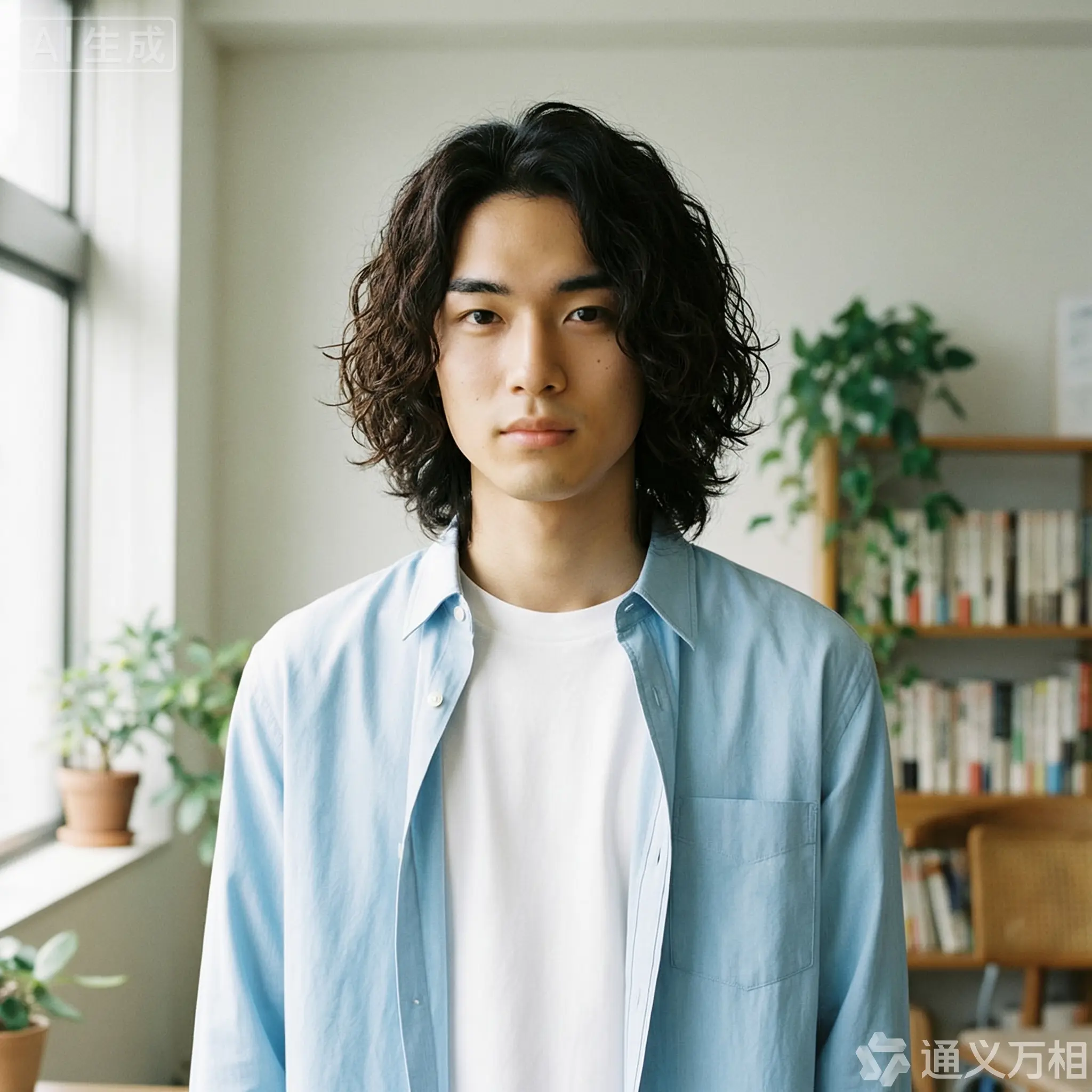
Haga clic para ver los prompts
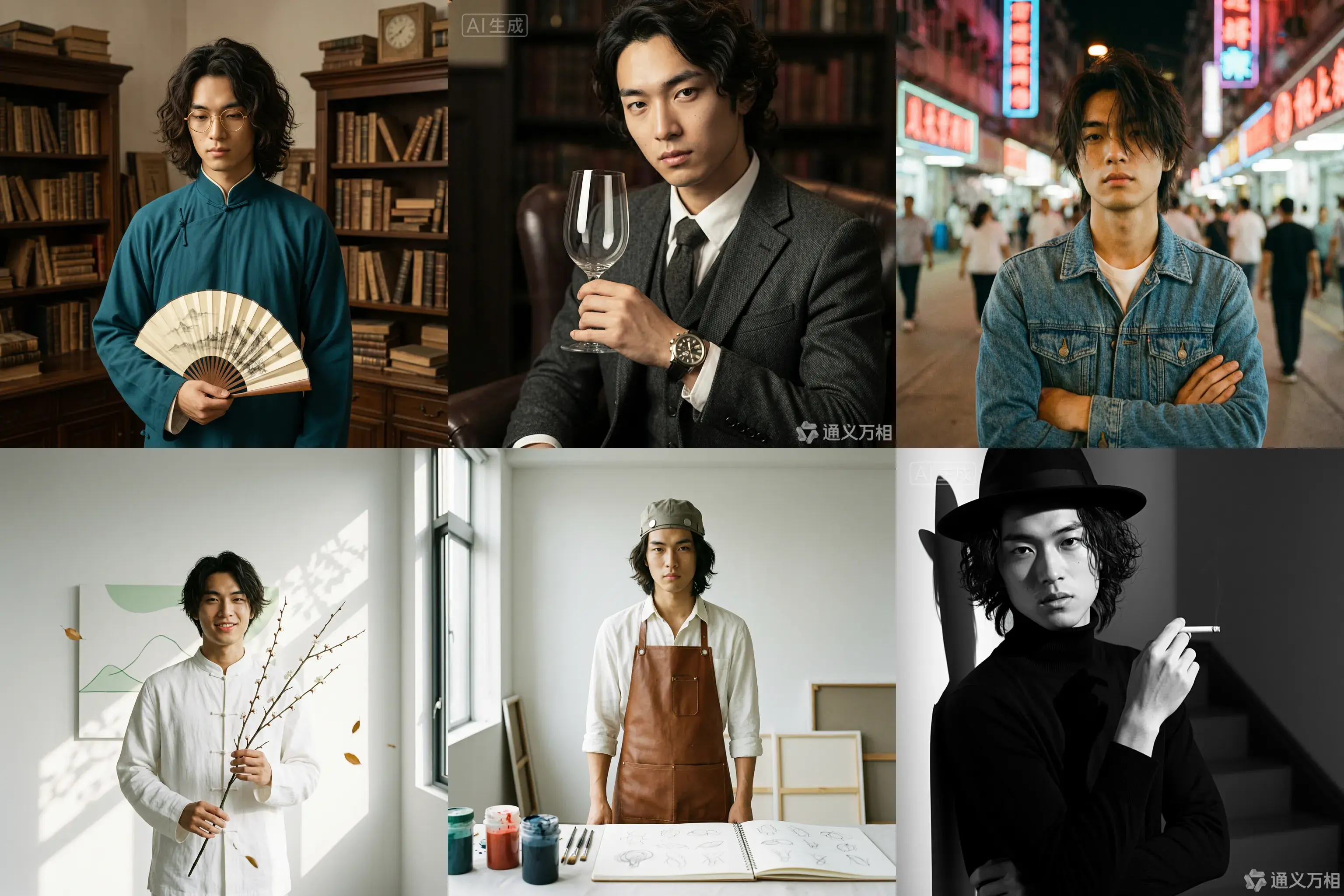
Caso 1: Sesión de fotos
Base character setting: A 20-year-old East Asian male with curly, medium-length hair, an artistic temperament, defined features, and delicate eyes. He is wearing a simple white T-shirt or a light blue shirt, exuding a youthful and natural vibe.
1. Republic Era Scholar Style
Prompt:
[Base facial description] The character's appearance is based on reference image 1, wearing a dark cyan long gown and round, gold-rimmed glasses, holding a folding fan. The background is an old Shanghai study with wooden bookshelves, a warm yellow tone, a retro film texture, soft side lighting, and dust dancing in the light beams, creating a cultural and serene atmosphere. Hasselblad medium format, 85mm lens, high resolution, cinematic color grading, Wong Kar-wai style.
Props: Folding fan / Thread-bound book / Round-frame glasses
Color tone: Warm yellow / Dark cyan / Sepia
2. British Gentleman Style
Prompt:
[Base facial description] The character's appearance is based on reference image 1, wearing a dark gray tweed three-piece suit and a vintage mechanical watch, holding a glass of red wine and looking at it. The background is a classic library or private club with dark leather sofas, Rembrandt lighting, and a dark, elegant, and noble atmosphere. He has a cool gaze, with rich details and clear textures, exuding a British aristocratic temperament. 8k resolution, fashion magazine-style shot.
Props: Wine glass / Pipe / Mechanical watch
Color tone: Dark gray / Burgundy / Dark gold
3. 90s HK Retro Style
Prompt:
[Base facial description] The character's appearance is based on reference image 1, wearing a washed denim jacket or a floral shirt, with slightly messy hair and arms crossed. The background is a street with neon signs at night, with blurry light spots, high grain, and rich colors, featuring a red and blue color clash. Wong Kar-wai style, emotional, with a dreamy gaze, direct flash effect, and a nostalgic atmosphere. [Full-body shot].
Color tone: Neon red / Dark blue / Film green
4. New Chinese Zen Style
Prompt:
[Base facial description] The character's appearance is based on reference image 1, with a slight smile showing teeth, wearing a modified white Chinese stand-up collar shirt, holding a branch of plum blossoms. The background is a minimalist blank wall or a bamboo forest, with sunlight casting mottled shadows on the wall. The color tone is cool and serene, embodying Eastern aesthetics. The skin is translucent, with high grain and a matte finish. The composition is simple, with rich layers of light and shadow. High-end photography, Zen atmosphere.
Props: Plum blossom branch
Color tone: White / Dark green / Light gray
5. Vintage Artist Style
Prompt:
[Base facial description] The character's appearance is based on reference image 1, wearing a white shirt stained with paint and a brown leather apron, holding a paintbrush or a palette. The background is a clean studio with bright light and colorful light and shadow. He has a focused expression, looking at the paint in his hand, not at the camera. His hair is slightly messy, with an artistic flair, an impressionist color tone, and a strong texture.
Props: Paintbrush / Palette / Sketchbook
Color tone: Warm light / Colorful paint / Brown
6. Classic Noir B&W Style
Prompt:
[Base facial description] The character's appearance is based on reference image 1, wearing a black turtleneck sweater, holding a cigarette, and wearing a black fedora. The background is a staircase or hallway with intersecting shadows. High-contrast black and white photography, hard lighting, strong shadows, a sense of mystery, and a hard-boiled detective style. The facial contours are sharp, with extremely clear skin texture. A classic movie still, timeless feel, side-profile close-up, artistic photography.
Props: Cane / Fedora / Sunglasses
Color tone: Black and white / High contrast
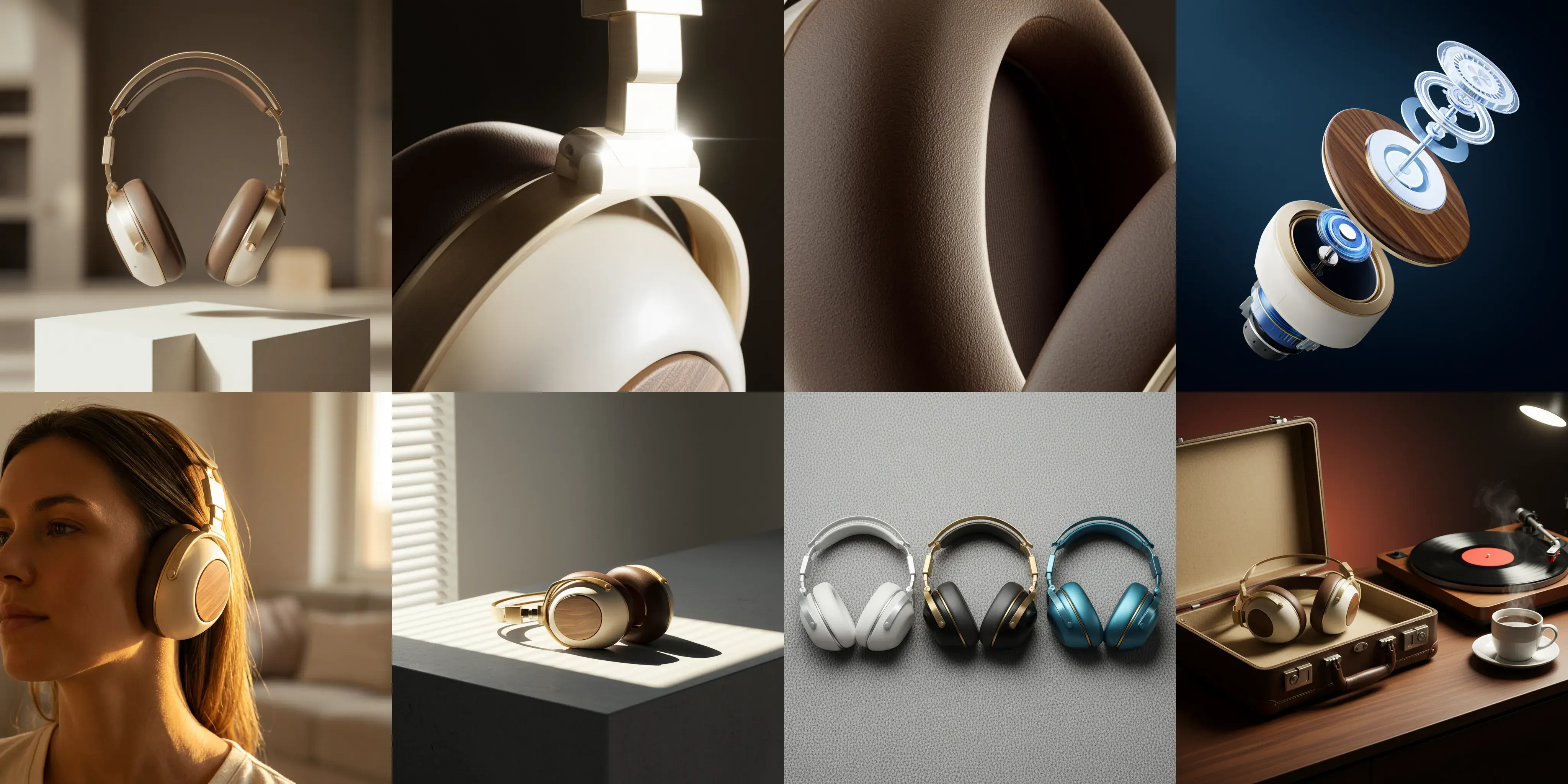
Caso 2: Diseño visual
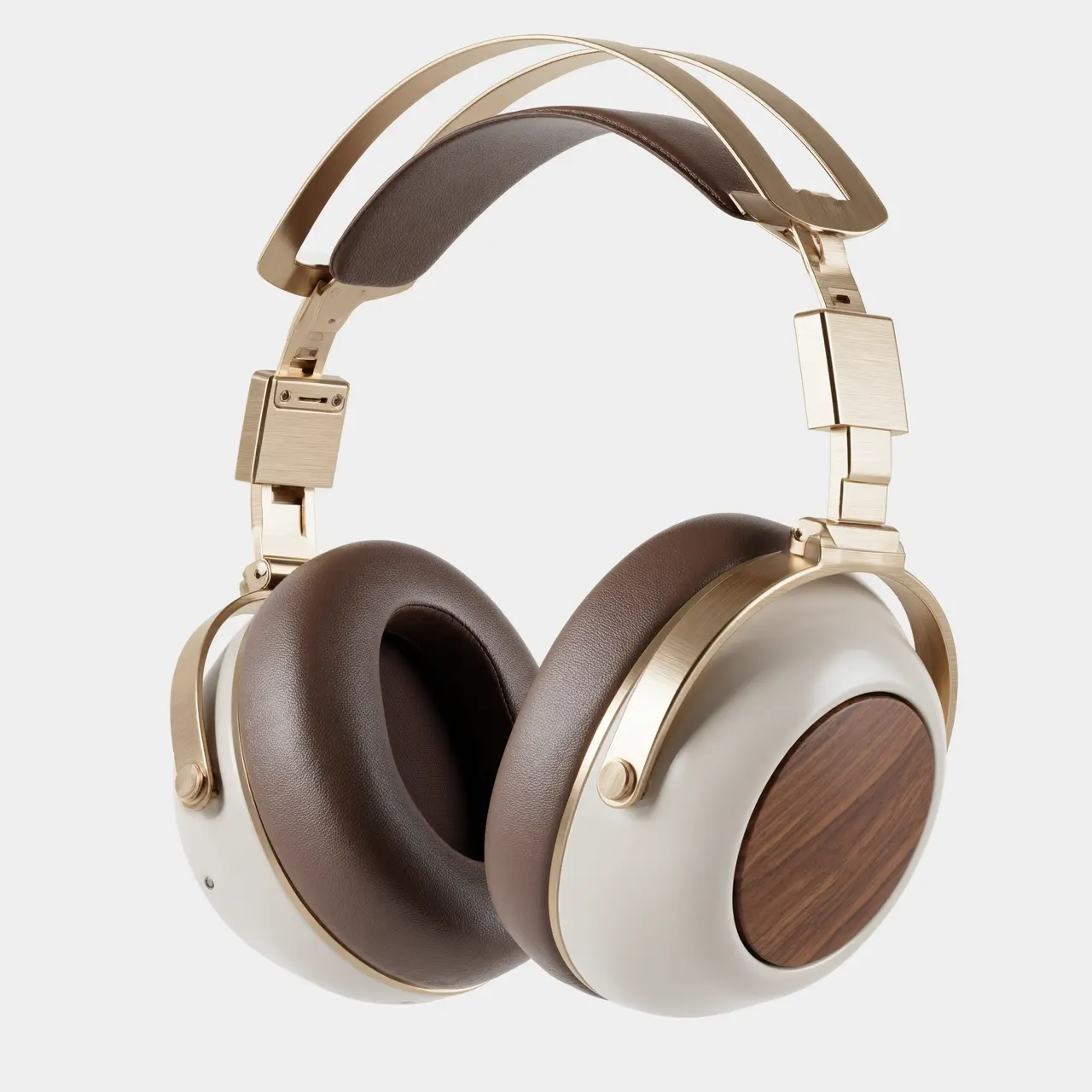
Image 1: A commercial-grade product photography main visual cover image, front-view panoramic composition. A pair of retro-futuristic wireless over-ear headphones floats above a geometric plaster form, showcasing perfect symmetrical aesthetics. The materials are champagne gold metal and a cream-white shell. The background is a deeply blurred warm indoor light and shadow, with soft light outlining the product's silhouette. The white space in the image creates a strong sense of breathability, suggesting a quiet auditory experience. 8k ultra-high resolution, minimalist and premium feel.
Image 2: A 100mm macro shot of the product's material details, focusing closely on the connection of the headphone's telescopic arm. It clearly shows the texture of the champagne gold brushed aluminum alloy and the CNC precision-cut chamfers. A sharp backlight creates a starburst highlight on the metal edge. The background is dark to emphasize the industrial precision of the metal. The image quality is extremely sharp with no noise.
Image 3: An extreme close-up macro shot of the material, focusing on the surface of the mocha-colored protein leather earcups. Side lighting reveals the fine pore texture of the leather, the soft wrinkles from pressing, and the ventilation hole details, conveying ultimate skin-friendly comfort and resilience. The light and shadow are rich in layers, and the color tone is warm and moist. Ultra-high-definition macro photography.
Image 4: An artistic exploded view of the product, showing the internal sound units, noise-canceling chips, battery modules, and external walnut wood decorative panels and metal frame of the retro-futuristic headphones in a suspended, disassembled state. The background is a deep tech blue, and the internal components have a semi-transparent holographic technological texture, emphasizing the combination of internal precision craftsmanship and modern technology. High-tech commercial poster style.
Image 5: A 35mm humanistic shot of the wearing scenario, with a close-up on the model's jawline and neck, showing the perfect fit of the champagne gold headphones. Natural warm sunset light from the side-rear creates a rim light, with the edges of the hair glowing gold. The model's skin tone has a healthy and natural texture, creating a relaxed, immersive music-listening lifestyle feel. The background is a blurry home environment.
Image 6: A still life photograph paying homage to architectural light and shadow. The headphones are placed on a minimalist gray concrete table. Afternoon sunlight streams through blinds, casting striped hard shadows that cut across the matte cream-white body and champagne gold frame, creating a strong geometric composition of light and dark. This highlights the three-dimensional shape of the body and the contrast of materials. A clash of cool and warm color tones, minimalist composition.
Image 7: A top-down flat-lay composition showing the color options. Three headphones from the series in different color schemes—silver-white, black-gold, and blue-copper—are arranged side by side. The background is a highly textured gray wool felt cloth. Soft top lighting emphasizes the diversity of the CMF design and the delicate touch of the materials. The image is clean and orderly, in a design magazine style.
Image 8: A brand lifestyle family portrait still life photograph. The retro-futuristic headphones are placed next to their matching exquisite leather case. On the table are a vinyl record player, a spinning vinyl record, and a cup of steaming coffee. The background is rendered with warm ambient lighting, dominated by a deep walnut wood tone, conveying a brand philosophy that combines a slow-paced lifestyle with high-fidelity sound quality. Cinematic narrative lighting.
Edición interactiva
Imagen de entrada | Imagen de salida |
|---|---|
|
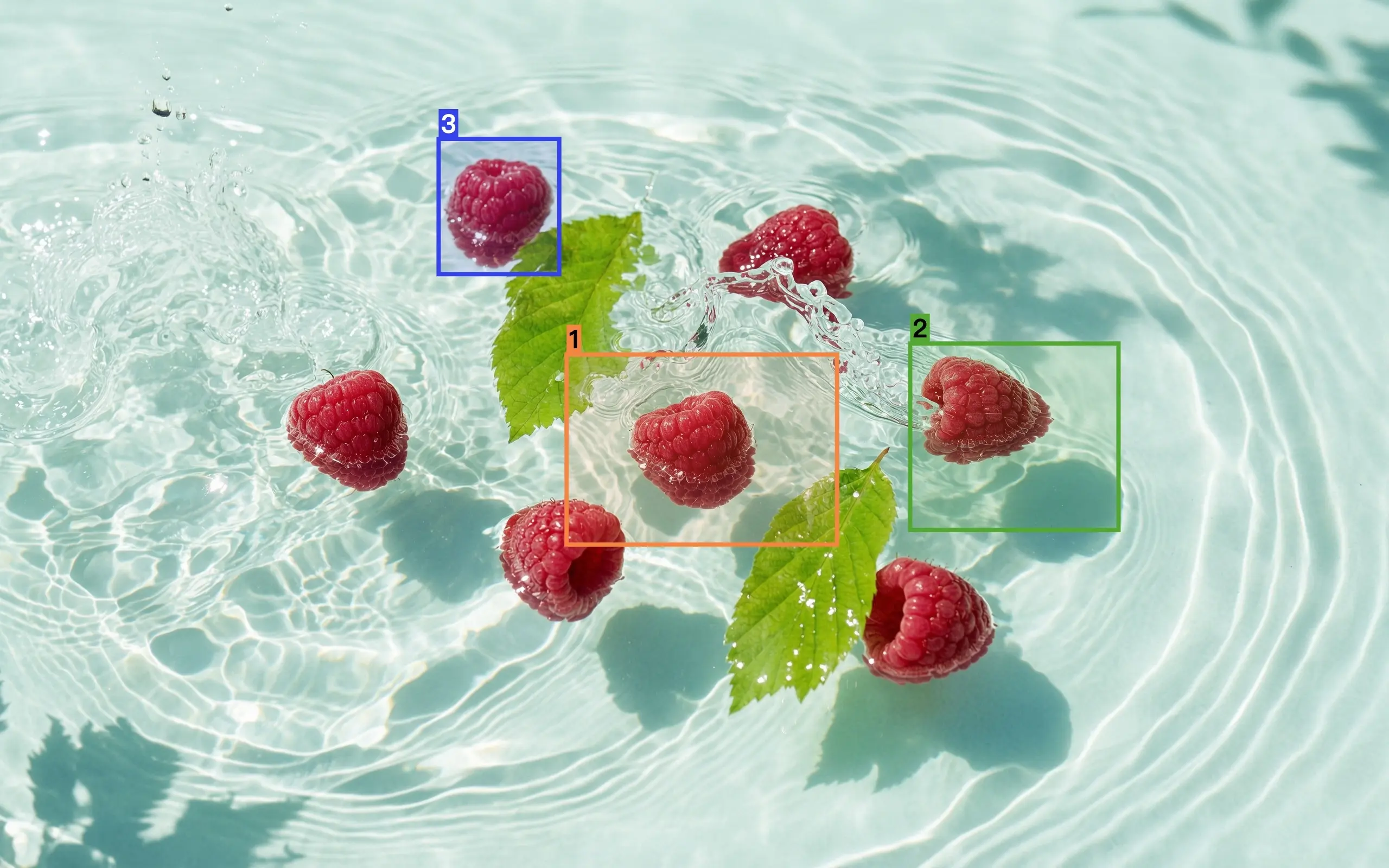
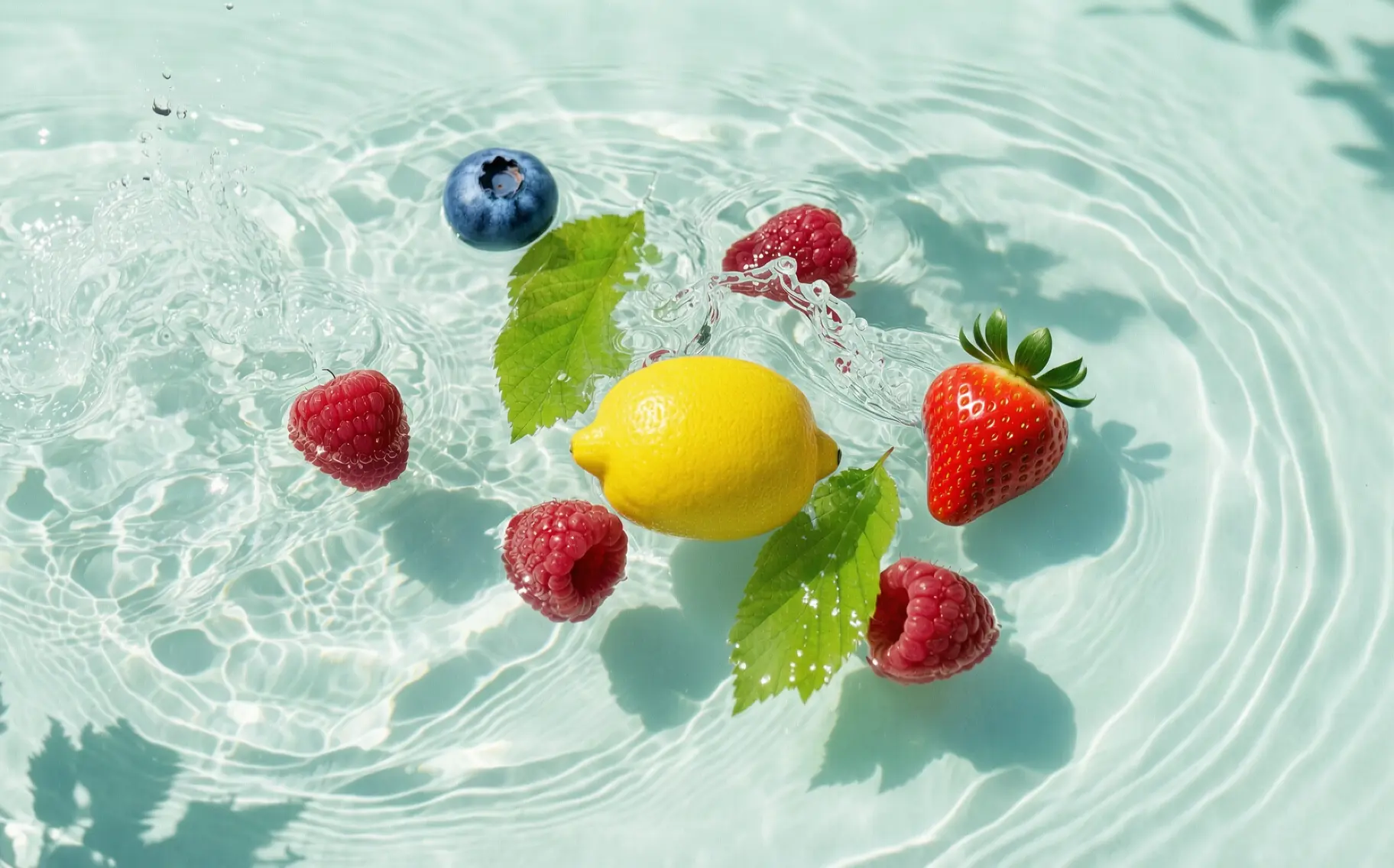
Edite basándose en la imagen 1. Reemplace la frambuesa seleccionada en el cuadro 1 con un limón, la frambuesa en el cuadro 2 con una fresa y la frambuesa en el cuadro 3 con un arándano. El resultado debe integrarse armoniosamente con la imagen original, sin los cuadros y números de referencia, y mantener el resto del contenido sin cambios. |
|
Coloque el patrón seleccionado de la imagen 1 en el área seleccionada de la imagen 2. |


Fusión de múltiples imágenes
Imagen de entrada | Imagen de salida |
|---|---|
|
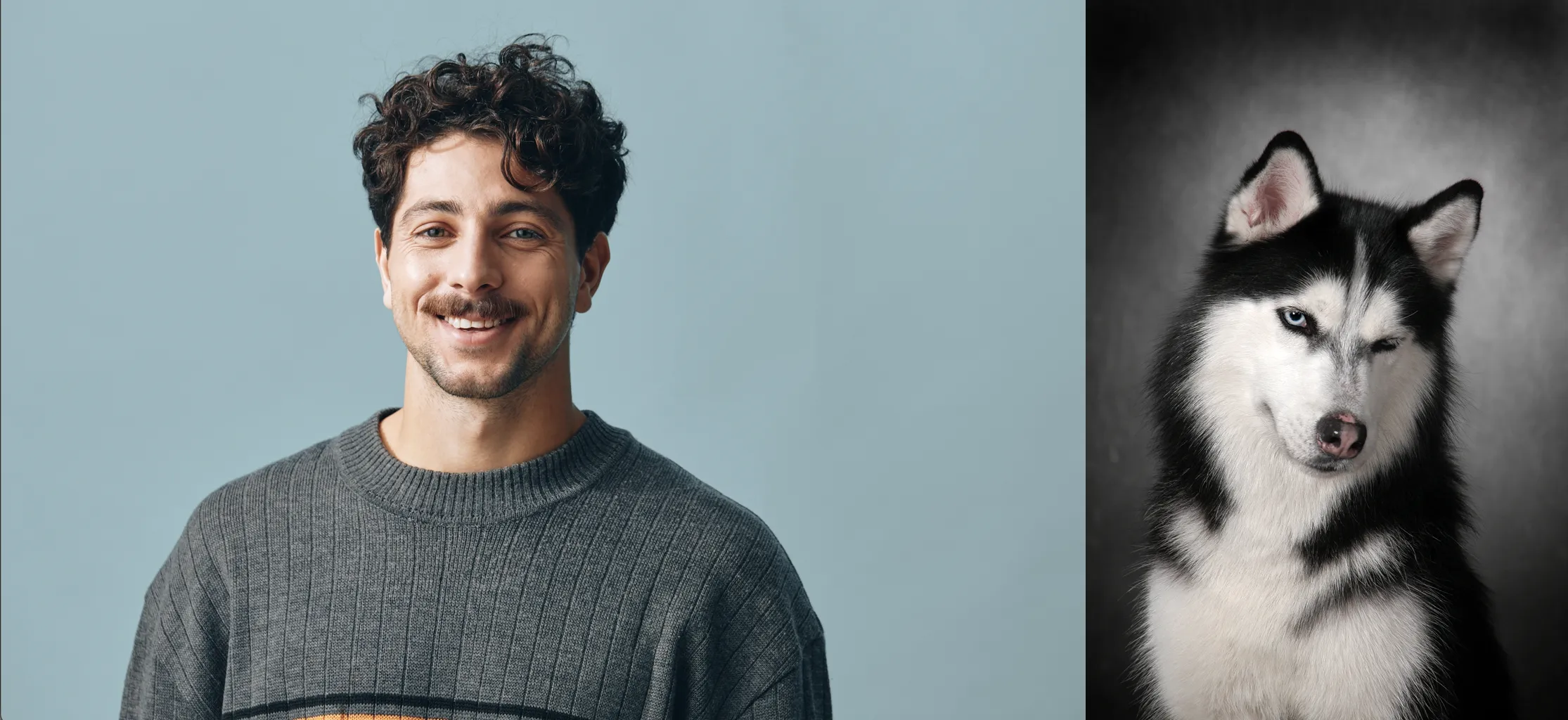
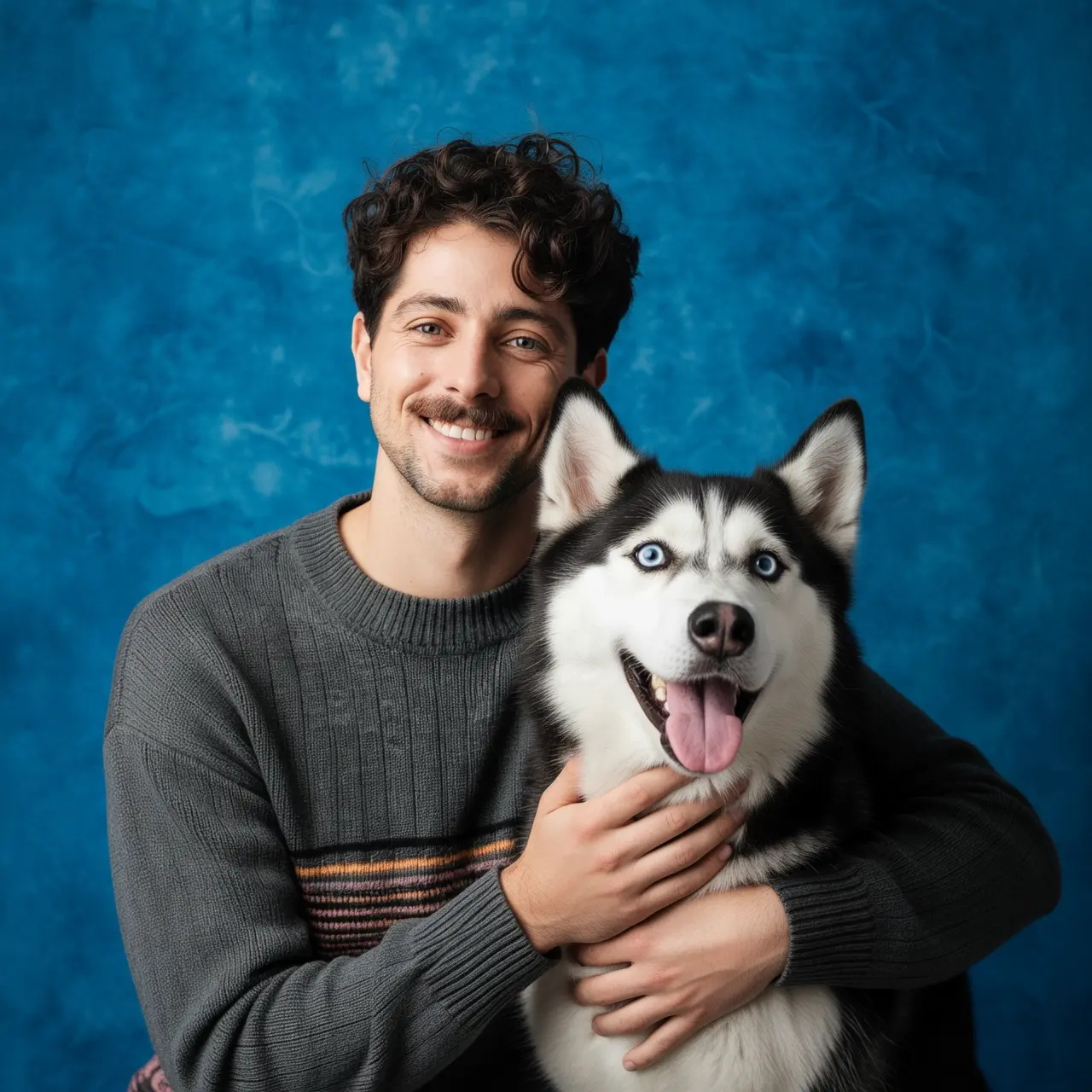
Tome un retrato del niño de la imagen 1 y del perro de la imagen 2. El niño está abrazando al perro y ambos están muy felices. Iluminación suave de estudio, fondo azul texturizado. |
|
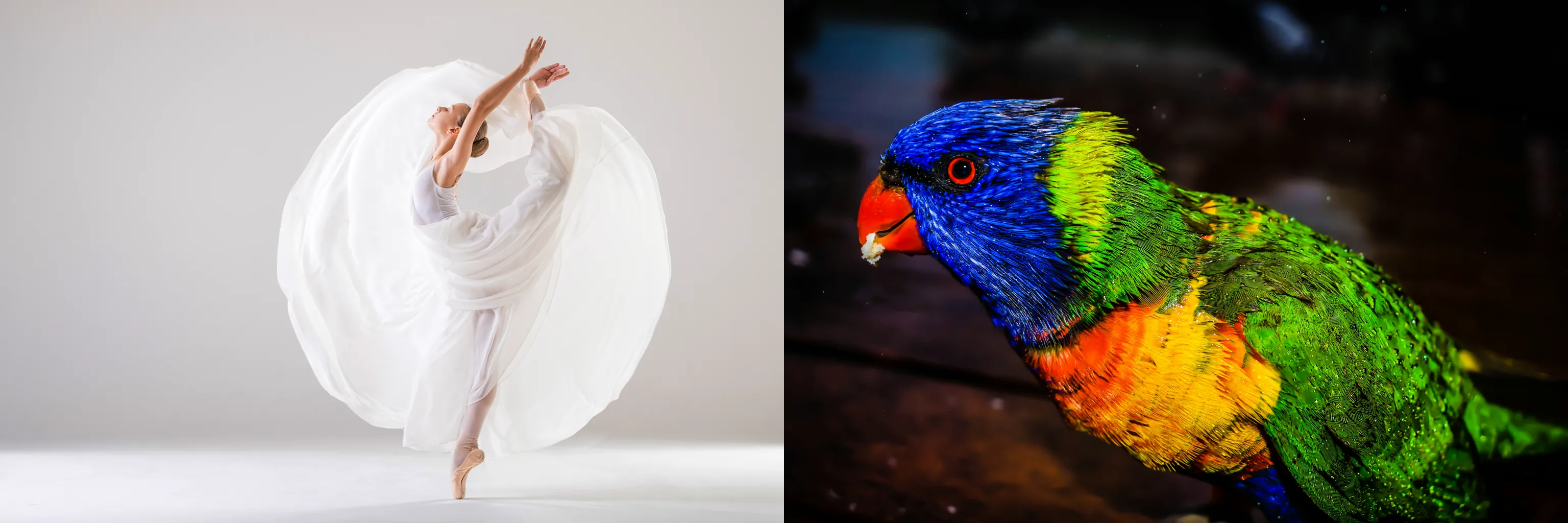
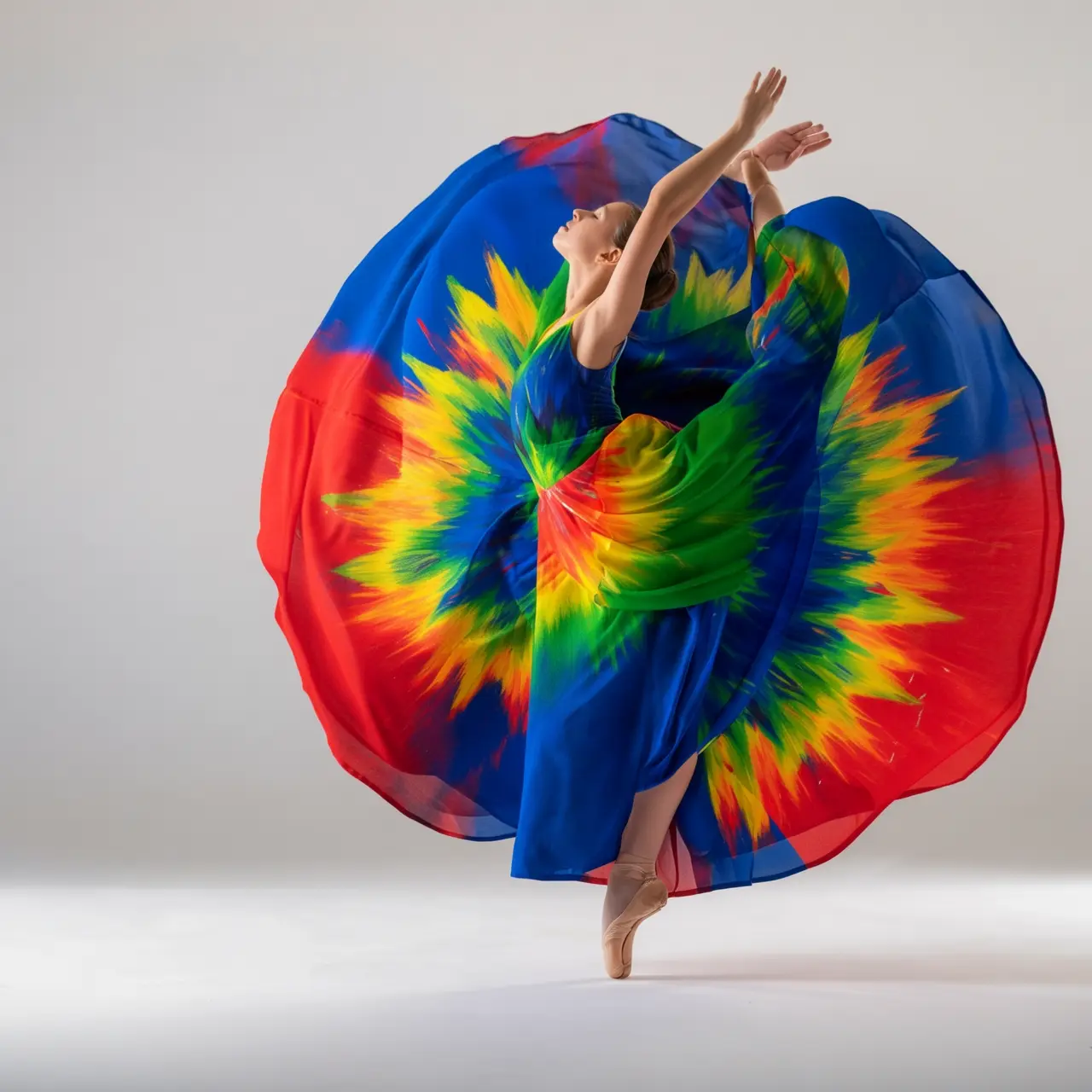
Vuelva a colorear el vestido de la imagen 1 usando los colores del pájaro en la imagen 2. Hágalo artístico, pero mantenga el estilo del vestido y de la modelo sin cambios. |
Preservación de características del sujeto
Imagen de entrada | Imagen de salida |
|---|---|
|
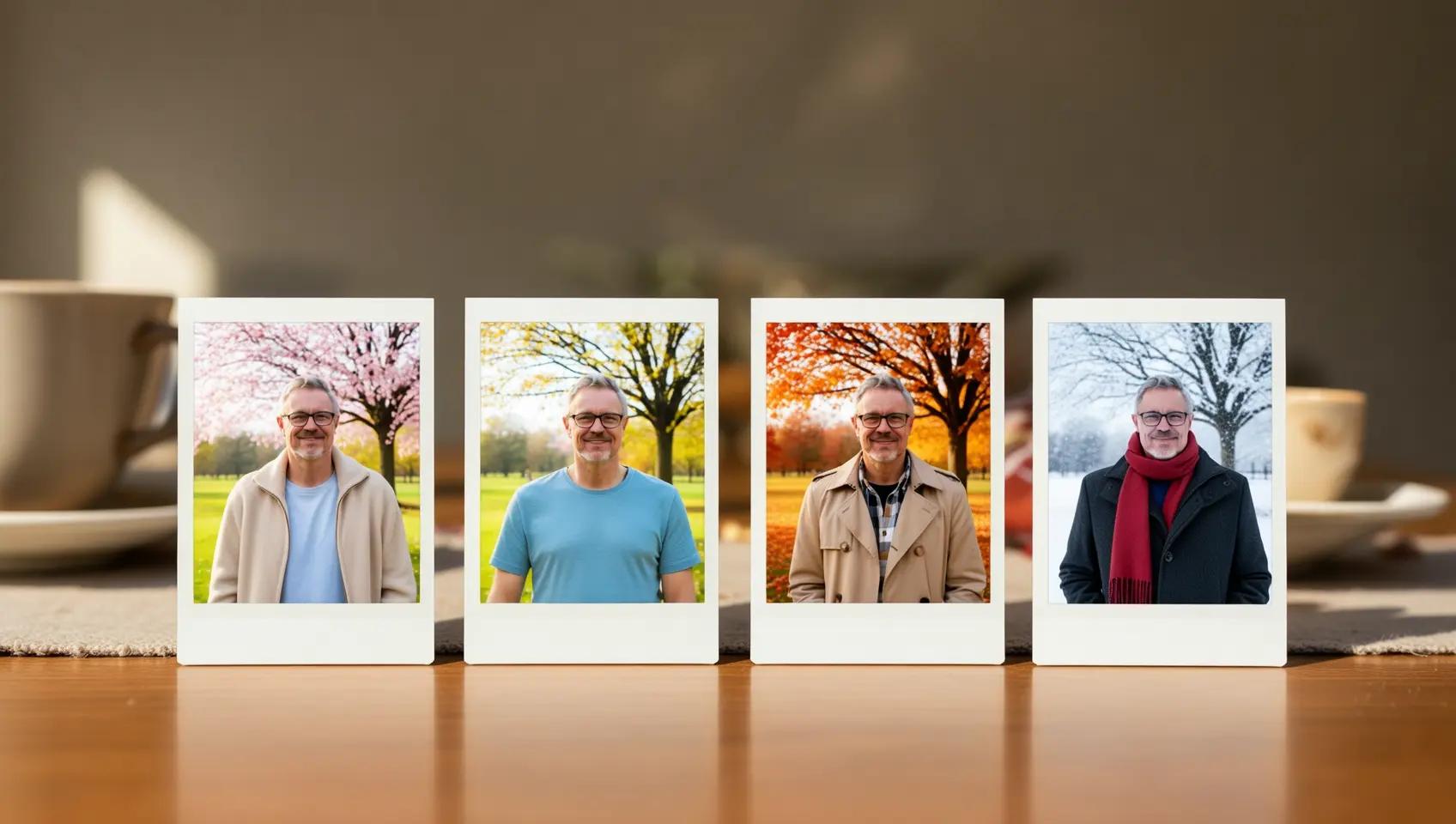
Por favor, genere un conjunto de cuatro fotos Polaroid con el tema "Cambios estacionales". Cada foto está tomada en el mismo lugar, bajo un árbol en un parque, pero muestra las escenas de primavera, verano, otoño e invierno respectivamente. La vestimenta de la persona también debe coincidir con la estación: una chaqueta ligera en primavera, una camisa de manga corta en verano, una gabardina en otoño, y una bufanda y abrigo grueso en invierno. Coloque este conjunto de fotos sobre una mesa de comedor. |

Detección y segmentación
Imagen de entrada | Imagen de salida |
|---|---|
|
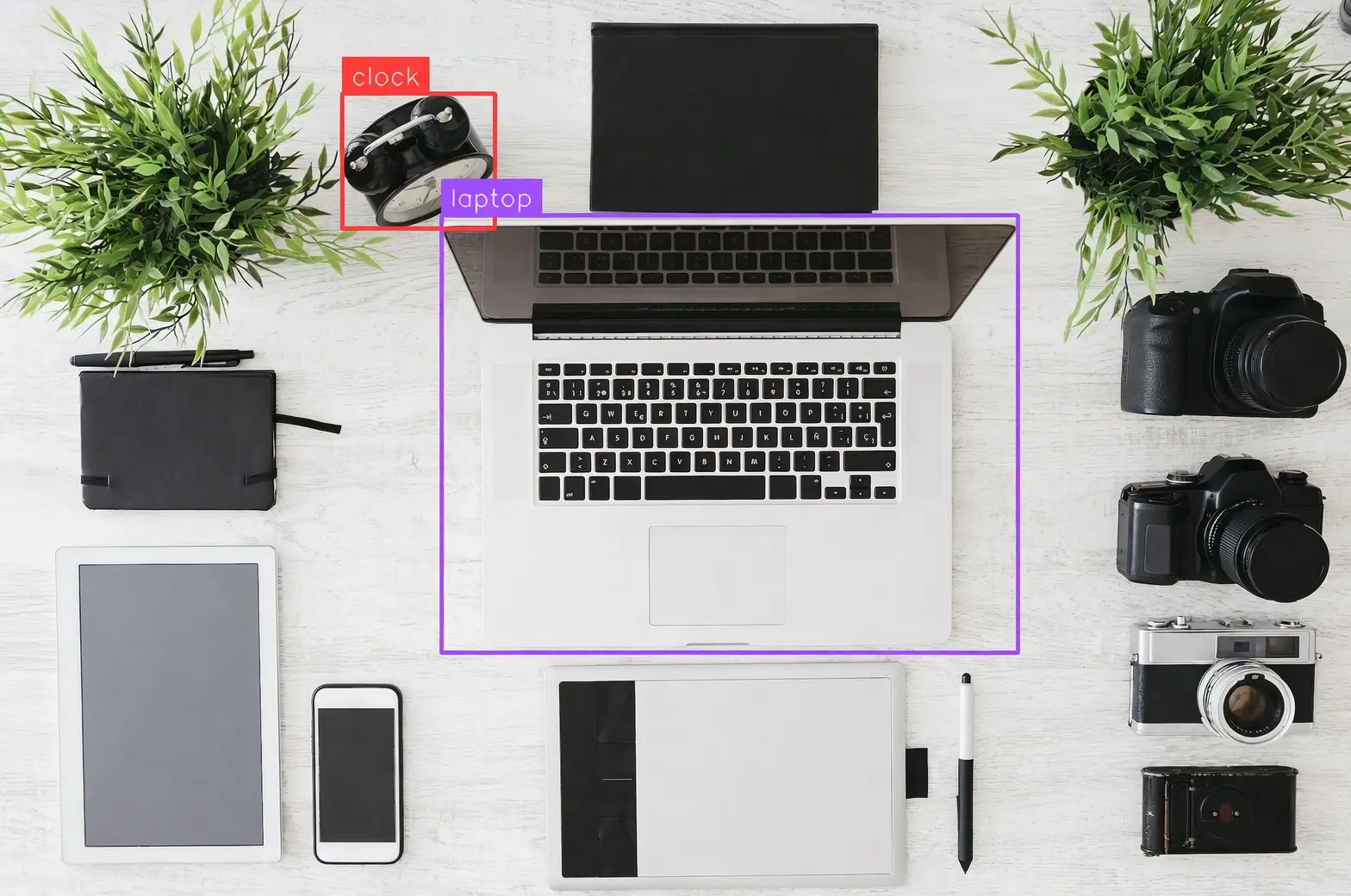
Detecte la computadora portátil y el despertador en la imagen, dibuje cuadros delimitadores y etiquételos como "laptop" y "clock". |
|
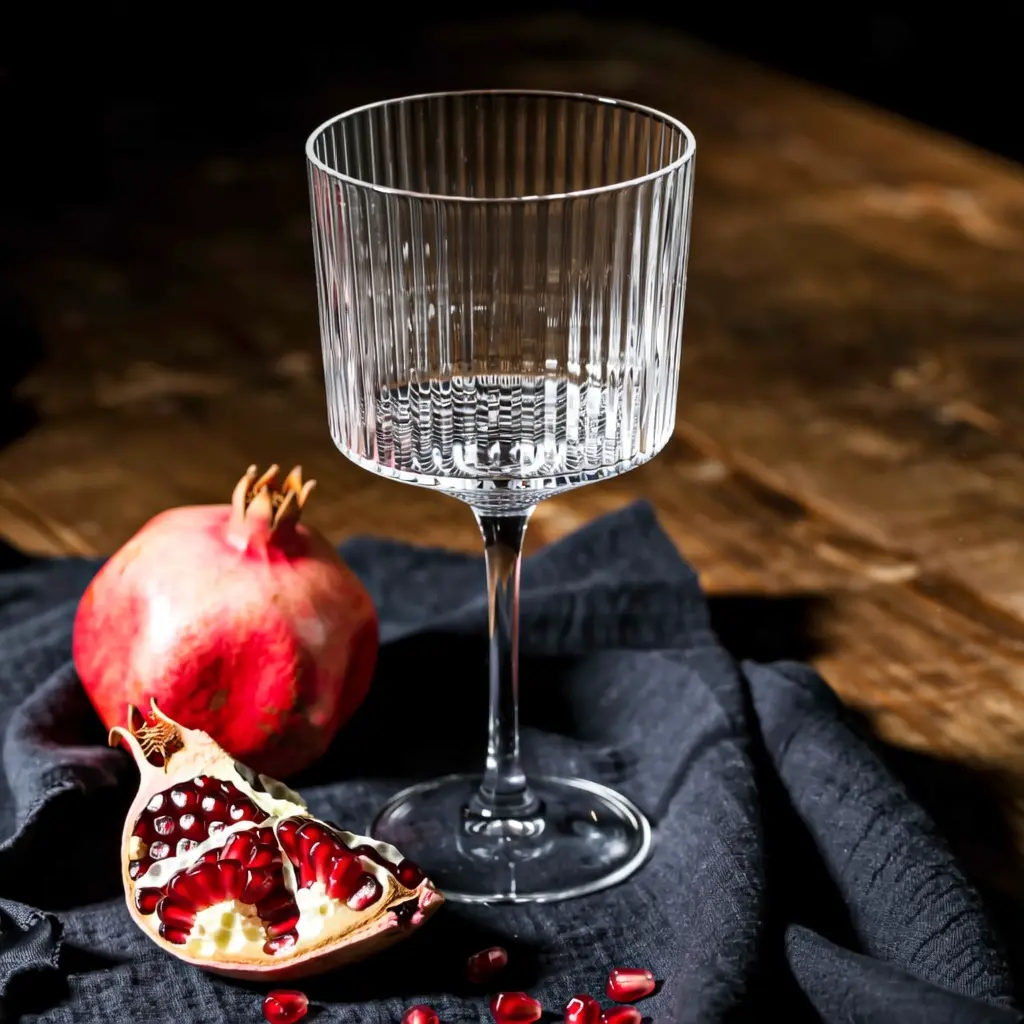
Segmentar la copa de vidrio en la imagen. |

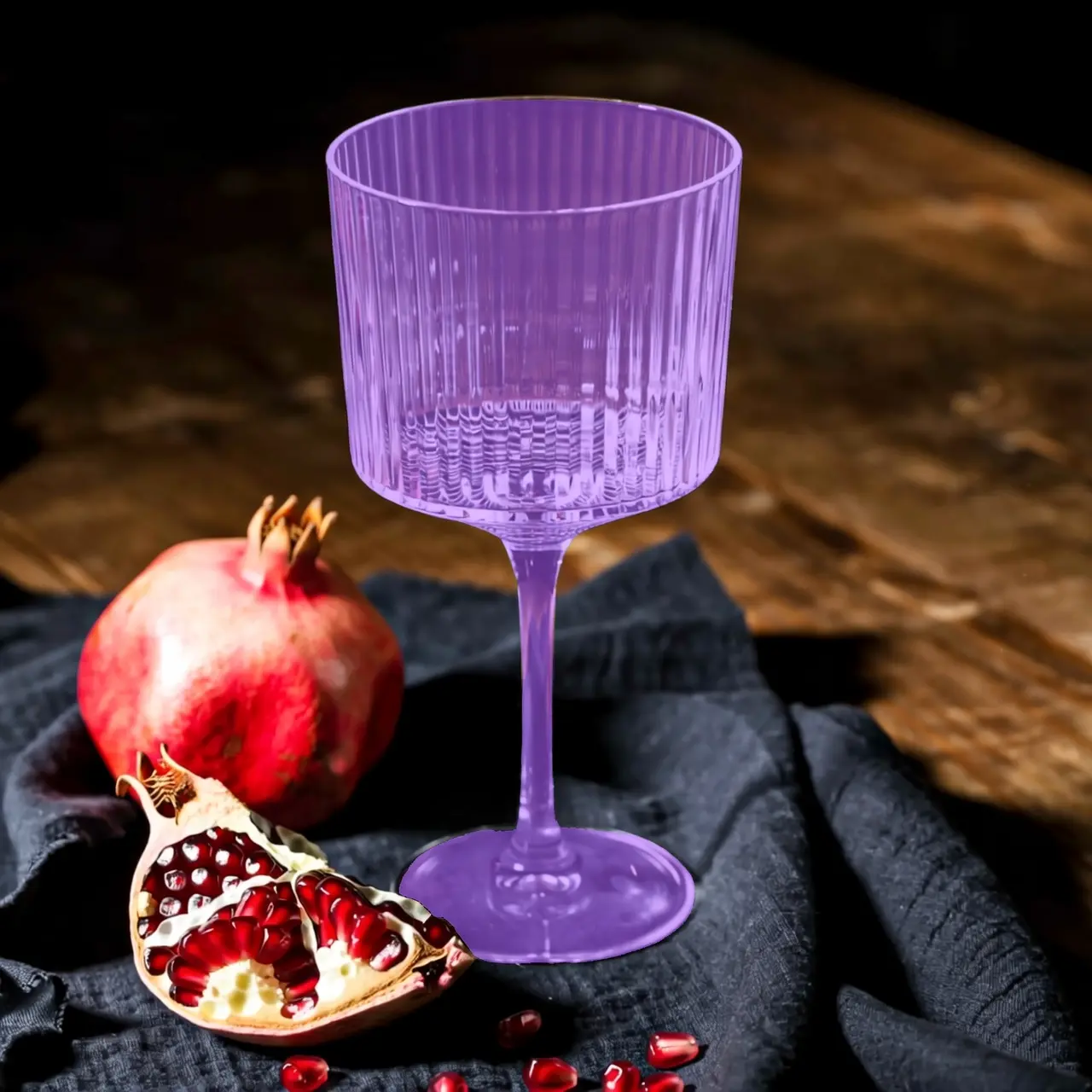
Extraer elementos
Imagen de entrada | Imagen de salida |
|---|---|
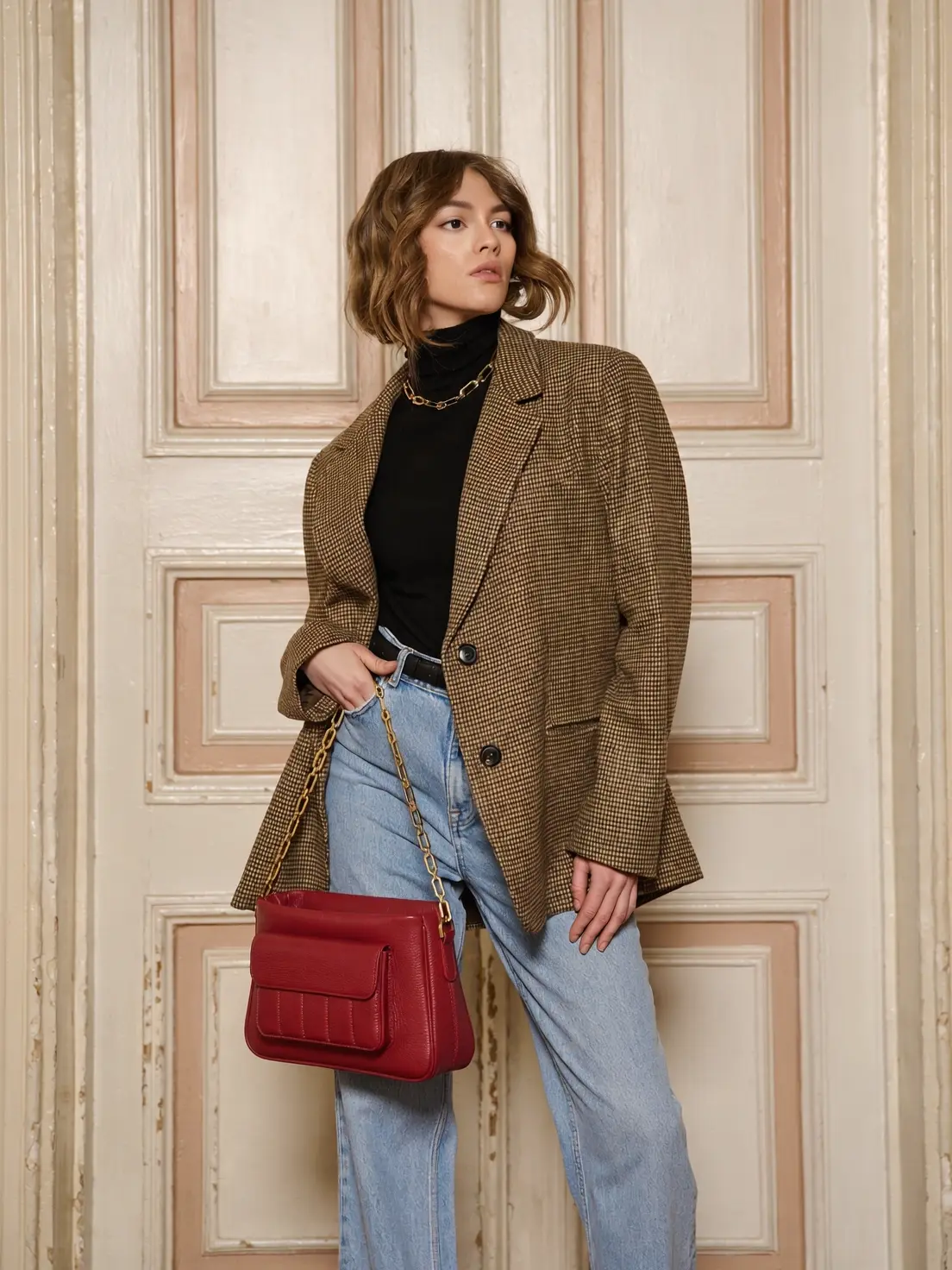
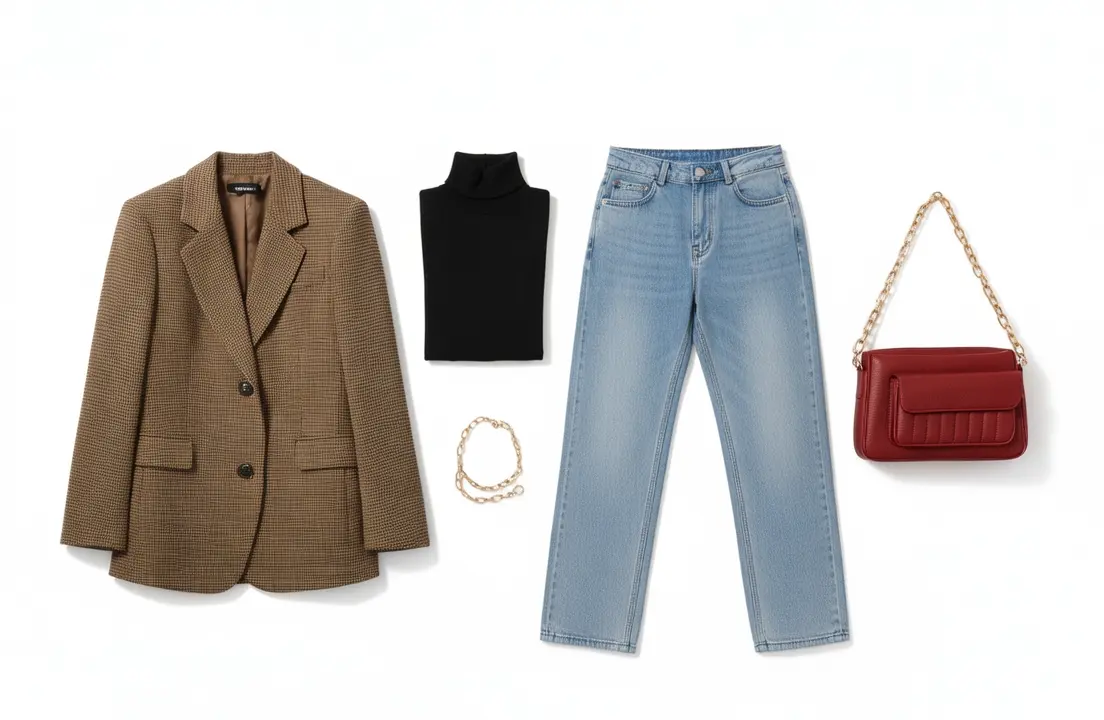
|
Extraiga las prendas de vestir de la foto cargada y organícelas en una exhibición plana sobre un fondo blanco puro. Mantenga detalles realistas y texturas de materiales. Estilo de comercio electrónico de moda, adecuado para exhibición de ropa. |
Edición de texto
Imagen de entrada | Imagen de salida |
|---|---|
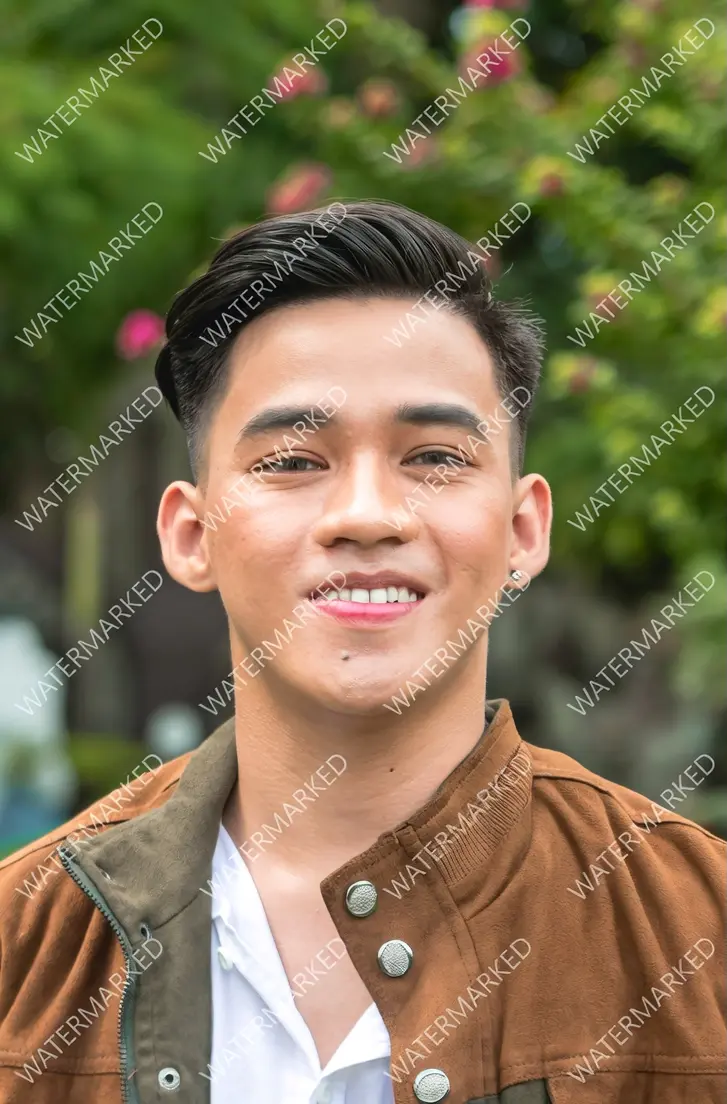
|
Eliminar todas las marcas de agua de la imagen. |
|
Escriba casualmente "¿Hora de vacaciones?" en la arena con una mano. |
|
Cambiar 18 a 29 y JUNE a SEPTEMBER. |

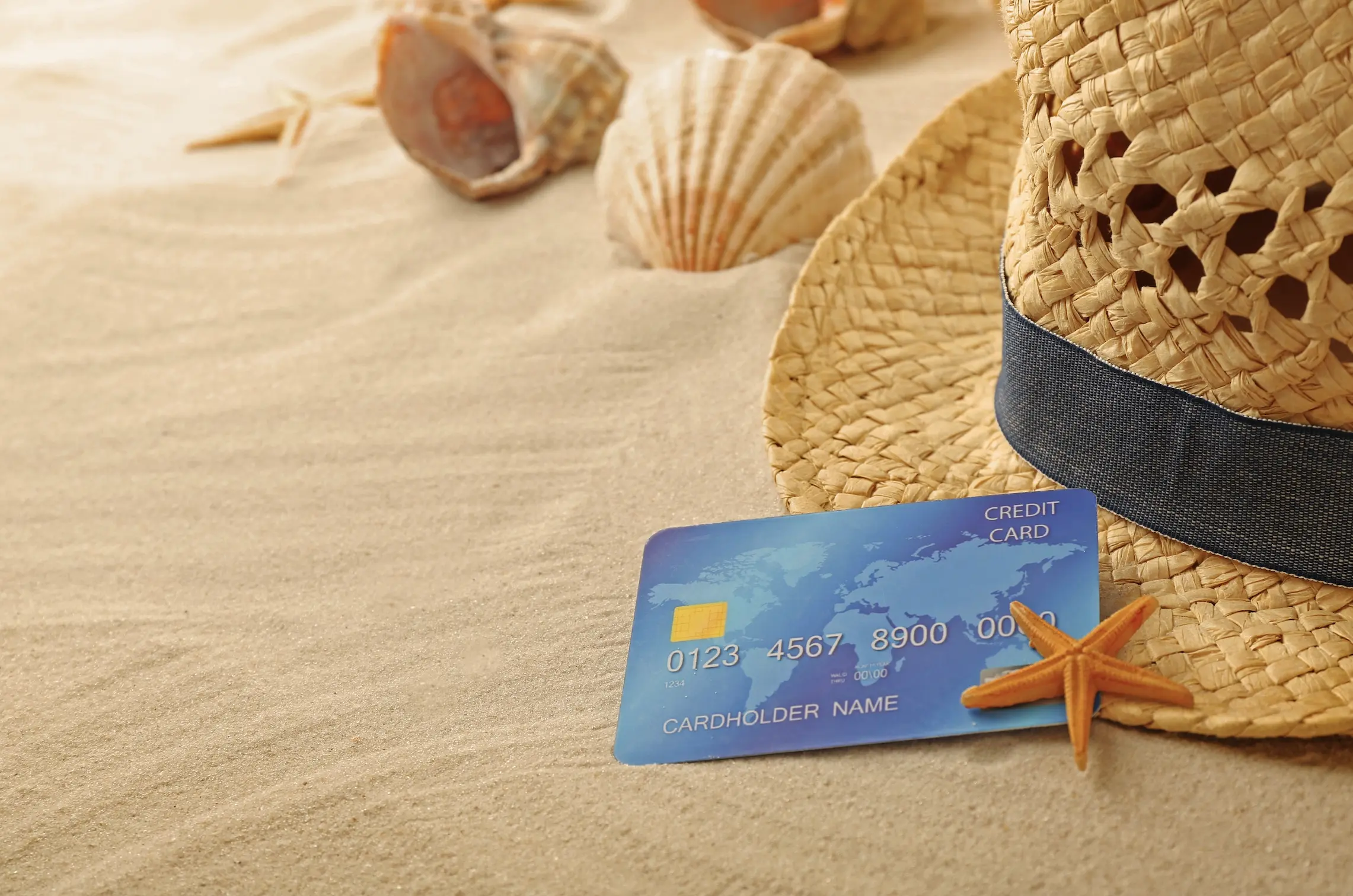
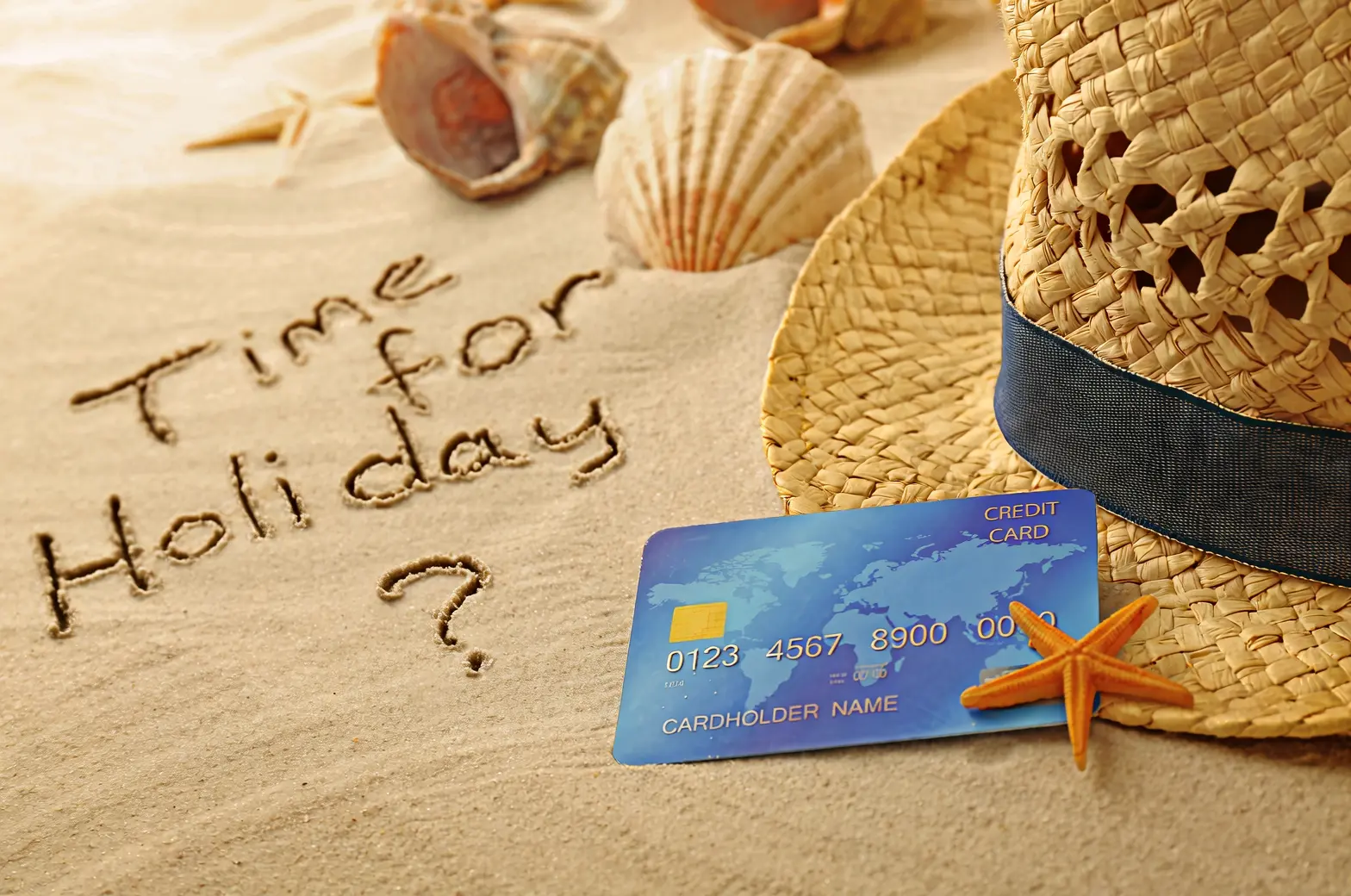


Edición de cámara y perspectiva
Imagen de entrada | Imagen de salida |
|---|---|
|
Mantenga las características de la persona sin cambios y genere vistas frontal, lateral y trasera. |
|
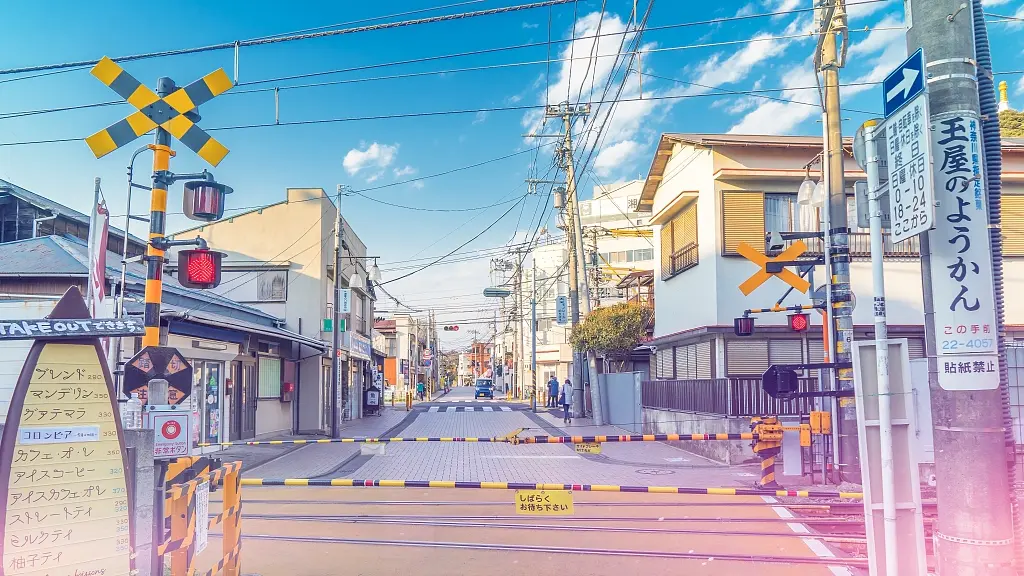
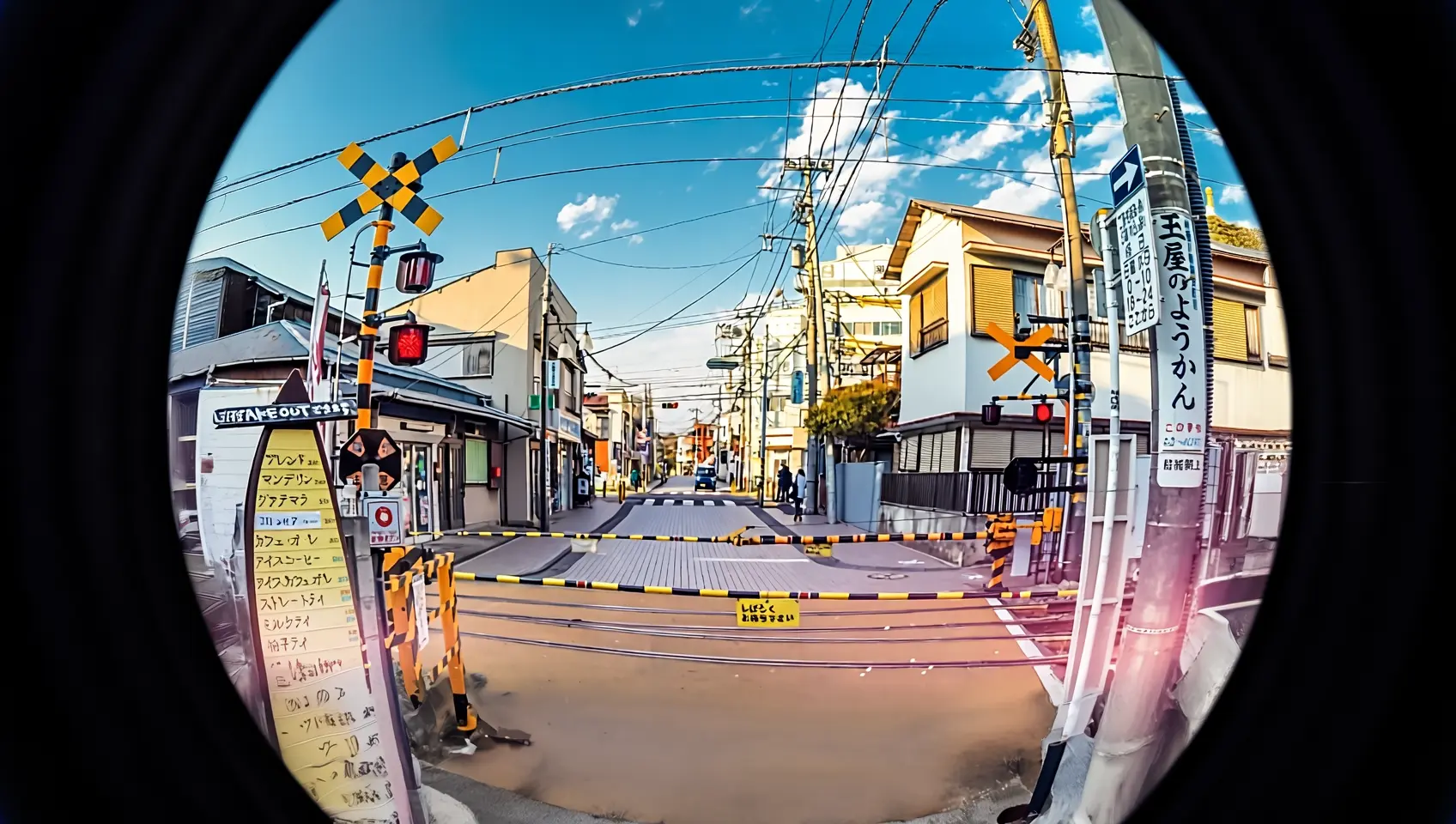
Volver a tomar esta foto con un lente ojo de pez. |
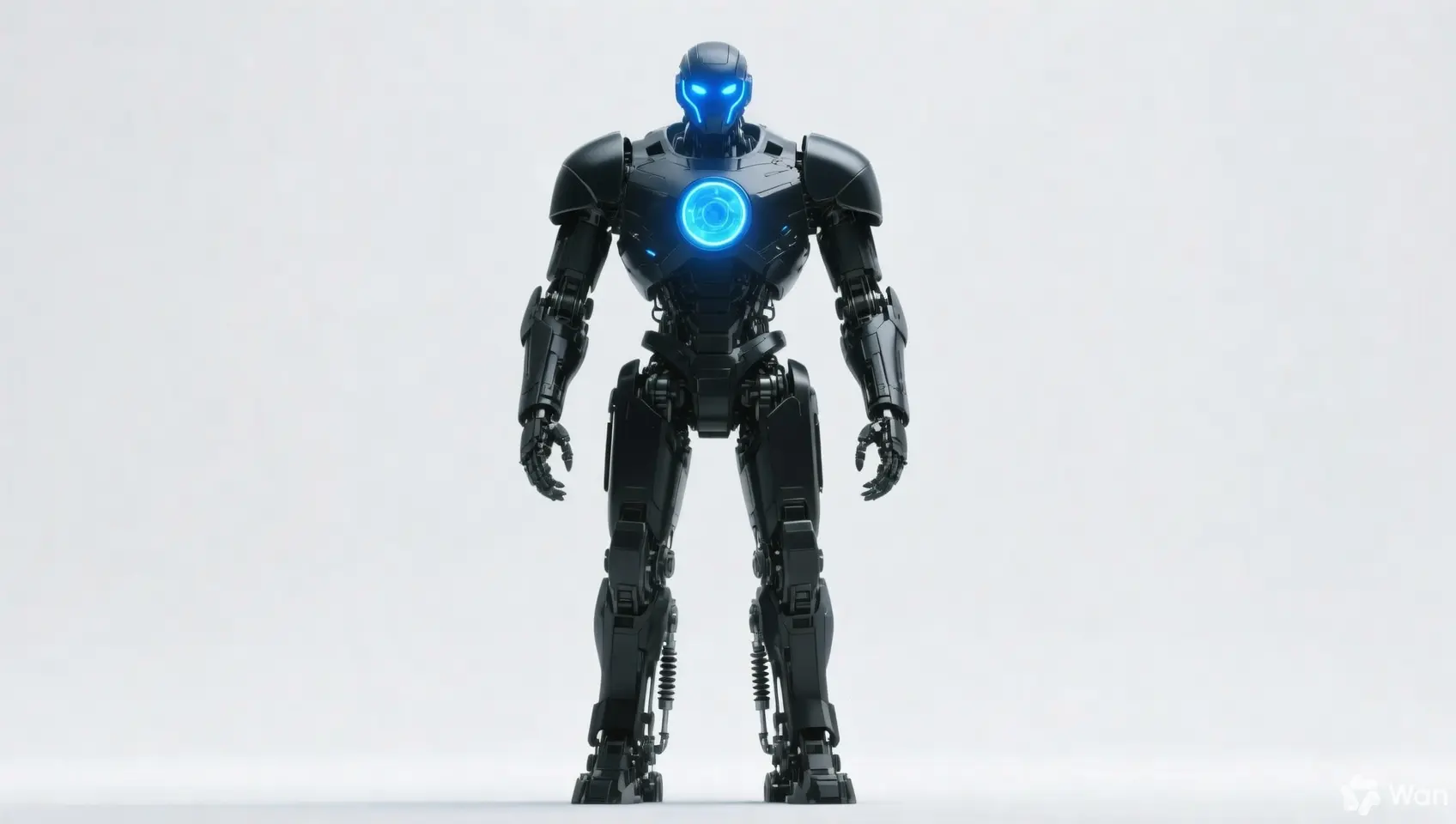
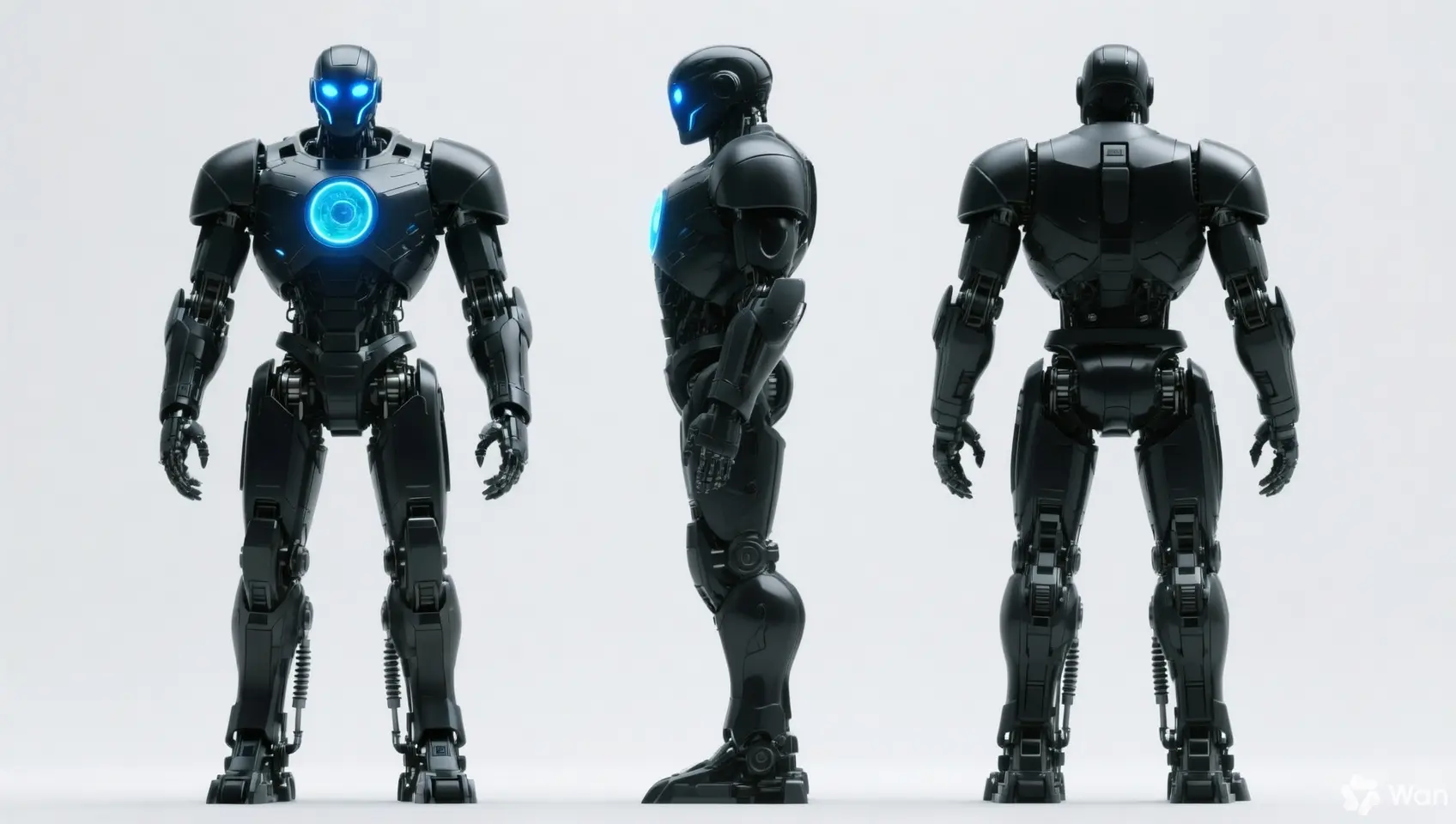
Especificaciones de entrada
Especificaciones de imagen de entrada
Especificación | wan2.7-image-pro, wan2.7-image | wan2.6-image | wan2.5-i2i-preview |
|---|---|---|---|
Número de imágenes de entrada | 0 a 9 (0 corresponde al modo de texto a imagen) | Edición de imagen: 1 a 4 / Texto e imagen mixtos: 0 a 1 | 1 a 3 |
Formato de imagen | JPEG, JPG, PNG (canal alfa no compatible), BMP, WEBP | JPEG, JPG, PNG (canal alfa no compatible), BMP, WEBP | JPEG, JPG, PNG (canal alfa no compatible), BMP, WEBP |
Rango de ancho y alto de imagen | [240, 8000] píxeles | [240, 8000] píxeles | [384, 5000] píxeles |
Tamaño de archivo | ≤ 20 MB | ≤ 10 MB | ≤ 10 MB |
Relación de aspecto | [1:8, 8:1] | Ilimitado | [1:4, 4:1] |
Orden de entrada de imágenes
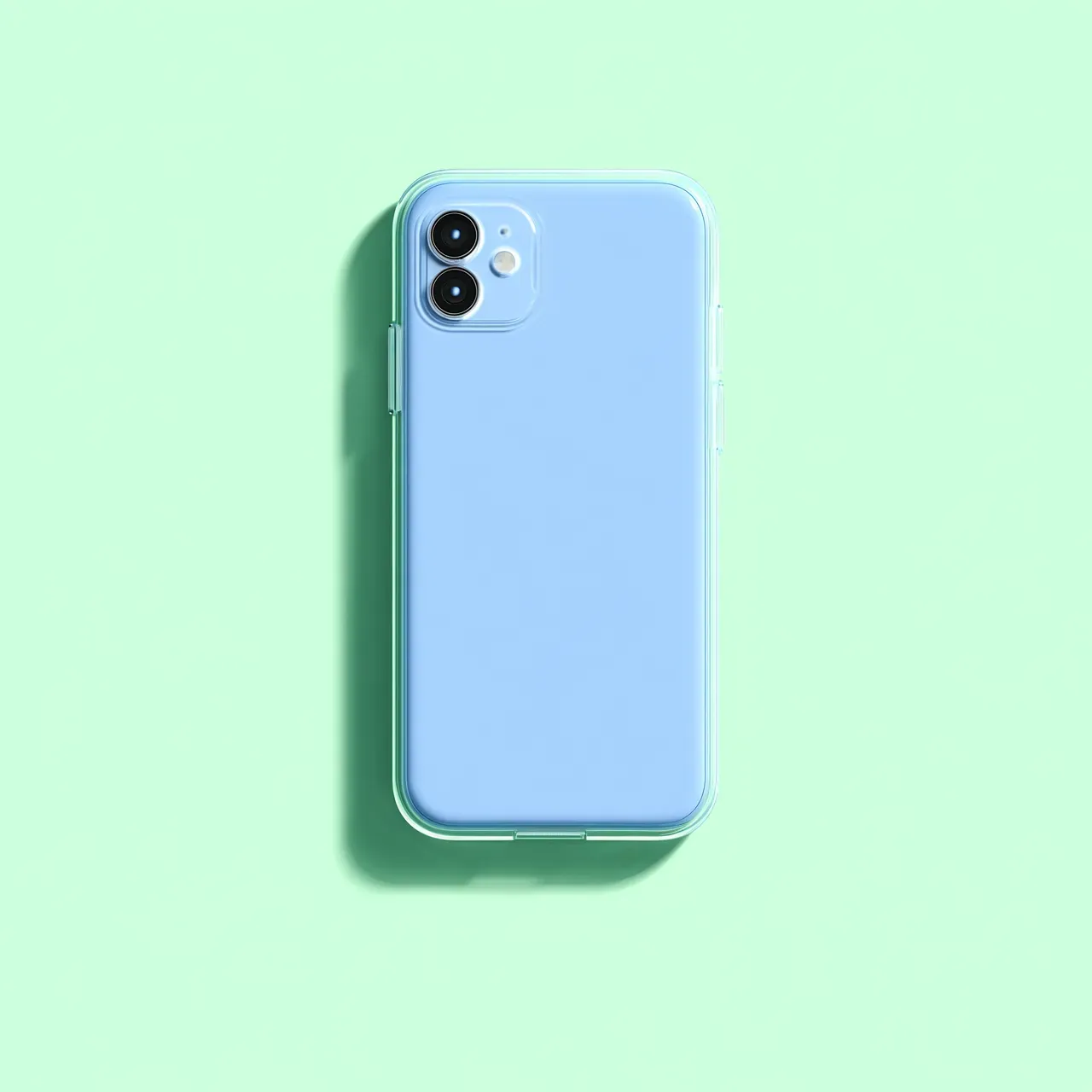
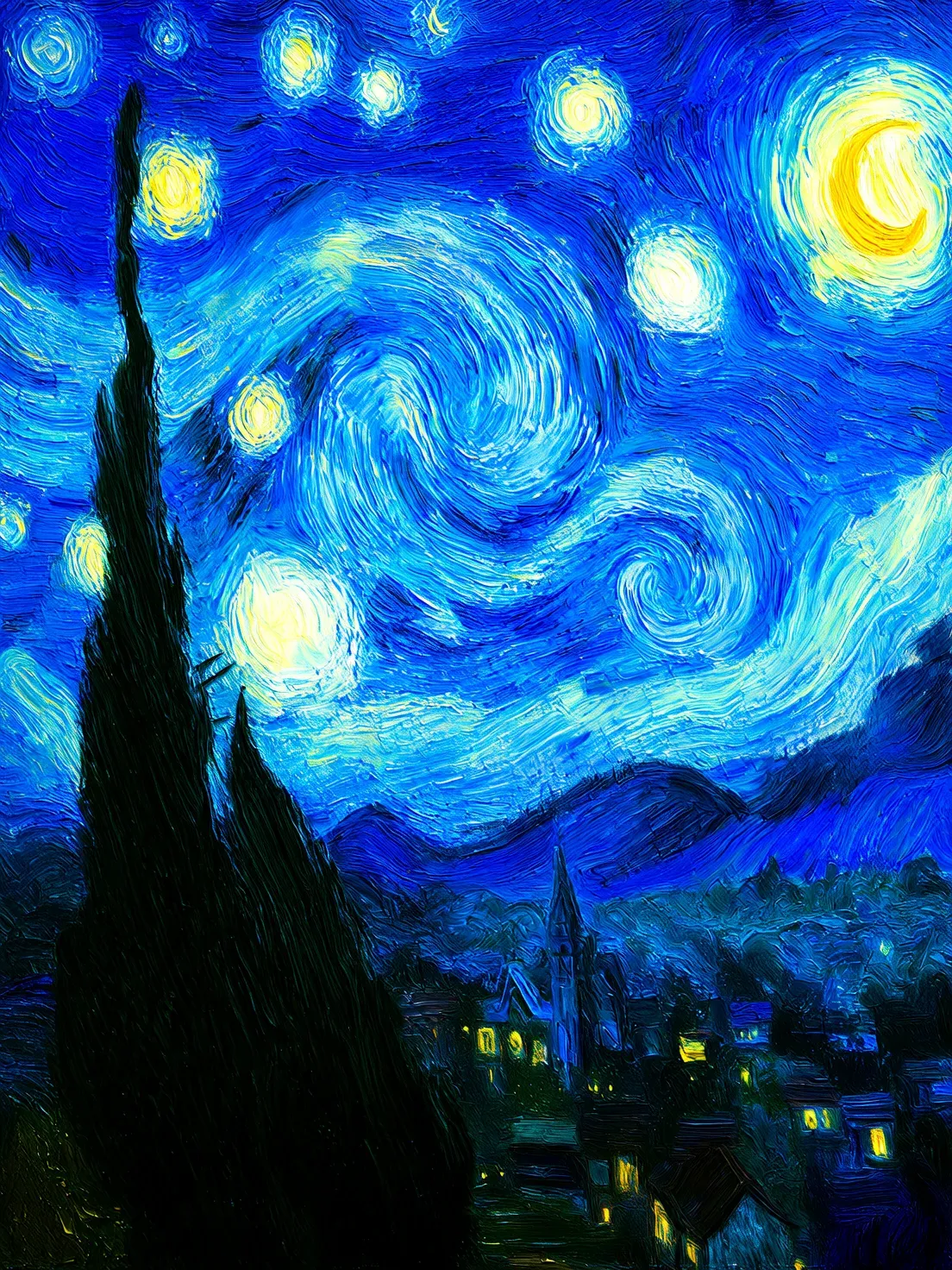
Los números de imagen en los prompts corresponden a la posición en el arreglo: la primera imagen es "imagen 1", la segunda es "imagen 2". También puede usar marcadores como "[imagen 1]" y "[imagen 2]".
{
    "content": [
        {"text": "Editing instruction, for example: Place the alarm clock from image 1 next to the vase on the dining table in image 2"},
        {"image": "https://example.com/image1.png"},
        {"image": "https://example.com/image2.png"}
    ]
}
Imagen de entrada | Imagen de salida | ||
|---|---|---|---|
Imagen 1 |
Imagen 2 |
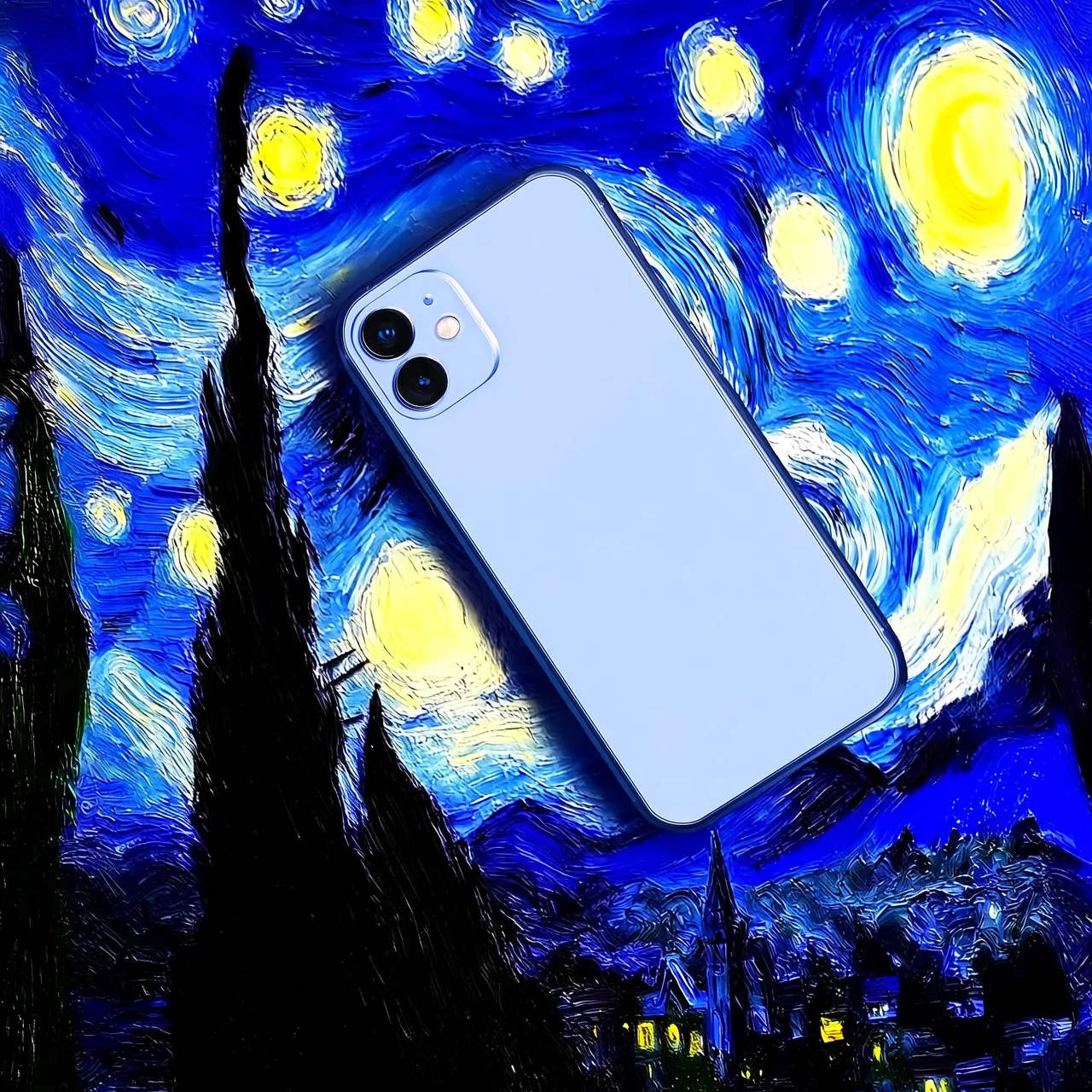
Prompt: Mover la imagen 1 sobre la imagen 2 |
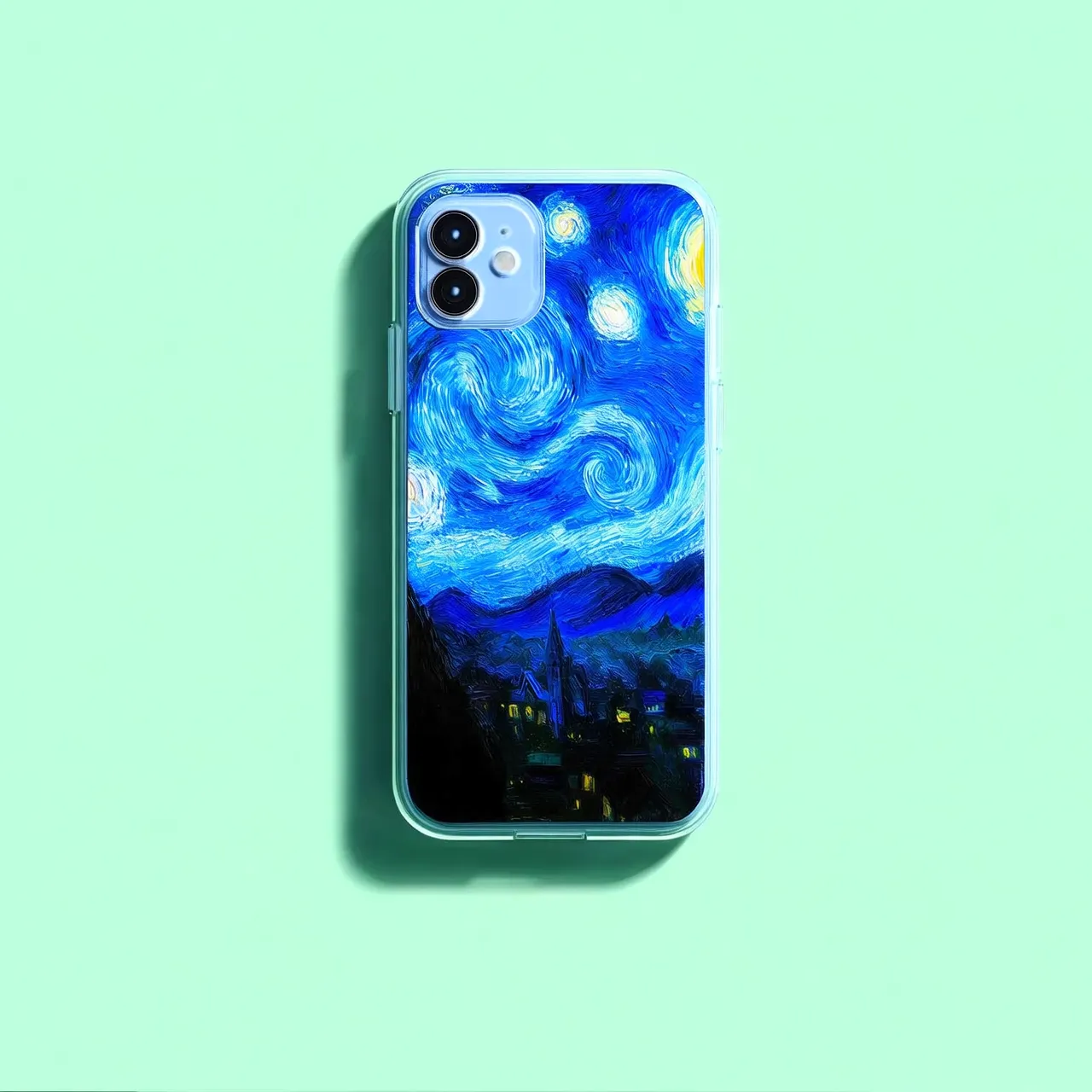
Prompt: Mover la imagen 2 sobre la imagen 1 |
Métodos de entrada de imágenes
Pase imágenes utilizando cualquiera de estos métodos:
Método 2: Codificación Base64
Convierta el archivo de imagen en una cadena codificada en Base64 y formatee como: data:{MIME_type};base64,{base64_data}.
-
Valor de ejemplo:
data:image/png;base64,iVBORw0KGgoAAAANSUhEUgAABDg......(Este es un fragmento debido a limitaciones de longitud). Al realizar una llamada, pase la cadena completa. -
{base64_data}: La cadena codificada en Base64 del archivo de imagen.
-
{MIME_type}: El tipo de medio de la imagen, que debe corresponder al formato de archivo.
Formato de imagen
Tipo MIME
JPEG
image/jpeg
JPG
image/jpeg
PNG
image/png
BMP
image/bmp
WEBP
image/webp
-
Utilice para transmisión de imágenes local, privada o cifrada.
Método 3: Ruta de archivo local (solo SDK)
-
Python SDK: Admite tanto rutas absolutas como relativas. Las reglas de ruta de archivo son las siguientes:
System
Ruta del archivo de entrada
Ejemplo (ruta absoluta)
Ejemplo (ruta relativa)
Linux o macOS
file://{ruta absoluta o relativa del archivo}
file:///home/images/test.png
file://./images/test.png
Windows
file://D:/images/test.png
file://./images/test.png
-
Java SDK: Admite solo la ruta absoluta. Las reglas de ruta de archivo son las siguientes:
System
Ruta del archivo de entrada
Ejemplo (ruta absoluta)
Linux o macOS
file://{ruta absoluta del archivo}
file:///home/images/test.png
Windows
file:///{ruta absoluta del archivo}
file:///D:/images/test.png
-
Utilice para pruebas rápidas en desarrollo local.
Características clave
1. Seguimiento de instrucciones (prompts)
Parámetros: messages.content.text o input.prompt (requerido), negative_prompt (opcional).
- text o prompt (Prompt positivo): Describa el contenido, sujetos, escenas, estilos, iluminación y composición para la imagen de salida.
- negative_prompt (Prompt negativo): Especifique contenido no deseado, como "borroso" o "dedos extra".
Parámetro | wan2.7-image-pro, wan2.7-image | wan2.6-image | wan2.5-i2i-preview |
|---|---|---|---|
text | Obligatorio, hasta 5,000 caracteres | Obligatorio, hasta 2,000 caracteres | No compatible |
prompt | No compatible | No compatible | Obligatorio, hasta 2,000 caracteres |
negative_prompt | No compatible | Admitido, hasta 500 caracteres | Admitido, hasta 500 caracteres |
2. Habilitar reescritura inteligente de prompts
Parámetro: parameters.prompt_extend (bool, valor predeterminado true).
Expande prompts cortos para mejorar la calidad de la imagen a costa de un mayor tiempo de respuesta.
Mejores prácticas:
- Habilitar: Cuando los prompts son concisos o amplios.
- Desactivar: Para control detallado, descripciones detalladas o escenarios sensibles a la latencia. Establezca
prompt_extendenfalse.
Parámetro | wan2.7-image-pro, wan2.7-image | wan2.6-image | wan2.5-i2i-preview |
|---|---|---|---|
prompt_extend | No compatible | Admitido (solo modo de edición de imagen) | Compatible |
3. Establezca la resolución de la imagen de salida
Parámetro: parameters.size (string), en formato "width*height".
| Parámetro | wan2.7-image-pro, wan2.7-image | wan2.6-image | wan2.5-i2i-preview |
|---|---|---|---|
size | Método 1: Especificar la resolución de la imagen de salida (recomendado) En modo de edición (con al menos una imagen pasada), los niveles opcionales de resolución de salida son:
| Método 1: Referenciar la relación de aspecto de la imagen de entrada (recomendado) En modo de edición (
| Solo admite especificar los valores de píxeles de ancho y alto de la imagen generada
|
4. Edición precisa interactiva
Utilice parameters.bbox_list para seleccionar regiones específicas para editar. Solo admitido por wan2.7-image-pro y wan2.7-image.
- Longitud de la lista: Debe coincidir con el número de imágenes de entrada. Utilice una lista vacía
[]para las imágenes que no requieren edición. - Formato de coordenadas:
[x1, y1, x2, y2](x superior izquierda, y superior izquierda, x inferior derecha, y inferior derecha). Las coordenadas son valores absolutos de píxeles con origen (0, 0) en la esquina superior izquierda, eje x hacia la derecha, eje y hacia abajo. - Límite de cantidad: Un máximo de 2 cuadros delimitadores por imagen.
Ejemplo: 3 imágenes de entrada donde la imagen 1 tiene dos cuadros delimitadores y la imagen 2 tiene none
[
  [[0, 0, 12, 12], [25, 25, 100, 100]],  # Image 1 (2 boxes)
  [],                                    # Image 2 (no box)
  [[10, 10, 50, 50]]                    # Image 3 (1 box)
]
Haga clic para ver ejemplos de llamada
curl --location 'https://{WorkspaceId}.ap-southeast-1.maas.aliyuncs.com/api/v1/services/aigc/multimodal-generation/generation' \
    --header 'Content-Type: application/json' \
    --header "Authorization: Bearer $DASHSCOPE_API_KEY" \
    --data '{
        "model": "wan2.7-image-pro",
        "input": {
            "messages": [
                {
                    "role": "user",
                    "content": [
                        {"image": "https://img.alicdn.com/imgextra/i3/O1CN0157XGE51l6iL9441yX_!!6000000004770-49-tps-1104-1472.webp"},
                        {"image": "https://img.alicdn.com/imgextra/i3/O1CN01SfG4J41UYn9WNt4X1_!!6000000002530-49-tps-1696-960.webp"},
                        {"text": "Place the alarm clock from image 1 into the bounding box of image 2, and blend the scene and lighting naturally."}
                    ]
                }
            ]
        },
        "parameters": {
            "bbox_list": [[],[[989, 515, 1138, 681]]],
            "size": "2K",
            "n": 1,
            "watermark": false
        }
    }'
Cómo determinar las coordenadas de la región de edición
Dibuje cuadros delimitadores arrastrando el ratón sobre la imagen para una selección precisa e intuitiva:
# Install dependencies: pip install opencv-python
import cv2
import urllib.request

# Download a sample image (replace with your own image URL or local path)
image_url = "https://img.alicdn.com/imgextra/i3/O1CN01SfG4J41UYn9WNt4X1_!!6000000002530-49-tps-1696-960.webp"
urllib.request.urlretrieve(image_url, "example.webp")

# Read the image and open an interactive window
img = cv2.imread("example.webp")
# Drag the mouse in the pop-up window to draw a box. Press Enter to confirm, press Esc to cancel
x, y, w, h = cv2.selectROI("Draw bounding box (Enter=confirm, Esc=cancel)", img)
cv2.destroyAllWindows()

# Convert the (x, y, w, h) returned by OpenCV to the [x1, y1, x2, y2] format required by bbox_list
# Coordinate system: origin at the top-left corner, x-axis points right, y-axis points down, unit is pixels
bbox = [x, y, x + w, y + h]
print(f"Bounding box coordinates: {bbox}")  # Pass these coordinates to parameters.bbox_list
Utilice qwen3.6-plus para identificar automáticamente las coordenadas de la región objetivo describiendo el objetivo en lenguaje natural:
# Install dependencies: pip install dashscope pillow
import os
import json
from dashscope import MultiModalConversation
import dashscope
from PIL import Image
import urllib.request

# The following URL is for the Singapore region. Replace WorkspaceId with your actual workspace ID. URLs differ by region.
dashscope.base_http_api_url = "https://{WorkspaceId}.ap-southeast-1.maas.aliyuncs.com/api/v1"

def get_bbox_list(image, prompt):
    """
    Identify target regions in an image using qwen3.6-plus and return absolute pixel coordinates.

    Args:
        image: Image URL or local path (local path format: "file:///absolute/path.png")
        prompt: Natural language description, e.g., "coffee cup", "all fruits on the plate", "the fruit in the center of the plate"

    Returns:
        [[x1, y1, x2, y2], ...] Absolute pixel coordinates that can be passed directly to bbox_list
    """
    # Concatenate user description with return format instructions
    full_prompt = (
        prompt + "\n"
        "Based on the description above, return the coordinates of the corresponding region.\n"
        "Return a maximum of 2 regions, prioritizing the most matching target.\n"
        "Strictly follow the JSON 2D list format: [[x1, y1, x2, y2], ...]\n"
        "Each set of coordinates: [top-left x, top-left y, bottom-right x, bottom-right y]\n"
        "Use absolute pixel coordinates of the original image, with (0,0) at the top-left corner, x-axis pointing right, y-axis pointing down.\n"
        "If there is only one region, you must still use a 2D list: [[x1, y1, x2, y2]]\n"
        "Only return the JSON list, do not return any other content."
    )

    messages = [
        {'role': 'user',
         'content': [
             {'image': image},
             {'text': full_prompt}
         ]}
    ]

    response = MultiModalConversation.call(
        api_key=os.getenv('DASHSCOPE_API_KEY'),
        model='qwen3.6-plus',
        messages=messages,
    )

    text = response.output.choices[0].message.content[0]["text"]
    text = text.replace("```json", "").replace("```", "").strip()
    coords = json.loads(text)

    # Handle the case where the model returns a 1D list [x1,y1,x2,y2]
    if coords and not isinstance(coords[0], list):
        coords = [coords]

    # Get image dimensions for coordinate conversion
    if image.startswith("file://"):
        local_path = image[len("file://"):]
        img = Image.open(local_path)
    else:
        tmp_path = "temp_bbox_image"
        urllib.request.urlretrieve(image, tmp_path)
        img = Image.open(tmp_path)
    width, height = img.size

    # Convert model's normalized coordinates [0, 999] to absolute pixel coordinates
    bbox_list = []
    for box in coords:
        bbox_list.append([
            int(box[0] / 1000 * width),
            int(box[1] / 1000 * height),
            int(box[2] / 1000 * width),
            int(box[3] / 1000 * height)
        ])

    return bbox_list

# === Usage examples ===
image_url = "https://img.alicdn.com/imgextra/i3/O1CN01ewUWhg1eS3VqJ3wap_!!6000000003869-49-tps-2048-2048.webp"

# Select target by name
bbox = get_bbox_list(image_url, "coffee cup")           # [[x1, y1, x2, y2]]

# Select target by position description
bbox = get_bbox_list(image_url, "the fruit in the center of the plate")  # [[x1, y1, x2, y2]]

# Describe a region
bbox = get_bbox_list(image_url, "lavender potted plant")

# Results can be used as elements in the bbox_list array
# Note: A maximum of 2 bounding boxes per image
Facturación y límites de tasa
-
Cuota gratuita y precios: Lista de modelos y precios.
-
Para límites de velocidad, consulte Wanxiang.
-
Facturación:
- Se aplican cargos por cada imagen generada exitosamente. Solo se le cobra cuando la API devuelve un
task_statusdeSUCCEEDED. - Las llamadas fallidas al modelo o los errores de procesamiento no generan cargos ni consumen la cuota gratuita.
- Se aplican cargos por cada imagen generada exitosamente. Solo se le cobra cuando la API devuelve un
Referencia de API
Cada modelo utiliza un endpoint y una estructura de solicitud diferentes:
Modelo | Endpoint(Ejemplo para la región de Singapur) |
|---|---|
| API síncrona: API asíncrona: Reemplace |
| API asíncrona: Reemplace |
wan2.7/wan2.6: Utilice el formatomessages. En el arraymessages[].content, pase la imagen en el parámetroimagey el prompt en el parámetrotext.wan2.5: Pase la imagen en el arrayinput.imagesy el prompt en el parámetroinput.prompt.
"input": {
    "messages": [
        {
            "role": "user",
            "content": [
                {"image": "https://help-static-aliyun-doc.aliyuncs.com/file-manage-files/zh-CN/20251229/pjeqdf/car.webp"},
                {"image": "https://help-static-aliyun-doc.aliyuncs.com/file-manage-files/zh-CN/20251229/xsunlm/paint.webp"},
                {"text": "Spray the graffiti from image 2 onto the car in image 1"}
            ]
        }
    ]
}
"input": {
    "prompt": "Place the alarm clock from image 1 next to the vase on the dining table in image 2",
    "images": [
        "https://img.alicdn.com/imgextra/i3/O1CN0157XGE51l6iL9441yX_!!6000000004770-49-tps-1104-1472.webp",
        "https://img.alicdn.com/imgextra/i3/O1CN01SfG4J41UYn9WNt4X1_!!6000000002530-49-tps-1696-960.webp"
    ]
}
Para los parámetros de entrada y salida, consulte Wan2.7 - generación y edición de imágenes, Wan2.6 - generación y edición de imágenes, Wanxiang – Edición general de imágenes 2.5