This guide explains how to integrate OpenClaw with a Feishu application and bot. This integration allows users to run tasks in OpenClaw by interacting with the bot in Feishu.
Overview
Integrating a Feishu application and bot allows users to interact with the bot in Feishu to run tasks in OpenClaw. The integration involves these main steps:
Connect it to OpenClaw on a cloud computer by exchanging security credentials.
Configure the Feishu application and bot.
Obtain a pairing code from the Feishu bot and approve it in OpenClaw.
Create a Feishu app and configure credentials
Go to the Feishu Open Platform and click Developer Console in the upper-right corner.
Click Create Custom Enterprise App and fill in the required information.
On your application's Credentials and Basic Information page, copy the App ID (for example,
cli_xxx) and the App Secret.Return to the OpenClaw Config page on your cloud computer and select Channel Settings.
Enable the Feishu channel. Paste the copied App ID and App Secret into their respective fields.
Click Save in the upper-right corner.
Configure the Feishu application and bot
Configure application permissions
Go to Permission Management > Request Permissions and click Bulk Import/Export Permissions.
Paste the following JSON to import the required permissions, then click Next, Confirm New Permissions.
{
  "scopes": {
    "tenant": [
      "aily:file:read",
      "aily:file:write",
      "application:application.app_message_stats.overview:readonly",
      "application:application:self_manage",
      "application:bot.menu:write",
      "cardkit:card:write",
      "contact:user.employee_id:readonly",
      "corehr:file:download",
      "docs:document.content:read",
      "event:ip_list",
      "im:chat",
      "im:chat.access_event.bot_p2p_chat:read",
      "im:chat.members:bot_access",
      "im:message",
      "im:message.group_at_msg:readonly",
      "im:message.group_msg",
      "im:message.p2p_msg:readonly",
      "im:message:readonly",
      "im:message:send_as_bot",
      "im:resource",
      "sheets:spreadsheet",
      "wiki:wiki:readonly"
    ],
    "user": ["aily:file:read", "aily:file:write", "im:chat.access_event.bot_p2p_chat:read"]
  }
}
In the confirmation dialog, verify the permissions and click Request Access.
Enable the bot and publish
On the App Capabilities > Bot page, enable the bot and configure its name.
On the Events and Callbacks page, go to Event Subscription > Subscription Type, select Use long connection to receive events, and save your changes.
ImportantBefore you configure event subscriptions, complete the Feishu channel configuration as described in the Create a Feishu application and configure security credentials section.
Click Add Event and add the Receive Message (
im.message.receive_v1) event.Go to Version Management and Release > Create Version, fill in the required information, and click Save.
Pairing authorization
In Feishu, find your bot and send it any message. Note the Pairing Code in the reply.
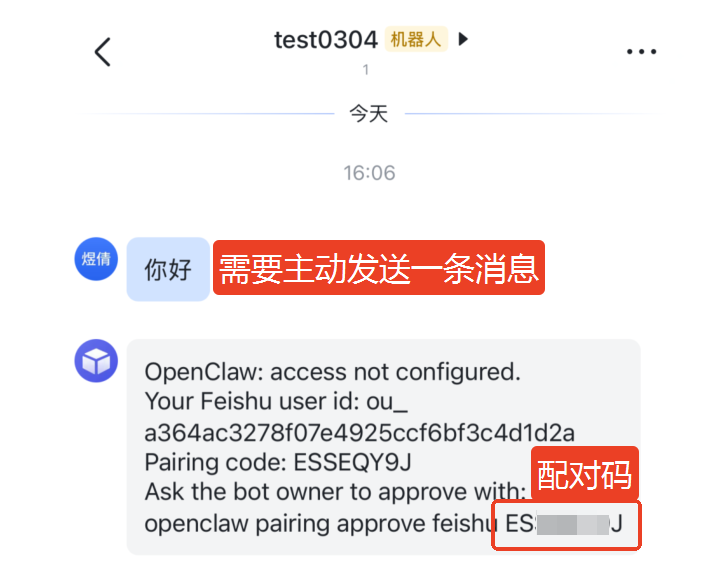
On the cloud computer terminal, run the following command to approve the pairing request:
openclaw pairing approve feishu <pairing_code>.Run the following command to restart the OpenClaw service:
openclaw gateway restart.