Dear Alibaba Cloud user,
Starting from 00:00:00 on May 28, 2026, Web Application Firewall 3.0 (WAF 3.0) will gradually adjust the elastic pay-as-you-go QPS feature for the subscription version, the traffic billing protection threshold for the pay-as-you-go version, and the sandbox logic.
Change details
Subscription version: Elastic pay-as-you-go QPS change
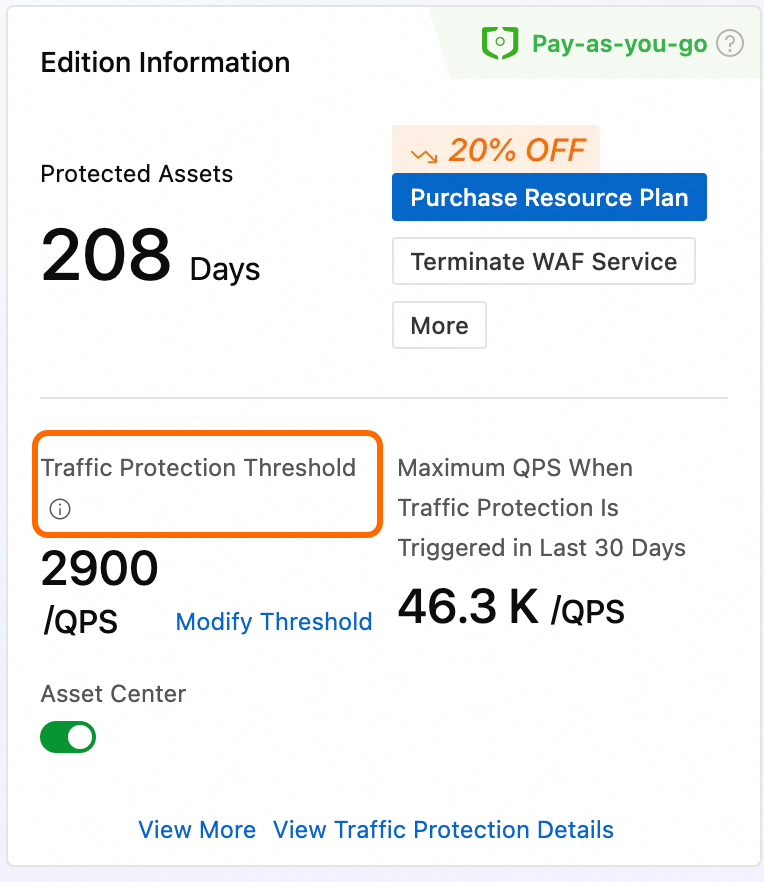
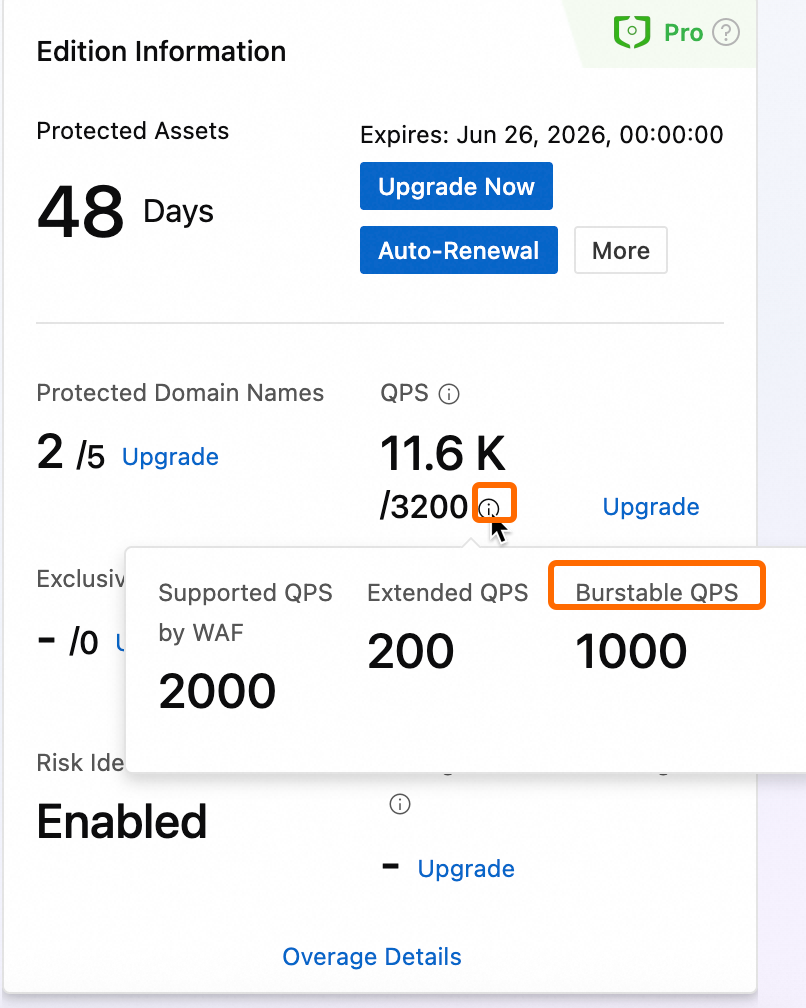
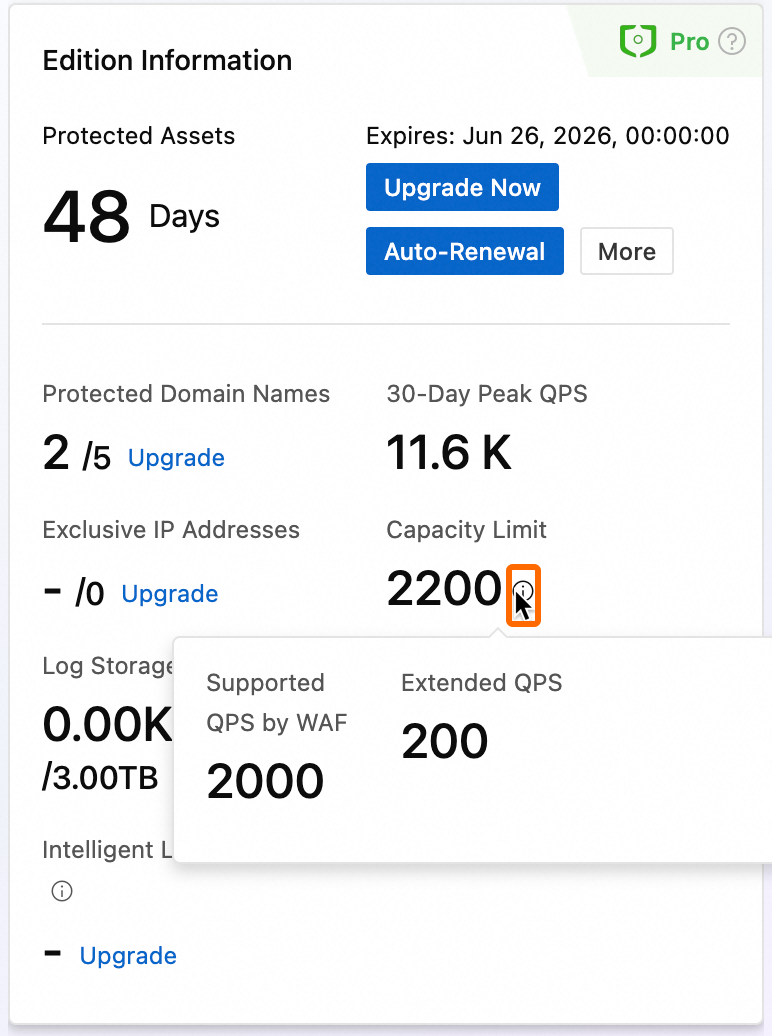
The elastic pay-as-you-go QPS feature is enabled by default and cannot be manually disabled. Bills will be settled based on your actual QPS usage.Pay-as-you-go version: Traffic billing protection threshold removed
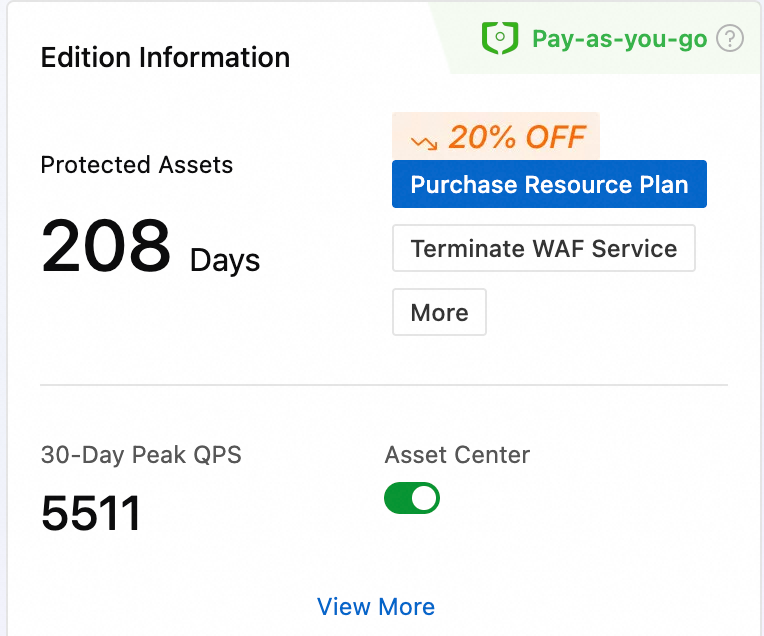
The traffic billing protection threshold for the pay-as-you-go version is cancelled. Bills will be settled based on your actual QPS usage.Sandbox logic change
The mechanism that moves WAF instances to a sandbox when QPS is exceeded is cancelled. The following maximum guaranteed QPS levels apply uniformly:WAF instances in the Chinese mainland: 100,000 QPS
WAF instances outside the Chinese mainland: 50,000 QPS
If the actual QPS of your business exceeds the maximum guaranteed levels above, WAF will no longer guarantee the service level agreement (SLA). Protected objects associated with the affected instance may experience intermittent access issues at any time, including but not limited to packet loss, rate limiting, connection restrictions, protection failure, abnormal logs or reports, and access timeouts. If your estimated business QPS may exceed these levels, contact your business manager in advance for capacity expansion.
Change time
The changes will be gradually applied starting from 2026-05-28 00:00:00 and affect both new and existing WAF 3.0 users.
Change impact
Subscription version users
The elastic pay-as-you-go QPS capability is enabled by default and cannot be manually disabled. When your actual business QPS exceeds the purchased QPS specification (the sum of the QPS included in your version and any extended QPS), pay-as-you-go charges will apply. If your actual QPS does not exceed the purchased specification, you are not affected.Pay-as-you-go version users
The traffic billing protection threshold is removed. Pay-as-you-go billing is calculated uniformly based on your actual business QPS.
FAQ
How do I determine whether the new or old rules are currently applied to my WAF instance?
The rule changes are rolled out using a phased release strategy and are gradually applied to users. Follow these steps to confirm which rule version is currently in effect for your instance.
Log on to the Web Application Firewall 3.0 console. In the top navigation bar, select the resource group and region of your WAF instance (Chinese Mainland or Outside Chinese Mainland).
In the left-side navigation pane, click Overview. Check the appearance of the Edition Information section on the right side to determine which rule version applies.
Subscription
Old rules (supports setting elastic pay-as-you-go QPS value)
New rules (does not support setting elastic pay-as-you-go QPS value)
Pay-as-you-go
Old rules (supports setting traffic billing protection threshold)
New rules (does not support setting traffic billing protection threshold)