Create an encrypted IPsec-VPN connection between two virtual private clouds (VPCs) so that cloud resources in each VPC can communicate privately and securely.
Cross-region IPsec-VPN connection quality depends on Internet connection quality. For cross-region VPC connectivity, consider using Cloud Enterprise Network (CEN) instead. For more information, see Use Enterprise Edition transit routers to connect VPCs across regions and accounts.
Example scenario
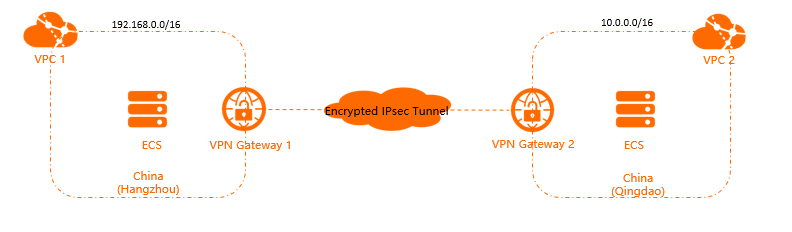
An enterprise has two VPCs:
VPC 1 in the China (Hangzhou) region
VPC 2 in the China (Qingdao) region
Both VPCs have Elastic Compute Service (ECS) instances running business services that need to communicate across VPCs. The enterprise uses VPN gateways to establish an IPsec-VPN connection between VPC 1 and VPC 2, keeping data transmission encrypted.
Prerequisites
Before you begin, make sure that you have:
Two VPCs, one in each region, with ECS instances deployed. For more information, see Create an IPv4 VPC
Security group rules that allow the ECS instances in both VPCs to communicate with each other. For more information, see View security group rules and Add a security group rule
The CIDR blocks that need to communicate must not overlap. Specify CIDR blocks based on your business requirements.
The following table lists the VPC configurations used in this example.
VPC name | Region | VPC CIDR block | VPC ID | ECS instance name | ECS instance IP address |
VPC1 | China (Hangzhou) | 192.168.0.0/16 | vpc-bp1e0yx3nsosmitth\*\*\*\* | ECS1 | 192.168.20.161 |
VPC2 | China (Qingdao) | 10.0.0.0/16 | vpc-m5e83sapxp88cgp5f\*\*\*\* | ECS2 | 10.0.1.110 |
Procedure overview

Step 1: Create VPN gateways
Create a VPN gateway in each region. Each VPN gateway is associated with the VPC in that region.
Log on to the VPN Gateway console.
In the top navigation bar, select the region where you want to create the VPN gateway. In this example, select China (Hangzhou).
NoteThe VPN gateway must be in the same region as the VPC you want to associate it with.
On the VPN Gateways page, click Create VPN Gateway.
On the buy page, configure the following parameters, click Buy Now, and complete the payment. For more information, see Create a VPN gateway.
Parameter
Description
Name
Enter a name for the VPN gateway. Example:
VPN Gateway 1.Region
Select the region for the VPN gateway. Example: China (Hangzhou).
Gateway Type
Select a gateway type. Example: Standard.
Network Type
Select a network type. Example: Public.
Tunnels
The supported tunnel modes are displayed automatically.
VPC
Select the VPC to associate with the VPN gateway. Example: VPC 1.
VSwitch
Select a vSwitch from the VPC. If you select Single-tunnel, specify one vSwitch. If you select Dual-tunnel, specify two vSwitches. After IPsec-VPN is enabled, the system creates an elastic network interface (ENI) in each vSwitch to communicate with the VPC over the IPsec-VPN connection. Each ENI occupies one IP address in the vSwitch.
NoteThe system selects a vSwitch by default. You can change or keep the default selection. After a VPN gateway is created, you cannot change the associated vSwitch. View the vSwitch, its zone, and the ENI on the VPN gateway details page.
vSwitch 2
Select a second vSwitch from the VPC. Skip this parameter for Single-tunnel.
Maximum Bandwidth
Specify the maximum bandwidth value. Unit: Mbit/s.
Traffic
Select a metering method. Default: Pay-by-data-transfer. For more information, see Billing overview.
IPsec-VPN
Enable or disable IPsec-VPN. Example: Enable.
SSL-VPN
Enable or disable SSL-VPN. Example: Disable.
Duration
Select a billing cycle. Default: By Hour.
Service-linked Role
Click Create Service-linked Role to create the AliyunServiceRoleForVpn role. The VPN gateway uses this role to access other cloud resources. If Created is displayed, the role already exists. For more information, see AliyunServiceRoleForVpn.
Return to the VPN Gateways page and verify the VPN gateway status. A new VPN gateway starts in the Preparing state. After 1 to 5 minutes, it changes to Normal, which means it is ready to use.
Repeat substeps 2 through 4 to create a VPN gateway named
VPN Gateway 2in the China (Qingdao) region. Set VPC to VPC 2 and keep the same values for other parameters.
The following table lists the VPN gateways created in this example.
Region | VPN gateway name | VPC name | VPN gateway ID | VPN gateway IP address |
China (Hangzhou) | VPN Gateway 1 | VPC1 | vpn-bp1l5zihic47jprwa\*\*\*\* | 120.XX.XX.40 |
China (Qingdao) | VPN Gateway 2 | VPC2 | vpn-m5eqjnr4ii6jajpms\*\*\*\* | 118.XX.XX.20 |
Step 2: Create customer gateways
Create a customer gateway in each region. In this scenario, each VPN gateway serves as the customer gateway for the opposite VPC.
In the left-side navigation pane, choose Interconnections > VPN > Customer Gateways.
In the top navigation bar, select the region of the customer gateway.
NoteThe customer gateway and the VPN gateway that connects to it must be in the same region.
On the Customer Gateways page, click Create Customer Gateway.
In the Create Customer Gateway panel, configure the following parameters and click OK. Create a customer gateway in both the China (Hangzhou) region and the China (Qingdao) region. For more information, see Create a customer gateway.
Parameter
Description
China (Hangzhou)
China (Qingdao)
Name
Enter a name for the customer gateway.
Customer1Customer2IP Address
Enter the public IP address of the peer VPN gateway.
Enter the IP address of VPN Gateway 2:
118.XX.XX.20.NoteVPN Gateway 2 serves as the customer gateway of VPC 1.
Enter the IP address of VPN Gateway 1:
120.XX.XX.40.
The following table lists the VPN gateway, customer gateway, and VPC details for each region.
Region | VPC name | VPN gateway name | Customer gateway name | Customer gateway ID | Customer gateway IP address |
China (Hangzhou) | VPC1 | VPN Gateway 1 | Customer1 | cgw-bp1er5cw26c2b35vm\*\*\*\* | 118.XX.XX.20 |
China (Qingdao) | VPC2 | VPN Gateway 2 | Customer2 | cgw-m5e6qdvuxquse3fvm\*\*\*\* | 120.XX.XX.40 |
Step 3: Create IPsec-VPN connections
After you create the VPN gateways and customer gateways, create an IPsec-VPN connection in each region to link the VPN gateway to the customer gateway.
In the left-side navigation pane, choose Interconnections > VPN > IPsec Connections.
On the IPsec Connections page, click Bind VPN Gateway.
On the Create IPsec-VPN Connection (VPN) page, configure the following parameters and click OK. Create an IPsec-VPN connection in both the China (Hangzhou) region and the China (Qingdao) region. Use the default settings for other parameters. For more information, see Create and manage an IPsec-VPN connection in single-tunnel mode.
Parameter
Description
China (Hangzhou)
China (Qingdao)
Name
Enter a name for the IPsec-VPN connection.
IPsec-VPN Connection 1IPsec-VPN Connection 2Region
Select the region of the associated VPN gateway.
China (Hangzhou)
China (Qingdao)
Bind VPN Gateway
Select the VPN gateway.
VPN Gateway 1
VPN Gateway 2
Routing Mode
Select a routing mode.
Destination Routing Mode
Destination Routing Mode
Effective Immediately
Whether to start negotiation immediately. Yes: Negotiation starts after configuration is complete. No: Negotiation starts when inbound traffic is detected.
NoteFor VPC-to-VPC connections through VPN gateways, set one connection to Yes to start IPsec negotiations immediately.
No
Yes
Customer Gateway
Select the customer gateway.
Customer1
Customer2
Pre-Shared Key
Enter a pre-shared key. The key must be 1 to 100 characters in length. It supports digits, letters, and the following special characters: `
~!@#$%^&*()_-+={}[]|;:',.<>/? ``. If left empty, the system generates a random 16-character key. View the generated key by clicking the Edit button. For more information, see Modify an IPsec-VPN connection.ImportantBoth ends of the IPsec-VPN connection must use the same pre-shared key.
fddsFF123****fddsFF123****In the Created dialog box, click OK.
Step 4: Configure routes
Add a destination-based route to each VPN gateway so that traffic is directed through the IPsec-VPN connection.
In the left-side navigation pane, choose Interconnections > VPN > VPN Gateways.
In the top menu bar, select the region of the VPN gateway.
On the VPN Gateway page, find the target VPN gateway and click its ID.
On the Destination-based Route Table tab, click Add Route Entry.
In the Add Route Entry panel, configure the following parameters and click OK. Add a route to both VPN Gateway 1 and VPN Gateway 2. For more information, see Add a destination-based route.
Parameter
Description
VPN Gateway 1
VPN Gateway 2
Destination CIDR Block
Enter the destination CIDR block.
10.0.0.0/16(the CIDR block of VPC 2)192.168.0.0/16(the CIDR block of VPC 1)Next Hop Type
Select the next hop type.
IPsec Connection
IPsec Connection
Next Hop
Select a next hop.
IPsec-VPN Connection 1
IPsec-VPN Connection 2
Publish to VPC
Whether to advertise the route to the associated VPC.
Yes
Yes
Weight
Select a route weight. 100: high priority. 0: low priority.
100(default)100(default)
Step 5: Verify connectivity
After the configuration is complete, test network connectivity between the two VPCs.
Log on to ECS1 in VPC1. For more information about how to log on to an ECS instance, see Guidelines on instance connection.
Run the
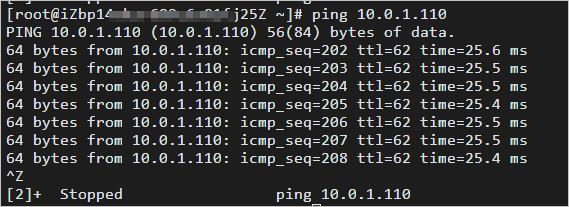
pingcommand to test connectivity with ECS2. If you receive ICMP echo reply packets as shown in the following figure, the two VPCs can communicate with each other.ping <IP address of ECS 2>