Category | Questions |
Credit control usage rules | |
Credit control settlement |
Credit control usage rules
What is an Alibaba Cloud dedicated bank account?
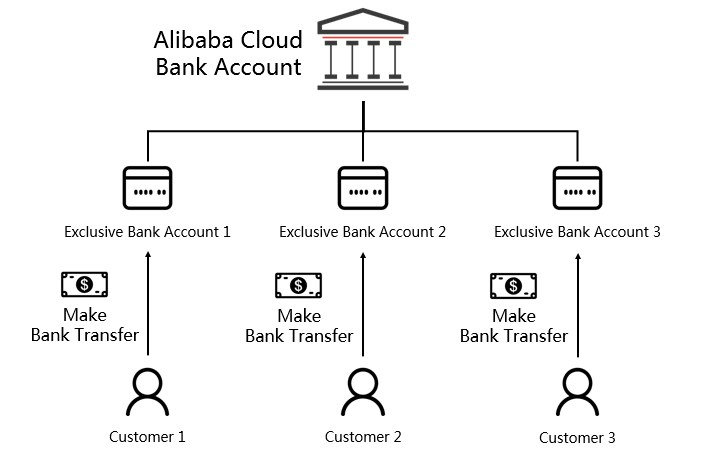
An Alibaba Cloud dedicated bank account is a unique virtual bank account assigned to each credit control customer. This account is a sub-account of Alibaba Cloud's primary account with Citibank. When you transfer funds to this account, the system automatically detects the payment, credits the funds to your Alibaba Cloud account, and applies them to your unpaid bills.
Note:
This feature is currently available only to credit control customers contracted with Alibaba Cloud's Singapore, United States, or Malaysia entities.
The system can only automatically process SWIFT and ACH wire transfers. Direct deposits and check payments are not automatically recognized. To take full advantage of your dedicated bank account, avoid making direct deposits or check payments to the account.
A wire transfer may take two to four business days to be reflected in the Alibaba Cloud system, depending on the remitting bank, country, or region.
How do I find my dedicated bank account details?
You can find your dedicated bank account information in one of three ways:
Email about opening a dedicated bank account for Alibaba Cloud.
Look for an email from Alibaba Cloud with the subject line "Your Alibaba Cloud Dedicated Bank Account is Ready."
Expenses and Costs console
New console
In the Expenses and Costs console, choose Billing Account. In the Asset Information section, find Cash Balance and click the Top-up & Remittance button. You are redirected to the Add Funds page where you can view your dedicated bank account details.

Legacy console
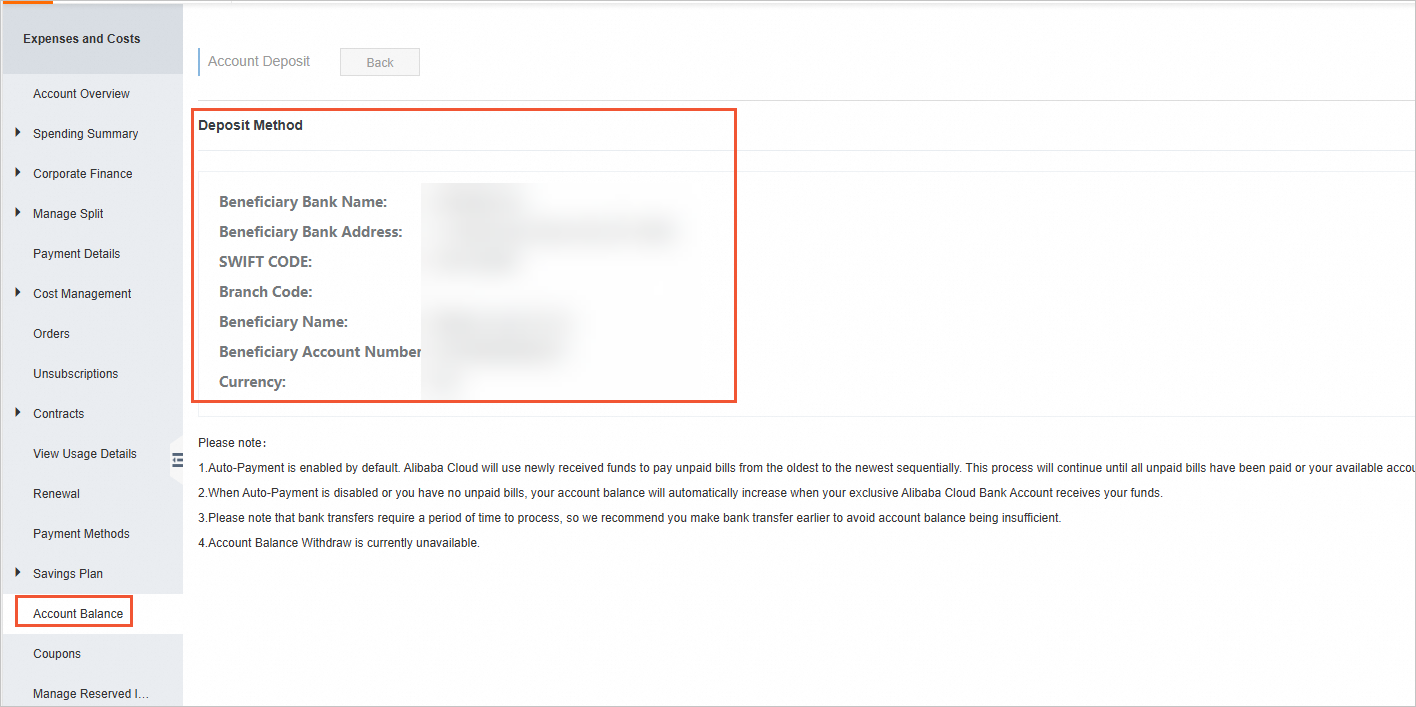
In the Expenses and Costs console, choose Account Balance. On the Account Balance page, click Deposit to view your dedicated bank account details.
Monthly invoice
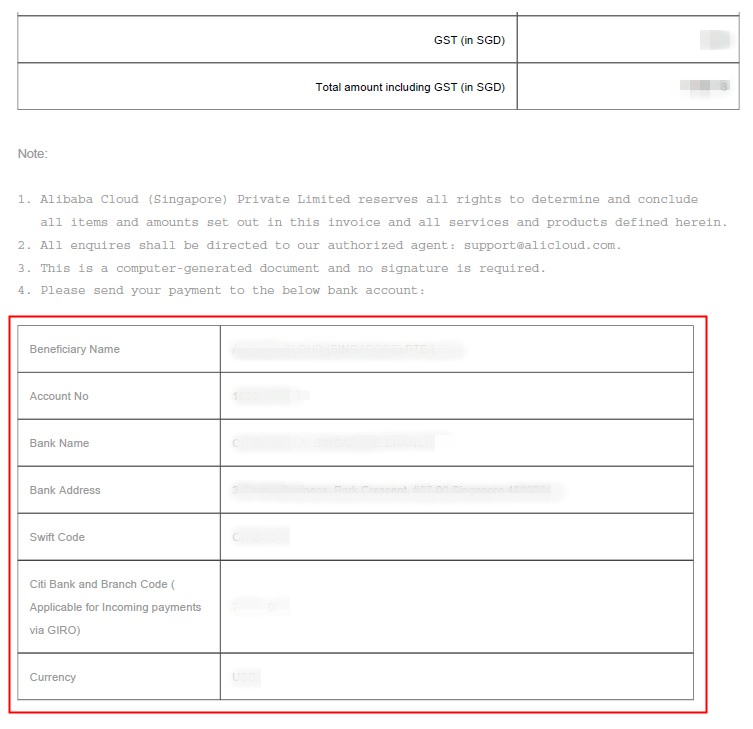
Your dedicated bank account details are listed at the bottom of your monthly invoice.
How can I pay my bills using my dedicated bank account?
The automatic payment feature is enabled by default. When you make a wire transfer to your dedicated account, Alibaba Cloud automatically uses the funds to pay your outstanding bills. Bills are paid from oldest to newest until all overdue bills are settled or the funds are used up. After you receive an invoice, make a wire transfer to your Alibaba Cloud dedicated bank account in order of bill age and within the payment period specified in your contract.
Note:
A service fee may be charged by the remitting bank, depending on your country or region. To ensure the full amount is credited, instruct your bank that all fees should be charged to the beneficiary account (Alibaba Cloud). Alibaba Cloud will cover this service fee to ensure the credited amount matches your remitted amount. After the transfer, keep a copy of your remittance slip. If you find that the credited amount is less than what you sent, contact your account manager. Alibaba Cloud will reimburse the service fee based on your remittance slip.
How do I check my account's credit limit?
New console
Your credit limit is the amount approved for your account based on an internal assessment of your consumption and business operations.
Log on to the Expenses and Costs console. In the Asset Information section, view your Credit Limit.

Legacy console
Your credit limit is the amount approved for your account based on an internal assessment of your consumption and business operations.
Log on to the Expenses and Costs console. On the Account Overview page, in the Available Credit section, click Available Credit Details.

You can then view your credit limit:

What does available credit mean?
Available balance refers to the available funds in your current account. When your account has operations such as refunds or account adjustments, the available balance may be negative. Calculation formula:
Available balance=Cash balance+Credit limit+Credit refund-Current month unsettled-Historical unsettled
Cash balance: The remaining funds in your account.
Credit limit: The credit limit provided for your account. Credit limits are available only if you enable the credit limit feature.
Credit refund: When you use credit limit to pay for consumption and then unsubscribe, decrease the quota, or perform other operations, corresponding refund fees are generated.
Current month unsettled: The amount you have consumed this month but has not been billed yet and is pending settlement.
NoteBefore the international site's monthly bill is officially issued, it only includes the pre-tax amount. After the bill is officially issued in the following month, taxes will be added to the bill. Please pay attention to the alert threshold to prevent account arrears after taxes are added to the bill.
Historical unsettled: Historical consumption before the current month that has been billed and is waiting to be paid and settled.
What should I do if my available credit is negative?
A negative available credit means your account has an overdue payment.
Your account enters a 15-day restricted service period. During this time, you cannot purchase new services or use the auto-renewal feature. After the restricted service period, all your services and instances will be shut down. If you still have not paid the overdue amount 15 days after the shutdown, all instances will be released.
If your account has an overdue payment, pay the bill as soon as possible to avoid service interruptions or instance releases.
Credit control settlement
What is a monthly bill?
As a credit control customer, your subscription and pay-as-you-go consumption for the entire month is presented in a monthly bill.
The bill for the current month is in the "Unsettled" state because an invoice has not yet been issued. You can think of this as an "awaiting invoicing" state.
At the end of the month, the unsettled monthly bill is officially issued. Based on whether it has been fully paid, the bill status changes to "Unpaid" or "Paid".
How do I pay my monthly bill?
New console
Method 1 (Recommended): Automatic write-off
Enable Automatic Write-off if it is not already enabled.

Top up your account.
On the Overview of Monthly Bill page, select a previous bill month for a bill that is issued but has a status of Outstanding.
Click Make Payment and top up your account by wire transfer. After the top-up, the bill is paid automatically.
For instructions on how to top up, see Corporate remittance guide.
NoteWith Automatic Write-off enabled, top-ups are first used to pay off any outstanding bills. Any remaining funds stay in your account balance.

Method 2: Unified settlement (manual payment)
On the Overview of Monthly Bill page, click the Unified Settlement button to create a unified settlement task. You can select up to three bill months and bills from multiple member accounts (for enterprise accounts) for unified settlement.
Make a payment for the unified settlement bill that is In Settlement.
Method 3: Enterprise administrator account transfer
On the Overview of Monthly Bill page, select a previous bill month for a bill that is issued but has a status of Outstanding, and click Make Payment.
Select the Transfer operation, select a Transfer-out Account, enter the Payment Amount, and click Confirm Transfer. The bill is paid automatically after the transfer.
Legacy console
We recommend that you pay monthly bills by bank transfer.
You can enable the Automatic Payment feature on the Account Overview page. Then, pay your monthly bills by making a wire transfer to the bank account listed on your monthly invoice. When Alibaba Cloud receives your payment, it automatically pays your unpaid monthly bills, from oldest to newest, until all bills are paid or the funds are used up.
If you disable the Automatic Payment feature, you must manually pay your monthly bills after Alibaba Cloud receives your payment.
Go to Payment Details, click the Unpaid tab, and select an unpaid monthly bill to view its details.

After you confirm the bill details, click the Pay button.

Enter the amount to pay, select a payment method, and then click the Pay button.

After a short wait, you can see that the bill has been paid on the Paid page.
How do I enable or disable automatic payment?
If you enable the automatic payment feature:
If you have a cash balance in your account, Alibaba Cloud automatically deducts funds from your account balance to pay the previous month's bill on the first day of each month.
If you do not have a cash balance in your account, when Alibaba Cloud receives your wire transfer, the funds are automatically used to pay your oldest unpaid bill first. This includes overdue monthly bills paid by credit.
New console
Log on to the Expenses and Costs console. On the Billing Account page, click the Automatic Write-off toggle to enable or disable the feature, and then click Save.
Legacy console
On the Account Overview page, below your available credit, click the setting button for the Auto-Pay monthly bill feature. You can enable or disable the feature and then click Save.
How do I download an invoice?
As a credit control customer, you receive a monthly invoice that consolidates all your subscription and pay-as-you-go consumption for the month.
New console
Log on to the Expenses and Costs console and select Invoices.
Click the Download Invoice tab to download real-time invoices for paid bills.

Legacy console
On the Account Overview page, you can view monthly invoices for the last three months. Click an invoice for a specific month to start the download.

The previous month's invoice is available by the 6th of each month.
After a monthly invoice is generated, Alibaba Cloud sends it to your registered email address. If you want other email addresses to receive the invoice email, see How can I add other email recipients for system notifications?
To download older real-time invoices, go to the Payment Details page, click the Paid tab, and download the real-time invoice for each bill.
How can I add other email recipients for system notifications?
Emails sent by Alibaba Cloud to a customer's registered email address can also be sent to other email addresses. If you want other email addresses to receive system emails from Alibaba Cloud, see Manage basic message settings.