When your subscription resources are about to expire, renew them promptly to prevent instance shutdown or release, which can interrupt your business. Pay-as-you-go resources don't require renewal — keep a sufficient account balance to continue using them.
Impact of non-renewal
If subscription resources aren't renewed in time after they expire, services stop and the system eventually releases the resources. Once released, all data is permanently deleted and can't be recovered.
Some cloud products enter three stages after expiration: Expiration buffer, Reserved shutdown, and Release and deletion.
Expiration buffer: Typically 1 to 15 days. Resources can still provide services during this period. Not all cloud products offer an expiration buffer. See the documentation of each product for details.
Reserved shutdown: Services stop, but resources and data are retained.
Release and deletion: The system automatically releases the resources and permanently deletes all data.
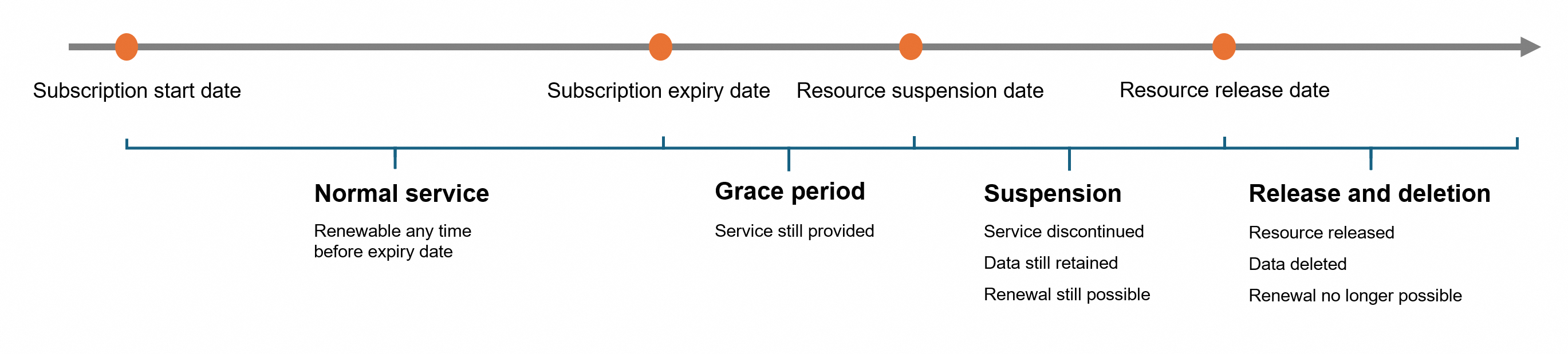
A few cloud products are released immediately after expiration. For example, OSS resource plans with a fixed total capacity are released immediately after expiration. You can continue to use Object Storage Service with automatic pay-as-you-go billing.
For specific expiration rules, see the documentation of each product. The following table lists the post-expiration status changes of common cloud products:
|
Common product |
Expiration buffer |
Reserved shutdown |
Release and deletion |
|
ECS and Simple Application Server |
Simple Application Server: the first 15 days after expiration are the buffer period, during which the instance can be accessed and used normally. ECS: only instances with Auto-renewal enabled have a 15-day expiration buffer; instances with Manual Renewal have no expiration buffer. |
Simple Application Server: enters the shutdown state 15 days after expiration. Data is retained, and renewing during this period restarts the instance. ECS auto-renewal instance: enters the shutdown state 15 days after expiration, with data retained. ECS manual renewal instance: enters the shutdown state immediately after expiration, with data retained. |
The instance is automatically released 15 days after shutdown. Data can't be recovered. |
|
ApsaraDB RDS |
None |
On days 1 to 7 after expiration, the instance is locked and can't be accessed. |
On days 8 to 15 after expiration, compute resources are released and data backups are retained. On day 16 after expiration, data is no longer retained. |
|
ApsaraDB for Tair (Redis OSS-compatible) |
Within 15 days after expiration |
On days 16 to 30 after expiration, the instance is disabled and can't be accessed. On days 31 to 37, the instance status is Released, and data is retained. |
On day 38, the instance is permanently destroyed. Data is no longer retained and can't be recovered. |
|
PolarDB |
Within 15 days after expiration |
15 days after expiration, the cluster enters the locked state and can't be accessed. |
15 days after shutdown, the cluster is released. All base backups are deleted, except for cross-region backups. |
|
Edge Security Acceleration (ESA) plans |
None |
15 days |
Resources are released 15 days after the plan expires. |
|
Web Application Firewall |
None |
Within 15 days after expiration, protection stops but the instance configuration is retained. |
The instance is automatically released on day 16 after expiration. |
How to renew
For Domains and DirectMail, go to the corresponding product console to perform the operation.
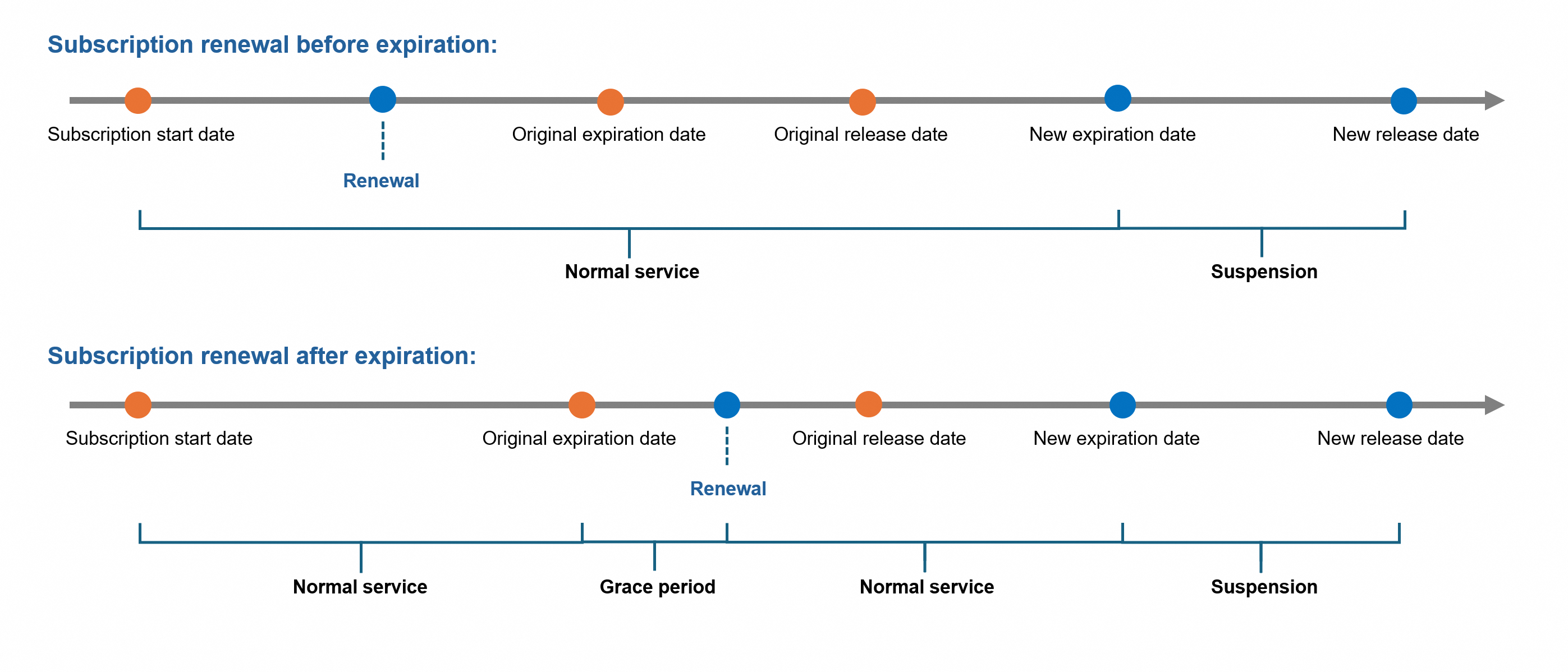
Resources can be renewed before they're released. The instance status and service cycle differ depending on whether you renew before or after expiration:
Renewal before expiration: The new service cycle starts from the end time of the previous order.
-
Renewal after expiration:
If the resource hasn't been shut down, the new service cycle starts from the end time of the previous order.
If the resource has been shut down, the new service cycle starts after the renewal succeeds. No fees are charged during the shutdown period.
You can renew resources by using manual renewal or auto-renewal.
|
Renewal method |
Available time range |
Execution policy |
|
Manual renewal |
Before the resource is released |
Manually initiate the renewal. After the payment succeeds, the validity period of the resource is extended immediately. An instance supports only one pending renewal order. After you successfully initiate a manual renewal, you can't renew the instance again before the renewal order takes effect. |
|
Auto-renewal |
No later than 14 days after the resource expires |
Set the renewal cycle in advance. The resource is automatically renewed before expiration at the scheduled time. The system attempts to deduct the renewal payment at "3 days before expiration, 1 day before expiration, on the expiration day, 6 days after expiration, and 14 days after expiration". If a previous attempt failed, the system retries at subsequent time points. If the payment is still not deducted 14 days after expiration, no more attempts are made. Perform a manual renewal within the time specified by the product. You can cancel auto-renewal at any time. |
Relationship between manual renewal and auto-renewal
For a resource with auto-renewal enabled, after you complete a manual renewal payment, the system no longer performs the auto-renewal deduction to avoid duplicate charges. An instance supports only one pending renewal order, so you can't renew again after a manual renewal until it takes effect.

Pay-as-you-go resources don't require renewal. Keep a sufficient account balance to continue using them.
For auto-renewal, make sure your payment method is available so that the deduction succeeds.
For renewal of third-party products from Alibaba Cloud Marketplace, log on to the Alibaba Cloud Marketplace console, or contact Alibaba Cloud Marketplace customer service for help.
Alibaba Cloud accounts have renewal permissions by default. Before a RAM user can renew resources, the Alibaba Cloud account must grant permissions such as AliyunBSSFullAccess or AliyunBSSRenewFullAccess.
Manual renewal
Perform the following steps to renew resources in the console:
New console
Log on to the Expenses and Costs console. In the left-side navigation pane, choose Order>Resource Renewal.
On the Resource Renewal page, click the Manual Renewal tab, select the products to renew, and then click Renew. Multiple instances of the same cloud product support Batch Renewal, which generates a single order.
On the renewal details page, select Renewal Duration. The page displays Expiration time after renewal. Then select Confirm Order or Buy Now.
On the Payment page, verify the order information and complete the payment.
Before a manual renewal, you can click Export renewal list to get a price quote or request funds.
Legacy console
Log on to the Expenses and Costs console. In the left-side navigation pane, find Renewal.
On the Renewal page, click the Manual tab, select the products to renew, and then click Renew. You can also select multiple instances of the same cloud product for batch renewal, which generates a single order.
On the renewal details page, select Renewal Duration. The page displays the Expiration Time (After Renewal). Then select Confirm Order or Buy Now.
On the Payment page, verify the order information and complete the payment.
Before a manual renewal, you can click Export renewal list to download the cost list for a price quote or to request funds.
You can also perform a manual renewal through the RenewInstance API.
This API doesn't support renewal of ECS, RDS, or Redis instances. For these products, use the dedicated renewal API of the corresponding product.
Auto-renewal
You can enable auto-renewal when purchasing a subscription resource. For example, on the ECS purchase page, select Enable Auto-Renewal in the Auto-Renewal section.
You can also configure auto-renewal in the Expenses and Costs console.
New console
Log on to the Renew Resources page. On the Manual Renewal tab, select one or more products to renew, and then click Enable Auto-renewal.
On the Enable Auto-renewal page, configure the Auto-renewal cycle and click Enable Auto-renewal to complete the auto-renewal setup. After the setup, view the renewal details on the Auto-renewal tab.
-
On the Auto-renewal tab, you can perform operations such as Cancel, Enable Manual Renewal for auto-renewed instances.
Renew: Immediately perform a manual renewal for an auto-renewed instance. After the renewal succeeds, auto-renewal continues to run according to system rules before the new renewal expiration date.
Modify auto-renewal: Change the auto-renewal cycle.
Don't renew: Set an auto-renewed instance to not renew after expiration.
Restore manual renewal: Change the current auto-renewed instance back to manual renewal.
Legacy console
Log on to the Renewal Management page. On the Manual tab, select one or more products to renew, and then click Enable Auto Renewal.
On the Enable Auto Renewal page, configure the Auto-renewal cycle and click Enable Auto Renewal to complete the auto-renewal setup. After the setup, view the renewal details on the Auto-renewal tab.
-
On the Auto-renewal tab, you can perform operations such as Cancel, Enable Manual Renewal for auto-renewed instances.
Renew: Immediately perform a manual renewal for an auto-renewed instance.
Modify auto-renewal: Change the auto-renewal cycle.
Don't renew: Set an auto-renewed instance to not renew after expiration.
Restore manual renewal: Change the current auto-renewed instance back to manual renewal.
Setting auto-renewal doesn't trigger an immediate renewal — it only sets the renewal cycle, which takes effect the next day.
If your resource instance expires the next day, auto-renewal doesn't run. Perform a manual renewal instead.
You can call the SetRenewal API to enable auto-renewal for an instance.
Setting auto-renewal doesn't trigger an immediate renewal — it only sets the renewal cycle, which takes effect the next day.
If your resource instance expires the next day, auto-renewal doesn't run. Perform a manual renewal instead.
After the renewal succeeds, log on to the Renew Resources page. Click the Manual Renewal tab to view all instances with manual renewal enabled; click the Auto-renewal tab to view instances with auto-renewal enabled.
If you've enabled the enterprise multi-account management feature, the enterprise MA (administrator) can view, but not operate on, instance resources under the managed member accounts on the renewal page.
Renewal recommendations
Pay attention to expiration and renewal reminders
The system automatically sends renewal reminders by internal message and email at 7 days, 3 days, 1 day, and 0 days before expiration, and 1 day before release. Log on to the Message Center - Basic Message Settings to manage your subscriptions.
If you've enabled auto-renewal, pay attention to low-balance notifications to avoid renewal failures. The Account Messages category on the Message Center - Basic Message Settings page includes cost-related notifications such as bills and overdue payments. The Internal message and Email channels are enabled by default.
Regularly check expiring resources
Log on to the Renew Resources page. Filter by Expiration time, Region, or other conditions to find expiring resources, or enter a specific instance ID and search by Instance status to renew.
Align ECS expiration dates for centralized renewal
Use the aligned expiration feature to renew ECS instances to the same day of each month. The new billing cycle starts from the renewal day, which simplifies management. For more information, see Align the expiration dates of subscription ECS instances.
Set resources to not renew to reduce notifications
If you no longer need a resource after expiration, perform the following steps to set it to not renew after expiration to reduce expiration reminders. Back up your data before expiration to prevent business impact.
Log on to the Expenses and Costs console and go to the Resource Renewal page.
On the Manual Renewal/Auto-renewal tab, find the resources you don't want to renew.
In the operation column on the right, click Nonrenewal, or batch-select the same cloud product and click Set as Nonrenewal.
Switch to the Nonrenewal upon Expiration tab to view resources set to not renew after expiration.
FAQ
Why can't I find the instance I want to renew on the renewal page?
-
Resource instances that don't support renewal aren't displayed in the list on the renewal page. Common types include:
Pay-as-you-go instances, which don't require renewal.
Instances that have been released. These can't be renewed.
Resource plan instances are currently renewed separately on the Resource Plans page.
For domains, DirectMail, and similar products, click the link in the upper-right corner of the renewal management page to go to the corresponding console.
I enabled auto-renewal. Why did the renewal fail?
Setting auto-renewal doesn't trigger an immediate renewal — it only sets the renewal cycle. The system attempts to deduct the renewal payment at "3 days before expiration, 1 day before expiration, on the expiration day, 6 days after expiration, and 14 days after expiration". If a previous attempt failed, the system retries at subsequent time points. Your account balance may be insufficient, which causes payment attempts to fail up to 14 days after expiration. Top up your account promptly and perform a manual renewal.
I renewed the wrong resource. Can I get a refund?
The refund depends on whether the renewal order has taken effect. Log on to the Unsubscribe Resources page to check whether the renewal order has taken effect:
If the order appears on the Unsubscribe Renewal That Does Not Take Effect tab, the current renewal order hasn't taken effect, and you can request a full refund.
If the order appears on the Unsubscribe Resource tab, the order has taken effect, and the remaining fee is refunded based on partial refund rules.
For detailed refund rules, see Unsubscription rules.
When I renew for one month, why is the duration sometimes 29, 30, or 31 days?
When you renew for 1 month, the expiration time is extended to 00:00 on the corresponding day of the next month. Examples:
If the resource expires at 00:00 on January 31, after a 1-month renewal, the new expiration time is February 29 (or February 28). Every subsequent renewal continues to use the 29th (or 28th).
If the resource expires at 00:00 on February 1, after a 1-month renewal, the new expiration time is 00:00 on March 1 (equivalent to 24:00 on February 29 or 24:00 on February 28), which adds 29 (in a leap year) or 28 days.
If the resource expires at 00:00 on May 21, after a 1-month renewal, the new expiration time is 00:00 on June 21, which adds 31 days.
If the resource expires at 00:00 on June 1 (equivalent to 24:00 on May 31), after a 1-month renewal, the new expiration time is 00:00 on July 1 (equivalent to 24:00 on June 30), which adds 30 days.
If I no longer need an instance after expiration, I can just skip renewal. What is the "Don't renew" feature on the renewal management page for?
The "Don't renew" feature is typically used in two scenarios:
Scenario 1: Alibaba Cloud sends 3 reminders before an instance shuts down (the number may vary by product). For instances you plan to not renew after expiration, you can set them to "Don't renew" to reduce reminders to a single notification.
Scenario 2: After reaching an important agreement with Alibaba Cloud, you can request that instances in your account don't shut down after expiration. But some instances still need to shut down normally after expiration. The "Don't renew" setting can meet this need.
For other renewal questions, see Resource Renewal FAQ.