This topic describes the types of Alibaba Cloud bills and how to use them to analyze your spending.
How bills are generated
Before you use bills, it is important to understand the billing methods of Alibaba Cloud. Bills are generated based on the following billing methods:
Pay-as-you-go: You pay for resources after you use them. For example, a pay-as-you-go Elastic Compute Service (ECS) instance. Usage for different cloud products is recorded based on billing cycles, such as hourly, daily, or monthly. A final bill is generated after all charges for the cycle are recorded.
Subscription: You pay for resources before you use them. This billing method includes standard subscriptions, savings plans, and resource plans. A bill is generated after you place an order and complete the payment.
Bills also include other fee types, such as refunds and adjustments:
Refunds: If you unsubscribe from a cloud resource, the corresponding payment is refunded based on the unsubscription rules. The refund amount is reflected on your bill.
Adjustments: In rare cases, adjustments are made to generated bills. These adjustments create incremental data.
View bills
Alibaba Cloud provides Monthly Bill Overview, Billing Details, Itemized Bills, and Usage Details to help you manage your cloud spending from multiple dimensions.
Type | Scenarios | Timeliness |
Monthly Bill Overview | Provides a summary of your spending by billing cycle. A summary is generated monthly for each payment currency for reconciliation and settlement. | Bills are updated continuously throughout the month. The final monthly summary is generated at 12:00 on the second day of the next month. |
Billing Details | Provides details for each order or bill. You can use these details to query spending or payment records. | Updated continuously throughout the month. |
Itemized Bills | Provides fine-grained information about billing items, usage, and prices for multi-dimensional analysis. | The complete itemized bill for the current month is generated at 12:00 on the third day of the next month. |
Usage Details | Provides the raw usage details of cloud resources for usage analysis, capacity planning, and cost verification. | Updated continuously throughout the month. The final usage data for the current month is available after 12:00 on the second day of the next month. |
Bill data for the current month is continuously updated and is for reference only. Do not use this data for final reconciliation or settlement.
An Alibaba Cloud account has bill management permissions by default. A Resource Access Management (RAM) user must be granted permissions by the Alibaba Cloud account, such as the AliyunBSSFullAccess permission for Expenses and Costs. You can also use custom permission policies for fine-grained permission control. For example, the permission for the bill query service is bss:DescribeBillList.
View monthly spending overview
Log in to Expenses and Costs and go to the Monthly Bill Overview page.
Filter bills using the following conditions:
Billing Cycle: Select one or more months. You can select a time range of up to 12 months.
Account: In Financial Management scenarios, an Alibaba Cloud account can view bill data for associated RAM users.
Status: The bill for the current month has a status of Billing in Progress and is continuously updated. Historical bill statuses include Unsettled, Unpaid, and Paid.
Unsettled: An estimated bill that has not been officially issued.
Unpaid: An official bill that has been issued but not yet paid.
Paid: An official bill that has been issued and paid. After you pay an Unpaid bill, there is a data latency before the status is updated to Paid. You can check the status again 5 hours after payment.
The monthly bill overview includes the following information:
Account: Your Alibaba Cloud account. If you use the enterprise finance feature, associated finance trusteeship accounts are also listed.
Amount Information: This includes the Amount Payable (the total amount after discounts for the current month), Tax, and Post-tax Amount. The amount is also categorized by settlement status into Amount Paid and Overdue Amount (billed but not yet paid). All amount information is displayed in your payment currency.
Click View Details to view a breakdown of spending by product for the current month. For unpaid historical bills, you can pay the bill and then download the invoice.
Query billing details (old console)
Billing details include all subscription orders and pay-as-you-go bills. You can view the amount, coupon usage, and discount details for each transaction, along with refund and adjustment records.
Log on to the Expenses and Costs console and go to Billing Details.
You can search by Billing Cycle, Account, or Order/Bill No.
You can use Customize Columns to select the data fields to display. This helps you filter the information.
Main fields in billing details
Field Name | Description |
Billing Cycle | The settlement period for the bill (usually monthly). |
Account Name | The account that needs to settle the bill. |
Owner Account Name | The account that owns the resource. |
Order No./Bill No. | The subscription order number or pay-as-you-go bill number. |
Product Name/Product Detail | The cloud product, such as Elastic Compute Service (ECS), and the specific item, such as ECS - Pay-As-You-Go. |
Subscription Type | Subscription or pay-as-you-go. |
Payment Time | The payment time for subscription orders, or the billing start and end time for pay-as-you-go bills. |
Item | Subscription order, pay-as-you-go bill, refund, or adjustment. |
Pretax Gross Amount | The spending amount calculated based on the list price of the product. |
Invoice Discount | Discounts from contract terms, official promotions, and other sources. |
Deducted By Coupons | The amount deducted using coupons. |
Round Down Discount | The amount discarded due to billing precision (after the second decimal place). |
Pretax Amount | Original Price - Invoice Discount - Round Down Discount. |
Payment Amount | The amount paid through the account balance or online payment channels. |
Status | Paid (officially billed and paid), Unpaid (officially billed but not paid), Unsettled (estimated bill not yet officially issued). |
Query itemized bills
Itemized bills provide detailed spending information, such as billing items, unit prices, usage, prices, and discount deductions for products.
Log in to the Expenses and Costs console and go to Itemized Bills.
You can filter by criteria such as Billing Cycle, Account, Resource Group, Instance Name, and Product. You can also view statistics by Billing Item, Instance, Product, Account, or Cost Center. The console provides aggregate data for different statistic periods, such as Billing Cycle, Day, and Details (Billing Period).
Use Customize Columns to select the data fields to display. This helps you focus on specific information.
Main fields in itemized bills
Category | Field Name | Description |
Basic Information | Billing Cycle | The settlement period for the bill (usually monthly). |
Cost Center | The cost center to which the resource belongs. This is mainly used for splitting bills. | |
Account Name | The account that needs to settle the bill. | |
Owner Account Name | The account that owns the resource. | |
Product Information | Product Name/Product Code | The cloud product and its corresponding code. |
Product Detail/Product Type | The specific item under the cloud product and its corresponding code. | |
Subscription Type | Subscription or pay-as-you-go. | |
Resource Information | Instance ID/Instance Name | The billing granularity ID or the user-defined instance name. |
Resource Group | The user-defined group to which the resource belongs. | |
Instance Tag | The user-defined properties of the resource. | |
Internet IP/Intranet IP | The public or private IP information of the instance. | |
Region/Zone | The region and zone information of the instance. | |
Billing Information | Billing Item | The specific billing item. |
List Price/List Price Unit | The unit price and unit of the product or service. | |
Usage/Usage Unit | The usage amount and unit of the product or service. | |
Deducted By Resource Package | The amount deducted using a resource plan. | |
Deducted By Reserved Instance | The amount deducted using a Reserved Instance (RI) or other methods. | |
Amount Information | Pretax Gross Amount | The spending amount calculated based on the list price of the product. |
Invoice Discount | Discounts from contract terms, promotions, and other sources. | |
Deducted By Coupons | The amount deducted using coupons. |
View usage details
You can export resource usage details by product to understand how specific resources are used. You can use historical data for usage optimization, trend prediction, and capacity planning.
Log on to the Expenses and Costs console and click View Usage Details.
You can export usage data in CSV format by product and usage time, with hourly or daily granularity.
Download or subscribe to bills
You can download monthly summary bills, billing details, or itemized bills from the console. The following section describes how to download a monthly summary bill.
Download monthly summary bills (new console)
Go to the Monthly Bill Overview page. Click Export Bill to export monthly bill data based on conditions such as the account and billing cycle.
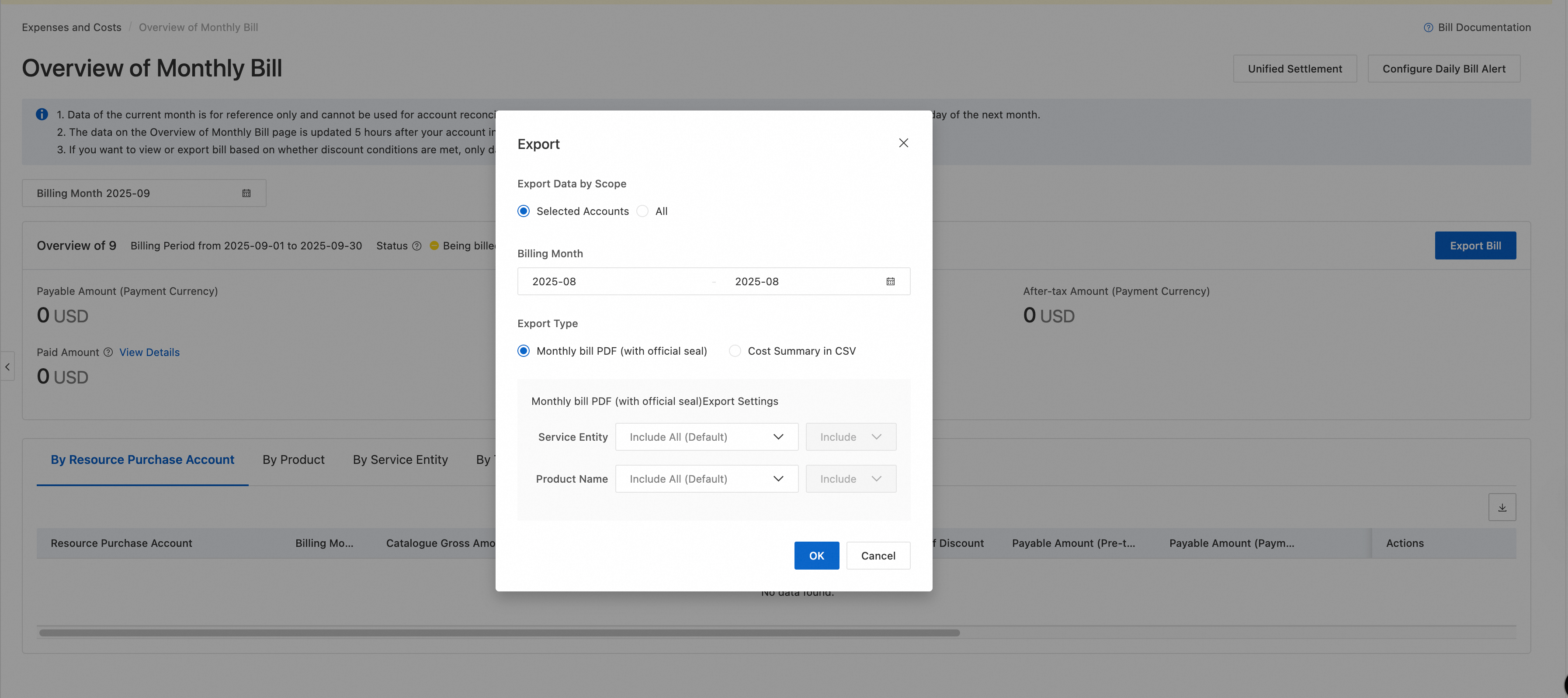
If the export scope is Current Selected Account, only the bill data for the selected account is included. If the export scope is All Accounts, the data for all financial management accounts is included.
The monthly summary bill is in PDF format. It contains data aggregated by billing month for settlement purposes.
On the Export Details page, you can download the successfully exported file.
Download monthly summary bills (old console)
Go to the Monthly Bill Overview page. In the upper-right corner, click Export Bill File to export monthly bill data based on conditions such as the account and billing cycle. You can export data for up to 12 months at a time.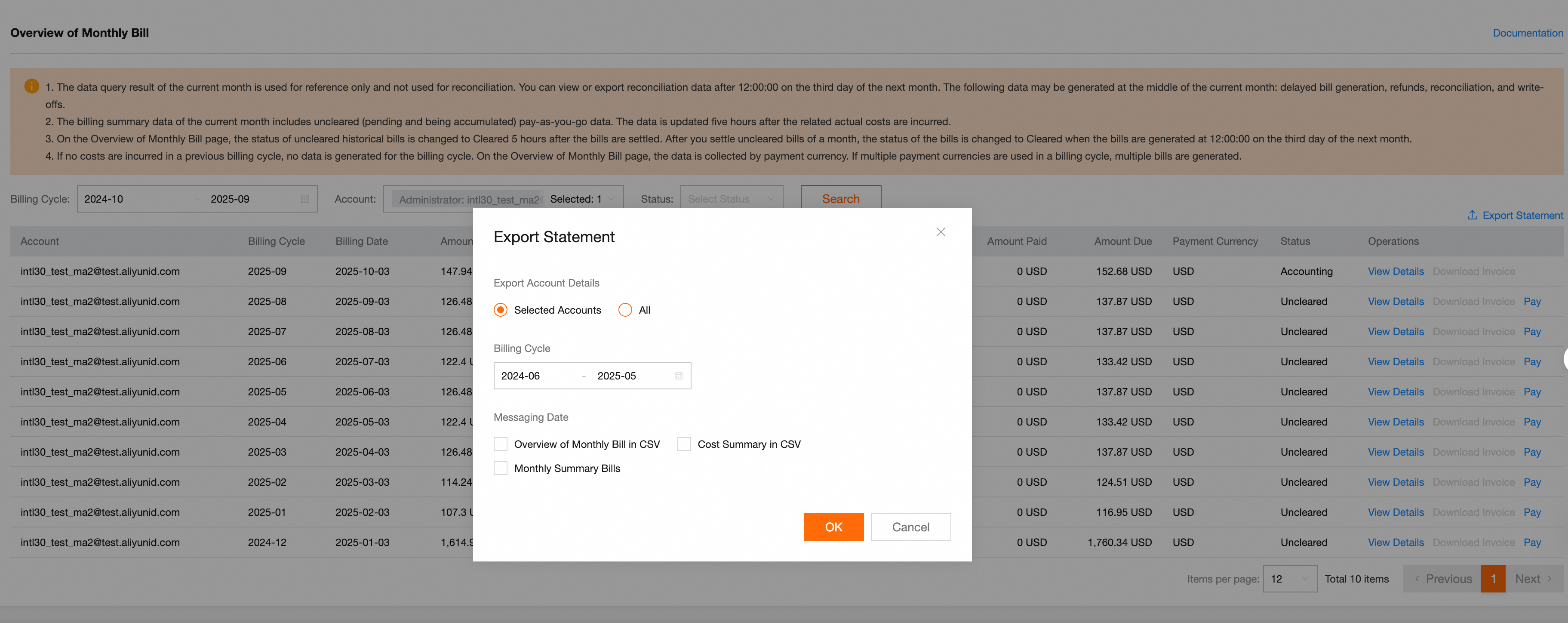
If the export scope is Current Selected Account, only the bill data for the selected account is included. If the export scope is All Accounts, the data for all financial management accounts is included.
The monthly summary bill is in PDF format. It contains data aggregated by billing month for settlement purposes.
On the Export Record page, you can view the list of exported files and download them.
You can also subscribe to or query data by calling billing-related API operations.
API | Title | API Overview |
Set up OSS subscription for bill files | Subscribe to bill files using OSS. This lets you store bill data in a specified OSS bucket. | |
Bill overview query service | Queries the bill overview information for a user within a specific billing cycle. | |
Bill query service | Queries the settlement bill for a user within a specific billing cycle. | |
Query instance bill service | Queries the spending summary for all product instances or billing items of a user within a specific billing cycle. |
FAQ
What is the difference between an order and a bill?
In Alibaba Cloud, orders and bills serve different purposes. The main differences are as follows:
Order: An order is a record generated when you purchase or renew an Alibaba Cloud product. It contains specific information about the purchased item, such as product type, configuration parameters, price, quantity, and payment method.
An order typically corresponds to a single purchase transaction. A new order is generated for each purchase and shows the details of that transaction.
Bill: A bill is a summary report of all spending activities over a certain period. This includes, but is not limited to, fees generated from orders. A bill covers order settlements and may also include usage fees for pay-as-you-go cloud resources and information about discount usage.
A bill contains all chargeable items and their details for a billing period, which provides a comprehensive view of your costs.
Why is my bill status always "Billing in Progress"?
The Monthly Bill Overview page displays a monthly summary of your bill. The final monthly bill is issued after 12:00 on the second day of the following month. When you view the bill for the current month, it is in a cumulative summary state. Therefore, the status is always Billing In Progress.
What is the difference between "By Billing Item + Day" and "By Billing Item + Details"?
The "By Billing Item + Day" bill is summarized daily by account, billing month, billing date, product name, item name, instance ID, and billing item dimension. This view helps you quickly understand your overall daily spending.
The "By Billing Item + Details" bill shows the spending record for each billing item in each billing cycle. It includes all the fields from the "By Billing Item + Day" bill, plus information about when the spending occurred and whether any discounts were applied.
Why am I still being charged after deleting or releasing a cloud resource?
You may still be charged after you delete or release a cloud resource for the following reasons:
When some cloud resources are deleted or released, their associated resources may not be deleted or released at the same time. For example, if you delete an ECS instance but do not delete its associated snapshot, the snapshot continues to incur fees. You can check the status of the corresponding cloud resource in the product console.
The cloud resource was not successfully deleted or released. You can check the status of the cloud resource in the product console.
Bills for pay-as-you-go resources are generated periodically, such as hourly. After you release a resource, the bill for the last billing cycle is still generated. For example, if you release a resource at 10:08, the bill for the 10:00 to 11:00 billing cycle will be generated after 11:00.
I don't think I used anything. Why am I being charged every day?
You may have pay-as-you-go resources running in your account. These resources might have been purchased in a region that you do not frequently use, or they may have been purchased by other users who share the account.
Why did my costs suddenly increase?
A sudden increase in costs is usually caused by business fluctuations or the auto-renewal of resources. It is also possible that other users of your account have purchased new resources.
A sharp increase in business traffic or data usage over a short period can lead to higher charges in usage-based scenarios. Examples include outbound traffic from ECS, outbound traffic over Internet from OSS (traffic generated when you access or download files in OSS from the public network), and domestic public network outbound traffic from Content Delivery Network (CDN).
When you enable auto-renewal for subscription products, the system automatically renews the subscription before the instance expires.