Install and configure Terraform in 10 minutes to start creating your infrastructure.
Terraform is distributed as a binary package, as described in Terraform product introduction. You can use a common package manager to install Terraform.
Install Terraform
Manual installation
Use a precompiled package
Go to the Terraform official website, find the zip package for your operating system, and download it.
After the download is complete, unzip the package to /usr/local/bin. You can delete the other files after the copy is complete. Deleting these files does not affect the operation of Terraform.
Finally, make sure that the directory containing the Terraform binary is added to your system's PATH environment variable. The method for this varies by operating system.
Mac or Linux
Display your PATH configuration.
echo $PATHMove the Terraform binary file to one of the listed directories. This command assumes that the binary file is in your Downloads folder and your PATH includes /usr/local/bin. You can customize the directory in the command if your configuration is different.
mv ~/Downloads/terraform /usr/local/bin/For more information, see the following documents:
Windows
Go to Control Panel > System > System Settings > Environment Variables.
In the System variables section, scroll down and select the Path variable.
Click Edit to modify the variable.
Make sure to add a semicolon to the end of the previous entry because it is the separator. For example, c:\path;c:\path2
Start a new console for the changes to take effect.
For more information, see Defining a global path in Windows.
Use the source code
If you want to compile the binary from source code, you can clone the HashiCorp Terraform repository.
git clone https://github.com/hashicorp/terraform.gitA progress message is displayed. Wait for the command to complete.

After the command completes, a directory named terraform is created in your current directory. Use the cd command to go to the directory.
cd terraformThen, run the install command. This command compiles the folder and moves the compiled package to the $GOPATH/bin/terraform folder.
go installThe following message indicates that the compilation is in progress. After the compilation is complete, you can proceed to the next step.
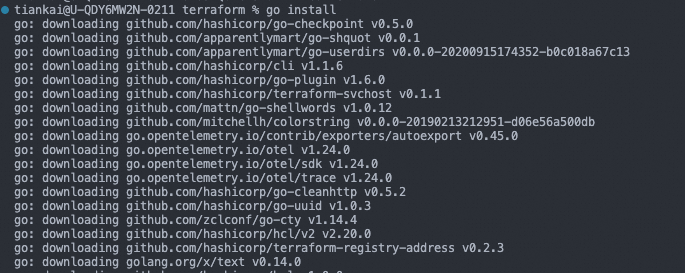
Note: If the "zsh: command not found: go" message appears, you first need to install the Go environment.
Finally, ensure the terraform folder is defined in the PATH and is active. The method for defining the PATH depends on your operating system.
Mac or Linux
Display your PATH configuration.
echo $PATHMove the Terraform binary file to one of the listed locations. This command assumes that the binary file is in your Downloads folder and your PATH contains /usr/local/bin, but you can customize the folder in the command if you use a different location.
mv ~/Downloads/terraform /usr/local/bin/For more information, see the following documents:
Windows
Navigate to Control Panel > System > System Settings > Environment Variables.
In the System variables section, scroll down to find the PATH variable.
Click Edit and make the required changes.
Make sure to add a semicolon to the end of the previous entry. For example, c:\path;c:\path2
Start a new console for the changes to take effect.
For more information, see Define a global path in Windows.
macOS Homebrew
Homebrew is a popular package manager for macOS. You can use Homebrew to install Terraform by running simple commands.
Step 1: Install the HashiCorp tap. A tap tells Homebrew where to find packages.
brew tap hashicorp/tapStep 2: Run the install command to install Terraform.
brew install hashicorp/tap/terraformThe install command installs the latest version of Terraform. To update to a newer version later, you can run the upgrade command again.
To update to the latest version of Terraform, you must first update your local Homebrew formulas.
brew updateThen, run the upgrade command to update Terraform.
brew upgrade hashicorp/tap/terraformWindows Chocolatey
Chocolatey is a popular package manager for Windows. You can use Chocolatey to install Terraform by running a simple command.
choco install terraformCloudShell
Alibaba Cloud Shell is a free Operations and Maintenance (O&M) tool that comes with the Terraform component pre-installed. You can run Terraform commands directly in Cloud Shell.
First, make sure that you have a valid Alibaba Cloud account with the required permissions.
Then, open a browser and access Cloud Shell at or https://shell.alibabacloud.com.
After you log on, run the following command.
terraformThe output shows that the Terraform component is built into Cloud Shell and is ready to use.
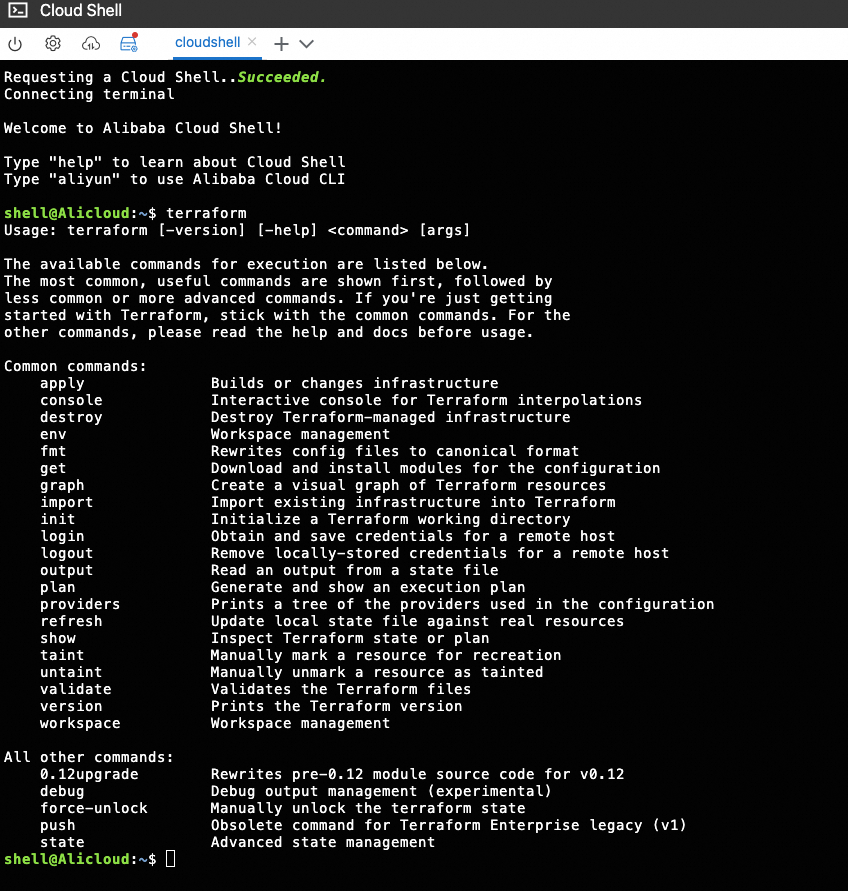
For more information about how to use Cloud Shell, see Use Cloud Shell.
Linux
Alibaba Cloud Linux
yum install -y dnf-plugin-releasever-adapter
yum-config-manager --add-repo https://rpm.releases.hashicorp.com/RHEL/hashicorp.repo
yum install terraform

Verify the installation
Run the terraform command to verify that the installation was successful.
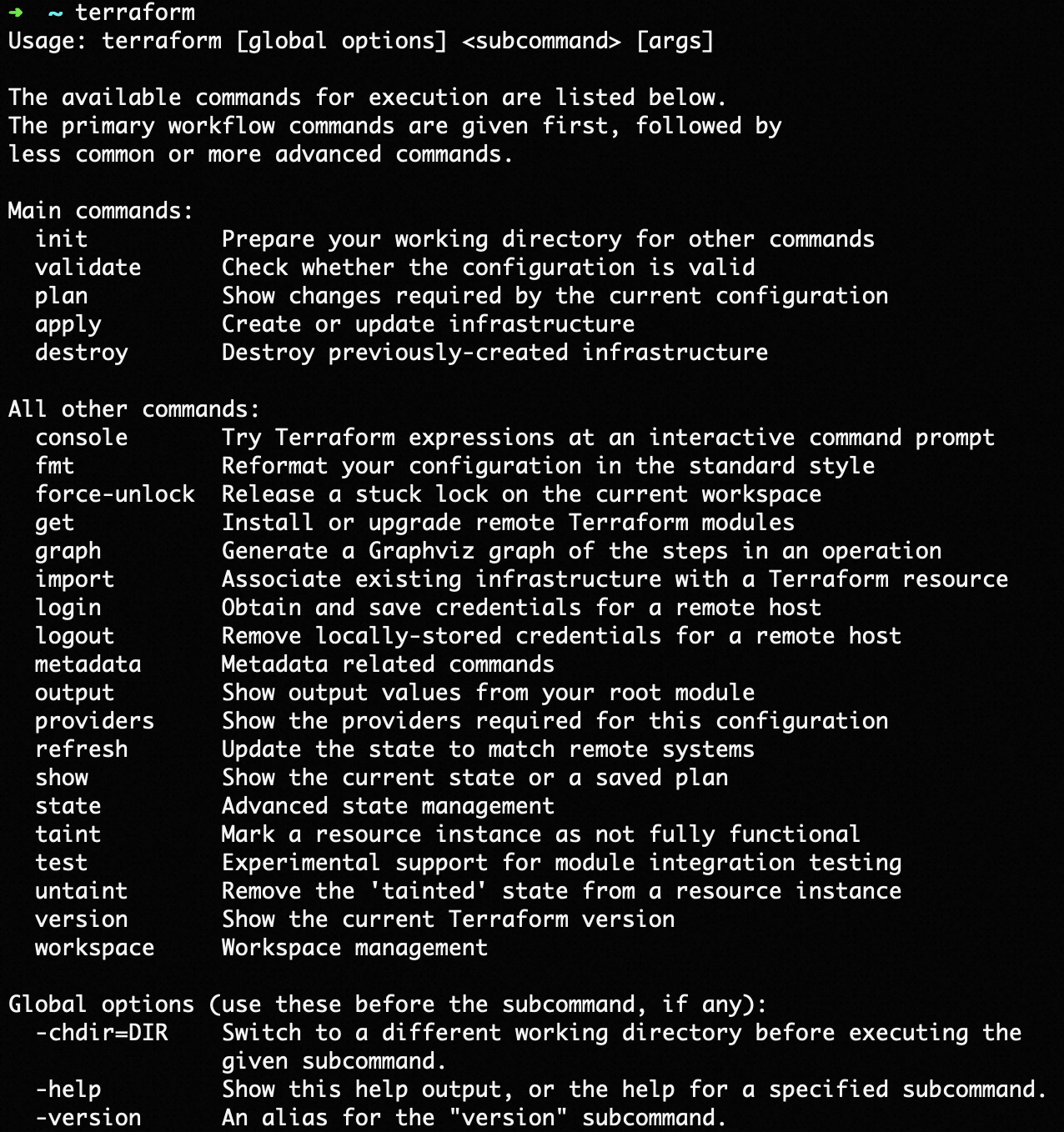
terraformAfter you run the command, a list of available Terraform options is displayed, as shown in the following figure. This indicates that the installation is complete.