All Products
Search
Document Center

Certificate Management Service:Troubleshoot certificate deployment issues based on browser errors

Last Updated:Mar 13, 2026

This topic describes how to troubleshoot and resolve issues where an SSL certificate does not take effect or a website is marked as insecure after deployment.

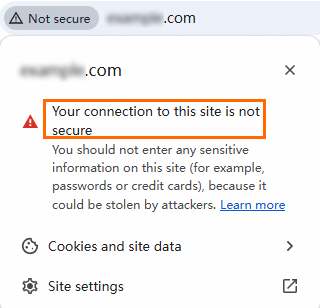
The browser displays the "Your connection to this site is not secure" message
image

Possible cause: The browser cache is not cleared, the SSL certificate does not match the domain name, or the certificate has expired.

Solution:

  • Clear the browser cache and try to access your website again.

  • Check if the SSL certificate matches the domain name.

    Method 1: Use the Certificate Management Service console

    • Log in to the Certificate Management Service console.

    • In the navigation pane on the left, choose Certificate Management > SSL Certificate Management.

    • On the SSL Certificate Management page, find the deployed certificate and check if its domain name matches the site's domain name. If they do not match, re-upload the correct certificate for the domain name.

    Method 2: Use a browser

    • Access the website domain name and click the security lock icon in the address bar.

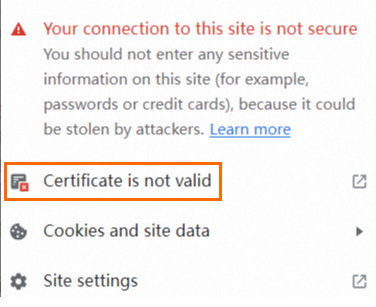
    • Click Certificate is not valid.

      image

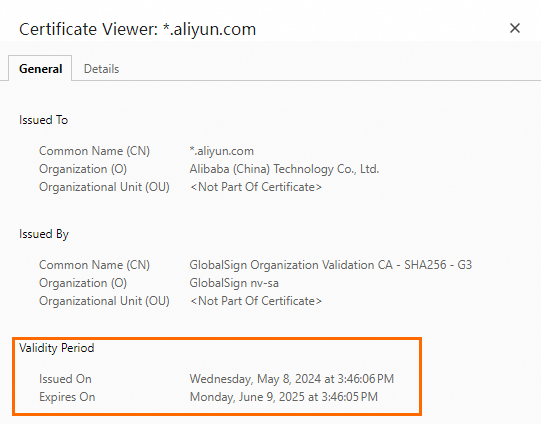
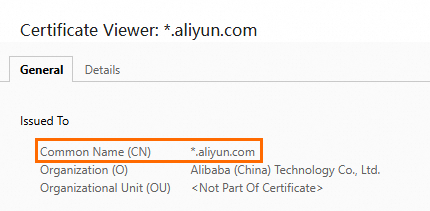
    • On the certificate page, check if the Common Name (CN) matches the website domain name.
      image

  • Check if the SSL certificate has expired.

    An SSL certificate has a default validity period of one year. If you have previously installed an SSL certificate on your server and now receive an error that the site is insecure when accessing it over HTTPS, check if the SSL certificate has expired. You can check the expiration date using one of the following methods.

    Method 1: Use the Certificate Management Service console

    Method 2: Use a browser

    • Access the website domain name and click the security lock icon in the address bar.

    • Click Certificate is not valid.

      image

    • On the certificate page, view the certificate's expiration date.

      image

  • Check if the deployed SSL certificate is in the wrong format.

    Different web servers support different certificate formats. For more information, see Deploy an SSL certificate.

Possible cause: The certificate path or certificate file name in the configuration file is incorrect.

Solution:

Check the SSL certificate settings in the web server's configuration file. Make sure the certificate storage path and file name specified in the configuration file match the actual path and file name on the server. The following is an Nginx configuration example:

server {
    listen 443 ssl;
    server_name example.com;

    # Replace the following paths with the paths to your SSL certificate and private key files
    ssl_certificate /etc/nginx/ssl/example.com.crt;
    ssl_certificate_key /etc/nginx/ssl/example.com.key;

    # Other configurations...
}

Possible cause: You purchased a new certificate, but the web server is still using the old one, or the SSL certificate path in the configuration file has not been updated.

Solution:

You can create a deployment task to upload the issued certificate to a specified path on your cloud server or replace the certificate file in a specified path. For more information, see Cloud server deployment: Deploy an SSL certificate to an ECS instance or a Simple Application Server.

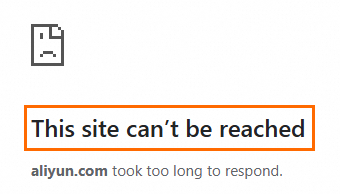
The browser displays the "This site can't be reached" message

image

Possible cause: Port 443 is not open.

Solution:

  • If you use an Alibaba Cloud ECS server, go to the Security Groups page of the ECS console and open port 443. For more information about how to configure security groups, see Add a security group rule.

    Note

    When you access a website using a default port, you can enter the domain name directly for HTTP (default port 80) or HTTPS (default port 443). If you use a non-default port, you must add the port number after the domain name, in the format http://domain-name:port-number or https://domain-name:port-number.

  • Ensure that the server allows HTTPS connections on the default port 443. If you use a non-standard port, verify that the port is open and not used by another service.

  • If you have a firewall, check the server's firewall settings to ensure that they do not block external access to port 443.

    image

  • If you do not use an Alibaba Cloud ECS server, refer to the security settings guide for your server to open port 443.

Possible cause: Web server configuration error.

Solution:

  • Check the web server's configuration file to ensure that it has the correct SSL/TLS directives and is listening on port 443.

  • Check the configuration file for syntax errors.

Possible cause: The SSL certificate has expired or was not issued correctly.

Solution:

  • Check if the certificate has expired. If it has, renew the certificate immediately. For more information, see SSL certificate renewal and expiration.

    image

  • Check if the certificate was issued correctly and matches your domain name.

    image

Possible cause: DNS resolution issue.

Solution:

  • Confirm that your domain name points to the correct server IP address. You can use the ping or nslookup command to check if the domain name resolves to the correct IP address.

  • If you use a CDN service, confirm that the CDN settings are correct and do not block HTTPS traffic.

Note

If the issue persists, we recommend that you review the log files of your web server and application to obtain more information. You can also access the website from a different device or location to troubleshoot issues specific to your network or device. If you still have questions, contact your account manager.

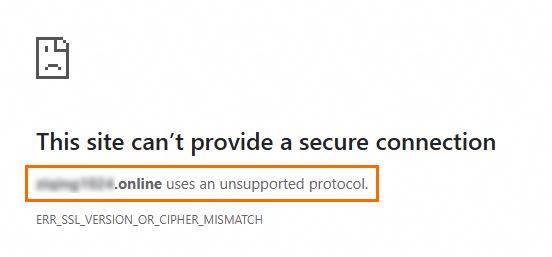
The browser displays a message that the website uses an "unsupported protocol"
image

Possible cause: Your web server might be using an insecure protocol version, such as SSL 2.0, SSL 3.0, TLS 1.0, or TLS 1.1. The TLS protocol configured on the web server might also be inconsistent with the TLS protocol supported by the operating system.

Solution:

  • In the web server's configuration file, use a more secure protocol version, such as TLS 1.2 or TLS 1.3. The following Nginx example shows how to set the supported SSL/TLS protocol versions in the configuration file. Make sure your client supports the configured TLS protocol versions. Otherwise, you might encounter connection failures.

       server {
           listen 443 ssl;
           server_name yourdomain.com;
    
           # Paths to the SSL certificate and private key files
           ssl_certificate /path/to/your_certificate.crt;
           ssl_certificate_key /path/to/your_private.key;
    
           # Set the supported SSL/TLS protocol versions
           ssl_protocols TLSv1.2 TLSv1.3;
    
           # Optional: Set more secure cipher suites
           ssl_ciphers 'ECDHE-ECDSA-AES256-GCM-SHA384:ECDHE-RSA-AES256-GCM-SHA384:ECDHE-ECDSA-CHACHA20-POLY1305:ECDHE-RSA-CHACHA20-POLY1305:ECDHE-ECDSA-AES128-GCM-SHA256:ECDHE-RSA-AES128-GCM-SHA256';
           
           location / {
               root /var/www/html;
               index index.html index.htm;
           }
    }
  • Ensure that the cipher suites used by the server are consistent with the TLS protocol supported by the operating system. You can configure the settings in your operating system. The method for setting the TLS protocol varies by operating system. The following steps show how to configure the settings in a Windows operating system.

    1. Open Control Panel and click Network and Internet.

    2. In the Network and Internet panel, click Internet Options, and then click the Advanced tab.

    3. Select to enable TLS 1.2 or TLS 1.3 for better security and compatibility.

The browser displays a message that "part of this page is not secure (such as images)" or external resources such as images, scripts, and styles fail to load

Possible cause: Your website's code references resources using the HTTP protocol.

Solution:

  • Update all HTTP resources to HTTPS. This ensures that all external resources, such as images, scripts, and styles, are loaded over the HTTPS protocol.

  • If the resources are on the same domain as your website, you can use relative URLs. The browser will then automatically use the current page's protocol (HTTP or HTTPS) to load the resources.

  • Check if third-party resources support HTTPS, or remove the references to the HTTP resources. Deploy and publish the changes, then access the website again.

Note

The implementation logic varies based on your website's code. Modify the settings as needed. If you have questions, contact your account manager.