Grafana can query and visualize Simple Log Service data through its Elasticsearch-compatible API.
The information in this topic is proprietary to Alibaba Cloud. This topic describes how Alibaba Cloud services interact with third-party services and may reference the names of third-party companies and services.
Prerequisites
-
The Elasticsearch data source is compatible with Grafana versions 8.x, 9.x, 10.x, and 11.x. This topic uses Grafana 11.4.0 as an example.
A project and a Standard logstore are created, and logs are collected. For more information, see Manage projects, Create a basic Logstore, and Data collection.
Indexes are created before you query logs. For more information, see Create indexes.
An AccessKey pair is created for the RAM user, and the required permissions to query logs in logstores are granted to the RAM user. For more information, see RAM authorization.
Background information
Grafana is an open source data visualization and monitoring platform that supports multiple data sources, including Graphite, InfluxDB, Prometheus, and Elasticsearch.
Simple Log Service provides an Elasticsearch-compatible API that allows you to use the built-in Elasticsearch data source plugin in Grafana to query and analyze data. This approach is ideal if you are familiar with Elasticsearch query syntax and want to migrate your workflow to Simple Log Service.
Simple Log Service also provides a native Grafana data source plugin. For more information, see Connect to Grafana. The following table compares the two plugins.
|
Comparison Criteria |
Grafana and the Elasticsearch-compatible API |
Grafana and the native SLS plugin |
|
Grafana data source plugin |
Elasticsearch data source plugin (included in Grafana by default) |
SLS data source plugin (requires manual installation) |
|
Query syntax |
Elasticsearch DSL syntax |
SLS index query syntax and SQL analysis syntax |
Configure a data source
-
Log on to the Grafana console.
-
In the navigation pane on the left, choose .
-
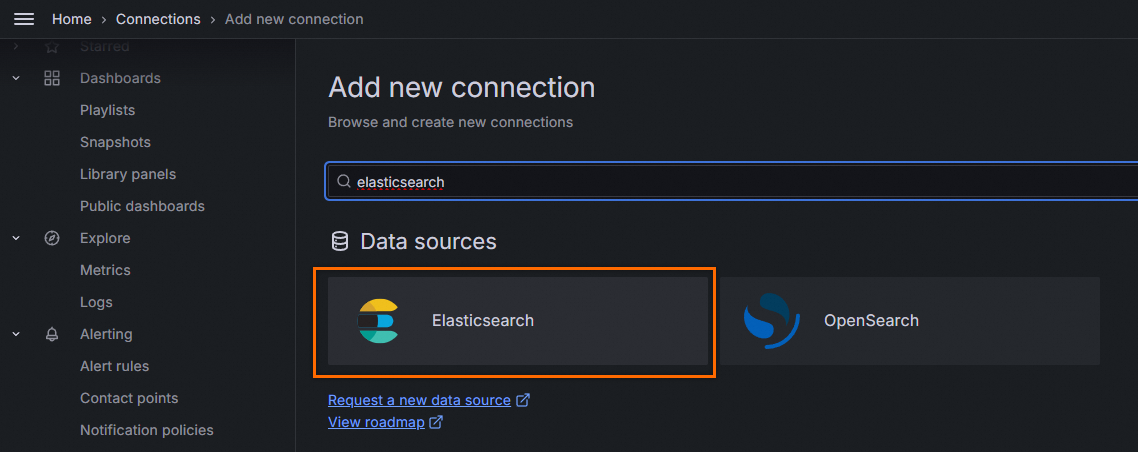
On the Add new connection page, find and click Elasticsearch.
-
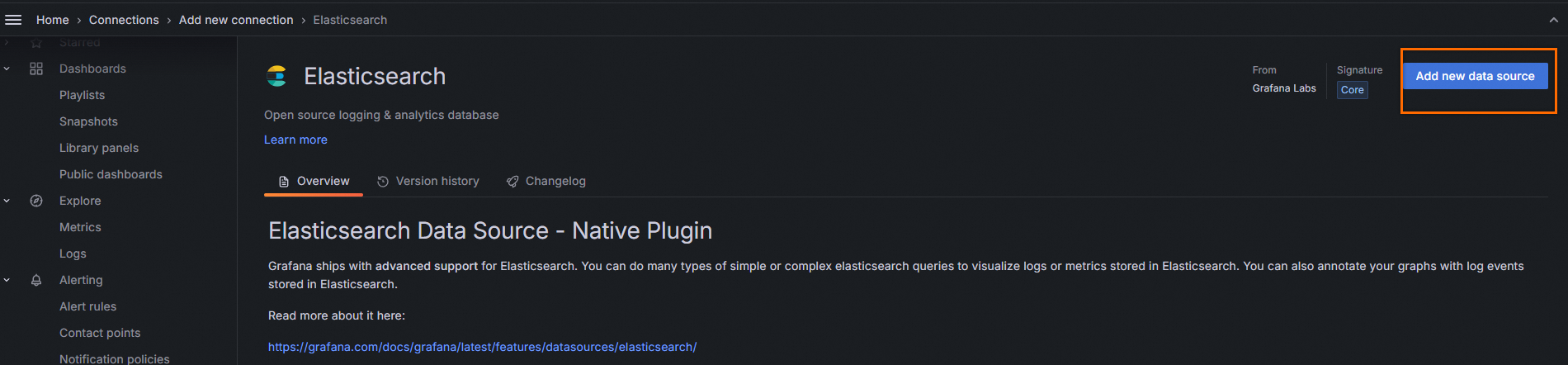
On the Elasticsearch details page, click Add new data source.
-
On the Settings tab, configure the parameters and click Save & test to test the connection. If the message Data source successfully connected appears, the connection is successful. If an error occurs, see FAQ.
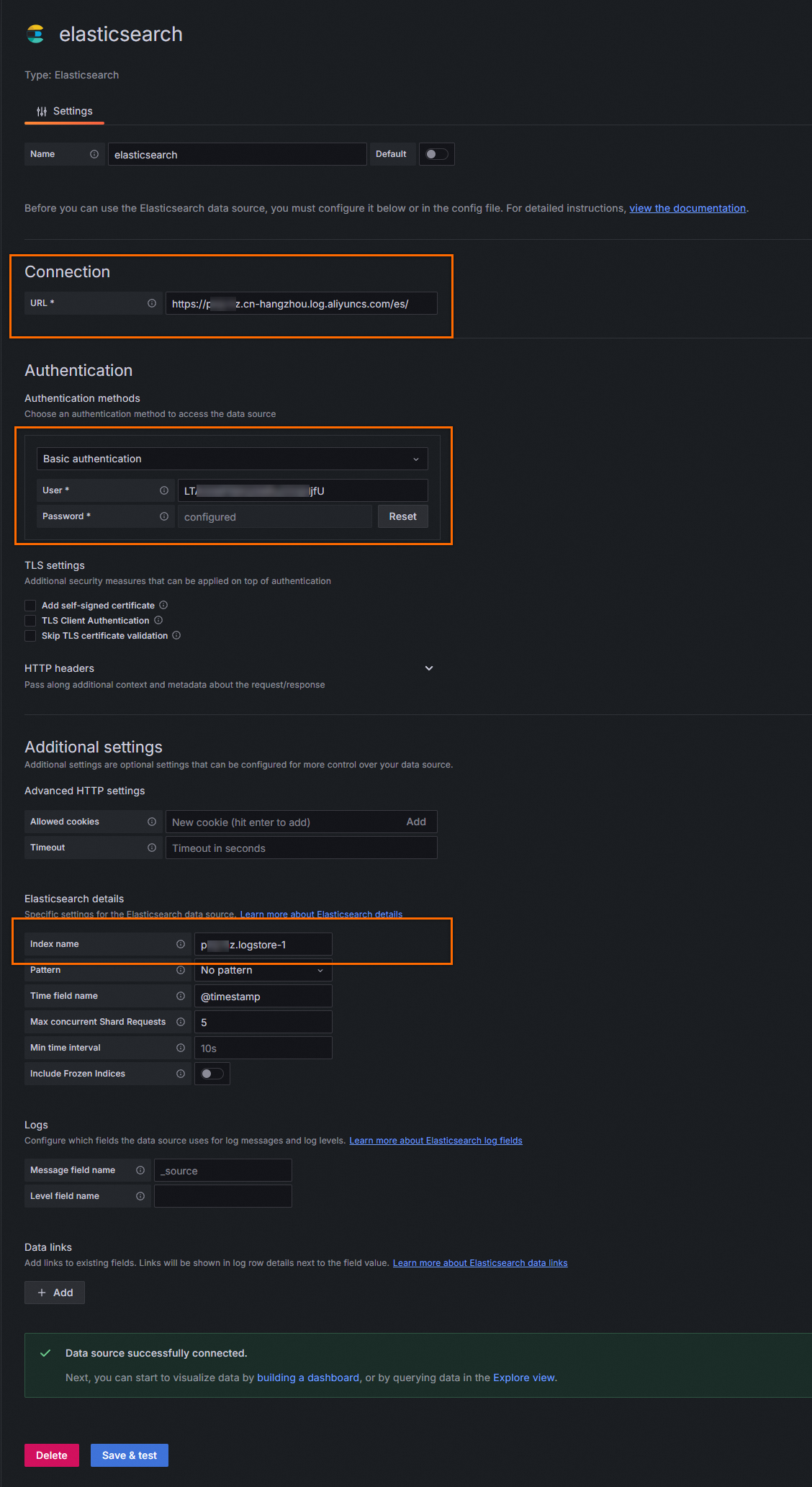
The following table describes the key parameters. You can use the default configurations for other parameters.
Configuration area
Parameter name
Description
Connection
URL
The endpoint to access data. The format is
https://${project}.${sls-endpoint}/es/. In this format,${project}is the project name and${sls-endpoint}is the endpoint of the Simple Log Service project. For more information, see Endpoints. Example:https://etl-guangzhou.cn-guangzhou.log.aliyuncs.com/es/.ImportantYou must use the HTTPS protocol.
Authentication methods
Basic authentication
Select Basic authentication.
User
The AccessKey ID of your Alibaba Cloud account.
Use the AccessKey pair of a RAM user who has the permissions to query data in the Logstore. You can use the permission assistant to configure permissions. For more information, see Configure the permission assistant. To learn how to obtain an AccessKey pair, see AccessKey pair.
Password
The AccessKey secret of your Alibaba Cloud account.
Use the AccessKey pair of a RAM user who has the permissions to query data in the Logstore. You can use the permission assistant to configure permissions. For more information, see Configure the permission assistant. To learn how to obtain an AccessKey pair, see AccessKey pair.
Elasticsearch details
Index name
The name of the Elasticsearch index pattern. The name must follow the
${Simple Log Service project name}.${Logstore name}naming convention. For example, if the project name is etl-guangzhou and the Logstore name is es_test22, set this parameter toetl-guangzhou.es_test22.
Sample chart configurations
After you add the data source, you can create chart visualizations without writing SQL queries. The following examples show how to configure charts for NGINX access logs.
Overall QPS curve
In the Lucene Query box, enter filter conditions using Elasticsearch Lucene syntax.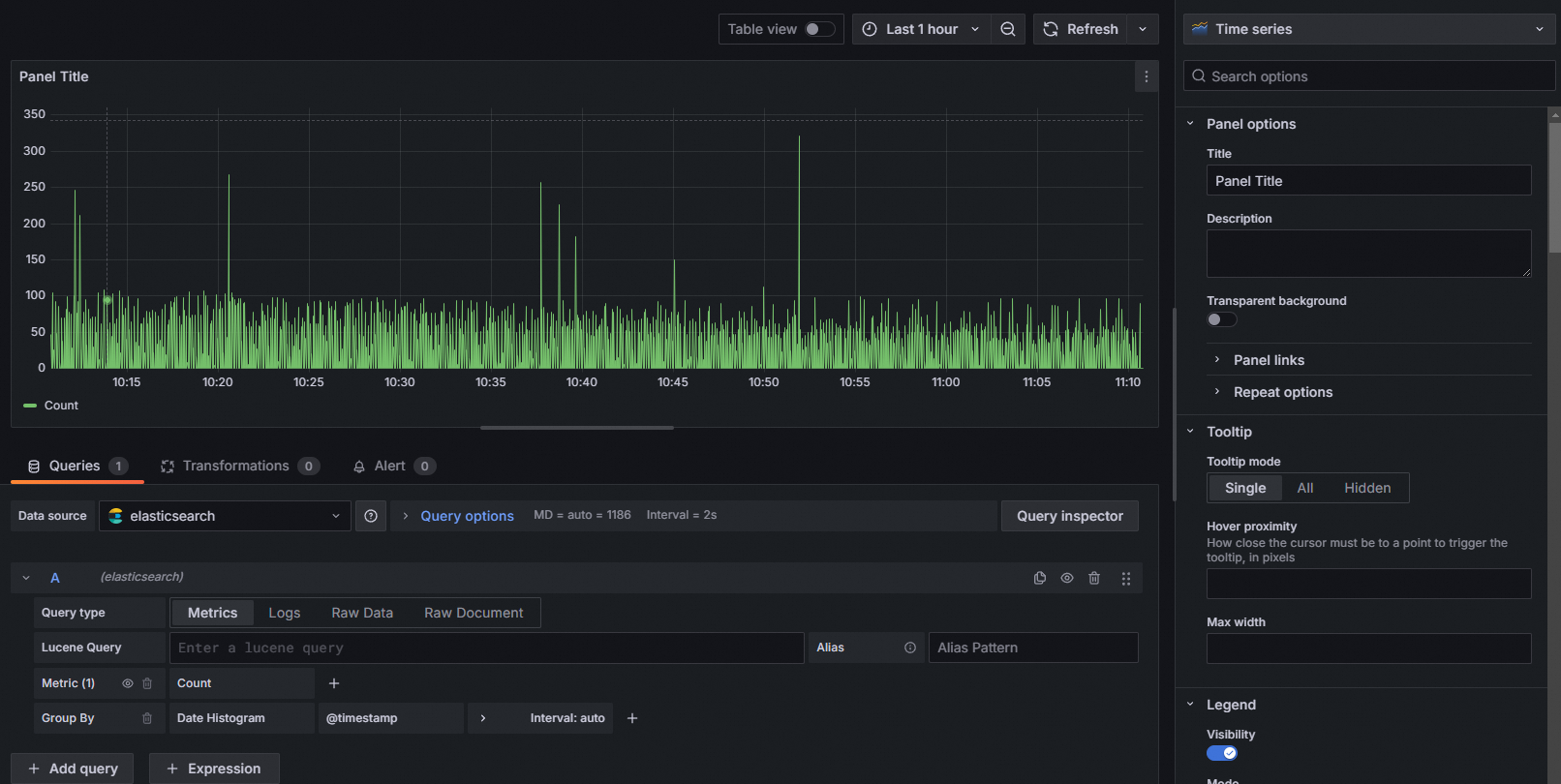
Curve for requests with a status of 200
In the Lucene Query box, enter status: 200 to display the curve for this condition.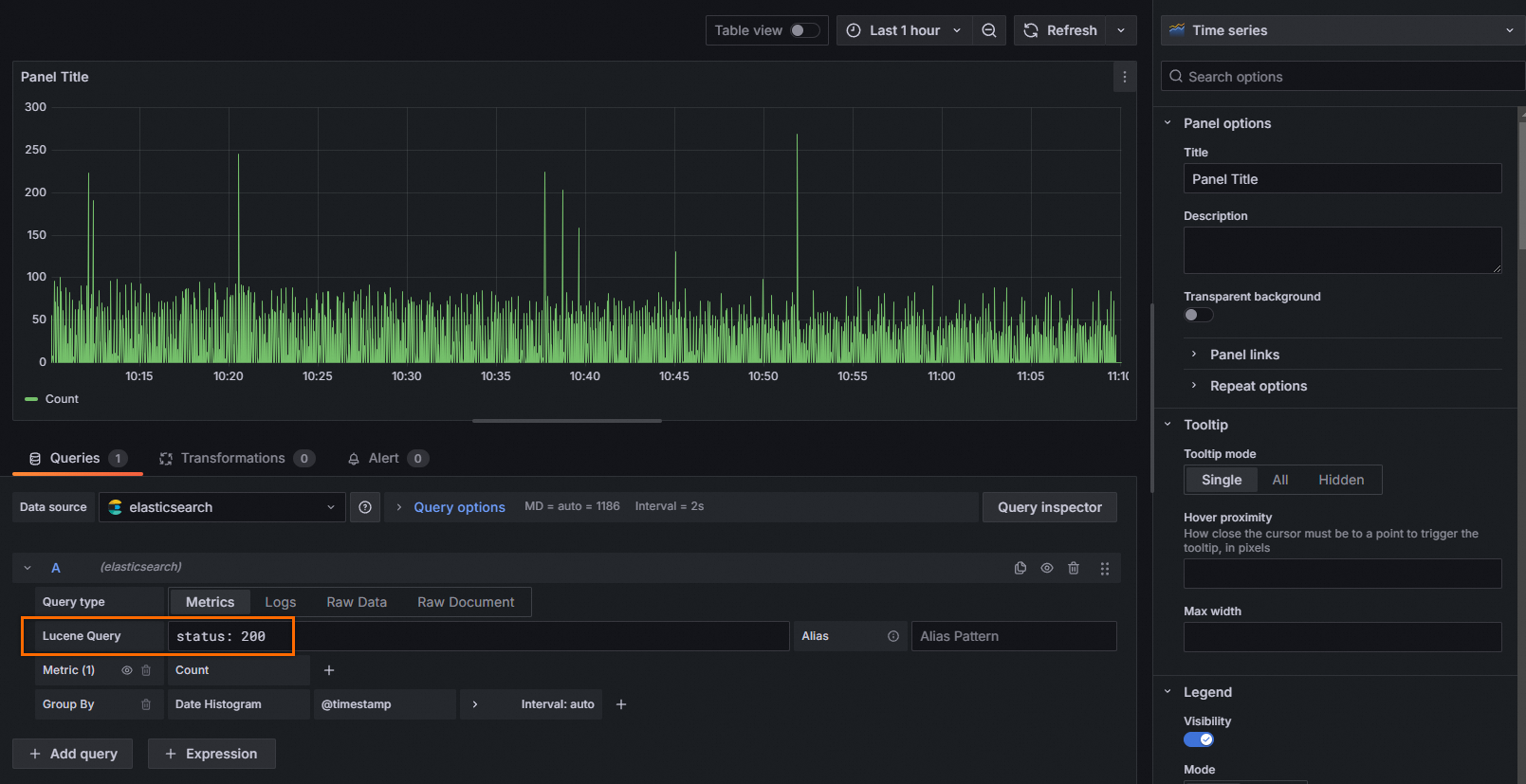
Top request URIs
Set Group By To Terms, and select the request_uri field.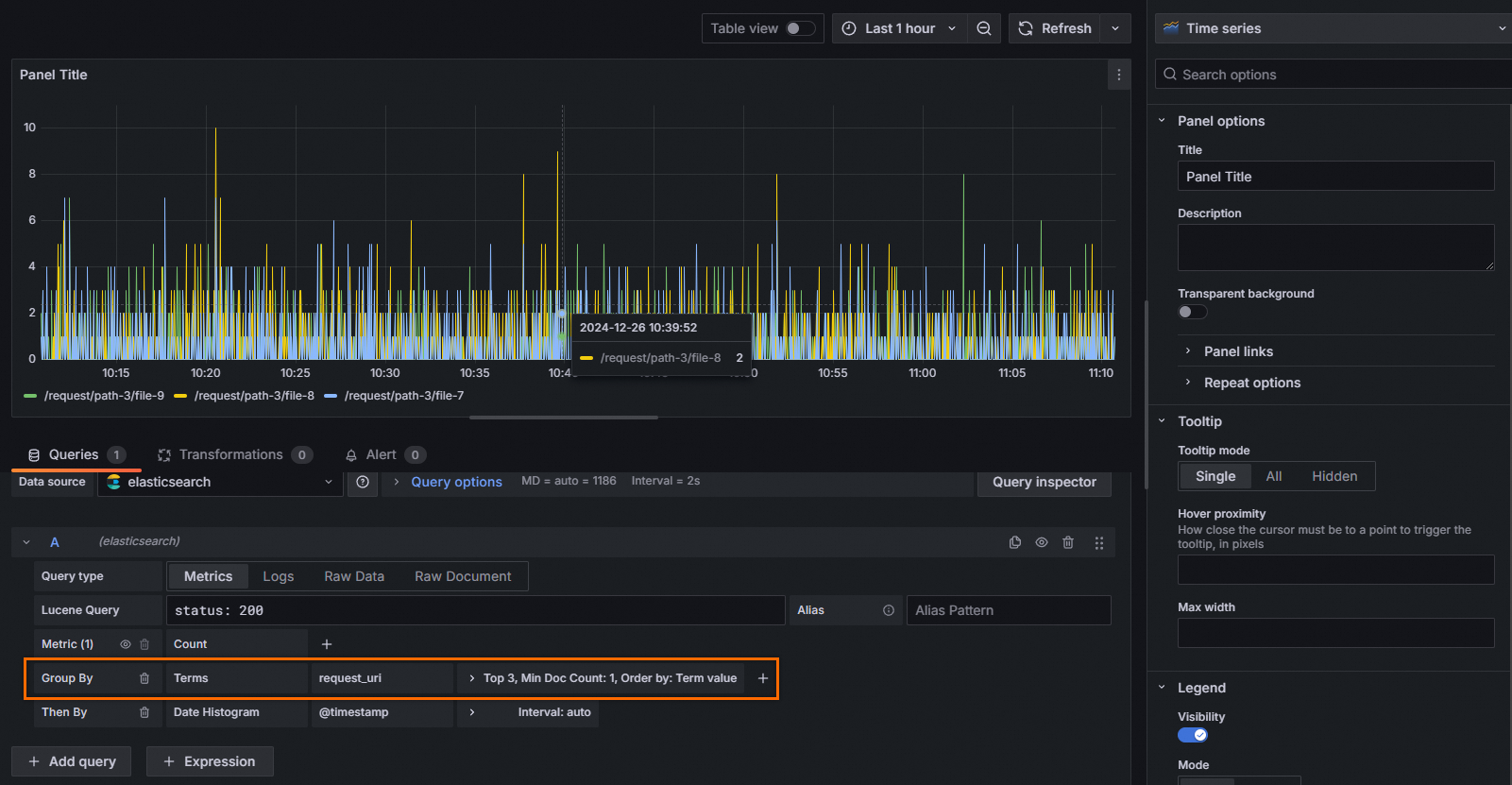
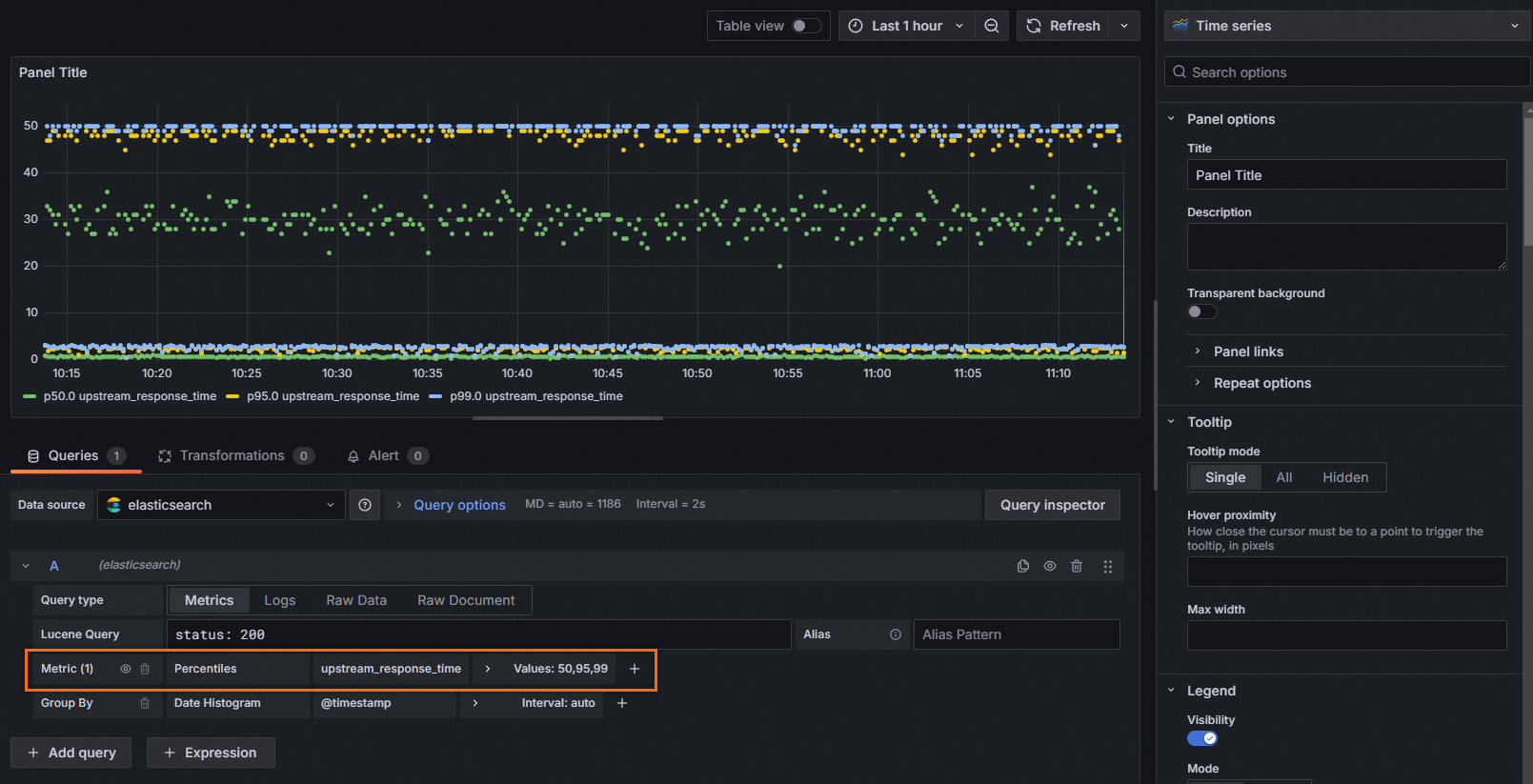
RT quantiles
Set Metric to Percentiles, select the upstream_response_time field, and select specific quantile values, such as 50, 95, and 99, for Values.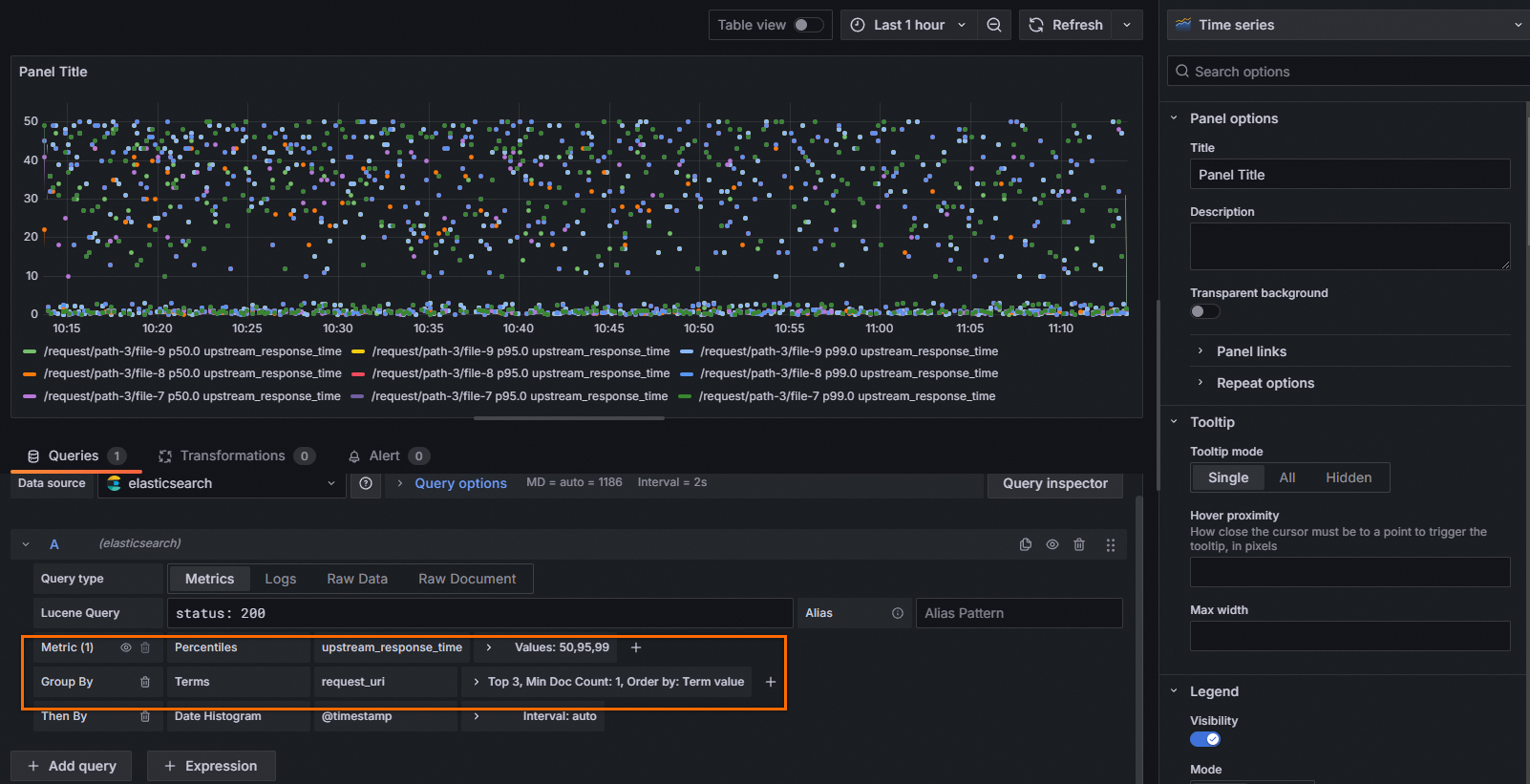
RT quantiles by top request URI
For Metric, select Percentiles and the upstream_response_time field. Set Values to 99. For Group By, select Terms and the request_uri field.
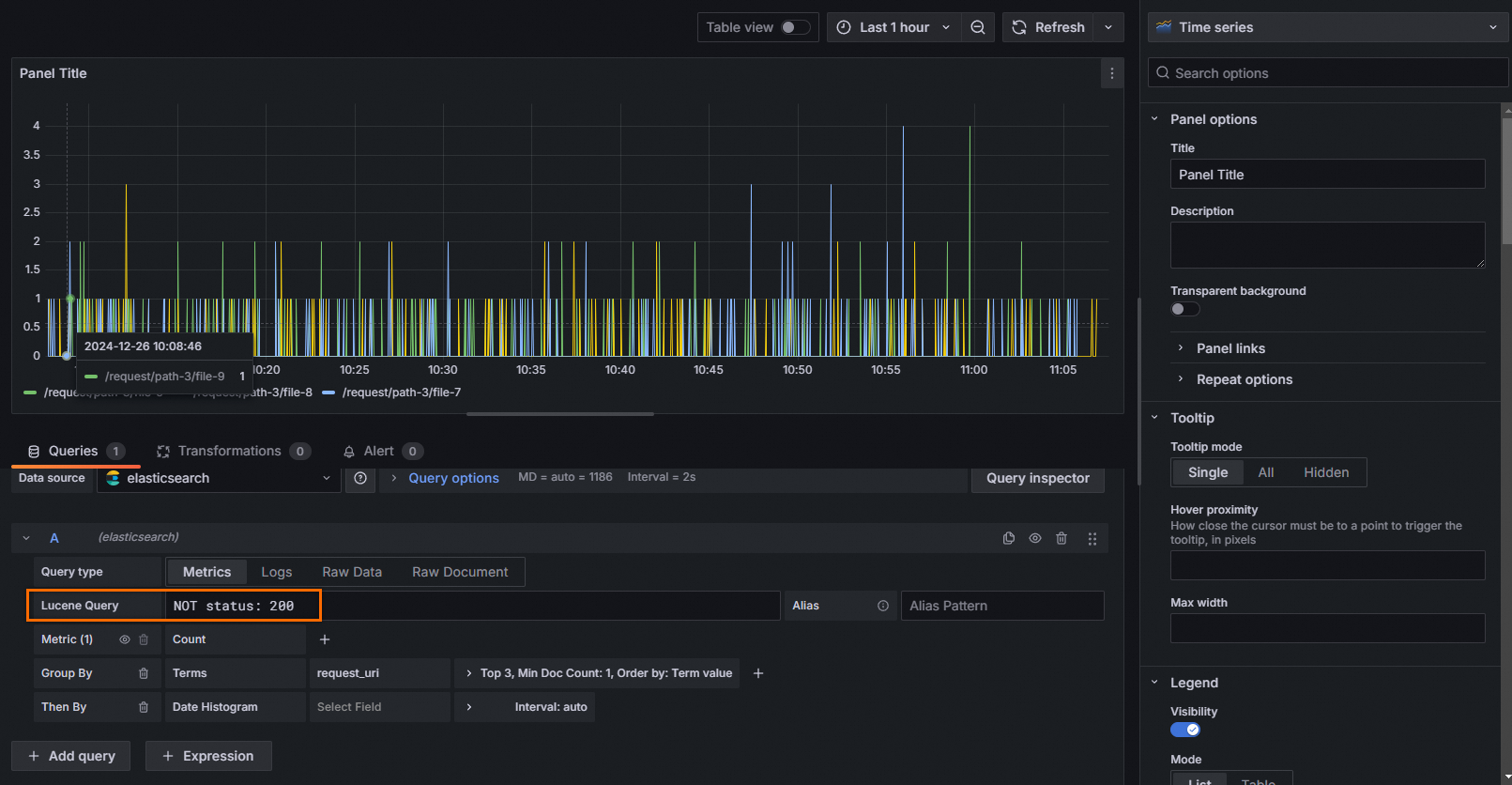
Top request URIs with a non-200 status
In the Lucene Query field, enter NOT status: 200, Set Group By To Terms, and select the request_uri field.
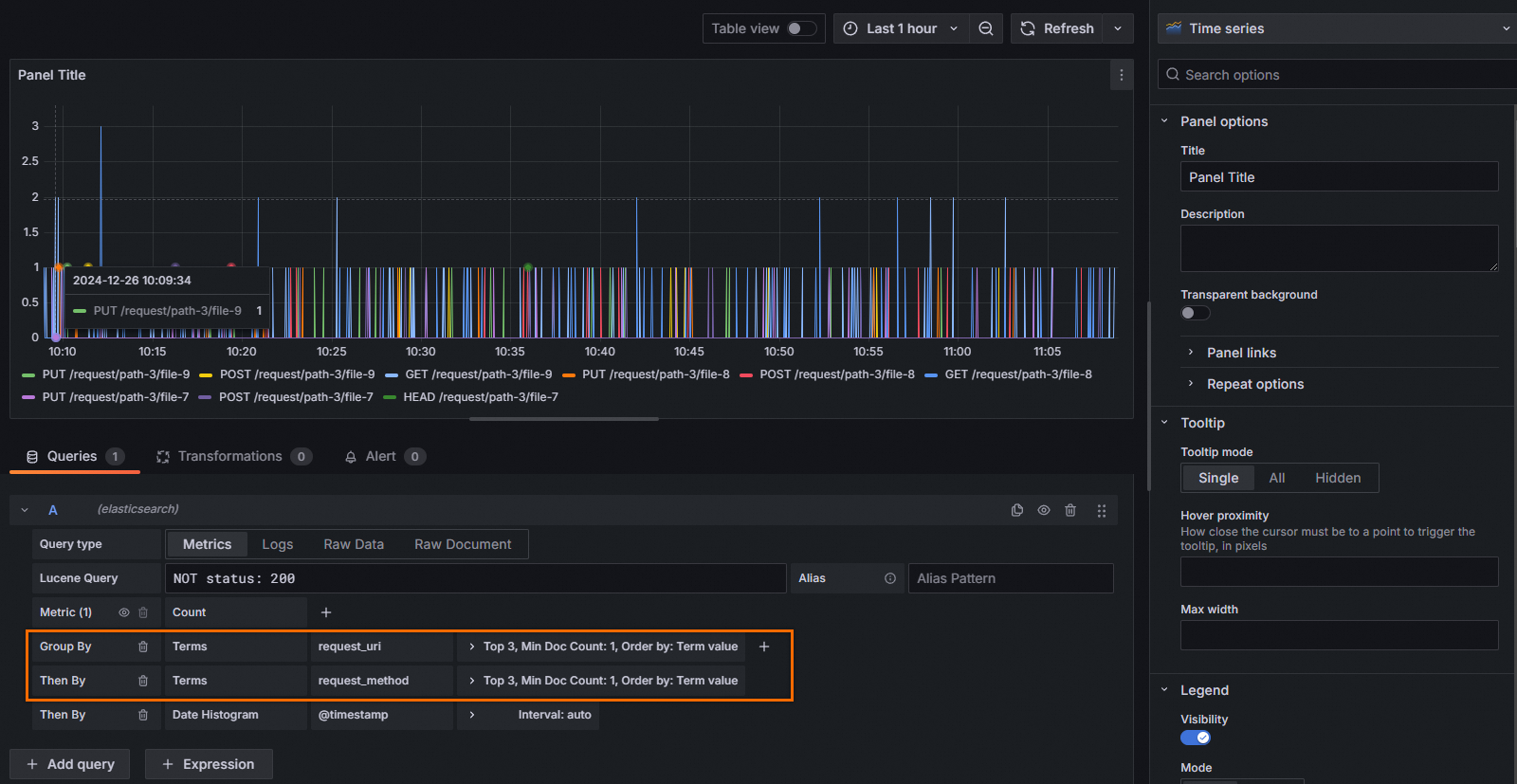
Top request URIs and methods with a non-200 status
In the Lucene Query box, enter NOT status: 200, Set Group By To Terms, and select the request_uri field. Then, add a Group By for request_method.