After you enable the flow log feature in the Virtual Private Cloud (VPC) console, flow logs are collected in Simple Log Service. Simple Log Service lets you query, analyze, and troubleshoot network issues using these logs. This topic describes how to use the data transformation feature to filter Virtual Private Cloud (VPC) flow logs for Internet traffic.
Prerequisites
-
The VPC flow log feature is enabled. For more information, see Create a flow log.
-
You must create a project and a Logstore to store the Internet traffic logs from the transformed VPC flow logs. For more information, see Manage projects and Create a basic Logstore.
Background information
Virtual Private Cloud (VPC) provides a flow log feature. This feature records information about inbound and outbound traffic from elastic network interfaces (ENIs) in your VPC. This helps you check access control rules, monitor network traffic, and troubleshoot network issues.
The flow log feature captures traffic information and writes it to Simple Log Service as logs. Each log entry captures a specific 5-tuple of network traffic within an aggregation interval. The aggregation interval is approximately 10 minutes. During this interval, the flow log feature aggregates data before publishing the logs. If you create a flow log for a VPC or a vSwitch, traffic from all ENIs in that VPC or vSwitch is captured. This includes ENIs created after you enable the flow log feature.
Scenarios
For example, after you enable the flow log feature for your VPC, a sample log collected in Simple Log Service appears below:
{
    "vm-id": "i-bp13cg******zs2l",
    "srcaddr": "172.16.XX.XX",
    "__time__": 1650964251,
    "__topic__": "flow_log",
    "dstport": "53",
    "account-id": "1379******4",
    "__source__": "log_service",
    "start": "1650862360",
    "dstaddr": "100.100.XX.XX",
    "vpc-id": "vpc-bp1cznk******vv",
    "version": "1",
    "packets": "1",
    "eni-id": "eni-bp17w******5sfw6m",
    "protocol": "17",
    "__pack_meta__": "1|MTY1MDk2NDAxOTEyMjczMTQ1NQ==|5|4",
    "bytes": "92",
    "vswitch-id": "vsw-bp16******wqe6p44",
    "srcport": "59986",
    "action": "ACCEPT",
    "end": "1650862391",
    "log-status": "OK",
    "direction": "out"
}
To analyze Internet traffic when querying and analyzing flow logs, process the raw logs as follows:
-
If a log does not contain the srcaddr or dstaddr field, drop the log.
-
If a log records traffic between private networks, drop the log.
Based on these requirements, you can use data transformation to process the collected flow logs for easier analysis.
Procedure
Log on to the Simple Log Service console.
In the Projects section, click the one you want.

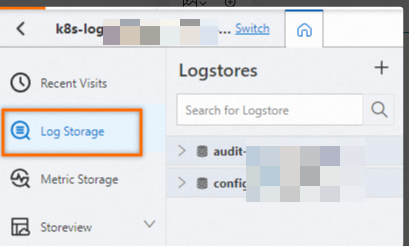
On the tab, click the logstore you want.
-
Click the Data Transformation button.
-
In the data transformation editor, enter the following statements.
# If the srcaddr or dstaddr field does not exist, drop the log. e_if(e_not_has("srcaddr"), e_drop()) e_if(e_not_has("dstaddr"), e_drop()) # If the value of the srcaddr or dstaddr field is not in a valid IP address format, drop the log. e_if(op_not(e_match("srcaddr", grok(r'%{IP}'))), e_drop()); e_if(op_not(e_match("dstaddr", grok(r'%{IP}'))), e_drop()); # If the traffic is between private networks, drop the log. e_if(op_and( op_or(ip_cidrmatch("10.0.0.0/8", v("srcaddr")), ip_cidrmatch("172.16.0.0/12", v("srcaddr")), ip_cidrmatch("192.168.0.0/16", v("srcaddr")) ), op_or(ip_cidrmatch("10.0.0.0/8", v("dstaddr")), ip_cidrmatch("172.16.0.0/12", v("dstaddr")), ip_cidrmatch("192.168.0.0/16", v("dstaddr")) )),e_drop())-
Use the e_if and e_not_has functions to delete logs that do not contain the srcaddr or dstaddr field. For more information, see e_if, e_not_has, and e_drop.
-
Use the e_if, op_not, and e_match functions to delete logs where the srcaddr or dstaddr field is not a valid IP address. For more information, see op_not and e_match.
-
Use the e_if, op_and, op_or, and ip_cidrmatch functions to delete logs about private network traffic. For more information, see op_and, op_or, and ip_cidrmatch.
-
-
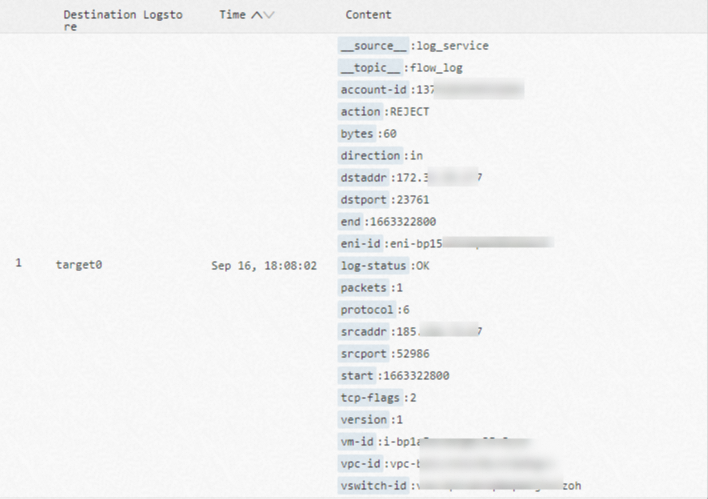
You can click Preview Data.
The preview shows that only flow logs for Internet traffic are retained.
-
Click Save Data Transformation.
-
On the Create Data Transformation Job page, you can configure the following parameters, and then click OK.
-
Configure basic information.
Parameter
Description
Job Name
The name of the data transformation job. For example, enter vpc-flowlog-public.
Authorization Method
The method to grant Simple Log Service permission to read data from the source Logstore. For this example, select Default Role.
-
Configure a storage destination.
Parameter
Description
Destination Name
The name of the storage destination. For example, enter target-a.
Destination Region
The region where the destination project resides. For example, select China (Hangzhou).
Destination Project
The project used to store Internet traffic logs. For example, enter project-vpc-flowlog-public.
Destination Logstore
The Logstore used to store Internet traffic logs. For example, enter LogStore-vpc-flowlog-public.
Authorization Method
The method to grant Simple Log Service permissions to read from and write to the destination Logstore.
For this example, select Default Role.
-
Configure a processing time range.
Parameter
Description
Time Range
The time range for data transformation. Select All to continuously process data in the Logstore from the start time.
After the job is created, you can:
-
View the details and status of the job. You can also modify, start, stop, or delete the job. For more information, see Manage data transformation jobs.
-
Go to the destination Logstore to view the Internet traffic from VPC flow logs. Only logs about Internet traffic are stored.
You can enter a query statement to analyze Internet traffic by source and destination city. For example:
*|select ip_to_city(srcaddr) as sourceAddr,ip_to_city(dstaddr) as dstAddr,COUNT(*) as pv group by sourceAddr,dstAddr order by pv limit 10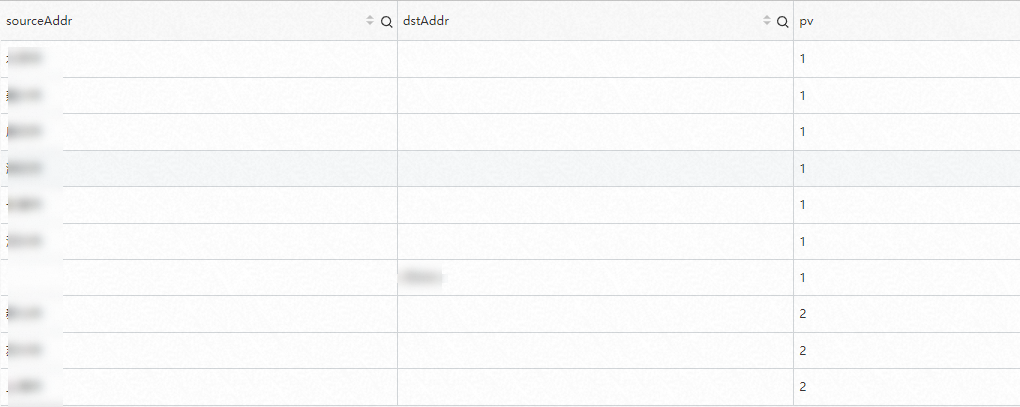
-