Common questions and solutions for querying and analyzing JSON-formatted logs in Simple Log Service, including index configuration, JSON functions, and JSON array handling.
Sample log
The examples in this topic use JSON logs from an order processing system.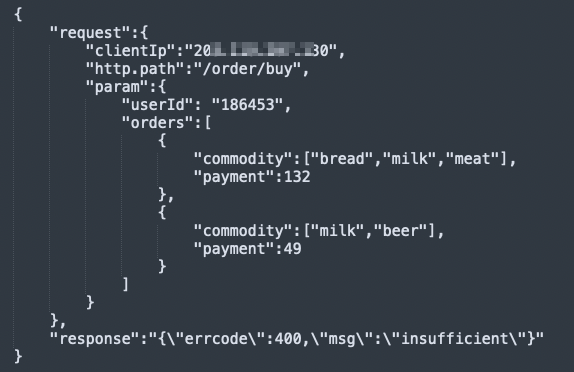
The request field contains order request information in JSON format. A request can include multiple orders for a user, each with purchased products and the total payment.
-
The response field contains the order processing result.
On success, the value of the response field is
SUCCESS.On failure, the value of the response field is a JSON object containing
errcodeandmsg.
Use Logtail to Collect logs in JSON mode into Simple Log Service for query and analysis.
How to configure an index
Configure an index before querying or analyzing log data. Keep the following points in mind when configuring indexes for JSON logs.
How to select an index type
Simple Log Service supports full-text indexes and field indexes. Choose based on your use case. Create an index.
To query all fields, create a full-text index. To query specific fields only, create field indexes for those fields to reduce costs.
To run SQL analysis on a field, create a field index for it and enable statistics.
When both a full-text index and field indexes are configured, the field index takes precedence for fields that have one.
For example, to analyze the request and response fields, create field indexes for them and enable statistics.
How to select a data type for a field in the index configuration
When configuring an index, set the data type of a field to text, long, double, or JSON. Data types.
Keep the following in mind when setting a data type for a JSON field.
-
If a field value is not in standard JSON format but contains JSON content, set the data type to text. If the value is in standard JSON format, set it to JSON.
NoteFor JSON logs that are not fully valid, Simple Log Service can parse the valid parts.
After setting the data type to JSON, create an index for a leaf node within the JSON object for faster queries. This incurs additional indexing fees.
Simple Log Service supports indexes for leaf nodes in JSON objects, but not for child nodes that contain leaf nodes.
Simple Log Service does not support indexes for fields whose values are JSON arrays, or for fields within a JSON array. For such fields, use JSON functions for real-time analysis instead.
Based on the sample log, create the following indexes.
-
request field
request: The value is in JSON format. Set the data type to JSON and enable statistics.
request.clientIp: Frequently analyzed. Create a separate index, set the data type to text, and enable statistics.
request.http.path: Rarely analyzed. Skip the separate index — parse it on demand using JSON functions.
request.param: A child node that contains leaf nodes. Indexing is not supported.
request.param.userId: Frequently analyzed. Create a separate index, set the data type to text, and enable statistics.
request.param.orders: The value is a JSON array. Indexing is not supported.
-
response field
The value of the response field is not always in JSON format. Set its data type to text and enable statistics.
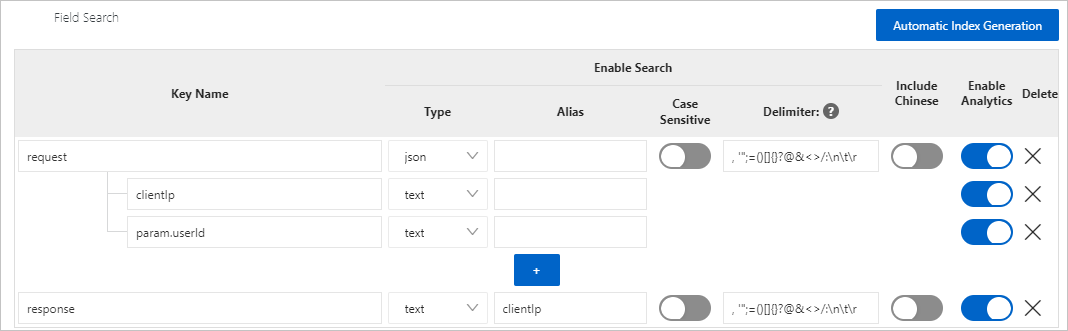
After creating the index, newly collected logs appear in the format shown below.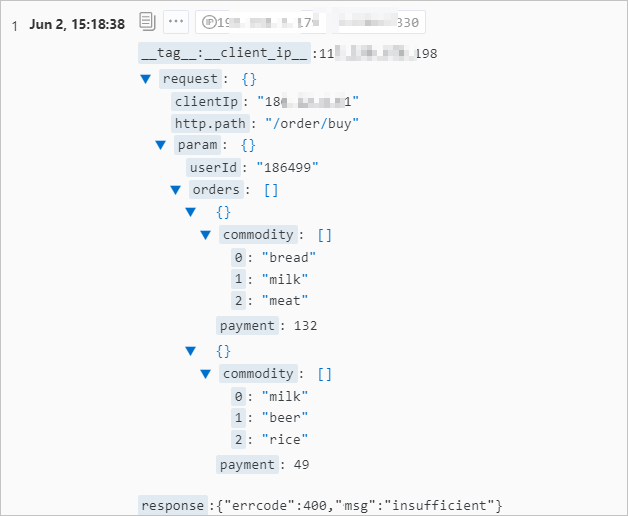
How to set an alias
For long JSON leaf node paths, set an alias. Column aliases.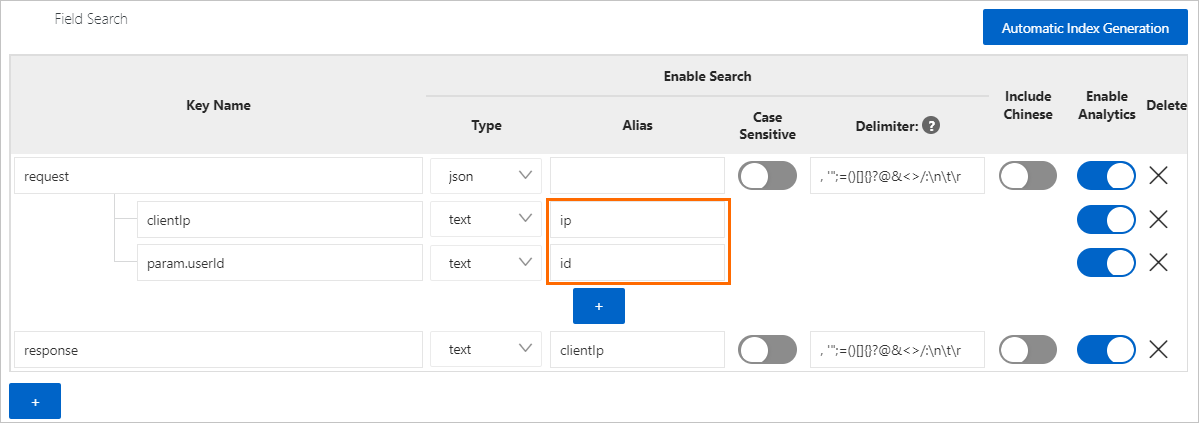
Field names and aliases must be unique across all fields in an index configuration.
For JSON-type fields, uniqueness is determined by the full path of the leaf node. For example, setting the alias of the response field to clientIp does not conflict with the field name request.clientIp.
How to query and analyze an indexed JSON field
A query and analysis statement follows the format query statement|analytic statement. In an analytic statement, enclose field names in double quotation marks ("") and strings in single quotation marks (''). Specify the full path for nested fields — for example, Key1.Key2.Key3, request.clientIp, or request.param.userId. Query and analyze JSON logs.
For example, to find client IP addresses for user 186499:
*
and request.param.userId: 186499 |
SELECT
  distinct("request.clientIp")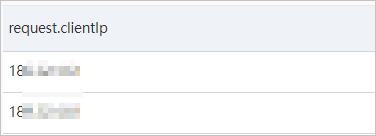
When to use JSON functions
For large datasets with complex but fixed JSON structures where query performance matters, create field indexes for JSON leaf nodes. For smaller datasets or ad-hoc analysis, use JSON functions without field indexes to save costs. JSON functions enable dynamic processing and analysis of JSON content. In some cases, they are the only option.
-
The field value is not always in JSON format or requires pre-processing.
For example, the response field contains JSON with an errcode field only when a request fails. To analyze errcode distribution, filter for failed requests and extract errcode with a JSON function.
*  not response :SUCCESS |
SELECT
  json_extract_scalar(response, '$.errcode') AS errcode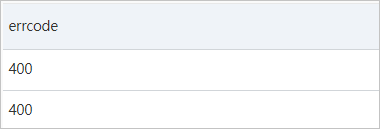
The field cannot be indexed. For JSON nodes that do not support indexing — such as request.param and request.param.orders — JSON functions are the only way to run real-time analysis.
How to choose between json_extract and json_extract_scalar
Both json_extract and json_extract_scalar extract content from JSON objects or arrays. The key difference is the return type.
-
json_extractreturns a JSON type;json_extract_scalarreturns a varchar type.NoteThis refers to SQL data types (varchar, bigint, boolean, JSON, array, date), which differ from SLS index data types. Use the
typeoffunction to check an SQL object's data type. typeof function. json_extractcan parse any substructure of a JSON object.json_extract_scalarparses only scalar leaf nodes (string, Boolean, or number) and returns the corresponding string.
Both functions can extract the clientIp field from the request field.
-
Using
json_extract:* | SELECT json_extract(request, '$.clientIp')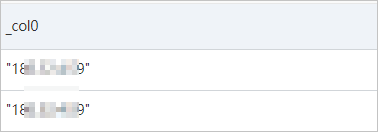
-
Using
json_extract_scalar:* | SELECT json_extract_scalar(request, '$.clientIp')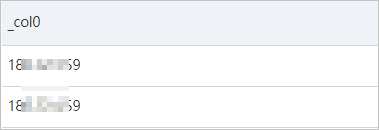
To extract the first octet of the clientIp value, use json_extract_scalar to extract clientIp, then use split_part to extract the first number. json_extract does not work here because split_part requires a varchar input.
* |
SELECT
  split_part(
    json_extract_scalar(request, '$.clientIp'),
    '.',
    1
  ) AS segment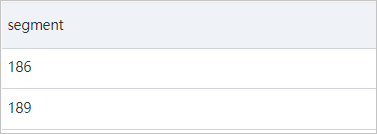
In most cases, use json_extract_scalar — its varchar return type composes naturally with other SQL functions. Use json_extract when you need to work with the JSON structure itself. For example, to count the orders in a request (the length of the request.param.orders array):
* |
SELECT
  json_array_length((json_extract(request, '$.param.orders')))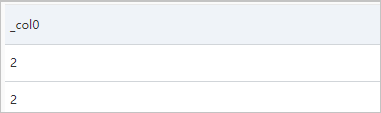
json_extract_scalar returns a varchar type. For example, the number 2 in the preceding result is varchar. To perform calculations such as summation, first cast it to bigint using cast. Type conversion functions.
How to set a JSON path
When using functions such as json_extract, specify a JSON path to target the part of the JSON object to extract. The format is $.a.b, where $ is the root node and periods (.) reference child nodes.
For JSON field names that contain special characters — such as http.path, http path, or http-path — use square brackets [] instead of a period and enclose the field name in double quotation marks. Example: * |SELECT json_extract_scalar(request, '$["http.path"]').
When querying via an SDK, escape the double quotation marks. Example: * | select json_extract_scalar(request, '$[\"http.path\"]').
To extract an element from a JSON array, use square brackets [] with a zero-based index.
-
View the payment for the user's first order:
* |
SELECT
  json_extract_scalar(request, '$.param.orders[0].payment')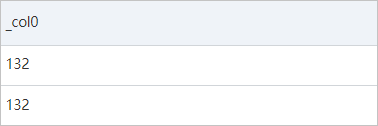
-
View the second product purchased in the user's first order:
* |
SELECT
  json_extract_scalar(request, '$.param.orders[0].commodity[1]')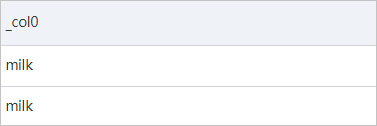
How to analyze a JSON array
To analyze a JSON array, combine cast with the UNNEST clause to expand the array, then aggregate the results.
Example 1
To calculate the total payment for all successful orders:
-
Filter for successful requests and extract the orders field using
json_extract.* and response: SUCCESS | SELECT json_extract(request, '$.param.orders')
-
Convert the JSON array to an array type.
*
and response: SUCCESS |
SELECT
  cast(
    json_extract(request, '$.param.orders') AS array(json)
  )
-
Use
UNNESTto expand the array into individual rows.* and response: SUCCESS | SELECT orderinfo FROM log, unnest( cast( json_extract(request, '$.param.orders') AS array(json) ) ) AS t(orderinfo)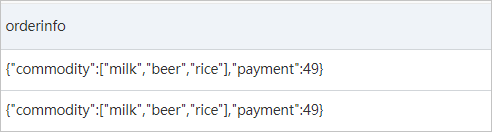
-
Extract the payment value using
json_extract_scalar, cast to bigint, and sum.* and response: SUCCESS | SELECT sum( cast( json_extract_scalar(orderinfo, '$.payment') AS bigint ) ) FROM log, unnest( cast( json_extract(request, '$.param.orders') AS array(json) ) ) AS t(orderinfo)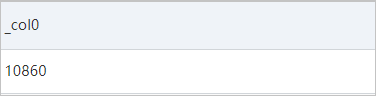
Example 2
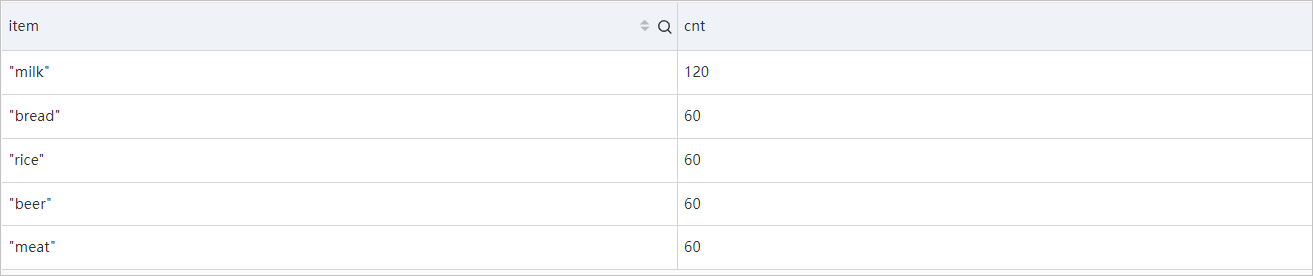
To count the quantity of each product across all successful requests: extract the orders field, cast to array(json), and expand with UNNEST — each row is an order. Extract the commodity field, cast and expand again — each row is a product. Group and count.
*
and response: SUCCESS |
SELECT
  item,
  count(1) AS cnt
FROM  (
    SELECT
      orderinfo
    FROM      log,
      unnest(
        cast(
          json_extract(request, '$.param.orders') AS array(json)
        )
      ) AS t(orderinfo)
  ),
  unnest(
    cast(
      json_extract(orderinfo, '$.commodity') AS array(json)
    )
  ) AS t(item)
GROUP  BY
  item
ORDER BY
  cnt DESC