Log Audit Service collects logs from cloud services (excluding Kubernetes-related logs) across multiple Alibaba Cloud accounts into a Logstore in your current account.
Prerequisites
-
Resource directory mode (recommended)
-
A member is created or invited. Create a member or Invite an Alibaba Cloud account to join a resource directory.
-
The log collection feature is enabled. Enable and manage log collection.
-
-
Custom authentication mode
The log collection feature is enabled. Enable and manage log collection.
Collection modes
Log Audit Service supports cross-account log collection through resource directory mode or custom authentication mode. In resource directory mode, Log Audit Service is integrated with Resource Directory. You use a management account or delegated administrator account to add enterprise Alibaba Cloud accounts as members and collect their cloud service logs. What is resource management?
Resource directory mode has specific constraints. Resource Directory usage limits.
|
Mode |
Method |
Description |
|
resource directory mode |
All members |
Automatically adds all Resource Directory members to the collection scope and collects logs from their cloud services with log collection enabled.
|
|
Custom |
Manually select which members to include in the collection scope. Logs are collected from their cloud services with log collection enabled.
|
|
|
custom authentication mode |
AccessKey pair-based authorization |
Use the AccessKey pair of an Alibaba Cloud account or RAM user for multi-account collection. |
|
manual authorization |
Complete manual authorization before configuring multi-account collection. Important
Manual authorization is error-prone and may cause Log Audit Service to fail or become unavailable. Not recommended. |
-
After configuring multi-account collection in resource directory mode, you cannot switch to custom authentication mode without first clearing existing configurations.
-
Switching from custom authentication mode to resource directory mode overwrites the previous configurations.
-
To change the delegated administrator account, first remove the multi-account configuration from the central account. If collection is set to All members, switch to Custom and deselect all accounts first.
Resource directory mode (Recommended)
Log on to the Simple Log Service console.
-
Go to the Log Audit Service page.
NoteStarting January 21, 2025, the console entry for the Log Audit Service will be removed. Existing users who activated the service before this date can still see the entry. New users who need to use the old version can access the Log Audit Service (New Version) and use its Back to Old Version feature.
-
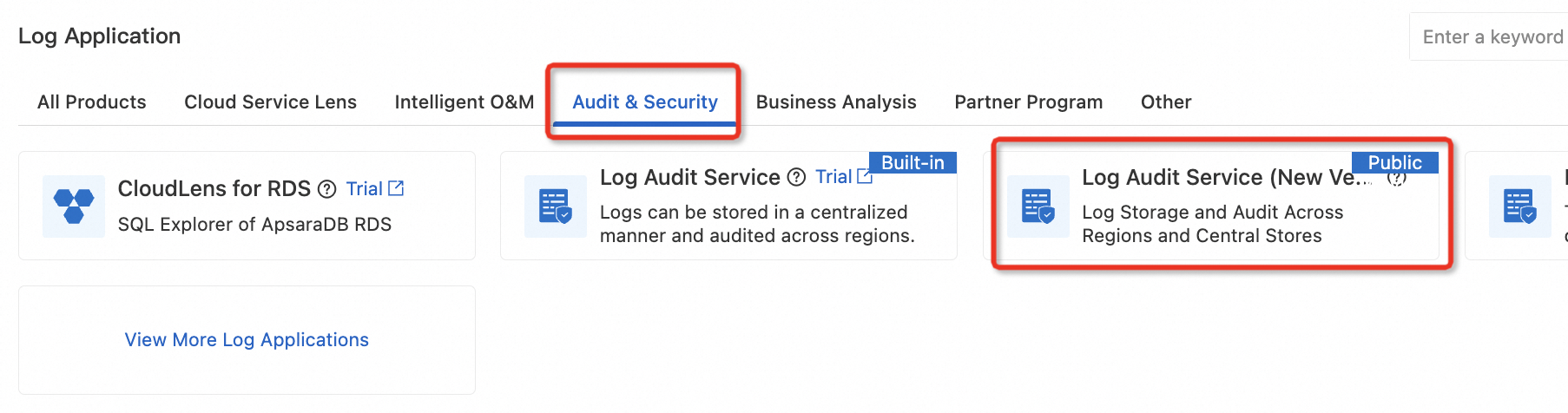
In the Log Application section, on the Audit & Security tab, click Log Audit Service (New Version).
-
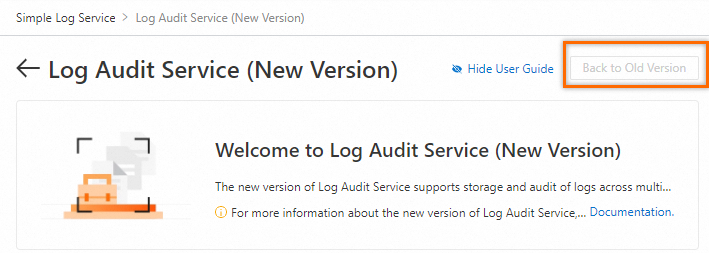
In the upper-right corner of the Log Audit Service (New Version) page, click Back to Old Version. Then continue to use the old version of Log Audit Service.
-
-
In the left-side navigation pane, choose .
ImportantIf Multi-account Configurations>Global Configurations is not displayed, log collection is not enabled for the central account. Enable and manage log collection.
-
On the Resource Directory Mode tab, click Modify.
-
In the Add Account panel, select the target accounts, and then click Confirm.
Resource directory mode supports two collection methods:
-
All members: Automatically adds all Resource Directory members to the collection scope.
-
Custom: Manually select which members to include in the collection scope.
Wait about two minutes, then check the log collection status on the page. If errors occur, follow the on-screen instructions. Enable and manage log collection.
-
Custom authentication mode
-
In the left-side navigation pane of Log Audit Service, choose .
-
On the Custom Authentication Mode tab, click Modify.
-
Configure the accounts, and then click OK.
Custom authentication mode supports two authorization methods:
-
AccessKey pair-based authorization: Enter the account ID and AccessKey pair of the other Alibaba Cloud account. The AccessKey pair is used only for temporary authentication and is not stored.
The RAM user must have RAM read/write permissions (for example, AliyunRAMFullAccess). AccessKey pair.
-
Manual authorization: Enter the Alibaba Cloud account IDs, separated by line breaks, commas (,), spaces, or vertical bars (|). Custom authorization for log collection and synchronization.
Wait about two minutes, then check the log collection status on the page. If errors occur, follow the on-screen instructions. Enable and manage log collection.
-