To facilitate API calls, we recommend that you integrate with Alibaba Cloud SDK in your project. SDKs simplify the development process, quickly integrate features, and greatly reduce the O&M cost. To integrate with Alibaba Cloud SDK, perform the following steps: install Alibaba Cloud SDK, configure an access credential, and use the SDK. This topic describes how to integrate with Alibaba Cloud SDK.
Prerequisites
Python 3.7 or later is installed.
Import the SDK.
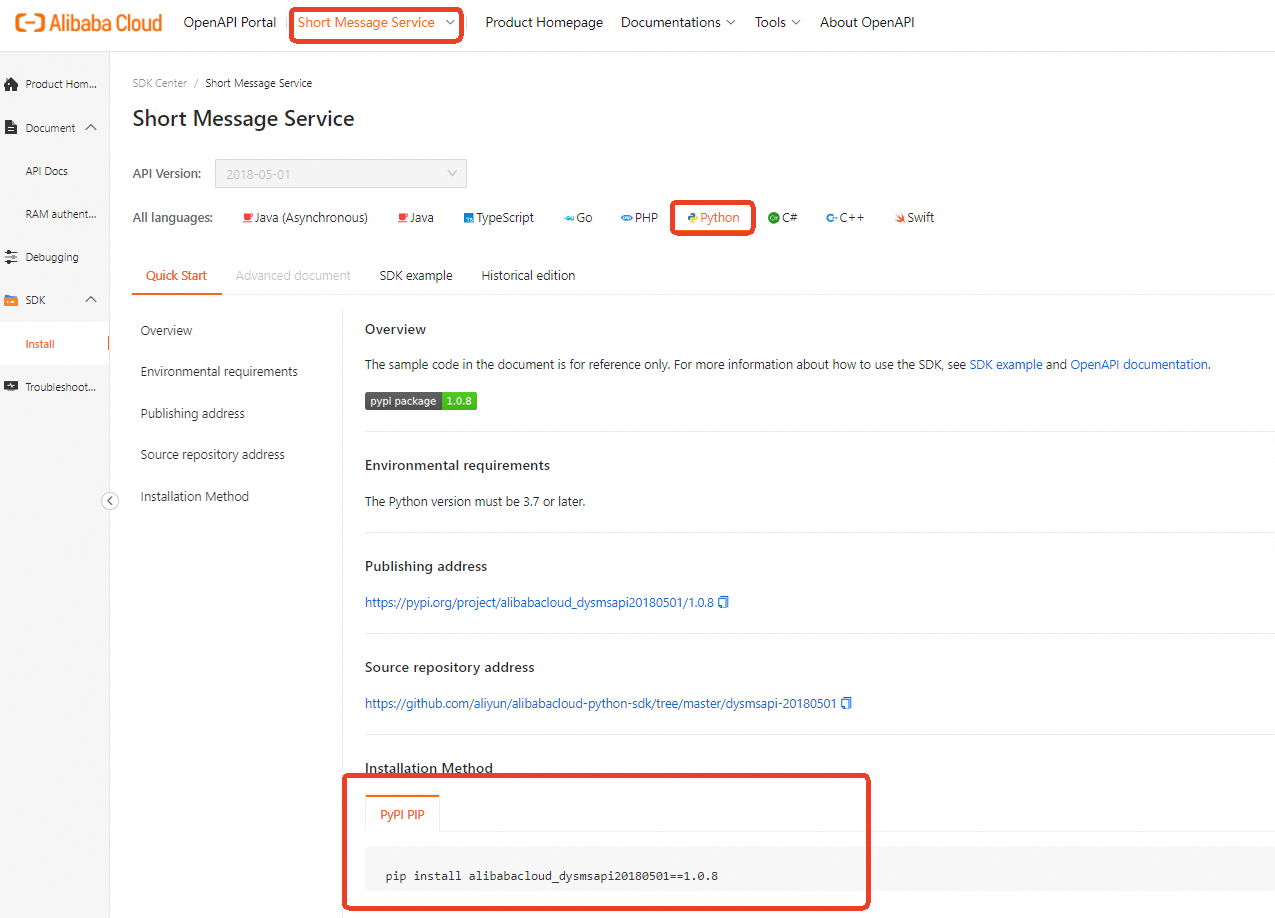
Log on to SDK Center and select the service whose SDK you want to use. In this example, Short Message Service (SMS) is selected.
On the Short Message Service page, select Python in the All languages section. On the Quick Start tab, obtain the installation method of Short Message Service (SMS) SDK.
Configure an access credential
To call API operations of an Alibaba Cloud service, you must configure an access credential, such as an AccessKey pair or a Security Token Service (STS) token. To prevent AccessKey pair leaks, you can record the AccessKey pair in environment variables. For more information about other security solutions, see Credential security solutions. In this example, the ALIBABA_CLOUD_ACCESS_KEY_ID and ALIBABA_CLOUD_ACCESS_KEY_SECRET environment variables are used to record AccessKey pairs.
Linux and macOS
Configure environment variables by using the export command
The temporary environment variables configured by using the export command are valid only for the current session. After you exit the session, the configured environment variables become invalid. To configure permanent environment variables, you can add the export command to the startup configuration file of the corresponding operating system.
Configure the AccessKey ID and press Enter.
# Replace <ACCESS_KEY_ID> with your AccessKey ID.
export ALIBABA_CLOUD_ACCESS_KEY_ID=yourAccessKeyID
Configure the AccessKey secret and press Enter.
# Replace <ACCESS_KEY_SECRET> with your AccessKey secret.
export ALIBABA_CLOUD_ACCESS_KEY_SECRET=yourAccessKeySecret
Check whether the configuration is successful.
Run the
echo $ALIBABA_CLOUD_ACCESS_KEY_IDcommand. If the valid AccessKey ID is returned, the environment variables are configured.
Windows
Use GUI
Procedure
If you want to use GUI to configure environment variables in Windows 10, perform the following steps:
On the Windows desktop, right-click This PC and select Properties. On the page that appears, click Advanced system settings. In the System Properties dialog box, click Environment Variables on the Advanced tab. In the Environment Variables dialog box, click New in the User variables or System variables section. Then, configure the variables described in the following table.
Variable
Example
AccessKey ID
Variable name: ALIBABA_CLOUD_ACCESS_KEY_ID
Variable value: LTAI****************
AccessKey Secret
Variable name: ALIBABA_CLOUD_ACCESS_KEY_SECRET
Variable value: yourAccessKeySecret
Check whether the configuration is successful.
On the Windows desktop, click Start or press Win + R. In the Run dialog box, enter cmd. Then, click OK or press Enter. On the page that appears, run the
echo %ALIBABA_CLOUD_ACCESS_KEY_ID%andecho %ALIBABA_CLOUD_ACCESS_KEY_SECRET%commands. If the valid AccessKey pair is returned, the configuration is successful.
Use CMD
Procedure
Open a Command Prompt window as an administrator and run the following commands to add environment variables in the operating system:
setx ALIBABA_CLOUD_ACCESS_KEY_ID yourAccessKeyID /M setx ALIBABA_CLOUD_ACCESS_KEY_SECRET yourAccessKeySecret /M/Mindicates that the environment variable is of system level. You can choose not to use this parameter when you configure a user-level environment variable.Check whether the configuration is successful.
On the Windows desktop, click Start or press Win + R. In the Run dialog box, enter cmd. Then, click OK or press Enter. On the page that appears, run the
echo %ALIBABA_CLOUD_ACCESS_KEY_ID%andecho %ALIBABA_CLOUD_ACCESS_KEY_SECRET%commands. If the valid AccessKey pair is returned, the configuration is successful.
Use Windows PowerShell
In PowerShell, configure new environment variables. The environment variables apply to all new sessions.
[System.Environment]::SetEnvironmentVariable('ALIBABA_CLOUD_ACCESS_KEY_ID', 'yourAccessKeyID', [System.EnvironmentVariableTarget]::User)
[System.Environment]::SetEnvironmentVariable('ALIBABA_CLOUD_ACCESS_KEY_SECRET', 'yourAccessKeySecret', [System.EnvironmentVariableTarget]::User)
Configure environment variables for all users. You must run the following commands as an administrator.
[System.Environment]::SetEnvironmentVariable('ALIBABA_CLOUD_ACCESS_KEY_ID', 'yourAccessKeyID', [System.EnvironmentVariableTarget]::Machine)
[System.Environment]::SetEnvironmentVariable('ALIBABA_CLOUD_ACCESS_KEY_SECRET', 'yourAccessKeySecret', [System.EnvironmentVariableTarget]::Machine)
Configure temporary environment variables. The environment variables apply only to the current session.
$env:ALIBABA_CLOUD_ACCESS_KEY_ID = "yourAccessKeyID"
$env:ALIBABA_CLOUD_ACCESS_KEY_SECRET = "yourAccessKeySecret"
In PowerShell, run the Get-ChildItem env:ALIBABA_CLOUD_ACCESS_KEY_ID and Get-ChildItem env:ALIBABA_CLOUD_ACCESS_KEY_SECRET commands. If the valid AccessKey pair is returned, the configuration is successful.
Use the SDK
In this example, the SendMessageToGlobe API operation of Short Message Service (SMS) is called. For more information about SendMessageToGlobe, see SendMessageToGlobe.
1. Initialize a request client
In the SDK, all requests to API operations are sent from a client. Before you can an API operation, you must initialize the request client. You can use multiple methods to initialize a request client. In this example, an AccessKey pair is used to initialize a request client. For more information, see Manage access credentials.
Client objects, such as Dysmsapi20180501Client instances, are thread-safe, and can be used in multithreaded environments without security risks. You do not need to create an instance for each thread.
In development projects, we recommend that you do not frequently create client objects. Otherwise, resource waste may increase and service perform may degrade. We recommend that you encapsulate the client in singleton mode. This ensures that only one Client instance is initialized for the same access credential and endpoint throughout the application lifecycle.
@staticmethod
def create_client() -> Dysmsapi20180501Client:
    config = open_api_models.Config(
           # Required, please ensure that the environment variables ALIBABA_CLOUD_ACCESS_KEY_ID is set.,
           access_key_id=os.environ['ALIBABA_CLOUD_ACCESS_KEY_ID'],
           # Required, please ensure that the environment variables ALIBABA_CLOUD_ACCESS_KEY_SECRET is set.,
           access_key_secret=os.environ['ALIBABA_CLOUD_ACCESS_KEY_SECRET']
    )
      # See https://api.alibabacloud.com/product/Dysmsapi.
      config.endpoint = f'dysmsapi.aliyuncs.com'
      return Dysmsapi20180501Client(config)
2. Create a request object
When you call an API operation to pass parameters, you must use the request object provided by the SDK. Name the request object of the API operation in the following format: <API operation name>Request. For example, the request object of the SendSms API operation is SendSmsRequest. For more information about the parameters, see the API reference. For more information about the parameters of the SendMessageToGlobe operation, see SendMessageToGlobe.
If the API operation does not support request parameters, you do not need to create a request object. For example, the DescribeCdnSubList operation does not support request parameters.
# Create request object and set required input parameters
send_message_to_globe_request = dysmsapi_20180501_models.SendMessageToGlobeRequest(
           # Please replace with the actual recipient number.
           to='<YOUR_NUMBER>',
           # Please replace with the actual SMS content.
           message='<YOUR_MESSAGE>'
)
3. Initiate an API request
When you use a request client to call an API operation, we recommend that you name the function in the following format: <API operation name>_with_options. Specify <API operation name> in snake case. This function contains two parameters: the request object and the runtime parameter. The request object is created in the preceding step. The runtime parameter is used to specify the request action, such as timeout and proxy configurations. For more information, see Advanced configuration.
If the API operation does not support request parameters, you do not need to specify a request object in the request. For example, you only need to specify the runtime parameter when you call the DescribeCdnSubList operation.
# Create runtime parameters.
runtime = util_models.RuntimeOptions()
client = create_client()
# Send a request.
client.send_message_to_globe_with_options(send_message_to_globe_request, runtime)
4. Handle errors
Alibaba Cloud SDK V2.0 for Python classifies exceptions into the following types:
TeaUnretryableException: In most cases, exceptions of this type are caused by network errors and are reported when the maximum number of retries are reached.
TeaException: In most cases, this type of exception is caused by business errors.
For more information about how to handle SDK exceptions, see Exception handling.
We recommend that you take proper exception handling measures, such as reporting exceptions, logging exceptions, and performing retries, to ensure the robustness and stability of your system.
For more information, see Sample code.
Special scenario: File upload through the Advance operation
When you use Image Search or Visual Intelligence API (VIAPI) to process images on an on-premises machine or upload images, the API of the Image Search or VIAPI described in the documentation does not support direct upload. To upload images, you need to use the Advance operation, which supports transmission of file streams. The cloud service temporarily stores the uploaded file in Object Storage Service (OSS), and reads the temporary file from OSS when necessary. The default region of OSS is cn-shanghai. The following example shows how to call the DetectBodyCount operation of VIAPI:
Temporary files in OSS are regularly cleared.
Initialize a request client
Make sure that both the
region_idparameter and theendpointof the cloud service are specified.region_idindicates the OSS region in which the temporary files are stored. If you do not configure theregion_idparameter, the cloud service may use a different region than OSS, resulting in API timeouts.def create_client() -> facebody20191230Client: config = open_api_models.Config( # Required. Make sure that the ALIBABA_CLOUD_ACCESS_KEY_ID environment variable is specified in the code. , access_key_id=os.environ['ALIBABA_CLOUD_ACCESS_KEY_ID'], # Required. Make sure that the ALIBABA_CLOUD_ACCESS_KEY_SECRET environment variable is configured. , access_key_secret=os.environ['ALIBABA_CLOUD_ACCESS_KEY_SECRET'] ) # Specify the same region for the endpoint and regionId parameters. config.region_id = 'cn-shanghai' config.endpoint = 'facebody.cn-shanghai.aliyuncs.com' return facebody20191230Client(config)Create a request object
Create the
<API operation>AdvanceRequestrequest object to pass file streams. In the request object, set the parameter name toImageURLObject.# Open a binary file. with open('<FILE_PATH>', "rb") as f: # Replace the file path. # Specify the request parameters. detect_body_count_advance_request = facebody_20191230_models.DetectBodyCountAdvanceRequest( image_urlobject = f, )Initiate a request
Call the
<API operation name>Advancefunction to initiate a request. Specify<API operation name>in camel case./# Configure the runtime parameters. runtime = util_models.RuntimeOptions() client = create_client() # Initiate a request. res = client.detect_body_count_advance(detect_body_count_advance_request, runtime)
FAQ
How do I handle the "You are not authorized to perform this operation" error thrown by an API operation?
How do I handle the "SDK.EndpointResolvingError" endpoint error thrown by an API operation?
How do I handle the AttributeError: "AttributeError' object has no attribute 'message' or "KeyError: "ALIBABA_CLOUD_ACCESS_KEY_ID" AccessKey error?
For more information about how to handle SDK errors, see FAQ.