In order to respond to sudden traffic spikes, you can configure a scaling policy for microservice applications in the Serverless App Engine (SAE) console. In this way, SAE automatically scales in or out application instances. This topic describes how to configure an auto scaling policy for a microservice application.
Overview
SAE supports the following methods to scale your applications:
Manual scaling: If you need to immediately scale your applications, we recommend that you use the manual scaling feature. For example, you can add instances when unexpected traffic surges occur. For more information, see Manual scaling.
Auto scaling: If you do not need to immediately scale your applications, we recommend that you use the auto scaling feature. For example, you can configure auto scaling policies to automatically add or remove instances based on periodic traffic changes. SAE supports the following types of auto scaling policies: scheduled auto scaling policy, metric-based auto scaling policy, and hybrid auto scaling policy. For more information, see Best practices for SAE auto scaling.
The following figure shows the process of configuring an auto scaling policy.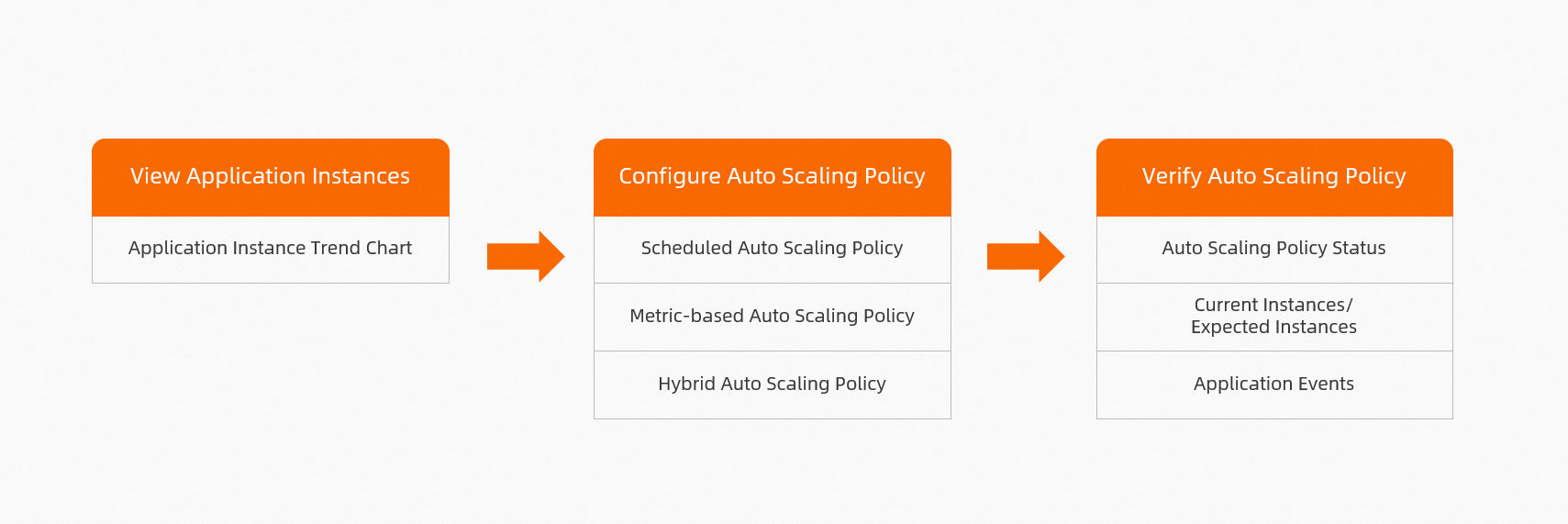
Scenarios
SAE supports the following auto scaling policies:
Scheduled auto scaling policy is suitable for scenarios in which an application needs to use resources within a specific period of time. Scheduled auto scaling policies are commonly used in industries such as securities, healthcare, public administration, and education.
Metric-based auto scaling policy is suitable for scenarios in which burst traffic and periodic traffic occur when an application uses resources. Metric-based auto scaling policies are commonly used in industries such as Internet, gaming, and social media.
Hybrid auto scaling policy is suitable for scenarios in which an application needs to use resources within a specific period of time and burst traffic and periodic traffic occur when the application uses the resources. Hybrid auto scaling policies are commonly used in industries such as Internet, education, and catering.
Usage notes
You can create up to five scheduled auto scaling policies, one metric-based auto scaling policy, or one hybrid auto scaling policy. The three types of auto scaling policies cannot be used at the same time.
If an auto scaling policy is enabled for an application, you cannot manage the lifecycle of the application. For example, you cannot scale, deploy (including single-batch release, phased release, and canary release), stop, or restart the application, or change the instance type. If you want to perform the preceding operations, you must disable the auto scaling policy.
If you manage the lifecycle of an application, you can create or enable an auto scaling policy for the application only after you complete the management process.
Up to 50 instances can be deployed for a single application. To increase the quota, join the DingTalk group 32874633 and apply to be added to a whitelist.
Prerequisites
An application is deployed. For more information, see Application deployment.
Procedure
Log on to the SAE console. In the left-side navigation pane, choose . On the Applications page, select a region in the top navigation bar and a namespace from the Application List drop-down list, and then click the desired application name.

On the Basic Information page of the target application, click the Auto Scaling tab, and then click Create Auto Scaling Policy in the Auto Scaling area.
Configure auto scaling policy
Scheduled auto scaling policy
In the Create Auto Scaling Policy panel, configure the following parameters, and then click Next: Preview Scheduled Auto Scaling Policy.
Parameter
Description
Example
Policy Type
Select Scheduled Auto Scaling Policy.
Scheduled Auto Scaling Policy
Policy Name
Enter a custom name for the policy.
demo
Time Settings
You can select Long-term or Short-term:
Short-term: You need to specify a start date and an end date.
Long-term: If long-term is selected, this policy is valid for a long time.
Long-term
Cycle
Select Daily, Weekly, or Monthly.
Daily
Trigger Time On Single Day
Configure Trigger Time and Instance Retained After Trigger Time.
Trigger Time: The time when the scaling policy is triggered.
Instances Retained After Trigger Time: The number of instances after the policy is triggered.
Trigger Time: 08:00 and 20:00
Instances Retained After Trigger Time: 10 and 3

Click the Next: Preview Scheduled Auto Scaling Policy to view the number of instances for a specific time period, and then click OK.
Metric-based auto scaling policy
In the Create Auto Scaling Policy panel, configure the following parameters, and then click OK.
Parameter | Description | Example |
Policy Type | Select Metric-based Auto Scaling Policy. | Metric-based Auto Scaling Policy |
Policy Name | Enter a custom name for the policy. | demo |
Trigger Condition | Select a metric:
Note
| CPU utilization |
Specify a value for the metric. If the value of the metric equals the configured value, the scaling policy is triggered to automatically scale application instances. | 70% | |
Instances | Configure Minimum Application Instances, Maximum Application Instances, and Minimum Available Instances. Note Minimum Available Instances is the minimum number of available instances for each update. You can specify a value By Number or By Ratio. |
|
Advanced Settings | (Optional) Configure the following information as needed:
| None |

Hybrid auto scaling policy
Hybrid Auto Scaling Policy combines Scheduled Auto Scaling Policy and Metric-based Auto Scaling Policy.
In the Create Auto Scaling Policy panel, specify the following parameters.
Select Hybrid Scaling Policy as Policy Type, and enter a custom name for the Policy Name.
For more information on how to configure Metric Settings, see Metric-based auto scaling policy.

Optional: Click Advanced Settings and configure the following information as needed.
Configuration item
Description
Example
Scale-out Step Size
The maximum number of instances that can be added per unit time.
3
Scale-in Step Size
The maximum number of instances that can be removed per unit time.
2
Scale-out Stabilization Window
The period of time during which the system is stable. The auto scaling algorithm is used to ensure that the minimum number of expected instances calculated within the specified interval is used when a scale-out operation is performed.
300 seconds
Scale-in Stabilization Window
The period of time during which the system is stable. The auto scaling algorithm is used to ensure that the maximum number of expected instances calculated within the specified interval is used when a scale-in operation is performed.
300 seconds
Prohibit Scale-in
If you turn on this switch, the application instances are never scaled in. This prevents business risks during peak hours. By default, the switch is turned off.
Enable

For information on how to configure Special Time Period Settings, see Scheduled auto scaling policy.

Click Next: Preview Scheduled Auto Scaling Policy to view the number of instances for a specific time period, and then click OK.
Verify whether the scaling policy has taken effect
Method 1
On the Basic Information page of the target application, click the Auto Scaling tab. If the number of running instances is the same as the required number of instances in the auto scaling policy, the scaling policy has taken effect.

Method 2
Add an Internet CLB instance for the application.
Log on to the SAE console. On the Basic Information page of the target application, click AddInternetCLB Access in the Application Access Settings area.

In the Bind Internet CLB Instance panel, select Create CLB Instance (Pay-by-specification), configure the HTTP Port and Container Port, and click OK.

After the Public Endpoint is added, copy it.

Perform a stress test on the application.
Log on to the PTS console. Enter the public endpoint on the Overview page (format:
https://public IP Address), and click Test.
In the Test Settings panel, enter the Requests Per Second (RPS), agree to the stress test terms by selecting The test is permitted and complies with the applicable laws and regulations, and click Start.

Return to the SAE console. On the Basic Information page, click Instance tab to see if the number of application instances has been scaled out automatically. If so, the scaling policy has taken effect.
 Note
NoteAfter the stress test completes, the number of instances will be scaled in automatically. This process may take some time, so please be patient.
What to do next
On the Basic Information page of the target application, click the Auto Scaling tab.
On this tab, expand the Auto Scaling section. In the Actions column of the configured policy, you can enable, disable, edit, delete the Events that trigger the policy based on your business requirements.
