Use a public template of Resource Orchestration Service (ROS) to create the network environment and an ECS instance in a single operation, with JDK and Apache Tomcat installed automatically. After the stack is created, you have a Java web runtime for Servlets and JSP pages that is ready for development and debugging.
Solution overview
This solution uses a public template of Alibaba Cloud Resource Orchestration Service (ROS) to create a complete network environment and an ECS instance in a single operation, and automatically installs JDK and Apache Tomcat to quickly build a Java Web development and testing environment. It applies to scenarios where Java developers need to quickly obtain an available Servlet/JSP runtime environment for development and debugging.
What is a Java Web environment (JDK + Tomcat)
Component | Description |
JDK (Java Development Kit) | The Java development toolkit. It contains the Java compiler (javac), the runtime environment (JRE), and the standard class libraries, and is the foundation for running all Java programs. |
Apache Tomcat | A free, open source Java Web application server (Servlet container) used to run Java Servlets and JSP pages. It is lightweight and stable in performance, and is the most commonly used application server in Java Web development. |
List of created resources
No. | Resource | ROS resource type | Purpose |
1 | Virtual Private Cloud (VPC) | Provides an isolated network environment. | |
2 | vSwitch | Divides a subnet in the VPC and specifies the zone. | |
3 | Security group | Controls network access of the ECS instance and allows port 8080. | |
4 | ECS instance | The compute node that runs JDK + Tomcat (with a public IP address). |
Results after deployment
After the template is executed successfully, you obtain the following:
A complete VPC network environment (VPC + vSwitch + security group).
An ECS instance (CentOS 7, with a public IP address assigned).
JDK installed on the ECS instance (Java development environment).
Apache Tomcat installed and running on the ECS instance (listening on port 8080).
The stack outputs provide the Tomcat access URL (
WebsiteURL).Open the URL in a browser to see the Tomcat default welcome page.
Architecture diagram
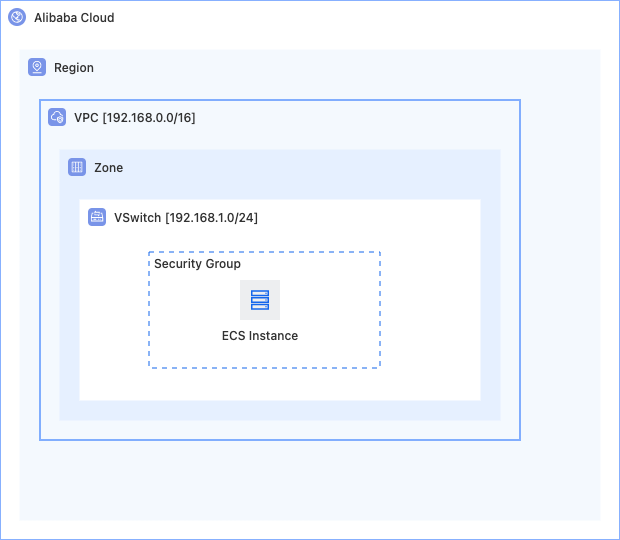
Prerequisites
Before you use this template, make sure that the following conditions are met:
Account permissions: Your Alibaba Cloud account must have the permissions to create ECS and VPC resources.
Basic knowledge: You understand the basic concepts of ROS stacks. For more information, see What is Resource Orchestration Service?.
Deployment
Deployment parameters
All parameters of this public template must be configured at deployment time. Some parameters have default values that you can adjust to fit your needs.
Parameter | Type | Description | Default or example value |
| String | The zone where the vSwitch is deployed. | Selected dynamically in the console |
| String | The CIDR block of the new VPC. |
|
| String | The CIDR block of the new vSwitch (a subset of the VPC CIDR block). |
|
| String | The operating system image. |
|
| String | The instance type (at least 1 core and 2 GB recommended). |
|
| String | The disk category. |
|
| String | The logon password. It is 8 to 30 characters in length and must contain uppercase letters, lowercase letters, digits, and special characters. | - |
Deployment methods
Method 1: Deploy by using the ROS public template (recommended)
Log on to the ROS console.
In the left-side navigation pane, choose Templates > Public Templates.
On the Getting Started Templates tab, use the search box at the top of the page to search for Deploy a Java Web development and testing environment.
On the template card, click Create Stack. The stack creation process for public templates starts, and the template content is loaded automatically.
In the Configure Parameters step, enter a Stack Name and configure the template parameters.
Click Next: Review and Confirm, and then click Create.
On the stack details page, check the creation progress. When the stack status changes to
CREATE_COMPLETE, all resources are created.Click the Output tab to obtain the
WebsiteURL.Open the URL (
http://<public IP address of the ECS instance>:8080) in a browser. If the Tomcat welcome page appears, the deployment is successful.
Method 2: Deploy by using ROS IaC Code
IaC Code is an AI infrastructure-as-code assistant for cloud infrastructure. It generates an ROS template from a natural language description and deploys the template. For instructions, see the IaC Code quick start.
Create an ECS instance and deploy a Java Web development and testing environment (JDK and Tomcat).
Requirements:
1. Create a VPC and a vSwitch as the underlying network.
2. Allow inbound traffic on port 8080 (Tomcat) and port 22 (SSH) in the security group.
3. Use a CentOS 7 image for the ECS instance and assign a public IP address.
4. Install OpenJDK 1.8 and Apache Tomcat 8.5 through a UserData script.
5. Configure the JAVA_HOME environment variable.
6. Configure Tomcat to start on boot.
7. Configure AssociationProperty for ZoneId and InstanceType to filter values dynamically.
8. Return the Tomcat web URL, including port 8080, as a stack output.
Post-deployment operations
Verify the environment
In a browser, open the
WebsiteURLin the stack Output, in the formathttp://<public IP address of the ECS instance>:8080. The Apache Tomcat welcome page indicates that Tomcat is running properly.Connect to the ECS instance, and then run the following command to confirm that Java is installed:
java -versionFAQ
Deployment fails with the error The specified InstanceType is not available
The error indicates that the selected ECS instance type has no inventory in the specified zone. To resolve the error:
Change
ZoneIdto another zone and deploy again.Check which instance types are currently available in the target zone on the ECS pricing page.
We recommend that you select an instance type with at least 1 core and 2 GB of memory to run Tomcat.
Deployment succeeds but port 8080 is not reachable
Troubleshooting steps:
Check the security group: Confirm that the inbound rule of the security group allows TCP port 8080.
Connect to the ECS instance, whether Tomcat is running:
ps -ef | grep tomcat     # Check the Tomcat process
netstat -tlnp | grep 8080  # Confirm that port 8080 is listening
If Tomcat is not running:
/usr/local/tomcat/bin/startup.sh
# Check the startup log to identify the cause
cat /usr/local/tomcat/logs/catalina.out
Check the UserData execution log: Run
cat /var/log/messages | grep cloud-init.
For more information about resource deployment issues, see FAQ.