Your RDS instance is locked and writes are blocked because binary log files have consumed all available storage. Follow the steps below to release storage immediately and prevent the issue from recurring.
Why binary logs fill up storage
Large transactions and DML operations on large fields cause RDS to generate binary log files rapidly. If the upload-to-OSS process cannot keep pace with file generation, logs accumulate on the instance disk. Once storage is exhausted, RDS automatically locks the instance to prevent data loss.
Binary log files support high availability and point-in-time recoverability. Do not disable binary logging to reclaim disk space — use the methods below instead.
Prerequisites
Before you begin:
-
Your instance runs MySQL 5.5, MySQL 5.6, MySQL 5.7, or MySQL 8.0.
-
You have expanded the instance's storage capacity so that storage usage is 80% or below. For instructions, see Change instance specifications.
Solution 1: Upload binlogs to OSS immediately
Use this method for an immediate fix. Upload Binlogs asynchronously uploads all eligible binary log files to an Object Storage Service (OSS) bucket and then deletes them from the instance.
RDS Basic Edition does not support the Upload Binlogs feature. If your instance runs Basic Edition, use Solution 2 instead.
-
Log on to the ApsaraDB RDS console. In the top navigation bar, select the region where your instance resides.
-
Find the RDS instance and click the instance ID.
-
In the left-side navigation pane, click Backup and Restoration.
-
Click Upload Binlogs. In the dialog box that appears, click OK.
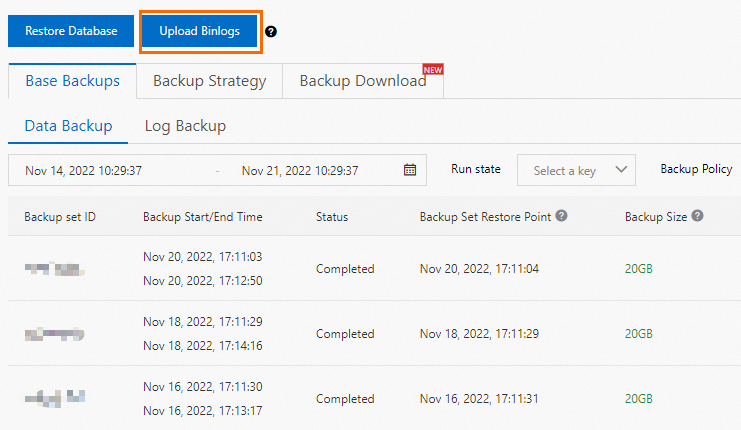
After you click Upload Binlogs, keep the following in mind:
-
Allow approximately 15 minutes for the upload to complete. Do not click Upload Binlogs again while the operation is in progress.
-
The operation deletes all binary log files except the two most recent ones. If only two files exist, nothing is deleted.
-
Binary log files that are currently being written cannot be deleted. Storage is released after the uploaded files are removed from the instance.
-
To check whether storage has been released, go to the Basic Information page of the instance.
Solution 2: Modify the local log retention policy
Adjust the retention policy so that binary log files are uploaded to OSS and removed from the instance sooner. This is the only option for RDS Basic Edition instances and also serves as the primary preventive measure.
-
Log on to the ApsaraDB RDS console. In the top navigation bar, select the region where your instance resides.
-
Find the RDS instance and click the instance ID.
-
In the left-side navigation pane, click Backup and Restoration.
-
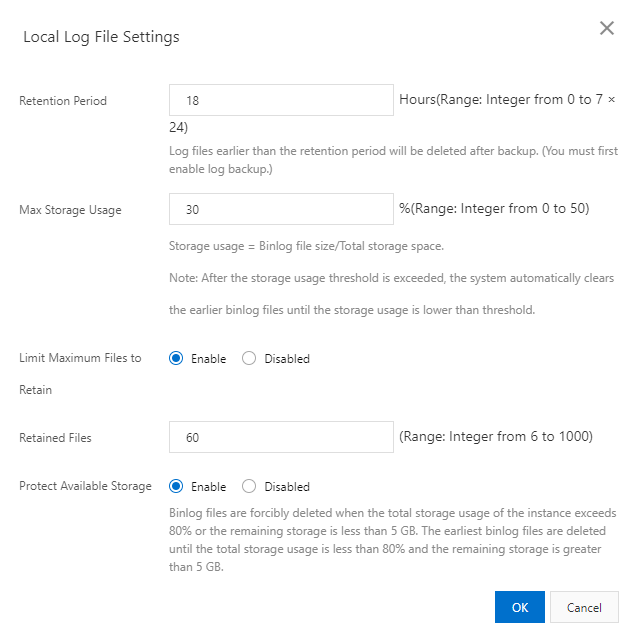
On the Backup Settings tab, click Edit to the right of Local Log Backup Settings. Adjust the retention settings based on your business requirements.
Setting Retention Period to 0 means binary log files are not stored locally — they are uploaded directly to an OSS bucket as they are generated.
What's next
After the instance is unlocked, enable automatic storage expansion to prevent future lock events. For instructions, see Configure automatic storage expansion for an ApsaraDB RDS for MySQL instance.
We also recommend that you identify the root causes of rapid binary log file growth to avoid recurrence. Common causes include large transactions and DML operations involving large fields.