Overview
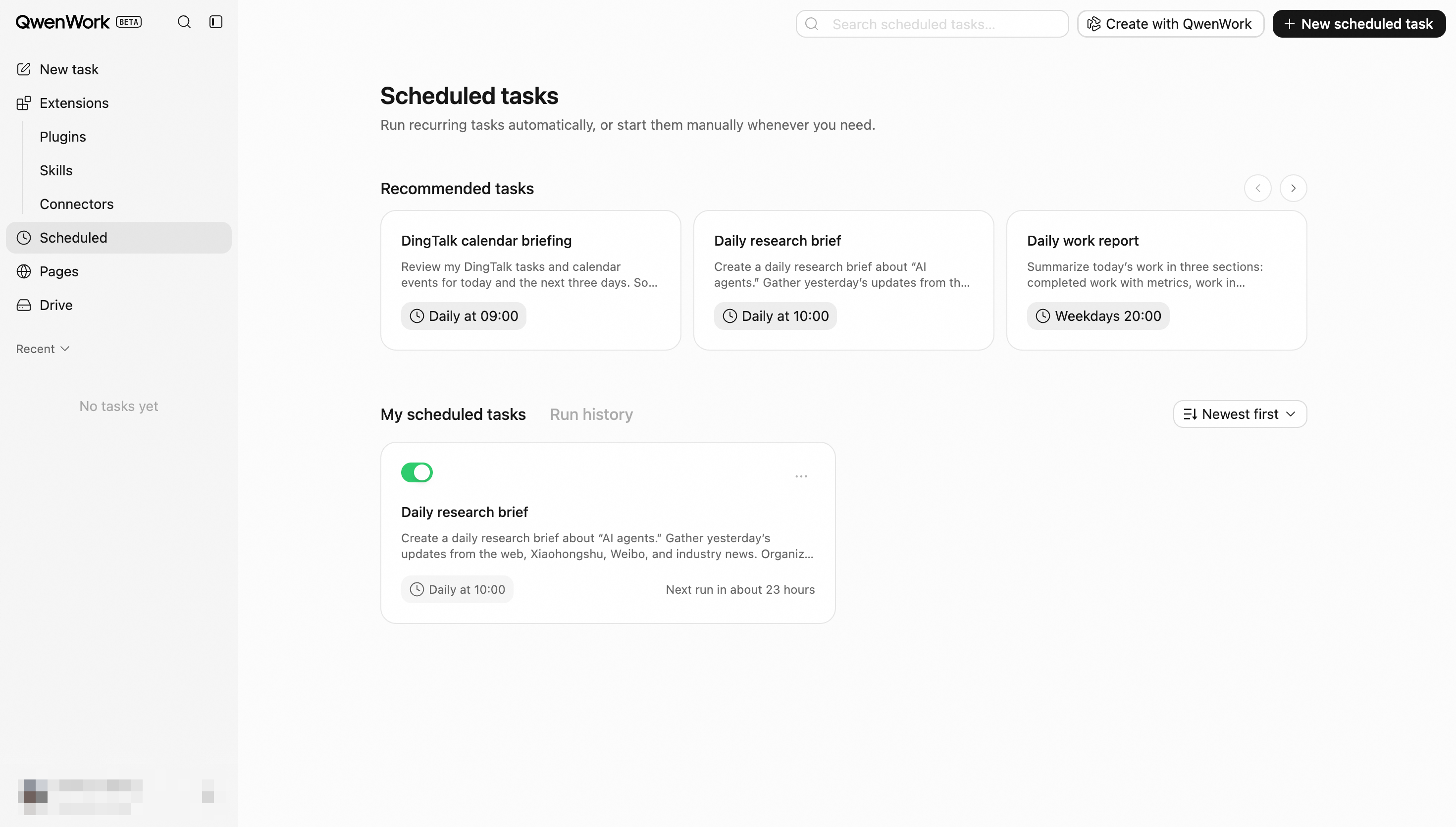
Scheduled tasks allow QwenWork to perform work automatically at predefined times. After a task is created, it continues running in the cloud as scheduled—even if you close your browser or sign out—without requiring manual initiation each time.
Each run creates an independent session. Its execution process and results can be viewed and traced.
Common Use Cases
You can use scheduled tasks for work that occurs at fixed times or follows a recurring pattern, such as:
Generating a daily industry news briefing;
Summarizing competitor updates every week;
Updating data reports every business day;
Checking specified metrics at regular intervals;
Performing a one-time reminder or information-organizing task on a specified date.
Creating a Scheduled Task
QwenWork supports three ways to create scheduled tasks: using the page form, natural-language conversations, or task templates.
Creating a Task from the Scheduled Tab
Open the Scheduled Tasks page, click New Scheduled Task, and complete the following fields:
Setting | Description |
Task name | Identifies the task for management purposes, such as “Daily AI Industry Briefing” |
Schedule | Sets the execution date, time, or recurrence pattern |
Instructions | Describes in natural language what QwenWork should do when the task runs |
After you complete the settings and save them, the task is created immediately. The task list displays its status and next execution time.
Instructions should include as much of the following information as possible:
What work needs to be completed;
Which materials or data should be used;
The desired output format;
Whether the result should be sent to a specified destination.
Example
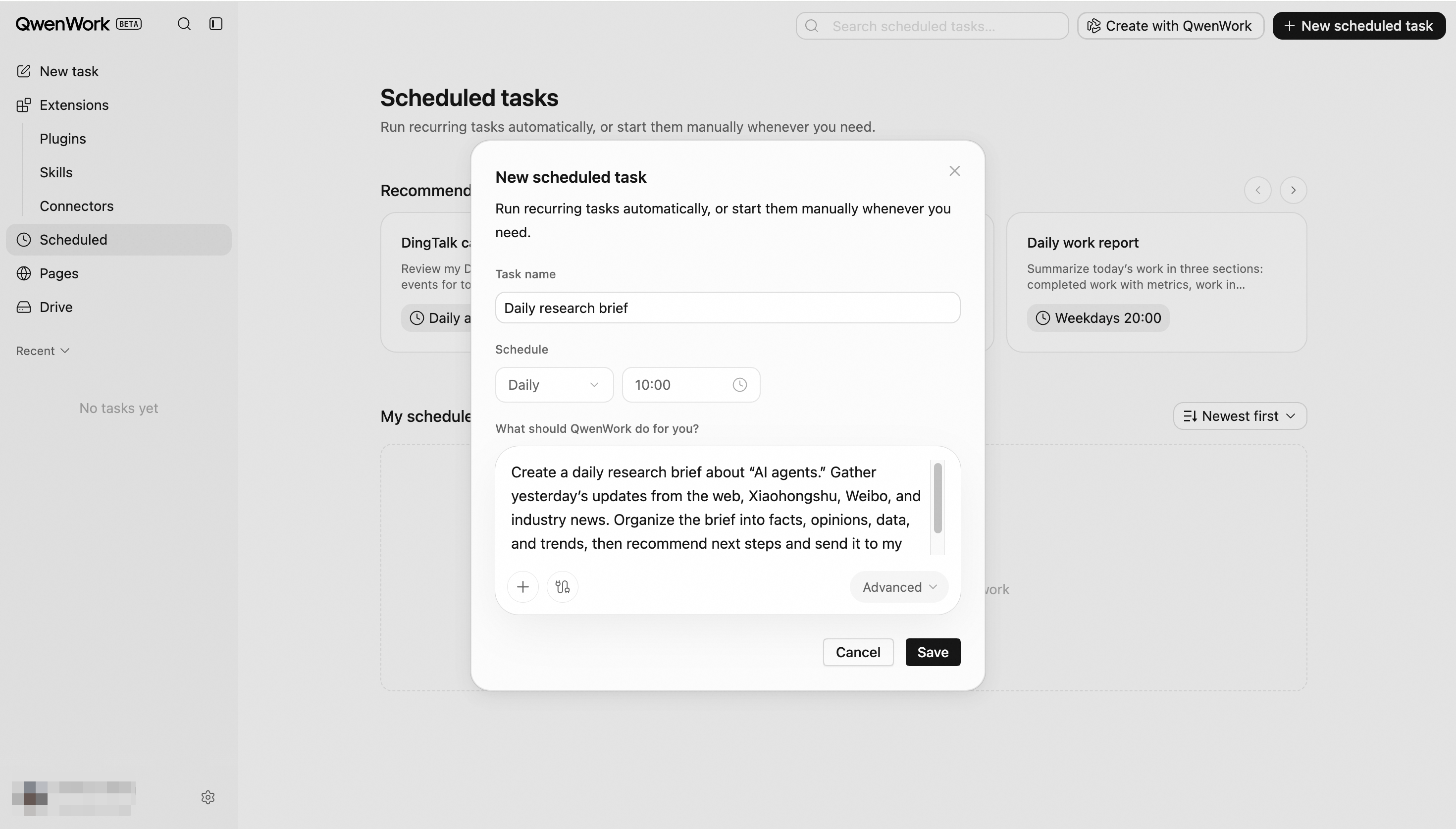
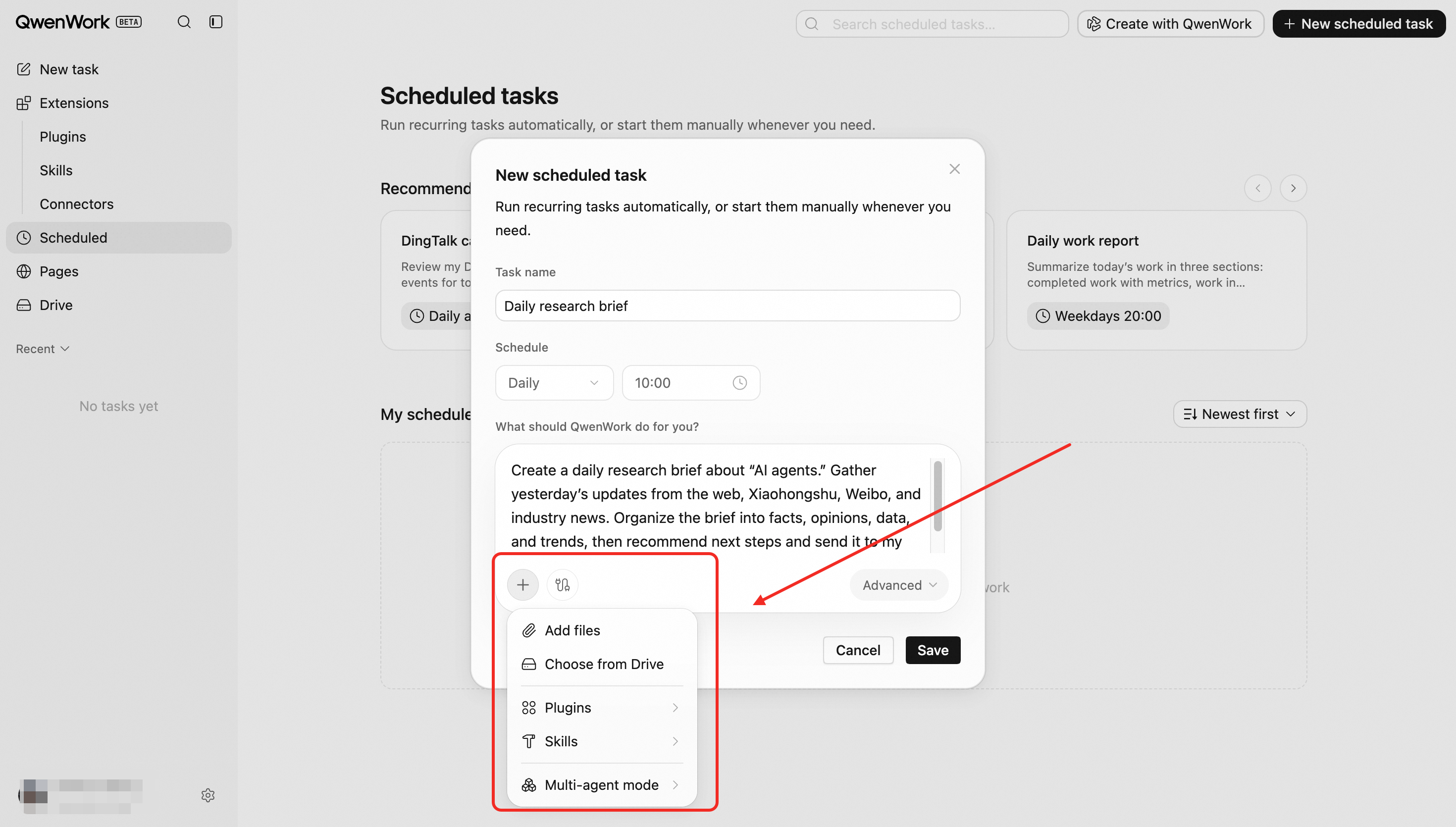
If the current input field supports attachments, model selection, or other capabilities, you can configure them when creating the task. Available capabilities depend on what is shown on the page.
Creating a Task through Conversation
You can also tell QwenWork directly, in natural language, what to do and when to do it.
Example
Track competitor updates every Monday at 10:00 AM and summarize them in a weekly report.
When QwenWork recognizes a scheduling request, it creates a scheduled-task card displaying the task name and next execution time. You can open the card to review or modify the settings.
Tasks created through conversation are the same as tasks created from the page. All tasks can subsequently be managed from the Scheduled Tasks page.
Creating a Task from a Template
The Scheduled Tasks page provides templates for common office tasks. After you select a template, the system automatically fills in the task name, schedule, and instructions. You can modify them as needed before saving.
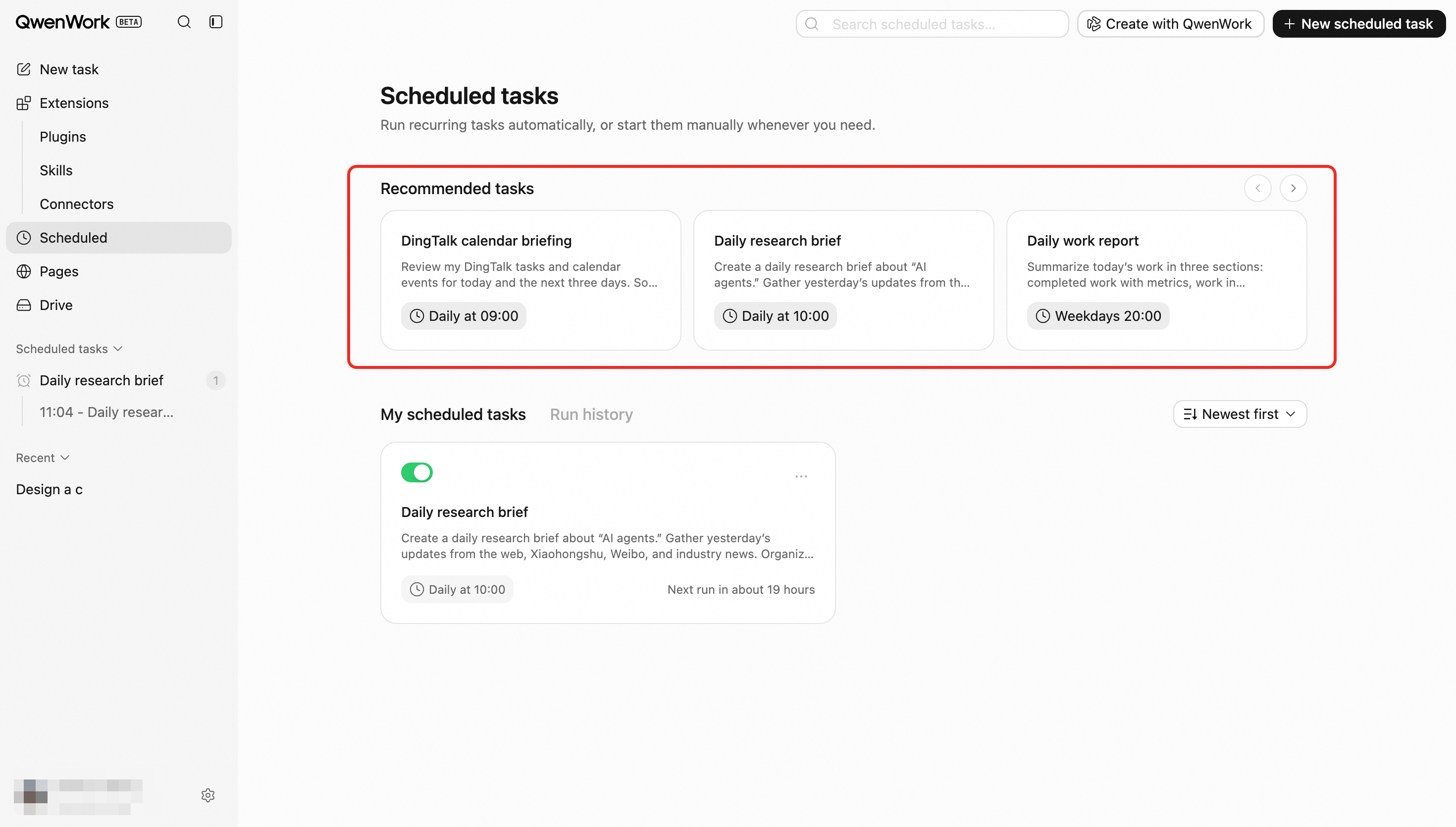
Common templates include:
Daily AI industry briefing;
Weekly competitor update tracking;
Daily data report updates;
Recurring metric checks.
A template creates a standard scheduled task that can be edited, disabled, or deleted.
Scheduling Options
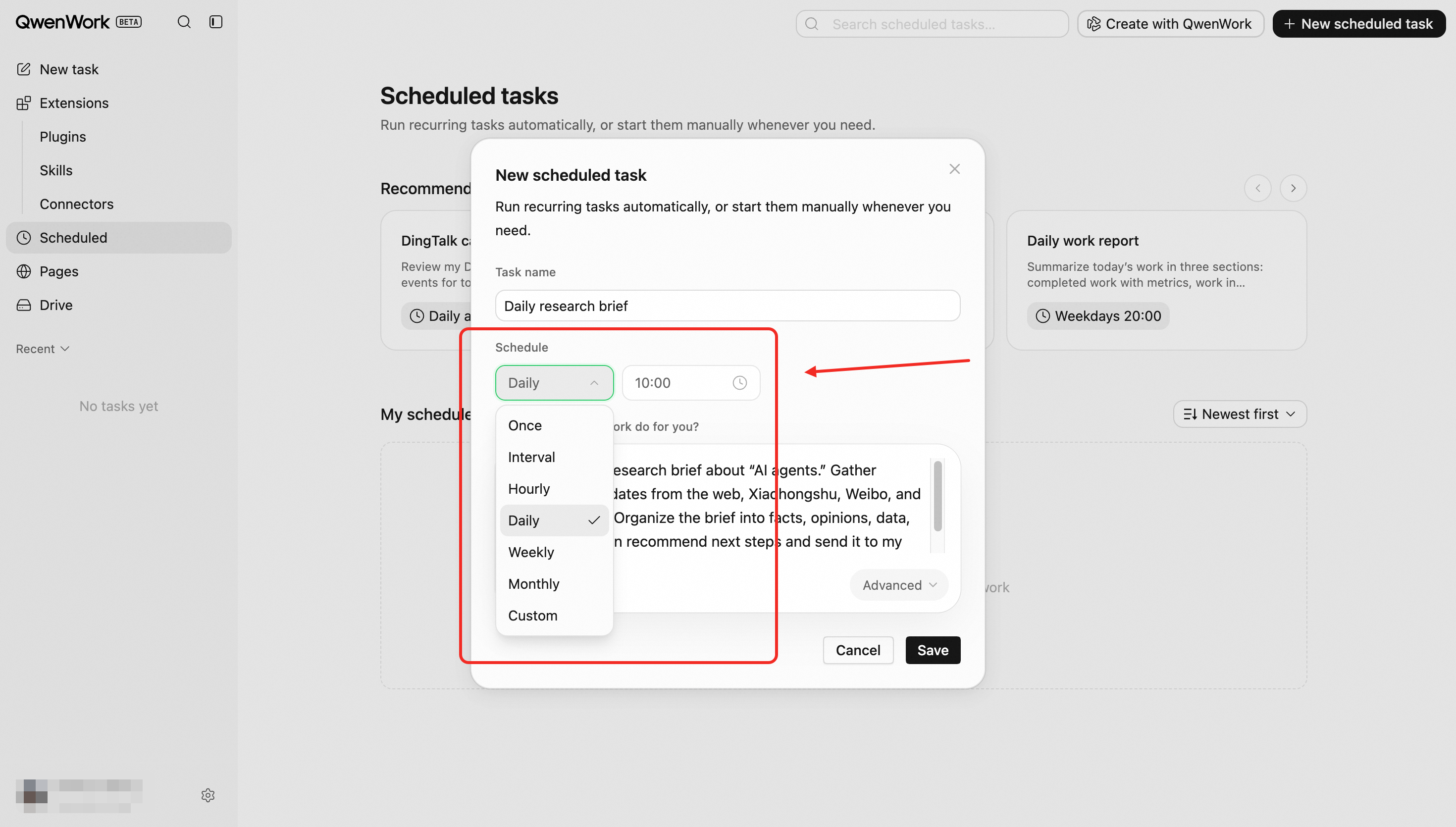
The schedule determines when a task runs. QwenWork supports one-time execution, fixed intervals, and recurring schedules.
Schedule type | Configuration | Execution rule | Example |
One time | Select a future date and time | Runs once at the specified time | Runs at 9:00 AM on July 30, 2026 |
Interval | Set an interval in minutes | Runs again after the specified amount of time has passed since the previous run | Runs every 30 minutes |
Hourly | Select the minute of each hour | Runs at the selected minute every hour | Runs at 15 minutes past every hour |
Daily | Select a time | Runs at the selected time every day | Runs daily at 9:00 AM |
Weekly | Select weekdays and a time | Runs on the selected days and time each week | Runs Monday through Friday at 9:00 AM |
Monthly | Select a day and time | Runs on the selected day and time each month | Runs on the first day of every month at 9:00 AM |
Custom | Enter a schedule expression and configure the time zone if needed | Runs according to the custom rules | Runs daily at 9:00 AM and 6:00 PM |
Managing Scheduled Tasks
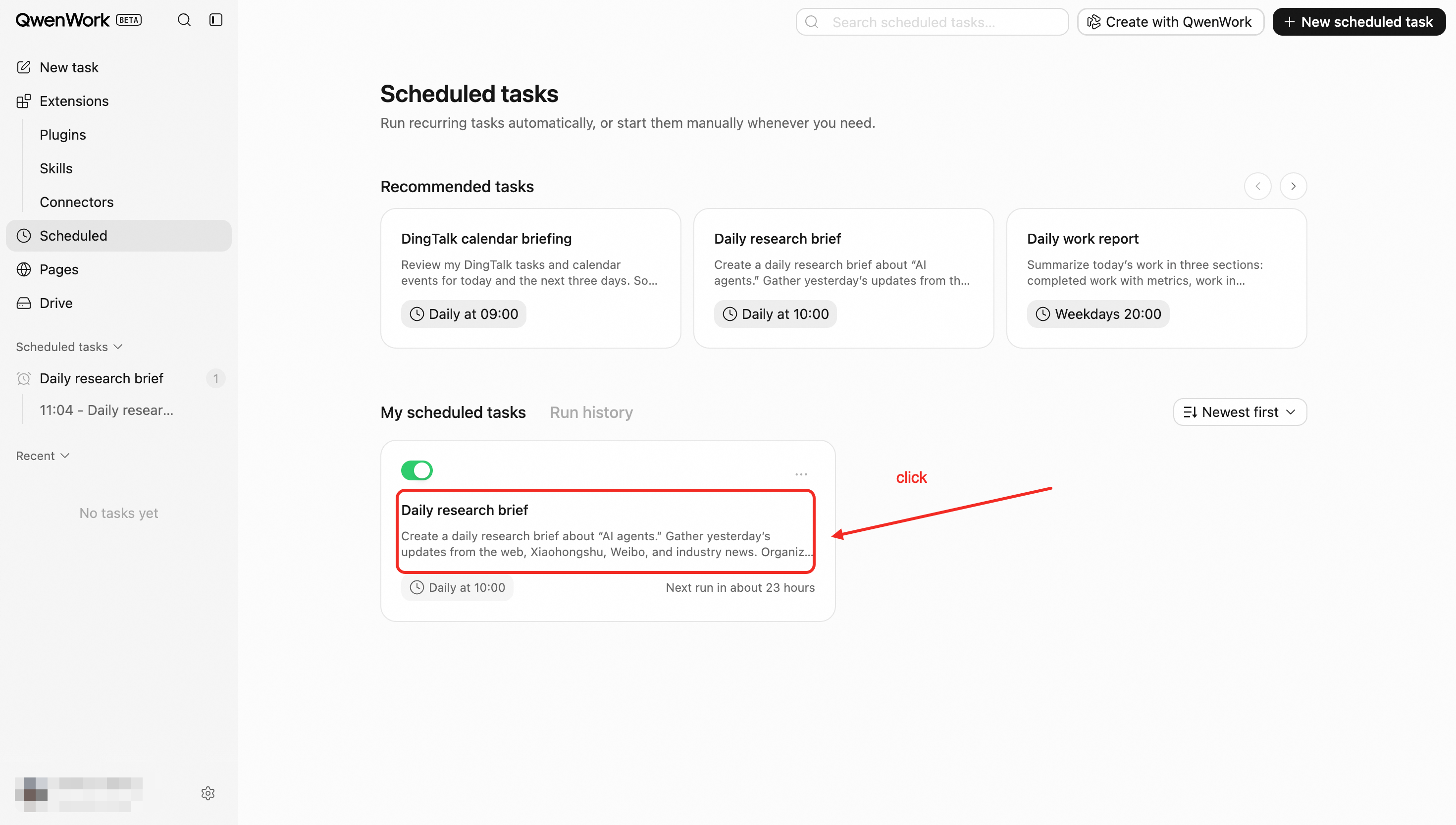
Open the Scheduled Tasks page to view all created tasks and perform the following actions:
Action | Description |
Enable or disable | A disabled task no longer runs automatically. When re-enabled, it resumes at the next normally scheduled time. |
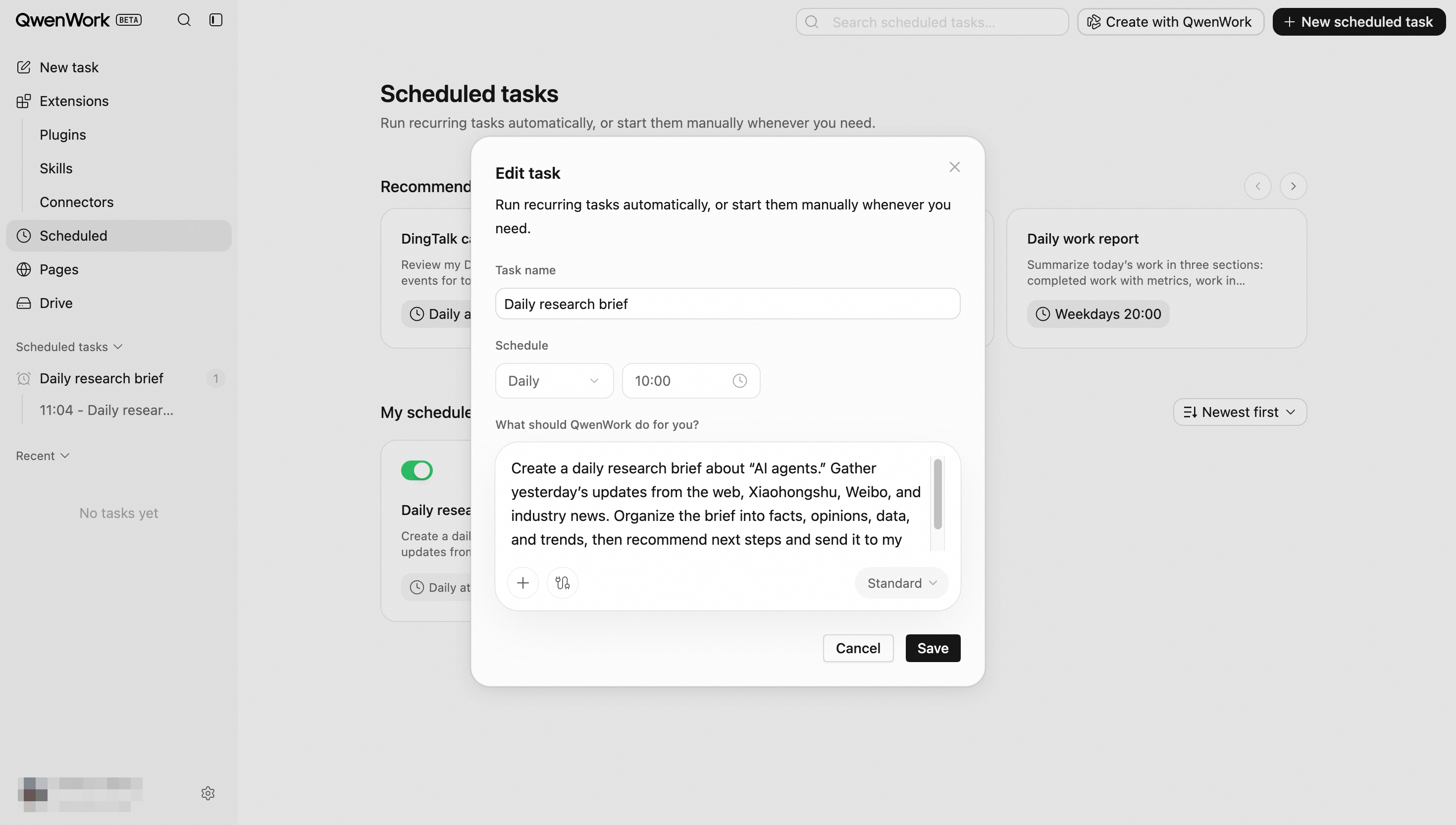
Edit | Changes the task name, schedule, or instructions |
Run now | Runs the task manually to test its configuration and output without changing its original schedule |
Delete | Deletes the task and stops future runs. Existing execution records and sessions remain available. |
Sort | Sorts tasks by creation time in ascending or descending order |
Each task card displays:
Task name;
Summary of the instructions;
Schedule;
Next execution time;
Current enabled or disabled status;
Most recent execution result.
Task Execution and Results
Independent Execution Sessions
Each time a task runs, QwenWork creates an independent session. The execution process, referenced content, and final result are recorded in that session.
Each run is independent and does not automatically use context from other conversations. If the task requires specific files, data sources, or output requirements, state them clearly in the instructions.
Viewing Execution Records
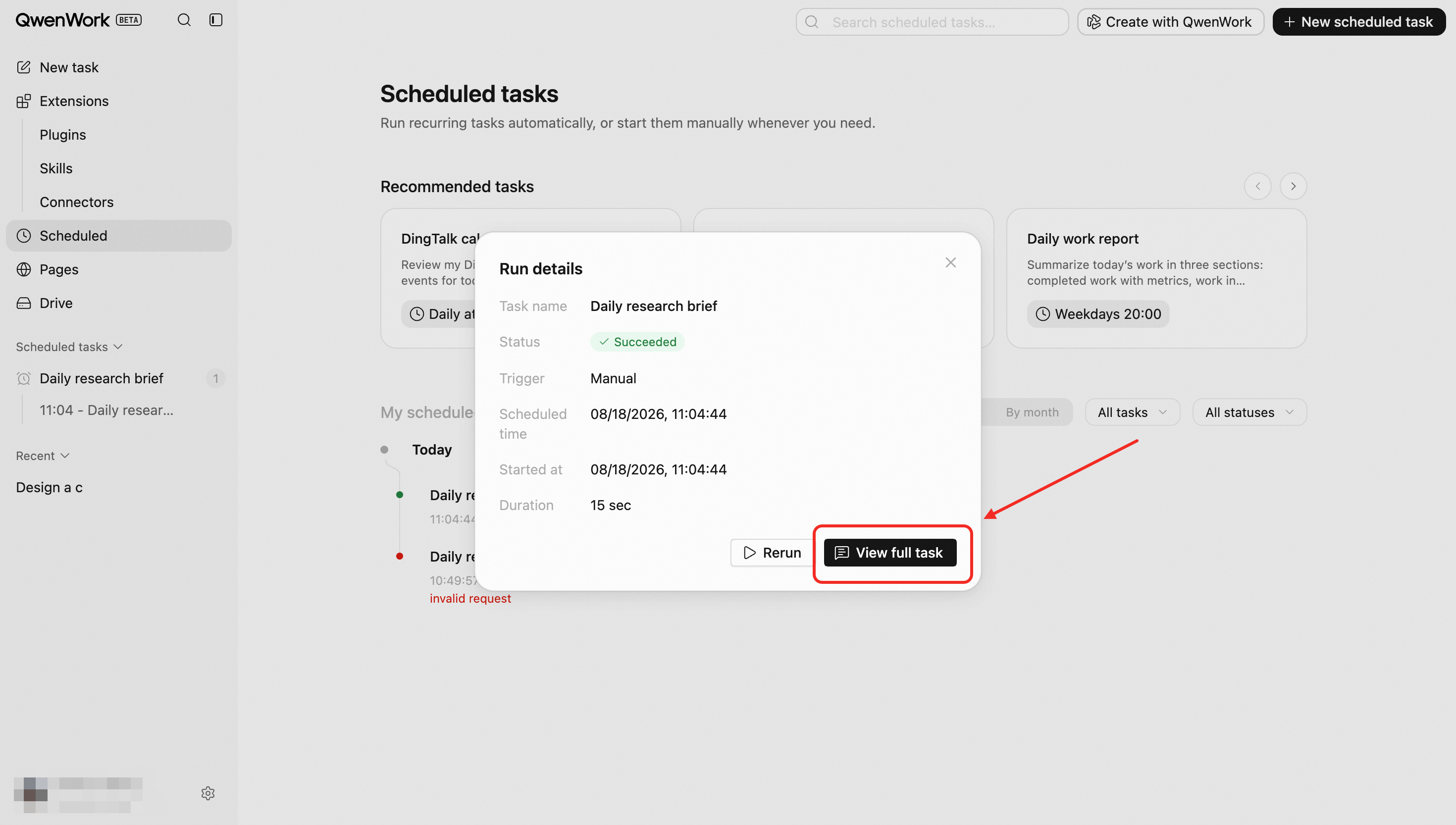
Open Scheduled Tasks → Run History to review the task’s execution history. Each record contains:
Task name;
Execution status: Running, Successful, or Failed;
Trigger method: Scheduled or Manual;
Start time;
Execution duration;
Associated task session.
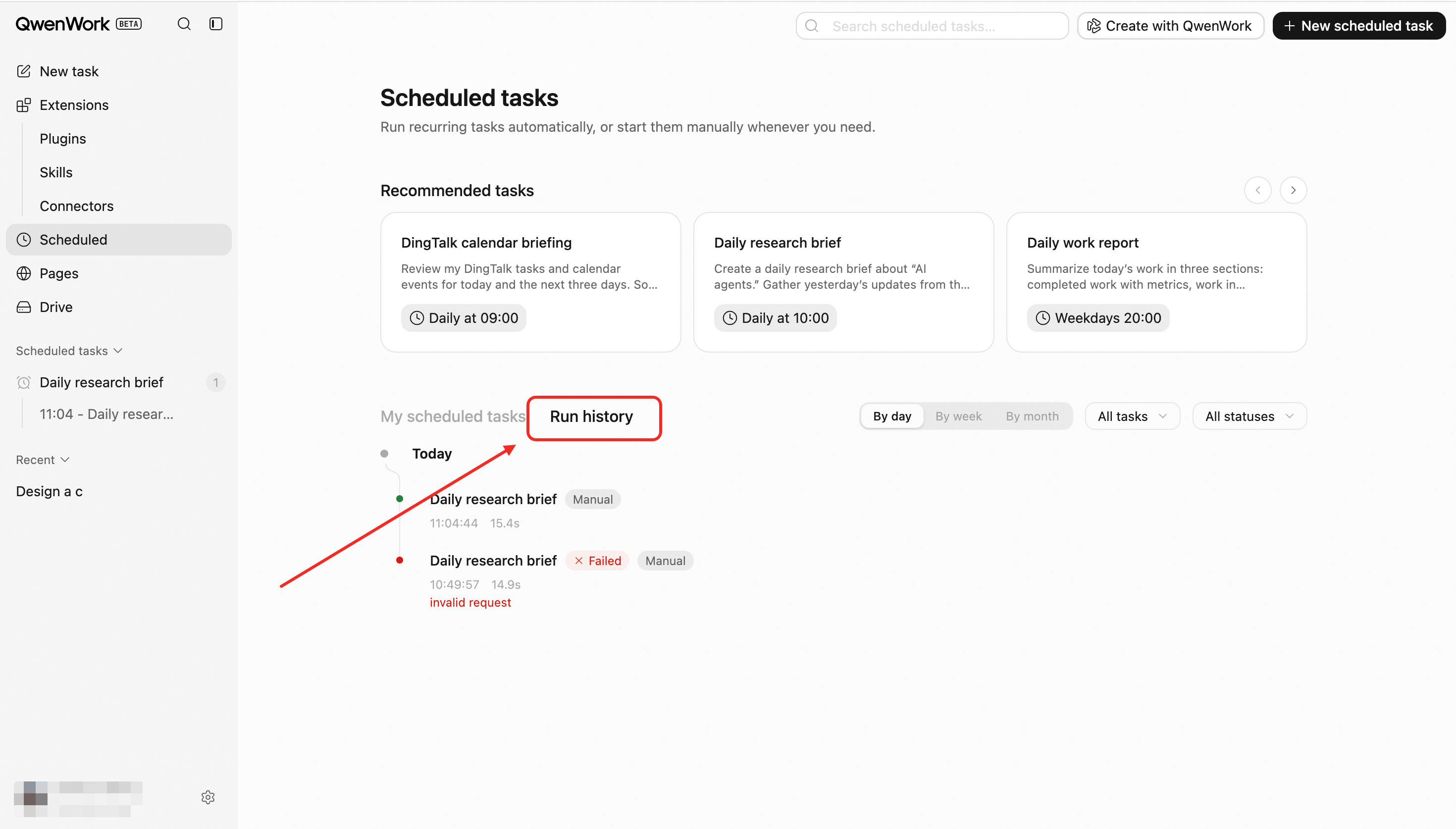
Execution records can be viewed by time and filtered by task or execution status. Click a record to open its session and review the execution process and result. You can also open an in-progress session to monitor its progress.
Finding Task Sessions
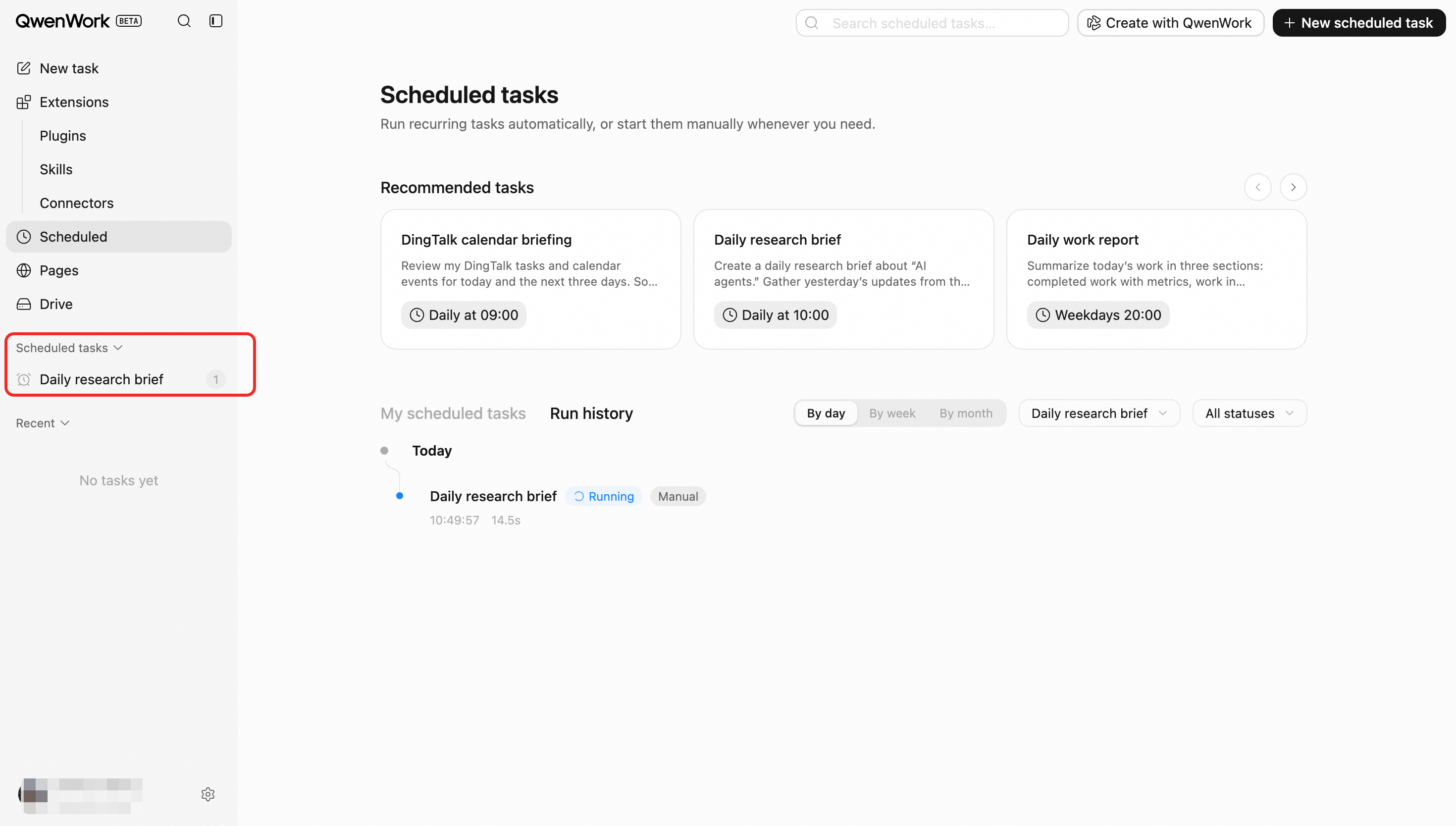
Sessions created by scheduled tasks appear under the Scheduled Tasks group in the sidebar, organized by their associated task. Each run creates a corresponding session, making it easy to compare results from different execution times.
Saving and Sending Results
Task results are saved in the corresponding task session by default.
To send results by email, message, or another channel, clearly specify the recipient and delivery method in the instructions. You must also complete any required account authorization or connector configuration in advance.
For external communications, file deletion, and other sensitive actions, QwenWork follows the platform’s existing permission and security confirmation mechanisms. If the required permissions are unavailable, the relevant actions may not be completed, but the task execution record will still be retained.
End-to-End Flow
Create a scheduled task from the page or a session.
Define the instructions, recurrence, time, and time zone.
Select required files, Skills, and connectors.
QwenWork triggers an execution at the scheduled time.
The Agent completes the work and saves the result.
Review the result and adjust the task when needed.
Key Rules
Execution time follows the configured time zone.
Each run uses the data and permissions available at that time.
Editing a task affects future runs, not previous results.
Paused tasks do not run until resumed.
If a required file or connector is unavailable, the related work may not be completed.