After the task is published, you can configure the release schedule of the created task. You can start the task to run, edit the running cycle, view the execution records, suspend the scheduling cycle, and unpublish the task.
View the running status of the synchronization task
After the task is published, you can view the status of the newly created task on the Data Preparation page. 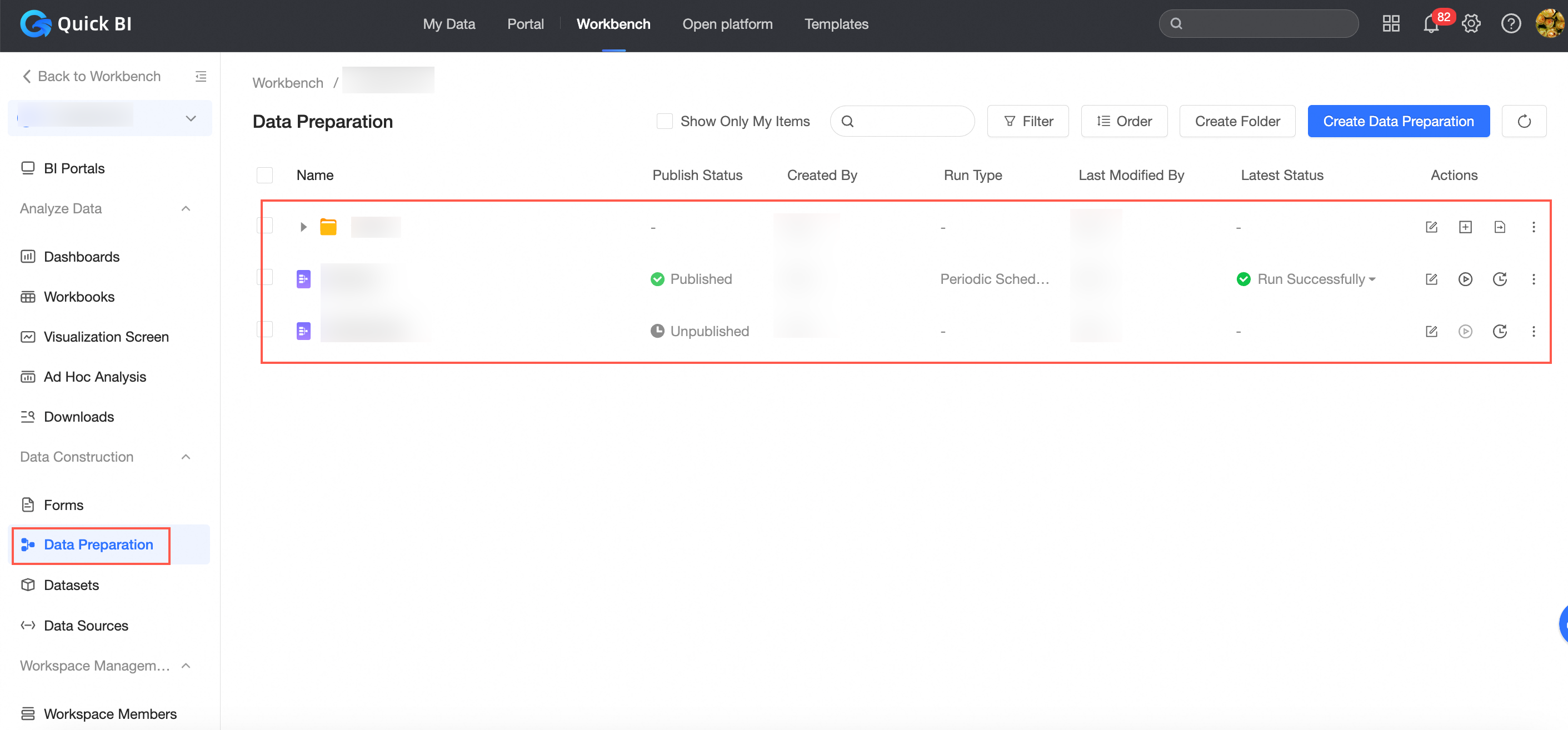
Release status
The publishing status can be Not Published, Saved Not Published, Published, or Unpublished.
Run type
You can select Manual, Periodic Scheduling, or Periodic Scheduling (Paused).
Set Run Type to Manual. After the task is manually triggered, the task is in the Manually Running state.
Set Run Type to Periodic. After the task is started, it is in the Periodic state.
If you stop a periodic run, the status of the task is Periodic Scheduled (Paused).
Last Running Status
The running status is defined based on the running status of the last task. The status includes To Run, Running, Running Succeeded, Running Failed, Manually Terminated, and Not Running (-).
Pending: If a parallel task appears, the status of the task in the queue is Pending.
Manually Terminate: When a task is pending or running, you can click Terminate to stop the task. The status of the task is Manually Terminated.
Not Running: The task is in the Not Running state if the task type is set but the task has not been run. For example, the task has not been manually run or the task has not been run for the first up time.
Manually triggered workflow
Click the Run icon to manually run the task. 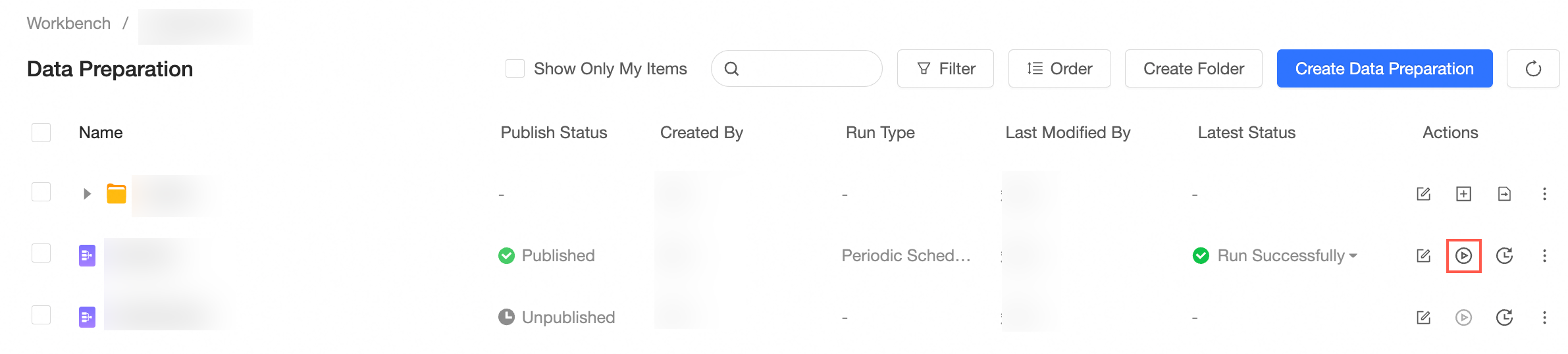 If you configure Periodic Run and then manually trigger Run, the task is immediately triggered and executed once.
View running records
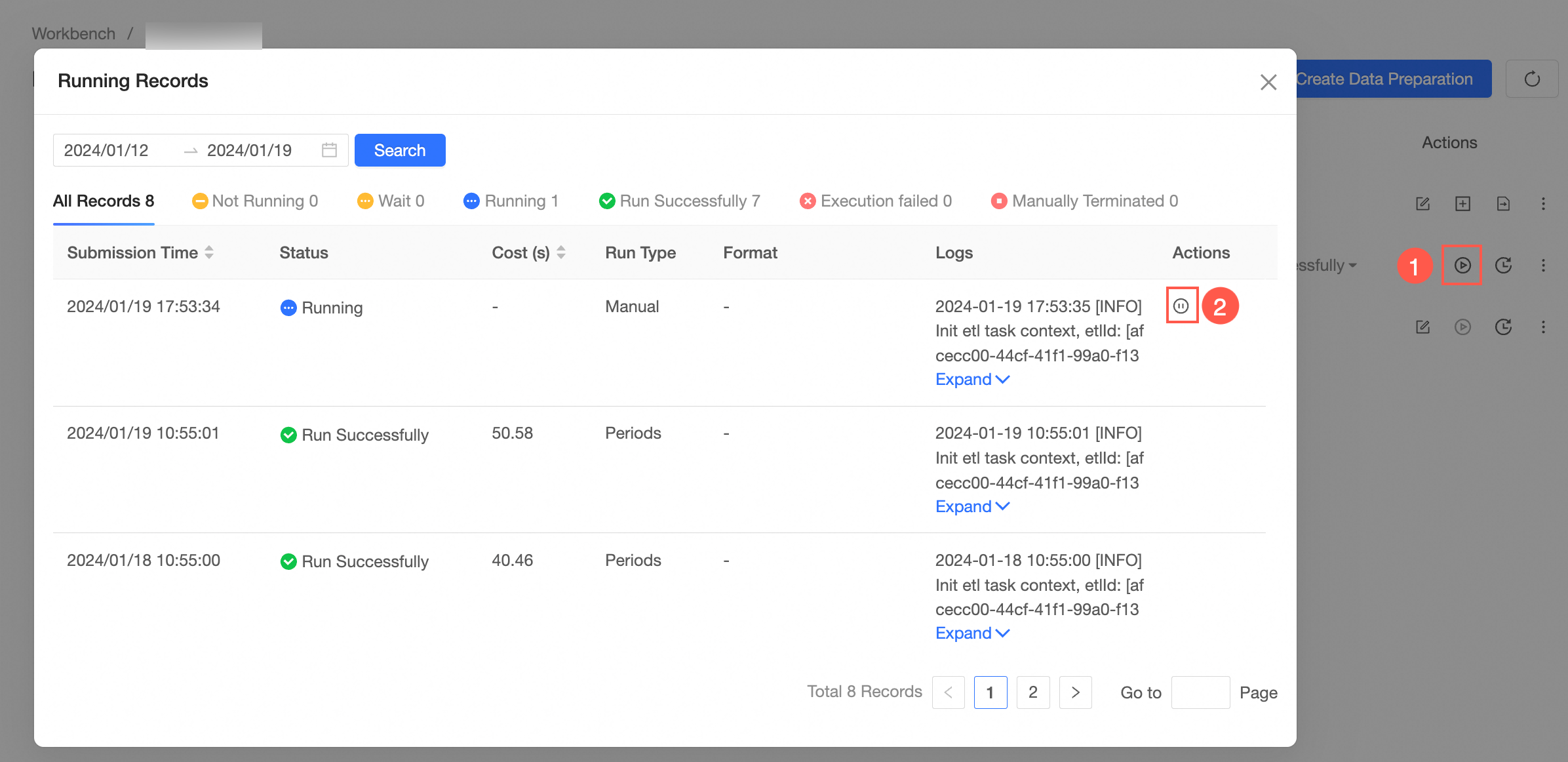
After you run the task, you can click the Running Records icon to view the running records. 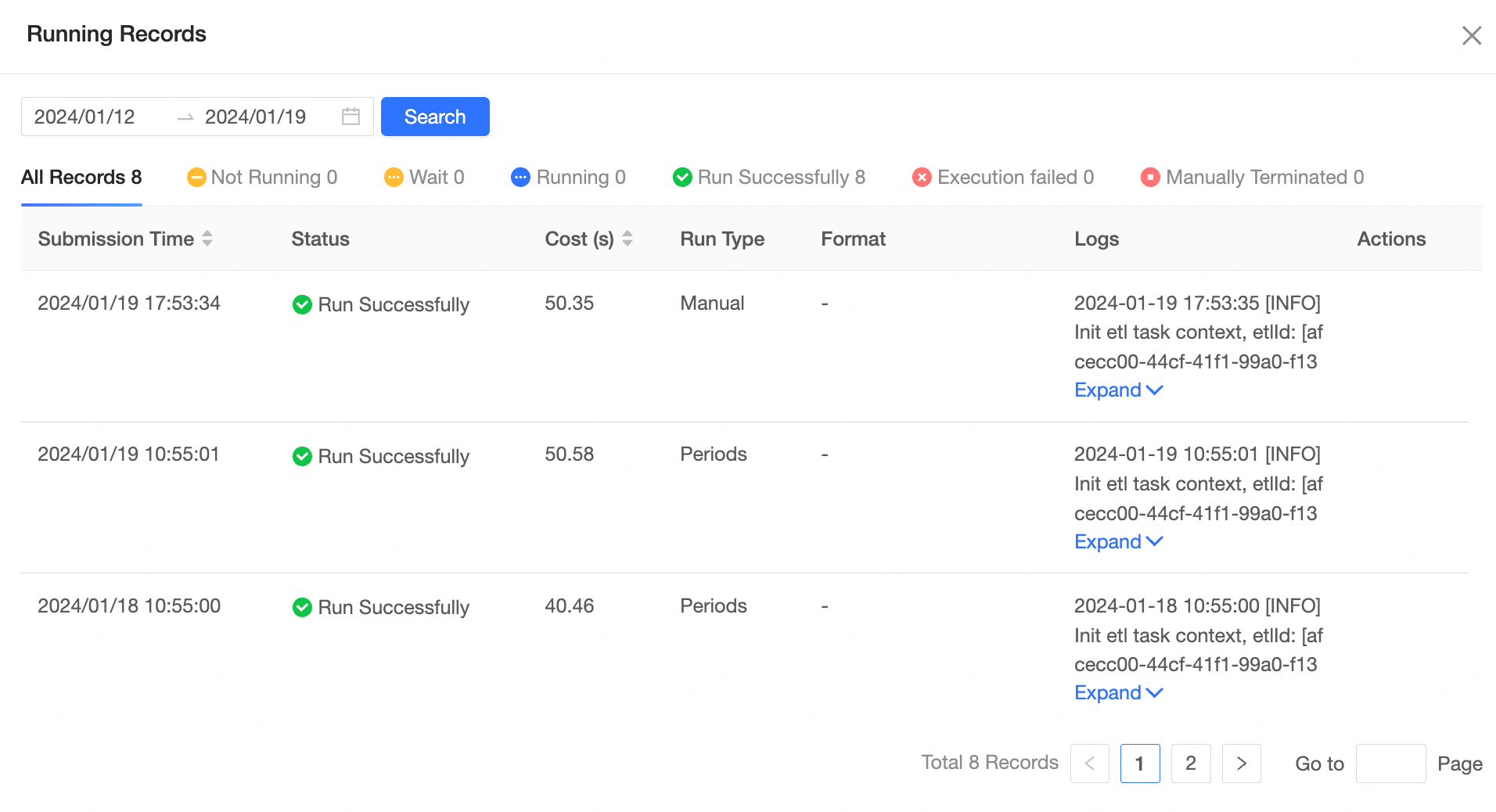
Suspend periodic scheduling
You can suspend periodic scheduling only when you set Run Type to Periodic. 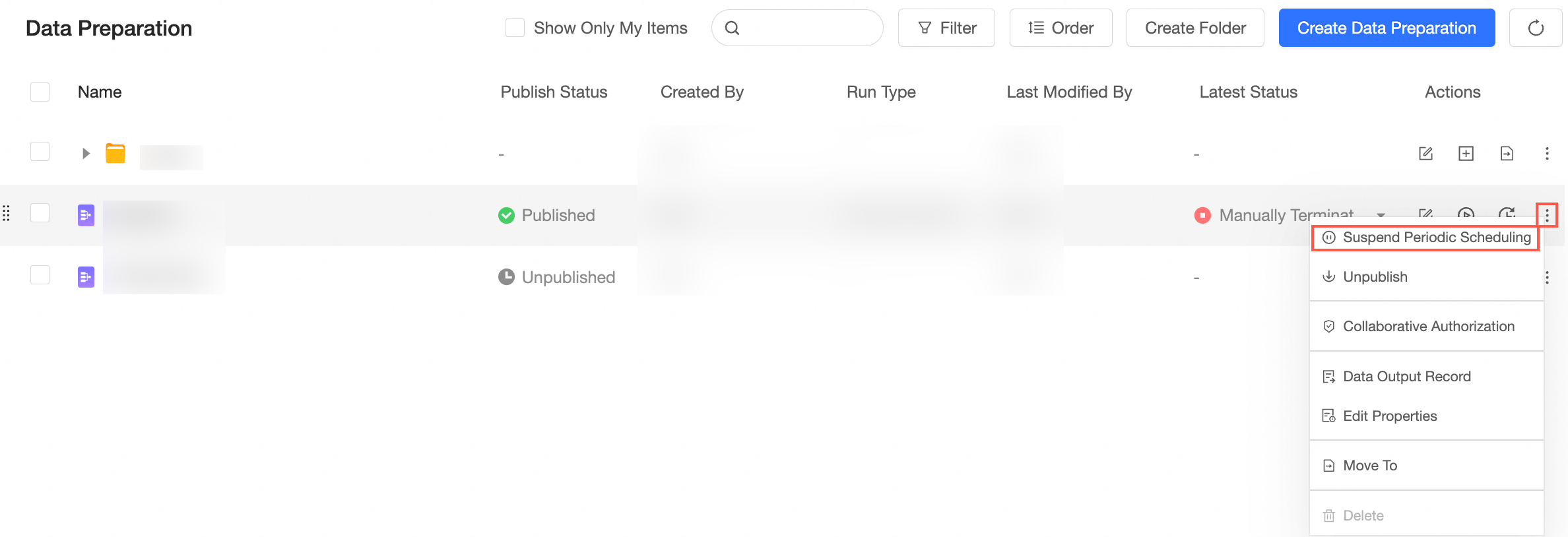
Recovery Cycle Scheduling
Resume Periodic Scheduling is supported only when Run Type is set to Periodic. 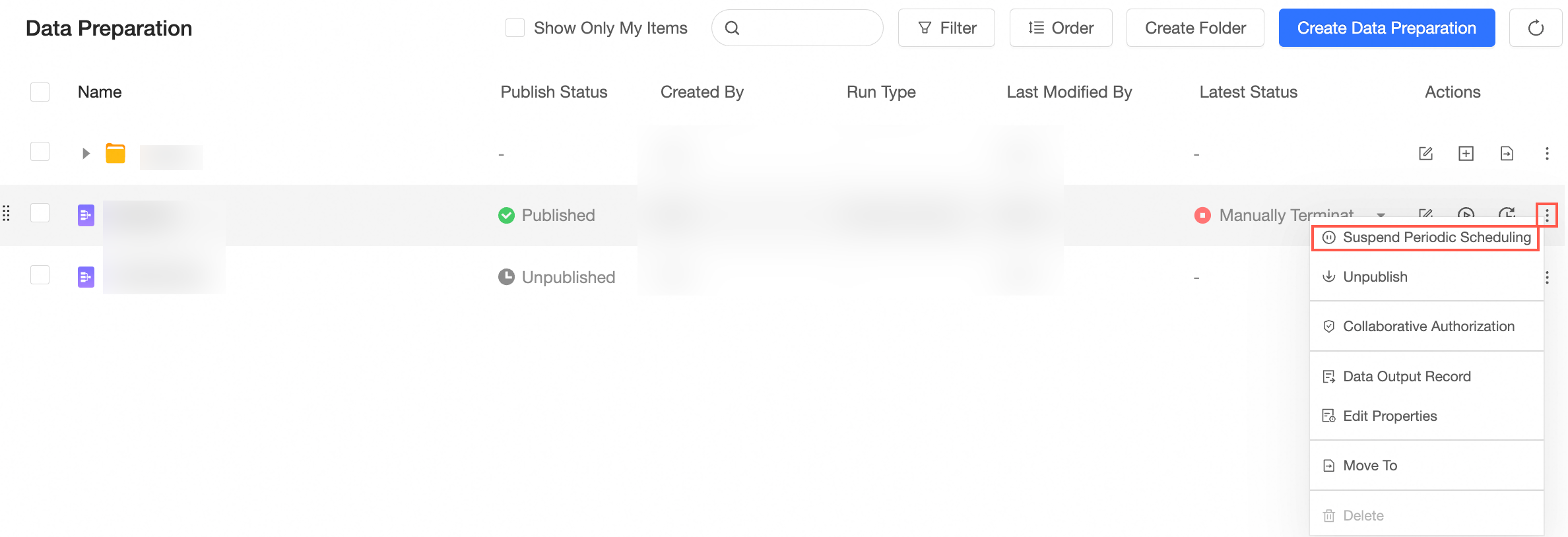
Undeploy nodes
Unpublish is supported only when Status is set to Published. 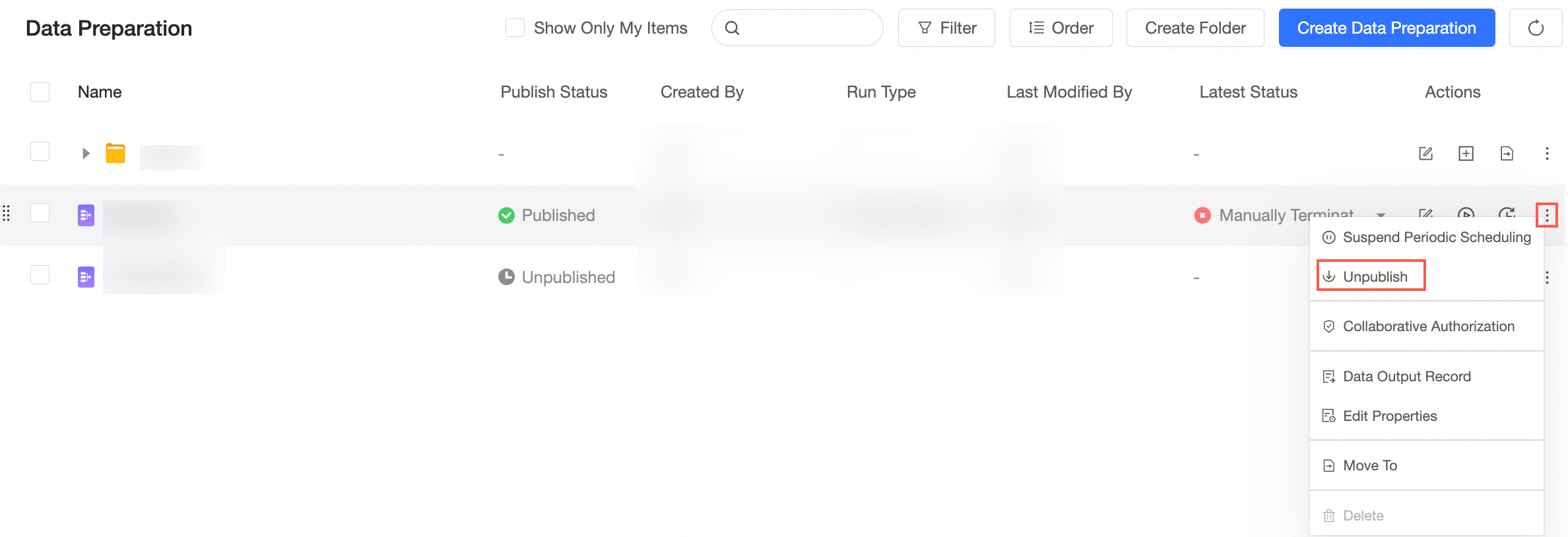
Grant permissions on a workbook
If the resource is in the Collaboration state and the current user is a developer, the permission administrator can grant the developer the permission to edit the resource. 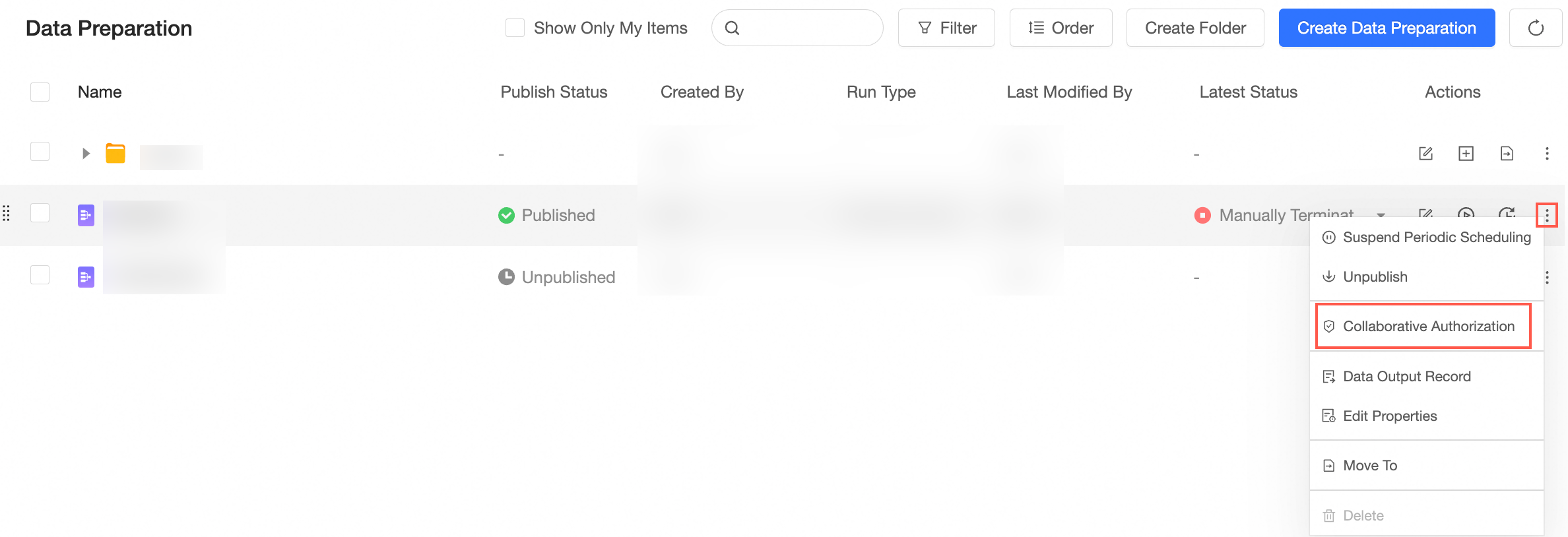
Data Output Task
Supports viewing data output records. 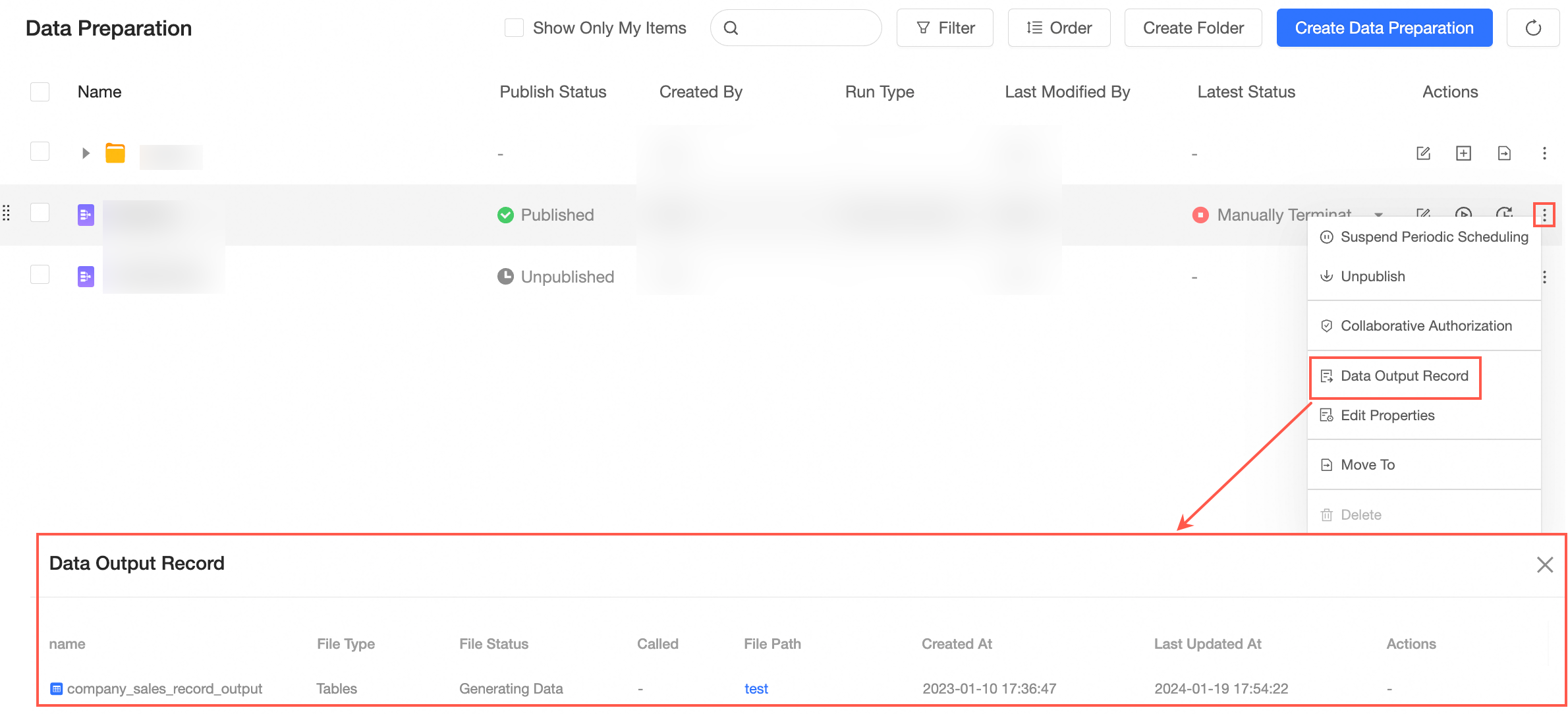
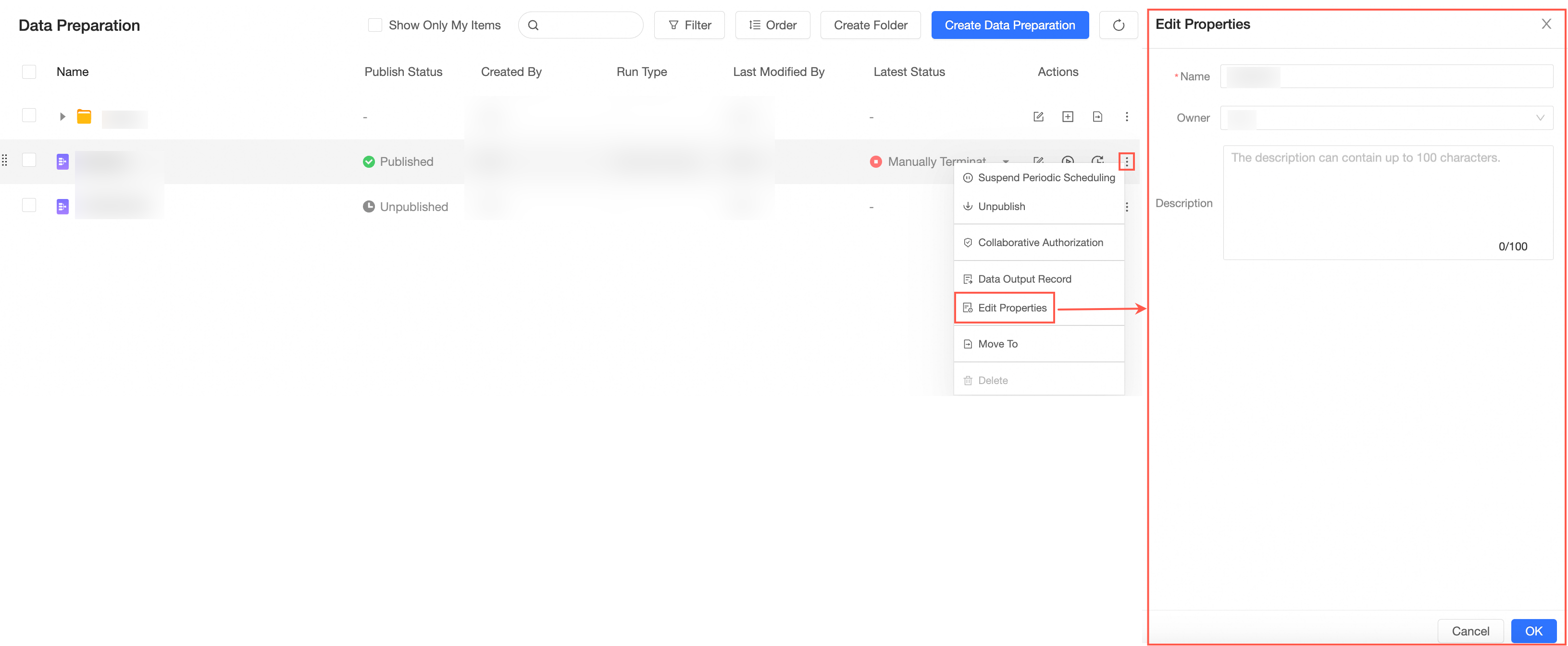
Attribute
You can modify the name, owner, and description of a data preparation task.
Move To
You can move a directory to which you have permissions. 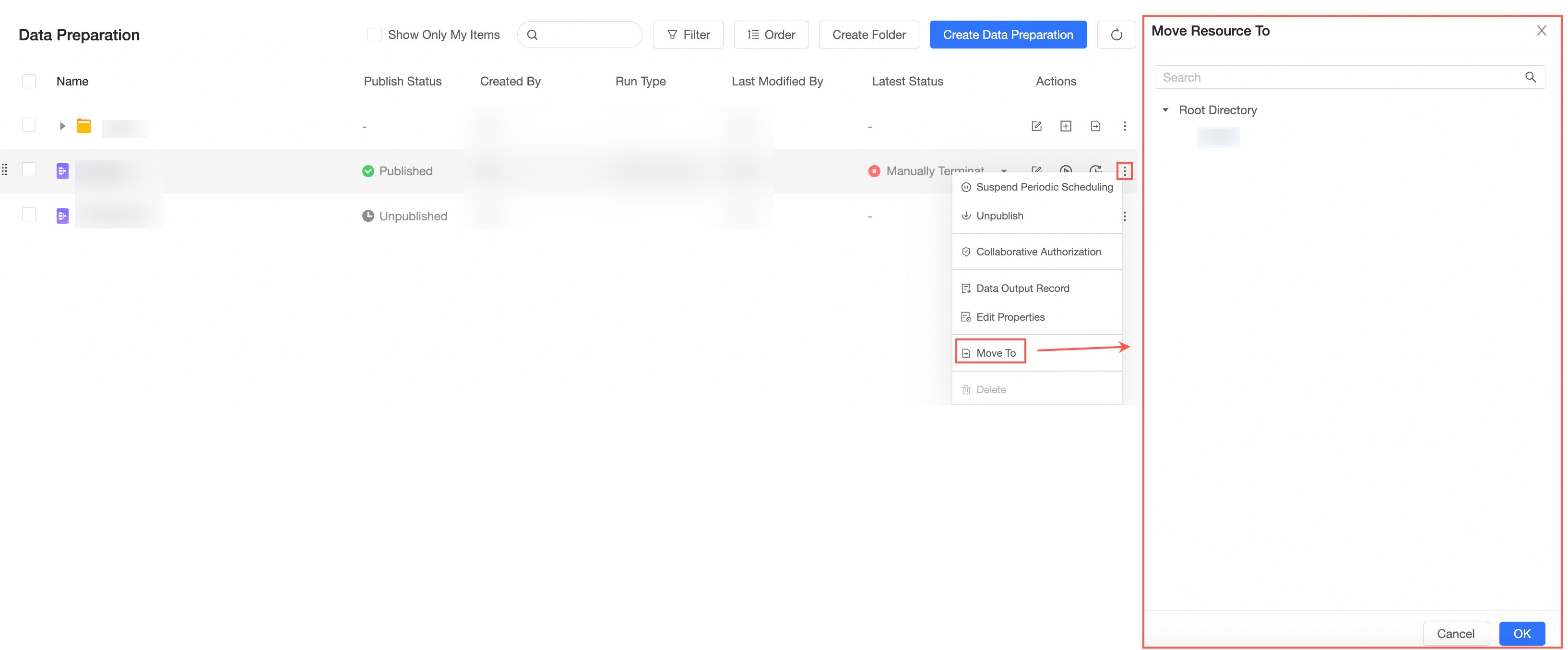
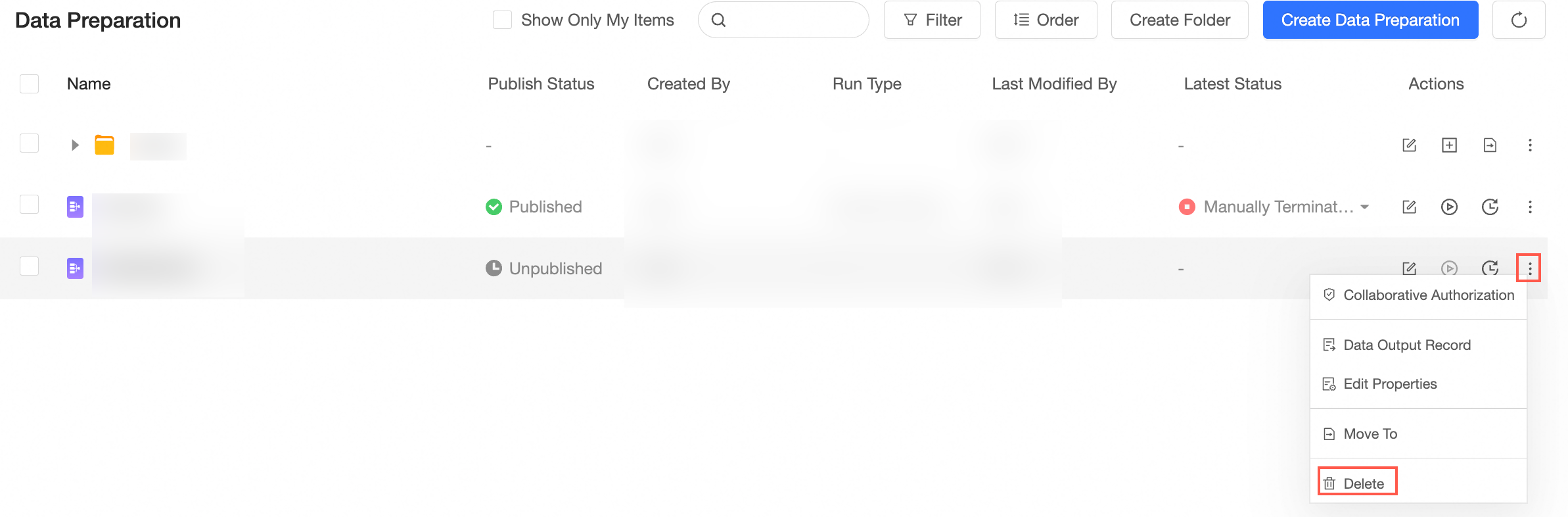
Delete the job
Only unpublished data can be deleted.