1. Overview
Upload product source images to generate professional-quality product scene images online.




2. Scenarios
AI colleagues can help you quickly change the background map of commodities. You only need to take a photo of commodities and upload it to the AI commodity map platform. The system can respond quickly and realize automatic intelligent matting. Based on in-depth learning algorithm, it can generate multi-scene display maps matching commodity types, such as snow-capped mountains, grasslands, home environment, exhibition stands and other high-quality virtual scenes, which greatly improves the efficiency of your creative materials.
3. Actions guide
Entry 1: Create a card SMS template. On the template creation page, click AI Drawing.
Operation link: Operation module-Hillingyang Chaoxin-Template management-New card SMS template-Select a template to create.
Entrance 2: Enter through the Laboratory-Creative Hub.
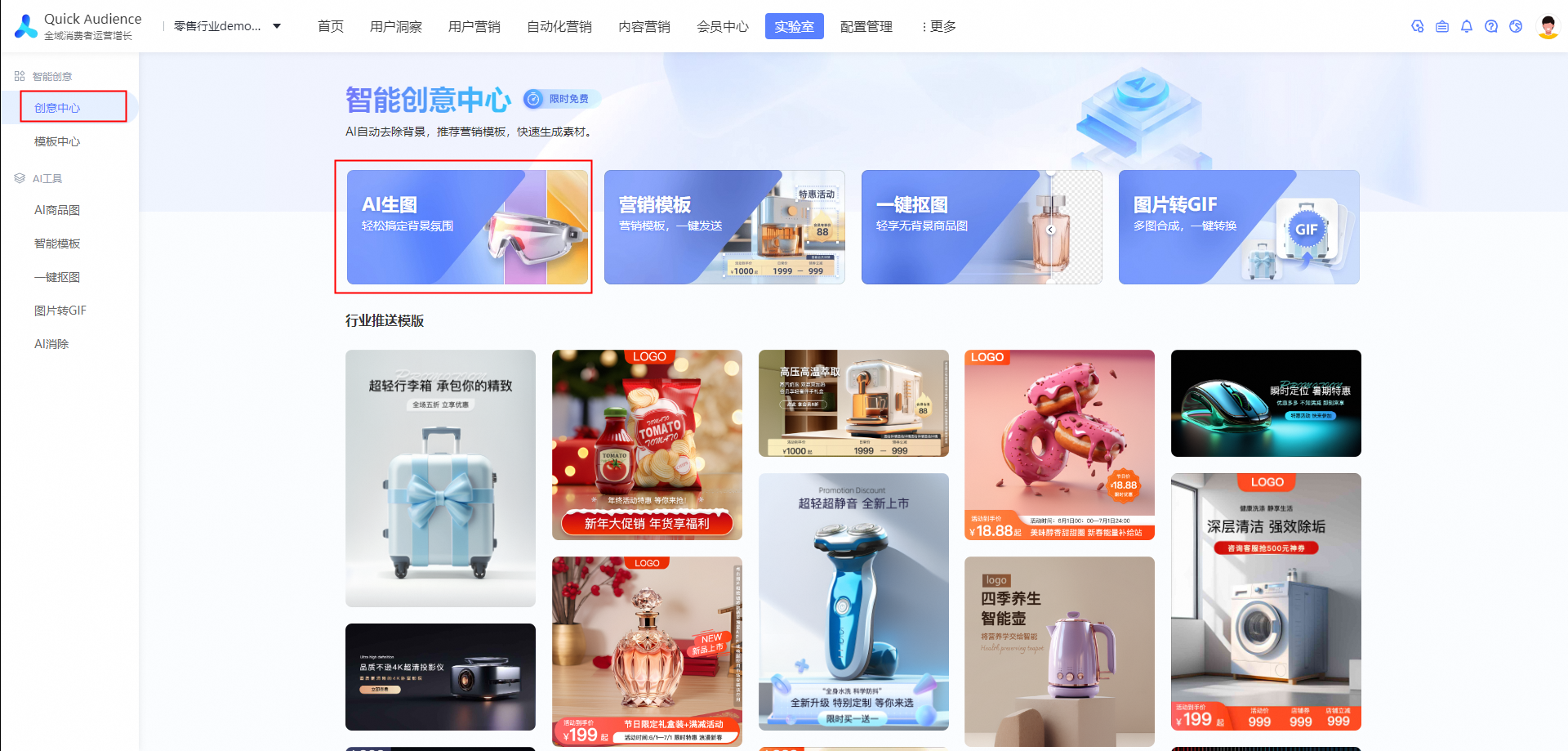
Simple three steps to complete the production of the eye-catching commodity map.
3.1 Product extraction
Click the Upload button to upload your product image.
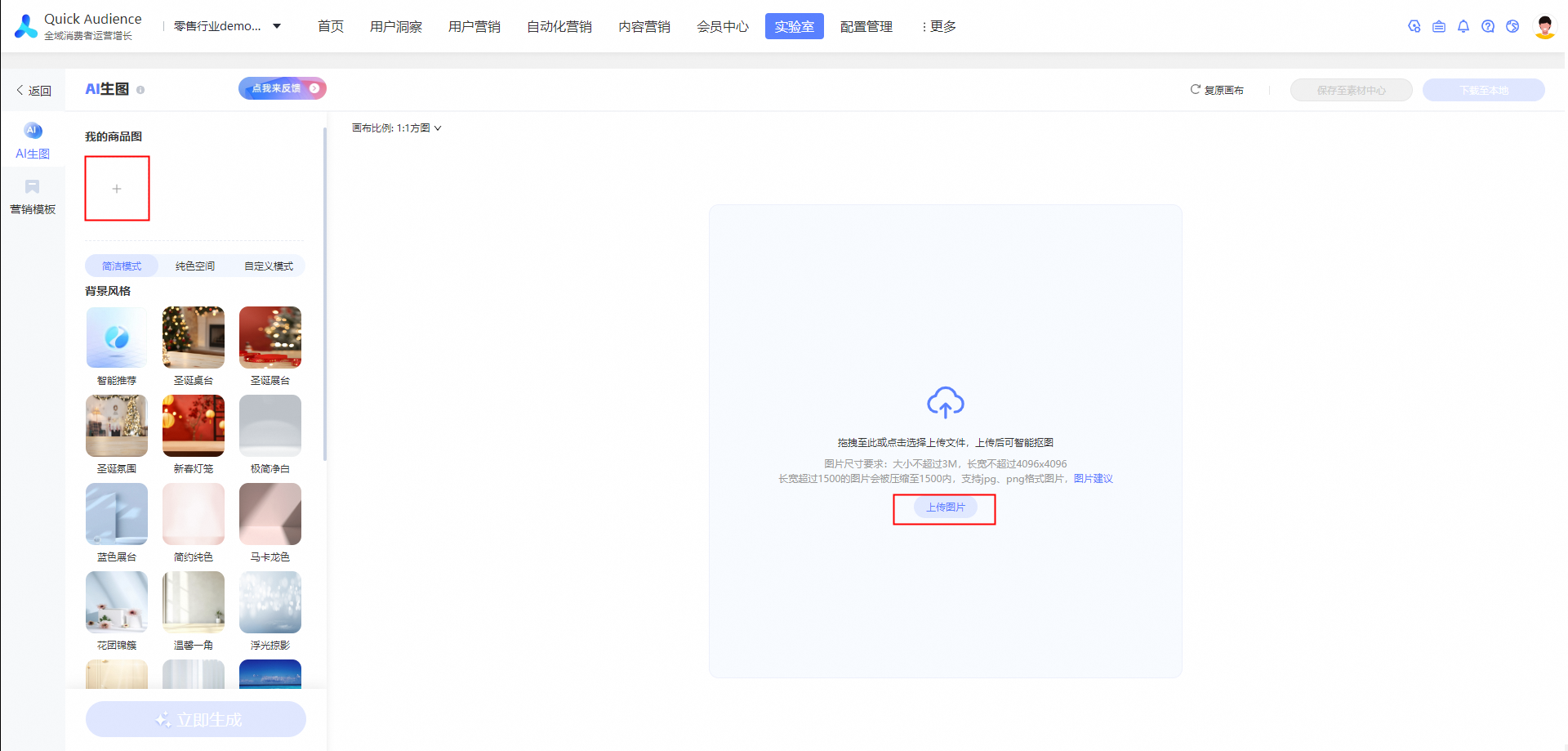
Tips: picture size requirements: pictures with a size of no more than 3M and a length and width of no more than 4096x 4096. pictures with a length and width of more than 1500 will be compressed into 1500. jpg and png format pictures are supported.
The canvas scale is used to adjust the current canvas size. The following are the dimensions of the canvas:
1:1 square map: 756px*756px
16:9 Horizontal: 960px*1300px
48:65 Vertical: 1248px*702px
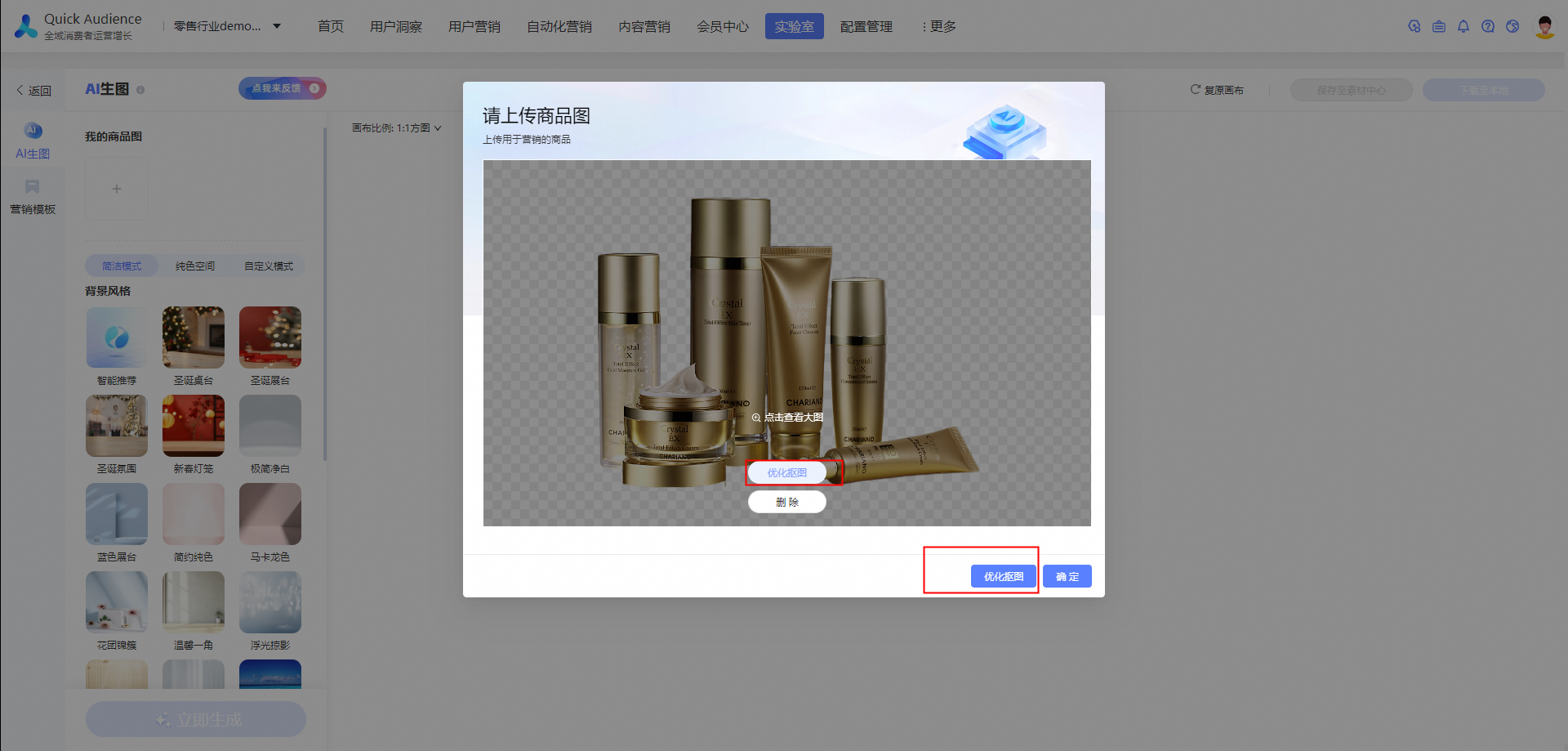
After the image is uploaded, it will be automatically matted to extract the main body of the product.
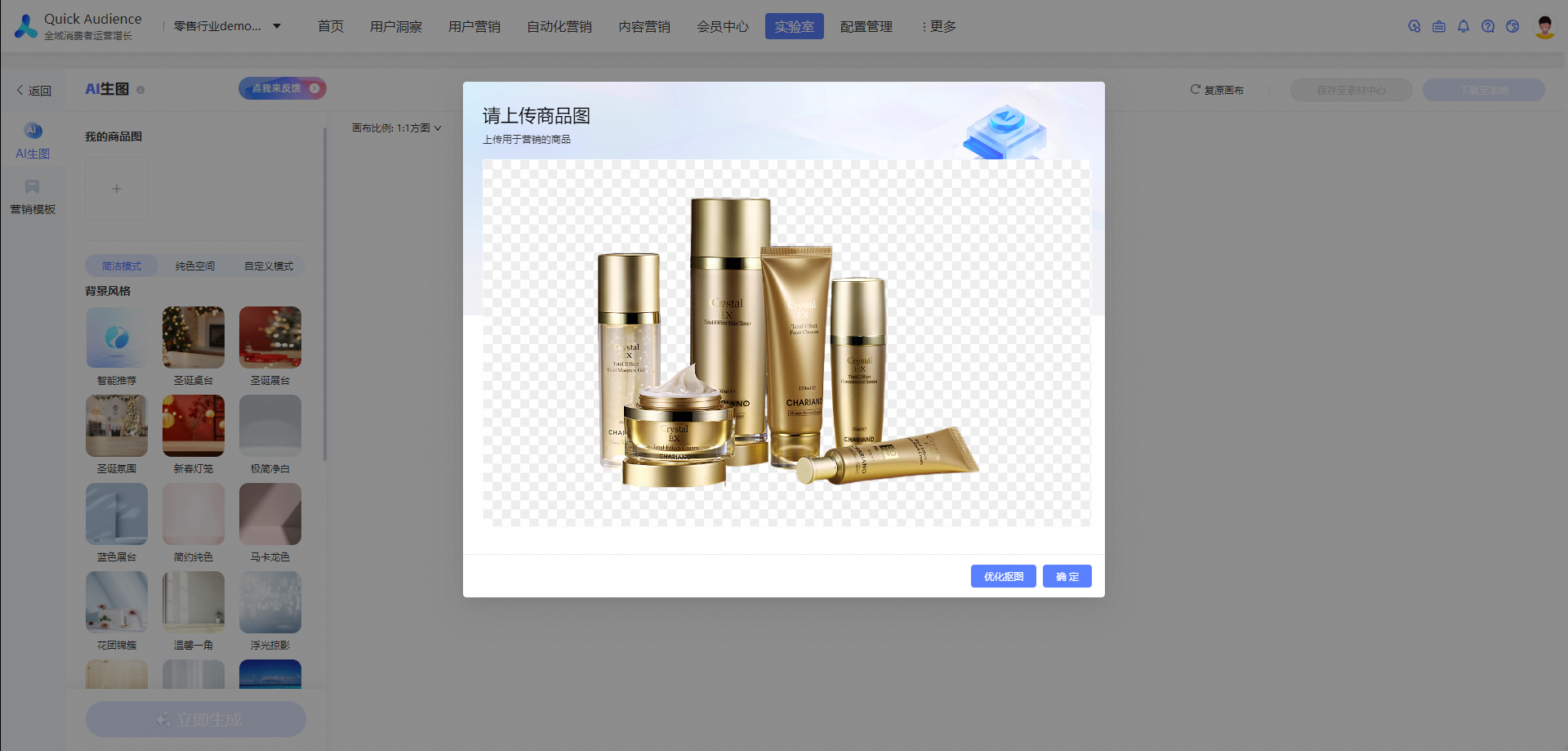
If you are not satisfied with the matting result, you can click Optimize Matting to adjust the matting.
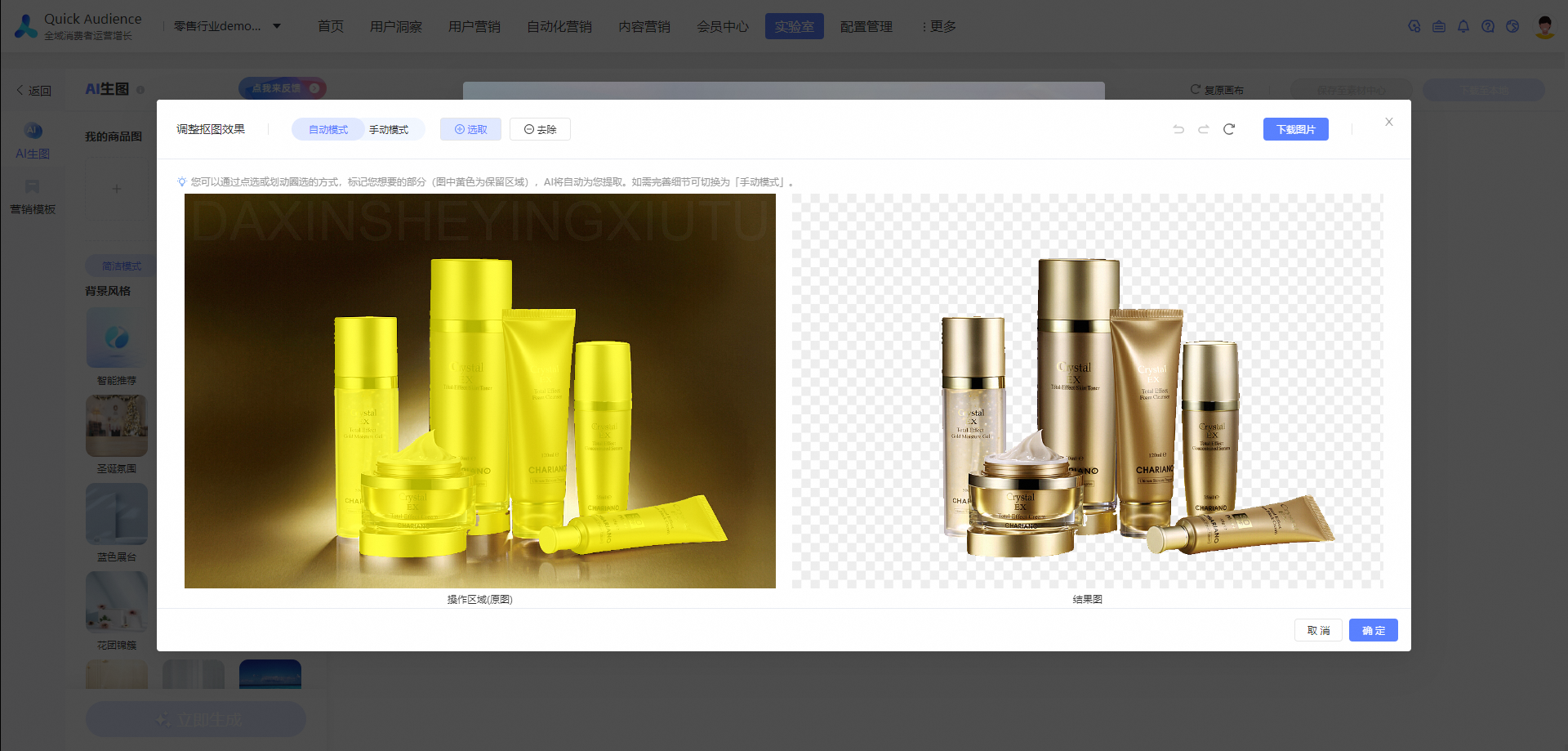
Click Remove or Select to adjust the matting range. As shown in the following figure, we want to remove the facial cleanser. We only need to select the removal function and click the facial cleanser to complete.
3.2 Product background generation
After you select a product, you can adjust the position and size of the product.
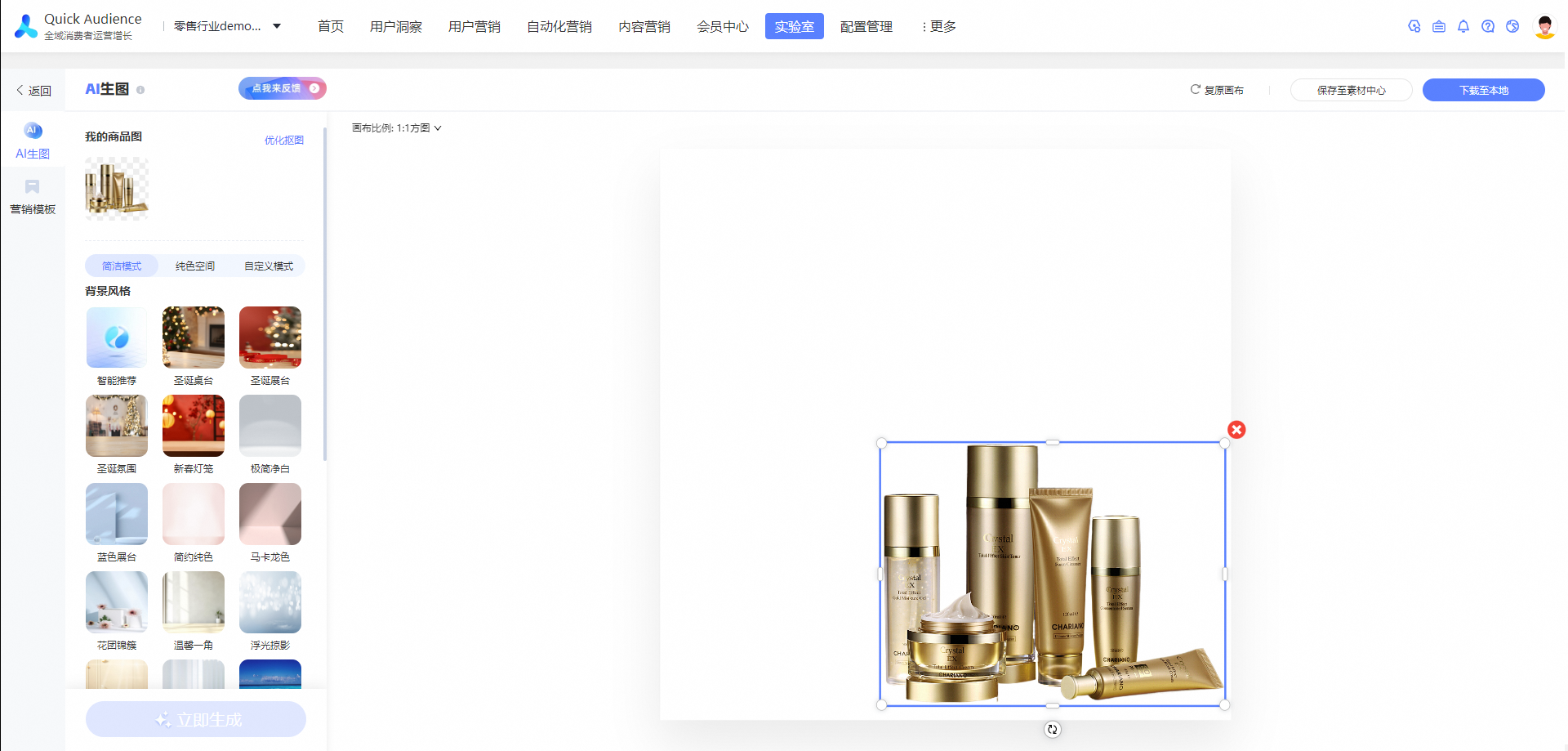
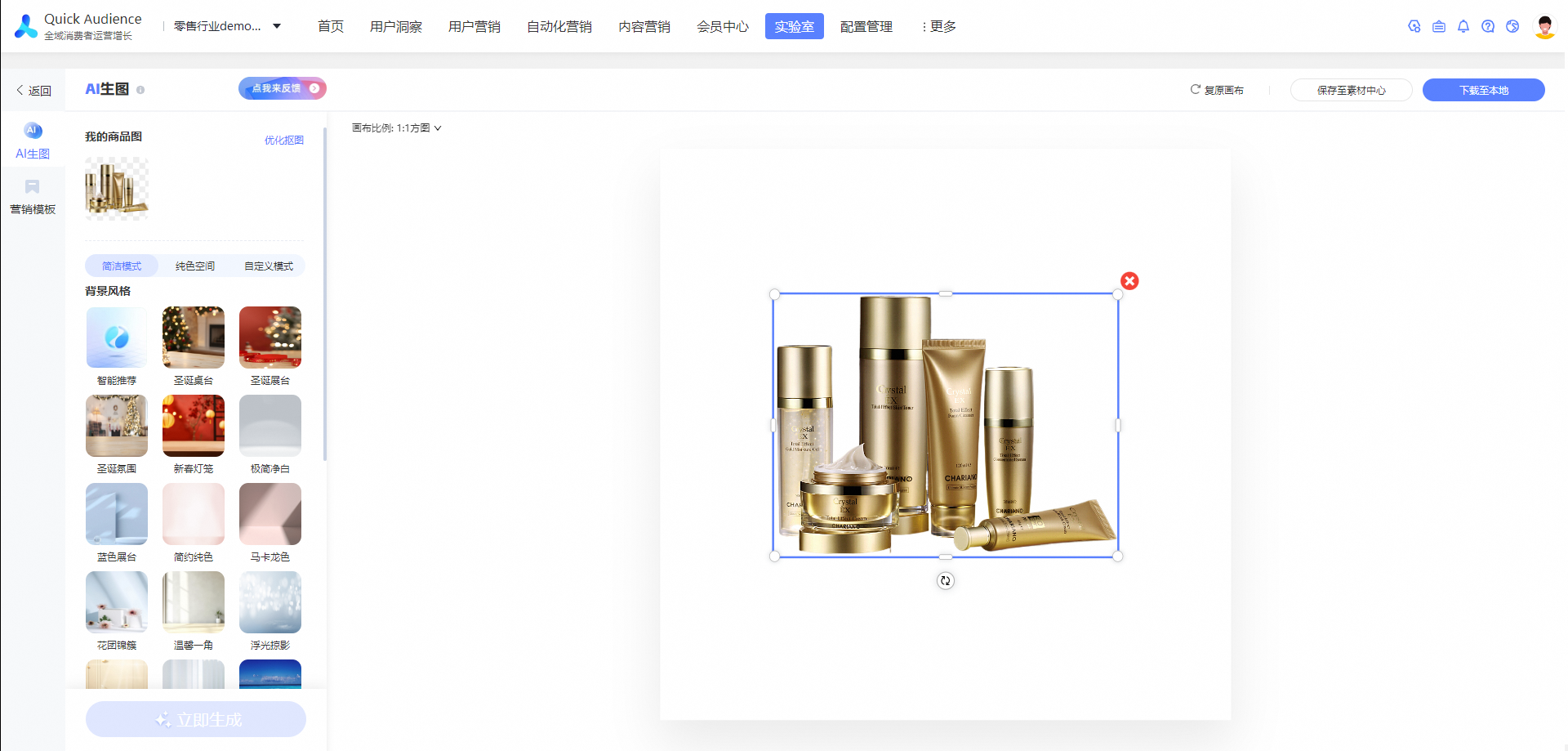
QA support Artificial Intelligence Recommendation, will automatically recommend suitable product background based on the big model of Lingyang e-commerce, click the style after the canvas one-click generation diagram, avoid learning costs, lazy generation.
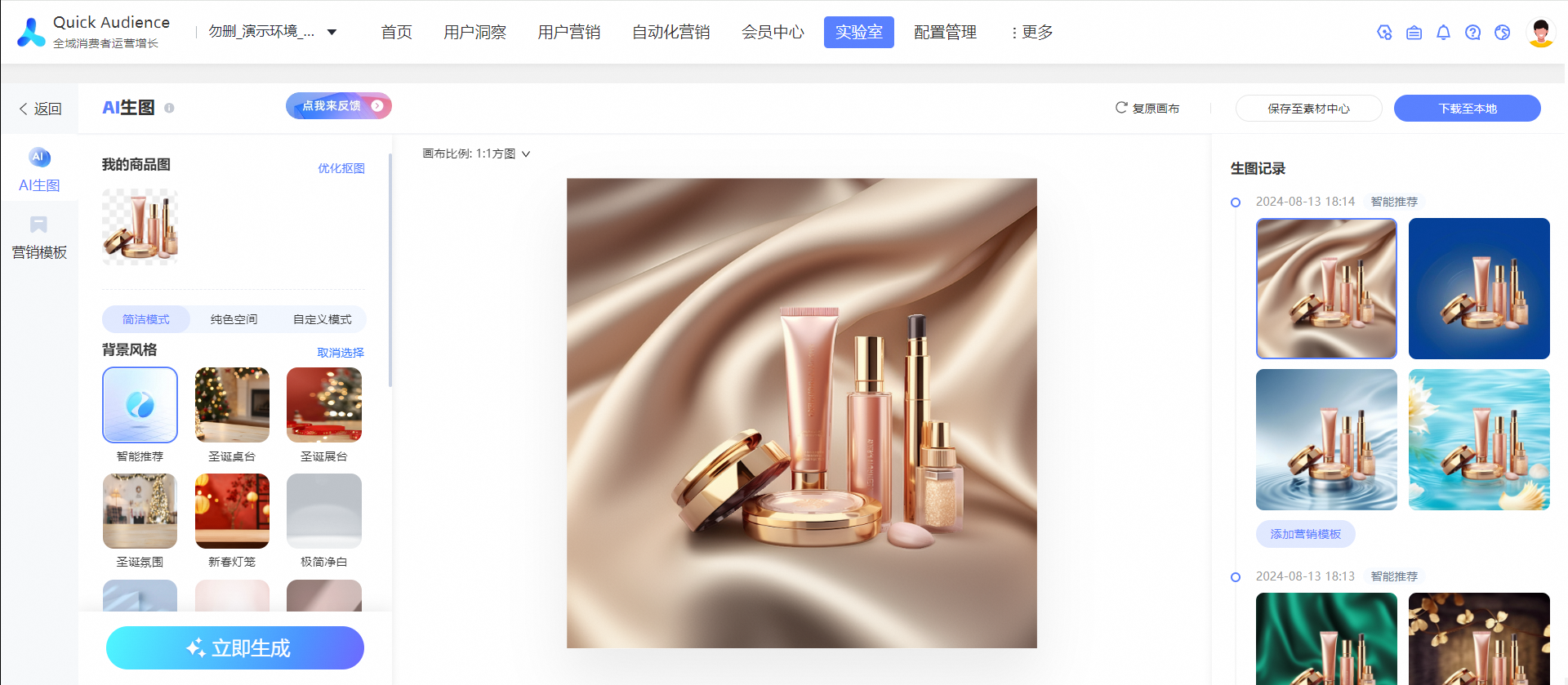
Of course, you can also select the product background style that you want to generate. Hillsheep has a variety of built-in scenarios that are commonly used in e-commerce. After you click a style, a schematic diagram is generated on the canvas.
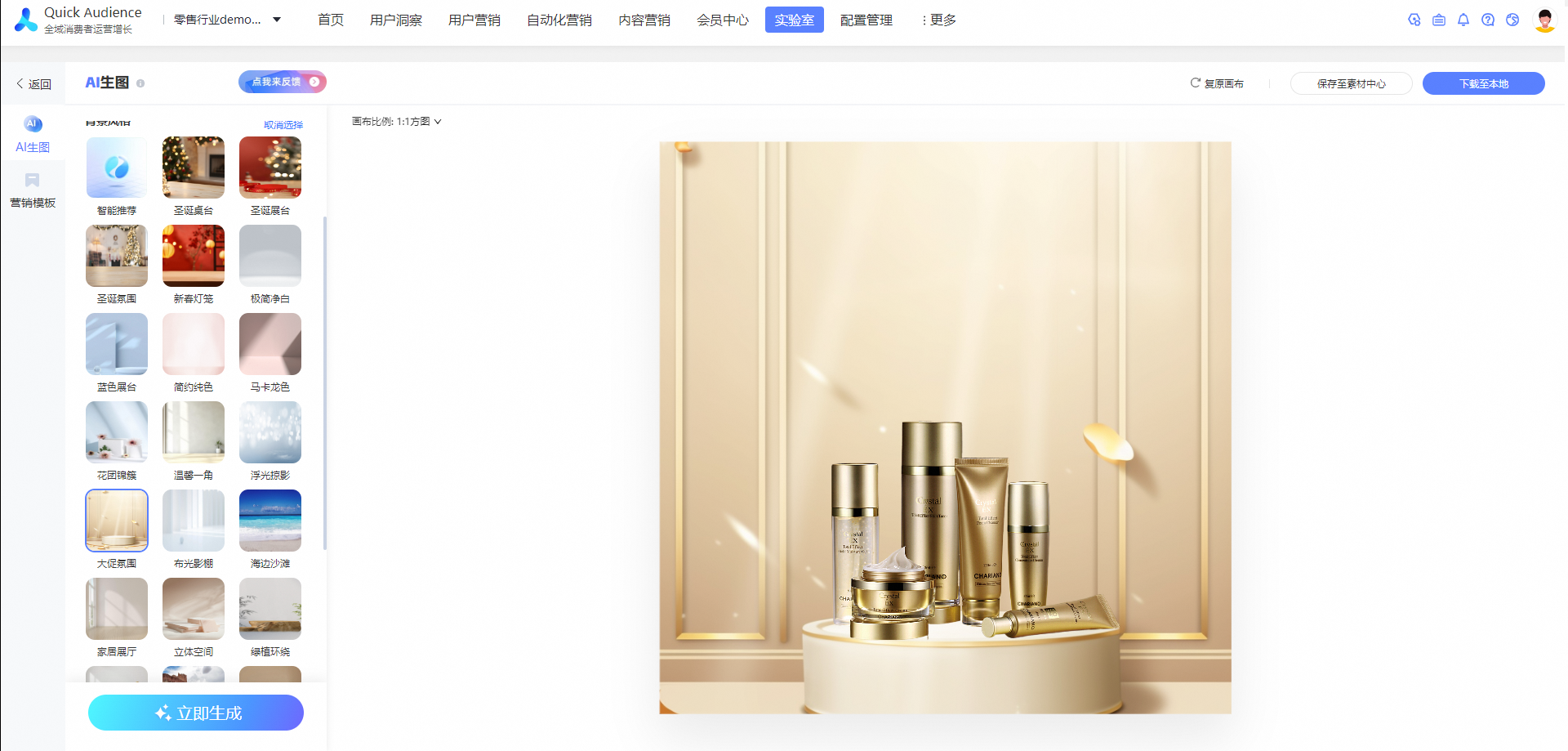
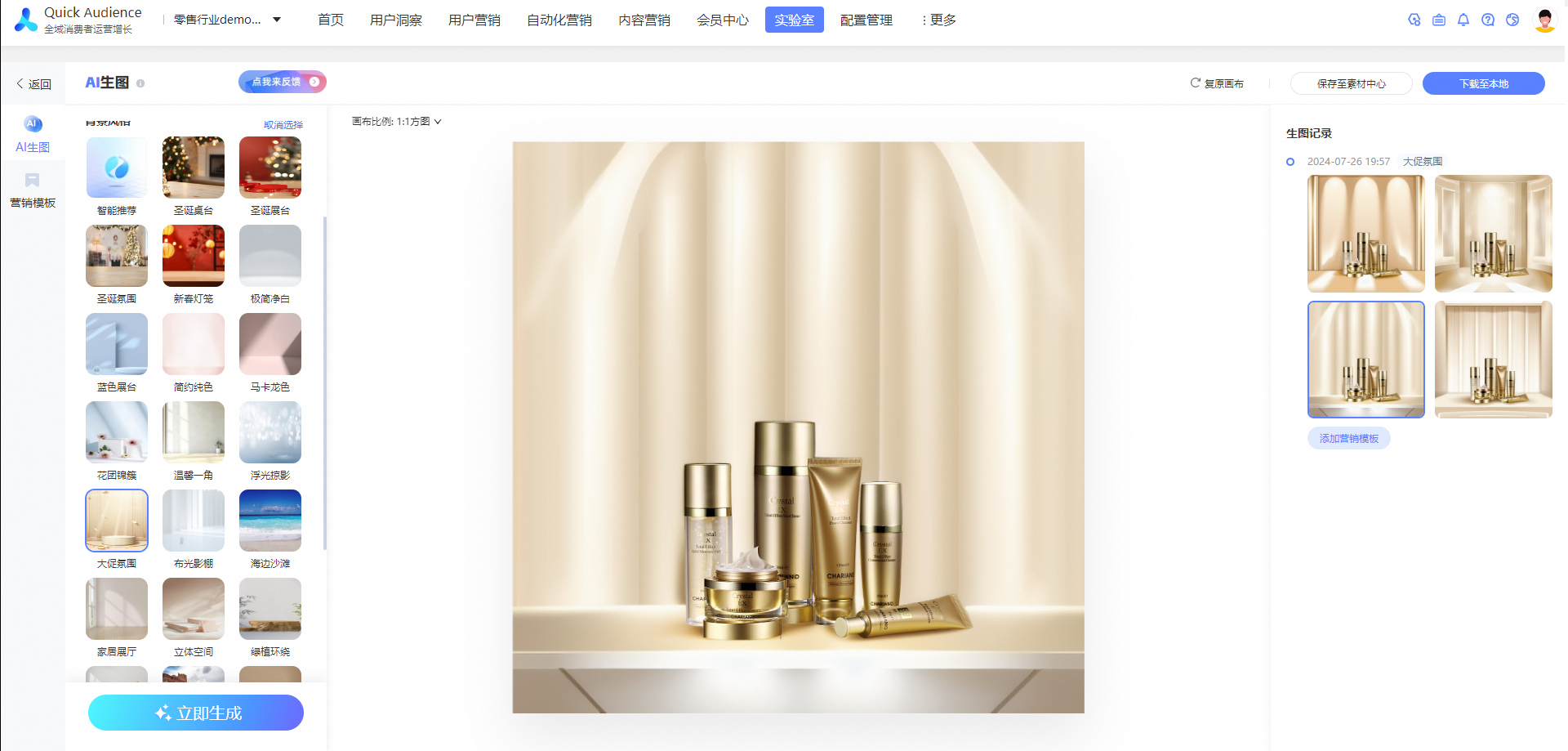
Click Generate to generate 4 high-quality commodity maps.
If the built-in scene does not have a background suitable for your product, you can use a custom background and enter the desired image background.
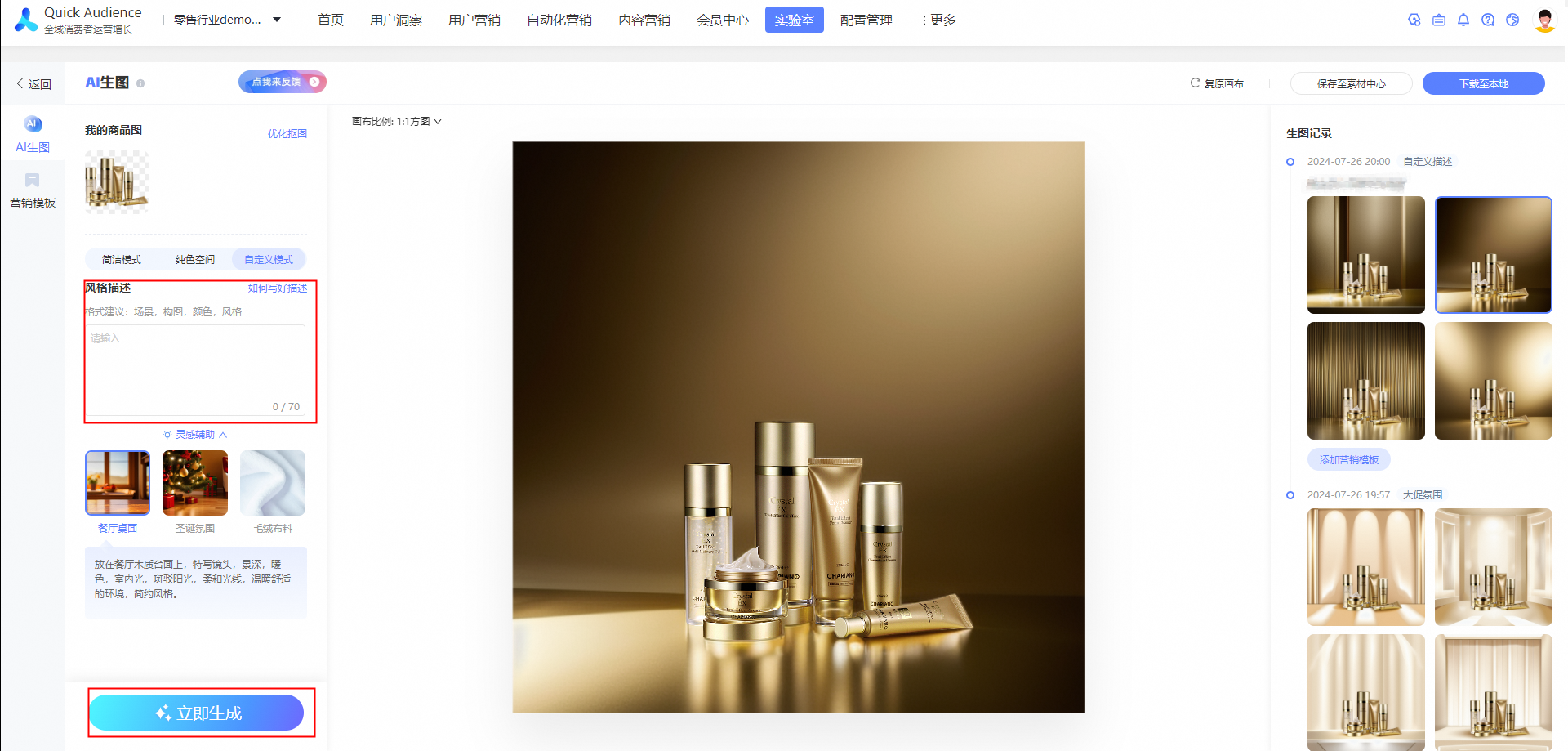
Enter the background style scene prompt you expect here. You can refer to how to write the prompt of the scene.
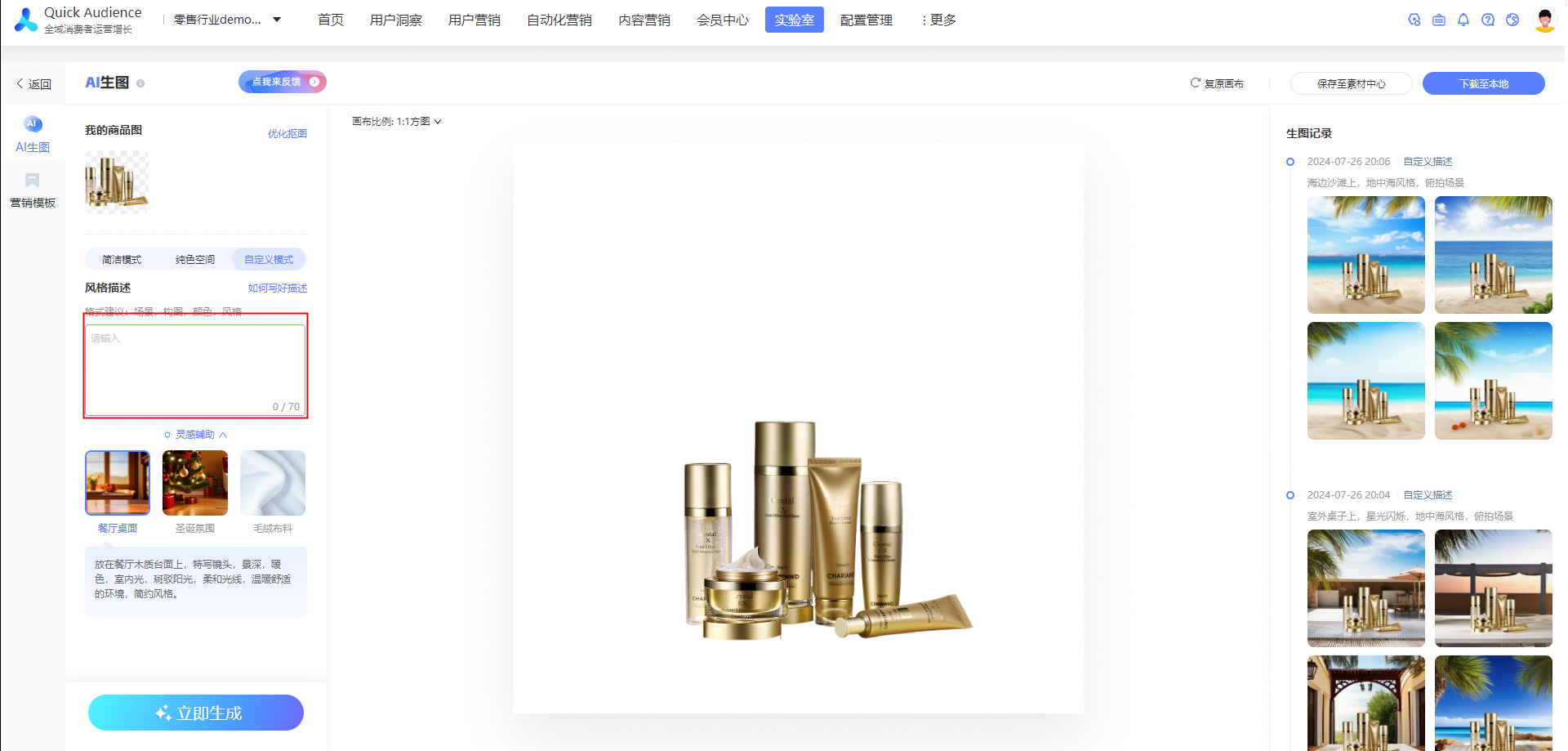
After filling in the style prompt, click the Generate Now button to generate 4 high-quality commodity maps.
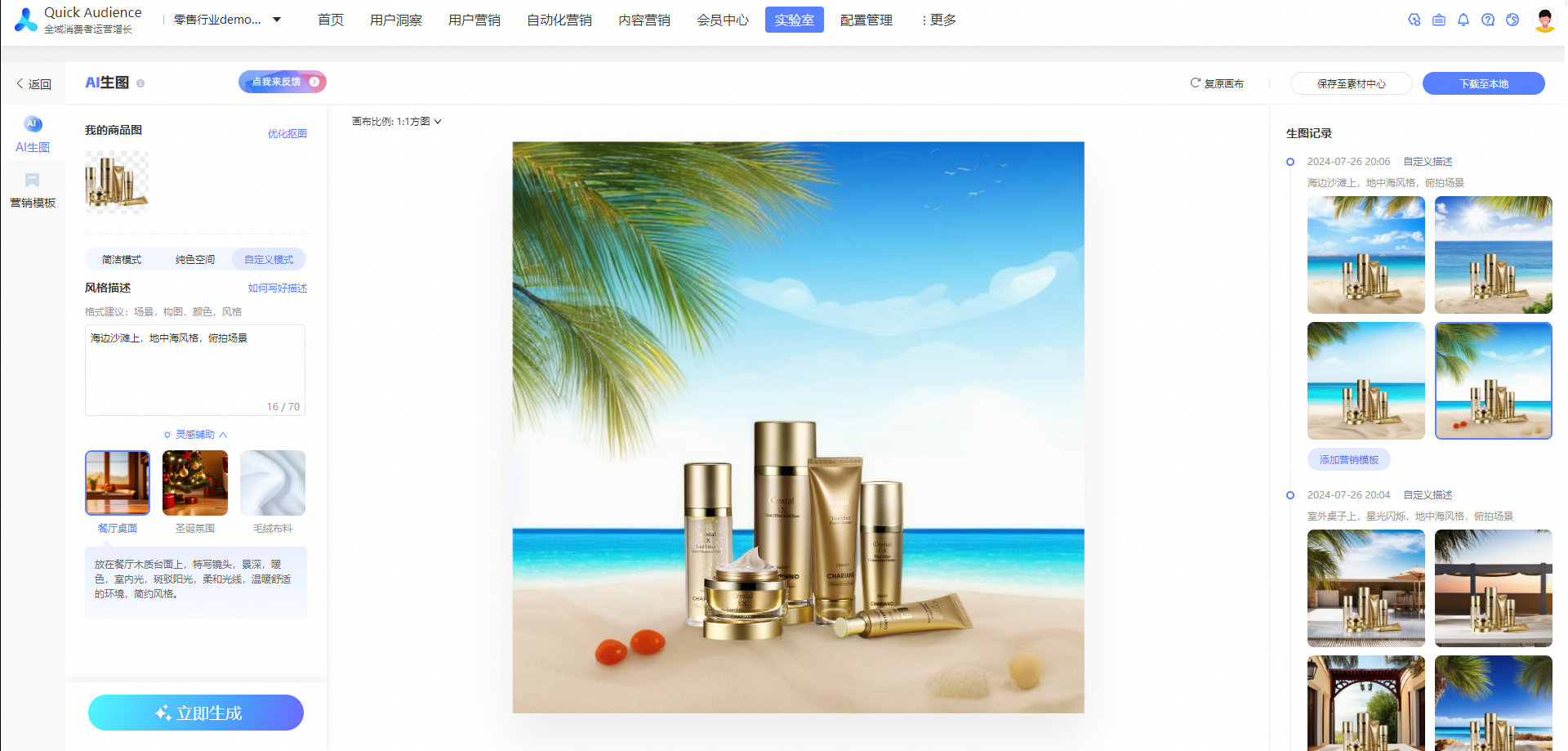
3.3 Download and use
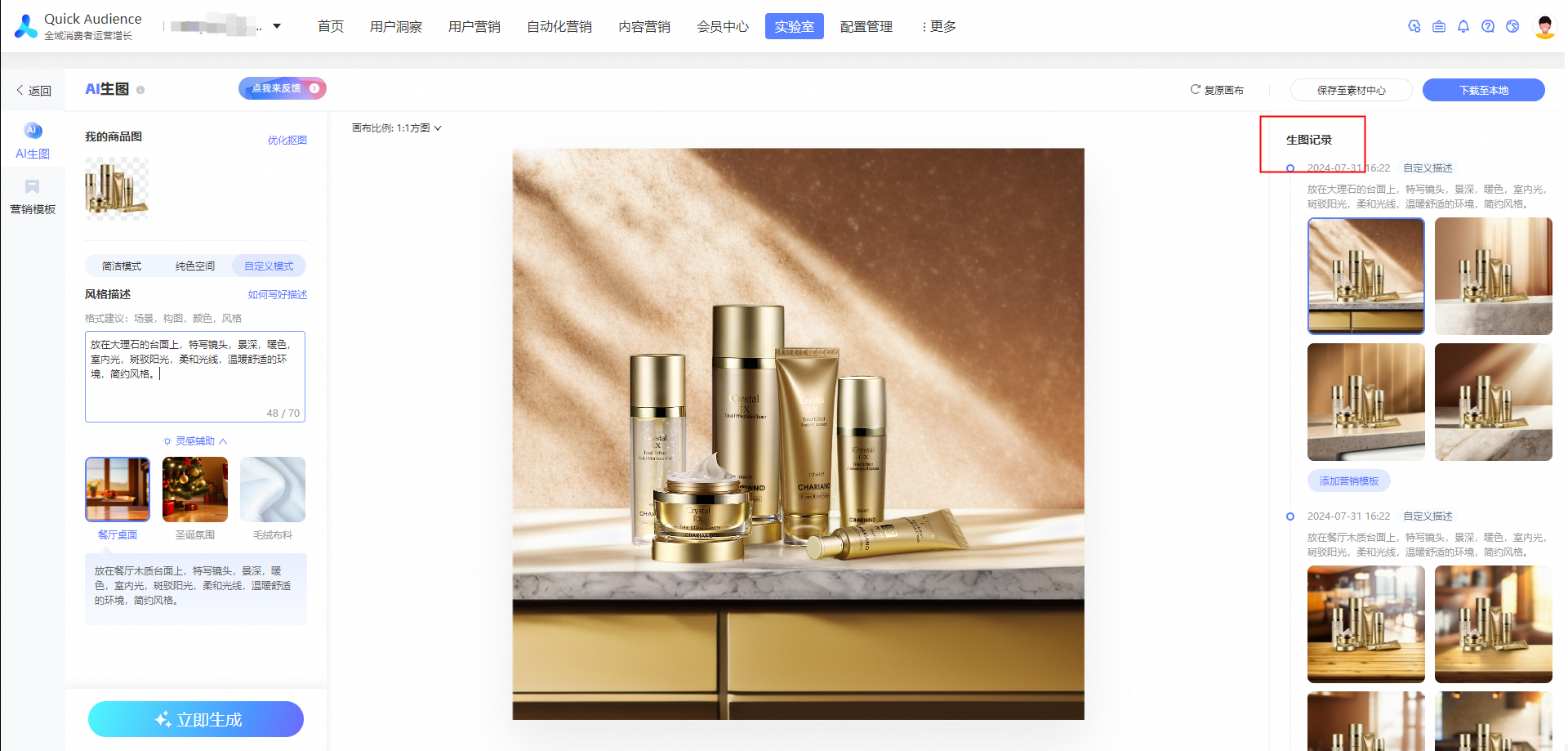
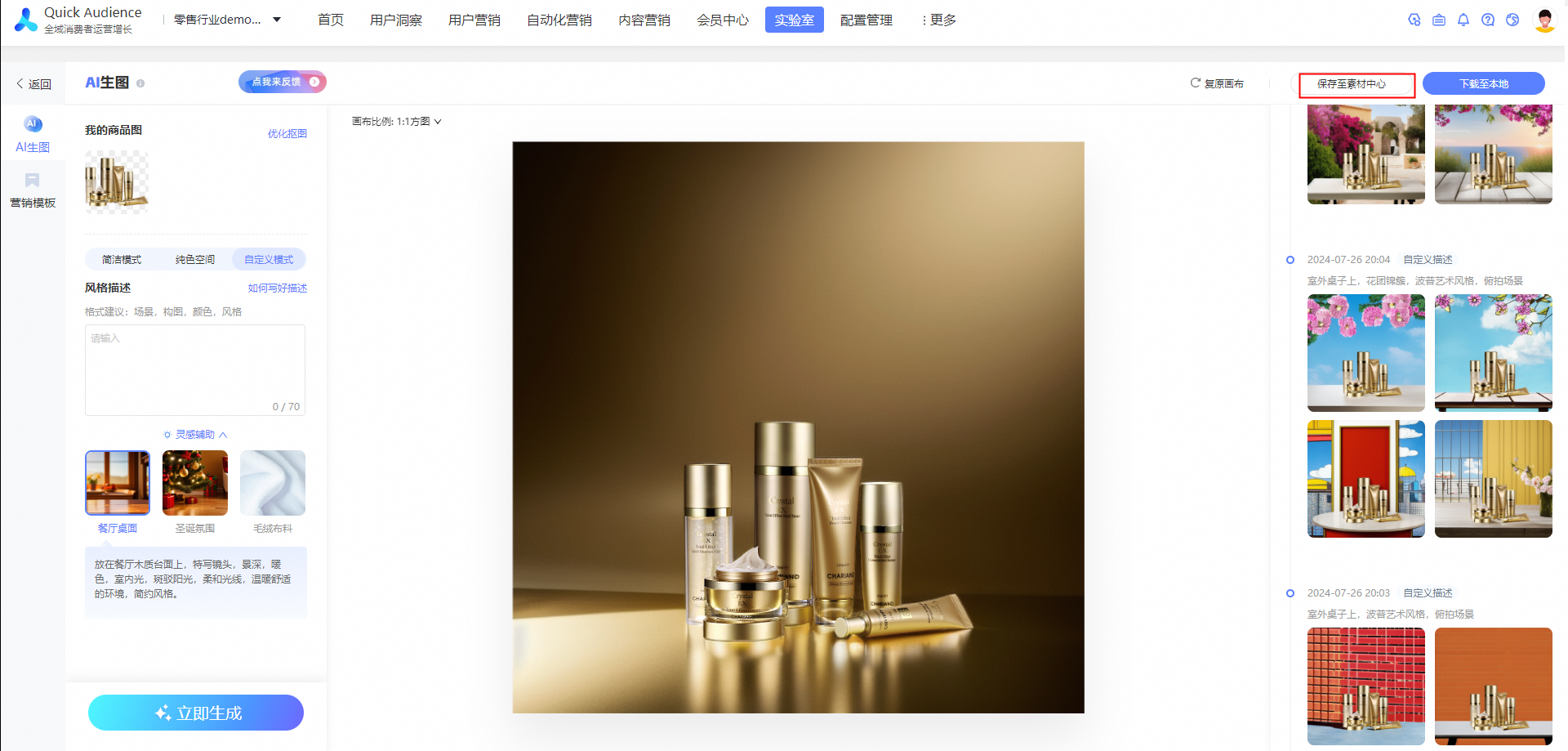
You can save the desired product map to the material center for subsequent delivery or marketing.
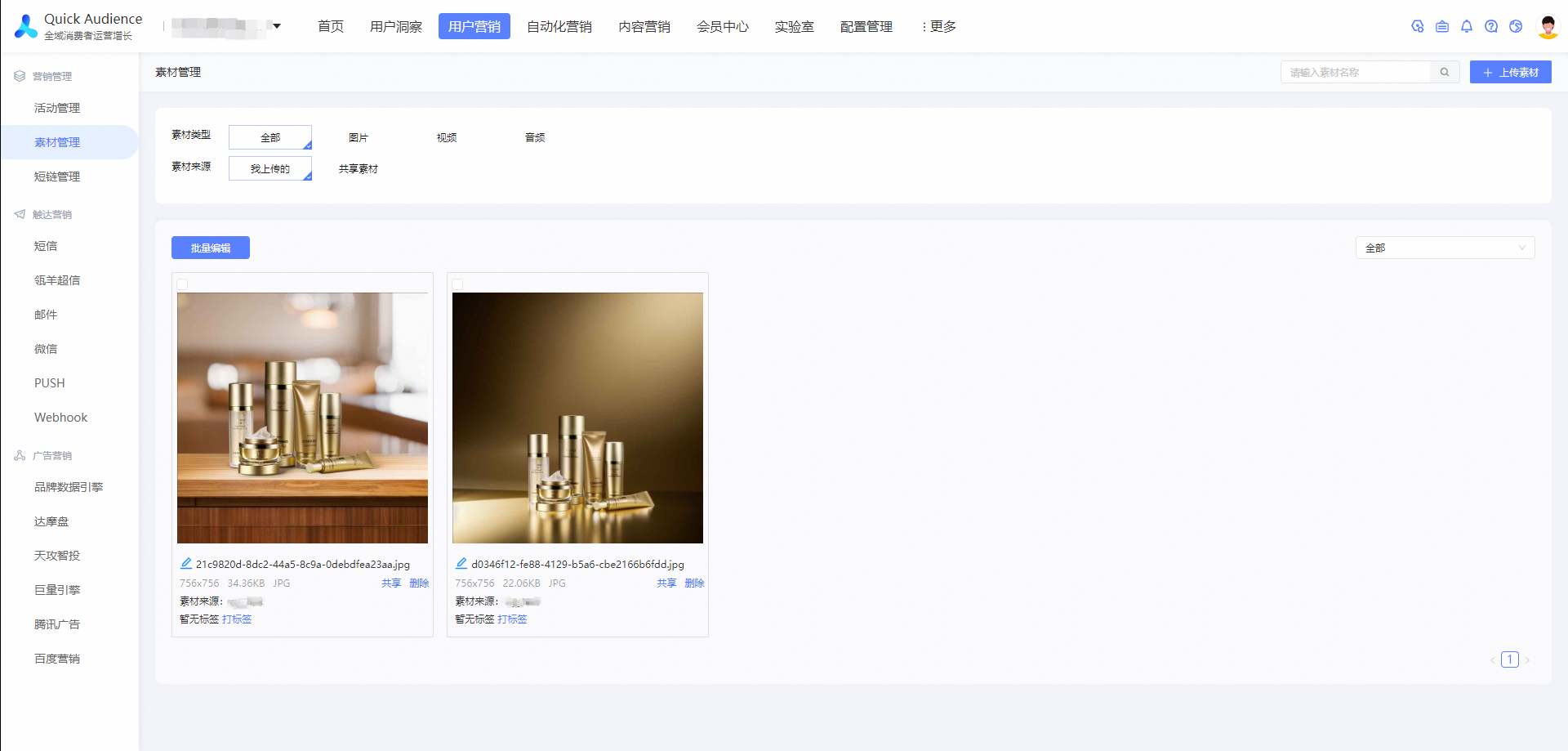
You can find the saved product map in [User Marketing-Material Management].
You can also download the image to your computer for later use.
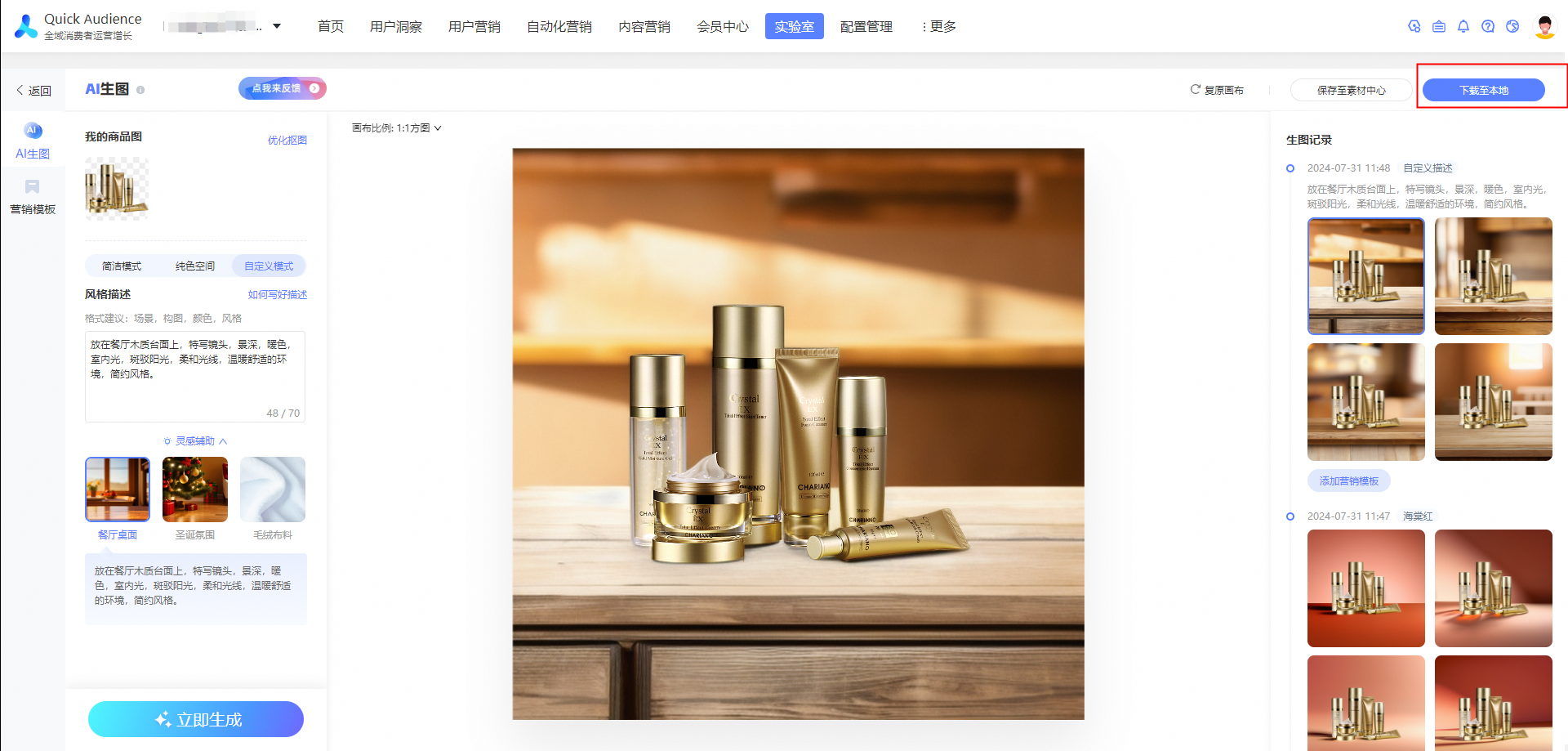
You can view the history of the generated image in the right-side pane. You can click the icon to switch to a historical image and download or save the image.