Machine Learning Designer supports batch prediction for scenarios where results don't need to be generated in real time — for example, running overnight scoring jobs on large datasets, preprocessing datasets before training, or generating weekly recommendation lists. This topic describes how to run batch predictions in Designer and how to schedule them to run periodically.
When to use batch prediction
Batch prediction is a good fit when you need to:
-
Score large datasets without waiting for synchronous responses
-
Run inference on a schedule (daily, weekly, or triggered by data updates)
-
Generate predictions when a persistent online endpoint isn't required
Prerequisites
Before you begin, make sure that you have:
-
A Machine Learning Designer workspace
-
A trained model (OfflineModel or a model trained using paired components)
-
(For periodic scheduling) A DataWorks workspace with the appropriate permissions
Run batch prediction in the development environment
Designer provides prediction components that cover different algorithms and scenarios. Drag and drop these components directly onto the canvas.
Choose a prediction approach
| Approach | When to use | Limitation |
|---|---|---|
| Paired training + prediction components | A dedicated prediction component exists for your algorithm (for example, the FM algorithm) | — |
| General-purpose prediction component | No dedicated prediction component is available for your algorithm | Supports OfflineModel models only. Does not support Predictive Model Markup Language (PMML) models. |
| Import an existing model | A pre-trained model is already available | — |
Paired training and prediction components
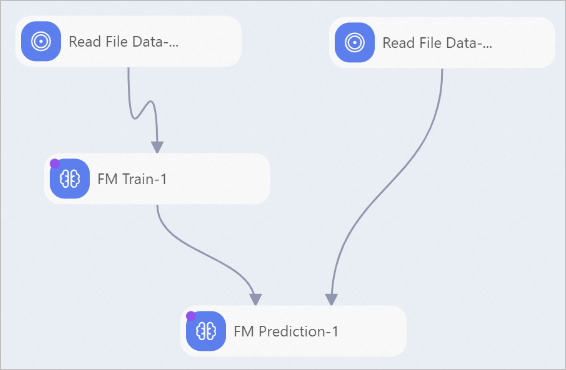
For algorithms that have paired components (such as the FM algorithm), both the training and prediction components appear side by side in the left-side component pane. Train the model first, then connect the prediction component as a downstream node.
General-purpose prediction component
If no dedicated prediction component exists for your algorithm, use the general-purpose prediction component after training the model.
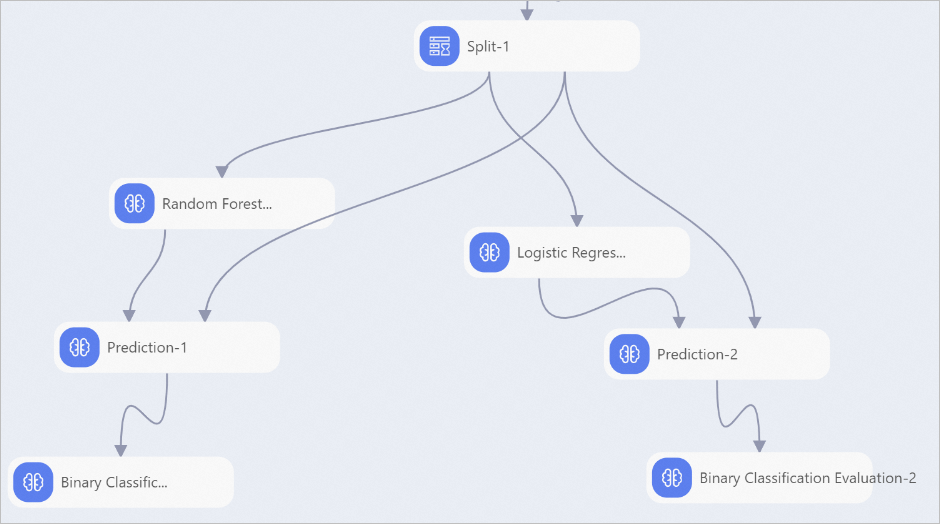
The general-purpose prediction component supports only OfflineModel models. It does not support Predictive Model Markup Language (PMML) models.
Import an existing model
To use a pre-trained model, import it with a model-import component and connect a prediction component as its downstream node. This approach also supports prediction and deployment workflows.
Schedule a batch prediction pipeline
After the batch prediction pipeline passes testing, submit it to DataWorks for periodic scheduling.
Step 1: Synchronize the model to the production environment (standard mode only)
This step is required only if your workspace is in DataWorks standard mode. In standard mode, the development and production environments maintain MaxCompute data separately, so you must synchronize the trained offline model to the production environment before scheduling.
Two methods are available:
Method 1: Model Export and Import MaxCompute Offline Model components (recommended)
-
Use the Model Export component to export the trained OfflineModel model to Object Storage Service (OSS).
-
In the periodically scheduled pipeline, use the Import MaxCompute Offline Model component to import the model from OSS.
Method 2: Copy MaxCompute Offline Model and Read MaxCompute Offline Model components
-
Use the Copy MaxCompute Offline Model component to replicate the trained OfflineModel model to the production environment.
NoteThe replicate operation must be performed using a workspace administrator account or production account. For more information, see Permissions.
-
In the periodically scheduled pipeline, use the Read MaxCompute Offline Model component to read the model from the production environment.
Step 2: Schedule the pipeline with DataWorks
Use DataWorks tasks to schedule pipelines in Machine Learning Designer.
Next steps
If the offline prediction results meet your expectations, deploy the model or pipeline as an online service: