Terraform is an open-source tool that allows you to securely and efficiently provision and manage cloud resources. This topic describes how to use Terraform to create an Object Storage Service (OSS) bucket.
You can run the sample code in this topic directly in Terraform Explorer with a few clicks.
Prerequisites
Before you begin, make sure that you have:
-
A Resource Access Management (RAM) user with the minimum required permissions to reduce security risks. This prevents accidental exposure of your Alibaba Cloud account's AccessKey pair. For details, see Create a RAM user and Grant permissions to a RAM user. Attach the following policy to the RAM user:
{ "Version": "1", "Statement": [ { "Effect": "Allow", "Action": "oss:*", "Resource": "*" } ] } -
A Terraform runtime environment set up through one of the following methods:
-
Terraform Explorer: A free, web-based Terraform execution environment provided by Alibaba Cloud. Log on and use Terraform without local installation. Best for quick experimentation and debugging.
-
Cloud Shell: Terraform is preinstalled and identity credentials are preconfigured. Run Terraform commands directly in Cloud Shell at low cost. Best for quick experimentation and debugging.
-
Local installation: Install and configure Terraform on your local computer. Best for poor network conditions or custom development environments.
-
Some resources created in this example incur fees. Release or unsubscribe the resources when you no longer need them to avoid unexpected charges.
Terraform resources
This example uses the following Terraform resources:
| Resource | Description |
|---|---|
alicloud_oss_bucket |
Creates an OSS bucket |
alicloud_oss_bucket_acl |
Configures the access control list (ACL) of the bucket |
Create a bucket
-
Create a working directory and a configuration file named main.tf in it. Copy the following code into main.tf:
variable "region"{ default = "cn-beijing" } provider "alicloud"{ region = var.region } resource "random_uuid" "default" { } # Create a bucket. resource "alicloud_oss_bucket" "bucket" { bucket = substr("tf-example-${replace(random_uuid.default.result, "-", "")}", 0, 16) } # Configure the ACL of the bucket. resource "alicloud_oss_bucket_acl" "bucket-ac"{ bucket = alicloud_oss_bucket.bucket.id acl = "private" } -
Initialize the Terraform runtime environment:
terraform initThe following output indicates successful initialization:
Terraform has been successfully initialized! You may now begin working with Terraform. Try running "terraform plan" to see any changes that are required for your infrastructure. All Terraform commands should now work. If you ever set or change modules or backend configuration for Terraform, rerun this command to reinitialize your working directory. If you forget, other commands will detect it and remind you to do so if necessary. -
Apply the configuration:
terraform applyAt the prompt, enter
yesand press the Enter key. The following output indicates that the resources were created successfully:You can apply this plan to save these new output values to the Terraform state, without changing any real infrastructure. Do you want to perform these actions? Terraform will perform the actions described above. Only 'yes' will be accepted to approve. Enter a value: yes Apply complete! Resources: 3 added, 0 changed, 0 destroyed. -
Verify the results using either of the following methods.
Use the
terraform showcommandRun the following command in your working directory to view the details of the created resources:
terraform show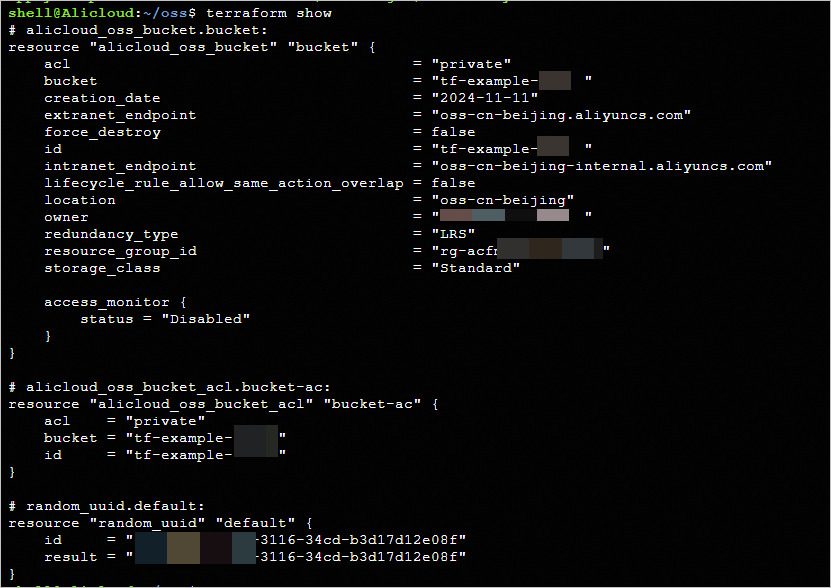
Use the OSS console
-
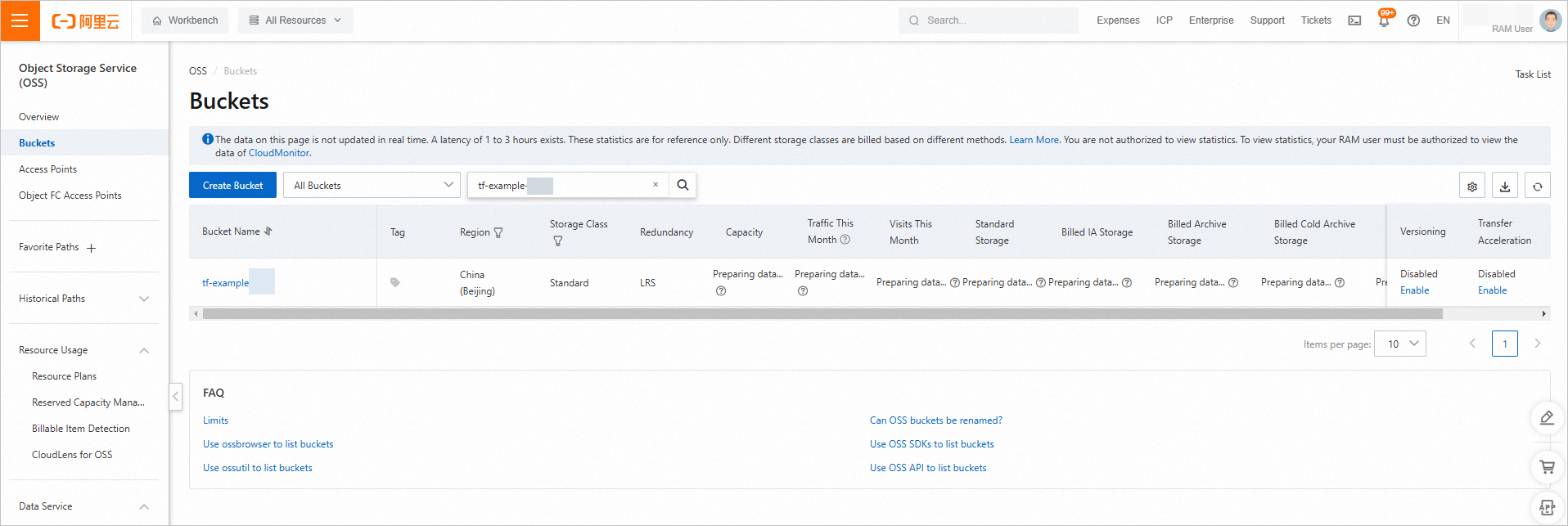
Log on to the OSS console. In the left-side navigation pane, click to view the newly created bucket on the Buckets page.
-
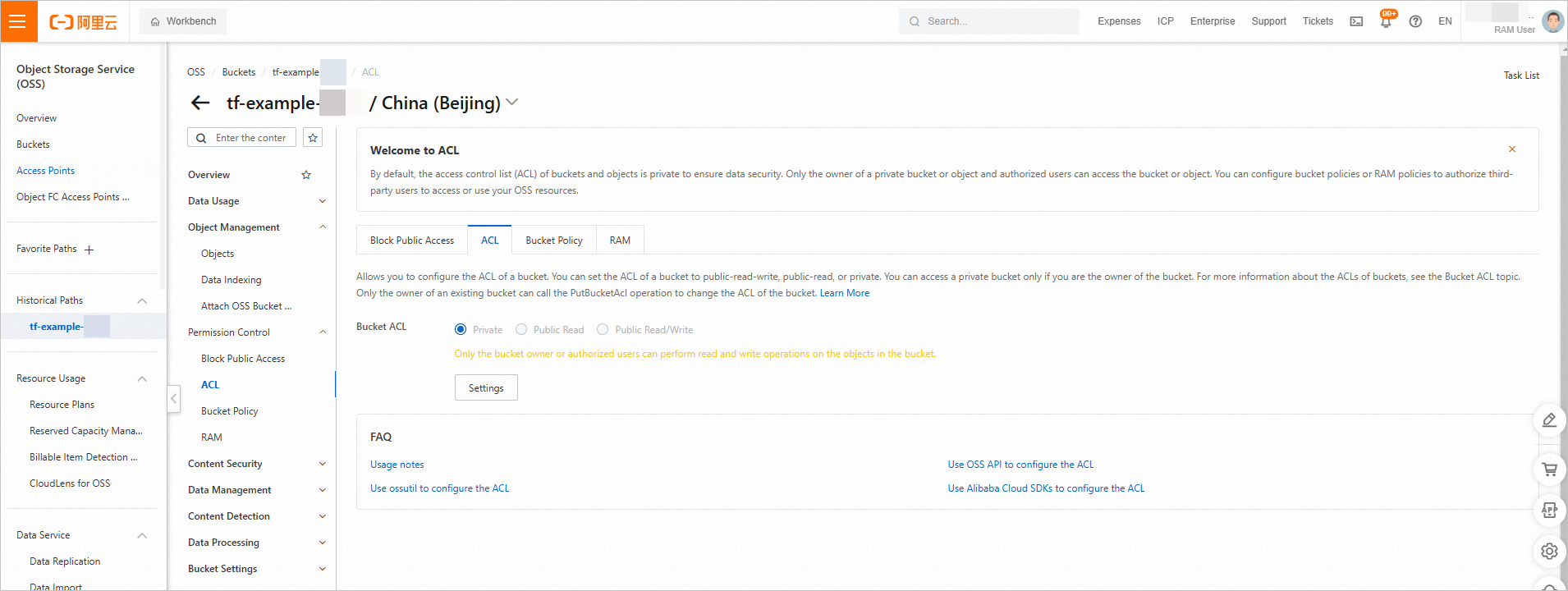
Click the name of the created bucket. In the left-side navigation tree, choose . On the ACL tab, view the ACL of the bucket.
-
Release resources
If you no longer need the resources created or managed via Terraform, run the following command to release them. For more information about the terraform destroy command, see Common commands.
terraform destroyComplete example
You can run the sample code in this topic directly in Terraform Explorer with a few clicks.
Sample code
For more complete examples, visit the landing-with-terraform quickstarts repository on GitHub.