Introduction of Ecological Docking
To better meet the needs of users for intelligent conversational search in multiple scenarios, OpenSearch provides the ecosystem integration feature. You can integrate OpenSearch LLM-Based Conversational Search Edition with the chatbots of open platforms such as DingTalk and Lark in a simple, fast, and convenient manner. This feature can be used to introduce various types of intelligent assistants into chat groups, such as intelligent customer service and internal knowledge chatbot.
Procedure
Configure ecosystem integration for an internal DingTalk chatbot
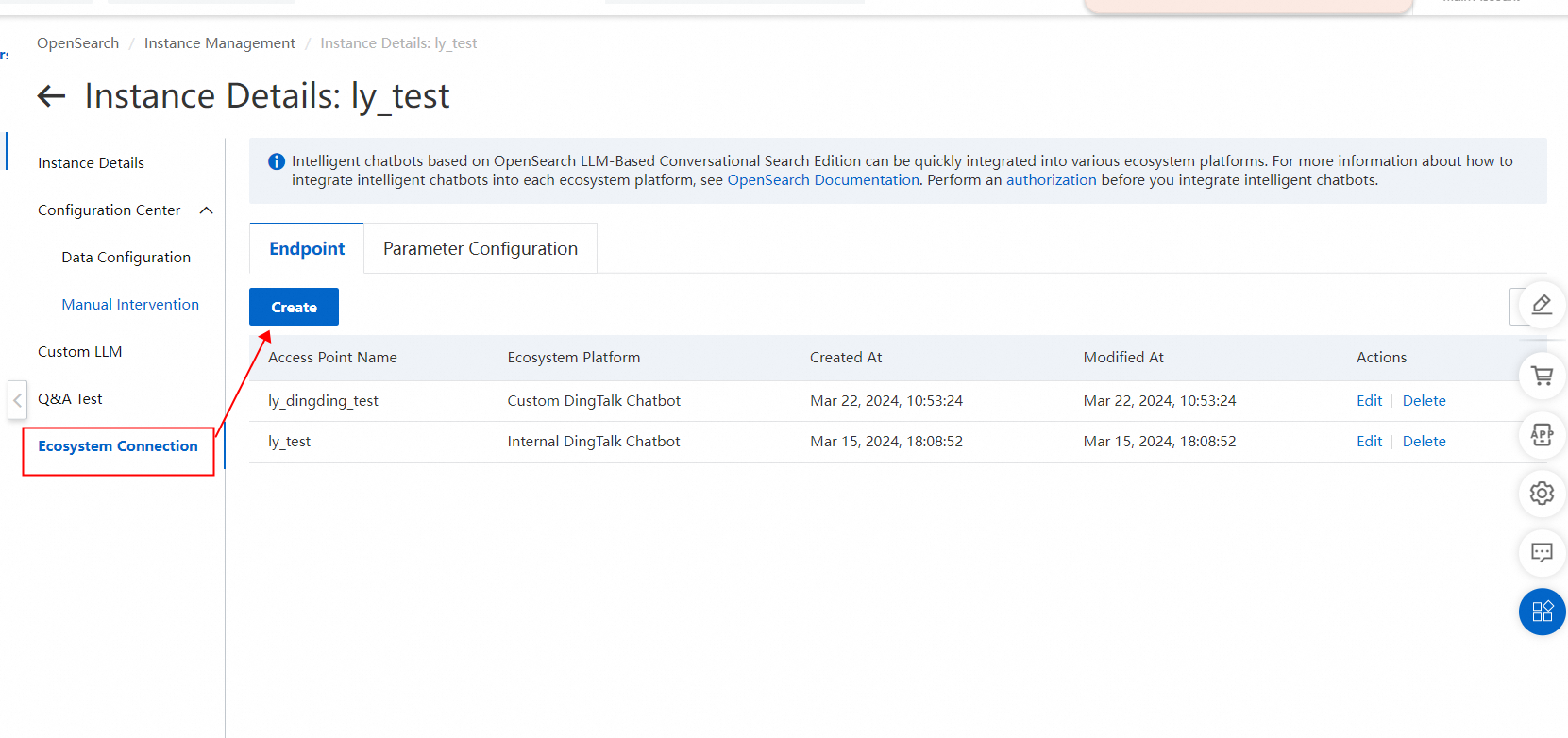
1. Log on to the OpenSearch LLM-Based Conversational Search Edition console. Go to the details page of your instance and click Ecosystem Connection in the left-side navigation pane. On the Endpoint tab, click Create. In the Create Access Point panel, select Custom DingTalk Chatbot from the Ecosystem Platform drop-down list.
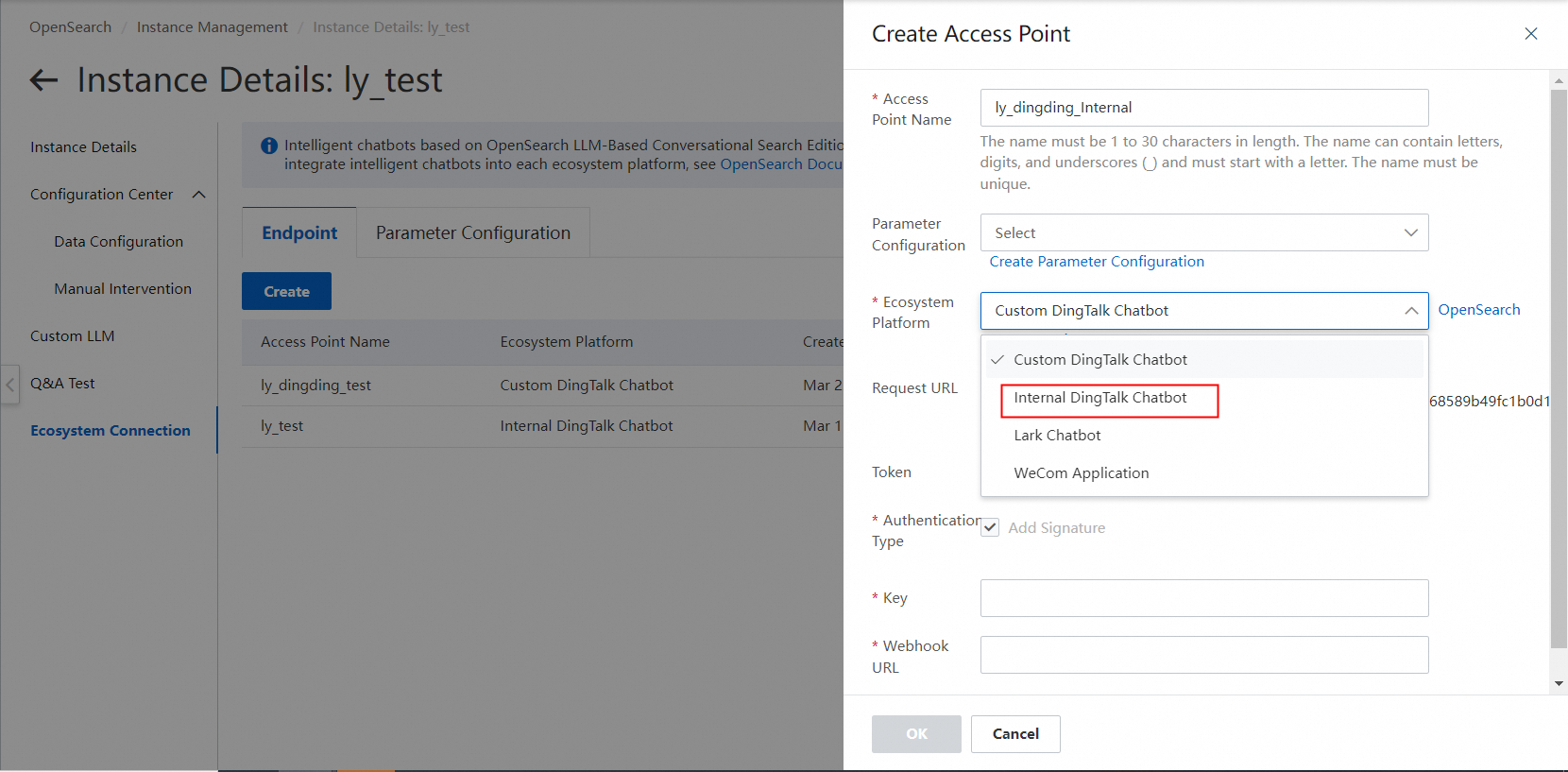
2. Configure other parameters such as Access Point Name, Chatbot Code, App Key, and App Secret. Then, click OK.
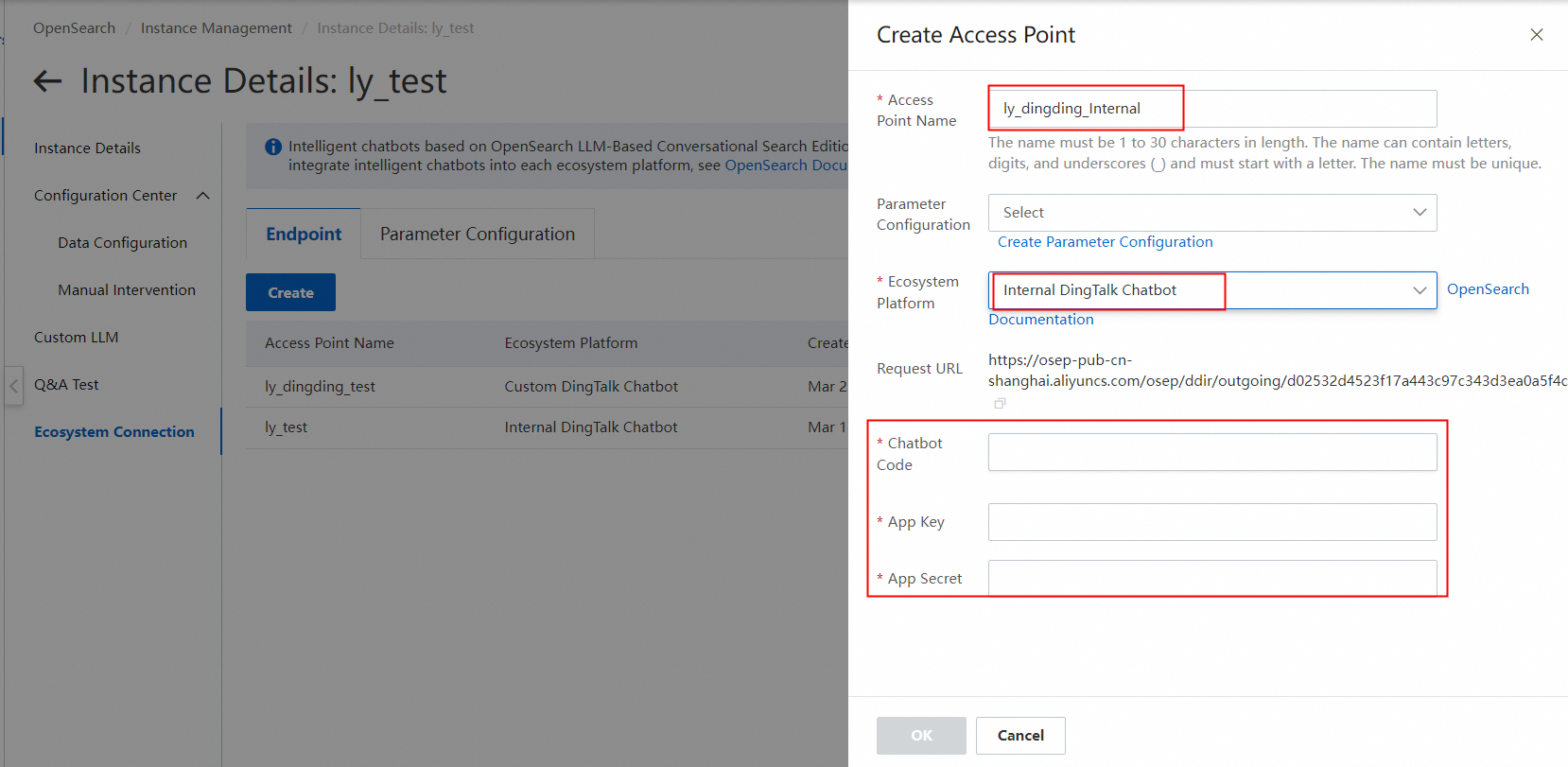
Access Point Name: the name of the endpoint. The name must be 1 to 30 characters in length, and can contain letters, digits, and underscores (_). It must start with a letter and must be unique.
Chatbot Code: the robot code of your DingTalk chatbot. To view the robot code, go to the details page of your chatbot application. Choose Application Capability > Bot in the left-side navigation pane and view the robot code on the chatbot configuration page.
App Key: the client ID of your DingTalk chatbot. To view the client ID, go to the details page of your chatbot application. Choose Basic Information > Credentials and Basic Information in the left-side navigation pane and view the client ID in the Application Credentials section.
App Secret: the client secret of your DingTalk chatbot. The client secret is next to the client ID in the Application Credentials section.
Make sure that the information that you enter is valid.

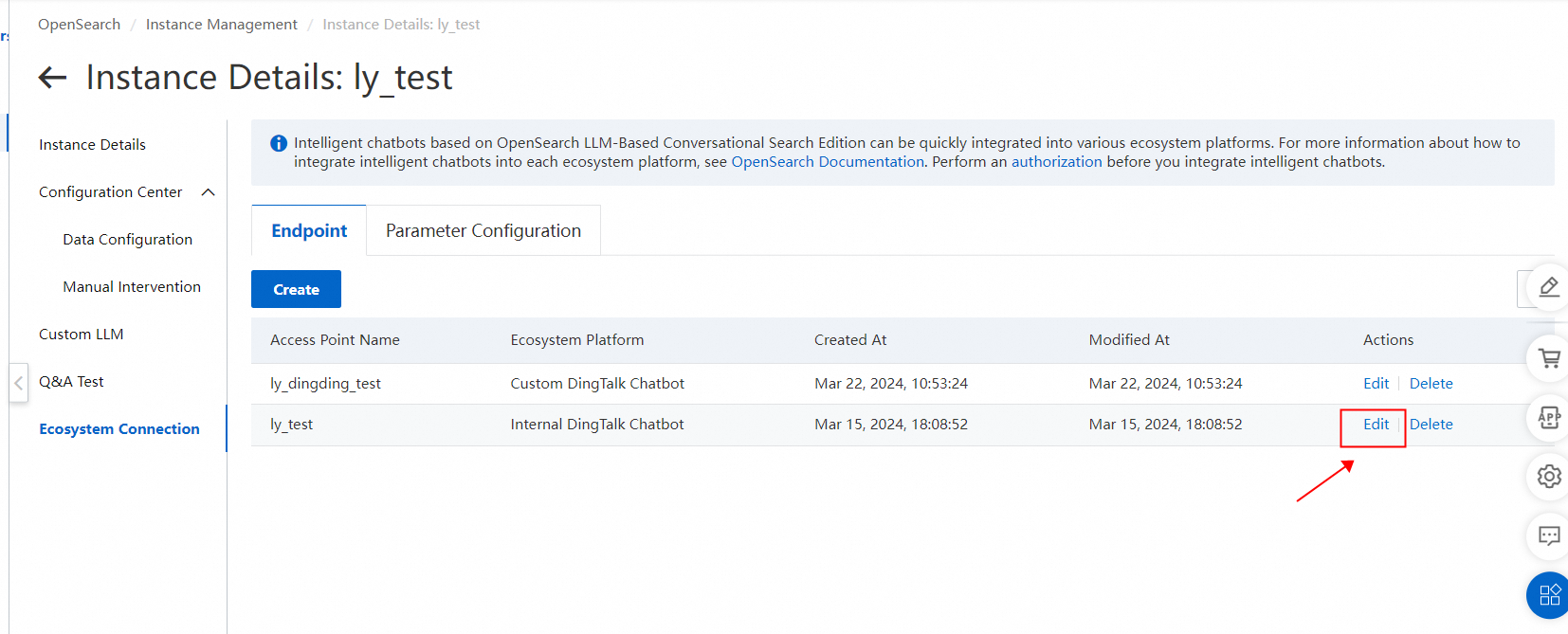
3. After the endpoint is created, you can find the endpoint and click Edit in the Actions column to modify the endpoint.
Configure a DingTalk chatbot
1. Log on to the DingTalk Open Platform.
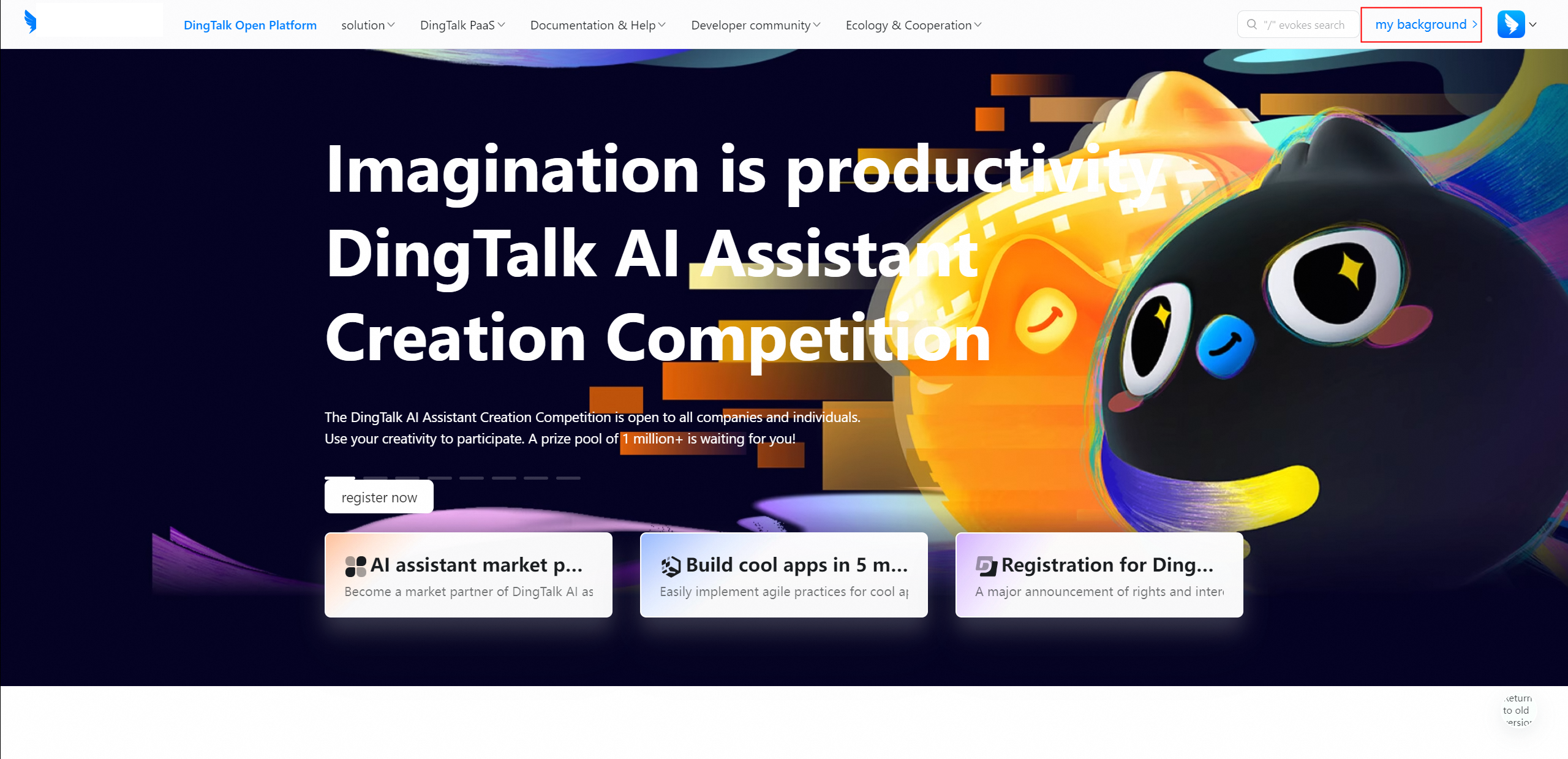
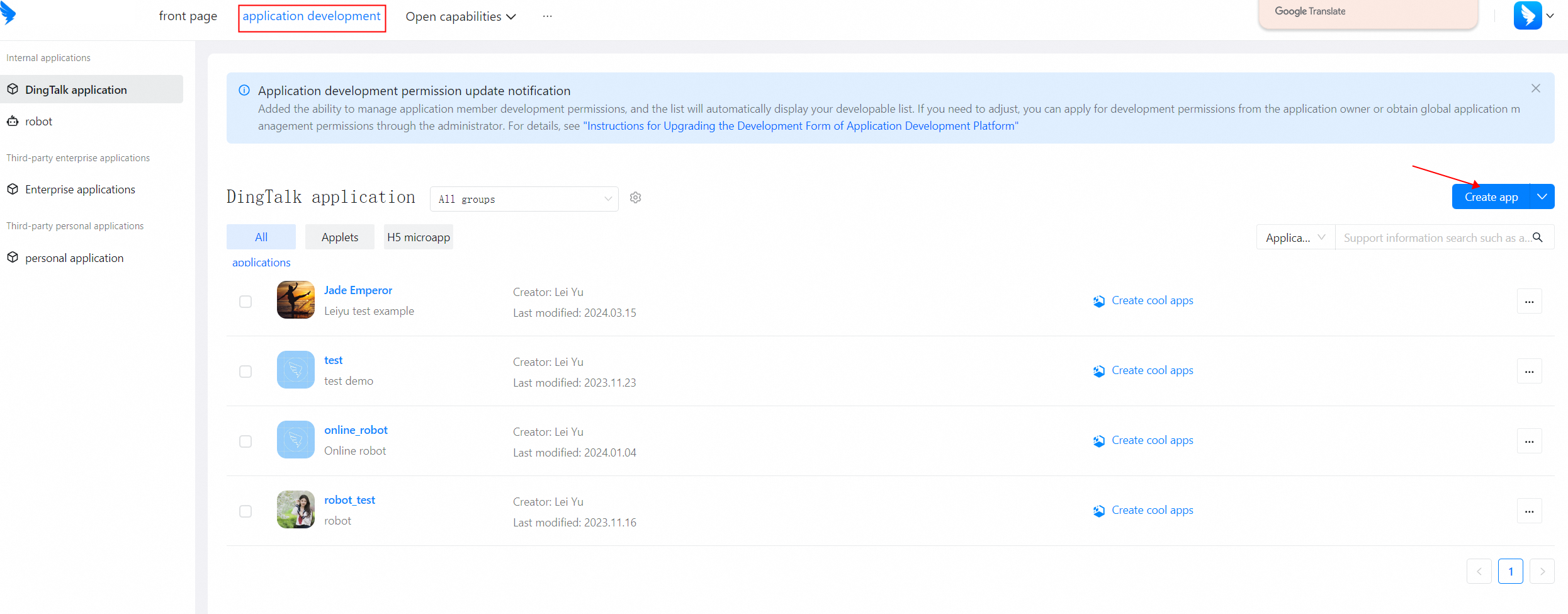
2. Log on to the DingTalk Developer Background. Click Application Development in the top navigation bar. Click Create Application in the upper right corner.
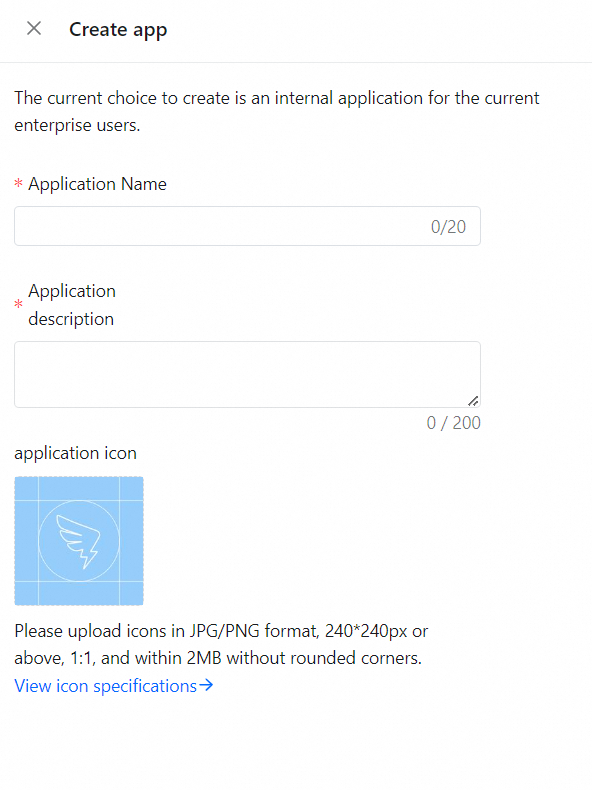
In the panel that appears, enter the application name and description. The application icon is optional.
3. After the application is created, you are redirected to the Add Application Capability page. Find the Bot card and click Add.
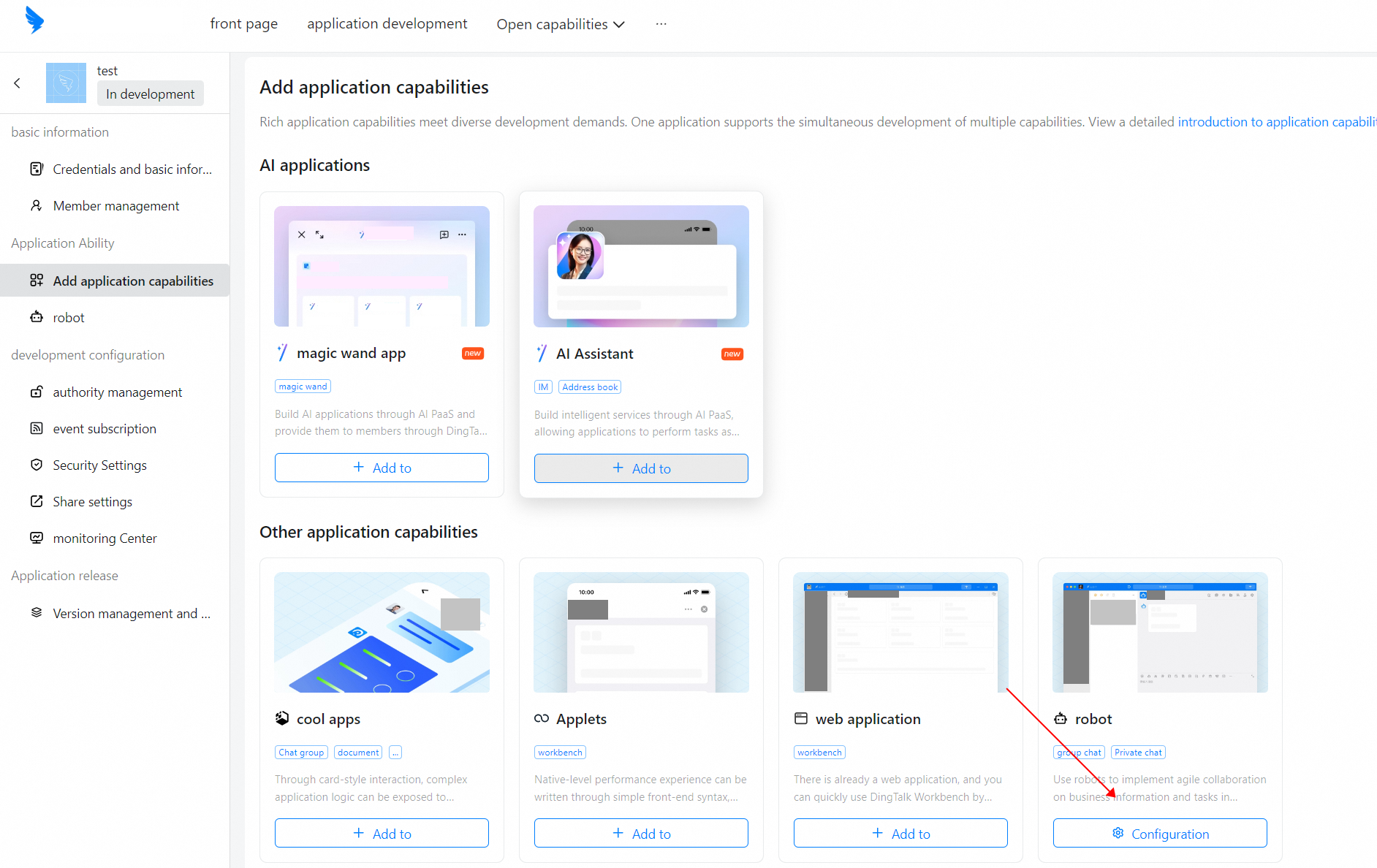
4. On the chatbot configuration page, turn on Bot Configuration and enter the chatbot name, introduction, and description. Upload a chatbot icon and a message preview image. Set the message receiving mode to HTTP, and the message receiving URL to the request URL of the endpoint that you create.
You must set the message receiving mode to HTTP.
The message receiving URL is the request URL of the endpoint that you create in OpenSearch LLM-Based Conversational Search Edition.
Make sure that the information that you enter is valid.
5. Publish the chatbot. Choose Application Release > Version Management and Release in the left-side navigation pane. Click Create New Version in the upper right corner. On the version configuration page, enter the version description, specify the application scope, and click Save. In the message that appears, click Publish.
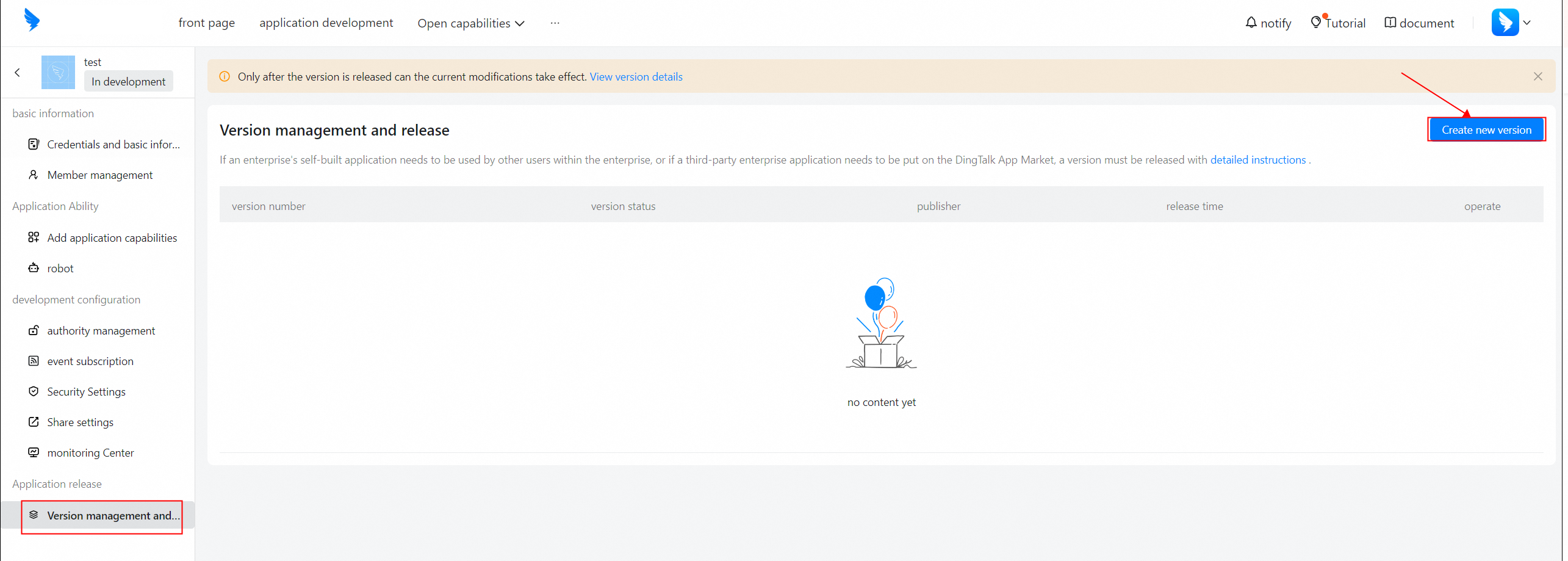
After the version is published, the version is in the Published state.
6. After the version is published, click Debug under the Debug and Publish parameter on the chatbot configuration page. The following message appears.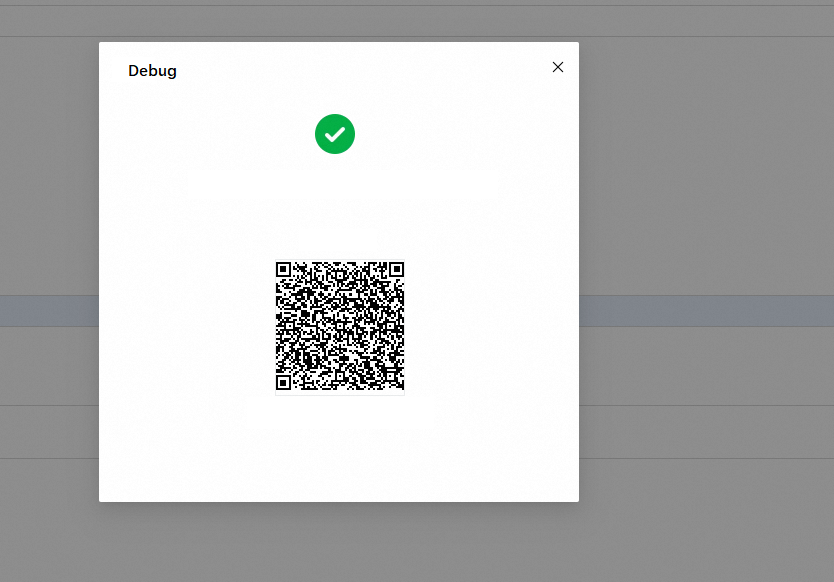
7. DingTalk automatically creates a debug DingTalk group. You can @mention the chatbot and enter questions in the group.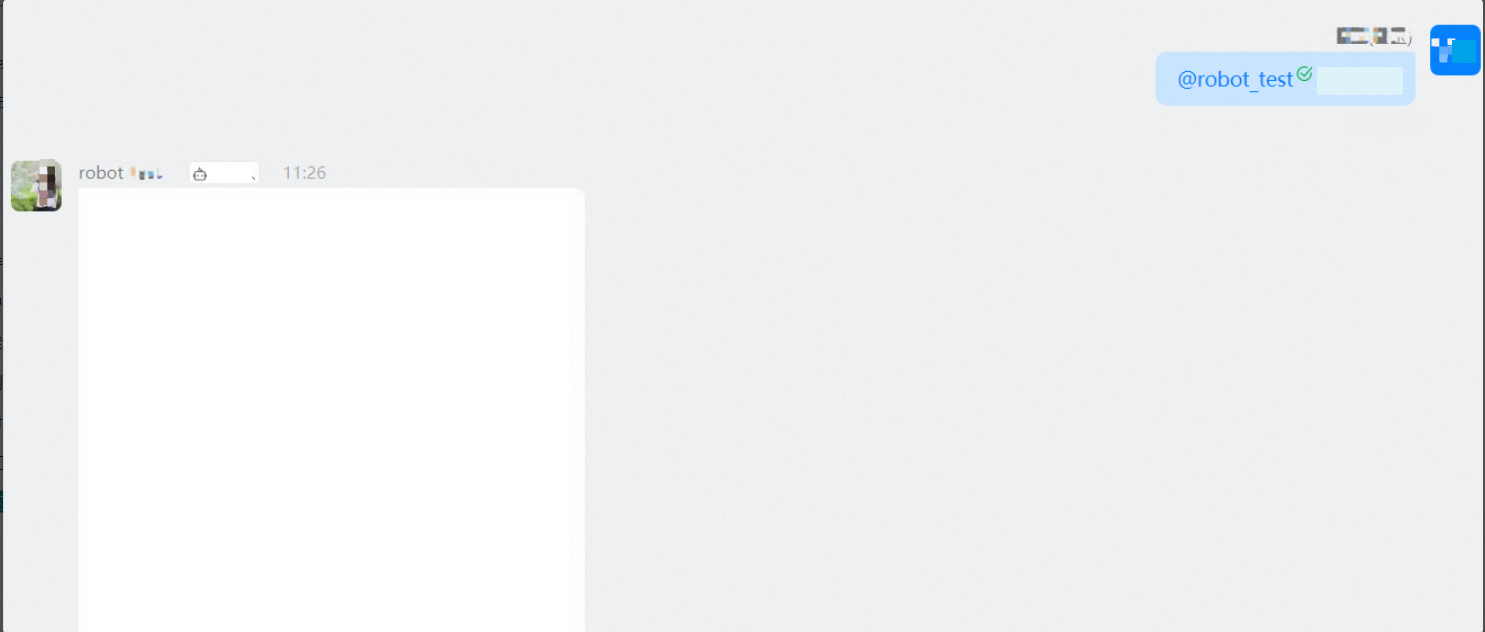
Add the chatbot to a DingTalk group
1. Open the dialog box of the DingTalk group to which you want to add the chatbot. Make sure that the group is an internal group.
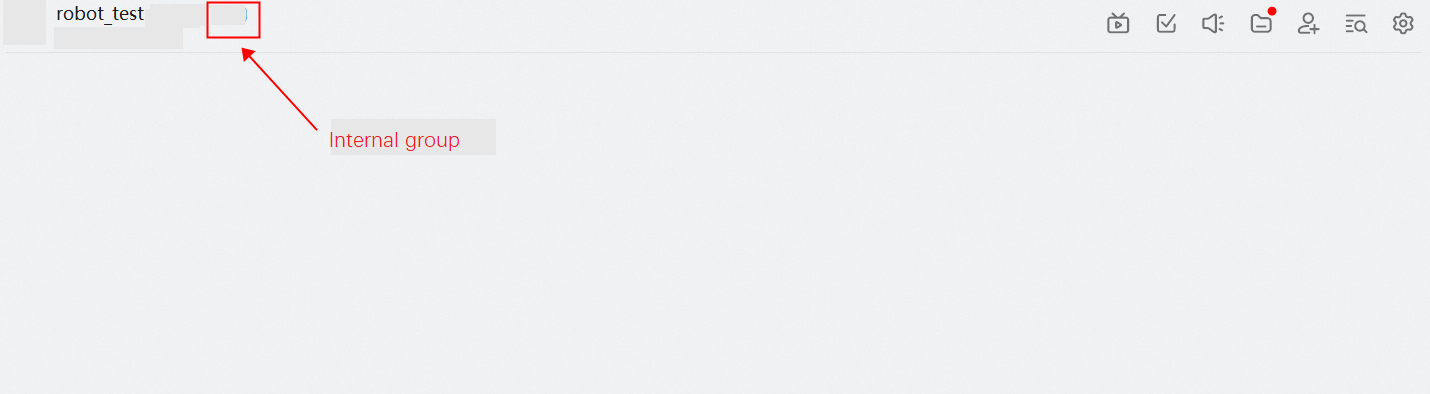
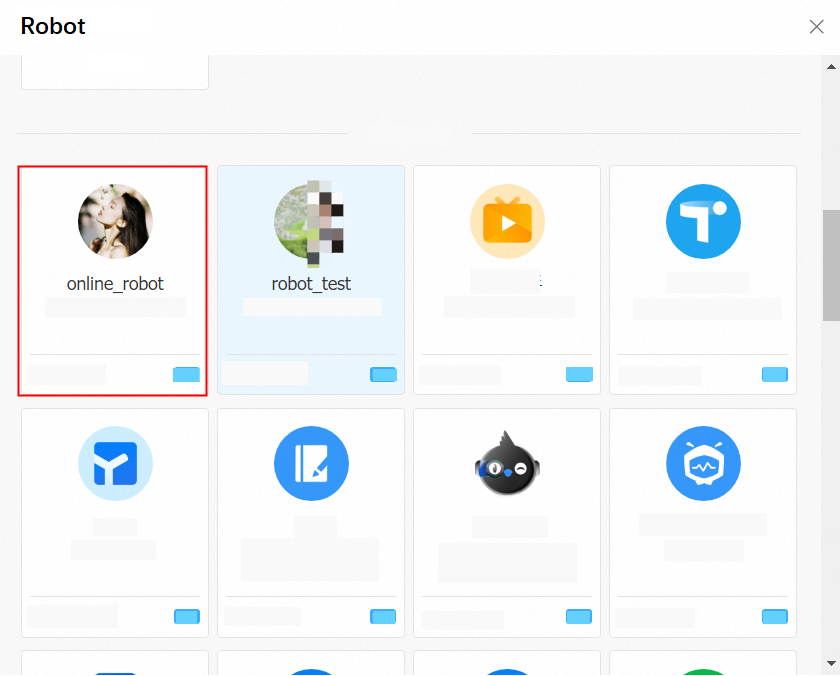
2. Click the Group Settings icon in the upper right corner. In the Group Settings panel, click Bot in the Group Management section. In the Robot Management panel, click Add Robot. In the Robot dialog box, click Add Robot. In the Robot dialog box, add the chatbot.
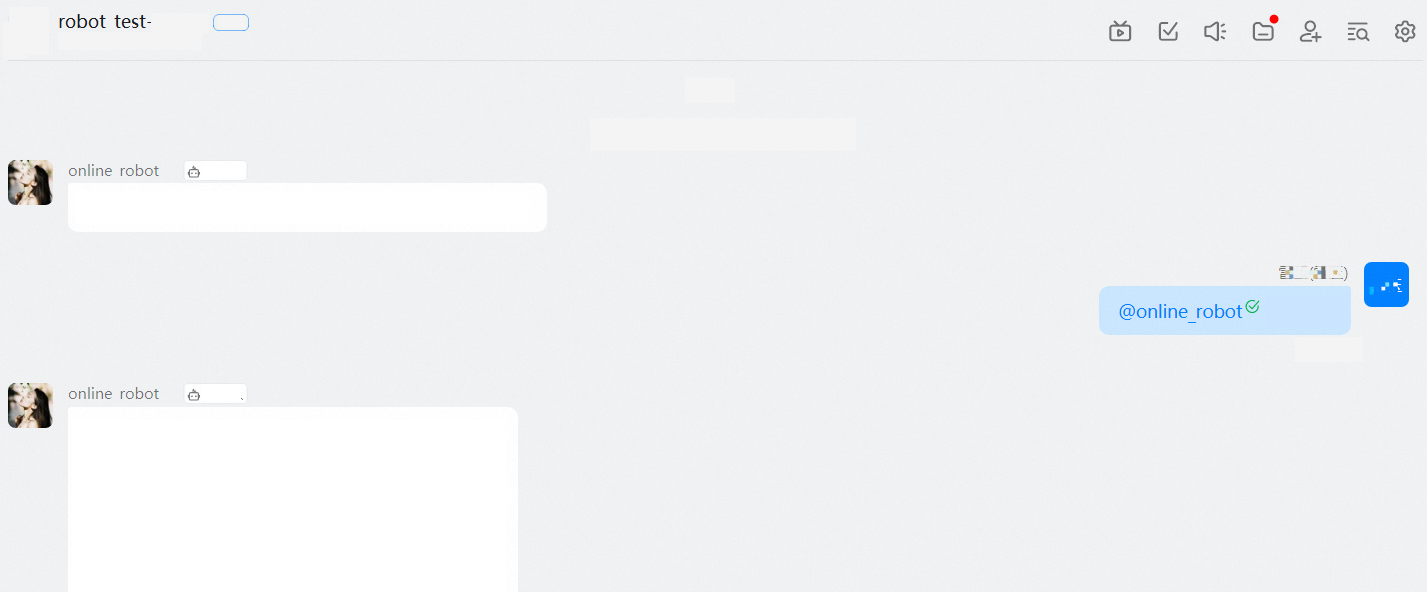
3. In the group, @mention the chatbot and enter questions.
Chat with the chatbot in a private dialog box
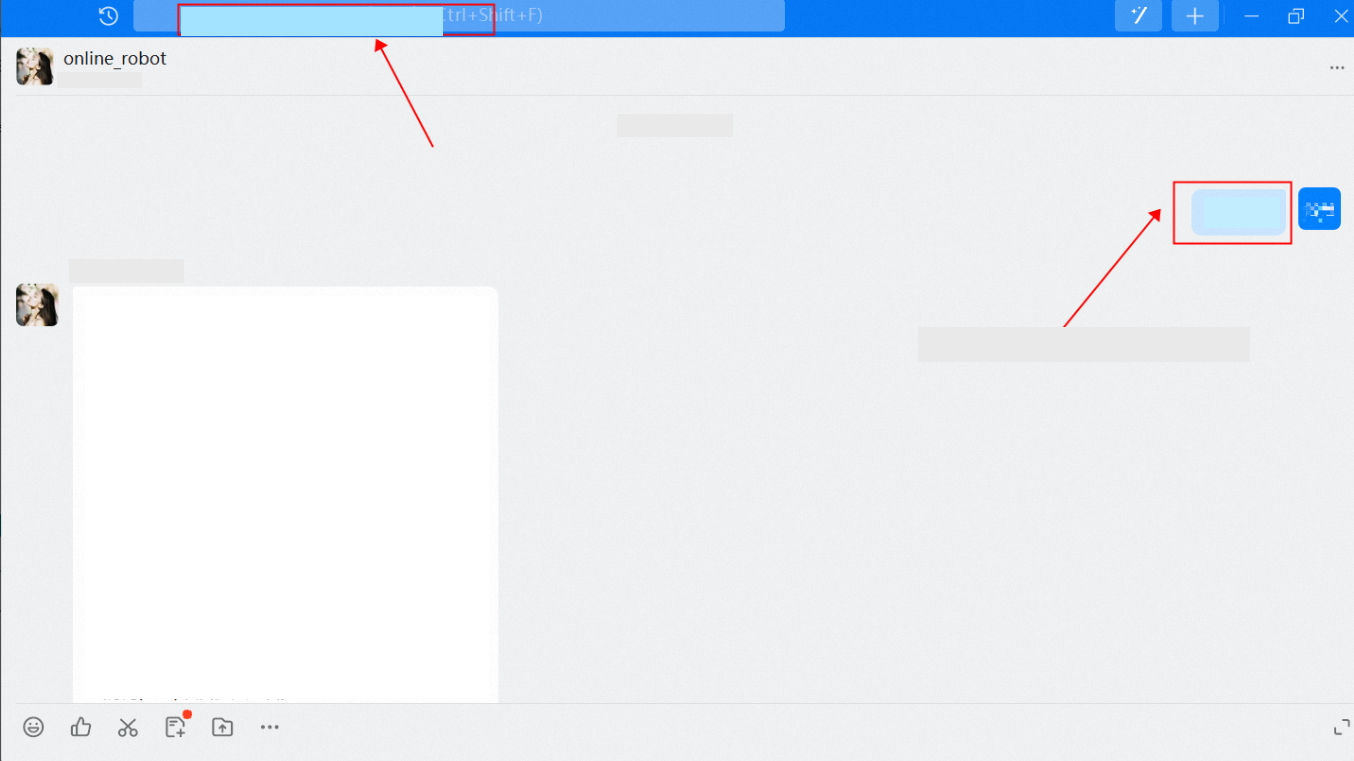
Enter the name of the chatbot in the top search box of DingTalk and click the chatbot name to open a private dialog box. Then, you can enter questions in the dialog box.