For workloads with predictable daily traffic patterns—common in gaming, e-commerce, online education, media and entertainment, and data analytics—use the scheduled startup and shutdown feature of CloudOps Orchestration Service (OOS) to automatically stop idle ECS instances during off-peak hours and reduce costs.
Prerequisites
Economical mode is enabled for your ECS instances.
Solution
Create a scheduled startup and shutdown task in the Common O&M Tasks section of OOS. For instances across multiple regions, use Quick Setup to create a single task for all of them.
Group instances by tags
Apply tags to instances you want to schedule, such as machine:Stop or machine:Daily. Tags let you target all matching instances in a single operation.
Set up scheduled startup and shutdown
With economical mode enabled, use the OOS scheduled startup and shutdown feature to manage tagged instances, as shown in the following diagram.
Procedure
Log on to the CloudOps Orchestration Service console.
In the left navigation pane, choose . Click Scheduled Startup/Shutdown.
Click Create.

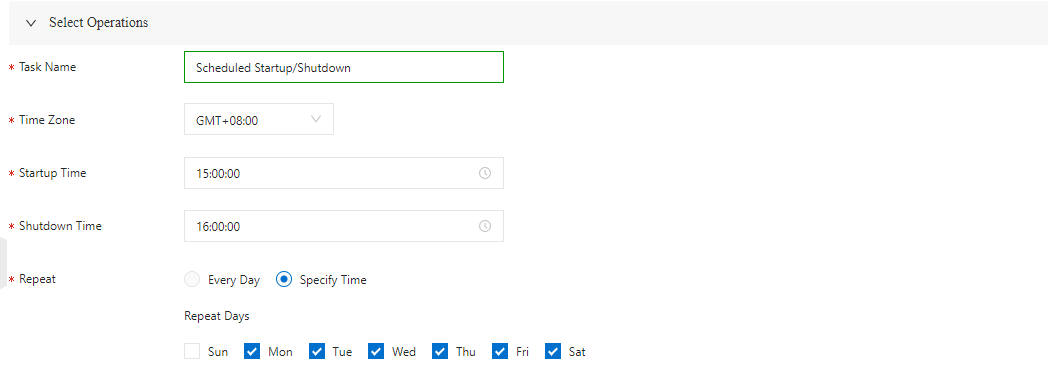
In the Select Task Type section, configure the Task Name, Execution Cycle, Task Type, Time Zone, Startup Time, and Shutdown Time.
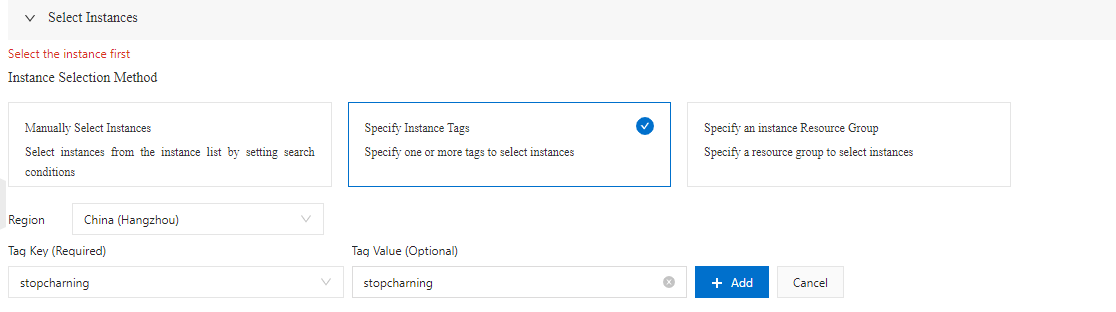
In the Select Instances section, select By Instance Tags and click Select a region. After selecting a Region, enter the tag key and value in the Tag Key and Value fields. The key-value pair is automatically added.
Click Create.
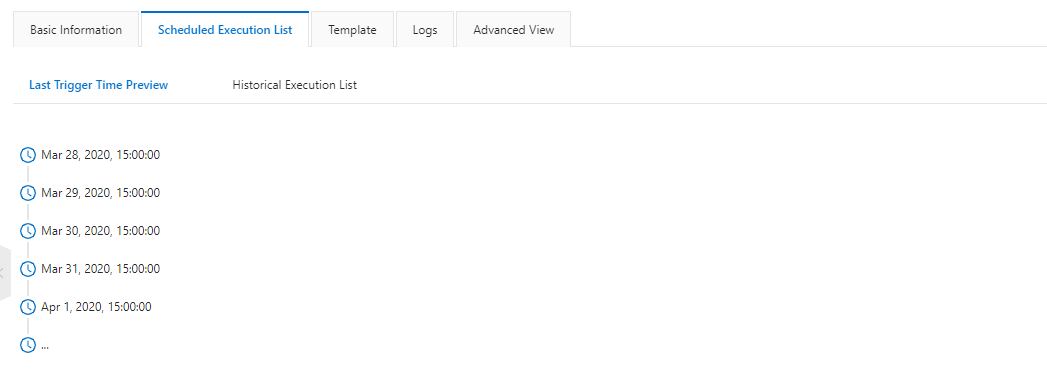
On the task details page, click Scheduled Execution List. Check the Pending Executions tab for upcoming executions and the Historical Executions tab for completed ones.
 After the first execution cycle completes, verify that tagged instances are in the Stopped state. Instances remain stopped until the next scheduled startup time, when they start automatically.