Export your API key as an environment variable to avoid hardcoding it in code and reduce leak risk. This topic describes the export methods.
Prerequisites
You have activated Model Studio and created an API key.
Procedure
Linux
Permanent environment variable
To make the API key available in all future sessions, export it permanently.
-
Run the following command to add the environment variable to the
~/.bashrcfile:# Replace YOUR_DASHSCOPE_API_KEY with your API key. echo "export DASHSCOPE_API_KEY='YOUR_DASHSCOPE_API_KEY'" >> ~/.bashrcYou can also edit the
~/.bashrcfile manually. -
Run the following command to make the change take effect:
source ~/.bashrc -
Create a session and run the following command to check whether the environment variable takes effect:
echo $DASHSCOPE_API_KEY
Temporary environment variable
To use the API key only in the current session, export it temporarily.
-
Run the following command:
# Replace YOUR_DASHSCOPE_API_KEY with your API key. export DASHSCOPE_API_KEY="YOUR_DASHSCOPE_API_KEY" -
Run the following command to check whether the environment variable takes effect:
echo $DASHSCOPE_API_KEY
macOS
Permanent environment variable
To make the API key available in all future sessions, export it permanently.
-
Run the following command to check the default Shell type.
echo $SHELL -
Perform the following operation based on your Shell type.
Zsh
-
Run the following command to add the environment variable to the
~/.zshrcfile.# Replace YOUR_DASHSCOPE_API_KEY with your API key. echo "export DASHSCOPE_API_KEY='YOUR_DASHSCOPE_API_KEY'" >> ~/.zshrcYou can also edit the
~/.zshrcfile manually. -
Run the following command to make the change take effect:
source ~/.zshrc -
Create a session and run the following command to check whether the environment variable takes effect:
echo $DASHSCOPE_API_KEY
Bash
-
Run the following command to add the environment variable to the
~/.bash_profilefile.# Replace YOUR_DASHSCOPE_API_KEY with your API key. echo "export DASHSCOPE_API_KEY='YOUR_DASHSCOPE_API_KEY'" >> ~/.bash_profileYou can also edit the
~/.bash_profilefile manually. -
Run the following command to make the change take effect:
source ~/.bash_profile -
Create a session and run the following command to check whether the environment variable takes effect:
echo $DASHSCOPE_API_KEY
-
Temporary environment variable
To use the API key only in the current session, export it temporarily.
The following commands work only for Zsh and Bash.
-
Run the following command:
# Replace YOUR_DASHSCOPE_API_KEY with your API key. export DASHSCOPE_API_KEY="YOUR_DASHSCOPE_API_KEY" -
Run the following command to check whether the environment variable takes effect:
echo $DASHSCOPE_API_KEY
Windows
In Windows, you can export environment variables using System Properties, Command Line, or PowerShell.
System Properties
-
The environment variable configured in this way is permanently effective.
-
Modifying system environment variable requires administrative permissions.
-
After configuring the environment variable, it will not affect already-running programs. Restart IDEs and command windows, or open a new command line, to load the new variable.
-
Press
Win+Qon your desktop. Enter "Edit the system environment variables" in the search box, and click to open the System Properties window. -
In the System Properties window, click Environment Variables. In the System Variables section, click New, enter
DASHSCOPE_API_KEYas the variable name, andyour actual API Keyas the variable value.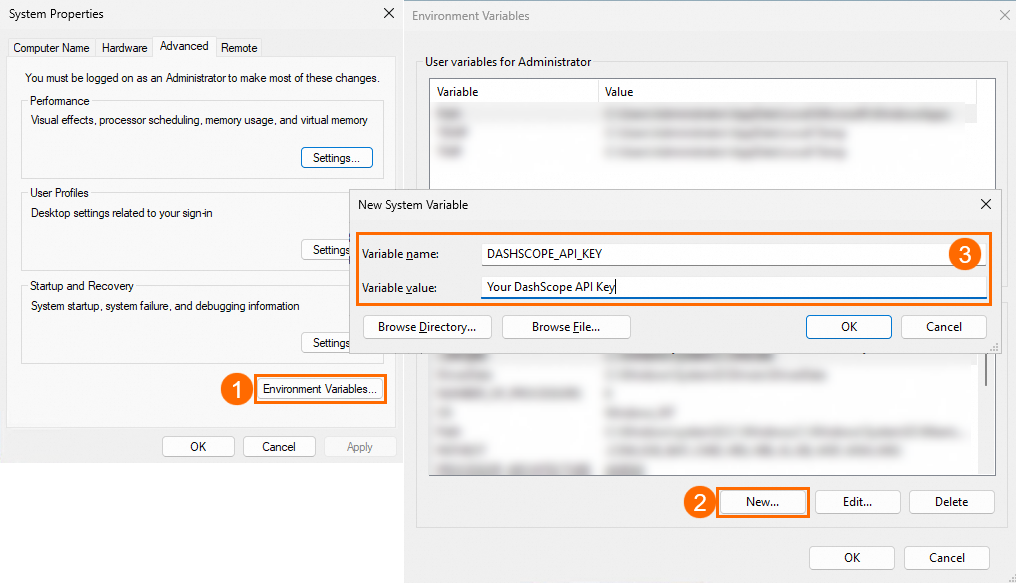
-
Click OK on all three dialog boxes.
-
Open CMD or Windows PowerShell and run the following command to check whether the environment variable takes effect.
-
CMD:
echo %DASHSCOPE_API_KEY%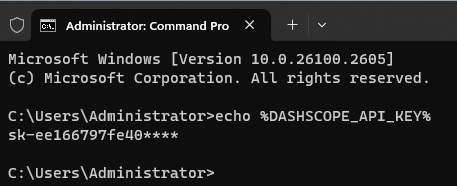
-
Windows PowerShell:
echo $env:DASHSCOPE_API_KEY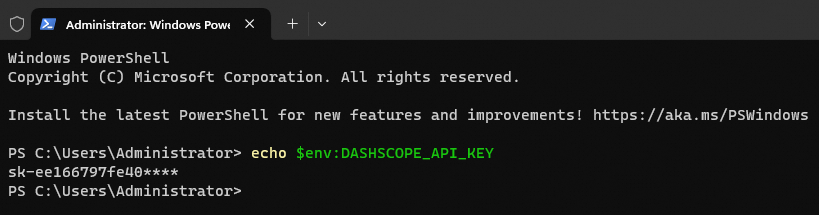
-
CMD
Permanent environment variable
To make the API key available in all future sessions, export it permanently.
-
Run the following command:
# Replace YOUR_DASHSCOPE_API_KEY with your API key. setx DASHSCOPE_API_KEY "YOUR_DASHSCOPE_API_KEY" -
Create a new session.
-
Run the following command to check whether the environment variable takes effect:
echo %DASHSCOPE_API_KEY%
Temporary environment variable
To use the API key only in the current session, export it temporarily.
-
Run the following command:
# Replace YOUR_DASHSCOPE_API_KEY with your API key. set DASHSCOPE_API_KEY="YOUR_DASHSCOPE_API_KEY" -
Run the following command in the current session to check whether the environment variable takes effect:
echo %DASHSCOPE_API_KEY%
PowerShell
Permanent environment variable
To make the API key available in all future sessions, export it permanently.
-
Run the following command:
# Replace YOUR_DASHSCOPE_API_KEY with your API key. [Environment]::SetEnvironmentVariable("DASHSCOPE_API_KEY", "YOUR_DASHSCOPE_API_KEY", [EnvironmentVariableTarget]::User) -
Create a session.
-
Run the following command to check whether the environment variable takes effect:
echo $env:DASHSCOPE_API_KEY
Temporary environment variable
To use the API key only in the current session, export it temporarily.
-
Run the following command:
# Replace YOUR_DASHSCOPE_API_KEY with your API key. $env:DASHSCOPE_API_KEY = "YOUR_DASHSCOPE_API_KEY" -
Run the following command in the current session to check whether the environment variable takes effect:
echo $env:DASHSCOPE_API_KEY
FAQ
Q: I have run the echo command to confirm the environment variable. But when I run my code, it still says no API key found or invalid API key?
A: The reason may be:
-
Scenario 1: The environment variable is temporary. Temporary variables only apply to the current terminal session, not already-running IDEs or applications. Refer to the permanent environment variable methods in this topic.
-
Scenario 2: You have not restarted your IDE, command-line tool, or application.
-
Restart IDEs (like VS Code) or command-line tools to load the latest environment variables.
-
If you exported the environment variable after deploying your application, restart the application service to reload the variable.
-
-
Scenario 3: Add the environment variable to the configuration file. If your application uses a service manager (like systemd or supervisord), add the variable to its configuration file.
-
Scenario 4: You used the sudo command. Running
sudo python xx.pymay miss user environment variables becausesudodoes not inherit all environment variables by default. Usesudo -E python xx.pyinstead (the-Eoption ensures environment variables are passed through), or runpython xx.pydirectly if you have permission. -
Scenario 5: You may need to configure the base URL of Model Studio. Use one of the following methods:
-
Add the base URL to your code:
dashscope.base_http_api_url = 'https://dashscope-intl.aliyuncs.com/api/v1' -
Export the base URL as an environment variable:
DASHSCOPE_HTTP_BASE_URL='https://dashscope-intl.aliyuncs.com/api/v1'
-