MaxCompute Studio lets you import local CSV or TSV files into MaxCompute tables and export table data to local files. All transfers run through MaxCompute Tunnel.
Prerequisites
Ensure that you have:
-
Tunnel configured for your MaxCompute project. For setup instructions, see Install and configure the MaxCompute client
-
Permissions to operate on tables in the MaxCompute project
Import data
-
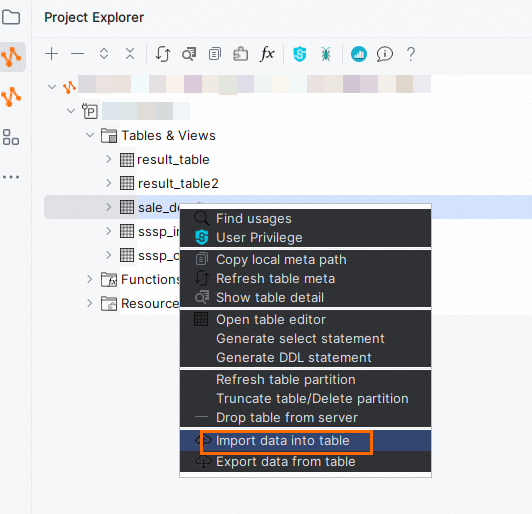
In the Project Explorer pane, expand the Tables & Views node of your MaxCompute project. Right-click the target table and select Import data into table.
-
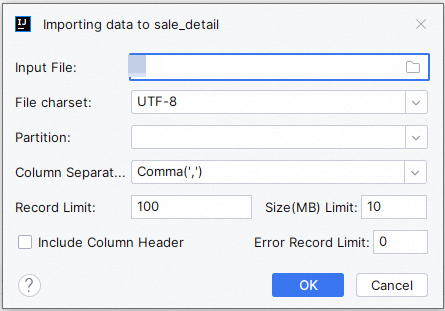
In the Importing data to table_name dialog box, configure the following parameters.
-
Input File: The local path of the data file to import. Supported formats: CSV and TSV.
-
File charset: The character encoding of the data file. Options: UTF-8 (default), UTF-16, UTF-16BE, UTF-16LE, ISO-8859-1, US-ASCII, GBK. Use GBK for files containing Chinese characters encoded on Windows.
-
Partition: The destination partition. Available only for partitioned tables.
-
Column Separator: The character used to separate columns. Options: Comma(',') (default), Space(' '), Tab('\t'). Use Tab('\t') for TSV files.
-
Record Limit: The maximum number of rows to import. Leave blank to import all rows.
-
Size(MB) Limit: The maximum size of data to import, in megabytes (MB). Leave blank to apply no size limit.
-
Error Record Limit: The maximum number of malformed records allowed before the import stops. Set to 0 to stop immediately on any error.
-
Include Column Header: Select this option if the first row of your data file contains column names. The header row is skipped during import.
-
-
Click OK.
-
A Success message confirms the import is complete. Open the table to verify the imported data.
Export data
-
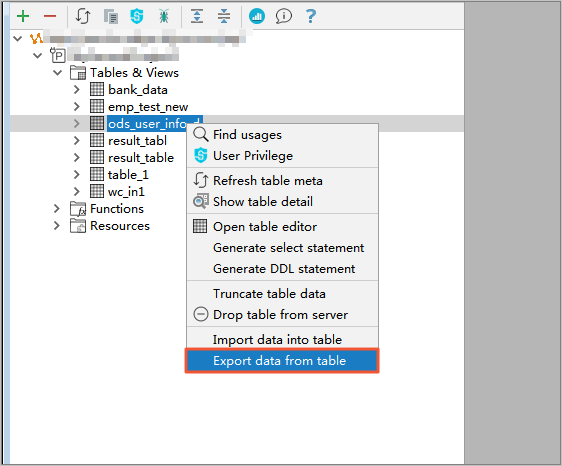
In the Project Explorer pane, expand the Tables & Views node of your MaxCompute project. Right-click the target table and select Export data from table.
-
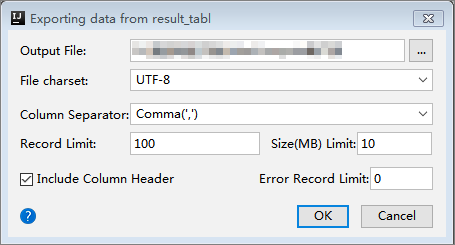
In the Exporting data from table_name dialog box, configure the following parameters.
-
Output File: The local path where the exported file will be saved.
-
File charset: The character encoding for the output file. Options: UTF-8 (default), UTF-16, UTF-16BE, UTF-16LE, ISO-8859-1, US-ASCII, GBK.
-
Column Separator: The character used to separate columns in the output file. Options: Comma(',') (default), Space(' '), Tab('\t').
-
Record Limit: The maximum number of rows to export. Leave blank to export all rows.
-
Size(MB) Limit: The maximum size of data to export, in megabytes (MB). Leave blank to apply no size limit.
-
Error Record Limit: The maximum number of records that can fail to export before the operation stops.
-
Include Column Header: Select this option to write column names as the first row of the output file.
-
-
A Success message confirms the export is complete. Open the output file to verify the exported data.