Private Offer lets sellers create customized, unpaid orders and push them directly to specific customers. Customers view the offer details in their console and complete payment on their own schedule.
To use Private Offer, first publish a Service or SaaS product with the Contact Sales button enabled, then create and submit the offer from the Seller Portal.
Prerequisites
Before you begin, ensure that you have:
A Seller Portal account with permission to create and publish products
The main UID (not a RAM user UID) of the customer's Alibaba Cloud account
Complete a private offer
Step 1: Publish a product with Contact Sales enabled
Before creating a private offer, publish a Service or SaaS product that displays the Contact Sales button:
Log in to the Seller Portal. In the left navigation bar, click Listing, then click Create Product.
Complete the first three steps of the product form: Access Information, General, and Category and SEO.
To publish a SaaS product, see How to publish a SaaS product.
To publish a service product, see How to publish a service product.
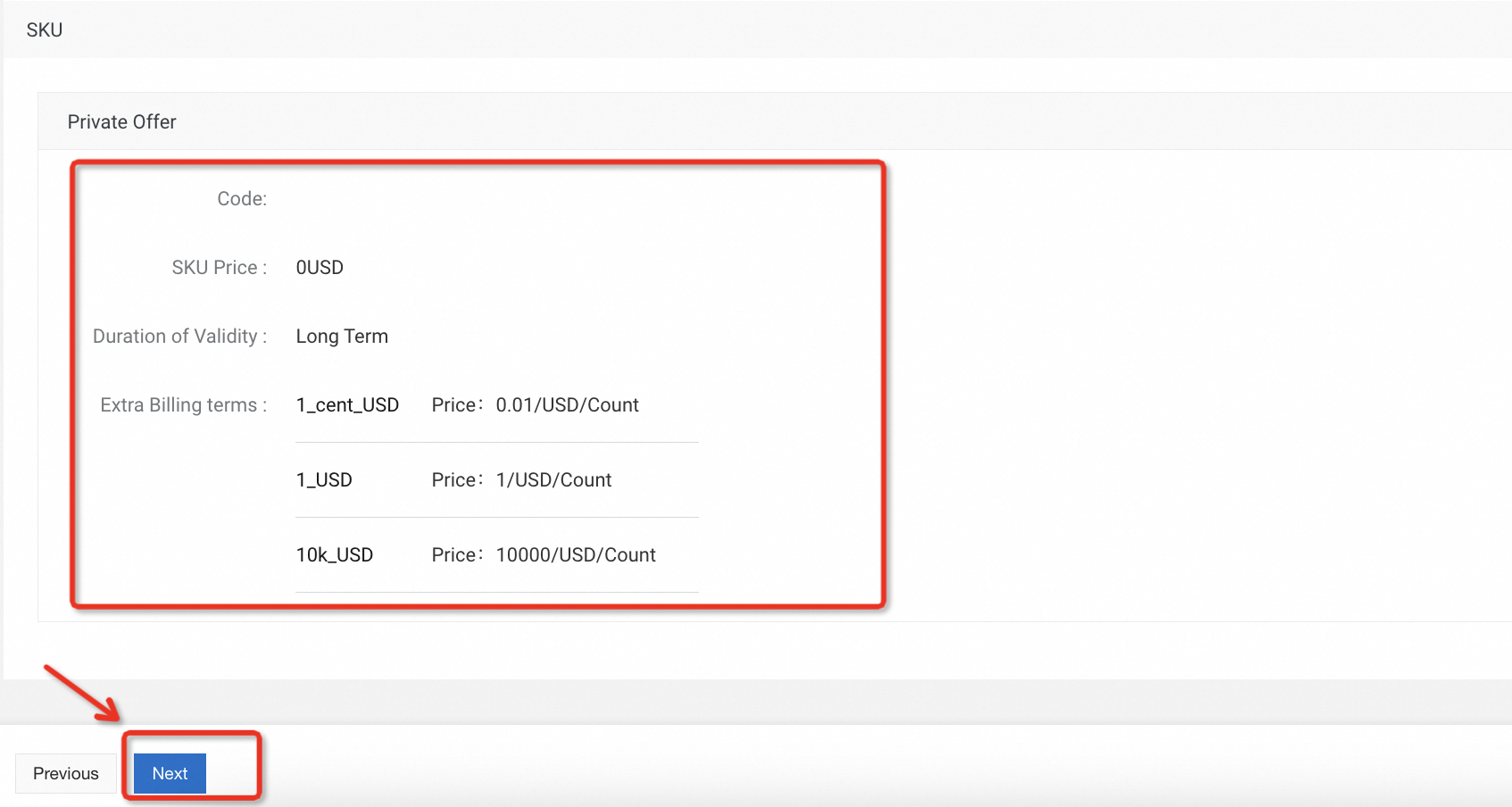
On the Pricing step (step 4), select Private Offer.

The system automatically generates SKU information. Click Next.
Complete step 5: Legal and agreement information.
Preview the product page to verify the details, then publish the product.
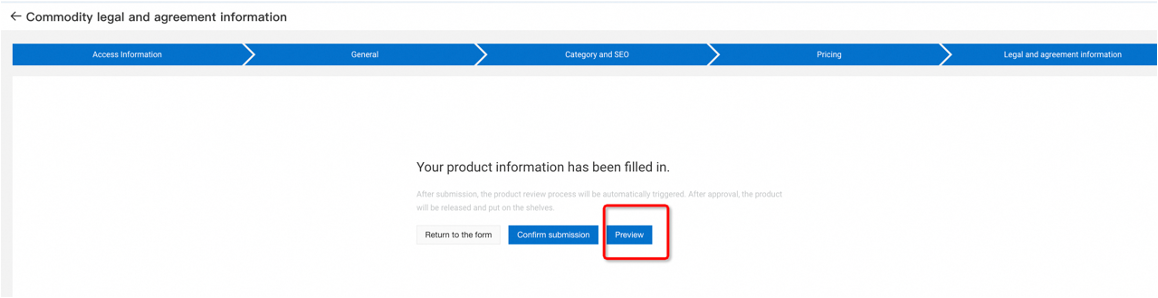
After the product is published, it becomes available to select when creating a private offer.
Step 2: Create a private offer
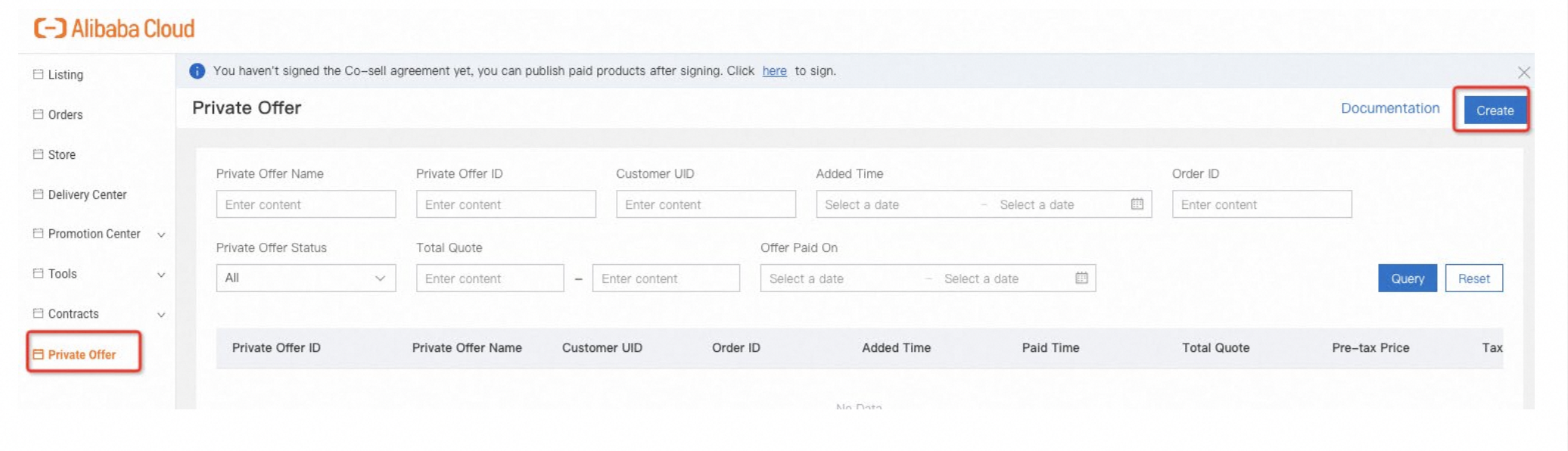
Log in to the Seller Portal. In the left navigation bar, click Private Offer, then click Create.
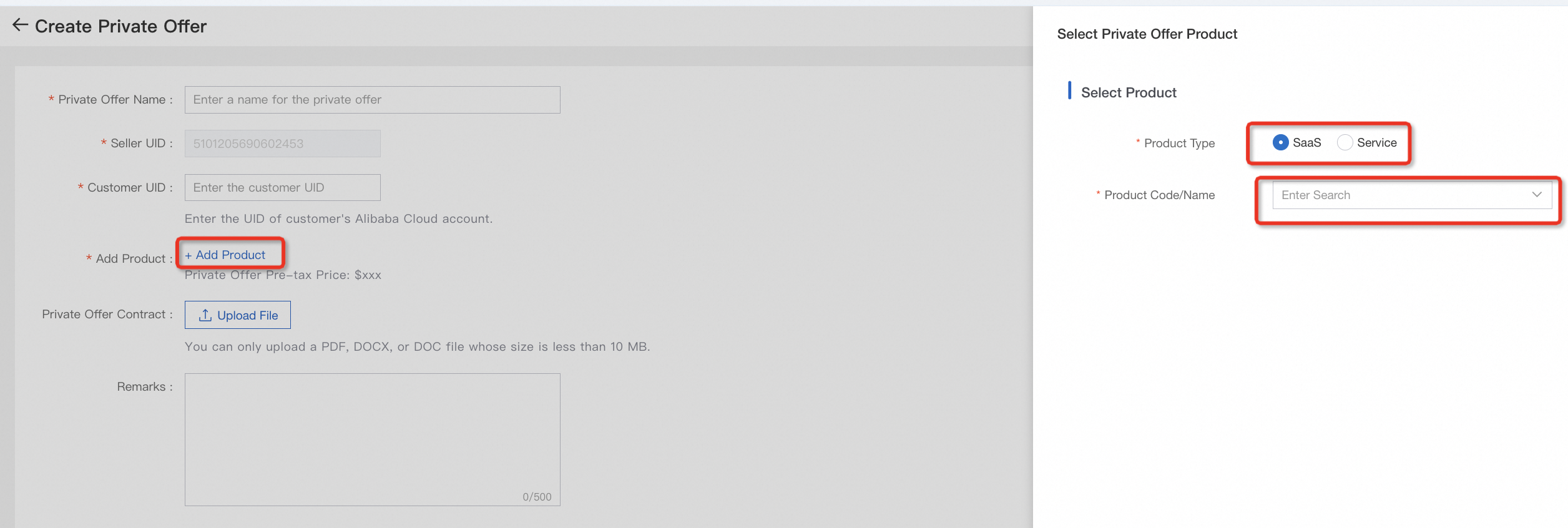
Step 3: Fill in and submit the offer
Private offer name
Required. Enter a name using letters, digits, or special characters. Maximum 100 characters.
Seller UID
Auto-populated with your seller UID by default.
Customer UID
Required. Enter the main UID of the customer's Alibaba Cloud account. RAM users are not supported — only the root account UID is accepted.
Add product
Required. Click Add Product and select the product published in step 1 by product code or name. Both SaaS and Service products are supported.
Configure product
Set the product version, duration, quantity, and any additional fees.
Product price
The total price is calculated automatically based on the product configuration. Click Submit for confirmation.
Contract
Attach a contract file if needed. Supported formats: PDF, DOCX, or DOC. Maximum file size: 10 MB.
Confirm and submit
Click Submit. A pop message shows the private offer configuration for final review. After you confirm, the system generates an unpaid order and pushes it to the customer.
Save as draft
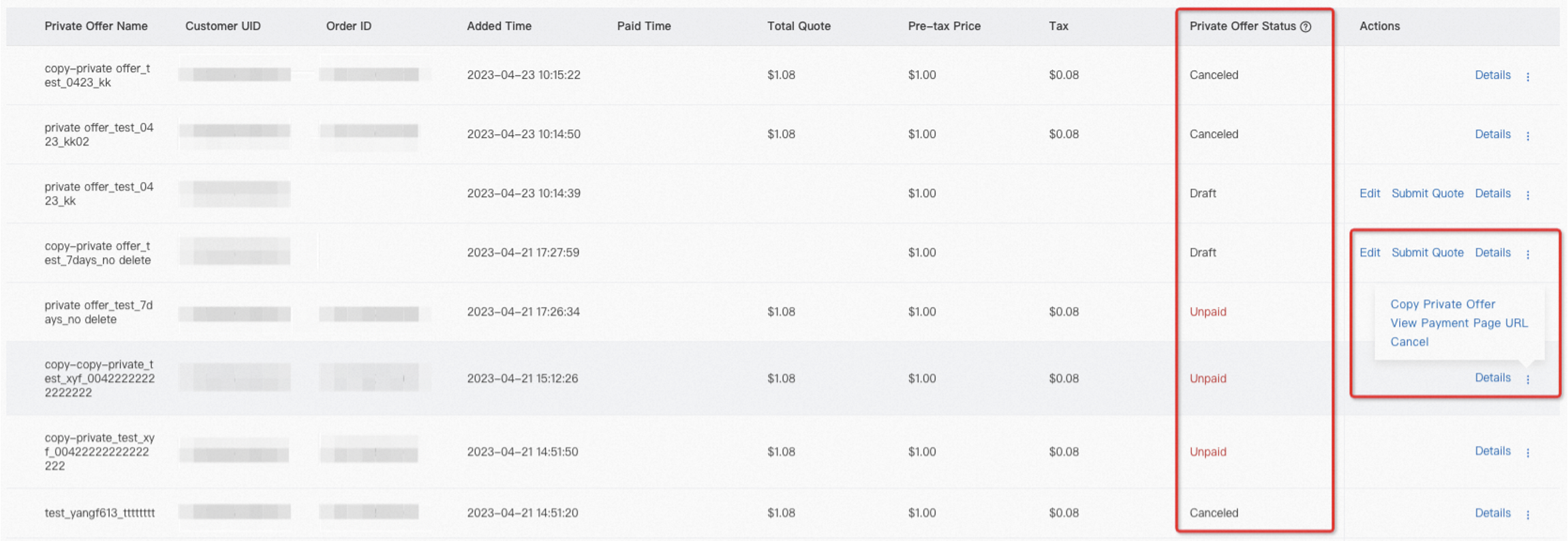
To save the offer without submitting, complete all required fields first, then click Save. The offer is saved with a Draft status.
Step 4: Search and manage private offers
Search for offers
Use the search bar to find private offers by key fields such as offer name or customer UID. Clear the filters to view all offers.
Offer statuses
|
Status |
Description |
Next step |
|
Draft |
The offer is saved but not submitted. |
Complete all required fields and submit the offer. |
|
Unpaid |
The offer is submitted and an unpaid order is generated. The order is automatically canceled if payment is not completed within 7 days. |
Follow up with the customer to complete payment. |
|
Paid |
The customer has paid the order associated with the offer. |
No action required. |
|
Canceled |
The offer is canceled. |
Create a new offer if needed. |