Overview
The Alibaba Cloud Queen SDK plug-in for OBS improves the visual performance of the face for streamers during live streaming. In addition, the plug-in supports a variety of effects such as image matting, body shaping, and stickers to deliver optimal live streaming performance. For more information about the features of the plug-in, see Features.
Face shaping
Background replacement
Prerequisites
Item | Description | ||||||
Operating system | Windows 7 SP1 or later, Windows 10, or Windows 11 is installed. | ||||||
Hardware | The following hardware requirements are met:
| ||||||
Software | OBS Studio 29 or later is installed. | ||||||
Plug-in installation package | The service is discontinued. New users cannot apply. | ||||||
Procedure
Step 1: Install the plug-in
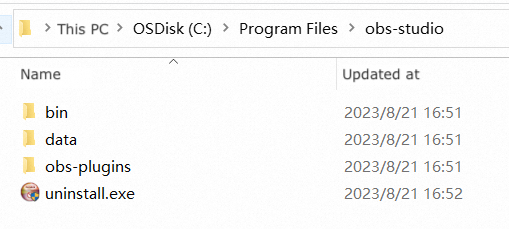
Find the installation directory of OBS Studio, such as C:\ProgramFiles\obs-studio.
Decompress the plug-in installation package. Then, copy the data and obs-plugins folders to the installation directory of OBS Studio. This way, the plug-in is installed.
Step 2: Use the plug-in
Start OBS Studio.
Click the + icon in the lower part of the Sources section.

Select Video Capture Device.

Add a video capture device.


In the Sources section, select the video capture device that you added and click Filters above the Sources section.

In the dialog box that appears, click the + icon in the lower-left corner of the Effect Filters section.
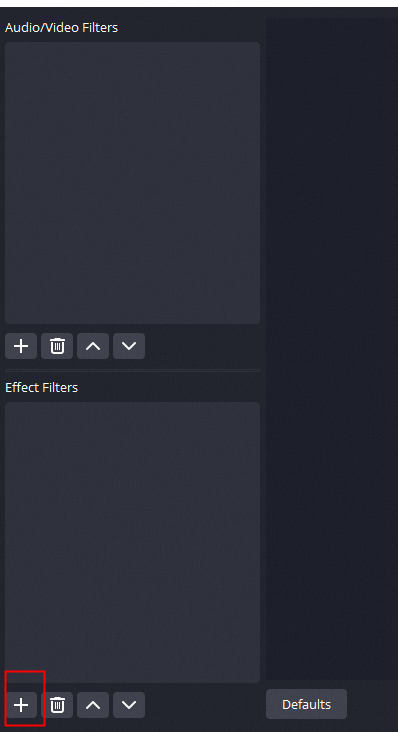
Select the Queen filter. The plug-in is enabled. You can use retouching effects based on your business requirements.
Step 3: (Optional) Update the local license
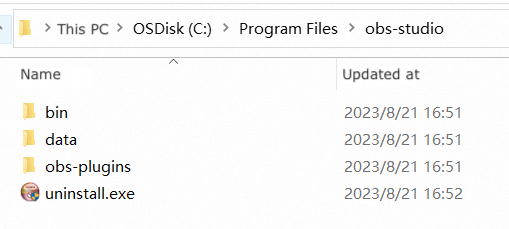
After you purchase or renew an official license for the plug-in, name the new license file AliVideoCert.crt and use it to replace the old license file in the data\obs-plugins\obsalibeauty directory.
FAQ
What should I do if I experience screen flickering immediately upon enabling retouching after installing the Queen SDK plug-in for OBS?
If screen flickering or stuttering occurs, you can add the Scaling/Aspect Ratio filter to the Effect Filters section and place this filter before the Queen filter. Select a resolution that is smaller than the input resolution of the current source, such as 720×1280.