Configure single sign-on (SSO) for your organization in QoderWork CN and Qoder CN CLI Enterprise Standard. Both SAML 2.0 and OIDC are supported.
The new Qoder CN documentation site is now available. Content on this site may not reflect the latest product features and changes. Visit docs.qoder.cn for the latest product documentation.
Overview
Single sign-on (SSO) lets your organization's members authenticate with your corporate identity provider (IdP) without needing separate Qoder credentials.
-
SAML 2.0: A mature, XML-based standard for enterprise authentication, widely used by IdPs such as Okta, Microsoft Entra ID (formerly Azure AD), OneLogin, and Alibaba Cloud IDaaS.
-
OIDC (OpenID Connect): A modern identity protocol built on OAuth 2.0 with automatic endpoint discovery via a discovery URL. Typical providers include Okta, Microsoft Entra ID, Google Workspace, Auth0, Authing, and Alibaba Cloud RAM.
Benefits of SSO
-
Enhanced security: Centralize authentication through your corporate identity provider.
-
Improved user experience: Access all enterprise applications with a single set of credentials.
-
Simplified user management: Auto-create accounts and add users to your organization on first sign-in from a verified domain.
Choosing a protocol
|
Protocol |
Use case |
|
SAML |
Your IdP supports only SAML; you need IdP-initiated SSO; or you have an existing SAML-based auth system. |
|
OIDC |
Your IdP supports OIDC or OAuth 2.0; you want auto-discovery via a discovery URL; or you prefer lightweight JSON-based integration. |
Only one SSO protocol can be enabled at a time. Disable the current configuration before creating a new one.
Prerequisites
Ensure the following:
-
Administrator permissions: Organization-level administrator access.
-
Identity provider permissions: Ability to create and configure applications in your IdP.
-
DNS access: Ability to add a TXT record to your email domain for verification.
Configuration process
The SSO configuration steps for both SAML and OIDC: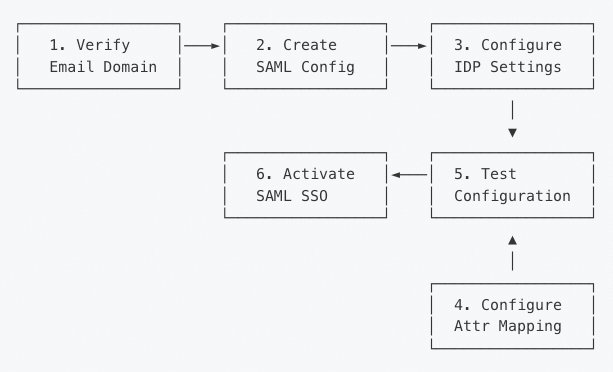
Step 1: Verify your email domain
Verify ownership of your company's email domain so that only users from verified domains can sign in through SSO. Domain verification.
Step 2: Create an SSO configuration
-
As an administrator, go to Organization Settings > Security & Identity.
-
Select SAML Settings or OIDC Settings, depending on your IdP.
SAML
Initialize a SAML configuration. Qoder auto-generates the SP certificate and private key and provides the following values for your IdP setup:
-
SP Entity ID
-
SP Metadata URL
-
SP ACS (Assertion Consumer Service) URL
-
SP Certificate and Private Key
Example SP information:
|
Field |
Example value |
|
SP Entity ID |
|
|
SP Metadata URL |
|
|
SP ACS URL |
|
OIDC
Initialize an OIDC configuration. Qoder generates a Redirect URI and Login URL for registering the application in your IdP. Example SP information:
|
Field |
Example value |
|
Redirect URI |
|
|
Login URL |
|
In your IdP console, create an OAuth 2.0/OIDC application and add the Redirect URI to its allowed redirect URIs. Your IdP issues a client ID and client secret for use in Step 3.
Step 3: Configure IdP
SAML
Configure your SAML IdP using either method:
Method A: Automatic configuration (recommended)
Use this method if your IdP provides a metadata URL:
-
On the SAML Settings page, find the Identity Provider Metadata Configuration section.
-
Select the Import from URL configuration mode.
-
Enter your IdP metadata URL (for example,
https://your-idp.example.com/app/metadata). -
Click Save.
The system retrieves and parses:
-
IDP Entity ID
-
SSO URL
-
Signing certificate
Method B: Manual configuration
Use this method if your IdP does not provide a metadata URL:
-
On the SAML Settings page, select the Manual Configuration mode.
-
Fill in the following fields:
-
IdP Entity ID: The entity identifier of your identity provider.
-
IdP SSO URL: The SSO sign-in endpoint URL.
-
IdP Public Certificate: The PEM-formatted signing certificate (optional, but recommended).
-
-
Click Save.
OIDC
Configure your OIDC IdP using either method:
Method A: Auto-discovery (recommended)
If your IdP exposes a /.well-known/openid-configuration endpoint, use this method:
-
On the OIDC Settings page, select the Issuer URL Auto-Discovery configuration mode.
-
Fill in the following fields:
-
Issuer URL: The issuer address of your IdP (for example,
https://login.company.com,https://oauth.aliyun.com, orhttps://your-tenant.authing.cn/oidc). -
Client ID: The client ID issued to the Qoder application by your IdP.
-
Client Secret: The client secret issued to the Qoder application by your IdP.
-
Scopes: (Optional) Permission scopes to request. Defaults to
openid. Recommended:openid email profile.
-
-
Click Save.
The system retrieves and parses from {issuer URL}/.well-known/openid-configuration:
-
Authorization Endpoint
-
Token Endpoint
-
UserInfo Endpoint
-
JWKS URL (for validating ID token signatures)
-
Supported signing algorithms
Method B: Manual configuration
If your IdP does not support discovery, provide these details manually:
-
Issuer URL, Client ID, Client Secret, Scopes
-
JWKS URL: The JSON Web Key Set URL, used to validate ID token signatures.
-
End Session URL: (Optional) The IdP's session end endpoint to redirect to upon logout.
The openid scope is required. If omitted, the system adds it automatically.
Step 4: Map attributes
SAML
Map SAML attributes to system fields:
Attribute mapping
Use this method if your IdP provides a metadata URL:
-
On the SAML Settings page, scroll to the Attribute Mapping section.
-
Configure the mapping between SAML attributes from your IdP and Qoder user fields.
-
Enter your IDP metadata URL (for example,
https://your-idp.example.com/app/metadata). -
Click Save.
Method B: Manual Configuration
OIDC
-
On the OIDC Settings page, scroll to the Attribute Mapping section.
-
Map OIDC UserInfo claims to system fields:
-
Email Claim: The name of the claim for the user's email, typically
email. (Required) -
Name Claim: The name of the claim for the user's display name, typically
nameornickname. -
OpenID Claim: The unique identifier claim for the user, typically
sub. Theemailcan also be used.
-
-
Click Save.
Email is required: The IdP's UserInfo response must include a valid email address, or authentication fails. Grant the email scope to the Qoder application in your IdP.
Step 5: Test configuration
Test the configuration before enabling SSO:
-
On the SSO configuration page, click Test SSO.
-
The system validates certificates/signatures, metadata endpoints, discovery documents, and attribute mapping.
-
Review the test results.
Step 6: Enable SSO
After all tests pass, enable SSO:
-
On the SSO configuration page, ensure that all validation checks have passed.
-
Turn on the Enable SSO toggle.
-
In the confirmation dialog, review the information and activate.
After activation:
-
The SSO status changes to Active.
-
Members can now sign in using SAML or OIDC SSO.
-
Users from a verified domain are automatically redirected to SSO after entering their email.
After enabling SSO, the administrator who configured it should not sign out. Test the sign-in flow with a different account from a verified domain to ensure admin access remains available for troubleshooting.