IoT Edge lets you create edge applications based on Alibaba Cloud Function Compute.
Prerequisites
You have created a function. For more information, see Alibaba Cloud Function Compute.
Procedure
Log on to the IoT Edge console.
In the navigation pane on the left, click Application Management.
On the Application Management page, on the , click Create Application.
Set the application parameters and click OK.
Application information
Parameter
Description
Application Name
Enter a name for the application. The name can contain letters, digits, and underscores (_). It can be up to 128 characters long.
Application Type
The following application types are available:
Function Compute: Create an application using Alibaba Cloud Function Compute.
Container Image: Create an application using Container Registry (ACR).
Local Upload: Use a locally developed function.
Select Function Compute.
Region
Select the region where your Function Compute service is located.
Service
Select the service where your function is located.
Function
Select the function that you created.
ImportantFunctions developed in Python are supported only in Link IoT Edge Pro Edition instances.
Authorization
Select a role to grant permissions to Alibaba Cloud Function Compute. For more information about roles, see Access cloud resources.
Application Version
Set a version for the application. The version number must be unique within the application.
Version Description
Enter a description for the application version, such as its features. This parameter is optional.
Function configuration
Parameter
Description
Runtime Mode
Two modes are available: on-demand and persistent.
On-demand: This is the native runtime mode of Function Compute. After a function is deployed to an edge, it does not run immediately. The function is loaded and runs only when it is triggered by an event. If no new events trigger the function for a period of time, it stops running. If your program is event-driven and the trigger frequency is less than once every 20 minutes, select this mode. This mode reduces the pressure on the CPU and memory resources of the edge gateway. If events are triggered frequently, the on-demand function remains running to ensure fast responses.
Persistent: This is a unique runtime mode for the edge. After a function is deployed to an edge, it is immediately loaded and runs. This mode is suitable for traditional server-side programs that need to run continuously. If your program is a server-side program that needs to listen on a port to respond to requests independently, such as an HTTP Server, select this mode. IoT Edge keeps the function alive. If the function exits unexpectedly, it is restarted.
Memory Limit
Set the maximum memory that the function can use. If the memory usage of the function exceeds the limit, the function is restarted. This prevents system instability caused by a memory leak. If the memory limit is too small, the function may fail to run. The default value is 512 MB. In most cases, you can use the default value.
Timeout Limit
When an event is triggered, the handler in the code is invoked to process the event. After the event is processed, an acknowledgement message is sent to return the result and indicate that the processing is complete. If the function does not return a result within the specified timeout period, the function is considered abnormal and is restarted.
Scheduled Run
Configure the time and frequency at which the function is triggered. The value must be a cron expression. For example,
* * * * *indicates that the function is triggered every minute, and20 * * * *indicates that the function is triggered at the 20th minute of every hour. For more information, see the CRONTAB website.Environment Variables
Configure custom environment variables that can be directly read when the function code runs. Click Add Environment Variable and set a variable name and value to add an environment variable. You can configure up to 10 environment variables.
This feature separates code from configurations to improve code portability. For example, the function code needs to request services from other hosts on the network. The IP addresses and ports of the servers are usually different in different environments. By passing the IP address and port information as configuration parameters through environment variables, gateways in different environments can share the same function code.
Container configuration
Parameter
Description
Use Host Network
Specifies whether to isolate the container's network and use the host network environment directly.
Yes: The container's network is not isolated. The host network is used directly.
No: The container's network is isolated. You must configure Port Mapping.
Port Mapping
This parameter appears when Use Host Network is set to No. The network environment of the function is completely isolated from the host environment. Through port mapping, you can map the listening port of the function in the container to a port on the host. This allows client programs on different hosts to access the service provided by the function. You can map up to 10 network ports.
For example, the
fc-http-serverfunction runs in a container on the host and provides services on port 80. In this case, client programs on other hosts cannot access thefc-http-serverfunction by accessing port 80 of the host. Therefore, you need to map the container port of thefc-http-serverfunction to a port on the host. For example, map port 80 in the container to port 8080 on the host. This allows client programs on other hosts to access thefc-http-serverfunction in the container by accessingHost IP address:8080.Enable Privileged Mode
The root user in a container is actually a regular user on the host. To perform operations that require root permissions inside the container, such as modifying the system time or using the mount command, you must grant the container privileged mode.
NoteIn privileged mode, the container has root permissions on the host. All host devices are mapped to the container by default. You do not need to configure Device Mapping.
Device Mapping
This parameter appears when Enable Privileged Mode is set to No. The device management system is completely isolated from the host environment. When a function needs to access a host device, such as a serial port, you must map the device to the container where the function runs. You can add up to 10 device mappings.
Volume Mapping
The file system is completely isolated from the host environment. When a function needs to access a host file, you must map the file to the container where the function runs. You can add up to 10 volume mappings.
After you create the application, you can view it on the Application Management page. You can also perform more operations from the Actions

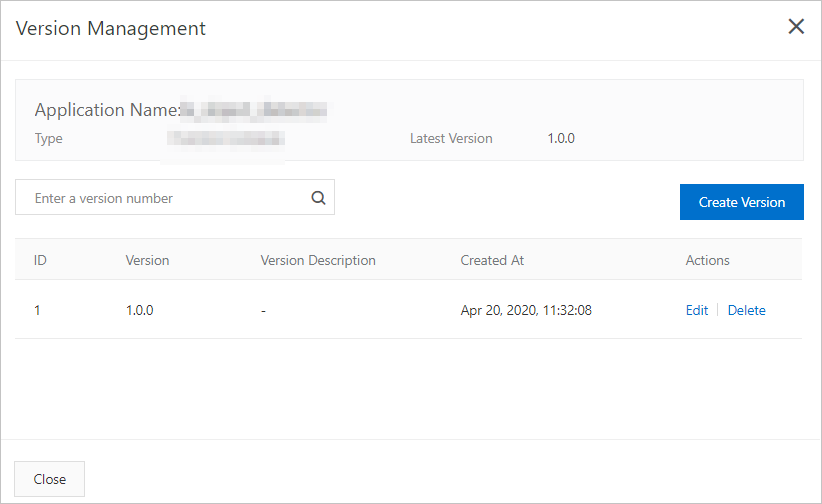
Version Management
Click Version Management to add, modify, or delete application versions.
Delete
Click Delete to delete the application.
NoteBefore you delete an application, you must delete all of its versions. Otherwise, you cannot delete the application.
What to do next
Assign the created edge application to an edge instance. For more information, see Assign an edge application to an edge instance.