Link IoT Edge allows you to resume data transmission from a breakpoint. If the local network is disconnected or no response is returned within 15 seconds after data is uploaded to Alibaba Cloud, the data is persisted on premises. After the network connection recovers, historical data will be uploaded again. To resume data transmission from a breakpoint, you must configure a message route in IoT Platform. You can also customize the persistence settings at the edge.
Configure message routes in IoT Platform
Messages at the edge have multiple sources, such as devices, and Function Compute. Link IoT Edge supports configuring an exclusive message route for each message source. If you want to persist messages from a specified source on premises and enable message transmission resumption in case of network interruptions, you must configure a message route. When you configure a message route, you must set the Message Destination parameter to IoT Hub and the Service Level parameter to 1 (QoS = level 1).
This topic describes how to resume data transmission from a breakpoint based on the steps that are specified in the Sample drivers topic.
- Perform the steps that are specified in the Sample drivers topic.
- Assign a message route to the created edge instance. For more information about how to configure a message route, see Configure message routing.Note When configuring the parameters of the message route, you must set the Message Destination parameter to IoT Hub and the Service Level parameter to 1.
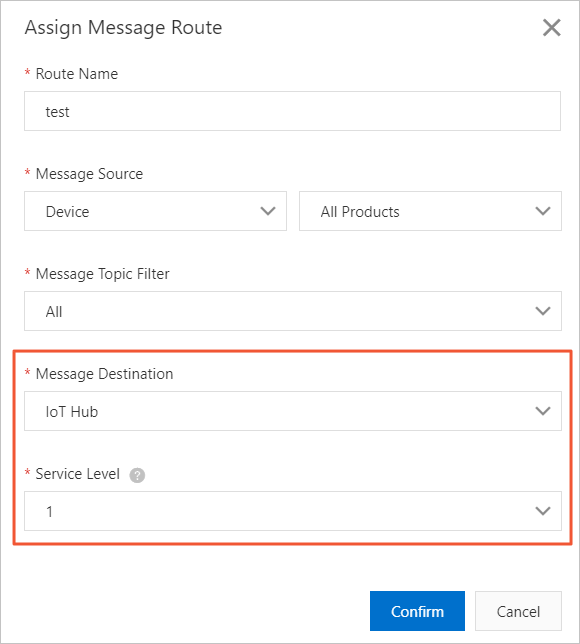
- On the Instance Details page, click Deploy in the upper-right corner to redeploy the edge instance.
Persistence settings at the edge
The following three configuration items are included: the file storage path, the number of nodes, and the node storage space.
If the size of persistent files exceeds the limit, the earliest data node is deleted.
You can use the following default configurations.
| Configuration item | Default value |
| File storage path
| /linkedge/run/history_record |
| Maximum number of nodes
| 10 |
| Maximum storage space of a node
| 104857600 (100 MB) |
You can also use the following operations to customize configurations.
| Operation | Description |
| Retrieve the file storage path |
|
| Configure the file storage path |
|
| Retrieve the number of nodes |
|
| Configure the number of nodes |
|
| Retrieve the maximum storage space of a node |
|
| Configure the maximum storage space of a node |
|
Verify the feature of data transmission resumption
The following example uses the LightSensor device that is created in the Sample drivers topic to verify the feature of data transmission resumption.
For the message route that is assigned to the edge instance, the Message Destination and Service Level parameters have been set to IoT Hub and 1, respectively. For the persistent settings at the edge, use the default values.
- View storage space occupied by historical data.View storage space occupied by persistent files. The occupied storage space may be larger than the size of the persistent files due to data structure.Note A non-zero size of the persistent file directory (
! = 0) does not guarantee that historical data exist.#du /linkedge/run/history_record/ -d 0 -h 28.0K /linkedge/run/history_record/ - Simulate network exceptions.Unplug the network cable and run the following command after several seconds. The storage space occupied by the persistent file directory continues to increase.
#du /linkedge/run/history_record/ -d 0 -h 28.0K /linkedge/run/history_record/ #du /linkedge/run/history_record/ -d 0 -h 56.0K /linkedge/run/history_record/ #du /linkedge/run/history_record/ -d 0 -h 92.0K /linkedge/run/history_record/ - Restore the network connection.Plug in the network cable. After the network connection is restored, log on to the IoT Platform console to view the status of the LightSensor device. Check whether data is lost during the network disconnection period.
- Log on to the IoT Platform console.
- In the left-side navigation pane, choose .
- Find the required edge instance and click View. In this example, the LinkIoTEdge_Node instance is specified.
- Select Devices & Drivers. Select the required driver. Find the required device and click View to view the status of the device. In this example, the LightSensor device is specified.

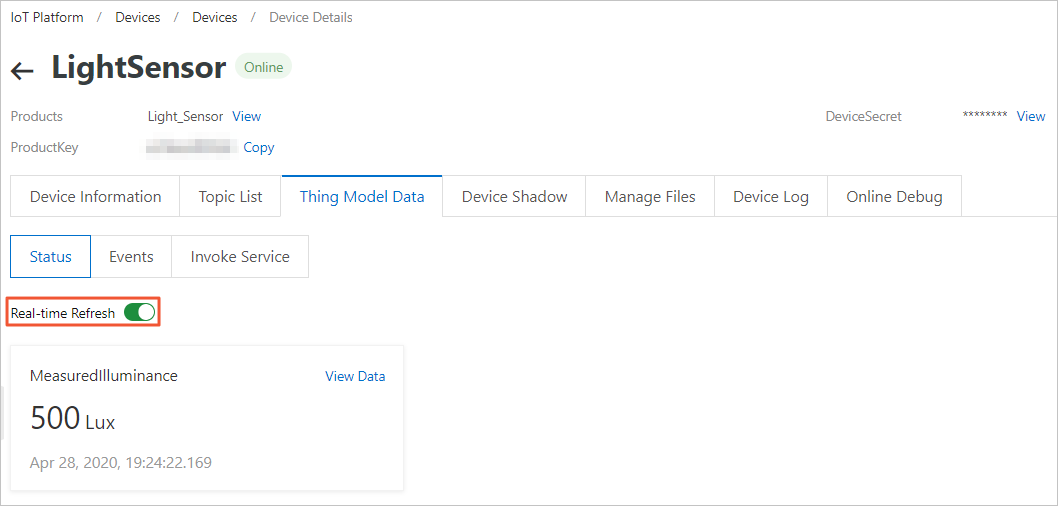
- On the Device Details page, select Status. Turn on the Real-time Refresh switch to view the latest data that the device has submitted.
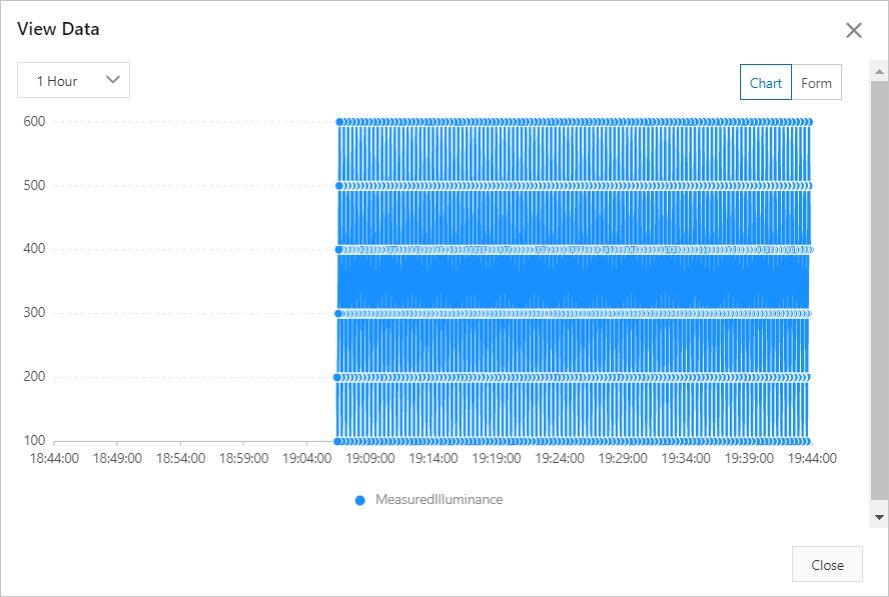
- Click View Data next to a metric name to view historical data. You can use timestamps to check whether data exists during the network disconnection period.In this example, the data generated during the network disconnection period has been uploaded to Alibaba Cloud.
FAQ
- Will disk I/O performance be affected during data transmission resumption?
Yes. If a network disconnection occurs, Link IoT Edge persists data to be uploaded on premises. Disk I/O performance is affected based on the data size.
- Why historical data has not been submitted to IoT Platform after the network connection is restored?
The maximum number of records that can be submitted per second is 10. If a large amount of historical data needs to be submitted, the data transmission process is time-consuming.
- How can I customize the storage path and maximum size of persistent files?
For information about how to customize the storage path and maximum size of persistent files, see Persistence settings at the edge in this topic.
- Will new data be saved if the size of persistent files reaches the limit during a network disconnection period?
Yes. If the size of persistent files reaches the limit, the earliest data is deleted.
- How do I view the logs for data transmission resumption? You can run the following commands to view the logs:
cd /linkedge/run/logger/message-router/tail -f log.INFO