This topic describes how to connect an OPC Unified Architecture (OPC UA) sub-device to a gateway and enable the sub-device to interact with IoT Platform.
Prerequisites
- A Docker runtime environment is built for Link IoT Edge Pro.
- An edge instance is created and the gateway assigned to the edge instance is brought online. For more information, see Link IoT Edge Pro.
Step 1: Build an OPC UA Server
The following table describes the environment requirements for an OPC UA Server.
| Item | Version | Installation command |
| Python | 3.5.2 or later | None |
| PIP | 9.0.1 or later | None |
| OPC UA | 0.98.3 or later | pip install opcua==0.98.3 |
To build an OPC UA Server to simulate an LED light that is named demo_led and has the temperature property and high_temperature event, follow these steps:
- Run the following command to download the package of the OPC UA Server:
wget http://iotedge-web.oss-cn-shanghai.aliyuncs.com/public/driverSample/opcua_simulation_server.tar.gz - Run the following commands to start the OPC UA Server:
tar -zxvf opcua_simulation_server.tar.gz
cd opcua_simulation_server && ./opcua_simulation_server.sh
Step 2: Install an OPC UA client
Before connecting the simulated LED light to a gateway through an OPC UA driver, you must configure the simulated LED light. When configuring the simulated LED light, you must use an OPC UA client to obtain the information about the simulated LED light from the OPC UA Server. The obtained information is required when you create a product and configure the driver in the IoT Platform console.
In this example, UaExpert is used as an OPC UA client.
- Download and install UaExpert.
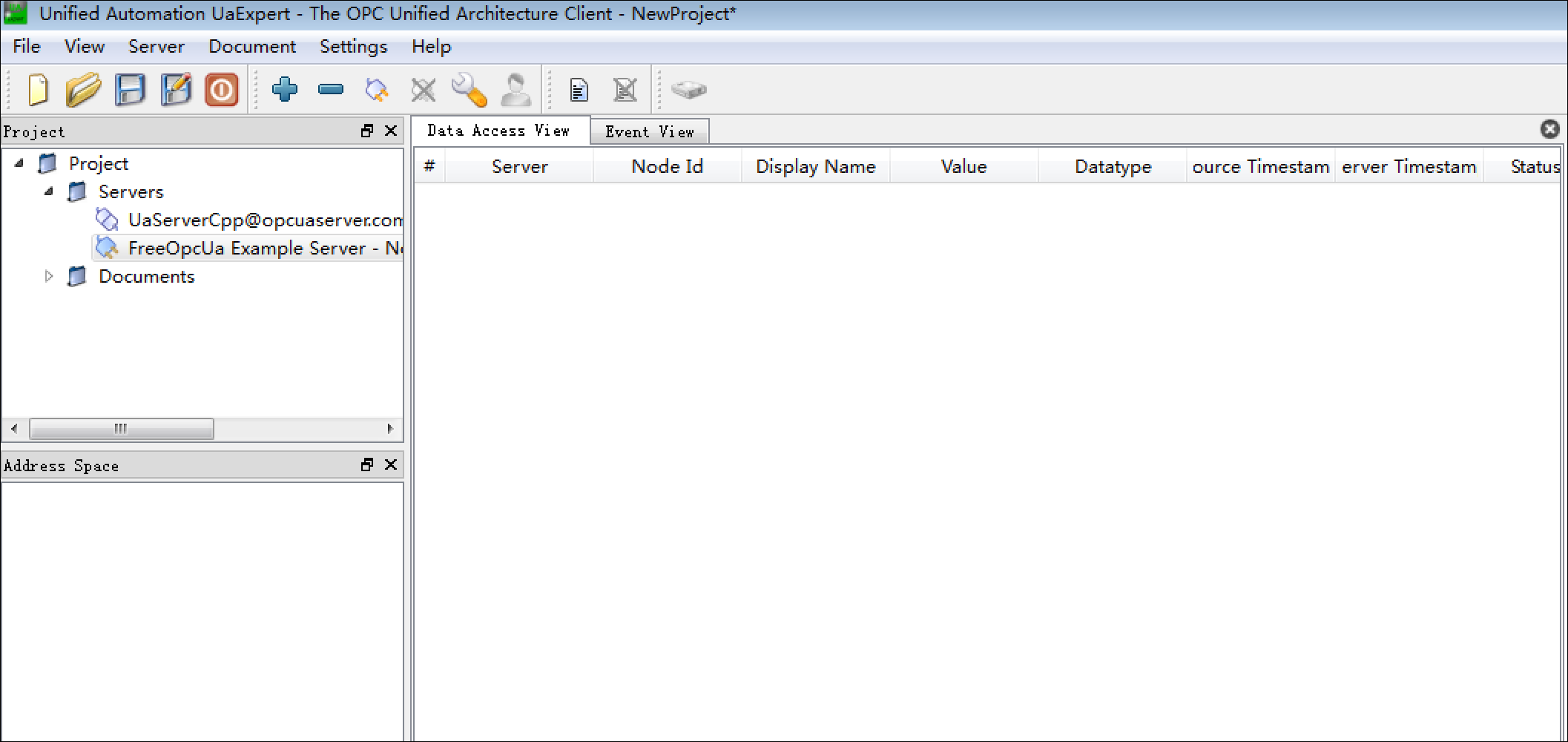
- Start UaExpert.
- Click
+in the toolbar.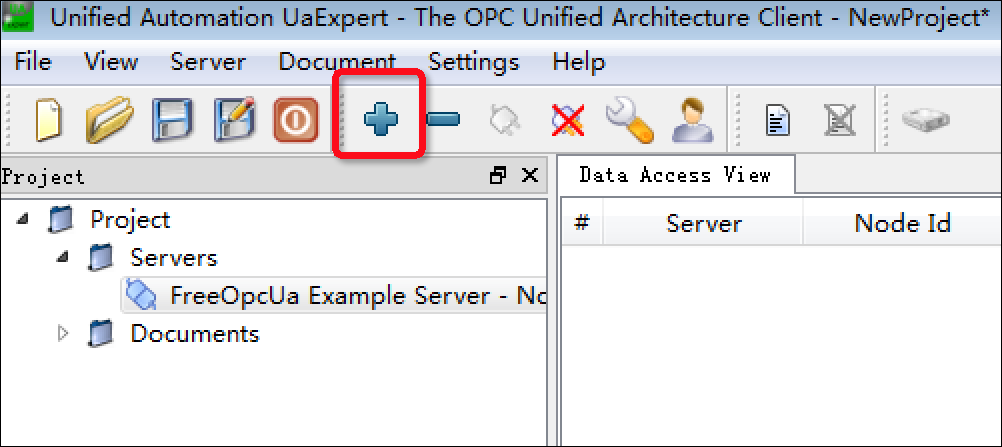
- In the Add Server dialog box that appears, click the Advanced tab and set Endpoint Url to the URL of the OPC UA Server. In the URL, specify the IP address and port number of the host where the OPC UA Server resides in the
Host IP address:Port numberformat.Note For example, if the default port number of the OPC UA Server is4840and the IP address is 192.168.1.1, set the Endpoint Url parameter to the following value:opc.tcp://192.168.1.1:4840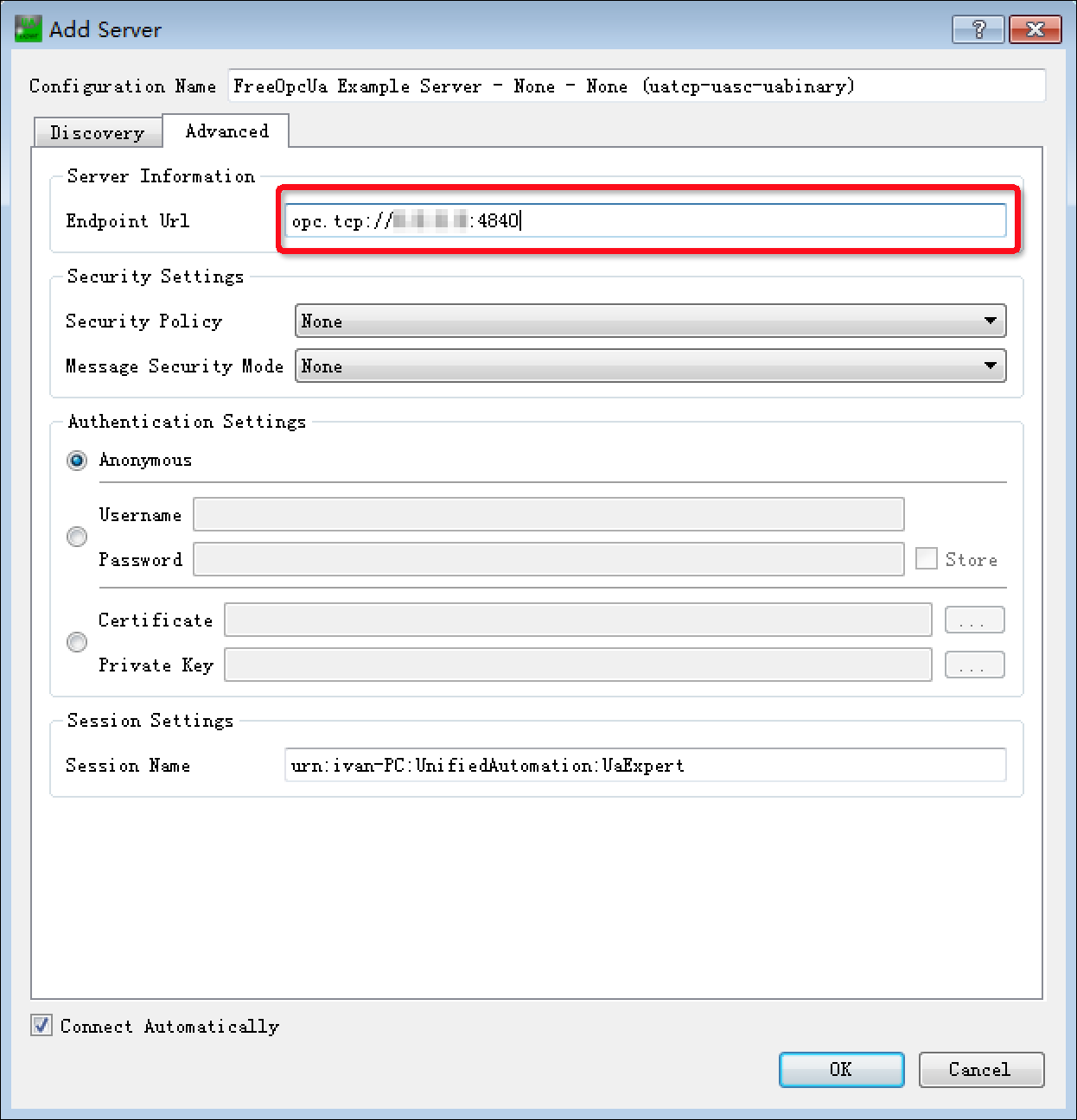
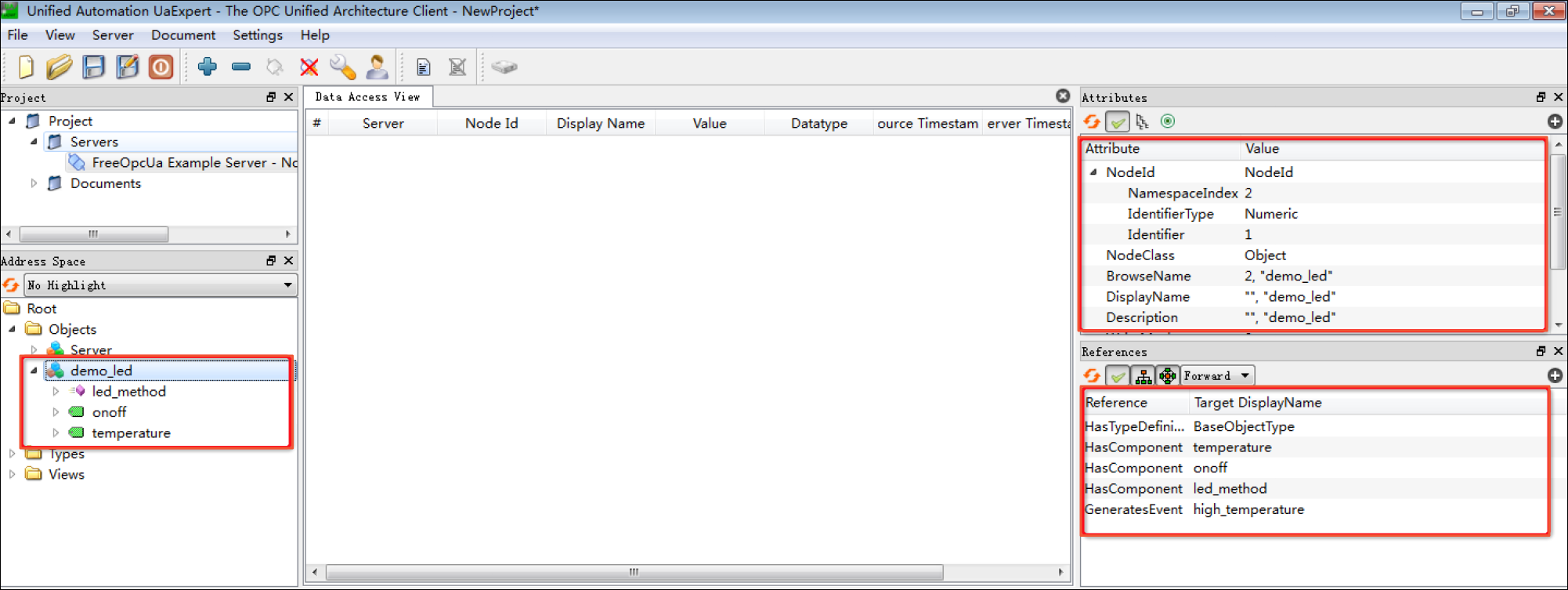
- Click OK. The information about the simulated LED light appears.
Step 3: Add the simulated LED light as an OPC UA sub-device
- Create an OPC UA product. For more information, see Create a product.
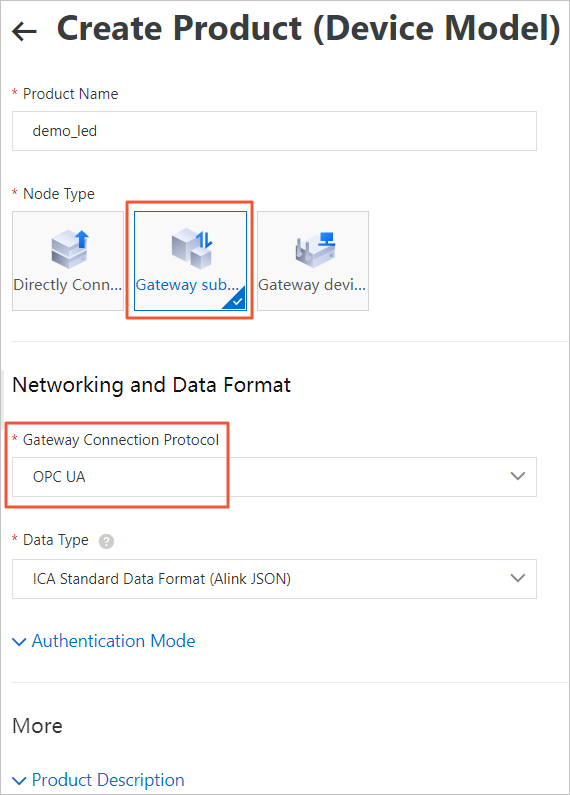
The following table describes some required parameters.
Parameter Description Node Type Select Gateway sub-device. Gateway Connection Protocol Select OPC UA. - Add custom features for the product. For more information, see Add a TSL feature.
- Add a property
- Set required parameters for the property, as shown in the following figure.
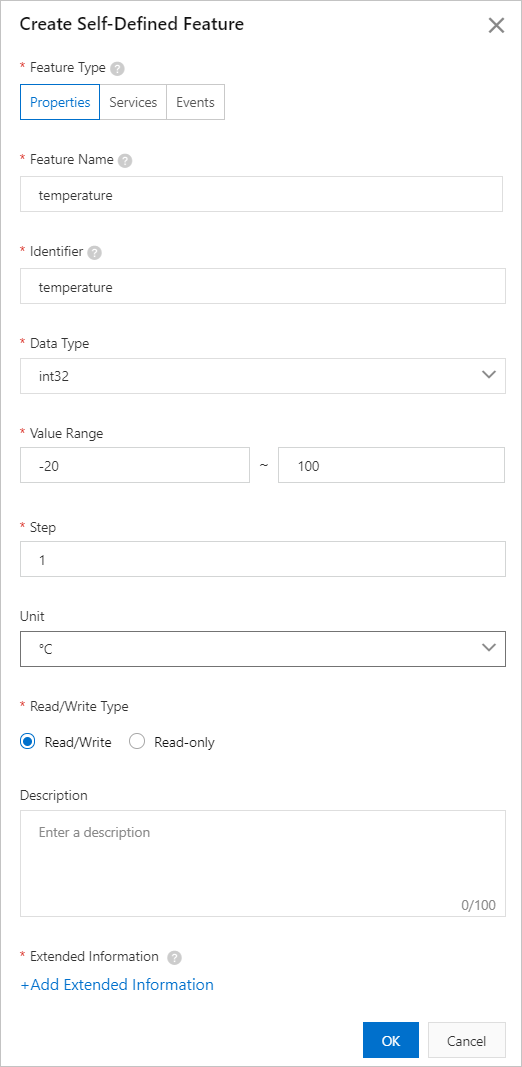
- Click Add Extended Information. In the Add Extended Information dialog box that appears, set Node Name.
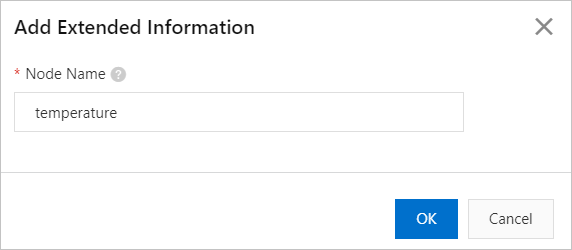 To obtain the value of Node Name, find the simulated LED light named demo_led in UaExpert and click temperature under demo_led. Check the value of DisplayName in the Attributes section on the right and use it as the value of Node Name.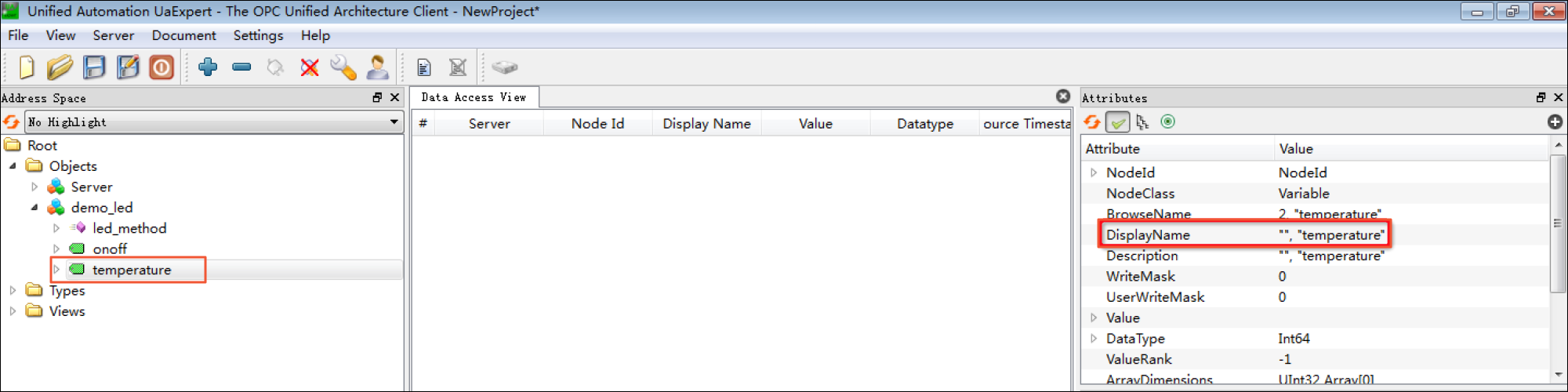
- Set required parameters for the property, as shown in the following figure.
- Add a service
- Set required parameters for the service, as shown in the following figure.
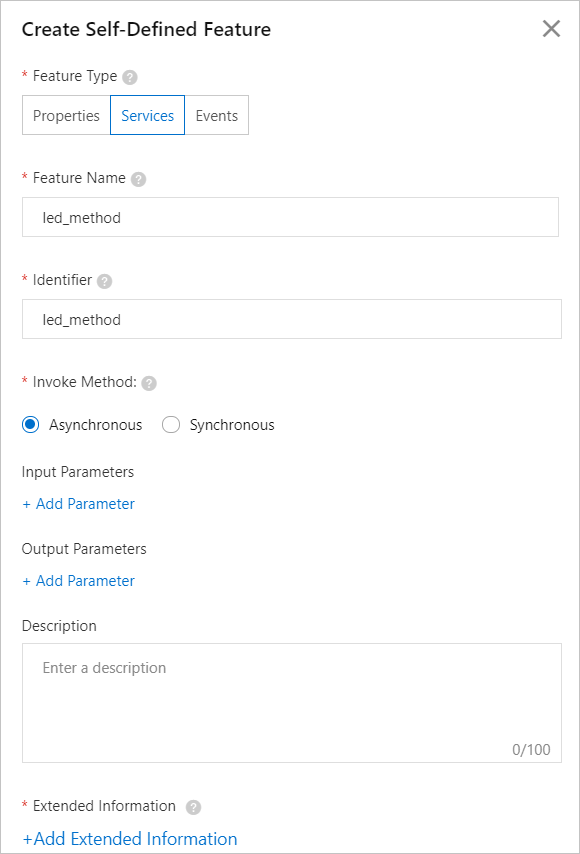
- Click Add Parameter under Input Parameters to add a parameter for the service.
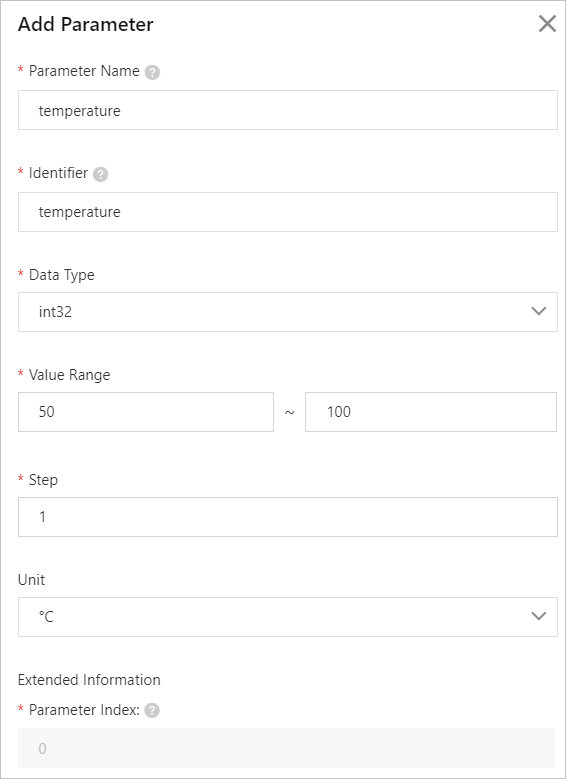
- Click Add Extended Information. In the Add Extended Information dialog box that appears, set Node Name.
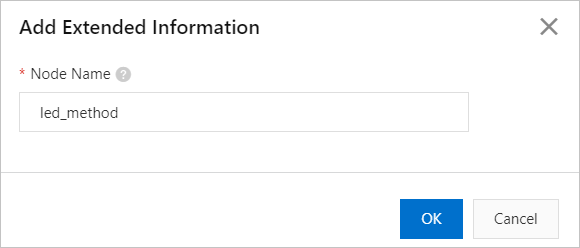
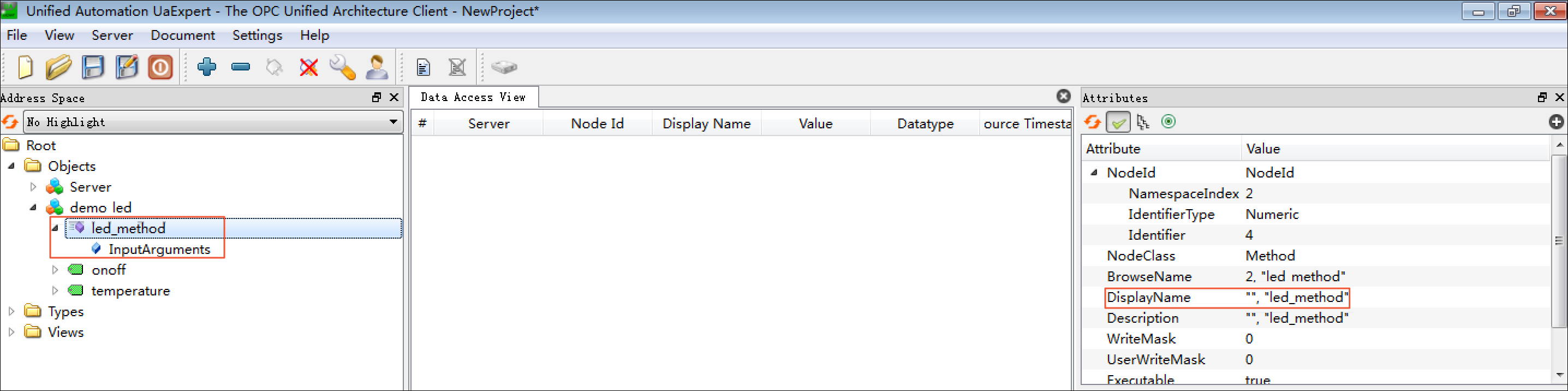
To obtain the value of Node Name, find the simulated LED light named demo_led in UaExpert and click led_method under demo_led. Check the value of DisplayName in the Attributes section on the right and use it as the value of Node Name.
- Set required parameters for the service, as shown in the following figure.
- Add an event
- Set required parameters for the event, as shown in the following figure.
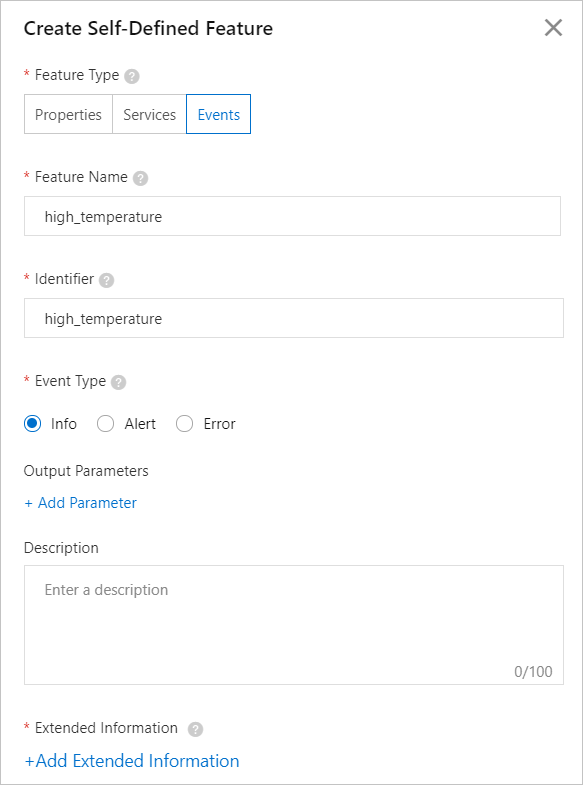
- Click Add Parameter under Output Parameters to add a parameter for the event.
- Click Add Extended Information. In the Add Extended Information dialog box that appears, set Node Name.
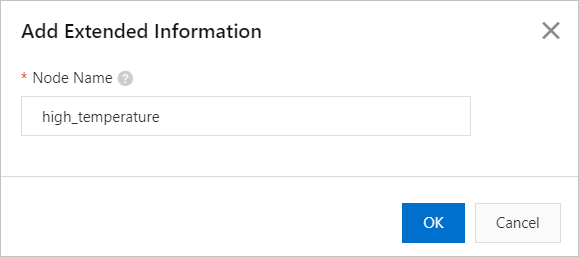
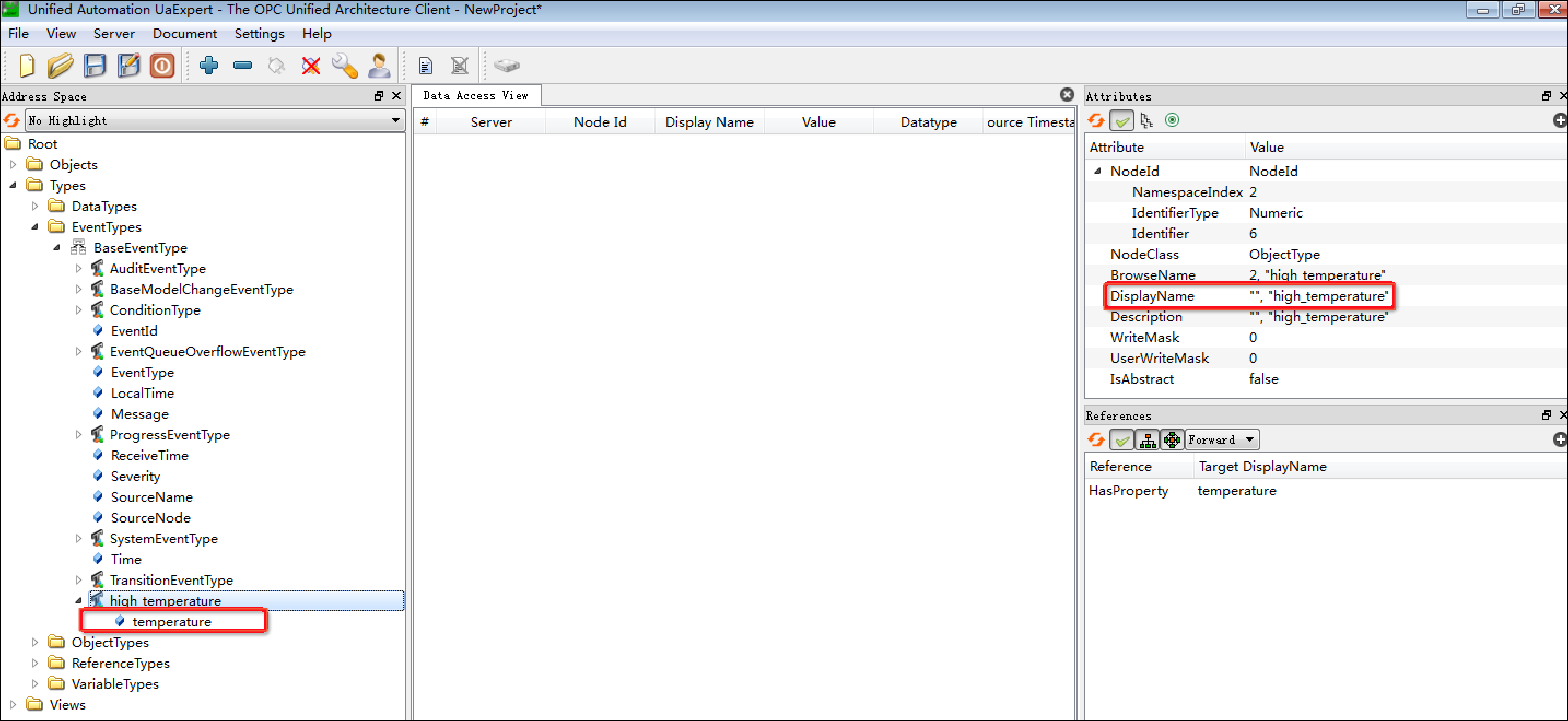
To obtain the value of Node Name, find the high_temperature event of the simulated LED light in UaExpert and click the event name. Check the value of DisplayName in the Attributes section on the right and use it as the value of Node Name.
- Set required parameters for the event, as shown in the following figure.
- Add a property
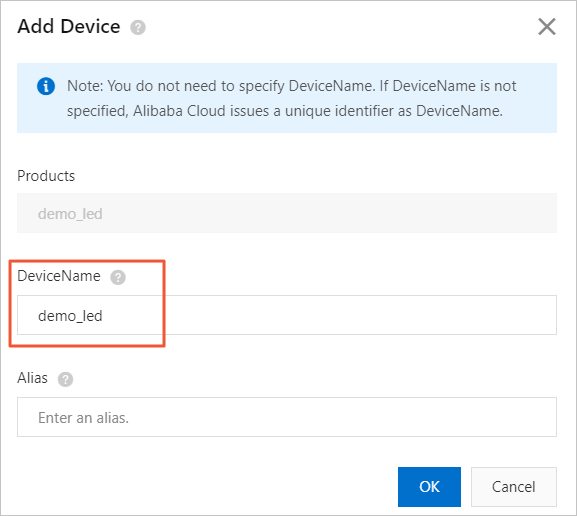
- Add the simulated LED light as a sub-device to the OPC UA product. For more information, see Create a device.
Step 4: Configure the edge instance
- On the homepage of the IoT Platform console, choose Link IoT Edge > Edge Instances in the left-side navigation pane. On the Edge Instances page, find the target edge instance and click View in the Actions column.
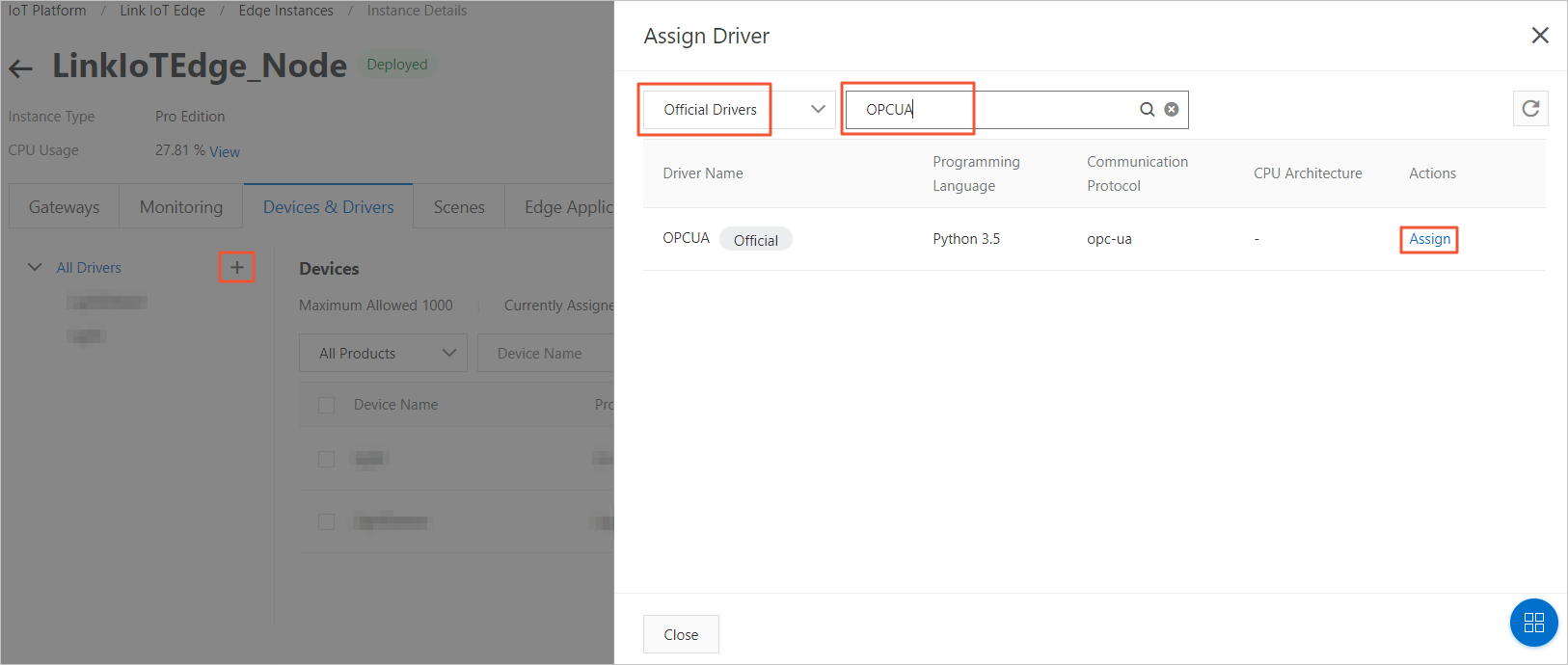
- On the Instance Details page that appears, click the Devices & Drivers tab and then click Assign Driver. In the Assign Driver dialog box that appears, select Official Drivers, find the driver named OPCUA, and then click Assign in the Actions column.
- Go back to the Devices & Drivers tab, click OPCUA in the All Drivers section on the left, and then click Driver Configurations next to Devices on the right. In the Driver Configurations dialog box that appears, click Add Channel. In the Add Channel dialog box that appears, set channel parameters and click OK.
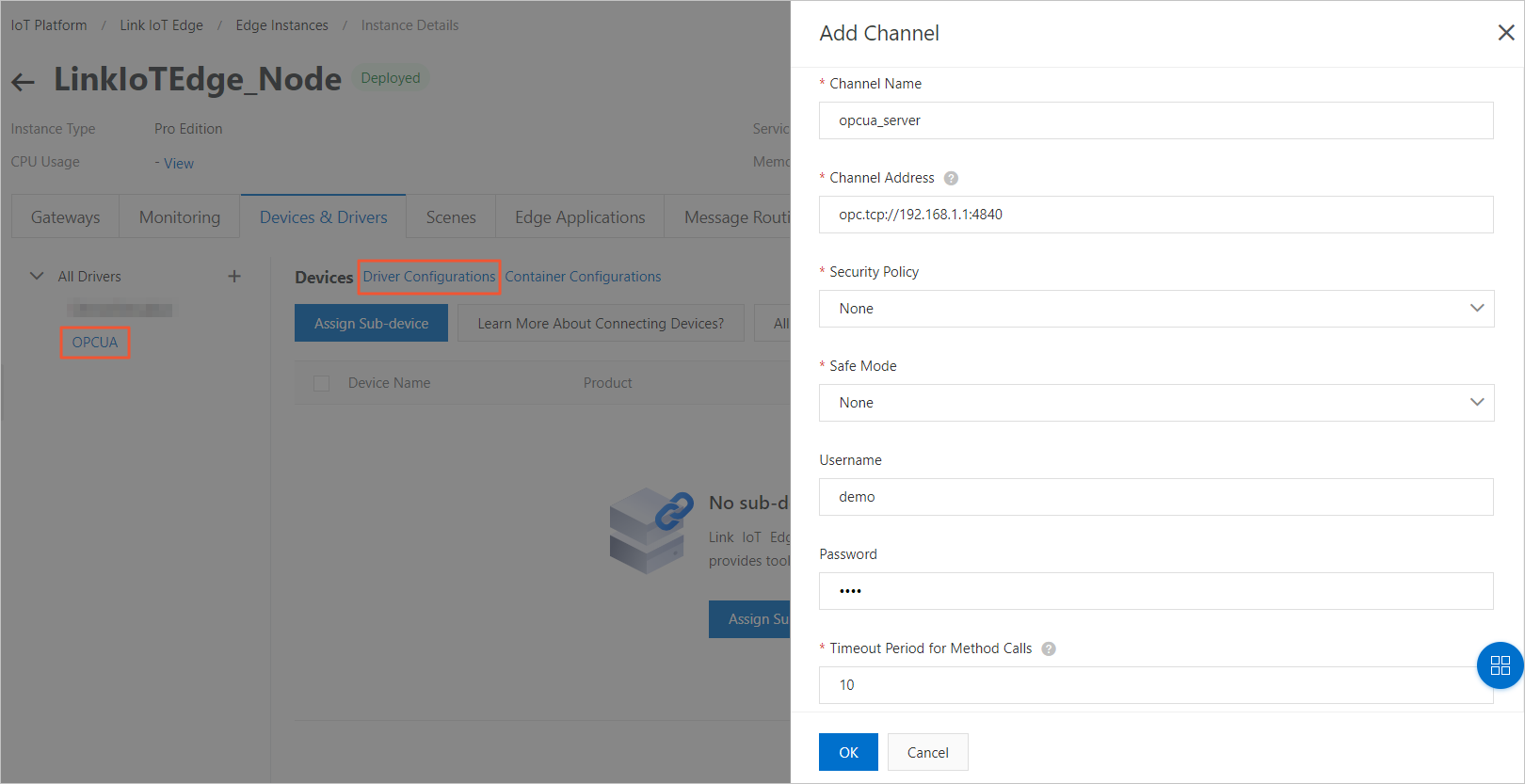
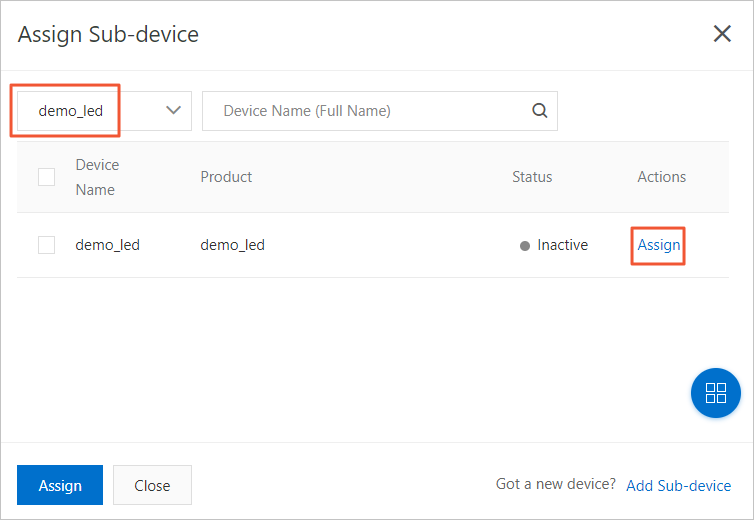
Table 1. Description of channel parameters Parameter Description Example Channel Name The name of the OPC UA channel. opcua_server Channel Address The URL of the OPC UA Server. opc.tcp://192.168.1.1:4840 Username The username for connecting to the OPC UA Server. demo Password The password for connecting to the OPC UA Server. abc123 Timeout Period for Method Calls The timeout period of a request for calling the OPC UA Server. 10 - On the Devices & Drivers tab, click OPCUA in the All Drivers section on the left and click Assign Sub-device under Devices. In the Assign Sub-device dialog box that appears, find the simulated LED light and click Assign in the Actions column.
- Go back to the Devices & Drivers tab, find the simulated LED light you assigned, and then click Device Configurations in the Actions column. The Device Configurations dialog box appears.
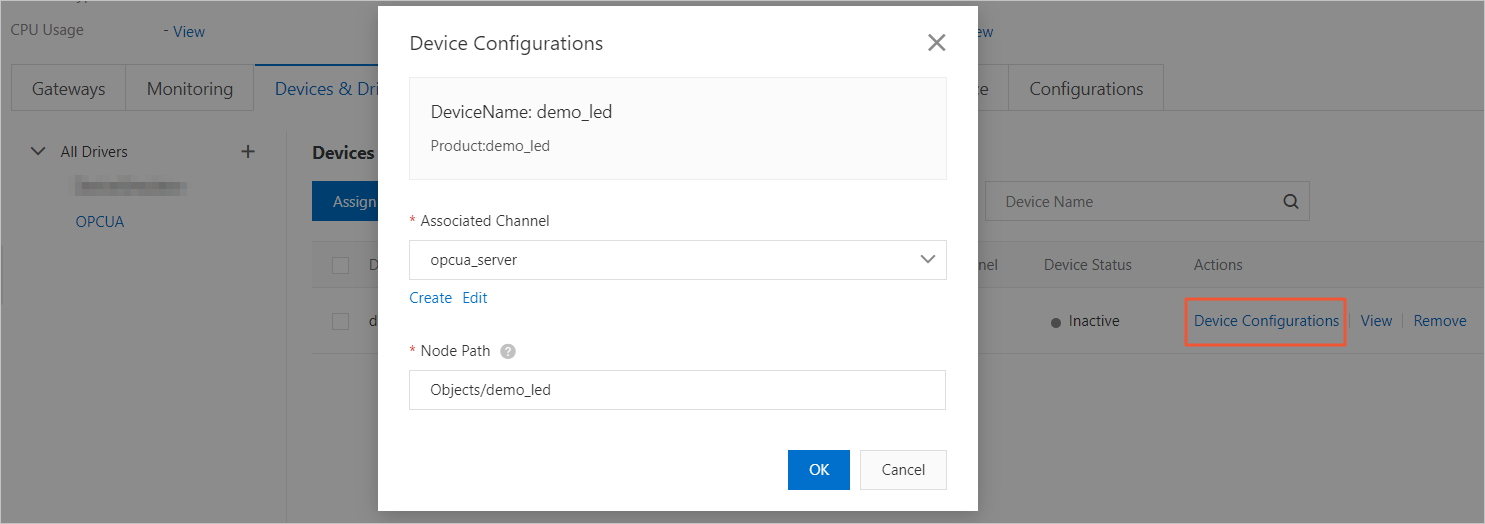
Table 2. Description of parameters in the Device Configurations dialog box Parameter Description Associate Channel Select the channel you added. Node Path Set this parameter to the absolute path of the simulated LED light on the OPC UA Server. The path starts with Objects. In this example, the absolute path is Objects/demo_led.
- On the Instance Details page of the edge instance, click Deploy in the upper-right corner to deploy the edge instance.
- On the Instance Details page, click the Devices & Drivers tab. Click OPCUA in the All Drivers section on the left, find the simulated LED light on the right, and then check whether the value of Device Status is Online.
