In Link IoT Edge, an edge instance can be associated with a pair of active/standby gateways.
Prerequisites
An edge instance and two gateways are created. For more information about how to create an edge instance, see Build environments for Link IoT Edge Standard Edition. Note that the version of Link IoT Edge Standard Edition that is installed on each edge gateway must be 2.4.0 or later.
Note
- Only Link IoT Edge Standard Edition 2.4.0 and later support active/standby gateways.
- The network interface controllers of two physical gateways must reside in the same network.
Procedure
- In the left-side navigation pane of the IoT Platform console, choose . Find the created edge instance and click View.
- On the Instance Details page, click the Gateways tab.
- On the Gateway tab, click Associate Gateway.
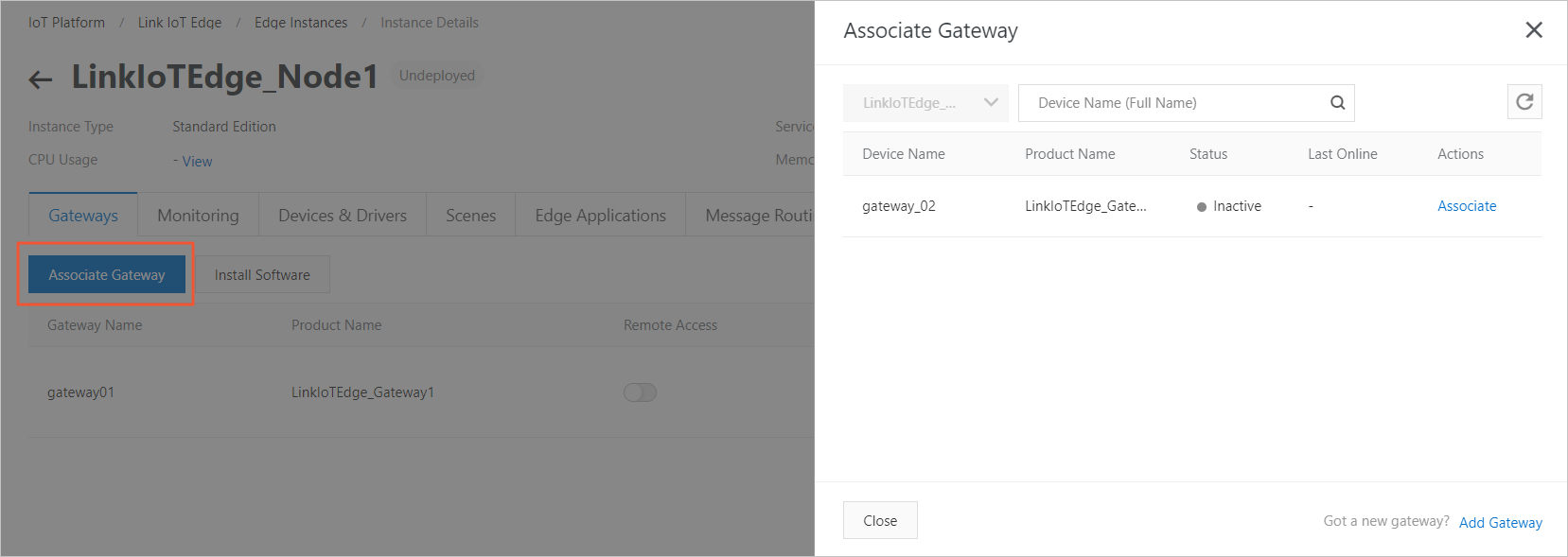
- In the Associate Gateway dialog box that appears, select the second gateway that you want to associate with the edge instance.
Important The gateway to be associated and the gateway that has been associated to the edge instance must belong to the same gateway product. If no gateway is available, add a gateway device for the gateway product. For more information about how to add a gateway device, see Create a device.
- In the Active/Standby Configuration dialog box that appears, configure parameters based on prompted instructions and click OK.
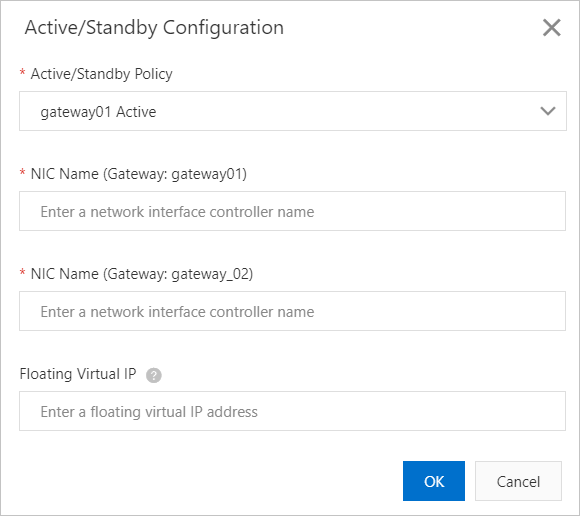
Table 1. Parameters Parameter Description Active/Standby Policy Specifies the priorities of the two gateways. - If you select a gateway, the gateway is used as the active gateway. If the active gateway is unavailable, the standby gateway is used. Once the active gateway is available, the system switches businesses back to the active gateway.
- If you select Automatic, an available gateway remains as the active gateway. If both gateways are available, the active gateway is determined by the backend. If the active gateway is unavailable, the standby gateway becomes the active gateway.
Network Interface Controller Name The name of the network interface controller in the gateway. Important The network interface controllers of two physical gateways must reside in the same network.Floating Virtual IP The IP address of the gateway. If a failover occurs, the IP address changes with the active gateway. This ensures that you can use the IP address to access the active gateway. - Connect the second associated gateway to IoT Platform.
- On the Gateways tab, click Install Software.
- In the dialog box that appears, configure parameters and click Installation Command.
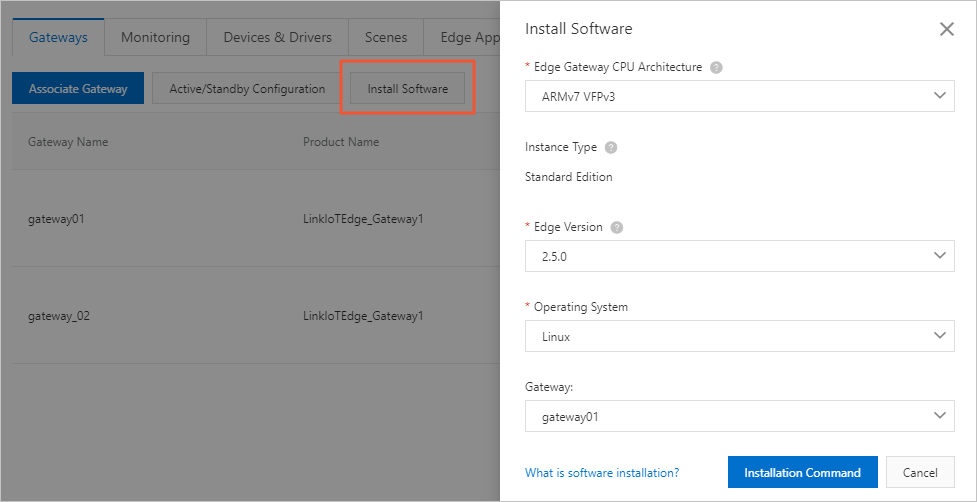
Table 2. Parameters Parameter Description Edge Gateway CPU Architecture The CPU architecture of the gateway device. Instance Type The Link IoT Edge edition that is specified when you created the edge instance. The parameter value is specified by default and unchangeable. Edge Version The version of Link IoT Edge. Operating System The operating system of the gateway device. Gateway The gateway that you want to connect to IoT Platform.
You have completed the configurations of the active and standby gateways. - Optional. On the Gateways tab, click Active/Standby Configuration to modify the configurations of the gateways. For more information about how to specify the parameters, see Parameters in step 5.
- Optional. On the Gateways tab, click Associate Gateway. In the dialog box that appears, click Dissociate.